

Workflows
A workflow is an instruction the assistant carries out on its own, without anyone opening the chat: “every Friday at 09:00, list our unpaid invoices and email them to accounts”. On the Workflows page you write workflows, start them with Run now, give them schedules and read their run history. Open it from ConfigureWorkflows. Everyone in your company sees this page when your provider shows it. A workflow is either a company workflow, shared with everyone in your company and managed by its Admins, or a personal one, which only its author sees.
What you can do here
Section titled “What you can do here”- Write a workflow. Choose who it is for, give it a name and a self-contained instruction; the instruction is sent to the assistant as if you had typed it. Create a workflow.
- Share it with your company, or keep it to yourself. Workflows for the whole company are visible to every member, who see their runs and get their notifications; personal ones are yours alone. Who sees what.
- Run it now. Start a run at once to test the instruction; up to 5 runs per minute. Run a workflow now.
- Put it on a schedule. Daily, on weekdays, weekly or monthly, at a time in 15-minute steps in the time zone you choose. Schedule a workflow.
- Check how runs went. See the last 20 runs with their status and any error. Check the run history.
- Change or delete a workflow. Edit the name or instruction, or delete the workflow with its schedules and history. Edit or delete a workflow.
The screen at a glance
Section titled “The screen at a glance”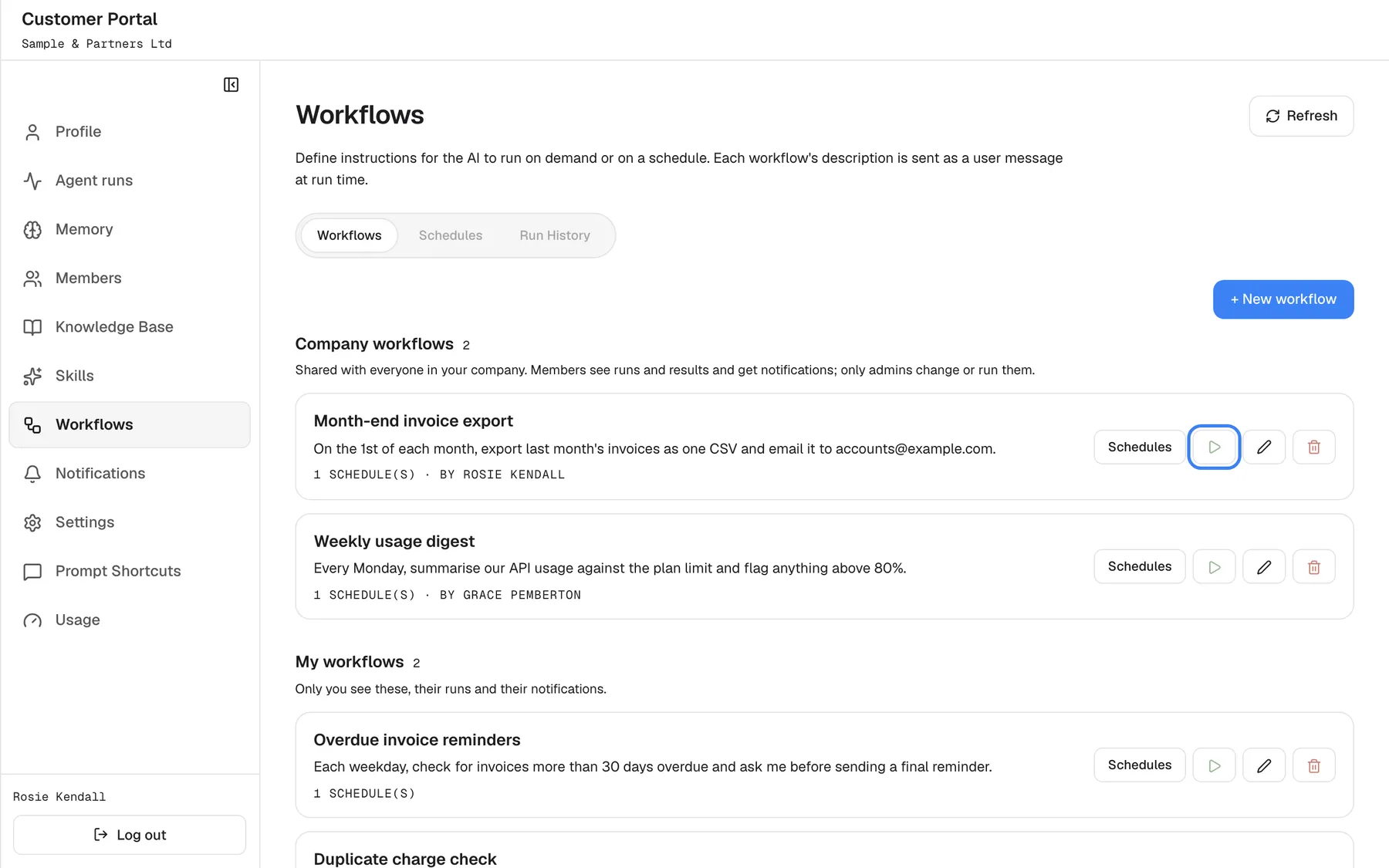
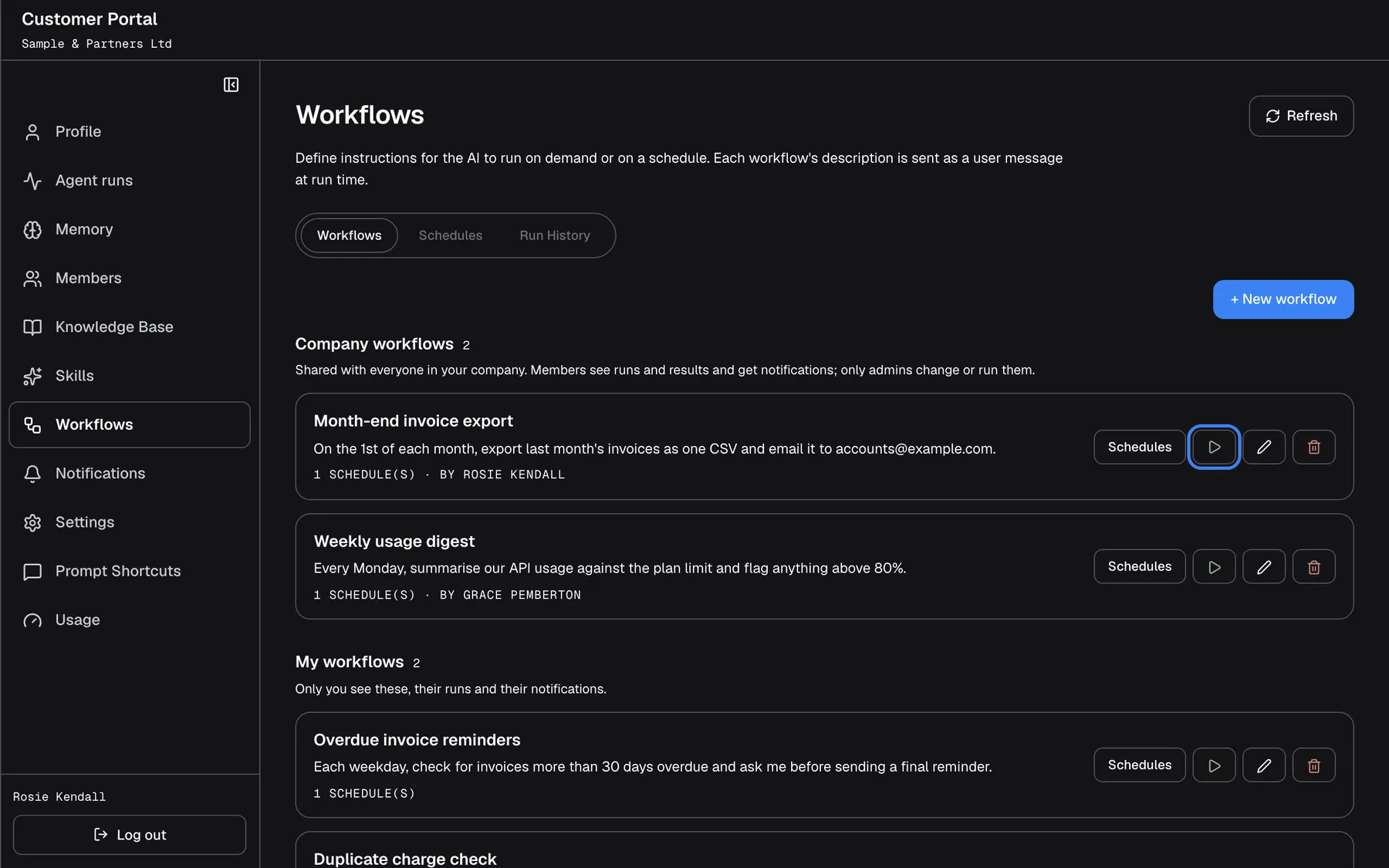
What this screenshot shows
- Screen
- Workflows (/?mode=portal)
- Highlighted
- button “Run now”, workflow-card, enabled. starts a run now and shows Run History
- Also visible
- portal.workflows.companySection with two workflows and authors; portal.workflows.personalSection; Tabs workflows / schedules / logs, portal.workflows.scheduleCount, edit and delete icons
- Purpose
- the workflows list
| Region | What it shows | What you do there |
|---|---|---|
| Heading | Workflows, the introduction, Refresh and New workflow | Start a new workflow |
| Tabs | Workflows, Schedules and Run History; the last two are greyed out until you select a workflow | Switch between workflows, schedules and history |
| Workflow cards | Under Company workflows and My workflows, newest first: name, instruction, the number of schedules, the author of a company workflow, and the buttons Schedules, Run now (play icon), Edit workflow (pencil) and Delete (bin) | Select, run, schedule, edit or delete |
With no workflows yet, the page shows Empty and No workflows yet.
Create a workflow
Section titled “Create a workflow”-
Open ConfigureWorkflows and select New workflow.
-
Under Who is it for?, choose Company or Personal. Admins start with Company; Members can only create personal workflows. The choice cannot be changed later.
-
Type a Name of up to 255 characters, such as “Friday unpaid invoices”.
-
Type the Description: the instruction for the assistant. Write it as a complete request, because it is sent to the assistant as if you had typed it into the chat, with no other context.
-
Select Save. It becomes active when both fields have text.
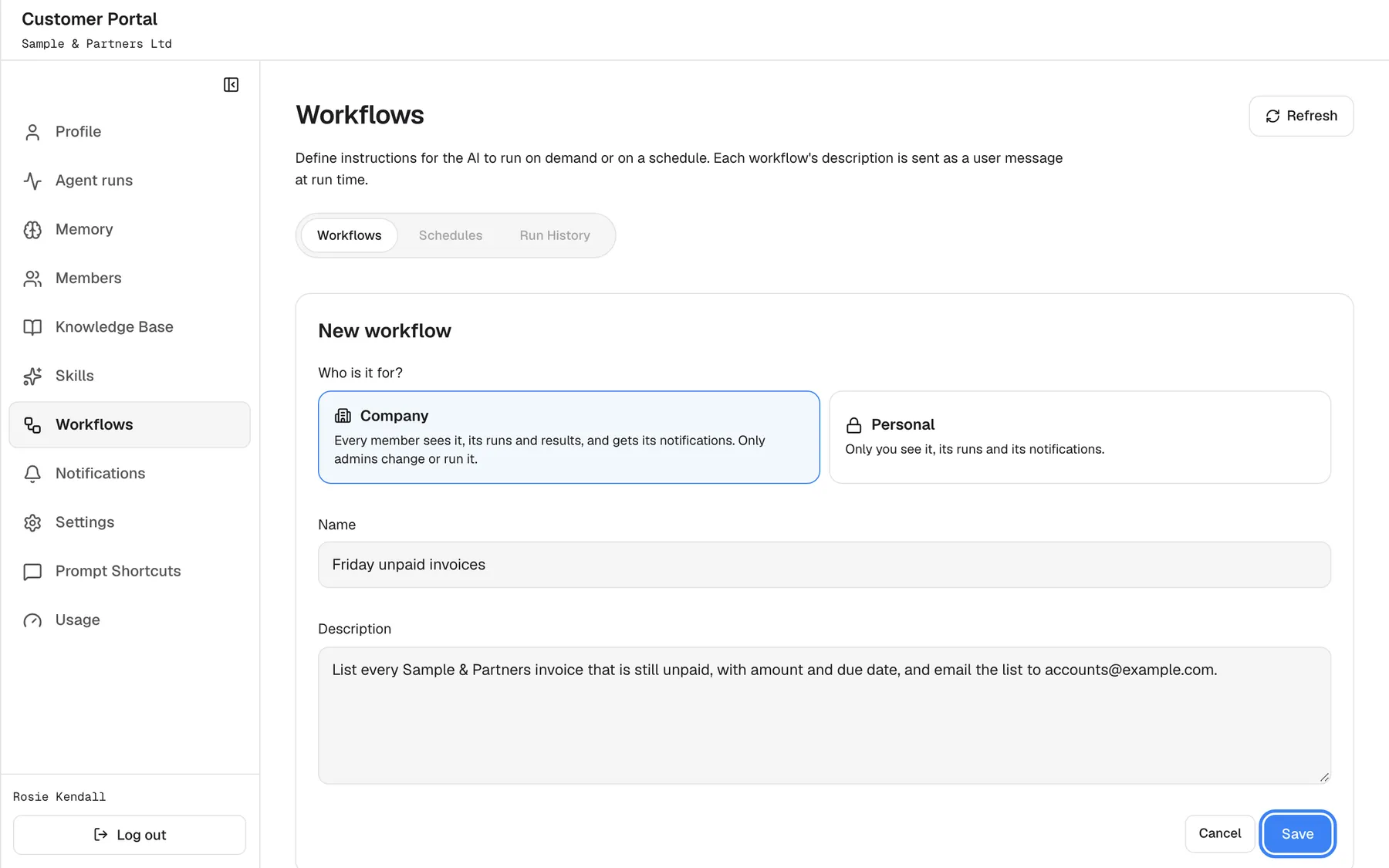
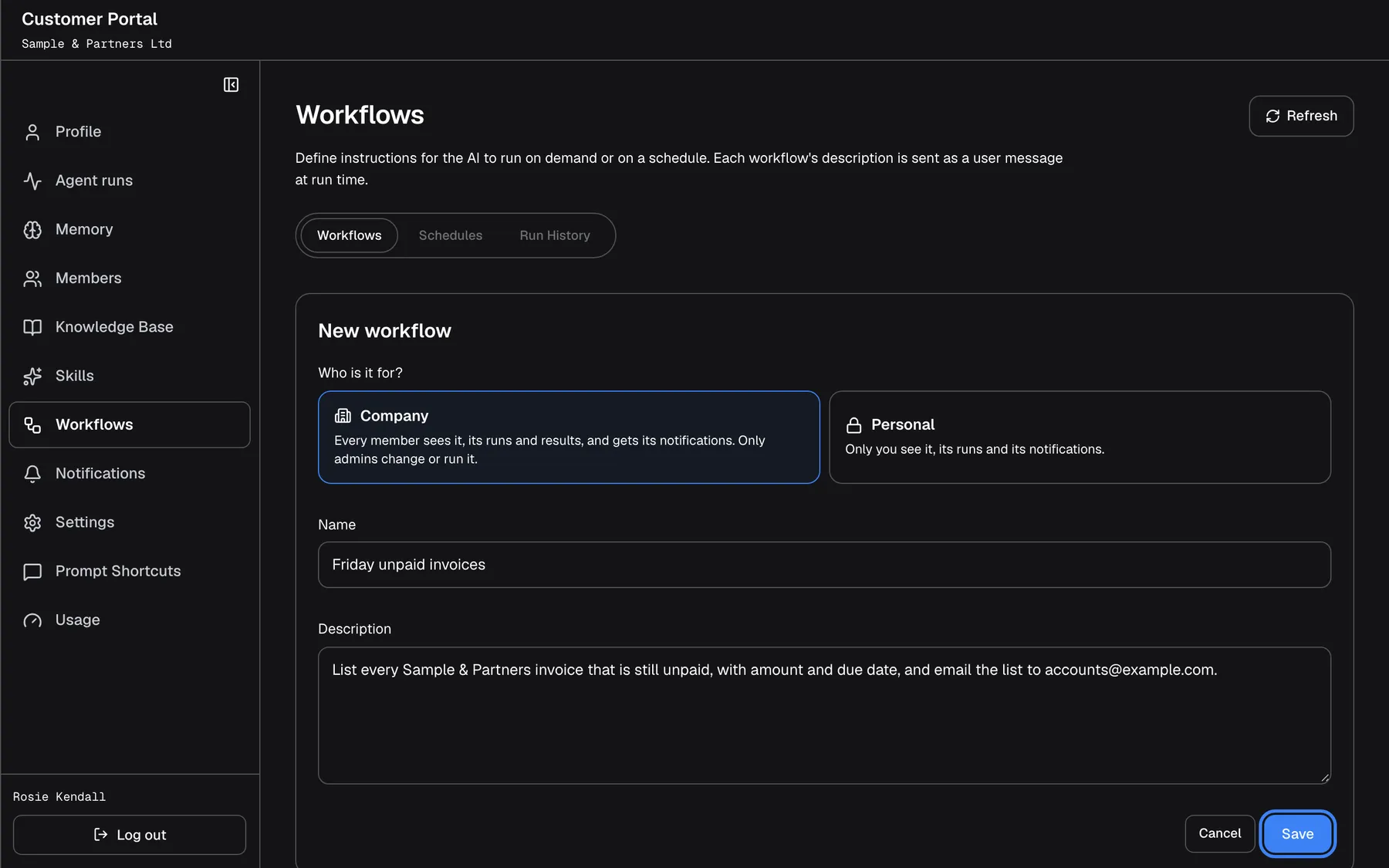
What this screenshot shows
- Screen
- Workflows (/?mode=portal)
- Highlighted
- button “Save”, form-bottom, enabled (both fields filled). creates the workflow
- Also visible
- portal.workflows.nameLabel / descriptionLabel filled
- Purpose
- creating a workflow
The workflow appears in the list. It does nothing until you run it or give it a schedule.
| Instruction | Works well? |
|---|---|
| “List every Sample & Partners invoice that is still unpaid, with amount and due date, and email the list to accounts@example.com.” | Yes: complete, names the data, the output and where it goes |
| “Do the usual Friday thing.” | No: the assistant has no conversation to know what “the usual” is |
| “Check overdue invoices and ask me before sending any reminder.” | Yes: a run that needs your decision waits on Agent runs |
The run acts as its author. It runs under the account and permissions of the person who created the workflow, and its conversation appears in the author’s chat history. A run of a company workflow is shown to every member on Agent runs, and its approvals and notifications reach all of them. A run sends an email only if the instruction asks for one and an email channel exists, your company’s or your provider’s.
Run a workflow now
Section titled “Run a workflow now”Select the play icon Run now on the workflow’s card. The run starts in the background and the page switches to Run History for that workflow; select Refresh after a moment to see it. On Agent runs the run is labelled Run now.
Runs are limited to 5 per minute for your account, counting Run now, scheduled runs and runs your provider’s systems start for you. Above that you see Too many runs in the last minute. Try again shortly. Wait a minute and try again.
Schedule a workflow
Section titled “Schedule a workflow”-
Select Schedules on the workflow’s card, or select the card and then Schedules. The tab shows Schedules for and the workflow’s name.
-
Select New schedule.
-
Choose the Frequency: Daily, Weekdays (Monday to Friday), Weekly or Monthly. Weekly asks for the Day of week; monthly asks for the Day of month, from 1 to 28.
-
Set the time with Hour (1 to 12), Minute (00, 15, 30 or 45) and Period (AM or PM), and pick the Timezone.
-
Select Save.
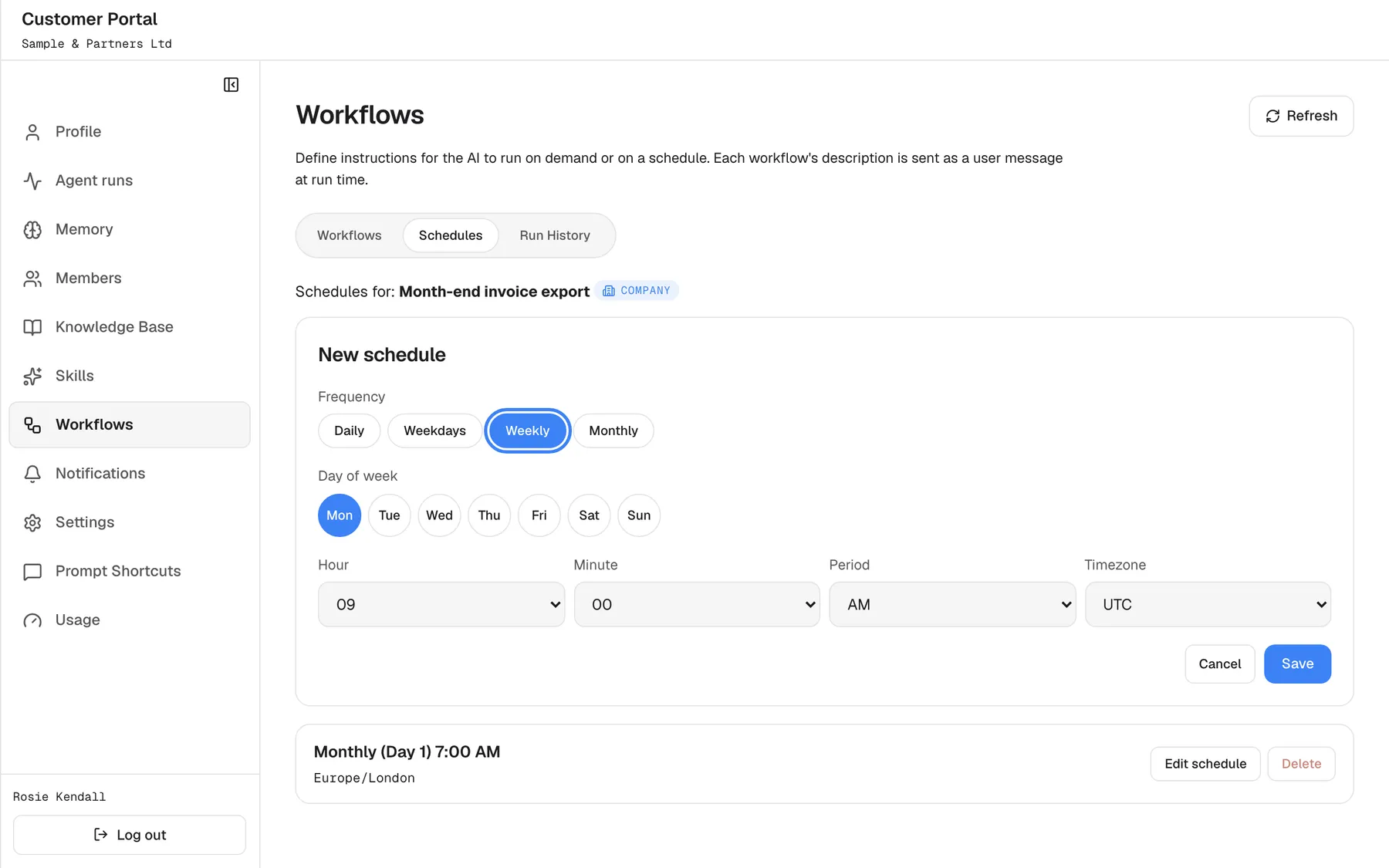
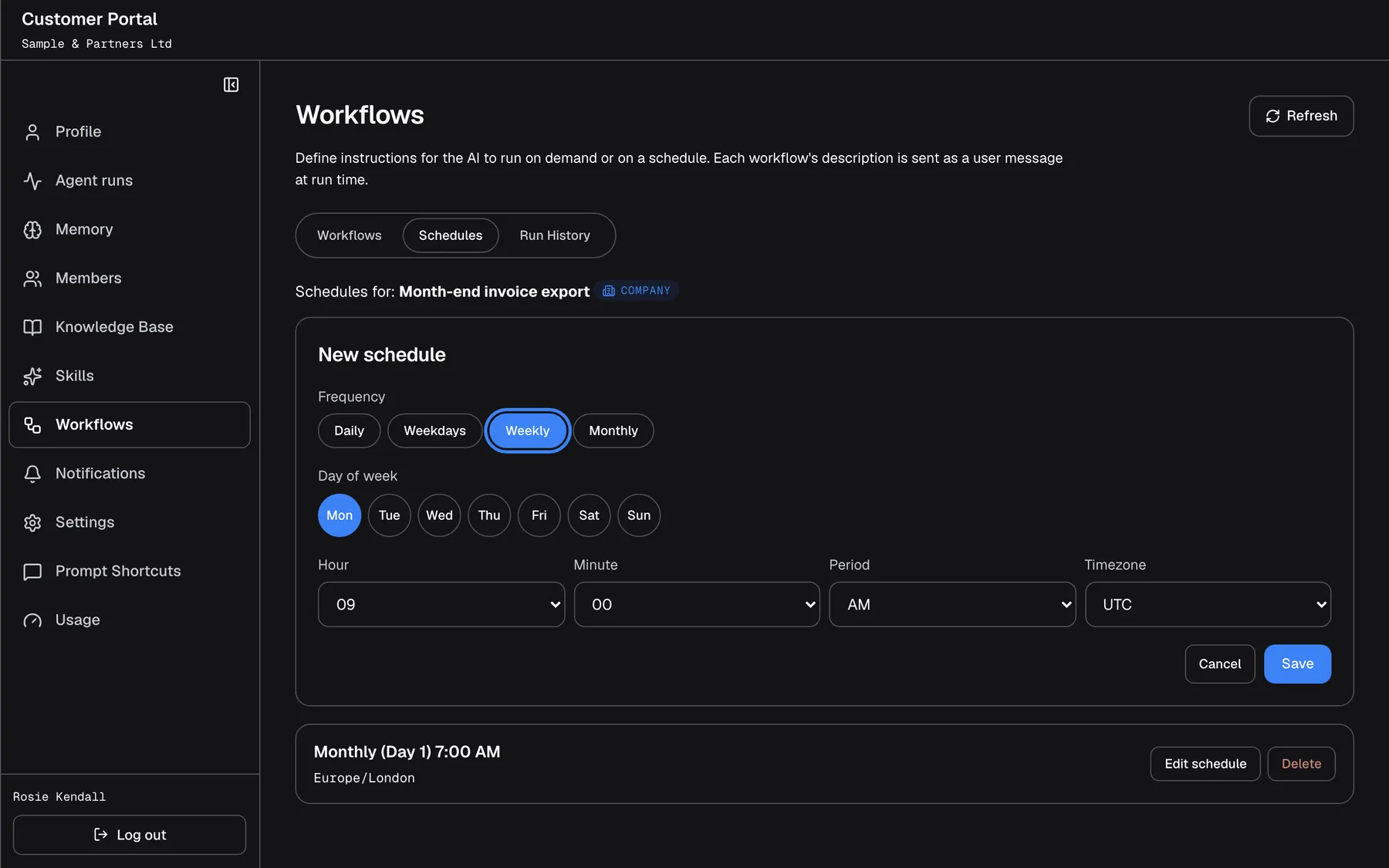
What this screenshot shows
- Screen
- Schedules (/?mode=portal)
- Highlighted
- button “Weekly”, schedule-form, selected. shows the day-of-week field
- Also visible
- Weekday buttons Mon–Sun in English in every language; portal.schedules.hour / minute / period / timezone
- Purpose
- scheduling a workflow
The schedule appears in the list, for example “Monthly (Day 1) 7:00 AM” with “Europe/London”. A workflow can have several schedules, for example one weekly and one on the first of the month. The page does not show the next run time; work it out from the schedule and the time zone.
| You want | Choose |
|---|---|
| Every working day at 08:30 London time | Weekdays, 8, 30, AM, Europe/London |
| Every Friday at 16:00 | Weekly, Fri, 4, 00, PM |
| On the last day of each month | Not possible; the latest day is the 28th. Use the 28th, or the 1st of the next month |
| At 09:10 | Not possible; minutes are 00, 15, 30 or 45 |
The Timezone list starts with your browser’s time zone and offers 19 more, including UTC and Europe/London. The schedule runs at that local time in that zone. Day names and AM/PM in the list are shown in English.
Check the run history
Section titled “Check the run history”Select a workflow and then Run History. You see Run history for with the workflow’s name and its last 20 runs, newest first, each with its start time and status.
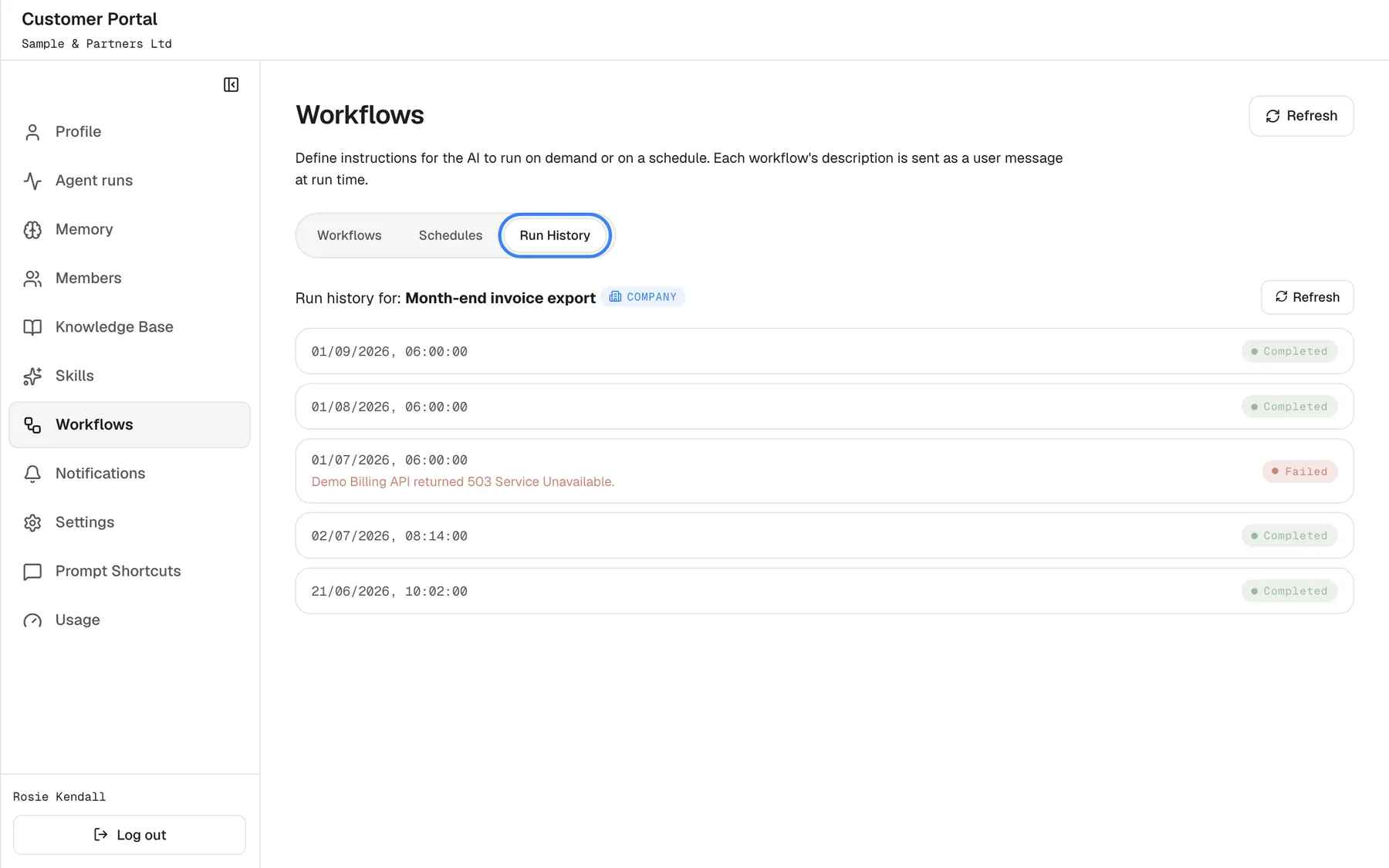
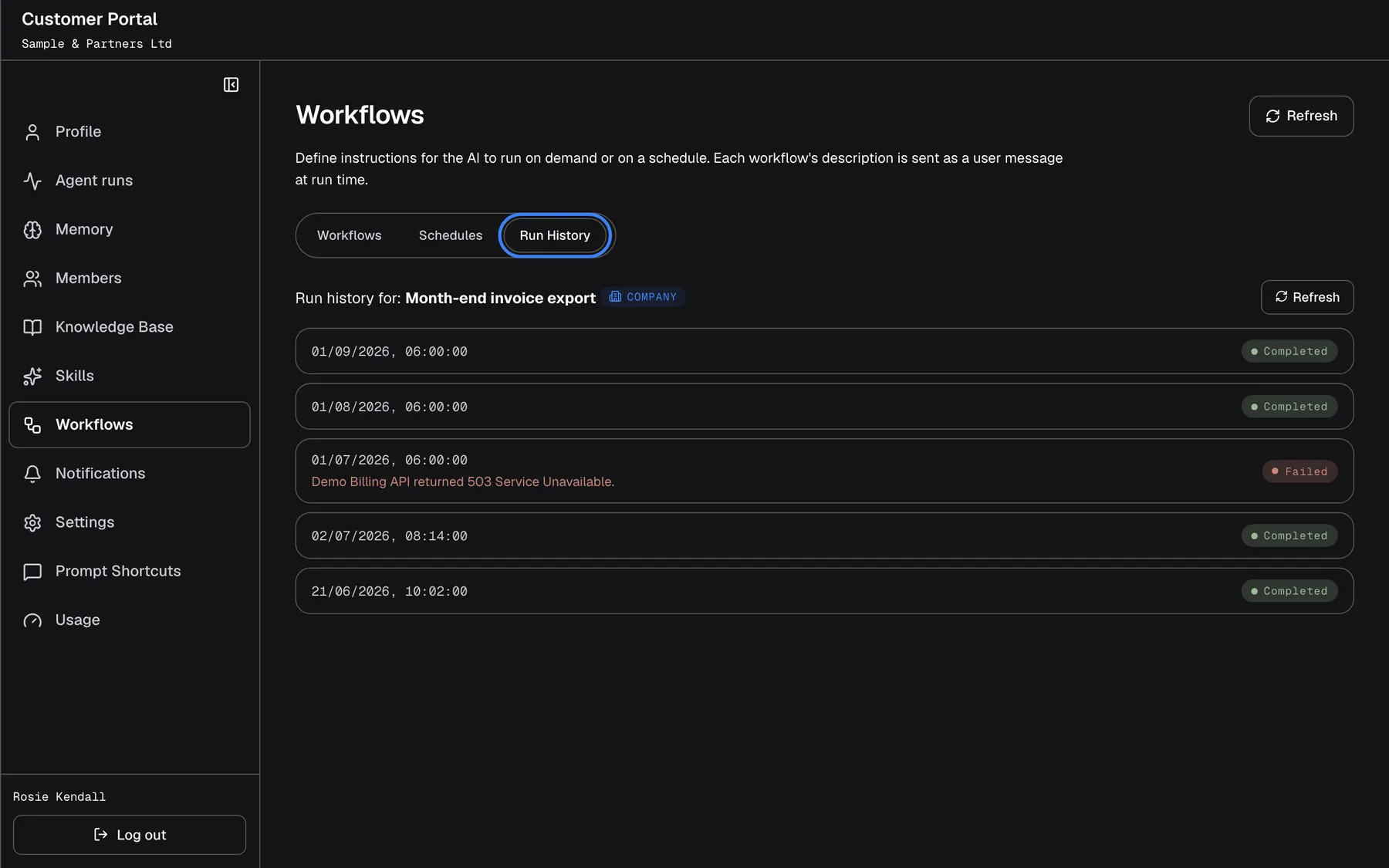
What this screenshot shows
- Screen
- Run History (/?mode=portal)
- Highlighted
- button “Run History”, tabs, selected. shows the last 20 runs
- Also visible
- portal.logs.status.completed pills, a failed run with error text
- Purpose
- run history
| Status | Meaning |
|---|---|
| Pending | Queued |
| Running | Working |
| Completed | Finished; the result is on Agent runs |
| Failed | Stopped by an error, shown in red under the row |
| “Cancelled” | Skipped, for example “Workflow is inactive — the scheduled run was skipped.” when your provider paused the workflow |
| “WaitingForApproval” or “WaitingForInput” | Waiting for a decision or an answer on Agent runs |
The history does not update by itself; select Refresh. The result of a completed run is not shown here: open the run on ConfigureAgent runs to read it, or find its chat in your chat history.
Edit or delete a workflow
Section titled “Edit or delete a workflow”- Edit: select the pencil Edit workflow, change the name or instruction and select Save. Schedules stay as they are; the next run uses the new instruction.
- Delete: select the bin Delete and confirm Delete this workflow? All schedules will be removed. The workflow, all its schedules and its run history are deleted.
- Pause: the portal has no pause switch. To stop a workflow for a while, delete its schedules on Schedules; to stop it for good, delete it. Your provider can also pause a workflow; scheduled runs are then skipped and recorded as “Cancelled”.
Every control, explained
Section titled “Every control, explained”Each control below says where it is, what it does and why it is there, in screen order.
New workflow
Section titled “New workflow”The button New workflow at the top right of Workflows.
Opens the form with Name (required, up to 255 characters) and Description (required, no length limit), plus Save and Cancel. A new workflow is active but has no schedule. If saving fails, you see Could not save workflow., or You do not have permission to do that. when you are no longer an Admin.
The instruction is the whole of what a run knows, so it gets its own field.
| Tab | What it shows | Why |
|---|---|---|
| Workflows | Your workflows | Create, run, edit, delete |
| Schedules | The schedules of the selected workflow | Decide when it runs |
| Run History | The last 20 runs of the selected workflow | See whether runs worked |
Schedules and Run History are greyed out until you select a workflow card.
Workflow card buttons
Section titled “Workflow card buttons”| Button | What it does | Why |
|---|---|---|
| Schedules | Opens the workflow’s schedules | Add or change when it runs |
| Run now (play) | Starts a run at once and opens Run History; refused with Too many runs in the last minute. Try again shortly. above 5 runs per minute, or Could not start the workflow. | Test an instruction or run it outside its schedule |
| Edit workflow (pencil) | Opens the form with the current name and instruction | Correct the instruction |
| Delete (bin) | Deletes the workflow, its schedules and history after a confirmation; Could not delete workflow. if it fails | Remove what is no longer needed |
Schedule form
Section titled “Schedule form”On Schedules, after New schedule or Edit schedule on a schedule.
Frequency (default Daily), Day of week for weekly (default Mon), Day of month 1–28 for monthly (default 1), Hour, Minute in 15-minute steps and Period (default 9:00 AM), and Timezone (default your browser’s). Saved with Save; errors are Could not save schedule. or You do not have permission to do that..
Most recurring jobs follow a calendar rhythm; the four frequencies cover them without a technical schedule syntax.
Schedule rows
Section titled “Schedule rows”The list on Schedules, one row per schedule, with Edit schedule and Delete.
Shows the frequency, time and time zone. Delete asks Delete this schedule? and removes only that schedule; Could not delete schedule. if it fails. With no schedules, the tab shows No schedules.
Several rhythms for one workflow, each managed on its own.
Run History
Section titled “Run History”The tab Run History, with Refresh.
The last 20 runs of the selected workflow, newest first, with start time, status and any error. With none yet, it shows No runs yet.
Shows at a glance whether a schedule is working and why a run failed.
Who sees what
Section titled “Who sees what”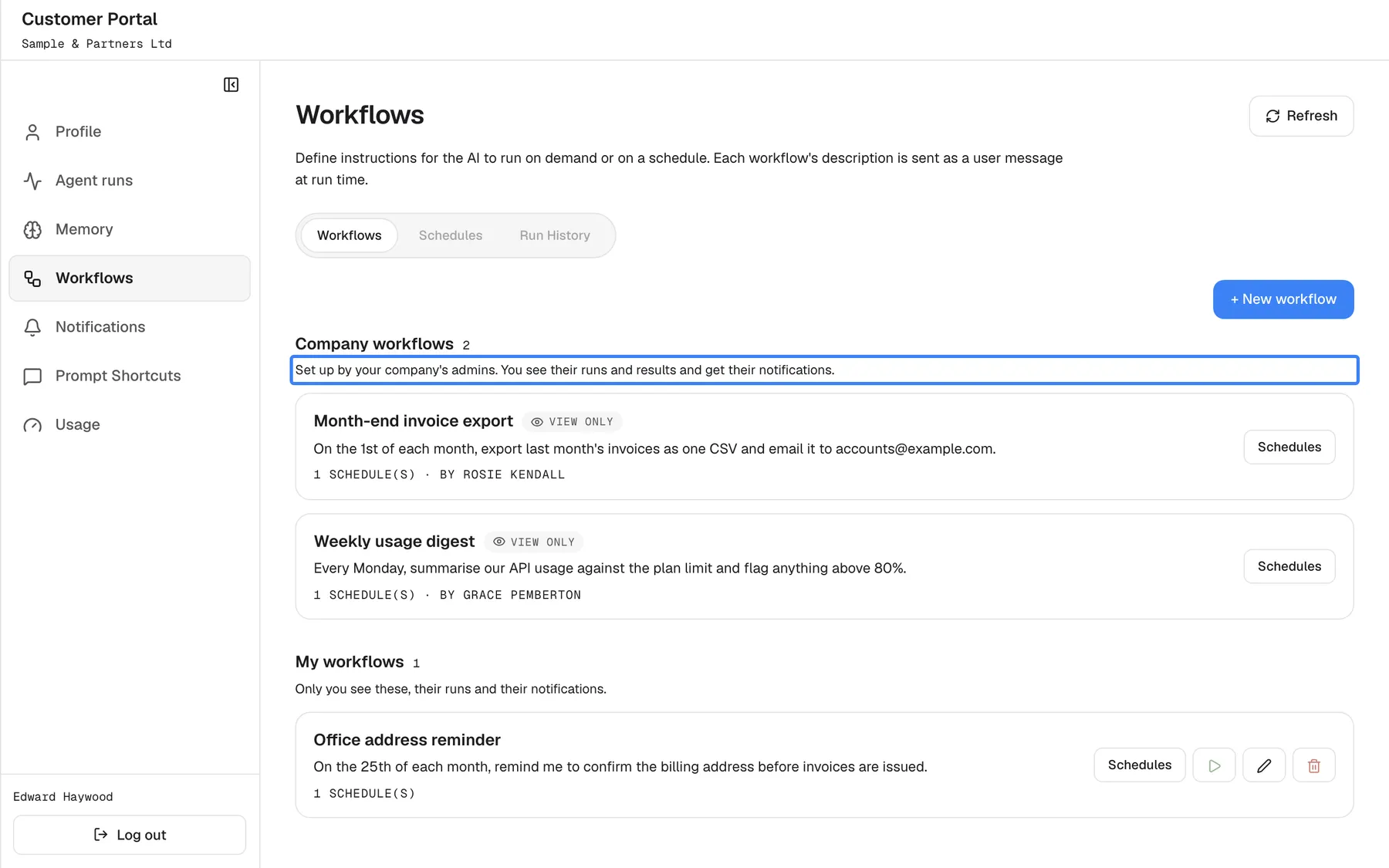
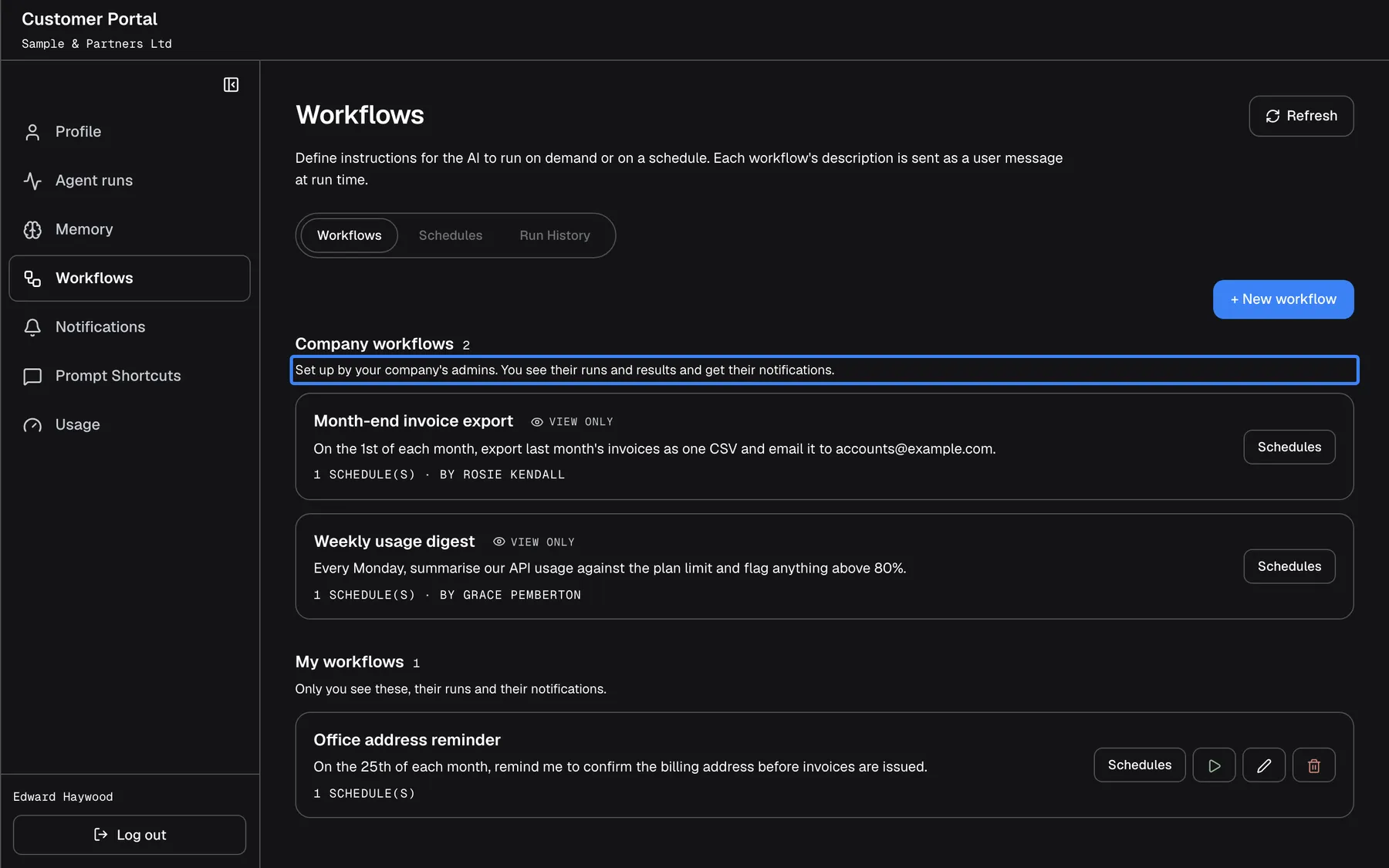
What this screenshot shows
- Screen
- Workflows (/?mode=portal)
- Highlighted
- “Set up by your company's admins. You see their runs and results and get their notifications.”, company-section, shown to Members. none
- Also visible
- Two company workflows marked portal.workflows.viewOnly; portal.workflows.personalSection with Office address reminder
- Purpose
- what a Member sees
| Part | Company workflow | Personal workflow |
|---|---|---|
| The workflow, its schedules and history on this page | Everyone in your company; Members see it marked View only | Only its author |
| Its runs on Agent runs and their notifications | Everyone in your company | Only its author |
| Edit, run, schedule, delete | Admins of your company | Only its author |
Members see Set up by your company's admins. You see their runs and results and get their notifications. above the company workflows, and can create personal workflows of their own. Your provider’s team sees every workflow of your company and can pause, edit or delete it.
What you need to know
Section titled “What you need to know”| Topic | Fact |
|---|---|
| Scope | A company workflow is shared with everyone in your company and managed by its Admins; a personal workflow is its author’s alone, hidden even from Admins. The scope is fixed when the workflow is created |
| Runs act as the owner | Same account, same permissions, chat in the owner’s history |
| Rate limit | 5 runs per minute per account, across Run now, schedules and provider-started runs |
| Schedules | Several per workflow; days of month 1–28; minutes 00, 15, 30, 45; next run time not shown |
| Pausing | No pause switch; delete schedules, or ask your provider |
| Deleting | Removes schedules and run history too |
| If the author loses access | Scheduled runs keep running when the author is disabled or made a Member; company workflows stay manageable by your Admins, personal ones only by your provider |
| Memory | Workflow runs never add notes to Memory |
Frequently asked questions
Section titled “Frequently asked questions”Writing workflows
Section titled “Writing workflows”What is a workflow?
Section titled “What is a workflow?”A workflow is an instruction the assistant carries out on its own, on a schedule or when you select Run now, without anyone opening the chat. You create and manage workflows under ConfigureWorkflows, and their runs appear on ConfigureAgent runs.
How do I write a good instruction?
Section titled “How do I write a good instruction?”Write it as one complete request, because it is sent to the assistant as if you had typed it into an empty chat. Name the data, the period, the output and where it should go, for example “List every unpaid invoice with amount and due date and email the list to accounts@example.com.”
How do I test a workflow?
Section titled “How do I test a workflow?”Select the play icon Run now on its card under ConfigureWorkflows. The page opens Run History; select Refresh to follow the run, and read its result on ConfigureAgent runs.
Where do I find what a run produced?
Section titled “Where do I find what a run produced?”Open the run on ConfigureAgent runs; a completed run shows the assistant’s answer under its result. The run’s chat is also in your chat history. If the instruction asks for an email and an email channel exists, the result arrives by email too.
Why does a run wait instead of finishing?
Section titled “Why does a run wait instead of finishing?”The run reached a step that needs your approval or an answer, so it parked. Open it on ConfigureAgent runs and decide within 24 hours; after that the step is skipped and the run continues without it.
Schedules
Section titled “Schedules”Can a workflow have more than one schedule?
Section titled “Can a workflow have more than one schedule?”Yes. On Schedules under ConfigureWorkflows, select New schedule as often as you need, for example a weekly schedule and a monthly one. Each schedule is edited and deleted on its own.
Can I schedule a run on the 31st or the last day of the month?
Section titled “Can I schedule a run on the 31st or the last day of the month?”No. Day of month accepts 1 to 28, so every month has that day. Use the 28th, or the 1st of the following month, for month-end work.
Why can I only pick 00, 15, 30 or 45 minutes?
Section titled “Why can I only pick 00, 15, 30 or 45 minutes?”The schedule form under ConfigureWorkflows offers times in 15-minute steps only. Pick the nearest quarter hour; the run starts at that time in the time zone you chose.
Which time zone does a schedule use?
Section titled “Which time zone does a schedule use?”The one you choose in Timezone. It starts with your browser’s time zone and offers 19 more, such as UTC and Europe/London. The run starts at that local time in that zone.
Where can I see when the next run will be?
Section titled “Where can I see when the next run will be?”The portal does not show the next run time. Read the schedule row on Schedules, for example “Weekly (Fri) 4:00 PM” with its time zone, and work it out from today’s date.
Why are the Schedules and Run History tabs greyed out?
Section titled “Why are the Schedules and Run History tabs greyed out?”They belong to one workflow at a time. Select a workflow card on Workflows under ConfigureWorkflows first, and both tabs become available for that workflow.
Ownership and control
Section titled “Ownership and control”Who can see my workflow?
Section titled “Who can see my workflow?”Everyone in your company sees a company workflow under ConfigureWorkflows, its runs and its results, but only your company’s Admins can change or run it. A personal workflow is visible only to you, even to your company’s Admins.
How do I pause a workflow?
Section titled “How do I pause a workflow?”The portal has no pause switch. Delete the workflow’s schedules on Schedules to stop scheduled runs and add them back later, or delete the workflow. Your provider can also pause it for you.
Why was my scheduled run cancelled?
Section titled “Why was my scheduled run cancelled?”A run recorded as “Cancelled” with “Workflow is inactive — the scheduled run was skipped.” means your provider paused the workflow. Contact your provider to switch it back on; the portal cannot change that.
Why do I see Too many runs in the last minute?
Section titled “Why do I see Too many runs in the last minute?”Your account can start up to 5 runs per minute, counting Run now, scheduled runs and runs your provider’s systems start. Wait a minute and select Run now again under ConfigureWorkflows.
Does deleting a workflow remove its history?
Section titled “Does deleting a workflow remove its history?”Yes. After you confirm Delete this workflow? All schedules will be removed. the workflow, all its schedules and its run history are deleted. Delete only the schedules if you want to keep the history.
Will my workflows keep running if I leave the company?
Section titled “Will my workflows keep running if I leave the company?”Yes. If your access is disabled or you are made a Member, your scheduled workflows keep running. Your company’s Admins can still manage company workflows under ConfigureWorkflows, but nobody else sees your personal ones. Delete their schedules before you leave, or ask your provider to stop them.
Troubleshooting
Section titled “Troubleshooting”| Symptom | What to check |
|---|---|
| Could not load workflows. | Reload the page. If it repeats, sign out and in again. |
| Could not save workflow. | Check both fields have text and the name is 255 characters or fewer, then save again. |
| You do not have permission to do that. | You are no longer an Admin. Sign out and in again. |
| Could not start the workflow. | The run could not start. Retry in a moment. |
| Too many runs in the last minute. Try again shortly. | More than 5 runs started in the last minute. Wait a minute. |
| Run History stays empty after Run now | Runs start in the background. Select Refresh after a few seconds. |
| A run shows Failed with an error | Read the error under the row. Make the instruction self-contained, and check that the data it needs exists. |
| “Cancelled” with “Workflow is inactive — the scheduled run was skipped.” | Your provider paused the workflow. Contact your provider. |
| A scheduled run did not happen | Check the schedule’s day, time, AM/PM and time zone on Schedules. |
| Could not save schedule. or Could not delete schedule. | Retry; if it repeats, reload the page. |