

Knowledge Base
The Knowledge Base page holds your company’s own documents, such as price lists, policies or guides, so the assistant can answer questions from them for everyone in your company. You upload files, watch them become ready, delete those you no longer want, and test which passages a question finds. Open it from ConfigureKnowledge Base. Only Admins see this page, and only when your provider shows it.
What you can do here
Section titled “What you can do here”- Add a document. Upload a PDF, Word, text, Markdown or JSON file of up to 100 MB; the assistant uses it once it is indexed. Upload a document.
- See when a document is ready. Each document shows whether it is still being processed, ready, or failed with a reason. Check a document’s status.
- Remove a document. Delete a file that is out of date. Delete a document.
- Test what the assistant would find. Type a question and see the top 5 passages from your company’s documents, with a score. Test what a question finds.
The screen at a glance
Section titled “The screen at a glance”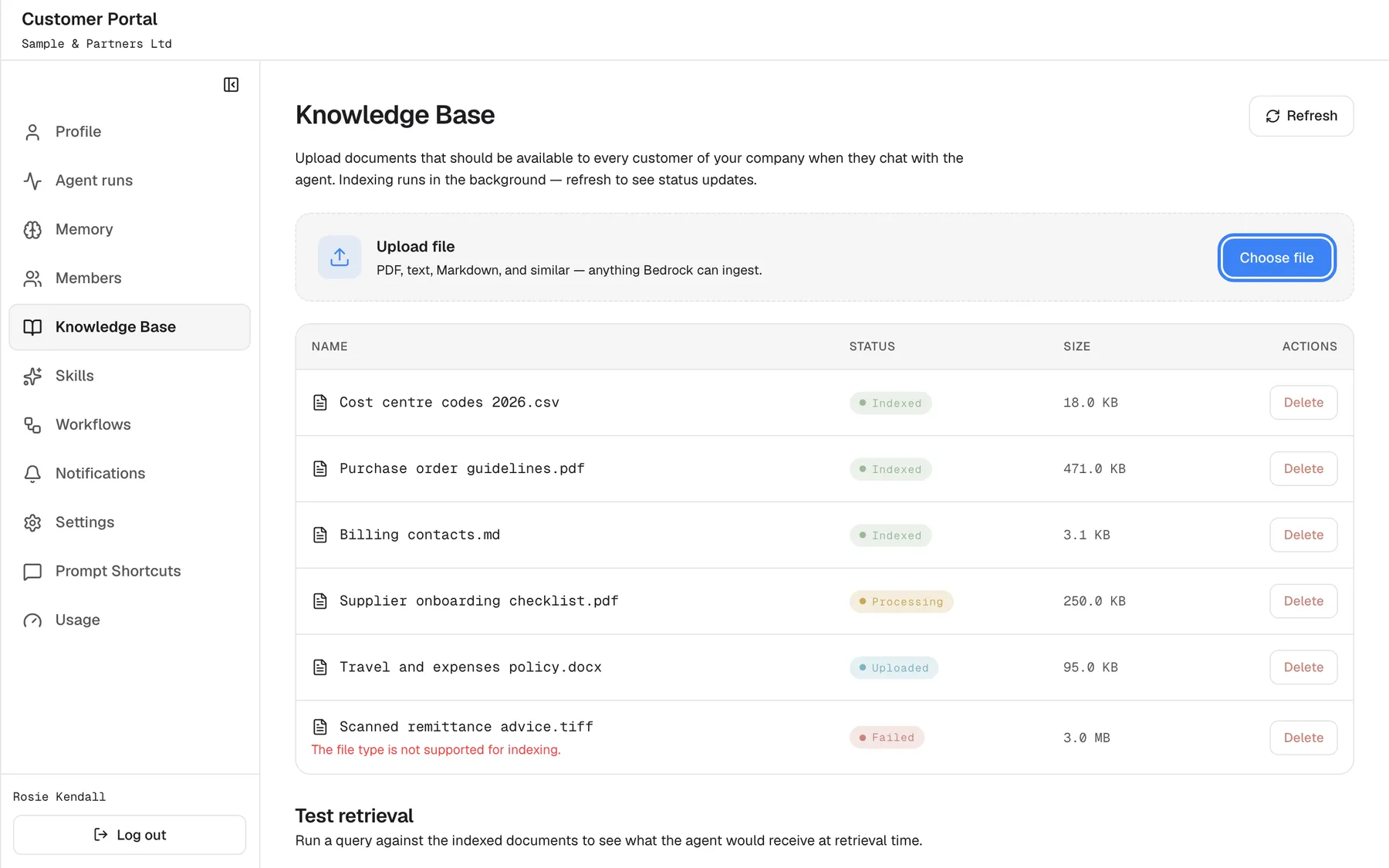
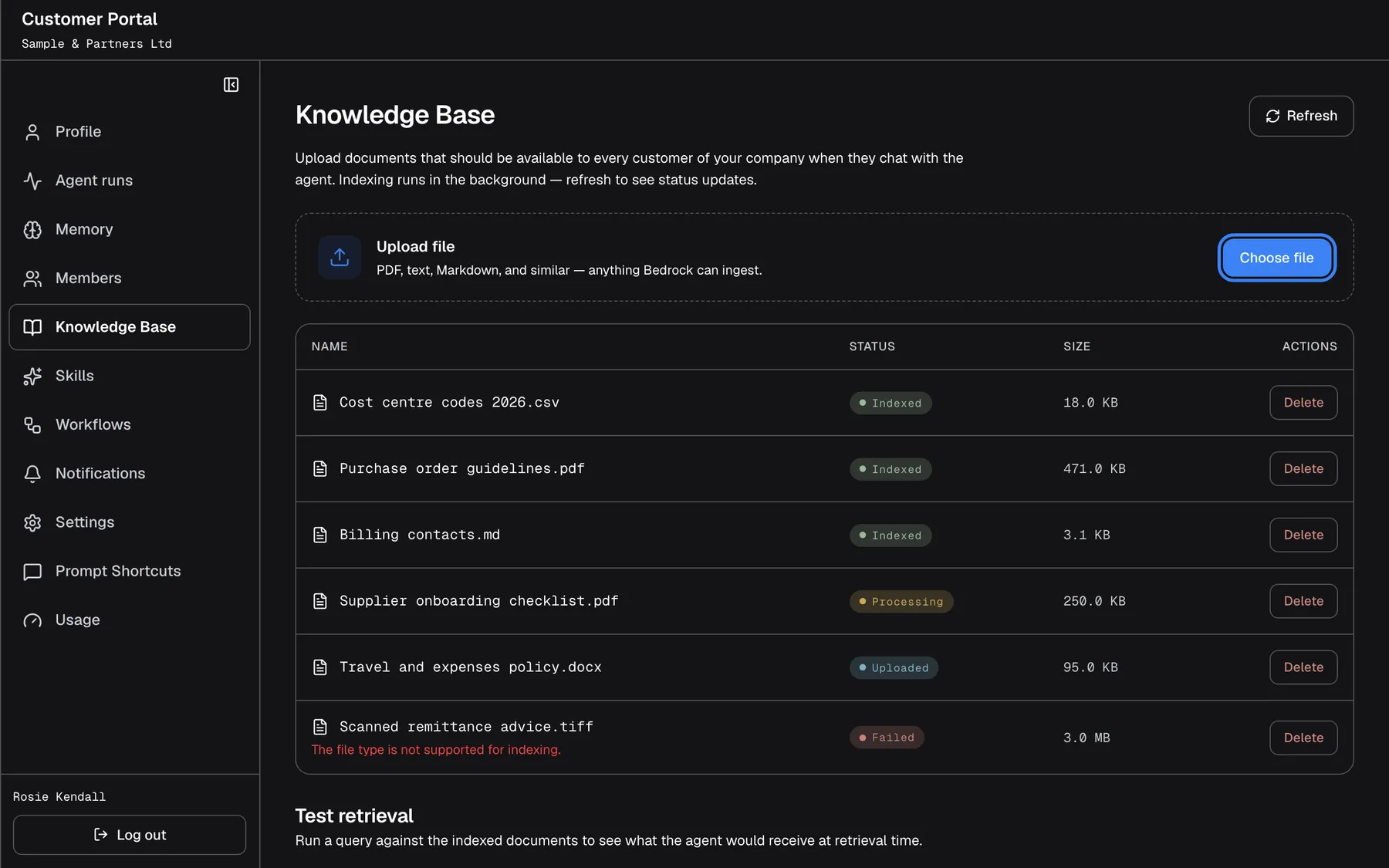
What this screenshot shows
- Screen
- Knowledge Base (/?mode=portal)
- Highlighted
- button “Choose file”, upload-card, enabled. opens the file picker and uploads one file
- Also visible
- portal.kb.uploadHint names a third-party service (white-label defect); Statuses indexed / processing / uploaded / failed with error text
- Purpose
- company documents
| Region | What it shows | What you do there |
|---|---|---|
| Heading | Knowledge Base, an introduction and Refresh | Reload the list and its statuses |
| Upload file | A short hint on file types and the button Choose file | Upload a file |
| Document list | Name, Status, Size and Actions | Check and delete documents |
| Test retrieval | A question box and Search | Test what a question finds |
When there are no documents yet, the list shows Empty and No documents yet..
Upload a document
Section titled “Upload a document”-
Open ConfigureKnowledge Base.
-
Select Choose file and pick one file. The button reads Uploading… while the file is sent.
-
The document appears at the top of the list with its status. Indexing runs in the background; select Refresh after a few minutes to see it reach Indexed.
Accepted files: PDF, Word (.docx and .doc), plain text, Markdown, and JSON or JSON Lines, up to 100 MB each. Spreadsheets, CSV files, web pages and images are refused when you pick them, with a message that begins “Content type” and lists the allowed types. A file your browser cannot identify is sent as a generic file; it is accepted, but may fail during indexing.
| File | Result |
|---|---|
| “Returns policy 2026.pdf”, 2 MB | Accepted, indexed in the background |
| “Billing contacts.md”, 4 KB | Accepted |
| “Price list.xlsx” | Refused: “Content type ’…’ is not allowed …” |
| A 120 MB PDF | Refused when you pick it: This file is larger than 100 MB. Choose a smaller file. |
You upload one file at a time. To replace a document with a newer version, upload the new file and delete the old one.
Example: Sample & Partners Ltd wants the assistant to answer “which cost centre does this go to?”. Rosie uploads “Purchase order guidelines.pdf”, waits a few minutes, selects Refresh and sees Indexed. From then on, everyone at Sample & Partners who asks the assistant about cost centres gets answers based on that guide.
Check a document’s status
Section titled “Check a document’s status”| Status | Meaning | What to do |
|---|---|---|
| Uploaded | The file arrived; indexing has not started yet | Wait, then select Refresh |
| Processing | The file is being read and indexed | Wait, then select Refresh |
| Indexed | Ready: the assistant can answer from it | Nothing |
| Failed | Indexing failed; the reason is shown in red under the file name | Fix the file or save it as PDF, Word or text, and upload it again |
The statuses do not update by themselves. Refresh reloads the list and asks for the latest indexing state at the same time.
Delete a document
Section titled “Delete a document”Select Delete on the document’s row and confirm Delete this document? This cannot be undone. The row disappears and the file is removed. This cannot be undone; to bring the document back, upload it again.
Test what a question finds
Section titled “Test what a question finds”-
In Test retrieval at the bottom of the page, type a question as a customer would ask it.
-
Select Search.
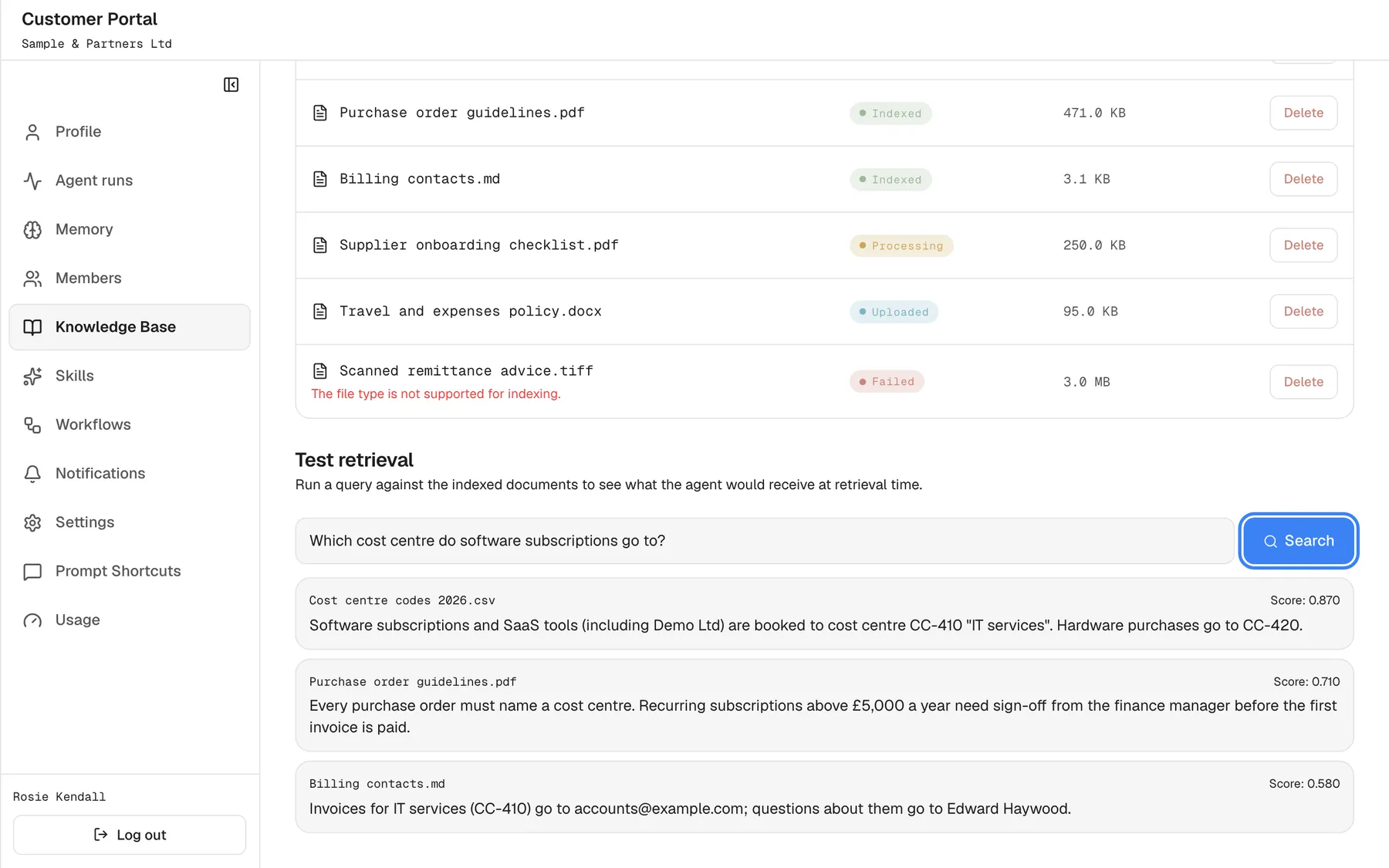
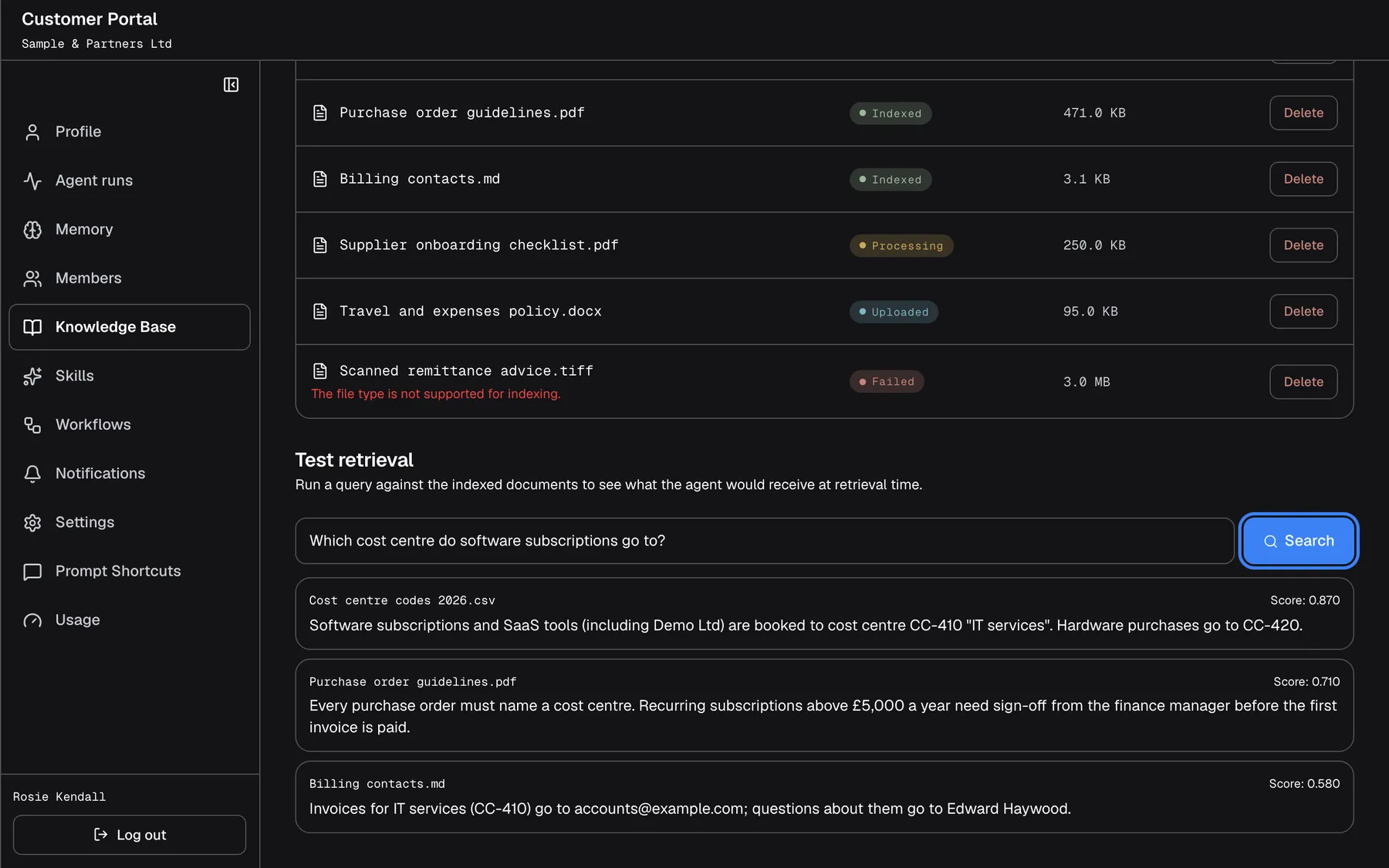
What this screenshot shows
- Screen
- Test retrieval (/?mode=portal)
- Highlighted
- button “Search”, test-retrieval, results shown. searches the company's indexed documents (top 5)
- Also visible
- Three passages with source file and portal.kb.scoreLabel
- Purpose
- test retrieval
You see up to 5 passages from your company’s indexed documents, best match first. Each shows the file it comes from (or (unknown source)), a score and the passage text. A higher score means a closer match; the scores compare passages with each other and are not percentages. If nothing matches, you see No matching chunks in your company's Knowledge Base.
The test searches only your company’s documents. In the chat, the assistant also uses your provider’s own documents, so a test that finds nothing does not mean the assistant knows nothing about the subject.
Every control, explained
Section titled “Every control, explained”Each control below says where it is, what it does and why it is there, in screen order.
Refresh
Section titled “Refresh”The button Refresh at the top right.
Reloads the list and fetches the latest indexing status of every document.
Indexing happens in the background and the page does not update by itself.
Choose file
Section titled “Choose file”The button Choose file in the Upload file card.
Opens your computer’s file picker for one file. The file is checked for its size (100 MB) and its type when you pick it. A new document starts as Uploaded or Processing.
Your documents give the assistant facts about your company that it cannot know otherwise.
Document list
Section titled “Document list”| Column | What it shows | Why |
|---|---|---|
| Name | The file name; for a failed document, the reason in red underneath | Recognise the document |
| Status | Uploaded, Processing, Indexed or Failed | Know whether the assistant can use it |
| Size | The size in B, KB or MB | Spot a file that is close to the limit |
| Actions | Delete (reads Deleting… while it works) | Remove the document |
Test retrieval
Section titled “Test retrieval”The Test retrieval card at the bottom: a question box and Search (reads Searching… while it works). The button is greyed out while the box is empty.
Finds the 5 passages from your company’s indexed documents that best match the question, with source file and score. If the search fails, you see Retrieval failed.
Lets you check, before customers ask, that a document is indexed and that the right passage comes up for a typical question.
What you need to know
Section titled “What you need to know”| Topic | Fact |
|---|---|
| Who benefits | Everyone signed in under your company, Admins and Members, when they chat |
| Who else sees the documents | Your provider’s team, who can also add and delete them. Never other companies. |
| File types | PDF, Word, plain text, Markdown, JSON and JSON Lines |
| Size | Up to 100 MB per file; no limit on the number of documents was found |
| One at a time | Each upload is one file |
| How long documents stay | Until someone deletes them |
| Websites | Cannot be added here; ask your provider |
| Updates | Statuses change only when you select Refresh |
Frequently asked questions
Section titled “Frequently asked questions”Uploading
Section titled “Uploading”Which file types can I upload?
Section titled “Which file types can I upload?”PDF, Word (.docx and .doc), plain text, Markdown, and JSON or JSON Lines. Spreadsheets, CSV files, web pages and images are refused on ConfigureKnowledge Base with a message that lists the allowed types. Save such content as PDF or Word first.
How big can a file be?
Section titled “How big can a file be?”Up to 100 MB. A larger file is refused as soon as you pick it, with This file is larger than 100 MB. Choose a smaller file., and nothing is sent. Split a large document into parts or compress its images before you upload it on ConfigureKnowledge Base.
Can I upload several files at once?
Section titled “Can I upload several files at once?”No. Choose file on ConfigureKnowledge Base takes one file at a time. Upload the next file once the first one appears in the list; indexing of the first continues in the background.
How do I replace a document with a newer version?
Section titled “How do I replace a document with a newer version?”Upload the new file with Choose file on ConfigureKnowledge Base, then select Delete on the old one. There is no replace or edit action, so remove the old version yourself.
Can I add a website?
Section titled “Can I add a website?”No. The portal’s Knowledge Base accepts files only. If the assistant should answer from a website, ask your provider; their team manages the assistant’s other sources.
Can Members upload documents?
Section titled “Can Members upload documents?”No. ConfigureKnowledge Base is in the menu of Admins only. A Member who wants a document added asks an Admin of their company, who can upload it here.
Status and use
Section titled “Status and use”Why does my document still say Processing?
Section titled “Why does my document still say Processing?”Indexing runs in the background and the page does not update by itself. Wait a few minutes and select Refresh on ConfigureKnowledge Base; Refresh also fetches the latest indexing status.
Why did my document fail?
Section titled “Why did my document fail?”The reason is shown in red under the file name on ConfigureKnowledge Base. Fix what the reason names; when the file type cannot be indexed, save the content as a PDF, Word or text file. Then delete the failed entry and upload the file again.
Does the assistant use a document automatically?
Section titled “Does the assistant use a document automatically?”Yes. Once a document shows Indexed on ConfigureKnowledge Base, the assistant can answer from it for everyone signed in under your company. Nothing else needs to be switched on.
Can I undo a deletion?
Section titled “Can I undo a deletion?”No. Delete asks for confirmation and then removes the document and its file for good. To bring it back, upload the file again on ConfigureKnowledge Base and wait until it is indexed.
Testing and visibility
Section titled “Testing and visibility”The test finds nothing, but the assistant answers the question. Why?
Section titled “The test finds nothing, but the assistant answers the question. Why?”Test retrieval on ConfigureKnowledge Base searches only your company’s documents. In the chat, the assistant also uses your provider’s own documents and the systems it is connected to, so it can still know the answer.
What does the score mean?
Section titled “What does the score mean?”The score shows how closely a passage matches your question; a higher score is a closer match. Scores compare the passages of one search with each other. They are not percentages and there is no fixed threshold.
Who can use my company’s documents?
Section titled “Who can use my company’s documents?”Everyone signed in under your company, Admins and Members, gets answers from them in the chat. Your provider’s team can also see, add and delete them. Other companies that use the same assistant never see your documents.
Troubleshooting
Section titled “Troubleshooting”| Symptom | What to check |
|---|---|
| “Content type ’…’ is not allowed. Allowed types: …” | The file type is not accepted. Save it as PDF, Word, text, Markdown or JSON and upload again. |
| Upload failed. | The upload was interrupted or took longer than 15 minutes. Check your connection and try again. |
| This file is larger than 100 MB. Choose a smaller file. | The file is over 100 MB. Make it smaller or split it. |
| The status stays Uploaded or Processing | Wait a few minutes, then select Refresh. |
| Failed with a red reason | Fix the file as the reason says, delete the entry and upload again. |
| No matching chunks in your company's Knowledge Base. | The document is not indexed yet, the question uses different words, or the documents do not contain the answer. |
| Retrieval failed. | Try the search again. If it repeats, reload the page. |
| “Document does not belong to this customer company.” | The list is out of date. Select Refresh. |
| “Request failed (403)” | You are no longer an Admin. Sign out and in again. |