

Profile
The Profile page shows the account you are signed in with: your customer ID, your name, your email address and your role in your company. You can change your name and email here; the customer ID and the role are set for you. Open it from ConfigureProfile. Every signed-in person sees this page, Admins and Members alike, and the portal always opens on it.
What you can do here
Section titled “What you can do here”- Find your customer ID. It is the identifier your provider’s product uses for you, and the quickest way for your provider’s support to find your account. Every control, explained.
- Change your name or email address. Your provider’s team sees both on your account record. Each can be up to 255 characters. Change your name or email.
- Check your role. See whether you are an Admin or a Member of your company, which decides the pages you see in the portal. Check your role · Your customer portal.
The screen at a glance
Section titled “The screen at a glance”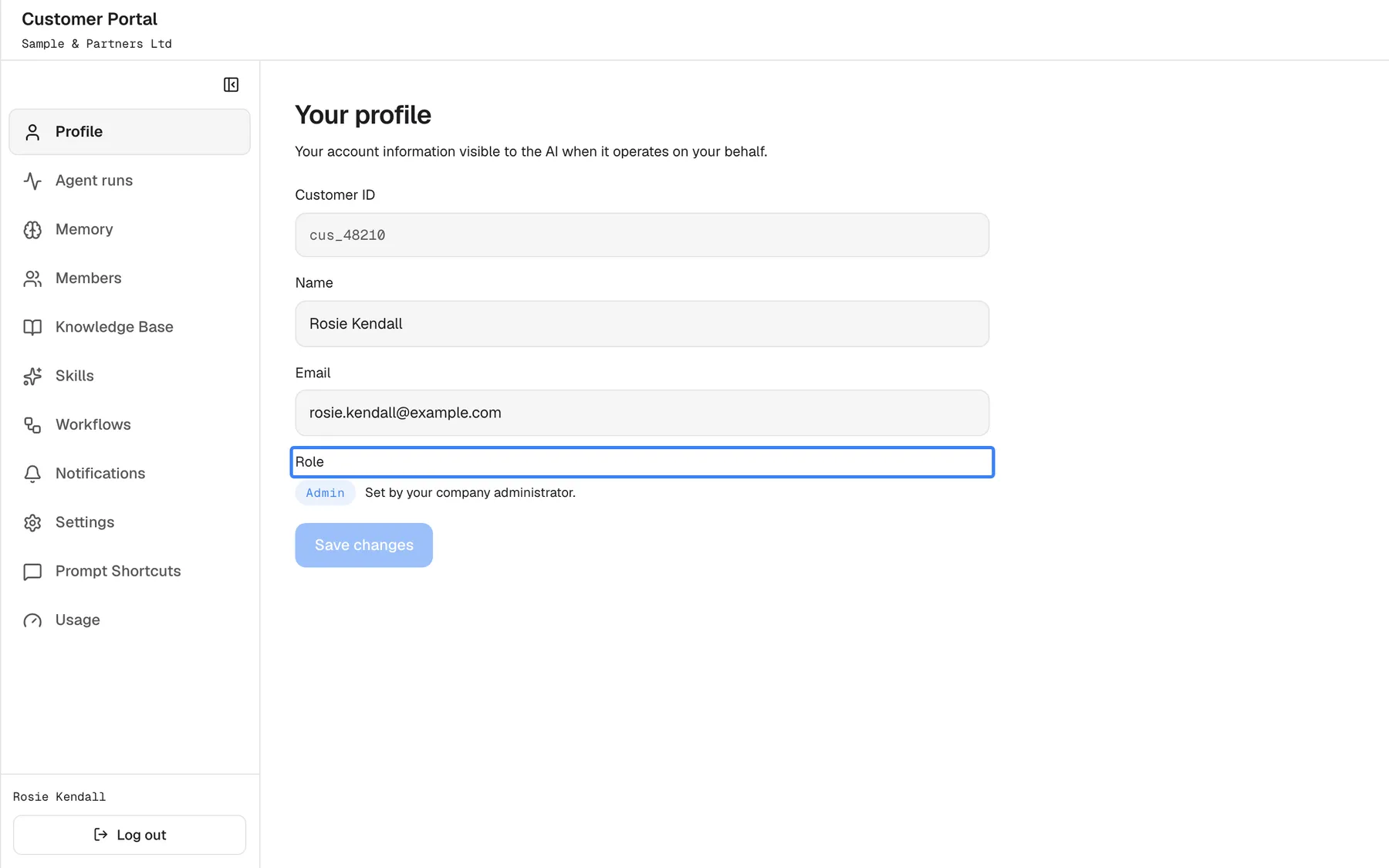
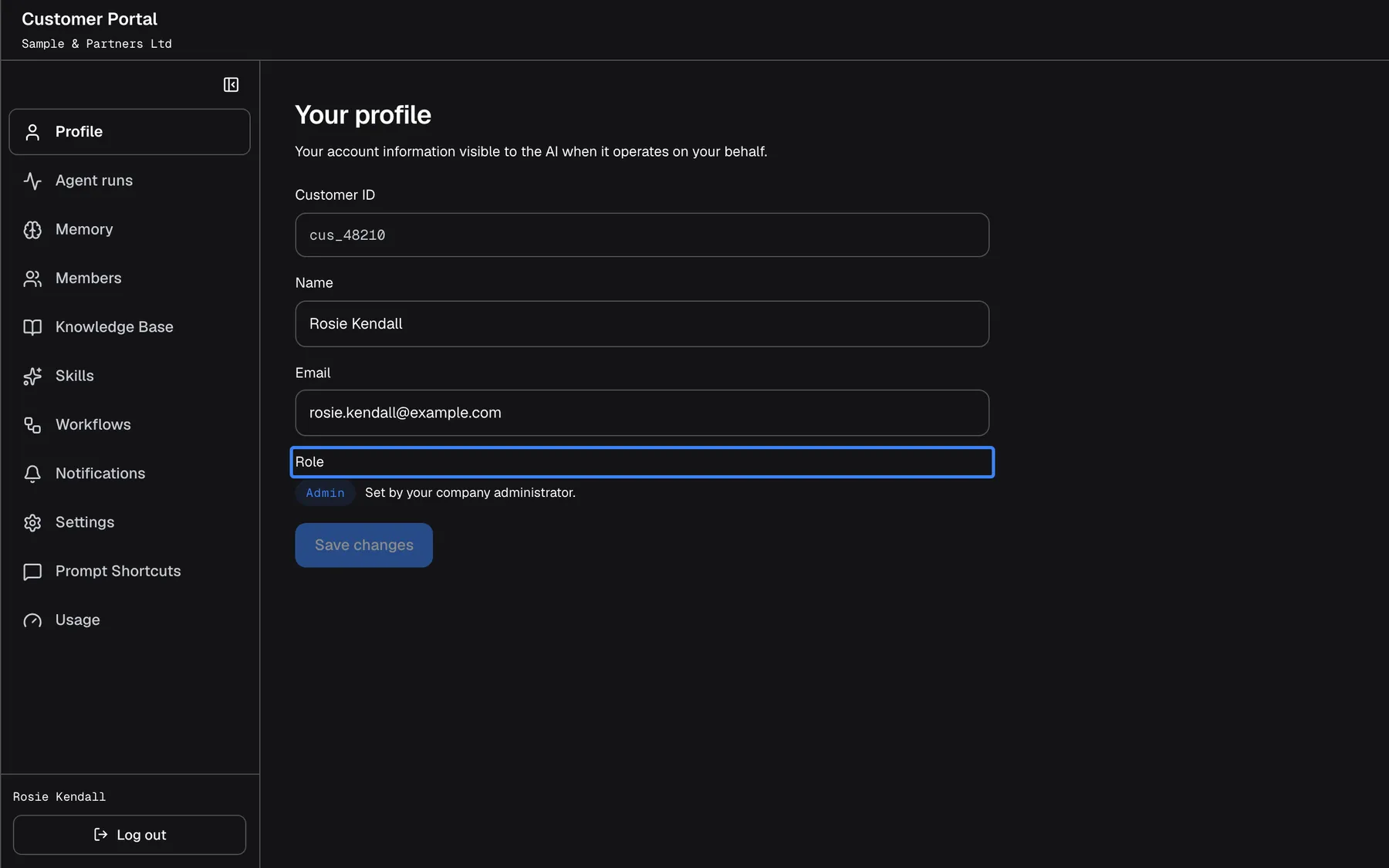
What this screenshot shows
- Screen
- Your profile (/?mode=portal)
- Highlighted
- “Role”, form, Admin (read-only). none; set by a company administrator
- Also visible
- portal.profile.customerId read-only, email, role badge with portal.profile.roleHelp, Save disabled
- Purpose
- the profile page
| Region | What it shows | What you do there |
|---|---|---|
| Heading | Your profile and a short introduction | Nothing |
| Customer ID | Your customer ID, greyed out | Read it or copy it for support |
| Name and Email | Your current name and email address | Change them |
| Role | Admin or Member, with Set by your company administrator. | Check your role |
| Save changes | Greyed out until you change something | Save your changes |
Change your name or email
Section titled “Change your name or email”-
Open ConfigureProfile.
-
Type your name in Name or your email address in Email. As soon as one of them differs from what is saved, Save changes becomes active.
-
Select Save changes. While it saves, the button reads Saving….
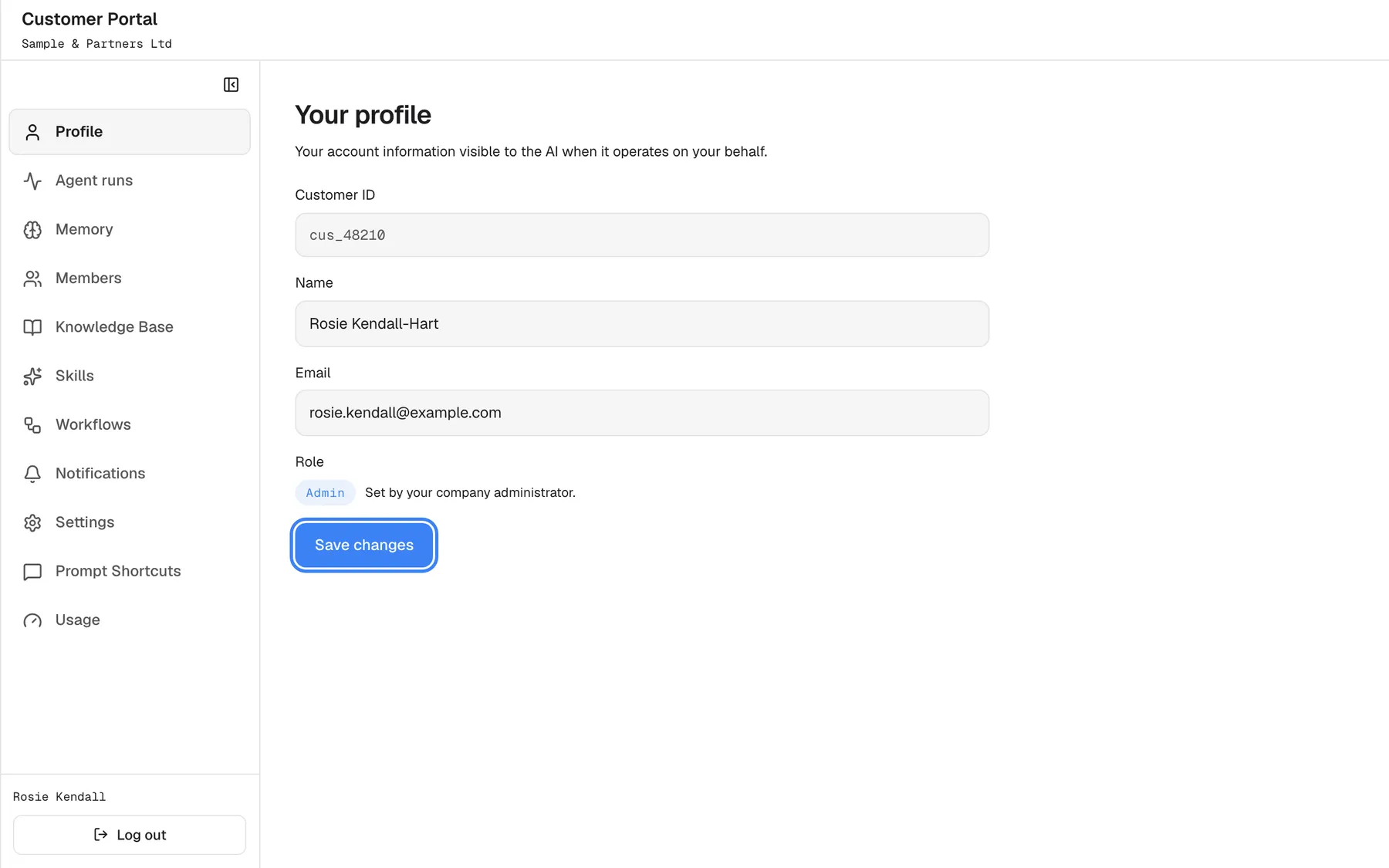
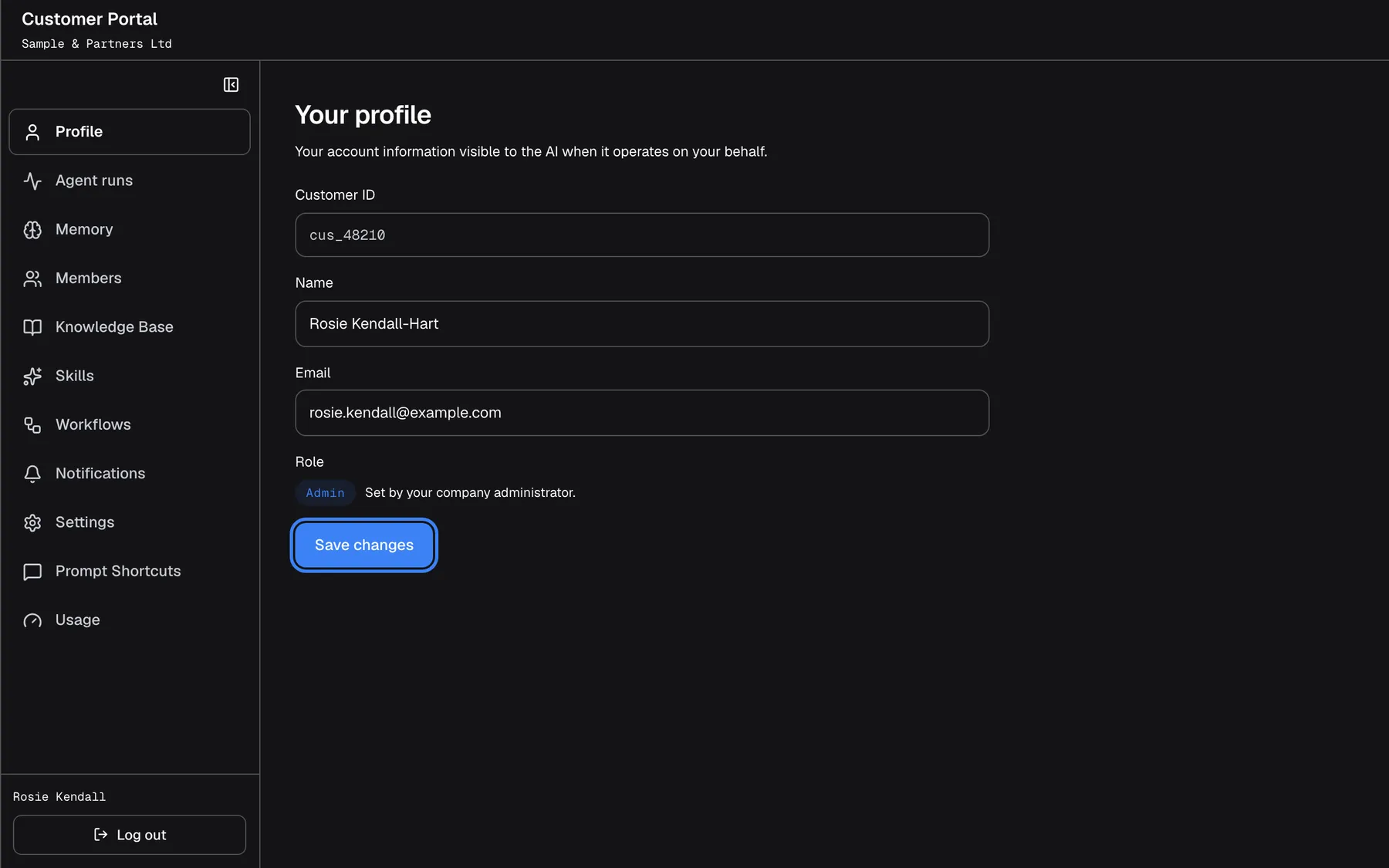
What this screenshot shows
- Screen
- Your profile (/?mode=portal)
- Highlighted
- button “Save changes”, form-bottom, enabled (name changed). saves name and email
- Also visible
- Name Rosie Kendall-Hart
- Purpose
- saving the profile
A green line Profile saved. appears under the form. If something is wrong, a red line shows the reason instead, for example “Request failed (400)” when a value is longer than 255 characters.
Example: Rosie Kendall marries and wants her new surname on her account. She opens Profile, changes Name to “Rosie Kendall-Hart” and selects Save changes. The next time she reloads the page, the menu footer shows the new name too.
Two things surprise people:
- The name in the menu footer changes only after you reload the page. The page itself shows the new value straight away.
- To clear a value, empty the field and save. An empty name or email is stored as no value at all.
Your provider’s product may fill in your name and email for you when you open the assistant. It only fills empty fields, so a name or email you have saved here is not overwritten later.
Check your role
Section titled “Check your role”Your role is shown under Role:
| Role | What it means |
|---|---|
| Admin | You can set up the assistant for your whole company: members, documents, skills, workflows, email, settings and prompt shortcuts |
| Member | You use your own pages: Profile, Agent runs, Memory, and, when your provider shows them, Prompt Shortcuts (read only) and Usage |
The role comes from your current sign-in. If an Admin of your company changes your role, this page and your menu show the new role after you sign out and in again. You cannot change your own role here; ask an Admin of your company, who can change it on Members, or your provider.
Every control, explained
Section titled “Every control, explained”The page has four fields and one button, in this order.
Customer ID
Section titled “Customer ID”The first field, Customer ID, greyed out and in a fixed-width font.
The identifier your provider’s product uses for your account. It cannot be changed in the portal.
Your provider’s support finds your account by it. Quote it when you ask for help.
The field Name, with the placeholder Add your name when it is empty. Saved with Save changes.
Your display name, up to 255 characters. Spaces at the start and end are removed. It appears in the portal’s menu footer and on your account record at your provider. Empty means no name; the portal then shows your customer ID instead.
So the people at your provider who look after your account, and your company’s Admins on Members, see who you are.
The field Email. Saved with Save changes.
Your email address, up to 255 characters. The browser checks that it looks like an email address; the address is not verified by a confirmation email. Empty clears it.
Your provider’s team sees it on your account record, and your company’s Admins see it on Members.
Under the email field, Role: a badge Admin or Member with Set by your company administrator.
Your role in your company, read from your current sign-in. Read only.
It explains which pages you see in the portal.
Save changes
Section titled “Save changes”The button Save changes under the form.
Saves the name and email together. Greyed out until one of them differs from what is saved. Shows Saving… while saving, then Profile saved. or an error in red under the form.
Nothing changes on your account until you confirm it.
What you need to know
Section titled “What you need to know”| Topic | Fact |
|---|---|
| Who sees this page | Everyone signed in to the portal; your provider cannot hide it |
| Limits | Name and email up to 255 characters each |
| Email check | Only the format, in the browser; no confirmation email |
| Who sees your name and email | Your provider’s team on your account record, and your company’s Admins on Members |
| Not on this page | Changing your PIN or password, your role or your customer ID; signing out is Log out at the bottom of the menu |
Frequently asked questions
Section titled “Frequently asked questions”Your details
Section titled “Your details”Can I change my customer ID?
Section titled “Can I change my customer ID?”No. The customer ID on ConfigureProfile is set by your provider’s product and is read only in the portal. If it looks wrong, contact your provider; they can see which account you are signed in to.
What is my customer ID for?
Section titled “What is my customer ID for?”It identifies your account at your provider. Quote it when you contact your provider’s support, so they find your account, your chats and your runs straight away. You find it at the top of ConfigureProfile.
Why is the save button greyed out?
Section titled “Why is the save button greyed out?”The Save changes button on ConfigureProfile becomes active only after you change your name or email. Type a different value in one of the two fields and the button switches on.
Is my email address checked or verified?
Section titled “Is my email address checked or verified?”Only its format is checked, by your browser, when you save on ConfigureProfile. The portal does not send a confirmation email, so make sure the address is typed correctly before you select Save changes.
Can I remove my name or email?
Section titled “Can I remove my name or email?”Yes. On ConfigureProfile, empty the field and select Save changes. An empty name is stored as no name, and the portal then shows your customer ID in the menu footer instead.
Will my provider’s product overwrite the name I saved?
Section titled “Will my provider’s product overwrite the name I saved?”No. Your provider’s product can fill in your name and email when you open the assistant, but only into fields that are empty. A name or email you saved on ConfigureProfile stays as you saved it.
Why does the menu still show my old name?
Section titled “Why does the menu still show my old name?”The name in the portal’s menu footer is read when you sign in or load the page. After you save a new name on ConfigureProfile, reload the page and the footer shows the new name.
Role and sign-in
Section titled “Role and sign-in”Why can’t I change my role?
Section titled “Why can’t I change my role?”Your role is given by an Admin of your company, on ConfigureMembers, or by your provider. Nobody changes their own role. Ask an Admin of your company if you need to be an Admin or a Member.
My role was changed but the page still shows the old one. Why?
Section titled “My role was changed but the page still shows the old one. Why?”The role on ConfigureProfile comes from your current sign-in. Select Log out at the bottom of the portal menu and sign in again; the new role, and the pages that go with it, appear then.
Where do I change my PIN or password?
Section titled “Where do I change my PIN or password?”The assistant has no screen for changing your PIN or password, neither on ConfigureProfile nor on the sign-in screen. Contact your provider if you need a new PIN or password.
Troubleshooting
Section titled “Troubleshooting”| Symptom | What to check |
|---|---|
| Save changes stays greyed out | Change the name or the email first; the button only saves changes |
| “Request failed (400)” after saving | The name or the email is longer than 255 characters. Shorten it and save again. |
| “Customer not found.” after saving | Your account changed while the page was open. Reload the page and sign in again; if it repeats, contact your provider with your customer ID. |
| Something went wrong. Please try again. | The connection dropped. Reload the page and save again. |
| The menu footer shows the old name | Reload the page. |
| The role shown is out of date | Sign out with Log out and sign in again. |