

Agent runs
Agent runs lists the work the assistant does for you in the background: workflows that run on a schedule or when someone selects Run now, and assistants that your provider’s systems start for you. A run that wants to do something risky, or needs information from you, waits here until you approve, deny or answer. Open it from ConfigureAgent runs. Everyone sees this page: Members see their own runs, Admins see every run of their company.
What you can do here
Section titled “What you can do here”- See what is waiting for you. The page opens on Needs you, the runs that need an approval or an answer before they can go on. Find a run.
- Approve or deny a step. A run stops before a risky action and shows what it wants to do and which records it will touch. You have 24 hours to decide. Approve or deny a waiting step.
- Answer a question. When a run lacks information, it asks you and waits for your answer. Answer a run’s question.
- Read the result. A completed run shows the assistant’s final answer, with its tables, charts and sources. Read the result.
- Cancel a run or nudge it on. Stop a run that should not continue, or ask a waiting run to check again. Cancel or resume a run.
The screen at a glance
Section titled “The screen at a glance”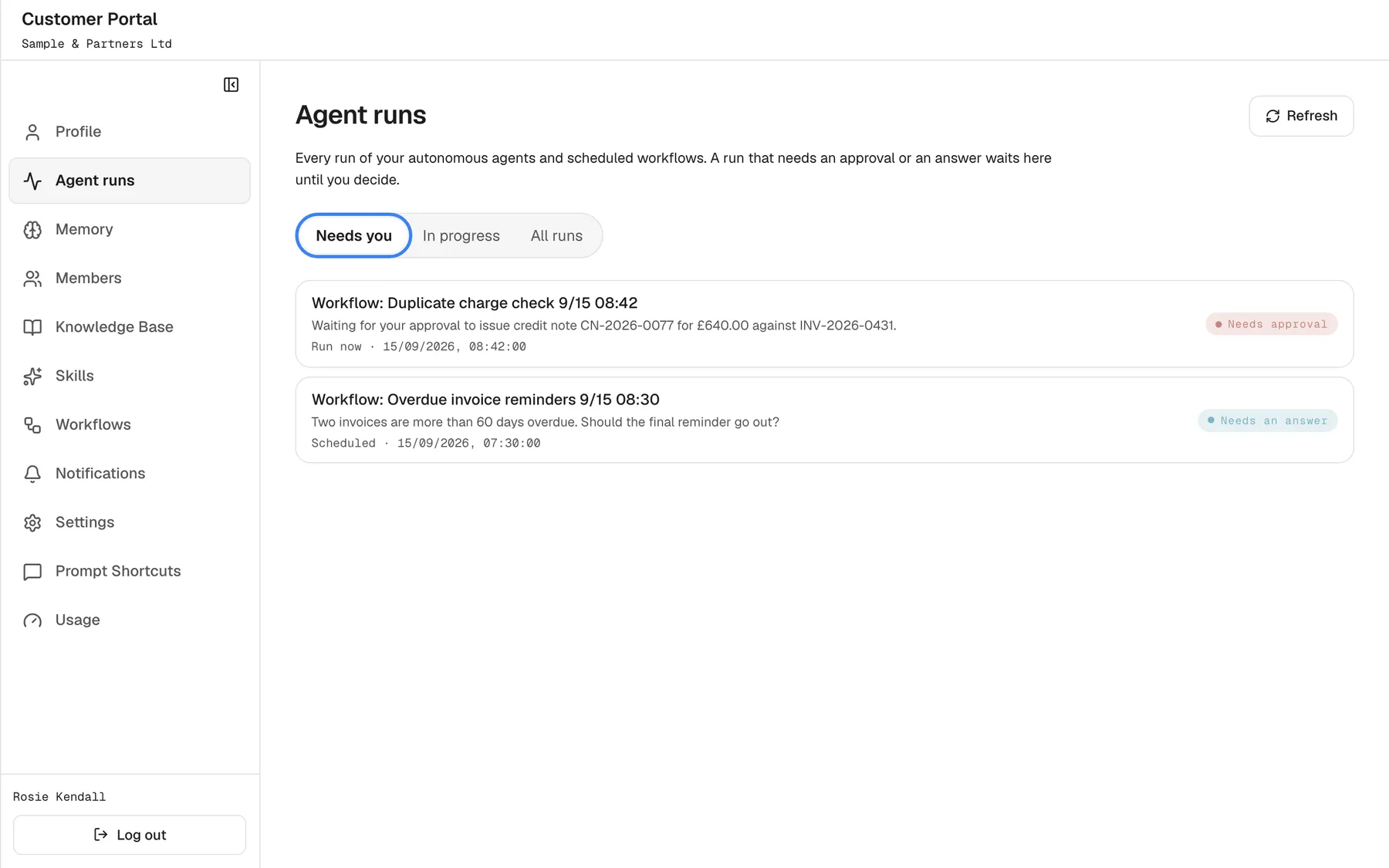
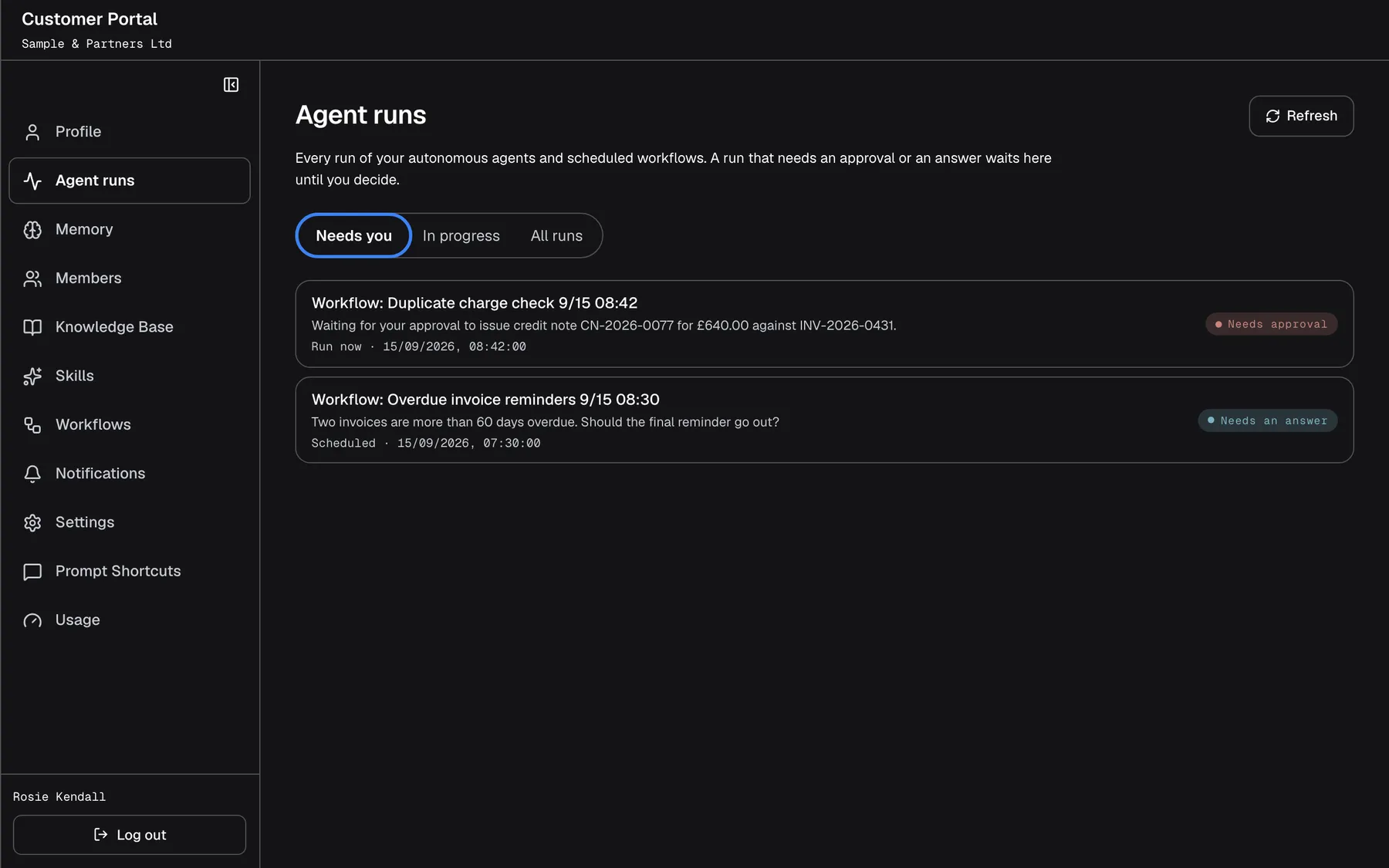
What this screenshot shows
- Screen
- Agent runs (/?mode=portal)
- Highlighted
- button “Needs you”, filters, selected (default). lists runs waiting for an approval or an answer
- Also visible
- Status pills portal.jobs.status.waitingForApproval / waitingForInput, trigger labels
- Purpose
- runs that need you
| Region | What it shows | What you do there |
|---|---|---|
| Heading | Agent runs, an introduction and Refresh | Reload the list |
| Filters | Needs you, In progress and All runs | Choose which runs to see |
| The list | One card per run, newest first: title, a short note when it is waiting, how it started, when, and a status | Open a run |
| Run details (after you open one) | What the run waits for, its result, steps, decisions and activity | Approve, deny, answer, cancel or resume |
Find a run
Section titled “Find a run”-
Open ConfigureAgent runs. The list shows Needs you.
-
Select In progress for runs that have not finished, or All runs for every run, including completed, failed and cancelled ones.
-
Select a card to open the run.
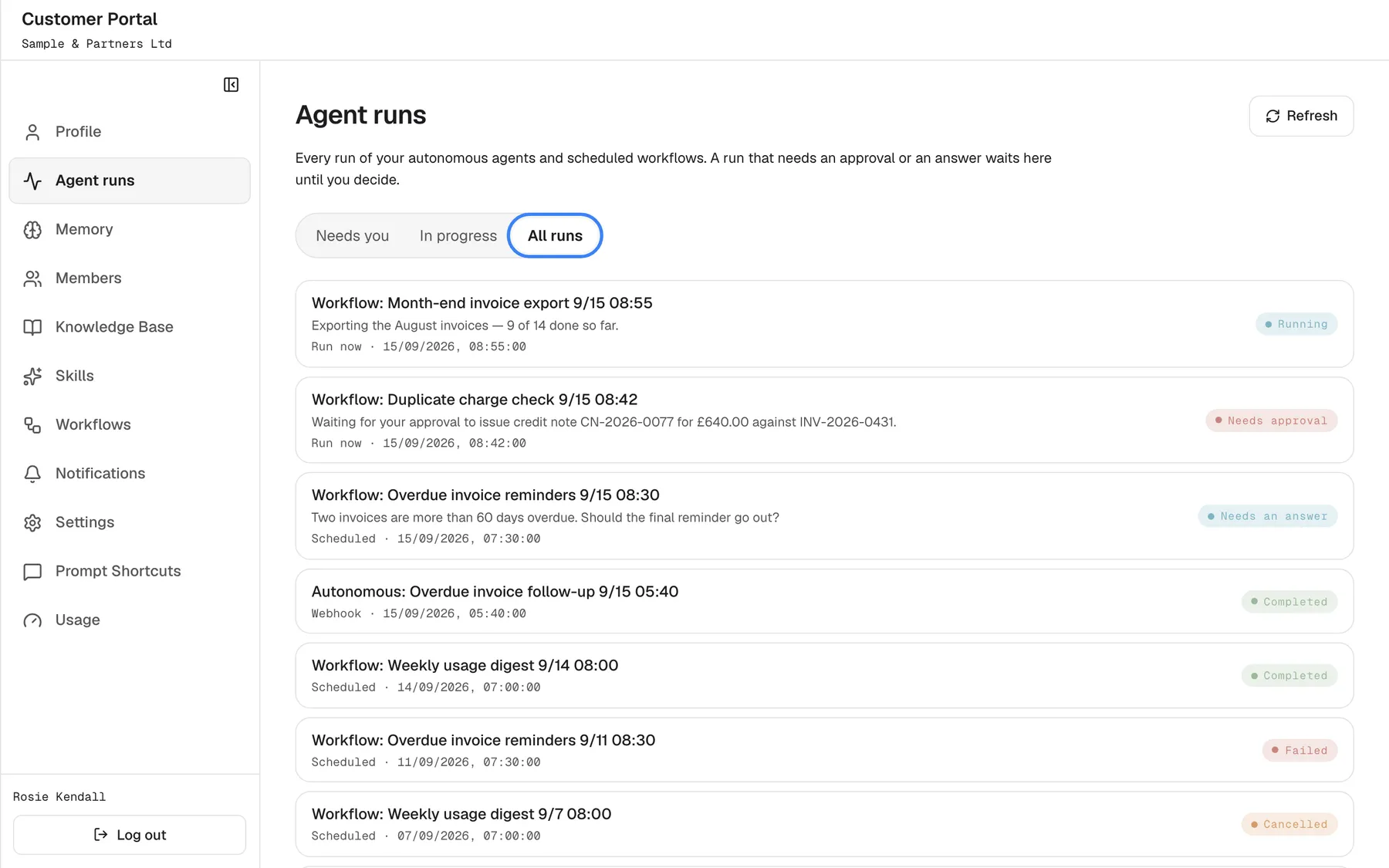
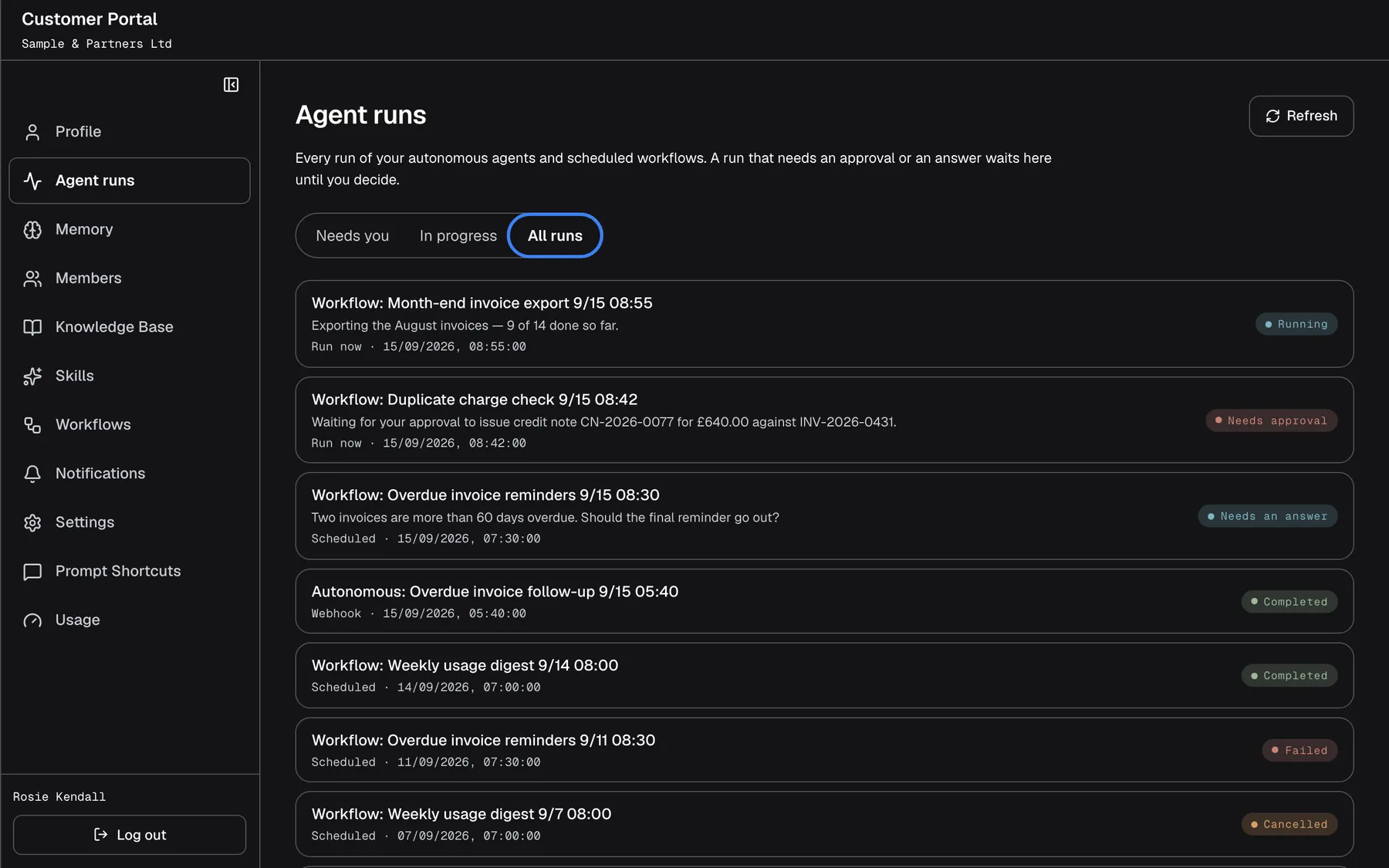
What this screenshot shows
- Screen
- Agent runs (/?mode=portal)
- Highlighted
- button “All runs”, filters, selected. lists every run, newest first
- Also visible
- Every portal.jobs.status.* pill, trigger (Run now, Scheduled, Webhook) and start time
- Purpose
- all runs
The list shows the 50 newest runs for the filter. When there are more, a line such as “12 more not shown” appears under the list; the portal has no further pages, so use a narrower filter to find older runs. The list does not update by itself: select Refresh to see new runs and status changes. A run’s details, once open, do update live.
A run is titled after what started it. Runs of a workflow are titled “Workflow:” followed by the workflow’s name and the start date and time, for example “Workflow: Overdue invoice reminders 9/15 08:30”. Conversations you have in the chat itself are not listed here; they stay in your chat history.
You can also reach a waiting run from the chat: on the start screen, a run that needs you shows Decide, which opens it here.
Approve or deny a waiting step
Section titled “Approve or deny a waiting step”When a run reaches a step that changes data or carries risk, it stops and asks. The run shows the status Needs approval.
-
Open the run. Under Waiting for your approval you see each step that waits: its name, the action it will use, its risk level, the time it expires, and, where the step works on specific records, a line such as “Acts on: INV-2026-0431”.
-
Select Approve to let the step run, or Deny to skip it.
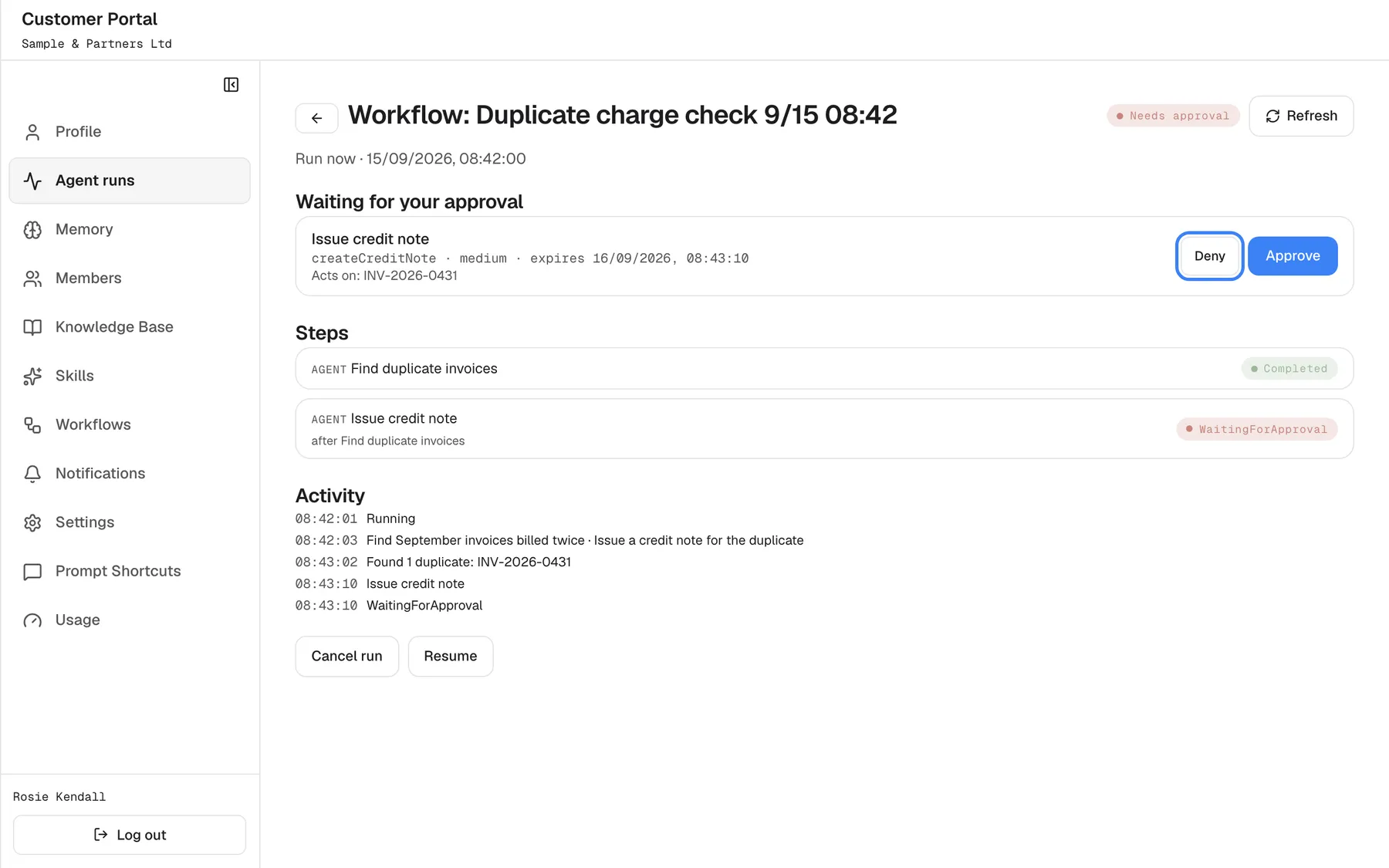
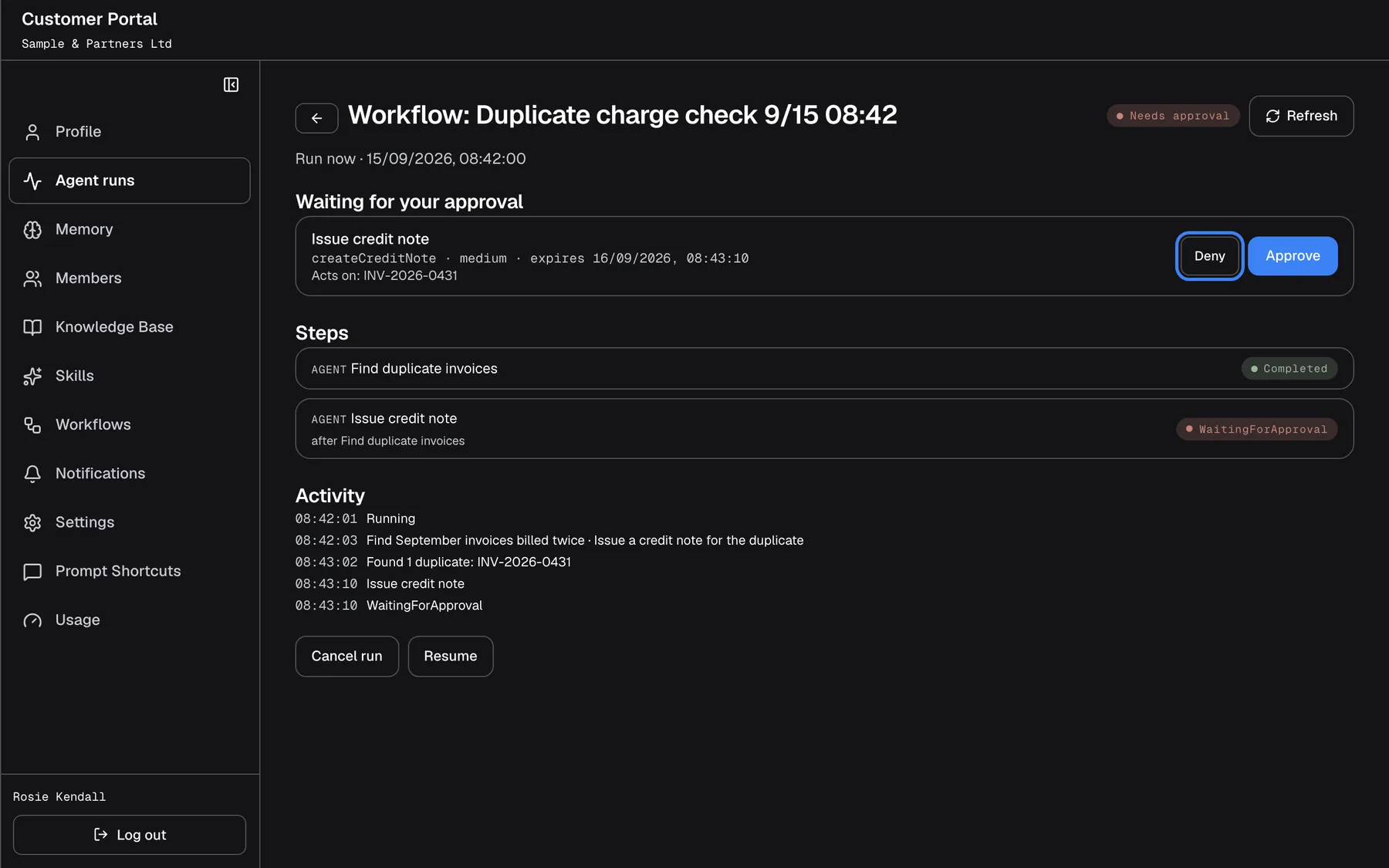
What this screenshot shows
- Screen
- Waiting for your approval (/?mode=portal)
- Highlighted
- button “Deny”, pending-approval, enabled. skips the step; the rest of the run continues
- Also visible
- Trigger and start time on the meta line (no cost while the run is open); portal.jobs.steps with raw status words, portal.jobs.activity, portal.jobs.cancel, portal.jobs.resume
- Purpose
- run detail with an approval
What happens next:
| You select | Result |
|---|---|
| Approve | The step runs. If nothing else is waiting, the run continues straight away. |
| Deny | The step is skipped. Steps that depend on it do not run either; the rest of the run continues. |
| Nothing for 24 hours | The approval expires and the step is skipped, as if you had denied it. The rest of the run continues. |
Example: a run “Credit note for a duplicated invoice” waits with the step “Issue credit note”, which acts on INV-2026-0431. Rosie checks the invoice, sees it was paid twice and selects Approve. The credit note is issued and the run finishes with a result that names the new credit note.
If an Admin of your company has already decided on the step, your choice is refused with “Approval already decided”. Select Refresh to see the current state.
Answer a run’s question
Section titled “Answer a run’s question”A run that lacks information shows the status Needs an answer and the section The run needs an answer, with one text box per question.
-
Open the run and type an answer into every box.
-
Select Send answer. It becomes active only when every question has an answer.
The run continues with your answers. Questions also expire after 24 hours. If the question has already been answered or has expired, you see “Step is not waiting for an answer”.
Example: the run “Workflow: Overdue invoice reminders” asks “Two invoices are more than 60 days overdue. Should the final reminder go out?”. Rosie types “Yes, but not to Example Studios; they paid yesterday.” and selects Send answer.
Read the result
Section titled “Read the result”When a run has the status Completed, its details open with the section Result: the assistant’s final answer, shown as it would be in the chat, with tables, charts and sources. Only completed runs have a result.
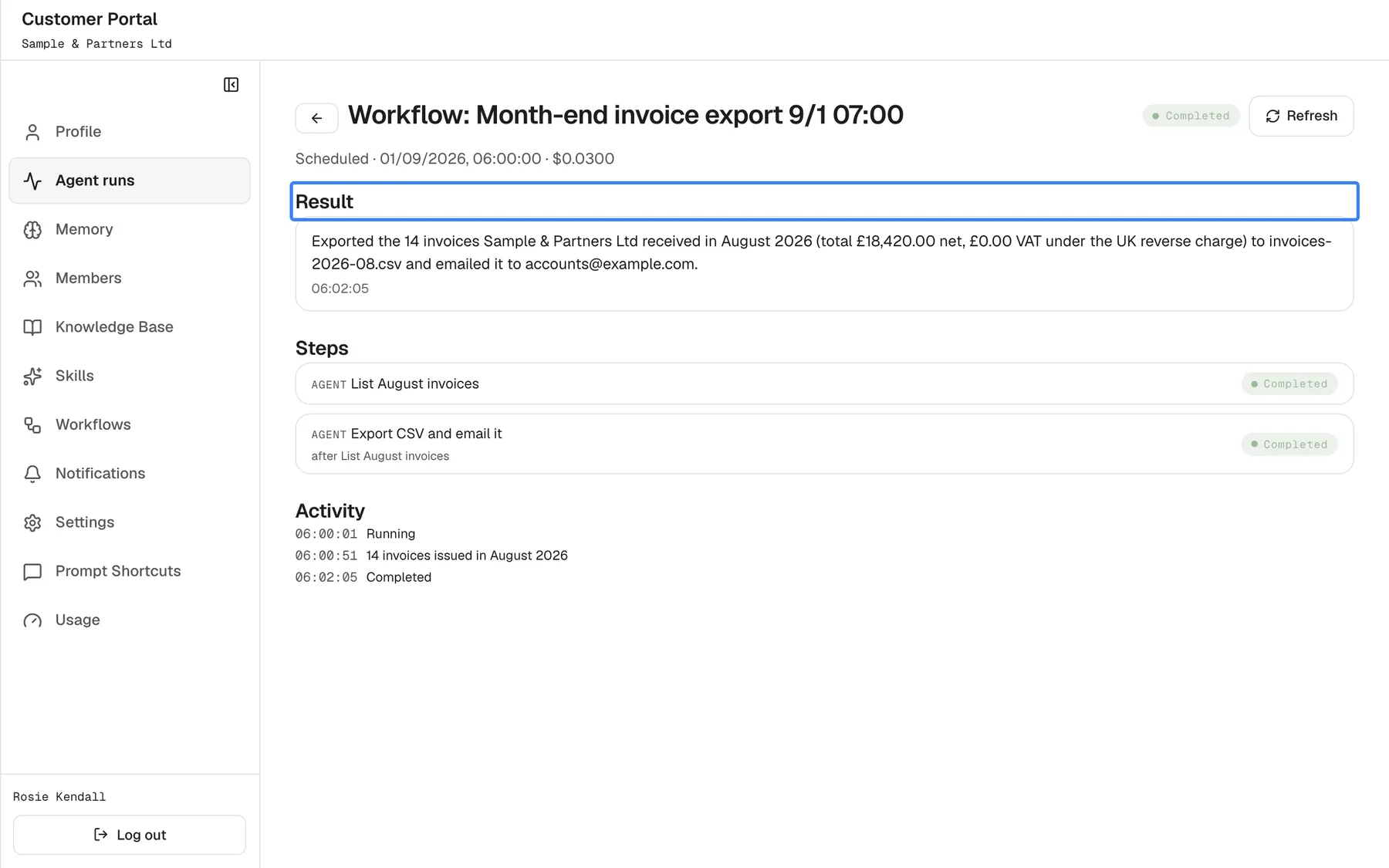
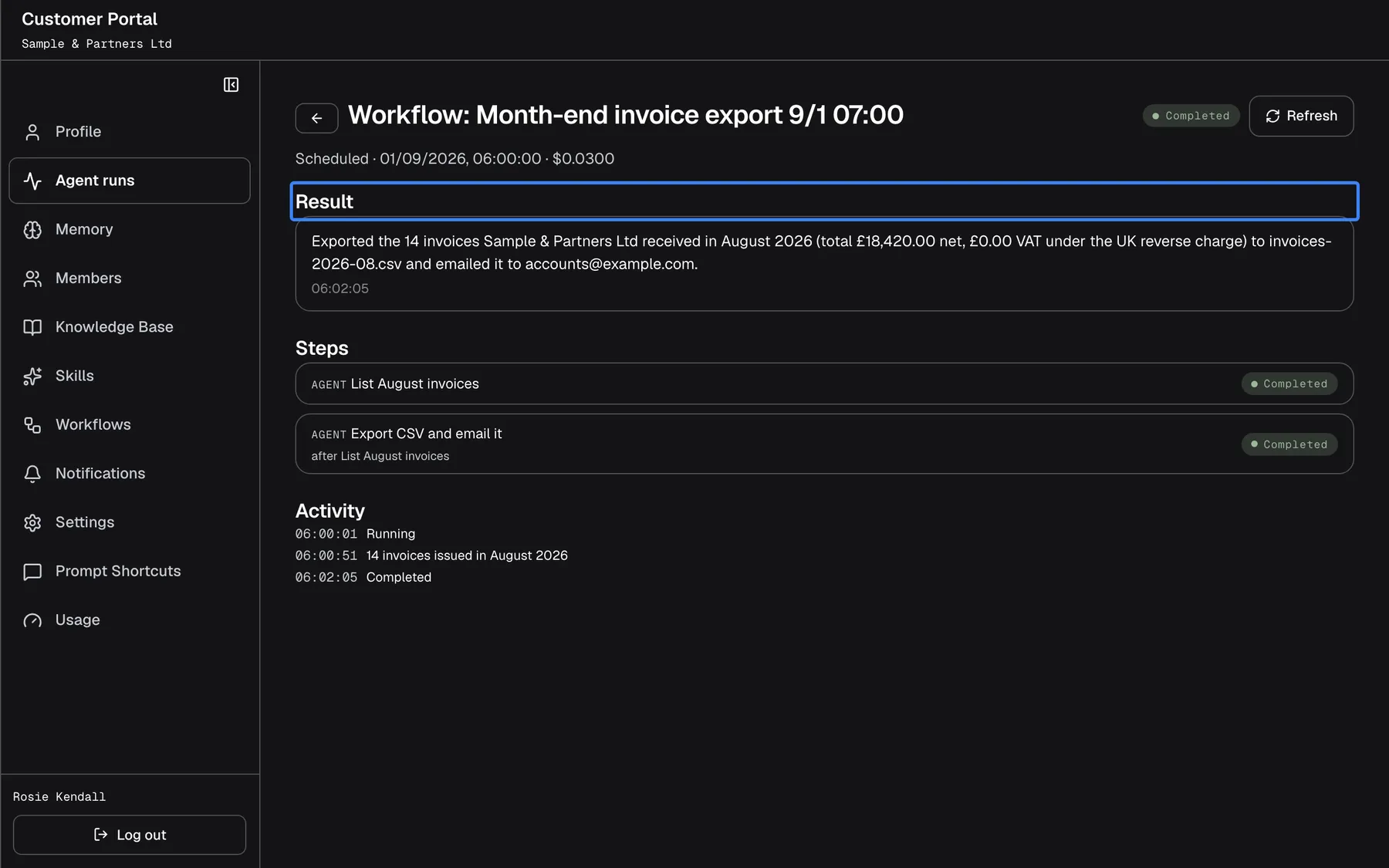
What this screenshot shows
- Screen
- Result (/?mode=portal)
- Highlighted
- “Result”, result, completed run. none
- Also visible
- Two completed steps, activity log
- Purpose
- run result
Below the result you find the run’s Steps, the decisions made under Decided and the Activity log. The activity log of a finished run is deleted 7 days after the run ends; the result, steps and decisions stay.
Cancel or resume a run
Section titled “Cancel or resume a run”At the bottom of an open run:
- Cancel run stops a run that has not finished. Steps not yet run are not carried out. A cancelled run cannot be restarted; start the workflow again if you need it. If the run has already finished, you see “Job already finished”.
- Resume appears while a run waits for an approval or an answer, or is running. It asks the run to check its state again and continue if it can. It does not skip anything that still waits for you.
A run that shows Paused — the AI allowance for this period is used up; the run continues when it resets. has used up the AI allowance for this period. It continues by itself when the allowance resets or your provider changes the limit; Resume is not shown for it. See Usage.
Every control, explained
Section titled “Every control, explained”Each control below says where it is, what it does and why it is there, in screen order.
Filters
Section titled “Filters”| Filter | What it shows | Why |
|---|---|---|
| Needs you (default) | Runs with the status Needs approval or Needs an answer | The runs that cannot go on without you |
| In progress | Every run that has not finished: planned, running, paused and waiting ones, so including those that need you | See what is under way |
| All runs | Every run, finished ones too | Look up a result or a failure |
Refresh
Section titled “Refresh”The button Refresh at the top right of the list, and again at the top of an open run.
Reloads the list or the run. The list never reloads by itself.
Runs change in the background; Refresh shows the current state, for example after someone else decided on a step.
Run cards
Section titled “Run cards”| Part | What it shows | Why |
|---|---|---|
| Title | The run’s name, such as “Workflow:” and the workflow’s name with its start time | Tell runs apart |
| Note | When something waits, a short summary of what: the action a step wants to use, or the questions. It comes from the service in English. | Decide whether to open it now |
| Trigger and time | Scheduled, Run now or Webhook, with the local date and time it was created | See what started it |
| Status | One of the statuses below | See where the run stands |
| Status | Meaning |
|---|---|
| Planned | Prepared, not started yet |
| Running | Working |
| Needs approval | A step waits for your approval |
| Needs an answer | The run waits for your answer |
| Paused | Stopped for now, for example because the allowance is used up |
| Completed | Finished; the result is available |
| Failed | Stopped by an error; the step shows the error text |
| Cancelled | Stopped by someone, or skipped |
Run header and details line
Section titled “Run header and details line”At the top of an open run: Back, the title, the status and Refresh, with a line underneath.
The line shows how the run started, when, and the reason for its status if there is one.
So you know where the run came from and how far it got.
Waiting for your approval
Section titled “Waiting for your approval”The section Waiting for your approval in an open run, with Deny and Approve per step.
One block per waiting step: its name, the action and its risk level, the time it expires, and the records it acts on. Approve runs the step; Deny skips it and the steps that depend on it. After 24 hours the step is skipped.
Risky actions on your data happen only with a person’s decision.
The run needs an answer
Section titled “The run needs an answer”The section The run needs an answer, one text box per question, and Send answer.
Sends your answers and lets the run continue. The button stays greyed out until every box has text. Questions expire after 24 hours.
A run that would otherwise guess asks you instead.
Result
Section titled “Result”The section Result at the top of a completed run.
The assistant’s final answer, with formatting, tables, charts and sources as in the chat. There are no rating buttons here.
The output of a background run has to be readable somewhere you can find it later.
The section Steps in an open run.
Every step of the run in order: its kind, its name, any error, which steps it runs after, how many attempts it took and, for repeated steps, which round it is. Kinds and status words come from the service in English, for example “Completed” or “Skipped”.
When a run fails, the failing step and its error text tell you why.
Decided
Section titled “Decided”The section Decided in an open run.
Every approval that has been decided, with “Approved”, “Denied” or “Expired” and the time.
Shows what was allowed, refused or left to expire, and when.
Activity
Section titled “Activity”The section Activity at the end of an open run.
A timed log of what happened: progress, status changes, requests for approval or answers, and the start of the assistant’s messages. It updates live while the run is open and shows the latest 200 entries. It is emptied 7 days after the run finishes.
Lets you watch a run as it works.
Cancel run
Section titled “Cancel run”The button Cancel run at the bottom of a run that has not finished.
Stops the run straight away. There is no confirmation and no undo.
Stop work that is no longer wanted before it reaches its next step.
Resume
Section titled “Resume”The button Resume at the bottom, shown while a run waits for you or is running.
Asks the run to check its state again and carry on if nothing blocks it. Pressing it more than once does no harm.
A nudge for a run that seems stuck after a decision.
Who sees what
Section titled “Who sees what”| Part | Member | Admin |
|---|---|---|
| Runs in the list | Your own runs, and the runs of your company’s company workflows | Your own and every other run of your company, except other people’s personal workflows |
| Approve, deny, answer, cancel | Your own runs, and the company workflows’ runs | Every run you see; a decision on a colleague’s run is made on their behalf and records who decided |
| Opening a colleague’s run by link | Shows This run is no longer available. | Opens it |
What you need to know
Section titled “What you need to know”| Topic | Fact |
|---|---|
| What is listed | Runs started by a schedule, by Run now or by your provider’s systems; not chat conversations |
| Time to decide | Approvals and questions expire after 24 hours; the step is then skipped and the run continues |
| List size | The 50 newest runs per filter, newest first |
| Refresh | The list only on Refresh; an open run live |
| Activity log | Deleted 7 days after the run finishes |
| Allowance | When the allowance is used up, running runs pause and continue after the reset |
| Language | Run notes, step kinds and status words inside a run come from the service in English |
Frequently asked questions
Section titled “Frequently asked questions”Runs and statuses
Section titled “Runs and statuses”What is an agent run?
Section titled “What is an agent run?”An agent run is a piece of work the assistant does in the background, without a chat open: a workflow on a schedule, a workflow started with Run now, or an assistant your provider’s systems start for you. Every run is listed under ConfigureAgent runs.
Why is my chat conversation not listed?
Section titled “Why is my chat conversation not listed?”ConfigureAgent runs lists only background runs started by a schedule, by Run now or by your provider’s systems. Your chat conversations stay in the chat history, which you open with the menu button at the top left of the chat.
What does Needs you mean?
Section titled “What does Needs you mean?”The filter Needs you on ConfigureAgent runs shows runs that cannot continue without you: a step waits for your approval, or the run waits for your answer. Open one, decide or answer, and the run carries on.
Why does it say some runs are not shown?
Section titled “Why does it say some runs are not shown?”The list on ConfigureAgent runs shows the 50 newest runs for the filter you chose and counts the rest, for example “12 more not shown”. There are no further pages; choose Needs you or In progress to narrow the list.
Why does the list not change when a run finishes?
Section titled “Why does the list not change when a run finishes?”The list on ConfigureAgent runs loads once when you open the page. Select Refresh to see new runs and new statuses. An open run updates live, so you can watch it while it works.
Approvals and answers
Section titled “Approvals and answers”How long do I have to approve a step?
Section titled “How long do I have to approve a step?”24 hours from the moment the run asked. The expiry time is shown next to the step under Waiting for your approval. After that the approval expires, the step is skipped and the rest of the run continues without it.
What happens if I deny a step?
Section titled “What happens if I deny a step?”The step is skipped, together with any steps that depend on its result. The run carries on with everything else and records the decision under Decided on the run’s page in ConfigureAgent runs.
What does Acts on mean?
Section titled “What does Acts on mean?”The line under a waiting step lists the records the step will work on, such as invoice numbers. Check them before you select Approve. When there are many, the line ends with a count of the ones not listed.
Can an Admin of my company approve my run?
Section titled “Can an Admin of my company approve my run?”Yes, unless it belongs to one of your personal workflows. An Admin of your company sees every other run of the company on ConfigureAgent runs and can approve, deny, answer or cancel it. The decision is made on your behalf and records who made it.
Why can’t I send my answer?
Section titled “Why can’t I send my answer?”Send answer becomes active only when every question in The run needs an answer has an answer. Type something in each box. If you see “Step is not waiting for an answer”, the question was already answered or expired after 24 hours.
Results and pauses
Section titled “Results and pauses”Where do I find what the run produced?
Section titled “Where do I find what the run produced?”Open the run on ConfigureAgent runs. A run with the status Completed shows the assistant’s final answer under Result, with tables and charts. Failed or cancelled runs have no result; look at their steps for the reason.
Why is the activity log of an older run empty?
Section titled “Why is the activity log of an older run empty?”The Activity log of a finished run is deleted 7 days after the run ends. The result, the steps and the decided approvals of the run stay on ConfigureAgent runs.
Why is my run paused?
Section titled “Why is my run paused?”A run with Paused — the AI allowance for this period is used up; the run continues when it resets. stopped because the AI allowance for this period is used up. It continues by itself when the allowance resets or your provider changes the limit. The reset date is on ConfigureUsage.
Can I undo a cancelled run?
Section titled “Can I undo a cancelled run?”No. Cancel run stops the run for good and has no confirmation. If it was a workflow, an Admin can start it again with Run now on ConfigureWorkflows.
Why are some words inside a run in English?
Section titled “Why are some words inside a run in English?”Run notes, step kinds, step statuses and the decisions under Decided come from the service as they are, in English, whatever the language of the assistant. Headings and buttons on ConfigureAgent runs follow your browser’s language.
Troubleshooting
Section titled “Troubleshooting”| Symptom | What to check |
|---|---|
| Couldn't load runs. | Reload the page. If it repeats, sign out with Log out and sign in again. |
| This run is no longer available. | The run belongs to someone else in your company (Members see only their own runs and those of company workflows; nobody else sees a personal workflow’s runs) or was removed. Open the list and check the filter. |
| “Approval already decided” | Someone else, usually an Admin of your company, decided first. Select Refresh. |
| “Approval not found” or “Job not found” | The approval or the run no longer exists. Select Refresh and open the run from the list again. |
| “Step is not waiting for an answer” | The question was answered or expired after 24 hours. Refresh and check Steps. |
| “Job already finished” on Cancel run | The run ended before you cancelled. Nothing more happens. |
| A waiting step disappeared | It expired after 24 hours and was skipped. It is listed under Decided as “Expired”. |
| A run stays Paused | Check Usage; the allowance may be used up until the reset date. |
| That didn't work. | Your action did not reach the service. Refresh and try again. |
| A new run is missing from the list | Select Refresh; runs started by a schedule appear when they start. |