

Using the assistant
The assistant is an AI chat built into a product you already use. The company that makes that product, your provider, has added it so you can ask questions, get things done and find information without leaving the page you are on. It answers in a chat window, can look things up or make changes in your provider’s systems for you, and can hand you over to a person on your provider’s team when your provider has set that up.
Everything the assistant can do is decided by your provider: its name and colours, the shortcuts on its welcome screen, which actions it may take, and whether you sign in first. So the assistant in one product can look and behave differently from the one in another. These guides describe every part you may meet. If a part is missing in your product, your provider has not switched it on. In the screenshots, the provider is called Demo Ltd; that is an example name.
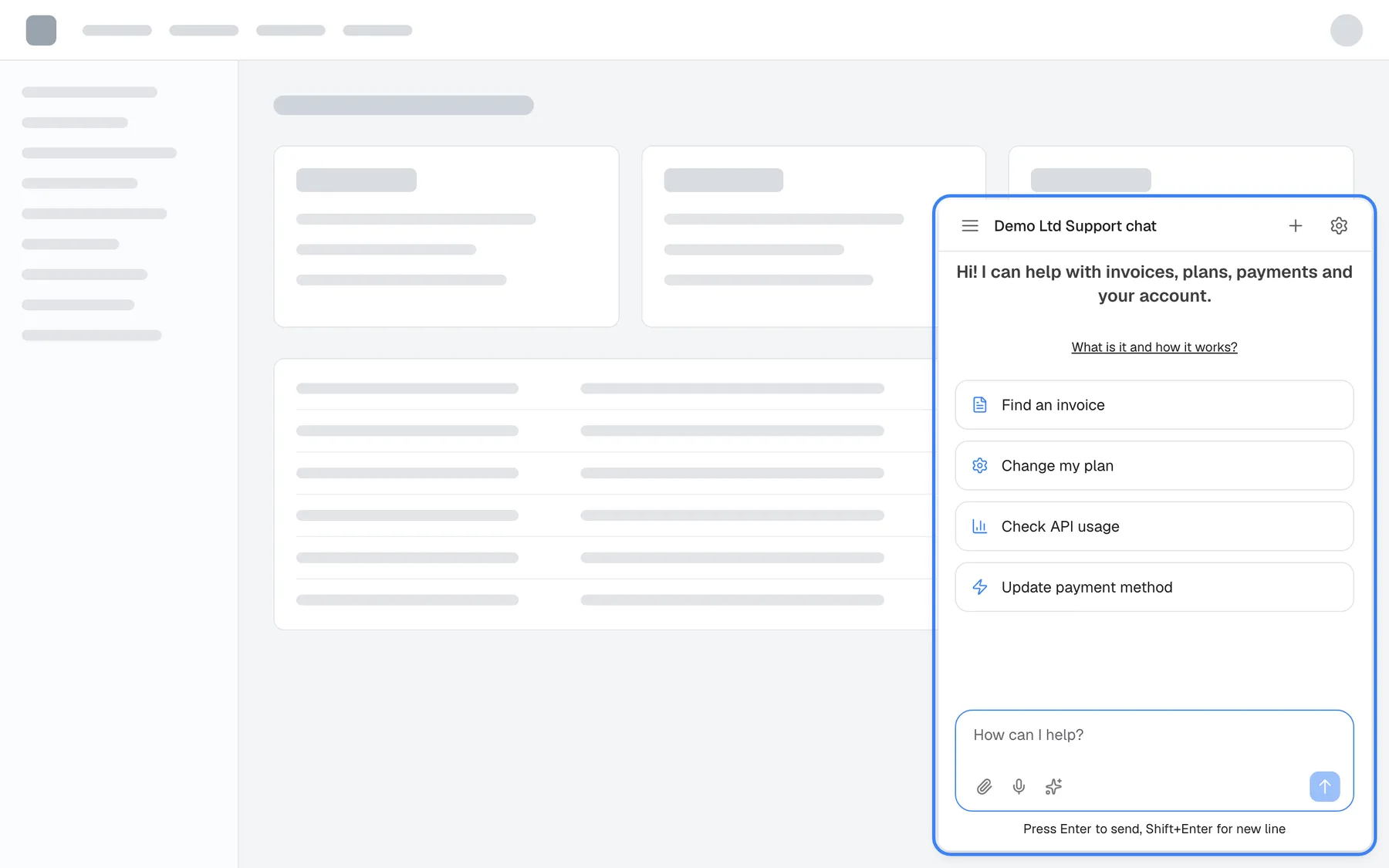
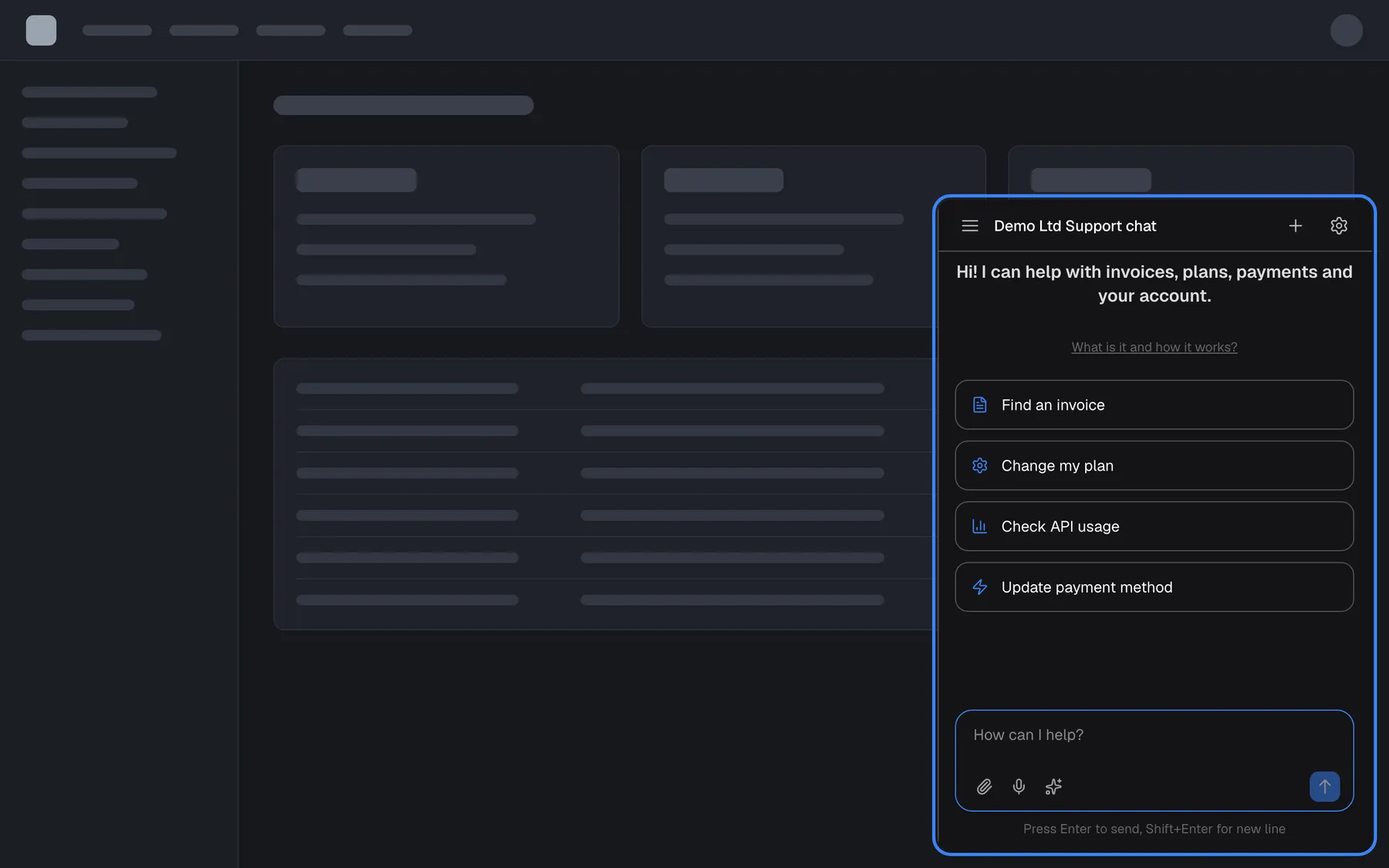
What this screenshot shows
- Screen
- How can I help? (host page (provider product))
- Highlighted
- “”, bottom-right, open (popup display type). the chat window where every conversation happens
- Also visible
- Title Demo Ltd Support chat (the provider's widget name); Welcome text, What is it and how it works? link, four shortcut cards; Message box with attach, microphone and shortcuts icons
- Purpose
- what the assistant looks like when you first open it
Pages in this section
Section titled “Pages in this section”| Page | What it covers |
|---|---|
| Open the assistant | Where the assistant sits on the page (a round button, a tab on the edge, a side panel, a box in the page), how to open and close it, and what the loading and error screens mean |
| Sign in with a PIN or password | The sign-in screen some providers put in front of the chat: setting up a PIN or password, signing in again, Remember me on this browser, and what happens after wrong attempts |
| Create your account | The sign-up page you open from a link your provider or your company’s administrator sends you |
What you can do here
Section titled “What you can do here”- Find and open the assistant. It may wait behind a button in a corner, a tab on the right edge, or be open beside the page all the time. Open the assistant.
- Sign in, if your provider asks you to. You choose a PIN of 4 to 8 digits or a password of at least 8 characters the first time, then enter it when you come back. Sign in with a PIN or password.
- Create your own account from a sign-up link. Your provider or your company’s administrator can send you a link that sets up your access in one step. Create your account.
- Ask questions and get things done. Type, speak or attach a file, use shortcut cards, and stop an answer at any time. Ask questions.
- Approve actions before they happen. When the assistant wants to change something on your behalf, it can ask you first with an approval card. Actions the assistant takes for you.
- Reach a person. If your provider has connected its support team, the assistant can offer to pass your conversation on. Talk to a person.
Concepts to know
Section titled “Concepts to know”Your provider
Section titled “Your provider”Your provider is the company whose product you are using. It chose to add the assistant, it decides what the assistant knows and may do, and it is the right contact for any question about your account or the data the assistant shows. The assistant has no separate support link; problems go to your provider in the usual way.
An AI, not a person
Section titled “An AI, not a person”Answers come from an AI. Under the message box in every chat the assistant reminds you: AI can make mistakes. Please double-check responses.. A person only joins the conversation when you ask for one and your provider has set that up, and then their name appears on their messages.
What you need
Section titled “What you need”| Need | Details |
|---|---|
| A current web browser | The assistant runs in the browser, on a computer, tablet or phone. There is nothing to install. |
| Site data allowed | The assistant stores small pieces of information in your browser, such as your sign-in and your choice of light or dark mode. If your browser blocks site data for the product, the assistant does not start. |
| A microphone (optional) | Only for speaking a question instead of typing it. The microphone button only appears when your browser supports recording. |
| A PIN or password (sometimes) | Only when your provider requires sign-in. Some providers sign you in automatically when you are already signed in to their product. |
Languages
Section titled “Languages”The assistant’s buttons and messages appear in English, German or Spanish, chosen from your browser’s language. With any other browser language, they appear in English. There is no language switch inside the assistant. Texts your provider wrote, such as the welcome text and the shortcut cards, follow your browser’s language when your provider has translated them.
Availability
Section titled “Availability”The chat itself is always there once the assistant is open (and once you are signed in, where your provider requires it). Rating answers, talking to a person, shortcut cards, prompt shortcuts, approval cards, source badges and the customer portal behind the gear icon each appear only if your provider has switched them on. Each guide says when its part appears.