

Memory
The Memory page shows every note the assistant may use about you: the notes it has learned from your own conversations, and notes your provider has attached to your whole company. You can forget any of your own notes, and one checkbox switches remembering off for you. Open it from ConfigureMemory. Everyone sees this page, Admins and Members, and only you see your own notes here; your colleagues and your company’s Admins do not.
What you can do here
Section titled “What you can do here”- See what the assistant remembers. Notes are grouped by kind, such as preferences and facts, so you can check them at a glance. Each note is at most 400 characters. See what the assistant remembers.
- Forget a note. Remove a note you no longer want used; the assistant does not learn the same fact again. Forget a note.
- Switch remembering off or on. One checkbox stops the assistant using notes about you and storing new ones. Switch remembering off or on.
- Recognise company notes. Notes marked as shared by your organisation come from your provider and apply to everyone in your company. Company notes.
The screen at a glance
Section titled “The screen at a glance”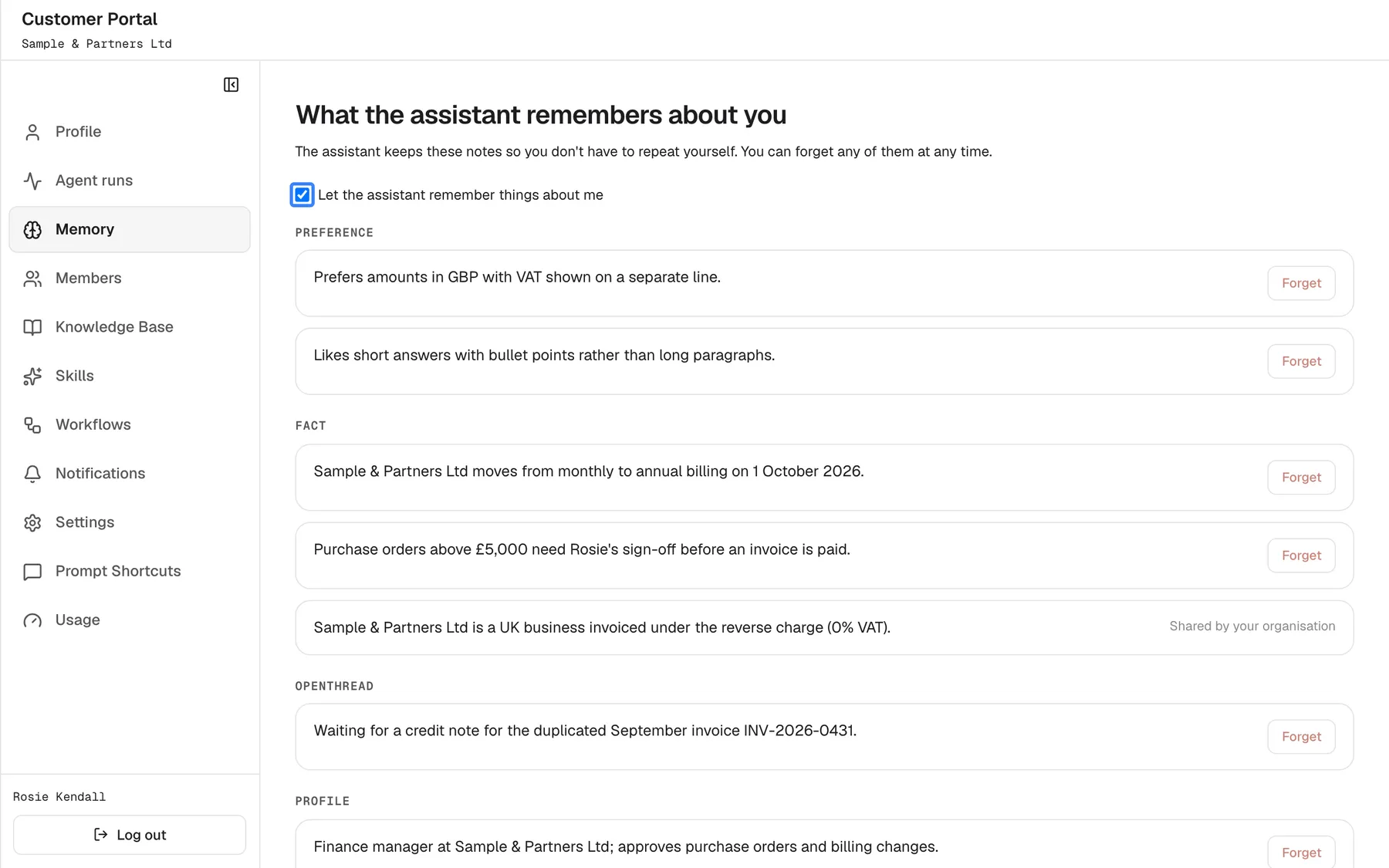
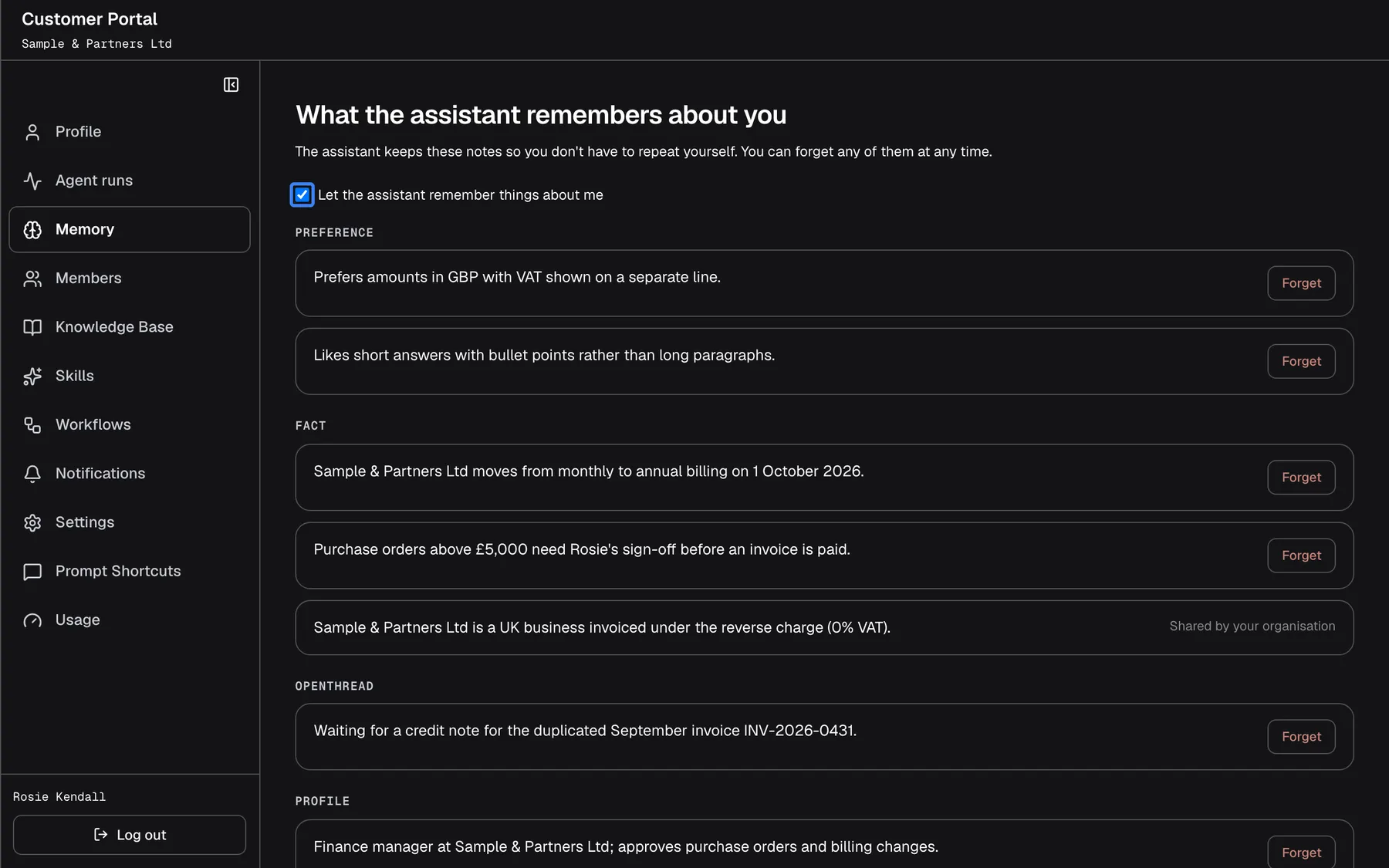
What this screenshot shows
- Screen
- What the assistant remembers about you (/?mode=portal)
- Highlighted
- checkbox “Let the assistant remember things about me”, page-top, ticked (default). saves immediately; off = no memories used or stored
- Also visible
- Raw category names (Preference, Fact, OpenThread, Profile); every portal.memory.* text English in German
- Purpose
- the memory page
| Region | What it shows | What you do there |
|---|---|---|
| Heading | What the assistant remembers about you and The assistant keeps these notes so you don't have to repeat yourself. You can forget any of them at any time. | Nothing |
| Checkbox | Let the assistant remember things about me, ticked unless you switched it off | Switch remembering off or on |
| Groups of notes | One group per kind of note, with a Forget button on each of your own notes | Read and forget notes |
See what the assistant remembers
Section titled “See what the assistant remembers”Open ConfigureMemory. Your own notes come first, then your company’s notes. Notes are grouped by kind; the group names come from the service in English:
| Group | What it holds | Example |
|---|---|---|
| Preference | How you like answers | “Prefers amounts in GBP with VAT shown on a separate line.” |
| Fact | Lasting facts about you or your work | “Purchase orders above £5,000 need Rosie’s sign-off before an invoice is paid.” |
| OpenThread | Something left open in a conversation, to pick up later | “Waiting for the corrected invoice from the supplier.” |
| Resolution | How an earlier issue was settled | “The duplicated August invoice was credited.” |
| Profile | General information about you | “Works in the finance team of Sample & Partners Ltd.” |
| General | Notes without a kind |
How notes get here. The assistant learns notes from your own chat messages, in the background after the conversation, not while you chat. A new note can take up to about a day to appear. Work the assistant does in the background, such as workflow runs, never creates notes. The assistant does not keep notes about plans, prices or entitlements, short-lived figures, or low-importance details, and it removes personal data such as contact details from a note, or drops the note.
How notes are used. When you write a message, the assistant looks at up to 12 notes that fit it, at least half of them your own. Notes are used only if your provider uses memory for the assistant; if it does not, this page stays empty.
Forget a note
Section titled “Forget a note”- Find the note on ConfigureMemory and select Forget next to it.
- Confirm Forget this memory?.
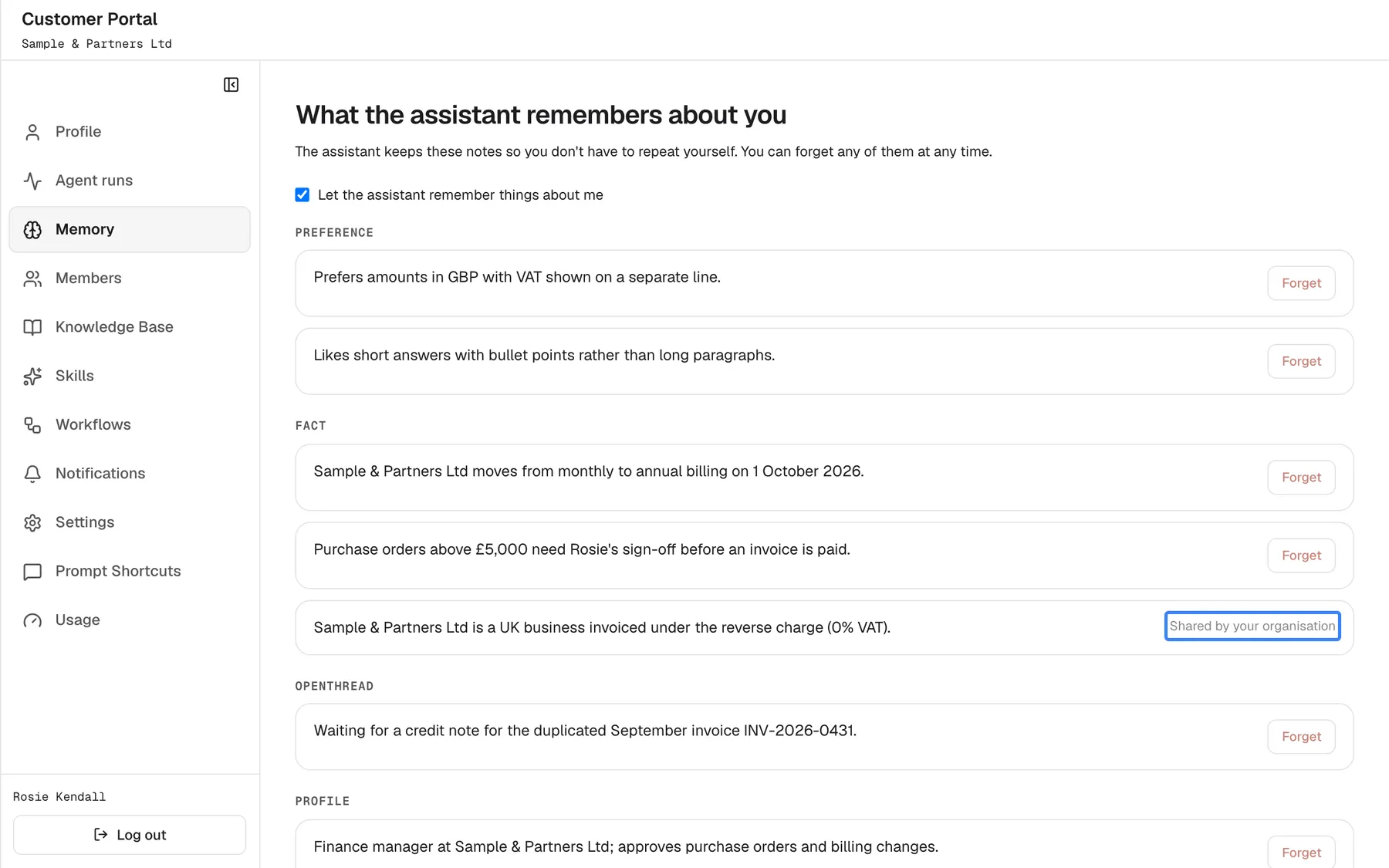
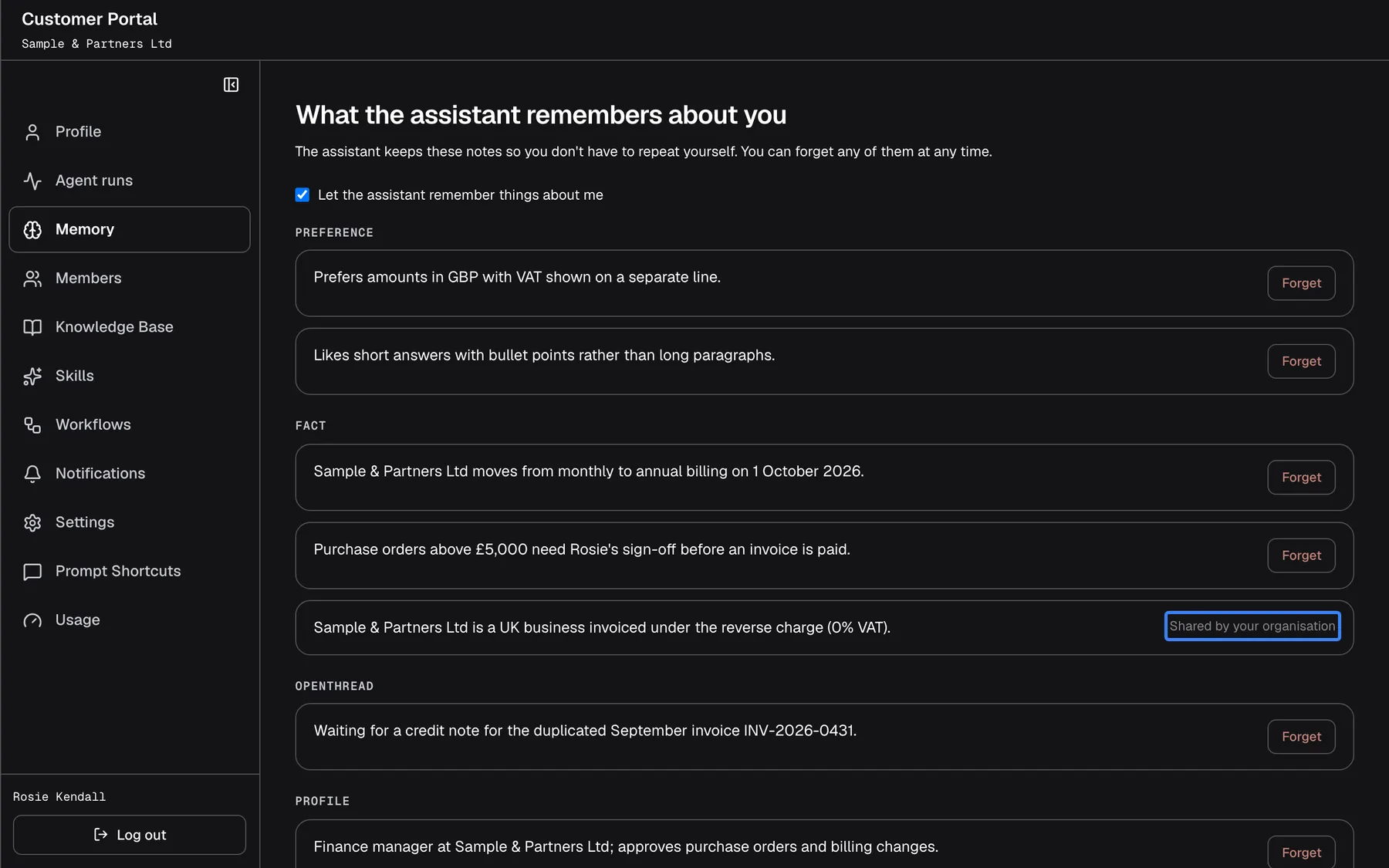
What this screenshot shows
- Screen
- What the assistant remembers about you (/?mode=portal)
- Highlighted
- “Shared by your organisation”, fact-group, company note (read-only). none
- Also visible
- portal.memory.forget on own notes
- Purpose
- own vs shared notes
The note disappears from the list. The assistant stops using it from your next message, and it does not learn the same fact again from later conversations. A forgotten note cannot be restored. Within a single conversation the assistant still uses whatever you tell it there.
Switch remembering off or on
Section titled “Switch remembering off or on”Untick Let the assistant remember things about me at the top of the page. It saves the moment you click; there is no Save button.
| Checkbox | What the assistant does |
|---|---|
| Ticked (the default) | Uses your notes and your company’s notes, and stores new notes about you |
| Unticked | Uses no notes, neither yours nor your company’s, and stores no new notes about you. Notes already stored stay in the list until you forget them. |
When you tick it again, the notes still in the list are used again. Only you can change this checkbox; nobody at your company or at your provider can switch it back on for you. Turning it off does not delete anything; use Forget for each note you want gone.
Company notes
Section titled “Company notes”A note with the label Shared by your organisation was written by your provider’s team for your whole company, for example how your company is invoiced. It applies to everyone in your company, has no Forget button and cannot be changed here. If a company note is wrong, contact your provider.
Every control, explained
Section titled “Every control, explained”Each control below says where it is, what it does and why it is there.
Let the assistant remember things about me
Section titled “Let the assistant remember things about me”The checkbox at the top of ConfigureMemory, labelled Let the assistant remember things about me. It saves when you click it.
Ticked by default. Unticked: the assistant uses no notes and stores no new notes about you; existing notes stay listed. If saving fails, you see Failed to update. and the checkbox goes back to its previous state.
You decide whether the assistant carries knowledge about you from one conversation to the next.
Forget
Section titled “Forget”The button Forget on each of your own notes. It asks Forget this memory? first.
Removes the note for good. The assistant stops using it from your next message and does not learn it again. Not shown on company notes. If it fails, you see Failed to forget..
A note can be wrong or out of date, or simply something you do not want kept.
Shared by your organisation
Section titled “Shared by your organisation”A label on a note, Shared by your organisation, in place of the Forget button.
Marks a note your provider’s team attached to your company. It applies to everyone in your company and can only be changed by your provider.
Tells you which notes are yours to manage and which are not.
What you need to know
Section titled “What you need to know”| Topic | Fact |
|---|---|
| Who sees your notes | You on this page, and your provider’s team, who can also delete them. Not your colleagues and not your company’s Admins. |
| Where notes come from | Your own chat messages, learned in the background; up to about a day until a note appears |
| Not from | Background runs such as workflows |
| Size | Up to 400 characters per note |
| Open threads | Notes of the kind OpenThread expire after 14 days |
| Switching off | Stops use and storing; keeps existing notes |
| Forgetting | Permanent; the fact is not learned again |
| Language | Group names come from the service in English |
Frequently asked questions
Section titled “Frequently asked questions”Your notes
Section titled “Your notes”What is this page for?
Section titled “What is this page for?”ConfigureMemory shows the notes the assistant keeps about you so you do not have to repeat yourself, plus notes your provider set for your whole company. You can read them, forget your own notes and switch remembering off.
Why is the page empty?
Section titled “Why is the page empty?”The assistant learns notes from your own chat messages, in the background, so a new note can take up to about a day to appear. The page also stays empty if you have not chatted much yet, if remembering is switched off with Let the assistant remember things about me, or if your provider does not use memory for the assistant.
Why does a group say OpenThread?
Section titled “Why does a group say OpenThread?”Group names on ConfigureMemory come from the service in English. OpenThread holds things left open in a conversation for the assistant to pick up later, such as a document you are waiting for. These notes expire after 14 days.
How long are notes kept?
Section titled “How long are notes kept?”A note stays until you forget it on ConfigureMemory, until the assistant replaces it with a newer version of the same fact, or, for the kind OpenThread, until it expires after 14 days. Your provider’s team can also delete notes.
Does the assistant remember things from workflows or other background runs?
Section titled “Does the assistant remember things from workflows or other background runs?”No. Notes are learned only from your own chat messages. Workflow runs and other background runs listed on ConfigureAgent runs never create notes about you.
What will the assistant never remember?
Section titled “What will the assistant never remember?”The assistant does not keep notes about plans, prices or entitlements, short-lived figures or low-importance details. It removes personal data such as contact details from a note, or drops the note. Each note is limited to 400 characters.
Forgetting and switching off
Section titled “Forgetting and switching off”How do I delete a note?
Section titled “How do I delete a note?”Select Forget next to the note on ConfigureMemory and confirm. The note is removed for good, the assistant stops using it from your next message, and it does not learn the same fact again.
Can I get a forgotten note back?
Section titled “Can I get a forgotten note back?”No. Forgetting on ConfigureMemory is permanent, and the assistant does not learn that fact again from later conversations. Within a single conversation it still uses whatever you tell it there.
Does unticking the checkbox delete my notes?
Section titled “Does unticking the checkbox delete my notes?”No. Unticking Let the assistant remember things about me stops the assistant using notes and storing new ones, but notes already stored stay in the list. Select Forget on each note you want removed.
If I switch remembering back on, are old notes used again?
Section titled “If I switch remembering back on, are old notes used again?”Yes. When you tick Let the assistant remember things about me again on ConfigureMemory, the notes still in the list are used again from your next message, and new notes can be stored.
Can someone else switch remembering back on for me?
Section titled “Can someone else switch remembering back on for me?”No. Only you can change Let the assistant remember things about me on ConfigureMemory. Neither your company’s Admins nor your provider’s team have a way to change it for you.
Company notes and visibility
Section titled “Company notes and visibility”What does Shared by your organisation mean?
Section titled “What does Shared by your organisation mean?”A note with Shared by your organisation was set by your provider’s team for your whole company and is used for everyone in it. It has no Forget button; contact your provider if it is wrong or no longer applies.
Can my colleagues or my company’s Admin see my notes?
Section titled “Can my colleagues or my company’s Admin see my notes?”No. Your notes on ConfigureMemory are visible to you only within your company. Admins of your company manage members and company settings, but the portal gives them no view of anyone else’s notes.
Can my provider see my notes?
Section titled “Can my provider see my notes?”Yes. Your provider’s team can see the notes the assistant keeps about you and can delete them. Contact your provider if you want notes removed that you cannot forget yourself, such as company notes.
The assistant still knows something I forgot. Why?
Section titled “The assistant still knows something I forgot. Why?”It may come from a company note marked Shared by your organisation, from earlier messages in the conversation you are in, or from your provider’s own systems that the assistant looks things up in. Start a new chat and check ConfigureMemory for company notes.
Troubleshooting
Section titled “Troubleshooting”| Symptom | What to check |
|---|---|
| Failed to load. | Reload the page. If it repeats, sign out with Log out and sign in again. |
| The checkbox jumps back with Failed to update. | The change did not save. Wait a moment and click again. |
| “Memory not found.” when forgetting | The note was already removed, or it is a company note. Reload the page. |
| Failed to forget. | The connection dropped. Reload and try again. |
| A new fact from today is missing | Notes appear up to about a day after the conversation. Check again tomorrow. |
| The assistant still uses a forgotten fact | Look for a company note, start a new chat, and ask your provider if the fact comes from their systems. |