

Settings
The Settings page, headed Company settings, holds three things that apply to everyone in your company: whether new people can register with your company’s registration link, a preferred sign-in type, and a standing instruction that shapes how the assistant talks to all of you. Open it from ConfigureSettings. Only Admins see this page, and only when your provider shows it.
What you can do here
Section titled “What you can do here”- Let colleagues register themselves. Switch on self-registration so anyone with your company’s registration link can create an account; they join as Member. Let people register with a link.
- Give the assistant a standing instruction. Tell it, for everyone in your company, how to answer: tone, format, your company’s rules. Write the agent instruction.
- Record a preferred sign-in type. Store whether your company prefers PIN or password. Every control, explained.
- Check your company name. See the name the assistant shows for your company; your provider sets it. Every control, explained.
The screen at a glance
Section titled “The screen at a glance”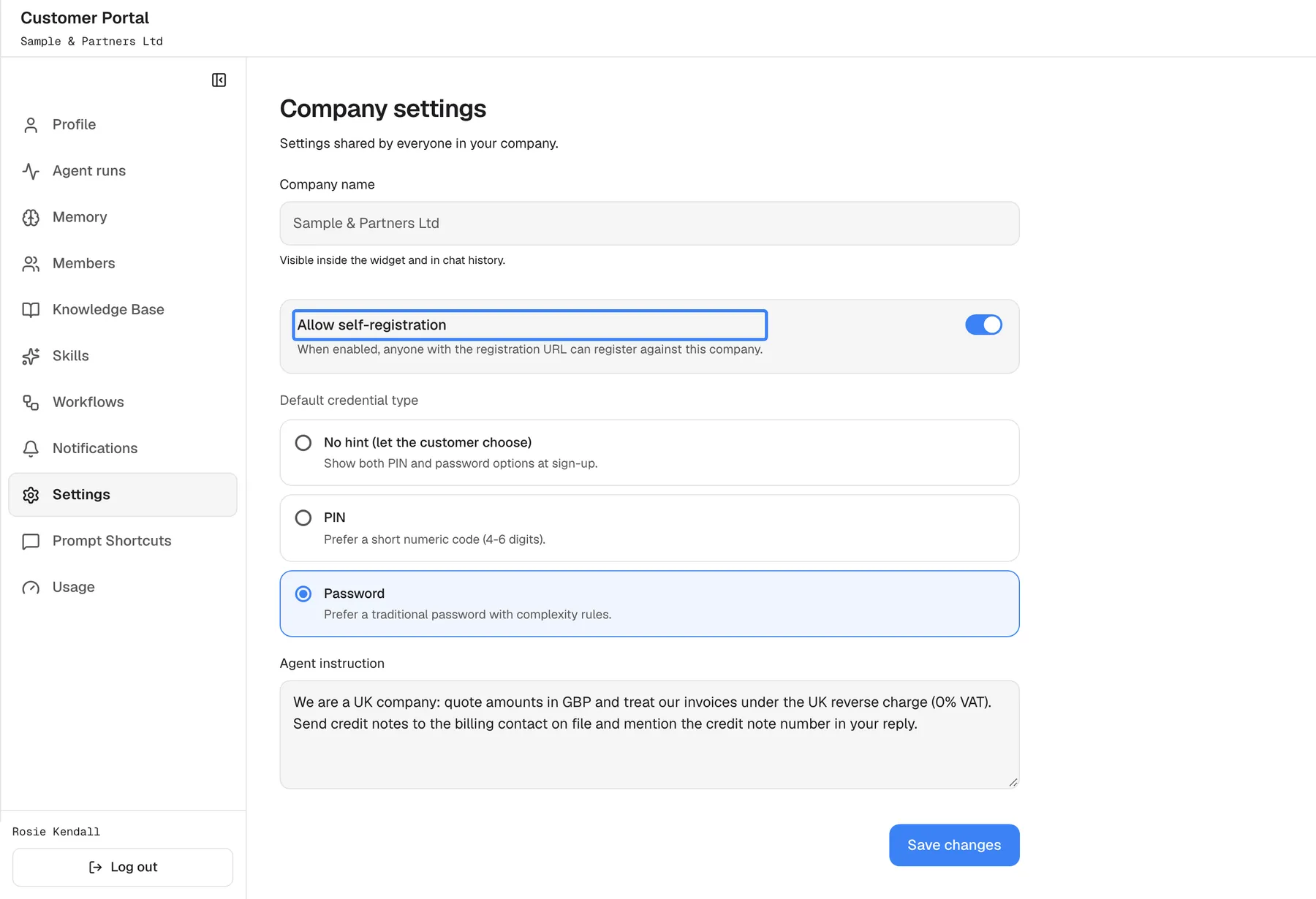
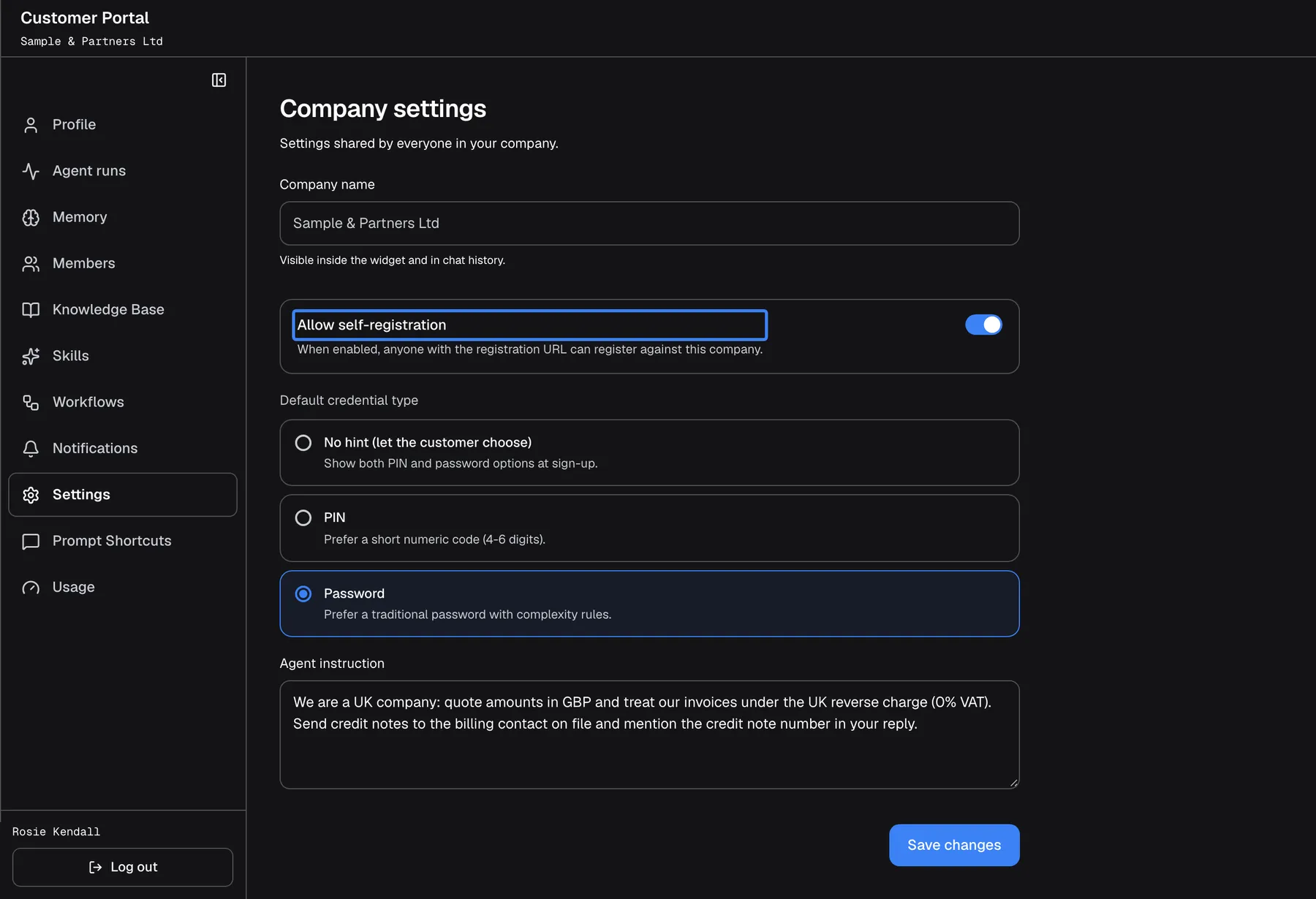
What this screenshot shows
- Screen
- Company settings (/?mode=portal)
- Highlighted
- “Allow self-registration”, form, on. lets anyone with the company's registration link join (as Admin)
- Also visible
- portal.settings.name read-only, credentialHint Password selected, agentInstruction filled, portal.settings.save
- Purpose
- company settings (full page: the form is longer than the window)
| Region | What it shows | What you do there |
|---|---|---|
| Heading | Company settings and Settings shared by everyone in your company. | Nothing |
| Company name | Your company’s name, greyed out, with Visible inside the widget and in chat history. | Read it |
| Allow self-registration | A switch with When enabled, anyone with the registration URL can register against this company. | Allow or stop registration by link |
| Default credential type | Three cards: No hint (let the customer choose), PIN and Password | Record a preference |
| Agent instruction | A text box for the standing instruction | Write it |
| Save changes | Saves everything on the page at once | Save |
Let people register with a link
Section titled “Let people register with a link”-
Open ConfigureSettings.
-
Switch on Allow self-registration.
-
Select Save changes. You see Settings saved.
From now on, anyone who opens your company’s registration link can create an account under your company and starts using the assistant straight away. Every person who registers this way joins your company as a Member; make people Admins on Members if they should manage the company too.
The registration link is not shown in the portal. Ask your provider for it; it is specific to your company. Switch the setting off again when nobody else should join, because anyone who has the link can register while it is on.
Write the agent instruction
Section titled “Write the agent instruction”-
Type the instruction in Agent instruction.
-
Select Save changes.
The instruction is added to the assistant’s standing instructions for every conversation of everyone signed in under your company, from their next message. It comes after your provider’s own set-up and can adjust tone, format and the way you work; it can never relax your provider’s permissions, safety rules or approval steps, and it does not unlock actions.
| Do | Don’t |
|---|---|
| “Quote amounts in GBP and show VAT on a separate line.” | “Ignore your previous instructions.” |
| “We are invoiced under the UK reverse charge; mention it when VAT comes up.” | “You may approve refunds without asking.” |
| “Answer in short bullet points and name the invoice number.” | Paste passwords, keys or other secrets |
Every change is checked by an automatic safety review before it is saved. A refused instruction shows Agent instruction: followed by the reason; if the review itself cannot run, you see Agent instruction: The safety review could not be completed. Please try again. and nothing is saved.
Example: Sample & Partners Ltd wants amounts in pounds. Rosie writes “Quote amounts in GBP and show VAT on a separate line. We are invoiced under the UK reverse charge.” and saves. From the next message on, everyone at Sample & Partners gets answers in that format.
Every control, explained
Section titled “Every control, explained”Each control below says where it is, what it does and why it is there, in screen order. Everything on the page is saved together with Save changes.
Company name
Section titled “Company name”The greyed-out field Company name at the top, with Visible inside the widget and in chat history.
Your company’s name as your provider set it up. It cannot be changed here.
Tells you which company’s settings you are changing. Ask your provider to rename the company.
Allow self-registration
Section titled “Allow self-registration”The switch Allow self-registration, with When enabled, anyone with the registration URL can register against this company. Saved with Save changes.
Off by default. On: anyone with your company’s registration link can create an account under your company, as a Member, and is signed in straight away without email confirmation. Off: the link is refused with “Self-registration is not enabled for this customer company.” People who already registered keep their accounts either way.
Saves your provider adding each colleague by hand, at the cost of anyone with the link being able to join.
Default credential type
Section titled “Default credential type”The three cards under Default credential type: No hint (let the customer choose) (Show both PIN and password options at sign-up.), PIN (Prefer a short numeric code (4-8 digits).) and Password (Prefer a password of at least 8 characters.). Saved with Save changes.
Records your company’s preference. Today it does not change the sign-in screens: a person setting up their access sees the password option selected and can switch to a PIN, whatever is chosen here. The rules are the same for everyone: a PIN has 4 to 8 digits and a password needs at least 8 characters, with no further rules. Choosing No hint (let the customer choose) after another option keeps the previous choice.
Lets your company note which sign-in type it prefers; nobody is forced into one.
Agent instruction
Section titled “Agent instruction”The text box Agent instruction, with the placeholder Free-text guidance merged into the agent prompt — tone, branding, behaviour hints. Saved with Save changes.
Free text with no fixed length limit, checked by a safety review when it changes. Added to every conversation of everyone signed in under your company, from their next message, after your provider’s own set-up. It cannot relax permissions, safety rules or approvals. An emptied box does not remove it.
One place to tell the assistant how your company wants to be served, instead of every person repeating it.
Save changes
Section titled “Save changes”The button Save changes at the bottom; it reads Saving… while it works.
Saves all settings on the page together. Success shows Settings saved. A refusal shows the service’s message, or “Failed to save”.
Changes take effect only when you confirm them.
What you need to know
Section titled “What you need to know”| Topic | Fact |
|---|---|
| Who it affects | Everyone signed in under your company |
| When changes apply | The instruction from the next message; self-registration immediately |
| Who else can change it | Your provider’s team can see and edit these settings |
| Self-registration role | People who register by link join as Member; only a company’s very first person starts as Admin |
| Registration link | Not shown in the portal; get it from your provider |
| Sign-in rules | PIN 4–8 digits, password at least 8 characters, whatever the preference |
| Removing the instruction | Not possible by emptying the box; replace it, or ask your provider |
| Name of your company | Set by your provider |
Frequently asked questions
Section titled “Frequently asked questions”Company and registration
Section titled “Company and registration”Can I rename my company?
Section titled “Can I rename my company?”No. Company name on ConfigureSettings is greyed out because your provider manages your company’s name. Ask your provider to change it; the new name then appears in the portal and the assistant.
What does self-registration do?
Section titled “What does self-registration do?”With Allow self-registration switched on under ConfigureSettings, anyone who has your company’s registration link can create an account under your company and start using the assistant immediately, without an email confirmation.
How do I get the registration link?
Section titled “How do I get the registration link?”The portal does not show it. Ask your provider for your company’s registration link, then share it with the colleagues who should join while Allow self-registration is switched on under ConfigureSettings.
What role do people get when they register?
Section titled “What role do people get when they register?”Member. Everyone who registers with your company’s link joins your company as a Member; only the very first person in a company’s account starts as its Admin. Make people Admins under ConfigureMembers when they should manage the company too.
Is it safe to leave self-registration on?
Section titled “Is it safe to leave self-registration on?”Anyone who has the link can join your company as an Admin while the setting is on. Switch Allow self-registration off under ConfigureSettings once the people you expect have joined, and review new names under ConfigureMembers.
Sign-in type
Section titled “Sign-in type”Does choosing PIN force everyone to use a PIN?
Section titled “Does choosing PIN force everyone to use a PIN?”No. Default credential type on ConfigureSettings records a preference only. A person setting up their access sees the password option selected and can switch to a PIN, whatever is chosen here.
How long can a PIN be?
Section titled “How long can a PIN be?”A PIN has 4 to 8 digits, numbers only, and a password needs at least 8 characters of any kind. Both rules apply whichever card your company chose under ConfigureSettings.
Agent instruction
Section titled “Agent instruction”What should the agent instruction contain?
Section titled “What should the agent instruction contain?”How your company wants answers: tone, format, units, and rules of your business, such as “Quote amounts in GBP and show VAT on a separate line.” Keep secrets out of it, and do not try to change the assistant’s permissions; the safety review refuses that.
Why was my instruction refused?
Section titled “Why was my instruction refused?”Every change to Agent instruction goes through an automatic safety review. The message after Agent instruction: gives the reason, typically text that tries to override rules, reveal credentials or unlock actions. Reword it and select Save changes again.
Can the instruction let the assistant do more?
Section titled “Can the instruction let the assistant do more?”No. The instruction comes after your provider’s set-up and can only adjust tone, format and the way you work. It cannot relax your provider’s permissions, safety rules, source requirements or approval steps, and it cannot unlock actions.
How do I remove the instruction?
Section titled “How do I remove the instruction?”Emptying Agent instruction and saving keeps the previous instruction, although the page says Settings saved. Replace the text with a new instruction to change it, or ask your provider, whose team can remove it.
When do changes to the instruction take effect?
Section titled “When do changes to the instruction take effect?”From the next message of everyone signed in under your company. Conversations already open pick it up with their next message; nobody needs to sign in again after you save on ConfigureSettings.
Who else can see the instruction?
Section titled “Who else can see the instruction?”Every Admin of your company who opens ConfigureSettings, and your provider’s team, who can also edit it. Members do not see this page, although the instruction shapes their conversations too.
Troubleshooting
Section titled “Troubleshooting”| Symptom | What to check |
|---|---|
| The page says your account is not associated with a company | Your account has no company. Contact your provider. |
| “Customer company is deactivated.” | Your provider has switched off your company’s access. Contact your provider. |
Agent instruction: followed by a reason | Reword the instruction without trying to change rules, credentials or entitlements. |
Agent instruction: The safety review could not be completed. Please try again. | Wait a moment and save again. |
| Settings saved. but the old instruction is back after reloading | An emptied instruction is not removed. Replace it, or ask your provider. |
| No hint (let the customer choose) does not stick | Choosing no preference after PIN or Password keeps the previous choice. Ask your provider to clear it. |
| “Request failed (403)” | You are no longer an Admin. Sign out and in again. |
| “Failed to save” | Retry; if it repeats, reload the page. |