

Skills
A skill tells the assistant what to do in a particular situation at your company: “when someone asks to change the billing contact, check they are an Admin first”. On the Skills page you create skills by answering a wizard’s questions in a short chat, then switch them on or off or delete them. Open it from ConfigureSkills. Only Admins see this page, and only when your provider shows it. Active skills apply to everyone signed in under your company.
What you can do here
Section titled “What you can do here”- Create a skill with the wizard. Describe the situation and what the assistant should do; the wizard asks follow-up questions and builds the skill. Create a skill.
- Switch a skill off or on. An inactive skill is kept but ignored by the assistant. Switch a skill off or on.
- Delete a skill. Remove a skill for good. Delete a skill.
- See how each skill is triggered. Every card shows when the assistant uses the skill, so you can check skills do not overlap. How the assistant uses skills.
The screen at a glance
Section titled “The screen at a glance”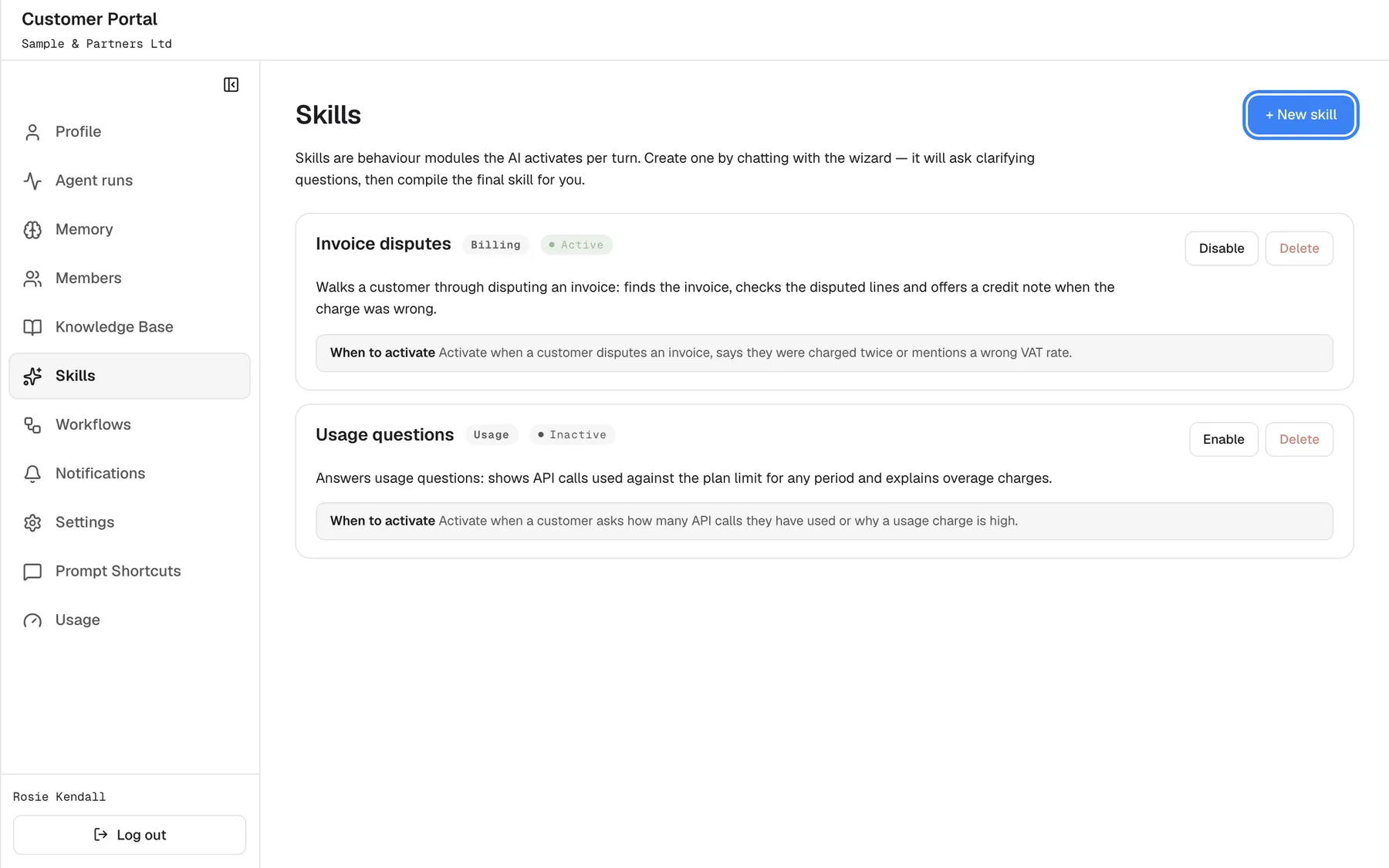
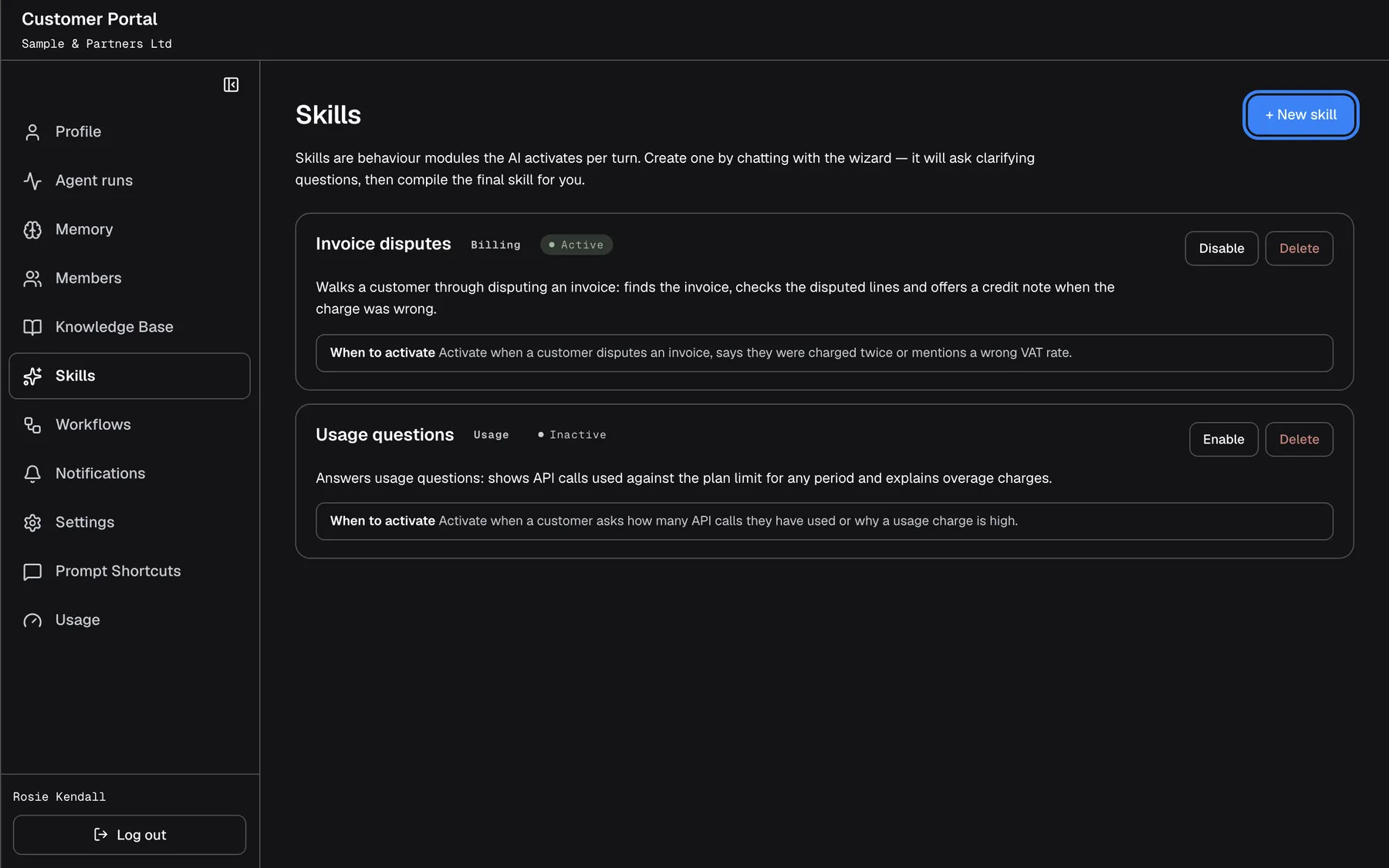
What this screenshot shows
- Screen
- Skills (/?mode=portal)
- Highlighted
- button “New skill”, page-top-right, enabled. opens the skill wizard
- Also visible
- portal.skills.active / inactive badges, triggerLabel, disable / enable / delete
- Purpose
- the skills list
| Region | What it shows | What you do there |
|---|---|---|
| Heading | Skills, the introduction and New skill | Start the wizard |
| Skill cards | One card per skill, alphabetical: name, category, Active or Inactive, description and When to activate | Read, switch off or on, delete |
With no skills yet, the page shows No skills yet.
Create a skill
Section titled “Create a skill”-
Open ConfigureSkills and select New skill. A chat panel opens with the wizard’s first question, Tell me what you'd like this skill to help your agent do. What situations or questions should it handle?
-
Type your answer in the reply box and select Send. While the wizard prepares its next question, it shows Thinking…
-
Answer its follow-up questions. The wizard asks one question at a time until it knows four things: what should trigger the skill (example phrases people use), what the assistant should do, the rules and limits (exact numbers and names), and the exceptions (when to hand over or refuse). Say “that’s all” when you have nothing to add.
-
When the wizard shows its summary, select Compile & save. The button reads Compiling & saving… while the skill is built.
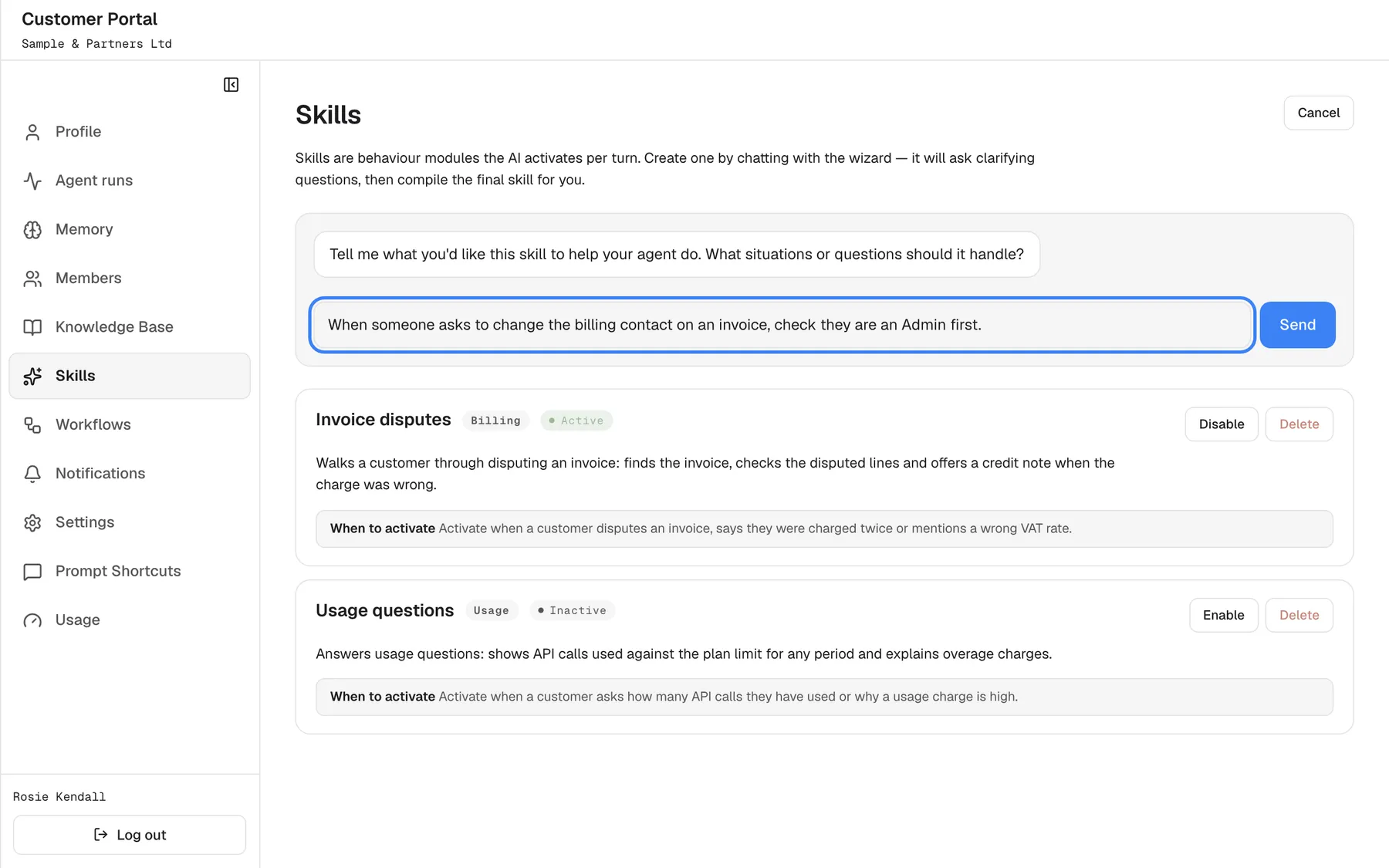
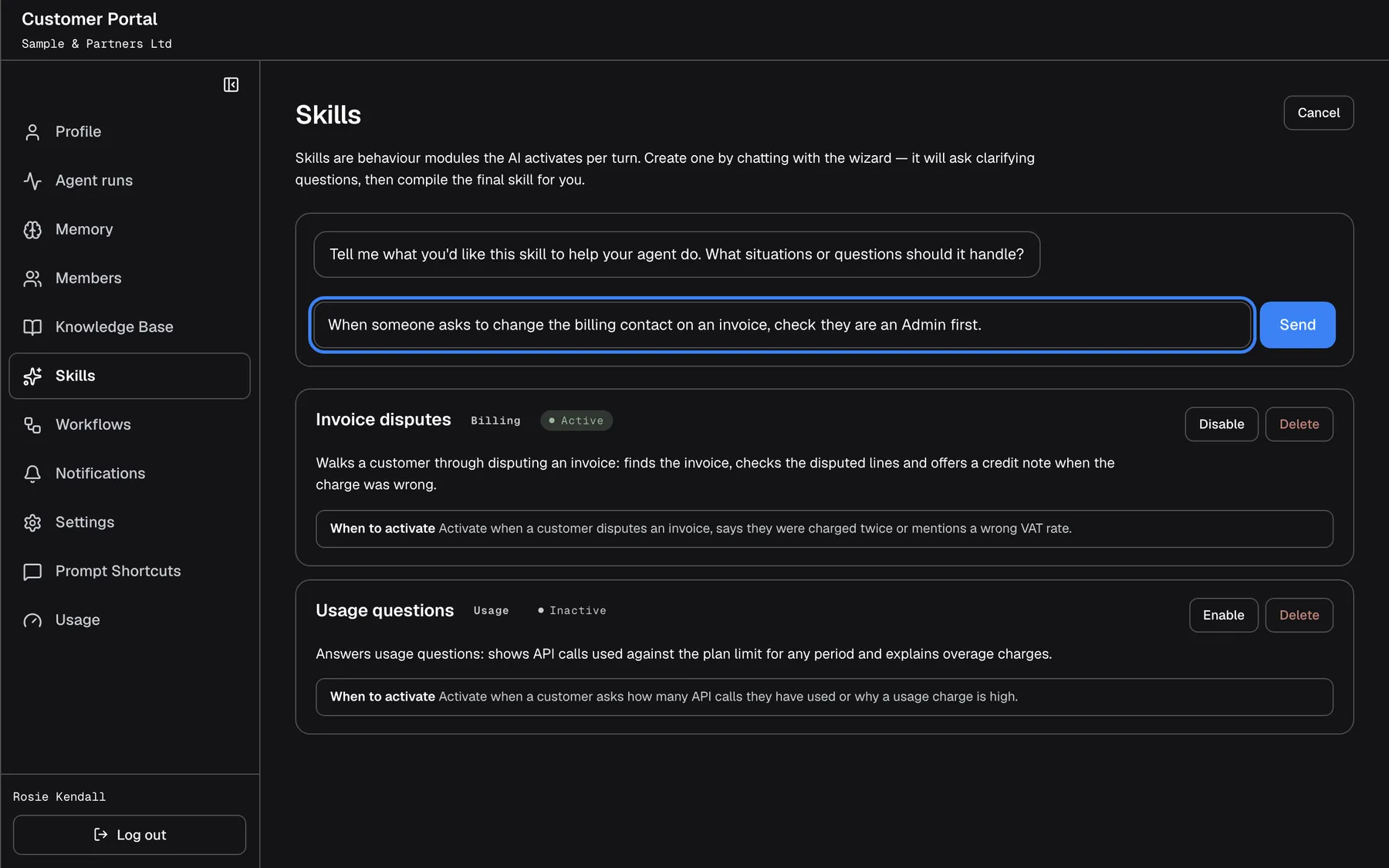
What this screenshot shows
- Screen
- Skills (/?mode=portal)
- Highlighted
- textbox “Reply to the wizard…”, wizard, answer typed. Send continues the conversation
- Also visible
- portal.skills.wizard.openingPrompt, portal.skills.cancel in the header
- Purpose
- creating a skill
The wizard closes and the new skill appears in the list, active straight away. The wizard chooses its name, category, description and trigger from your conversation; if it found no name, the skill is called “New Skill”. Select Cancel at any time to close the wizard and discard the conversation.
Example: Rosie answers the wizard: “When someone asks to change the billing contact on an invoice, check they are an Admin first. Only Admins of Sample & Partners may change it. If they are not, tell them to ask Rosie Kendall.” The wizard asks which phrases people use, she adds “update invoice contact” and “change who gets our invoices”, says “that’s all”, and selects Compile & save.
Before saving, the skill’s description and trigger are checked by an automatic safety review. Text that tries to override the assistant’s rules, reveal credentials or unlock things your company is not entitled to is refused with a message that begins “Skill description:” or “Trigger context:” and gives the reason. The wizard stays open, so you can answer differently and try again.
Switch a skill off or on
Section titled “Switch a skill off or on”Select Disable on an active skill: the badge changes to Inactive and the assistant ignores the skill from the next message. Select Enable to use it again. Both happen with the click, without a confirmation.
Delete a skill
Section titled “Delete a skill”Select Delete and confirm Delete this skill? This cannot be undone. The skill is removed for good. To keep a skill for later, switch it off instead.
How the assistant uses skills
Section titled “How the assistant uses skills”On every message from someone signed in under your company, the assistant sees the names of your company’s active skills and when each one applies, next to your provider’s own skills. When a conversation matches, it follows that skill’s description. That is why the text under When to activate matters: it decides when the skill is picked.
- Skills apply from the next message after you create, switch or delete them.
- They apply only to people signed in under your company; other companies never see them.
- A skill shapes how the assistant handles a situation. It cannot give the assistant actions or data it does not already have.
- Your provider’s team can see, edit, switch off and delete your company’s skills.
Every control, explained
Section titled “Every control, explained”Each control below says where it is, what it does and why it is there, in screen order.
New skill
Section titled “New skill”The button New skill at the top right. While the wizard is open, it becomes Cancel.
Opens the wizard. Cancel closes it and discards the conversation; nothing is saved.
A conversation gets the details of a procedure out of your head faster than a blank form.
The wizard
Section titled “The wizard”The chat panel at the top of the page: the wizard’s messages, the box Reply to the wizard…, Send and, once the summary is ready, Compile & save.
Asks one question per turn about triggers, behaviour, rules and exceptions, without repeating itself, and ends with a summary that keeps your numbers and names as you wrote them. Text you paste is treated as information, not as instructions; attempts to change what the wizard does are refused. If a turn fails, you see Wizard failed. Please try again. or the error text.
A skill is only as good as its trigger and its rules; the questions make sure both are there.
Skill cards
Section titled “Skill cards”| Part | What it shows | Why |
|---|---|---|
| Name and category | The skill’s name and a category label such as “Billing” | Find the skill |
| Status | Active or Inactive | Know whether the assistant uses it |
| Description | What the assistant does when the skill applies | Check the behaviour |
| When to activate | The situations in which the assistant picks the skill | Check when it applies |
| Disable / Enable | Switches the skill off or on at once | Pause a skill without losing it |
| Delete | Removes the skill after a confirmation | Clean up |
What you need to know
Section titled “What you need to know”| Topic | Fact |
|---|---|
| Who it applies to | Everyone signed in under your company, from their next message |
| New skills | Active as soon as they are saved |
| Editing | Not possible in the portal; delete and recreate, or ask your provider |
| Names | Must be unique in your company; the wizard picks the name |
| Safety review | Description and trigger are checked before saving |
| Who else sees them | Your provider’s team, who can also edit, switch off and delete them |
| Order | Alphabetical by name |
Frequently asked questions
Section titled “Frequently asked questions”Creating skills
Section titled “Creating skills”What is the difference between a skill, a document and the agent instruction?
Section titled “What is the difference between a skill, a document and the agent instruction?”A document in ConfigureKnowledge Base gives the assistant facts. A skill on ConfigureSkills tells it what to do in one situation. The agent instruction under ConfigureSettings applies to every conversation, for example tone or format.
Why is there no button to save the skill yet?
Section titled “Why is there no button to save the skill yet?”Compile & save appears only when the wizard shows its summary. Until then it is still collecting the trigger, behaviour, rules and exceptions. Answer its question, or say “that’s all” if you have nothing more to add.
Can I stop the wizard asking questions?
Section titled “Can I stop the wizard asking questions?”Yes. Tell the wizard “that’s all” and it stops asking and shows its summary with what it has. Then select Compile & save on ConfigureSkills.
Why is my new skill called New Skill?
Section titled “Why is my new skill called New Skill?”The wizard picks the name from your conversation. When it could not find one, the skill is saved as “New Skill”. The portal cannot rename skills, so delete it on ConfigureSkills and run the wizard again, saying clearly what the skill should be called.
Why was my skill refused?
Section titled “Why was my skill refused?”Before saving, the description and trigger go through an automatic safety review. A message beginning “Skill description:” or “Trigger context:” gives the reason, typically text that tries to override rules, reveal credentials or unlock things. Answer the wizard differently and select Compile & save again.
Why does it say a skill with that name already exists?
Section titled “Why does it say a skill with that name already exists?”Skill names must be unique in your company, and the wizard has no name field. Select Cancel, delete the older skill with that name on ConfigureSkills, and run the wizard again.
Managing skills
Section titled “Managing skills”Can I edit a skill?
Section titled “Can I edit a skill?”No. Skills on ConfigureSkills can only be switched off or on and deleted. To change one, delete it and create it again with the wizard, or ask your provider’s team, who can edit it.
Is a new skill active straight away?
Section titled “Is a new skill active straight away?”Yes. A skill saved with Compile & save is active at once and applies from the next message of everyone signed in under your company. Select Disable if you want to hold it back.
How do I switch a skill off for a while?
Section titled “How do I switch a skill off for a while?”Select Disable on its card on ConfigureSkills. The skill stays in the list as Inactive, and the assistant ignores it until you select Enable.
Can I undo deleting a skill?
Section titled “Can I undo deleting a skill?”No. Delete asks for confirmation and then removes the skill for good. Switch a skill off instead if you might need it again; otherwise recreate it with the wizard.
Who it affects
Section titled “Who it affects”Who benefits from our skills?
Section titled “Who benefits from our skills?”Everyone signed in under your company, Admins and Members, when they chat. Other companies that use the same assistant never get your skills, and people who are not signed in do not either.
Can Members see or create skills?
Section titled “Can Members see or create skills?”No. ConfigureSkills is in the menu of Admins only. Members still benefit from your company’s active skills whenever they chat with the assistant.
Can my provider see or change our skills?
Section titled “Can my provider see or change our skills?”Yes. Your provider’s team can see, edit, switch off and delete your company’s skills. Ask them if you need a small change, since the portal itself has no edit action.
My skill is not used. Why?
Section titled “My skill is not used. Why?”Check on ConfigureSkills that it shows Active, and read its When to activate text: the conversation has to match it. The person must also be signed in under your company. If the trigger is too narrow, recreate the skill with more example phrases.
Troubleshooting
Section titled “Troubleshooting”| Symptom | What to check |
|---|---|
| Wizard failed. Please try again. or an error text in the wizard | Send your answer again. If it repeats, cancel and start the wizard again. |
| “Request failed (400)” on Compile & save | The conversation was too thin to build a skill. Answer the wizard’s questions, then try again. |
| “A skill with name ’…’ already exists for this customer company.” | Cancel, delete the older skill with that name, and run the wizard again. |
| A message starting “Skill description:” or “Trigger context:” | The safety review refused the text. Remove anything that tries to change rules, reveal credentials or unlock features. |
| “Failed to load” | Reload the page. |
| “Failed to update” or “Failed to delete” | Retry; check you are still an Admin by signing out and in. |
| The skill is not used in the chat | It is inactive, its trigger does not match, or the person is not signed in under your company. |