

Prompt Shortcuts
A prompt shortcut is a ready-made message that people in your company can pick in the chat instead of typing it, such as “Check VAT on an invoice”. On the Prompt Shortcuts page, Admins create, change, switch off and delete your company’s shortcuts; Members see the same list but cannot change it. Open it from ConfigurePrompt Shortcuts. The page appears for both roles when your provider shows it.
What you can do here
Section titled “What you can do here”- Create a shortcut (Admins). Give it a name, an optional description and the prompt text, with blanks such as
{invoiceNumber}that people fill in when they use it. Create a shortcut. - Change, switch off or delete a shortcut (Admins). Edit its text, hide it from the chat for a while, or remove it. Change, switch off or delete a shortcut.
- See your company’s shortcuts (everyone). Members see every shortcut, active or not, with its text. The screen at a glance.
- Use them in the chat. Type ”/” in the message box to pick a shortcut. Where shortcuts appear in the chat.
The screen at a glance
Section titled “The screen at a glance”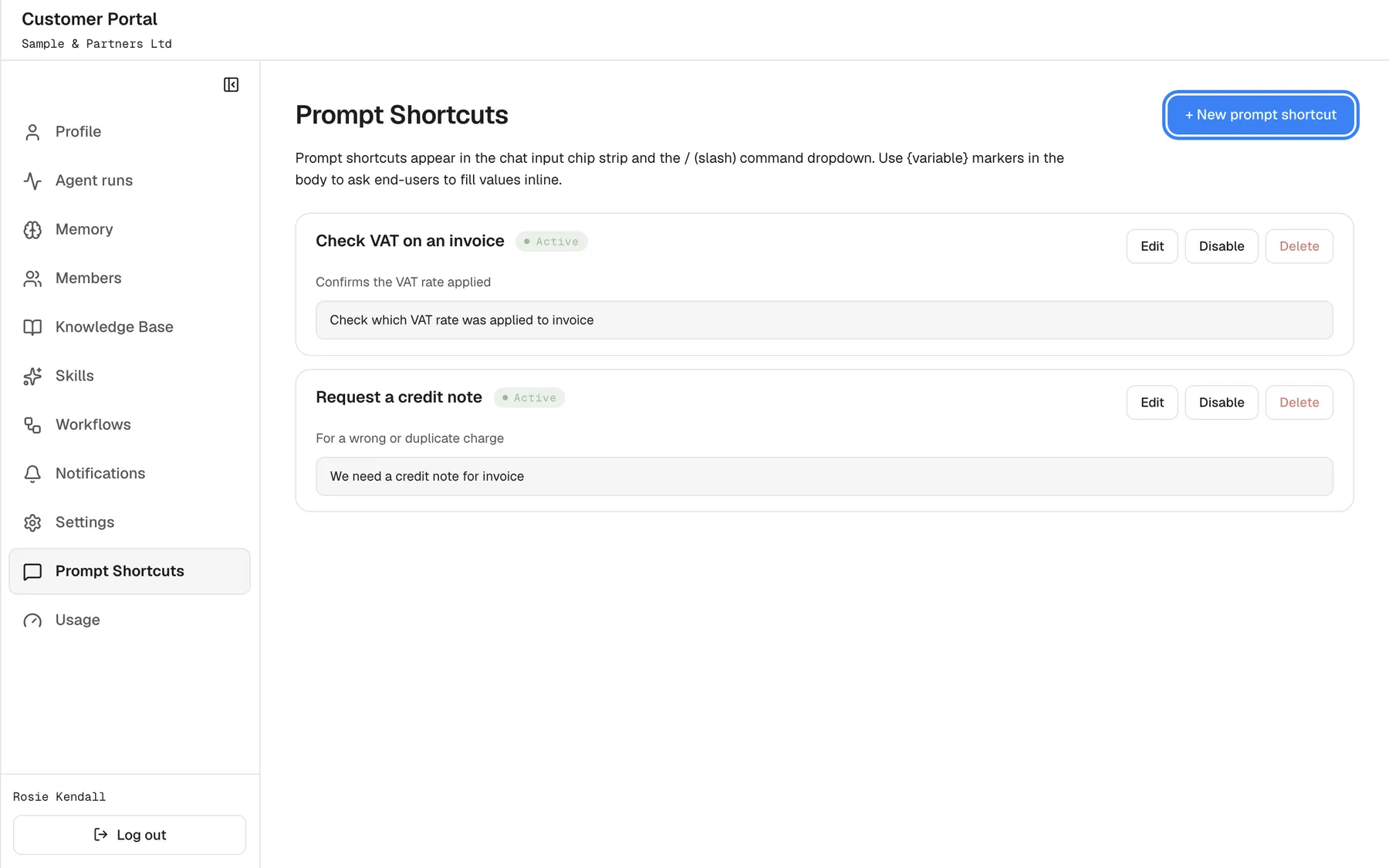
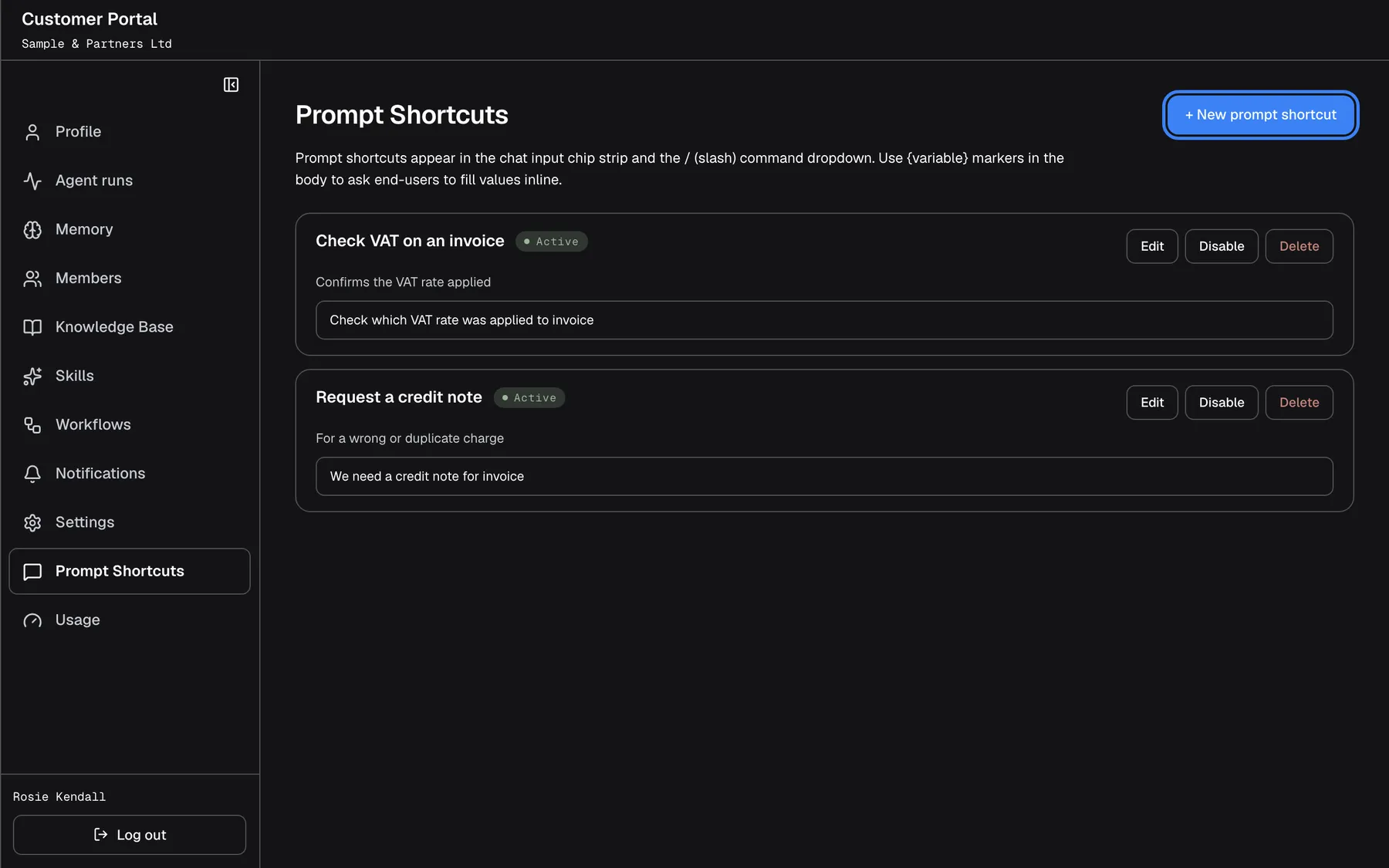
What this screenshot shows
- Screen
- Prompt Shortcuts (/?mode=portal)
- Highlighted
- button “New prompt shortcut”, page-top-right, enabled (Admin). opens the shortcut editor
- Also visible
- portal.prompts.active badges, edit / disable / delete
- Purpose
- company shortcuts (Admin)
| Region | What it shows | What you do there |
|---|---|---|
| Heading | Prompt Shortcuts, the introduction and, for Admins, New prompt shortcut | Start a new shortcut |
| Shortcut cards | Name, Active or Inactive, description and prompt text; for Admins Edit, Disable or Enable, and Delete | Read, change, switch off or on, delete |
Cards are in alphabetical order. With no shortcuts yet, the page shows No prompt shortcuts yet.
Create a shortcut
Section titled “Create a shortcut”-
Open ConfigurePrompt Shortcuts and select New prompt shortcut.
-
Fill in the editor: a name (required, up to 255 characters, unique in your company), a description (optional, up to 1,000 characters, shown under the name in the ”/” list), the prompt text (required) and an icon name (optional, default “zap”).
-
Mark each blank in the text with curly brackets, such as
{poNumber}. Tip: use {variableName} in the body to mark spots the end-user will fill. -
Select Create. While it saves, the button reads Saving….
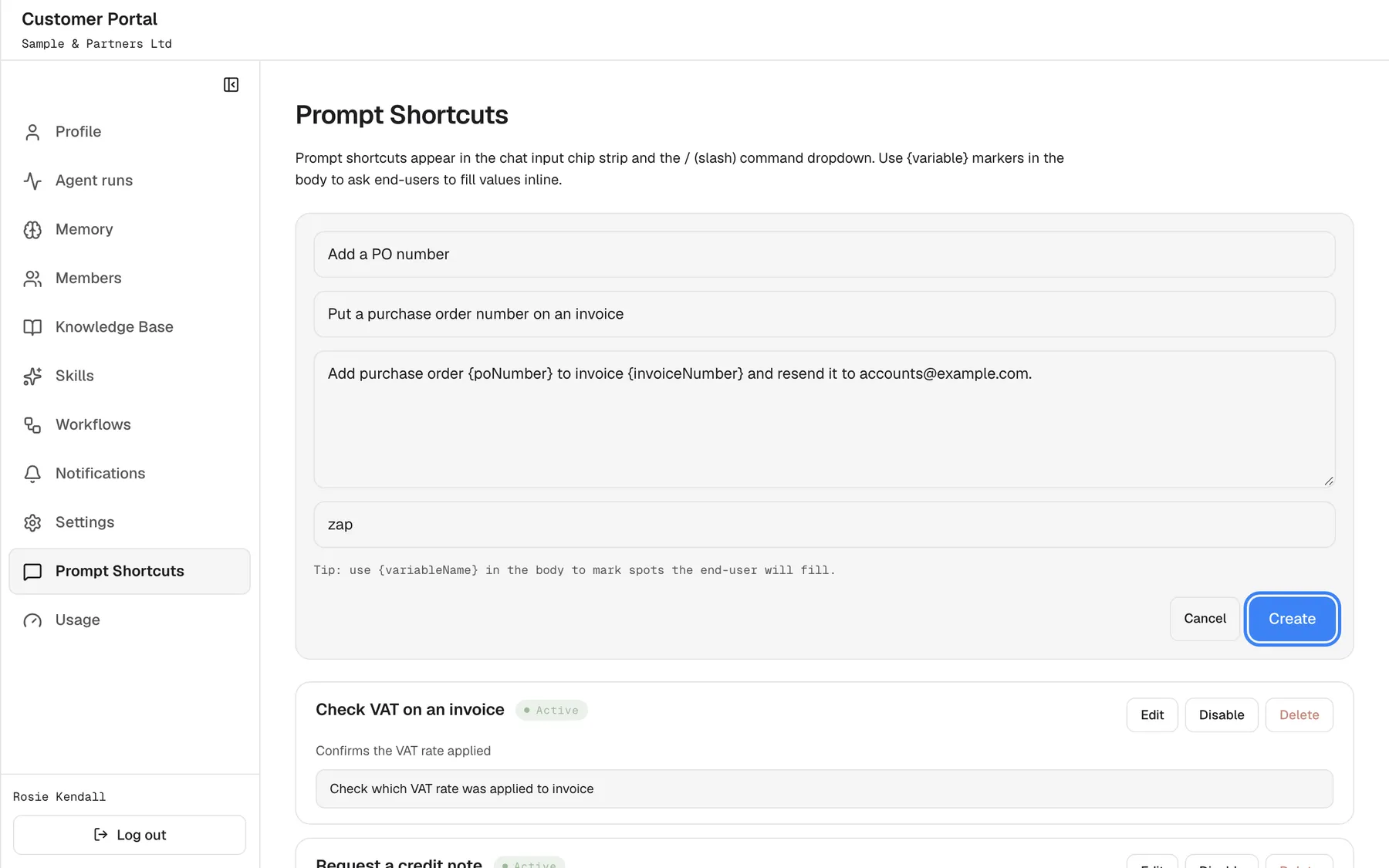
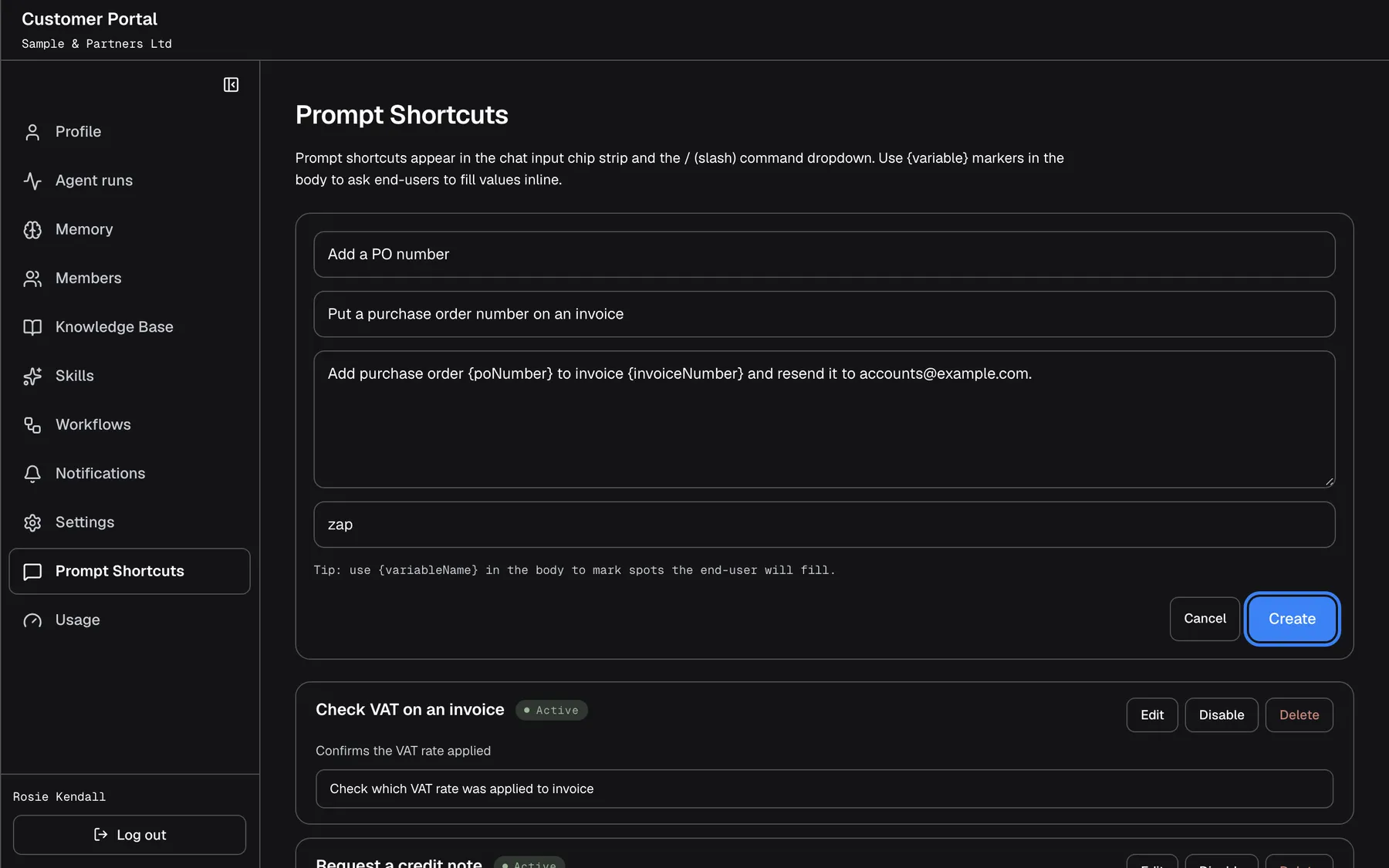
What this screenshot shows
- Screen
- Prompt Shortcuts (/?mode=portal)
- Highlighted
- button “Create”, editor-bottom, enabled. creates the shortcut (active)
- Also visible
- portal.prompts.fields.* filled, portal.prompts.placeholderHint
- Purpose
- creating a shortcut
The shortcut appears in the list as Active. People see it in the chat after they reload the page.
Example: Rosie creates “Add a PO number” with the description “Put a purchase order number on an invoice” and the text Add purchase order {poNumber} to invoice {invoiceNumber} and resend it to accounts@example.com. When a colleague picks it in the chat, a small panel asks for the purchase order number and the invoice number, then puts the complete text in the message box.
| Text | What people see when they pick it |
|---|---|
Show my latest invoice. | The text, ready to send or edit |
Refund order {orderId}. | One blank to fill in: Order ID |
Move {invoiceNumber} to cost centre {costCentre}. | Two blanks: Invoice Number and Cost Centre |
A shortcut has one text for everyone; there are no translations, so write it in the language your colleagues use.
Change, switch off or delete a shortcut
Section titled “Change, switch off or delete a shortcut”- Change: select Edit, change the fields and select Save.
- Switch off: select Disable. The badge changes to Inactive and the shortcut no longer appears in the chat; select Enable to bring it back. This happens with the click, without a confirmation.
- Delete: select Delete and confirm Delete this shortcut? The shortcut is removed for good.
The order of shortcuts cannot be changed here; they are listed alphabetically. Your provider can change the order.
Where shortcuts appear in the chat
Section titled “Where shortcuts appear in the chat”- In the chat’s message box, type ”/” to open the list of shortcuts, or select the shortcuts button next to the box. Your company’s shortcuts carry the badge CC.
- Picking a shortcut puts its text in the message box for you to edit or send; it is not sent by itself. If the text has blanks, a small panel asks for each value first.
- Your company’s shortcuts appear next to your provider’s own shortcuts. If one of yours has the same name as one of your provider’s, ignoring upper and lower case, yours replaces it for your company.
- Only active shortcuts appear, and only for people signed in under your company.
- Shortcuts are loaded when the chat starts, so changes appear after people reload the page.
- If your provider has switched shortcuts off for the assistant, none appear in the chat, even though this page still lists them.
See Ask questions for how shortcuts work in the chat.
Every control, explained
Section titled “Every control, explained”Each control below says where it is, what it does and why it is there, in screen order.
New prompt shortcut
Section titled “New prompt shortcut”The button New prompt shortcut at the top right, for Admins only.
Opens the editor for a new shortcut. Create saves it as active; Cancel closes the editor without saving. Without a name or text you see Name and prompt body are required.
The questions your colleagues ask every week deserve a one-click start.
Editor fields
Section titled “Editor fields”| Field | Rule | What it does |
|---|---|---|
| Name | Required, up to 255 characters, unique in your company | The title in the ”/” list |
| Description | Optional, up to 1,000 characters | The line under the name in the ”/” list |
| Prompt text | Required | The message put into the chat box; curly-bracket words become blanks |
| Icon | Optional, up to 64 characters; default “zap” | The icon name shown with the shortcut |
Shortcut card buttons
Section titled “Shortcut card buttons”| Button | What it does | Why |
|---|---|---|
| Edit | Opens the editor with the current values; Save stores the change | Correct or improve a shortcut |
| Disable / Enable | Hides the shortcut from the chat or shows it again, at once | Pause a seasonal shortcut without losing it |
| Delete | Removes the shortcut after a confirmation | Clean up |
Members see the cards without these buttons.
Who sees what
Section titled “Who sees what”| Part | Admin | Member |
|---|---|---|
| The page and every shortcut, active and inactive | Yes | Yes |
| New prompt shortcut, Edit, Disable, Delete | Yes | No |
| Active shortcuts in the chat | Yes | Yes |
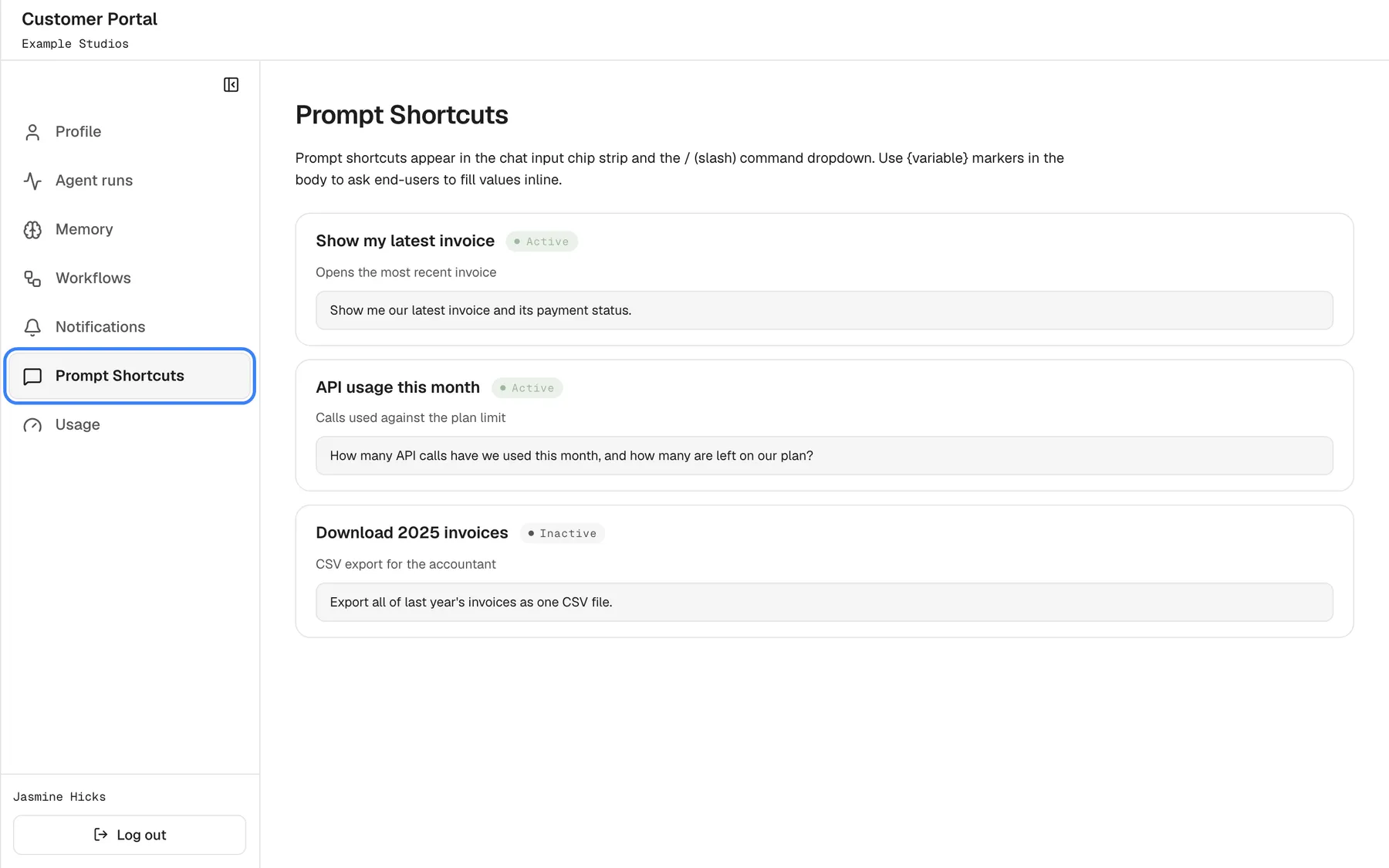
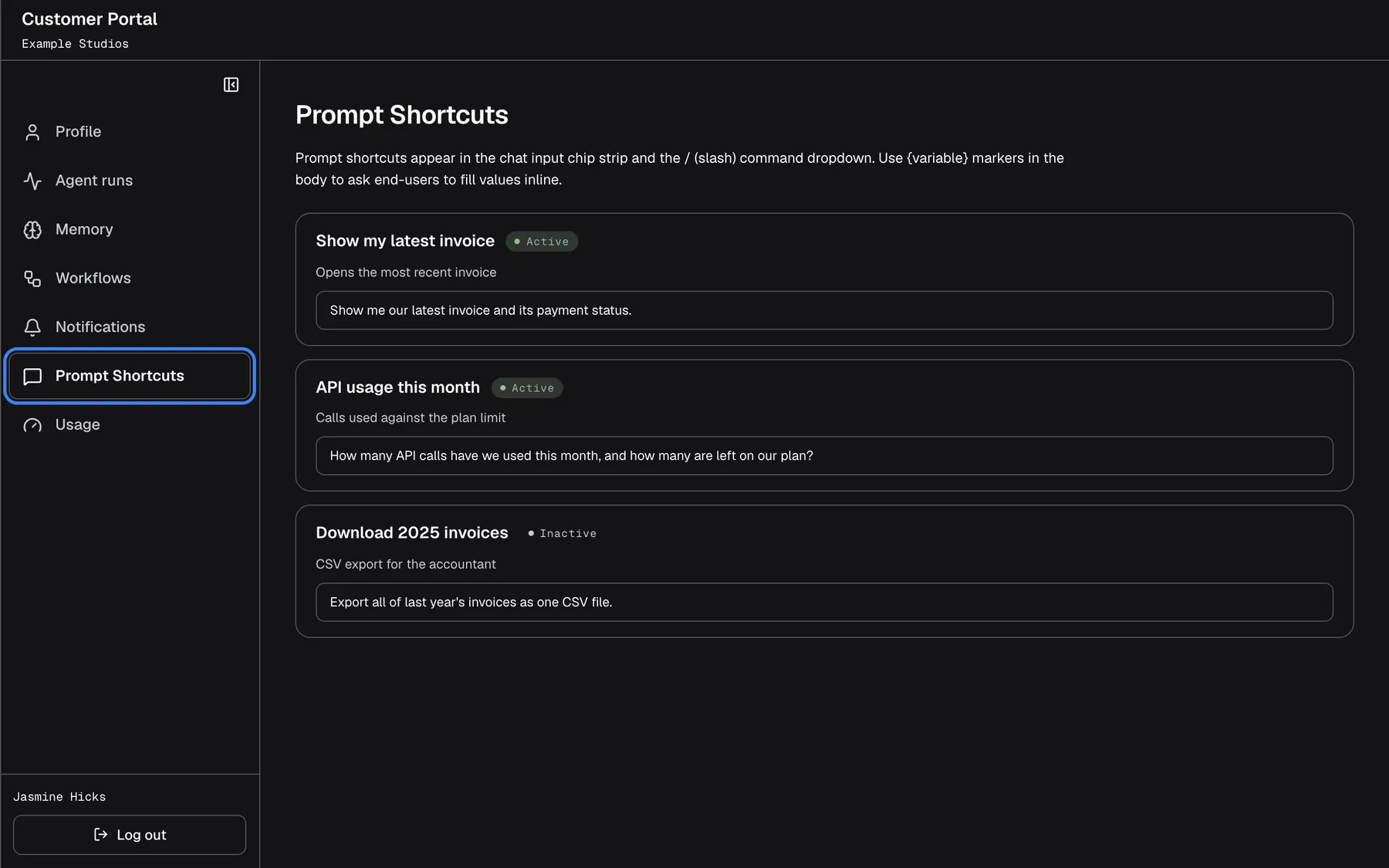
What this screenshot shows
- Screen
- Prompt Shortcuts (/?mode=portal)
- Highlighted
- button “Prompt Shortcuts”, sidebar, selected (Member menu). none
- Also visible
- Read-only list incl. one portal.prompts.inactive shortcut, no editing buttons
- Purpose
- Member view
What you need to know
Section titled “What you need to know”| Topic | Fact |
|---|---|
| Who uses them | Everyone signed in under your company, in the chat |
| When changes show | After people reload the page |
| Order | Alphabetical; only your provider can reorder |
| Name clashes | Your shortcut replaces a provider shortcut with the same name |
| Language | One text for everyone; no translations |
| Provider switch | If shortcuts are off for the assistant, none appear in the chat |
Frequently asked questions
Section titled “Frequently asked questions”Using shortcuts
Section titled “Using shortcuts”What are prompt shortcuts?
Section titled “What are prompt shortcuts?”Ready-made messages your company’s Admins set up under ConfigurePrompt Shortcuts. In the chat, type ”/” or select the shortcuts button next to the message box, pick one, fill in any blanks and send it.
Why don’t I see a new shortcut in the chat?
Section titled “Why don’t I see a new shortcut in the chat?”Shortcuts are loaded when the chat starts, so reload the page first. Then check that the shortcut shows Active under ConfigurePrompt Shortcuts. If none of your company’s shortcuts appear, your provider may have switched shortcuts off for the assistant.
How do the blanks in curly brackets work?
Section titled “How do the blanks in curly brackets work?”Every word in curly brackets in the text, such as {orderId}, becomes a blank. When someone picks the shortcut in the chat, a small panel asks for each value, then puts the complete text in the message box for them to send.
What does CC next to a shortcut mean?
Section titled “What does CC next to a shortcut mean?”The badge CC in the chat’s shortcut list marks shortcuts that belong to your company, set up under ConfigurePrompt Shortcuts. Shortcuts without it come from your provider.
Managing shortcuts
Section titled “Managing shortcuts”Can Members create shortcuts?
Section titled “Can Members create shortcuts?”No. Members see every shortcut under ConfigurePrompt Shortcuts, including inactive ones, but have no buttons to create, change or delete them. Ask an Admin of your company to add the shortcut you need.
Why does it say a shortcut with that name already exists?
Section titled “Why does it say a shortcut with that name already exists?”Shortcut names must be unique in your company, so saving is refused with “A shortcut named ’…’ already exists for this customer company.” Choose another name, or select Edit on the existing shortcut instead.
Can I change the order of shortcuts?
Section titled “Can I change the order of shortcuts?”Not in the portal. Your company’s shortcuts are listed alphabetically under ConfigurePrompt Shortcuts. Your provider can change the order if a particular sequence matters to you.
What happens if our shortcut has the same name as one from our provider?
Section titled “What happens if our shortcut has the same name as one from our provider?”For everyone in your company, your shortcut replaces your provider’s shortcut with that name. Upper and lower case do not matter for the comparison. Other companies still see your provider’s version.
Can I translate a shortcut?
Section titled “Can I translate a shortcut?”No. A company shortcut has one name, description and text for everyone, whatever language their browser uses. Write it in the language your colleagues use, or create a second shortcut in another language.
Which icon names can I use?
Section titled “Which icon names can I use?”Icon names from the assistant’s icon set, such as “zap”, which is also the default. Type the name in the icon field when you create or edit a shortcut under ConfigurePrompt Shortcuts.
Does switching a shortcut off delete it?
Section titled “Does switching a shortcut off delete it?”No. Disable hides the shortcut from the chat and marks it Inactive; it stays in the list under ConfigurePrompt Shortcuts until you select Enable or Delete.
Troubleshooting
Section titled “Troubleshooting”| Symptom | What to check |
|---|---|
| Name and prompt body are required. | Fill in the name and the prompt text. |
| “A shortcut named ’…’ already exists for this customer company.” | Rename the new shortcut, or edit the existing one. |
| Failed to save. | Retry; if it repeats, reload the page. |
| “Failed to update” or “Failed to delete” | Retry, and check you are still an Admin by signing out and in. |
| “Failed to load” | Reload the page. |
| A shortcut is missing in the chat | Reload the page, check it is Active, and ask your provider whether shortcuts are switched on for the assistant. |