

Talk to a person
Some questions need a person: a payment that keeps failing, a refund the assistant cannot grant, or a problem that is simply hard to explain to software. If your provider has connected its support team, the assistant can offer to hand your conversation over. One click sends the team a summary of what you discussed, and from then on you write to a person in the same chat window until you or they end the session. This guide explains when the assistant offers it, what happens at each step, what the support team sees, and how the conversation ends.
What it does
Section titled “What it does”Starting again with a support team usually means repeating everything you already told the assistant, in a different channel, and losing the thread. A handoff keeps you in the same chat and hands the team a summary and your latest messages, so a person can pick up where the assistant stopped.
When your provider has switched it on, the assistant offers a person when it judges that you need one. From there:
- You choose whether to connect; the assistant never hands you over by itself. Setting it up in 3 steps.
- Short notices tell you whether the team has received your request, who joined and when the session ended. Talking to a person in your chat.
- Your messages go to the person while they are with you; the assistant stays quiet. Understanding a handoff.
- The team receives what it needs to help without asking you to start over. What the support team receives.
Everything stays in your chat history: the moment the person joined, their replies under their name, and the moment the session ended.
Before you start
Section titled “Before you start”| Requirement | Details |
|---|---|
| Your provider’s support team | Your provider must have connected its support desk to the assistant and switched handoff on. Without that, the assistant never offers a person. |
| An offer from the assistant | The buttons appear only after the assistant offers to connect you, in its latest answer. |
| Time | A person joins when someone on the team is free; how long that takes depends on your provider’s team. |
| Cost to you | None. |
Understanding a handoff
Section titled “Understanding a handoff”A handoff moves through these steps. Each is shown in your chat; the notices appear at the top of the chat for a few seconds, in your language.
| Step | Notice at the top | In the chat | The message box |
|---|---|---|---|
| You select the button | Connecting to support… | — | Greyed out, Please wait… |
| The team has your request | Waiting for an agent to join… | — | Open, Message the support agent…; your messages go to the team |
| A person joins | ”… joined the conversation” with their name, or Support agent joined | A line ”… joined the chat” | Your messages go to that person |
| The person replies | — | Their messages, with their name above | — |
| You or the person end the session | Support session ended | A line support session ended | The assistant answers again |
| Connecting fails | Could not connect to support. | — | The assistant answers again; you can try again |
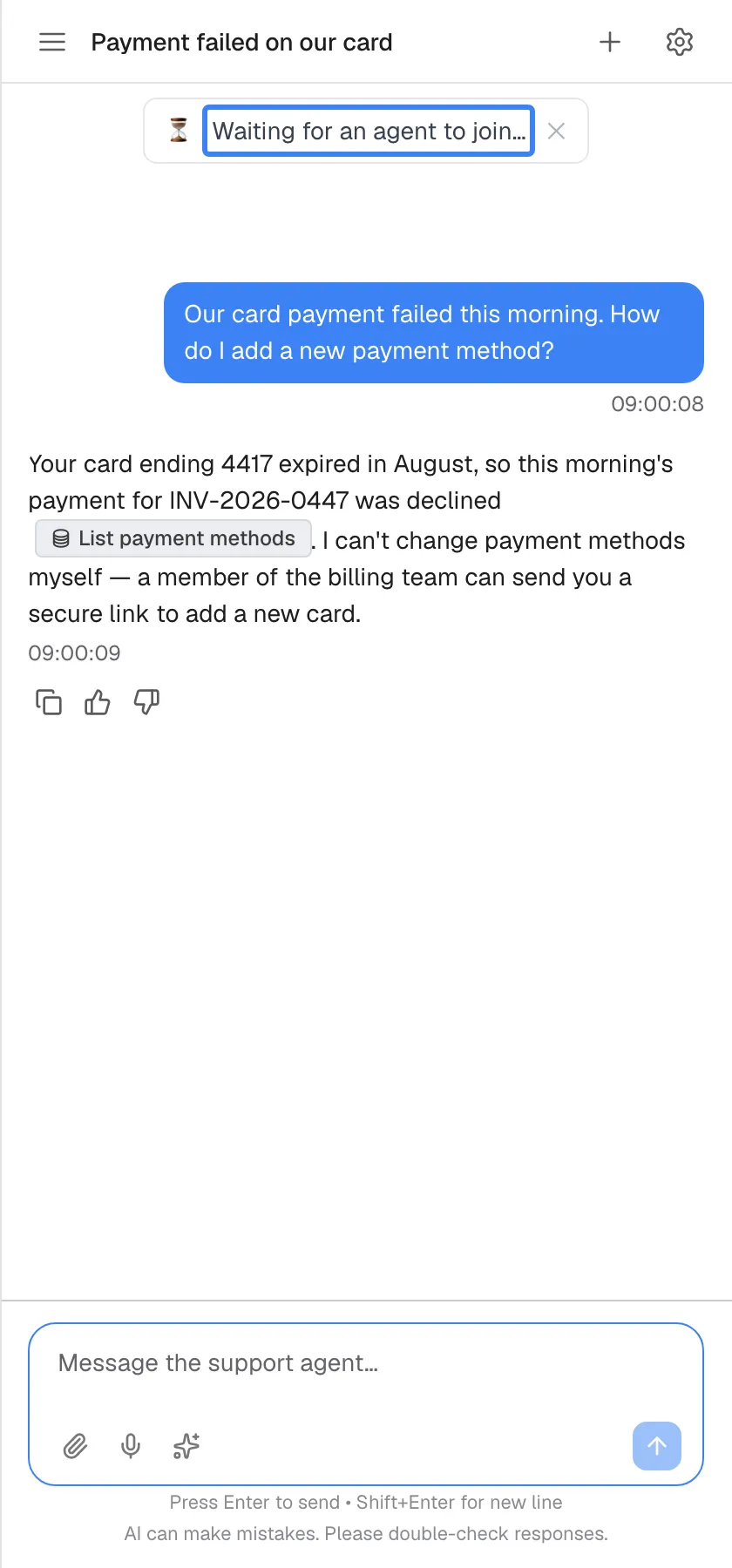
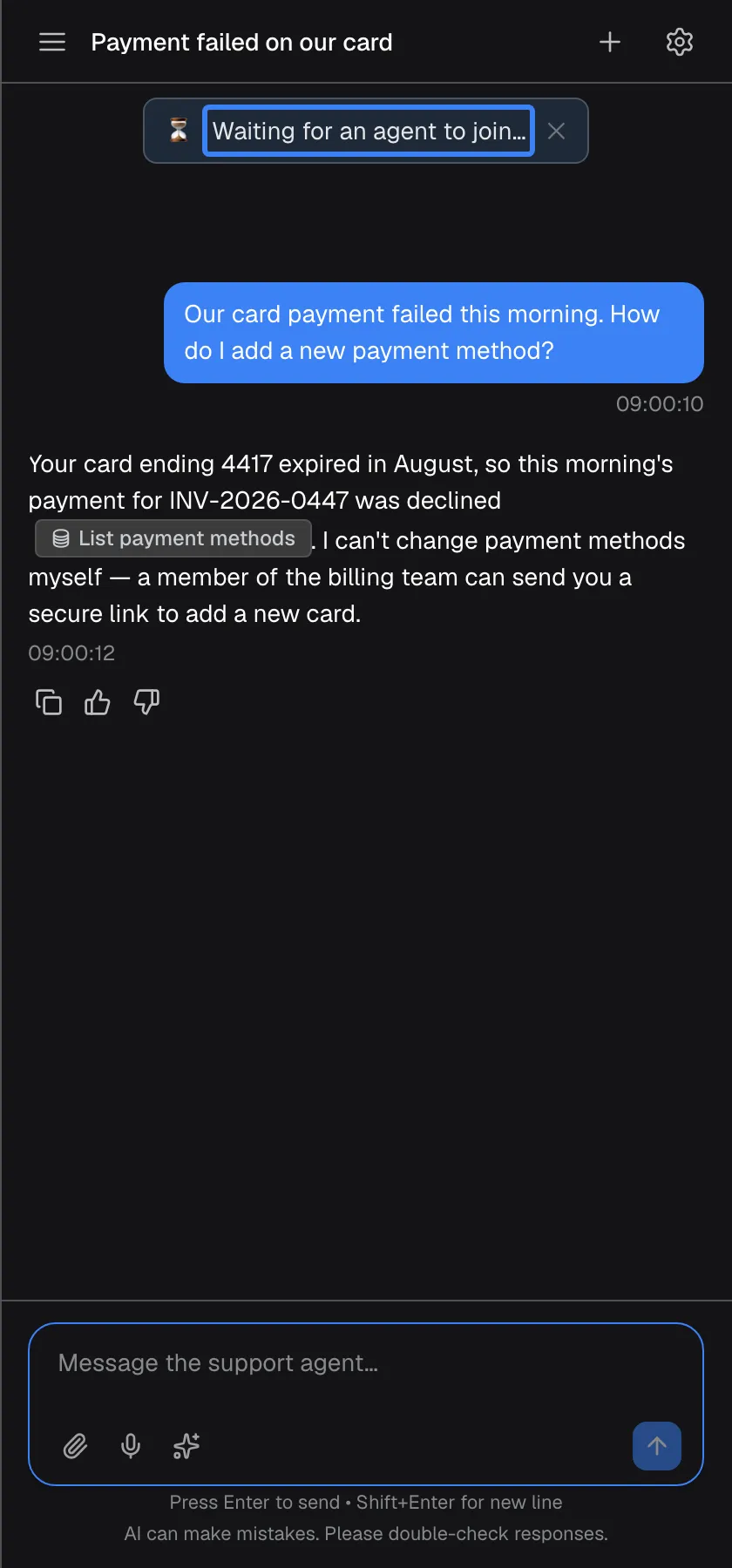
What this screenshot shows
- Screen
- (/?applicationToken=…)
- Highlighted
- “”, top-toast, waiting (English only). dismiss with X
- Also visible
- Placeholder Message the support agent…
- Purpose
- waiting for an agent
How the assistant decides to offer a person
Section titled “How the assistant decides to offer a person”- Your provider sets how readily it offers. Depending on that setting, the assistant offers a person at the first sign that you want one, after it has tried to help and you are still not satisfied or ask again, or only when nothing else has worked or you insist.
- Only the latest answer counts. The offer, and the buttons with it, belong to the assistant’s latest answer. If you write something else first, the offer from an earlier answer no longer applies.
- The assistant confirms before it offers. An answer with an offer usually says why a person would help, such as “a member of the billing team can send you a secure link”.
What does not start a handoff
Section titled “What does not start a handoff”- Asking for a human when your provider has not connected a support team.
- An offer in an earlier answer, once a newer answer has arrived.
- Starting a new chat with the plus icon; a running handoff stays in the chat where it started.
Setting it up in 3 steps
Section titled “Setting it up in 3 steps”There is nothing to switch on; your provider sets up the connection to its team. What you do is ask, accept the offer and wait.
-
Ask for help. Describe your problem to the assistant. If it cannot solve it, or you want a person, say so. When a person should take over, the assistant’s answer ends with a button Connect with agent.
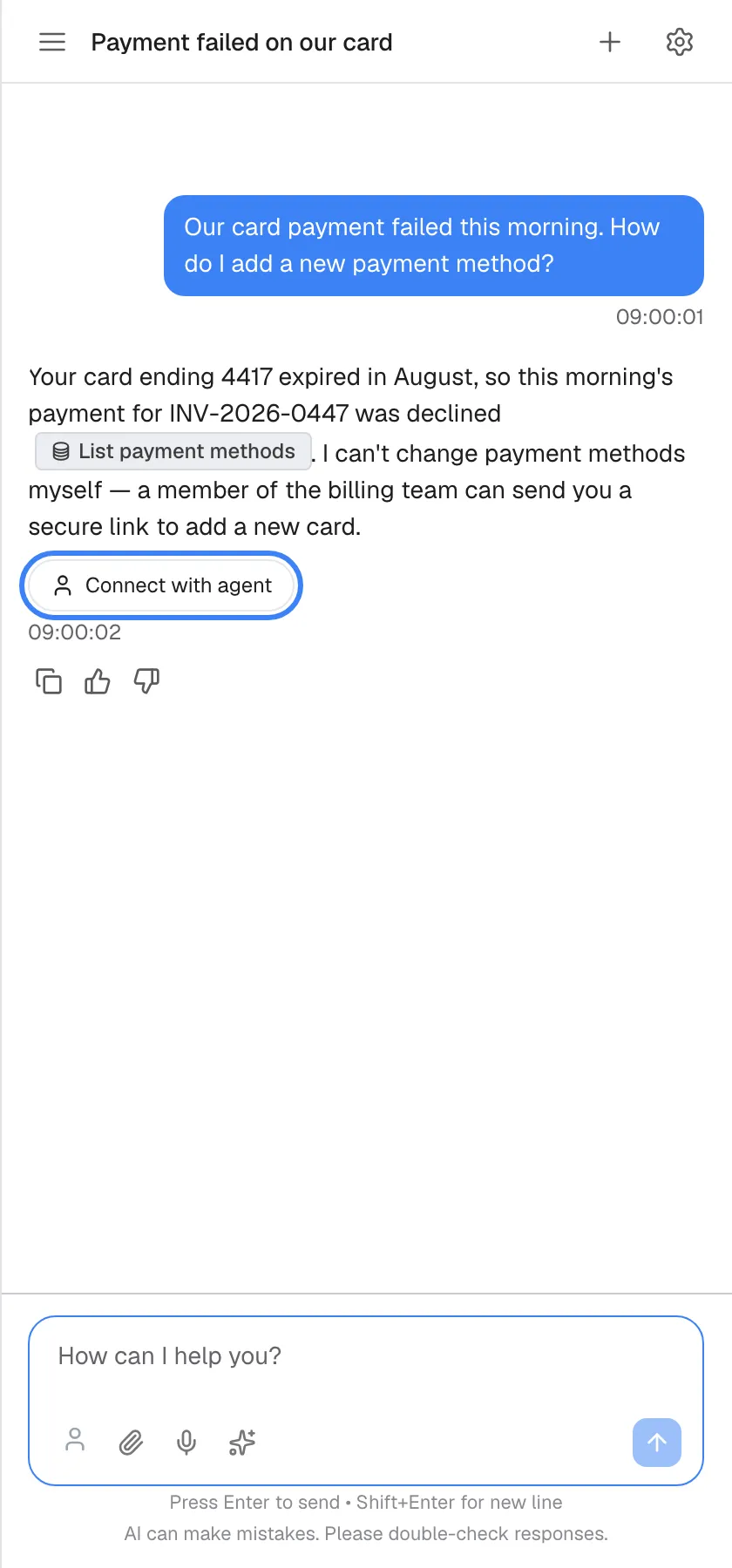
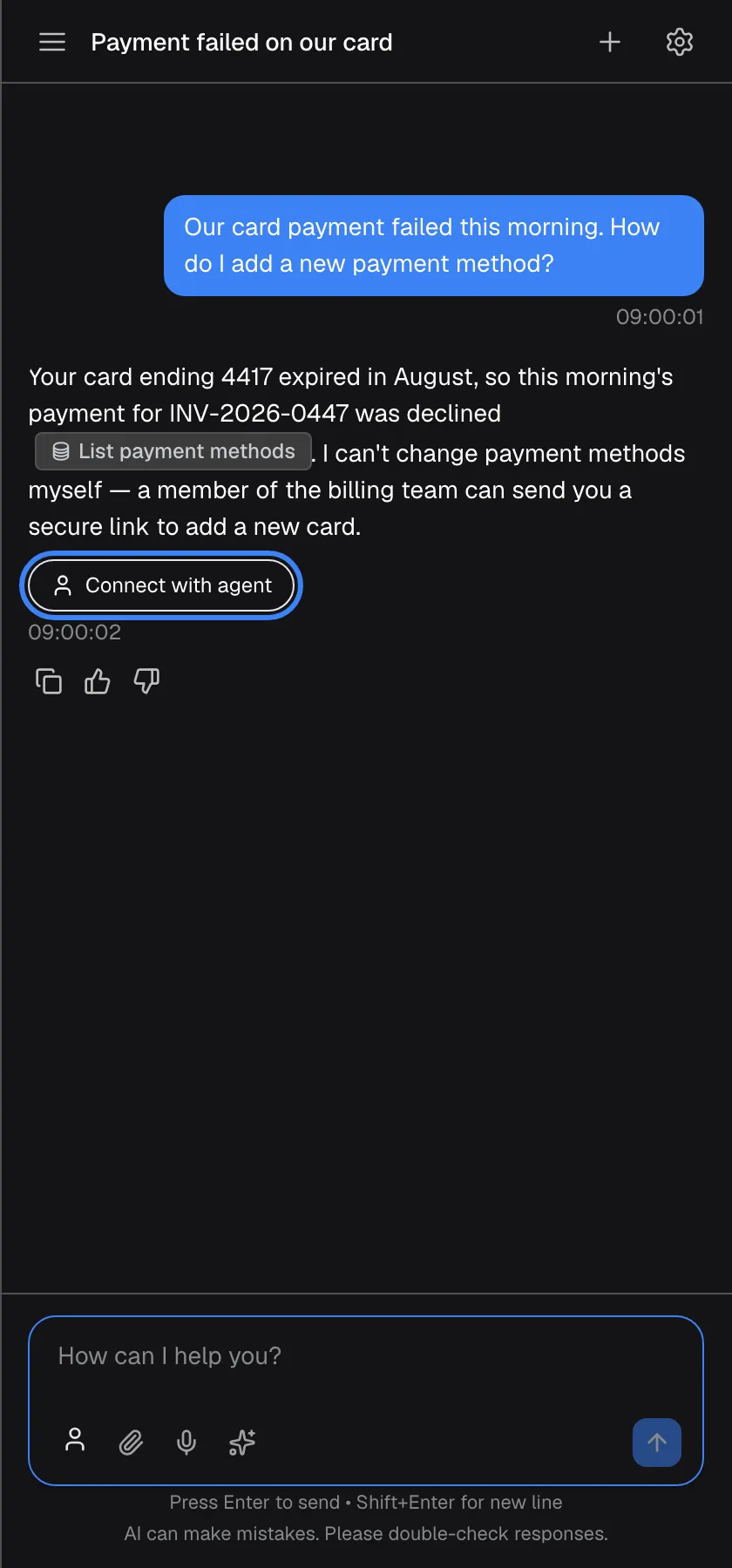
When a person should take over, the assistant offers "Connect with agent". What this screenshot shows
- Screen
- How can I help you? (/?applicationToken=…)
- Highlighted
- button “Connect with agent”, under-answer, offered. asks the provider's support team to join
- Also visible
- List payment methods badge, person icon in the message box
- Purpose
- the handoff offer
-
Connect. Select Connect with agent under the answer, or the person icon at the left of the message box (Invite an agent). Connecting to support… appears, then Waiting for an agent to join….
-
Write while you wait. Add anything the team should know in the message box, now labelled Message the support agent…. When a person joins, their name appears in the chat and you continue with them.
Every setting, explained
Section titled “Every setting, explained”You control a handoff with a few buttons and the message box. Each is explained below, in the order you meet them.
Connect with agent, the offer under an answer
Section titled “Connect with agent, the offer under an answer”A rounded button with a person icon under the assistant’s latest answer, Connect with agent, or the wording your provider chose for it.
Starts the handoff: the assistant sends your request to your provider’s support team. It appears only when the assistant has offered a person in its latest answer, and disappears once you select it.
The offer sits right where the assistant explains why a person should help.
Invite an agent, the person icon
Section titled “Invite an agent, the person icon”The person icon at the left of the message box. Hovering shows its label, Invite an agent or your provider’s own wording; after a failed attempt or a finished session it reads Invite again.
Does the same as Connect with agent. It appears when the assistant has offered a person, after a failed attempt, and after a session has ended.
It stays within reach next to the message box, even when the offer has scrolled out of view.
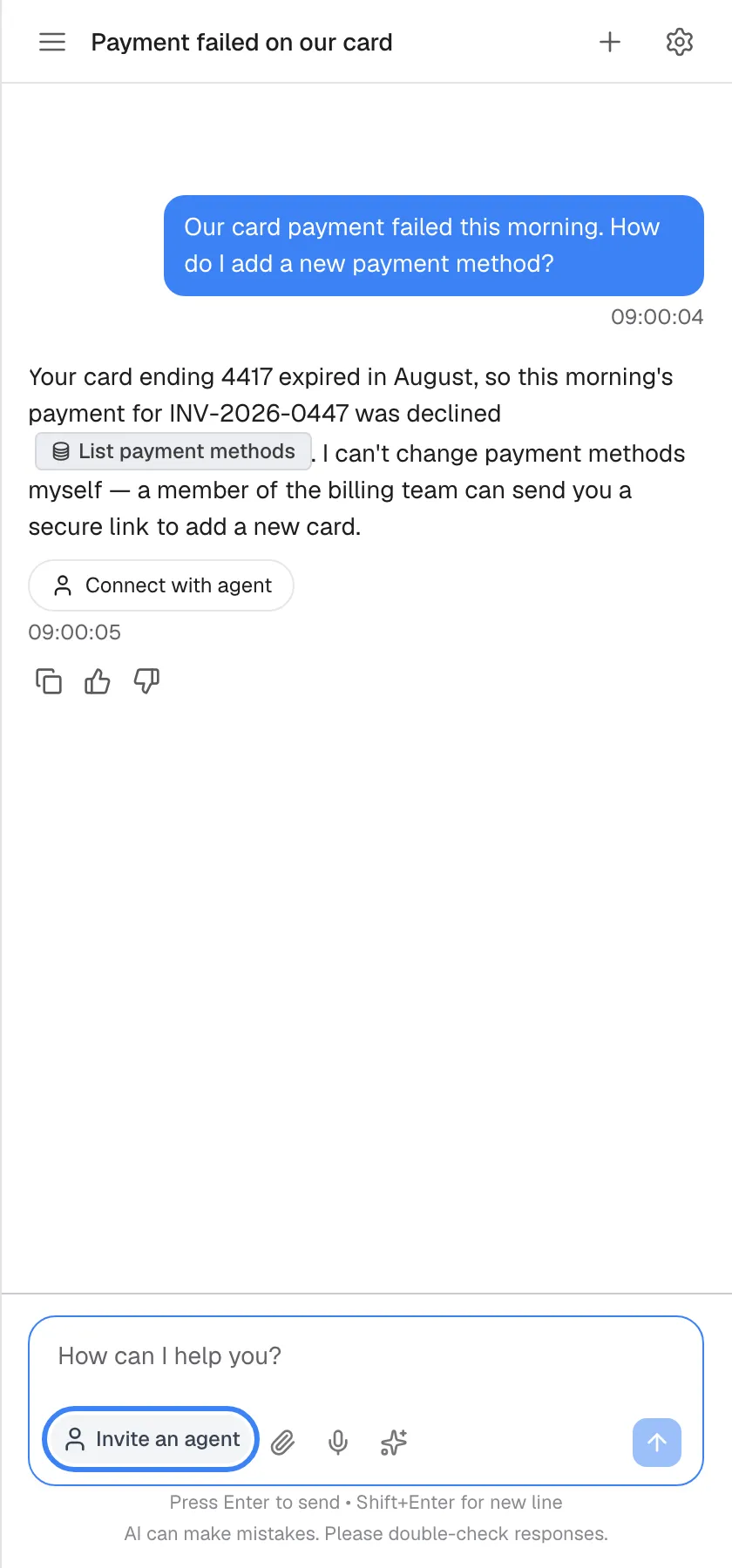
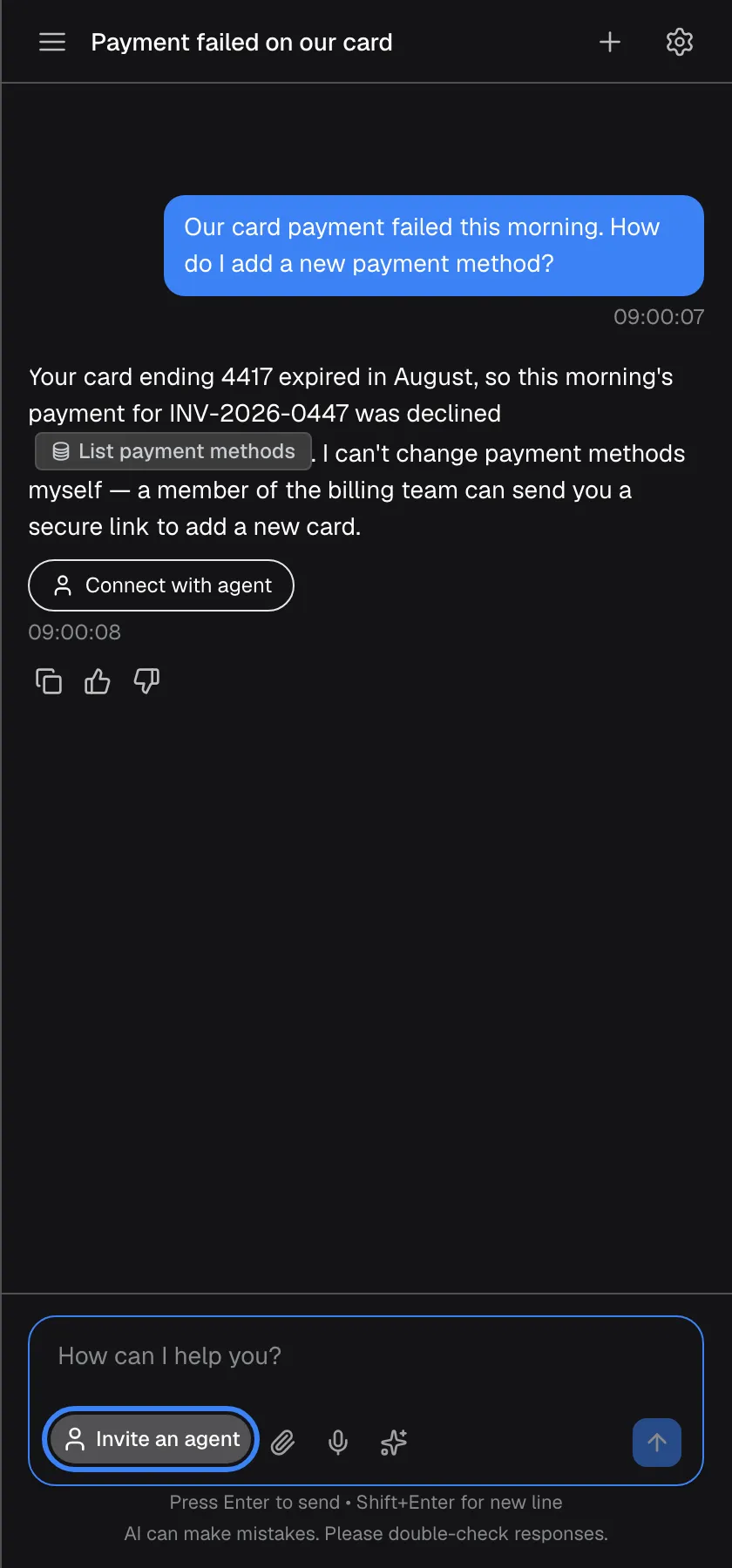
What this screenshot shows
- Screen
- How can I help you? (/?applicationToken=…)
- Highlighted
- button “Invite an agent”, message-box-left, hovered (label expanded). asks the support team to join
- Also visible
- Connect with agent under the answer
- Purpose
- second entry point
The notices at the top
Section titled “The notices at the top”Small boxes at the top of the chat, with an icon, a short text and an X.
Tell you that the request is being sent, that it is waiting for a person, who joined, that the session ended, or that connecting failed. Each disappears by itself after about five seconds; the X closes it earlier.
You know where you stand without reading back through the chat.
The message box during a handoff
Section titled “The message box during a handoff”The usual message box at the bottom, with the hint Message the support agent… while you wait for or talk to a person, and Please wait… while connecting or closing.
Messages you type go to the support team, not to the assistant. While the request is being sent or the session is closing, the box is greyed out. If you send a message just as the team is connecting, the chat may answer “Connecting you to a support agent. Your message will be sent once they join.”
You keep writing in the same place, whoever is answering.
Ending the session
Section titled “Ending the session”The person icon with a cross at the left of the message box, shown while you wait for or talk to a person. Hovering shows its label, End chat with agent.
Ends the session: the conversation is closed for your provider’s support team, Support session ended appears, a line support session ended marks the moment in the chat, and the assistant answers your next message again. The person on your provider’s team can also end the session from their side. Starting a new chat with the plus icon does not end it; the session stays open in the earlier chat.
You can go back to the assistant as soon as you no longer need the person.
Talking to a person in your chat
Section titled “Talking to a person in your chat”| Indicator | Meaning |
|---|---|
| Connecting to support… (hourglass) | Your request is being sent |
| Waiting for an agent to join… (hourglass) | The team has your request; nobody has joined yet |
| ”… joined the conversation” (green dot) | A person is now in the chat |
| A line ”… joined the chat” | The moment the person joined, kept in your history |
| A name above messages | Messages from that person, not from the assistant |
| Support session ended (waving hand) | The session has ended; the assistant answers again |
| Could not connect to support. (warning) | The request did not reach the team |
Waiting for a person
Section titled “Waiting for a person”While you wait, the message box is open and your messages go to the team; they are passed on when the person joins. The assistant does not answer during this time. If you close the window or reload the page, the chat returns to the same state when you come back, and the waiting notice shows again.
Why: you can add details while the team gets ready, without losing your place.
A person has joined
Section titled “A person has joined”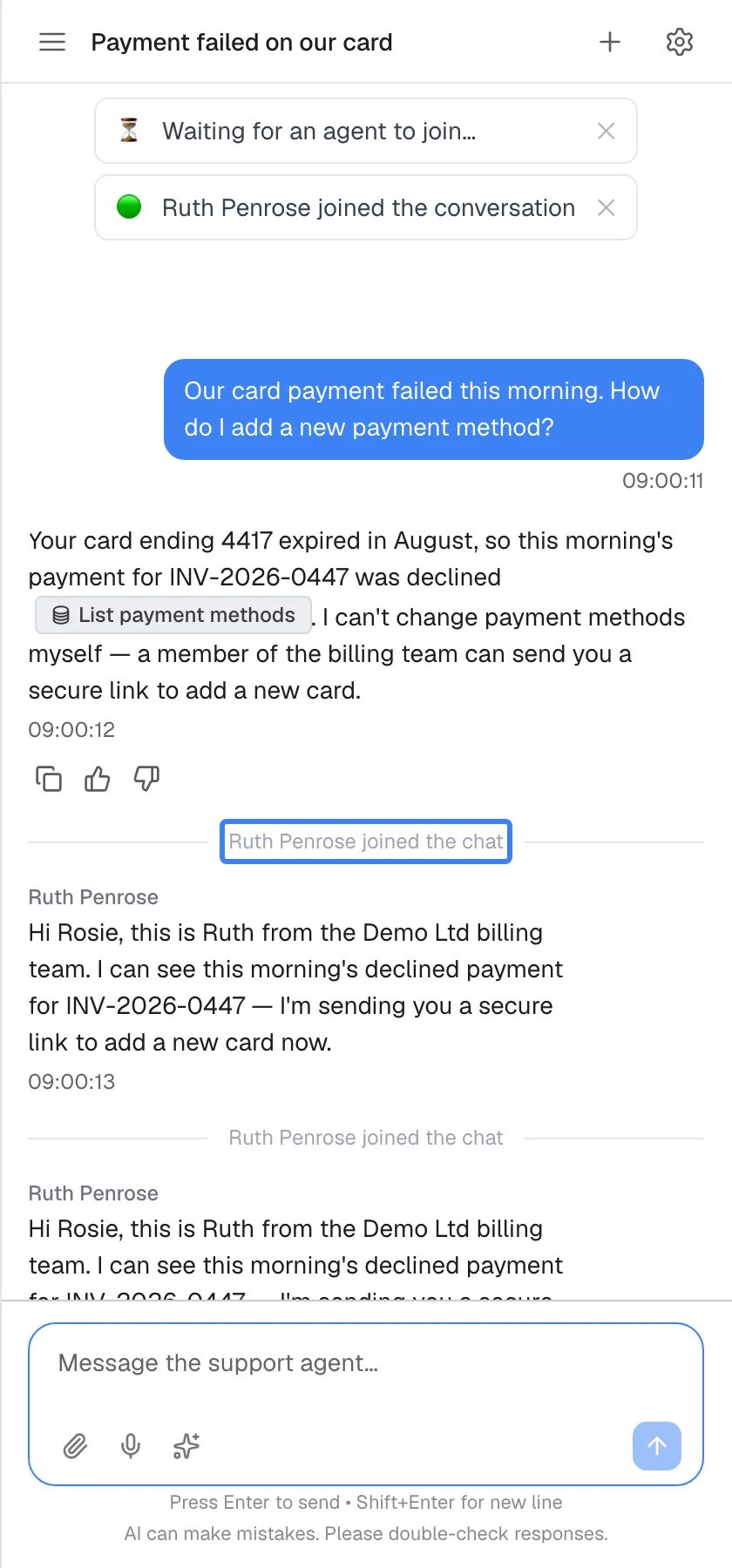
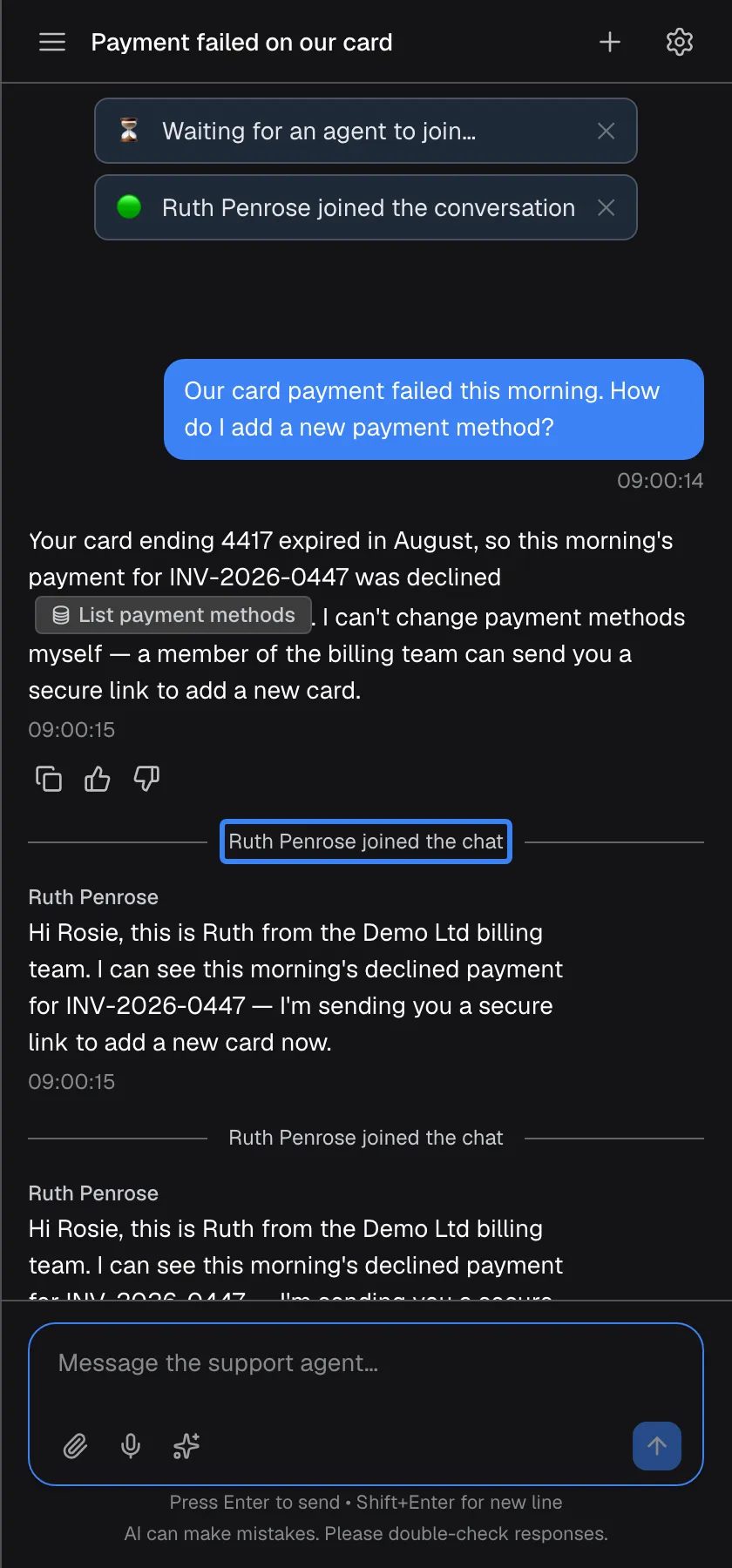
What this screenshot shows
- Screen
- (/?applicationToken=…)
- Highlighted
- “”, chat, agent connected (English only). none
- Also visible
- Toast <name> joined the conversation, two agent messages
- Purpose
- talking to a person
The notice and the line in the chat show the person’s name, or Support agent joined if their name is not available. Their messages appear with their name above them. The line and their replies stay in your chat history, so you can reread them later.
Why: you always know whether you are reading the assistant or a person.
Replying to the person
Section titled “Replying to the person”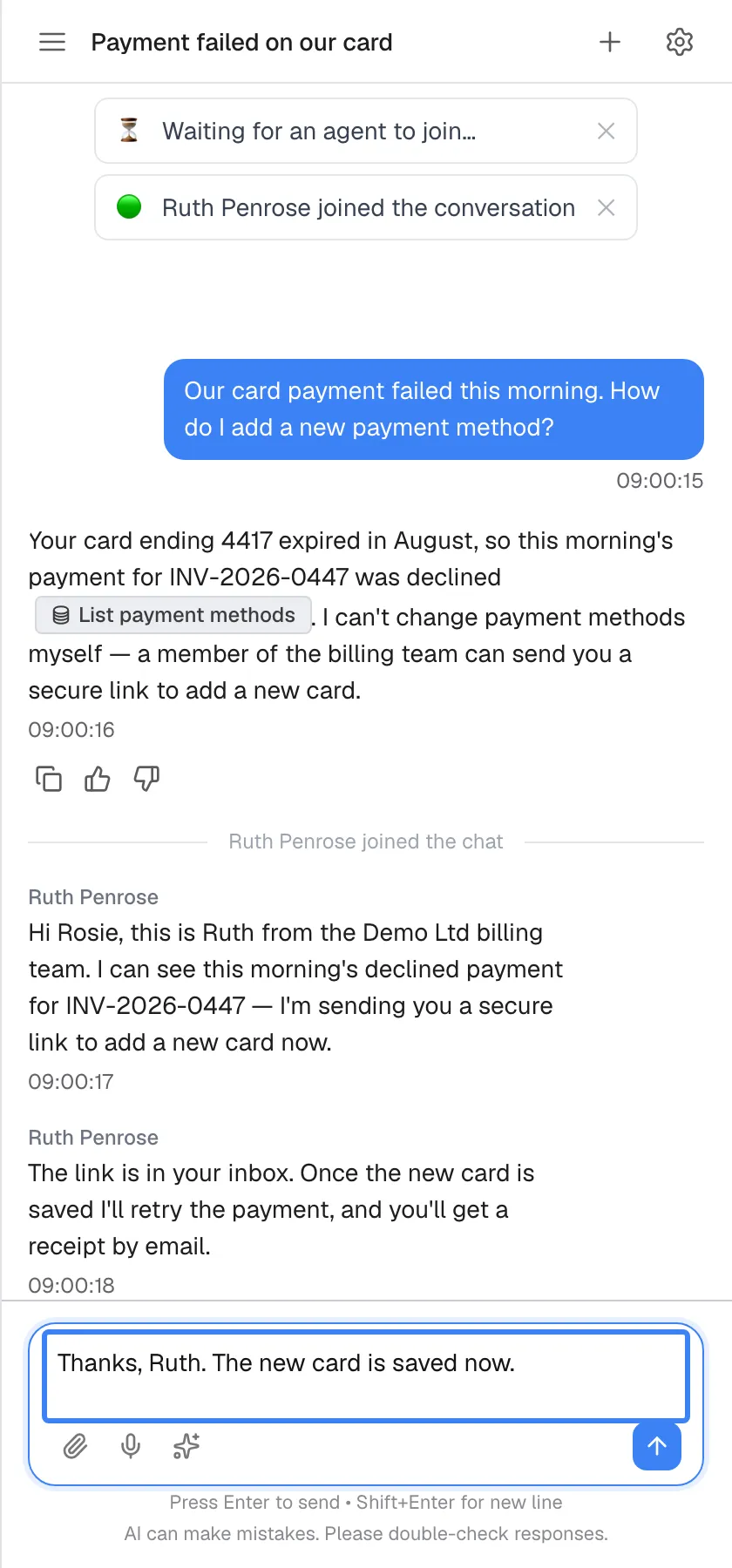
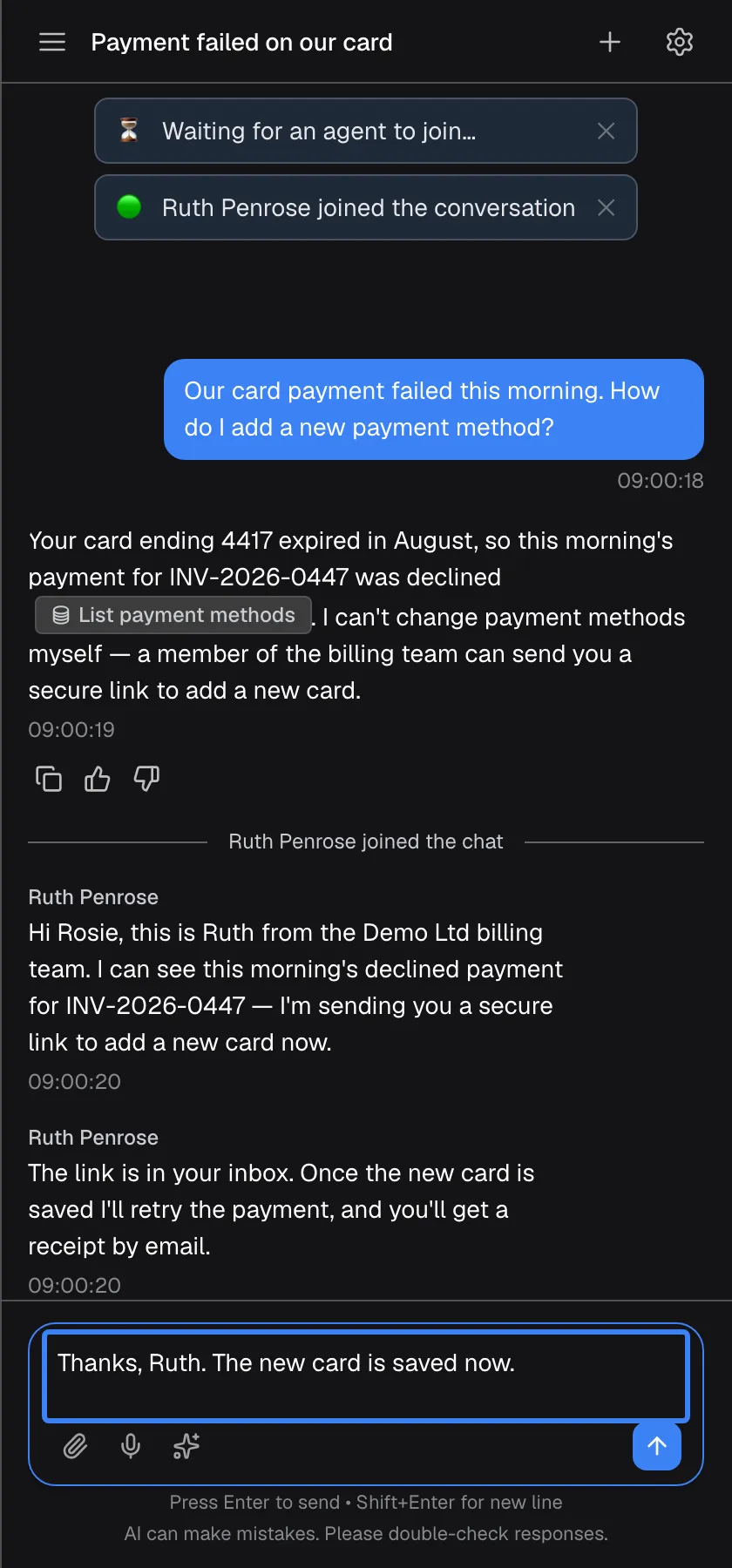
What this screenshot shows
- Screen
- (/?applicationToken=…)
- Highlighted
- textbox “”, message-box, typing a reply to the agent. sends the message to the support team
- Also visible
- Agent's latest reply
- Purpose
- replying to the agent
Write in the message box as usual, now labelled Message the support agent…. The assistant stays quiet until the session ends, either when the person ends it or when you select End chat with agent.
Why: one conversation with one person at a time avoids crossed answers.
After the session
Section titled “After the session”When the session ends, the assistant answers your next message again. The assistant does not know what the person told you: their messages and yours during the session are not passed back to it. If you continue with the assistant, repeat anything from the conversation with the person that it needs to know. The person icon now reads Invite again.
Why: the conversation with the person stays between you and your provider’s team.
What the support team receives
Section titled “What the support team receives”In your provider’s support tools, as a new conversation. You do not see this side.
- An automatic summary of your chat with the assistant.
- Your latest messages, up to 10, each shortened to 200 characters.
- Your name, email address and company, if your provider’s product passed them to the assistant.
- Your messages from then on, as you send them; their replies come back into your chat.
The person can start helping without asking you to repeat yourself.
- You explained a failed payment with the invoice number → the person sees the summary and your last messages and can send you a payment link straight away.
- You only wrote “help” before connecting → the summary has little to go on, and the person’s first question is what you need.
- Your provider’s product passes your name → the person can greet you by name.
What you need to know
Section titled “What you need to know”| Topic | Fact |
|---|---|
| Availability | Only when your provider has connected its support team and switched handoff on |
| Who decides to offer | The assistant, following your provider’s setting; you decide whether to connect |
| What the team gets | A summary, your latest messages (up to 10, each up to 200 characters) and your name, email and company if your provider’s product passes them |
| During the session | Your messages go to the person; the assistant does not answer |
| Ending | You end it with End chat with agent, or the person ends it; a new chat does not end it |
| Afterwards | The assistant answers again without knowing what the person said |
| Language | The handoff buttons, notices and hints are in your language; two short replies the chat may send while connecting or closing are in English |
| History | Join and end lines and the person’s replies stay in your chat history |
| Leaving the page | The state is restored when you come back |
| Cost | None for you |
Frequently asked questions
Section titled “Frequently asked questions”General
Section titled “General”How do I reach a person?
Section titled “How do I reach a person?”Explain your problem to the assistant and say that you want to talk to a person. When the assistant offers it, select Connect with agent under its answer or the person icon next to the message box. This works only if your provider has connected its support team.
Why is there no button to talk to a person?
Section titled “Why is there no button to talk to a person?”Either your provider has not connected a support team to the assistant, or the assistant has not offered a person yet. Depending on your provider’s setting, the assistant may first try to help. Say clearly that you want a person and why.
Can I just type that I want a human?
Section titled “Can I just type that I want a human?”Yes, and you should, but typing alone does not show a button. The assistant reads your request and offers a person according to your provider’s setting; the buttons appear with that offer.
Is the person a bot?
Section titled “Is the person a bot?”No. The person who joins is a member of your provider’s support team. Their name appears in the chat and above their messages, or Support agent if their name is not available.
Does it cost anything?
Section titled “Does it cost anything?”No. Talking to a person through the assistant costs you nothing extra. Your provider’s own terms for its support service still apply as usual.
Connecting
Section titled “Connecting”How long will it take for someone to join?
Section titled “How long will it take for someone to join?”That depends on your provider’s support team and how busy it is. While you wait, Waiting for an agent to join… shows, and you can keep writing; your messages are passed to the person when they join.
Can I keep typing while I wait?
Section titled “Can I keep typing while I wait?”Yes. Once the team has your request, the message box reads Message the support agent…. What you type goes to the team and is delivered when the person joins.
What does “Could not connect to support.” mean?
Section titled “What does “Could not connect to support.” mean?”Your request did not reach your provider’s support team, usually because of a problem on your provider’s side. The assistant answers again. Try once more with the person icon (Invite again); if it fails again, contact your provider another way.
I closed the window while waiting. Did I lose my place?
Section titled “I closed the window while waiting. Did I lose my place?”No. When you come back to the chat, it returns to the same state: the waiting notice shows again, and if a person has joined, their messages are there.
During the session
Section titled “During the session”Will the person see my earlier conversation with the assistant?
Section titled “Will the person see my earlier conversation with the assistant?”They receive an automatic summary of your chat and your latest messages, up to 10, each shortened to 200 characters. Put important details such as reference numbers at the start of your messages so they arrive in full.
Will the person know who I am?
Section titled “Will the person know who I am?”They see your name, email address and company only if your provider’s product passed them to the assistant. Otherwise introduce yourself in your first message to the person.
Does the assistant keep answering while I talk to a person?
Section titled “Does the assistant keep answering while I talk to a person?”No. While you are waiting for or talking to a person, your messages go to them and the assistant stays quiet. It answers again once the session ends.
Which language are the handoff messages in?
Section titled “Which language are the handoff messages in?”In your language, like the rest of the chat: the buttons, notices and hints for talking to a person are translated. Two short replies the chat may send while it connects you or closes the session are still in English. The person from your provider’s team can of course write to you in your language.
Ending
Section titled “Ending”How do I end the chat with the person?
Section titled “How do I end the chat with the person?”Select End chat with agent, the person icon with a cross at the left of the message box. The session ends, Support session ended appears and the assistant answers your next message again. The person on your provider’s team can also end it when your issue is resolved.
What happens after the person leaves?
Section titled “What happens after the person leaves?”Support session ended appears, a line marks the end in the chat, and the assistant answers your next message again. The person icon now reads Invite again in case you need someone once more.
Does the assistant know what the person told me?
Section titled “Does the assistant know what the person told me?”No. Messages exchanged with the person are not passed to the assistant. If you continue with the assistant, repeat anything from that conversation it needs to know.
Can I reopen the conversation later?
Section titled “Can I reopen the conversation later?”Yes. The chat stays in your history with the line showing when the person joined, their replies and the end of the session. If the session is still open, you continue writing to the person there.
Can I rate the person who helped me?
Section titled “Can I rate the person who helped me?”No. The rating icons appear only under the assistant’s answers, not under messages from a person on your provider’s team. Use your provider’s usual channels for feedback on their support.
Can I start another handoff later?
Section titled “Can I start another handoff later?”Yes. After a session ends or a connection fails, the person icon next to the message box reads Invite again. Select it to send a new request to your provider’s support team.
Why did my new chat not end the session with the person?
Section titled “Why did my new chat not end the session with the person?”A handoff belongs to the chat where it started. Starting a new chat with the plus icon leaves it running there. To end it, open that chat from your history and select End chat with agent.
Troubleshooting
Section titled “Troubleshooting”| Symptom | What to check |
|---|---|
| No Connect with agent button and no person icon | Your provider may not have connected a support team, or the assistant has not offered a person yet. Say clearly that you want a person and why. |
| The offer was in an earlier answer and the button is gone | Only the latest answer’s offer counts. Ask again for a person. |
| Connecting to support… and the message box reads Please wait… | The request is being sent. Wait a few seconds. |
| Stuck on Waiting for an agent to join… | The team may be busy or offline. Keep the chat open or come back later; your messages are delivered when someone joins. |
| Could not connect to support. | Retry with the person icon (Invite again). If it repeats, contact your provider another way. |
| The person says they replied, but nothing appears in your chat | The reply did not reach the chat. Tell the person, and contact your provider if it continues. |
| The assistant does not answer | A person is still in the chat, or you are still waiting for one. Select End chat with agent to go back to the assistant, or start a new chat. |
| “The support session is closing. Please wait a moment.” | The session is being ended, by you or by the person. Wait, then write again. |
| The assistant does not remember what the person said | That is expected. Repeat the details the assistant needs. |