

Your customer portal
The customer portal is your self-service area inside the assistant. It holds your own account details, what the assistant remembers about you, the background runs the assistant does for you and how much of your AI allowance is left. If you are an Admin of your company, it is also where you set the assistant up for everyone in your company: members, documents, skills, workflows, email, company settings and prompt shortcuts.
Your provider, the company whose product shows the assistant, decides whether the portal is there at all and which of its pages appear. Your role in your company decides the rest: Admins see the company set-up pages, Members see their own pages, the company’s workflows read-only, the shortcut list and the allowance. Everything you change in the portal applies to your company only; other companies that use the same assistant never see it.
The pages in the portal
Section titled “The pages in the portal”The portal has a menu on the left. Which entries you see depends on your role and on the pages your provider shows.
| Page | What it is for | Admin | Member |
|---|---|---|---|
| Profile | Your name, email, customer ID and role | Yes | Yes |
| Agent runs | Background runs, approvals and answers they wait for, results | Yes, every run of your company except other people’s personal workflows | Yes, your own runs and the company workflows’ runs |
| Memory | Everything the assistant remembers about you, and the switch to stop it | Yes | Yes |
| Members | Roles and access of the people in your company | Yes | No |
| Knowledge Base | Documents the assistant answers from for your company | Yes | No |
| Skills | Procedures the assistant follows for your company | Yes | No |
| Workflows | Instructions the assistant carries out on a schedule or on demand | Yes | Yes: the company’s workflows read-only, plus your own personal ones |
| Notifications | Where you are told about background jobs; for Admins also your company’s own channels | Yes | Yes, your own choices |
| Settings | Self-registration, sign-in preference and a standing instruction | Yes | No |
| Prompt Shortcuts | Ready-made prompts for the chat | Yes, and can edit | Yes, read only |
| Usage | How much of the AI allowance is left this period | Yes | Yes |
Profile, Agent runs, Memory and Notifications are always in the menu. Every other page is one your provider can show or hide; a page that is hidden is simply not in the menu.
What you can do here
Section titled “What you can do here”- Keep your account details current. Change the name and email your provider’s team sees on your record. Profile.
- Decide on work the assistant does in the background. Approve or deny a waiting step and answer questions within 24 hours, then read the result. Agent runs.
- Choose where you hear about background jobs. Email, Telegram, Slack or Teams, and which outcomes reach you. Notifications.
- Control what the assistant remembers about you. Forget single notes or switch remembering off. Memory.
- Set the assistant up for your company (Admins). Add documents, teach skills, schedule company workflows, connect your company’s own notification channels and write a company instruction. Knowledge Base · Skills · Workflows · Settings.
- Manage who in your company is an Admin (Admins). Switch roles and turn access off or on. Members.
- See whether the assistant can keep working. Check the share of the allowance left and the reset date. Usage.
Open the portal
Section titled “Open the portal”There are three ways in. All of them need you to be signed in to the assistant.
From the chat, with the gear
Section titled “From the chat, with the gear”In the assistant’s top bar, select the gear labelled Configure. The portal opens as a large window over your provider’s product, up to 90 % of the screen, with the page behind it dimmed. Your chat stays where it was: the open conversation, its scroll position and any message you had started typing are still there when you close the portal with Close (the X at the top right).
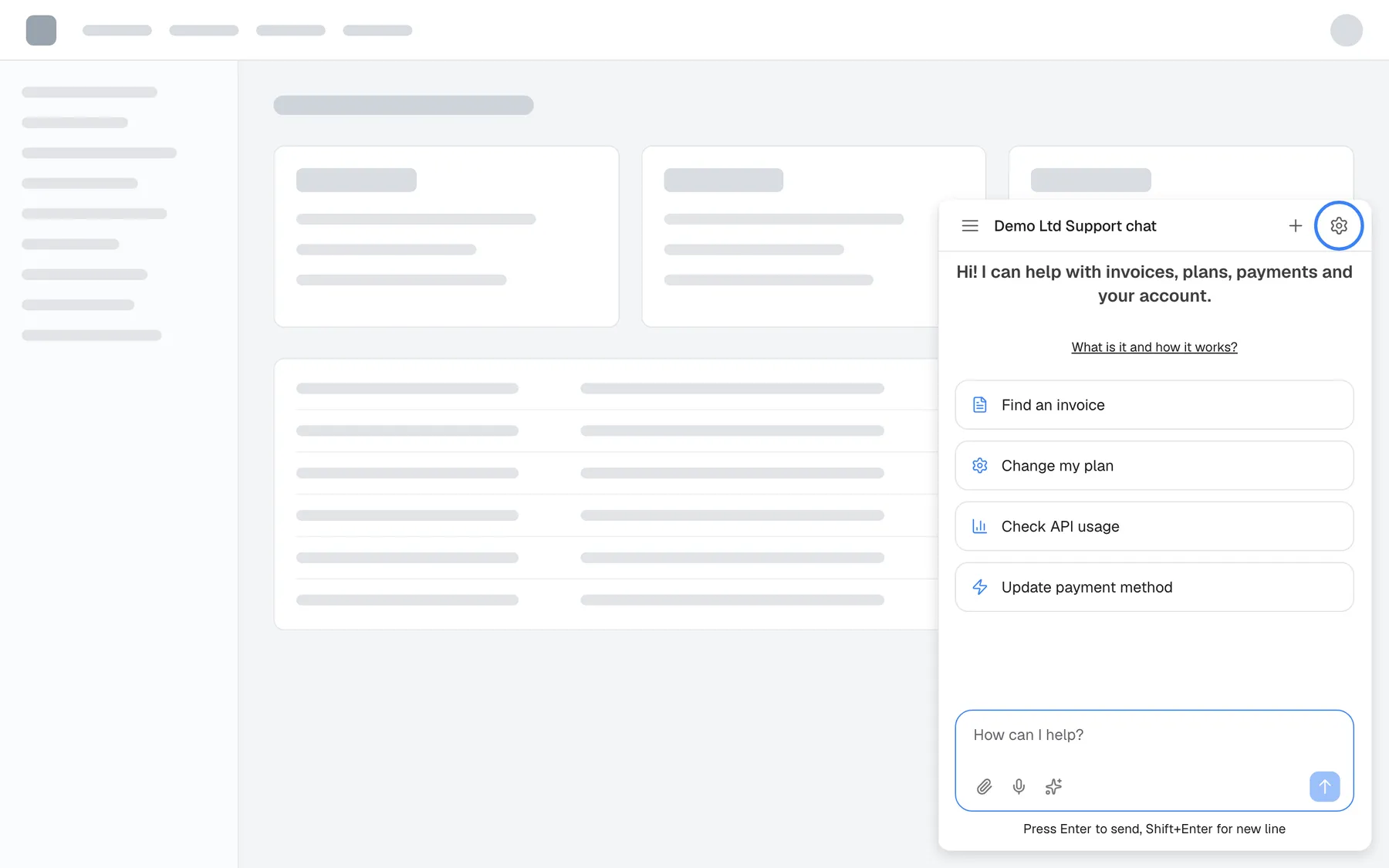
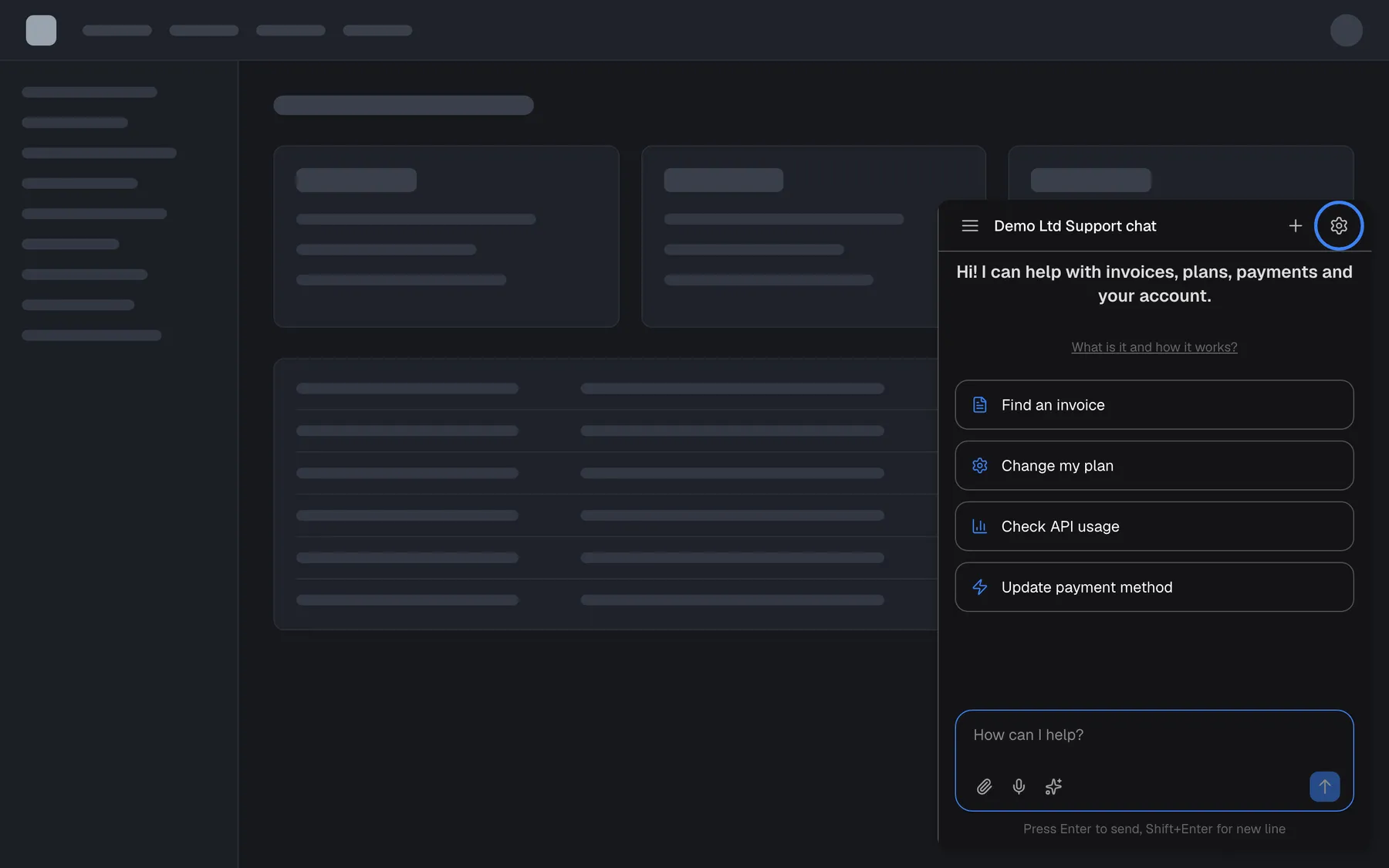
What this screenshot shows
- Screen
- Configure (host page (provider product))
- Highlighted
- button “Configure”, chat-top-bar-right, shown (signed in, portal on). opens the customer portal
- Also visible
- Welcome screen with four shortcut cards
- Purpose
- entry point
The gear appears only when all of these are true: you are signed in, your provider has switched the portal on, and the assistant is not built into the page as a plain inline box. If your provider switched the portal on after you loaded the page, reload the page to see the gear.
From a link in your provider’s product
Section titled “From a link in your provider’s product”Your provider can link to the portal directly, for example from an account menu. The portal then opens as a full page without the chat and asks you to sign in. In this mode there is no close button; go back with your browser or the link you came from. A direct link works even when your provider has hidden the gear in the chat.
From a run that needs you
Section titled “From a run that needs you”On the chat’s start screen, a background run that waits for you can show Decide. Selecting it opens the portal straight on that run under Agent runs, so you can approve, deny or answer. See Agent runs.
Inside the portal
Section titled “Inside the portal”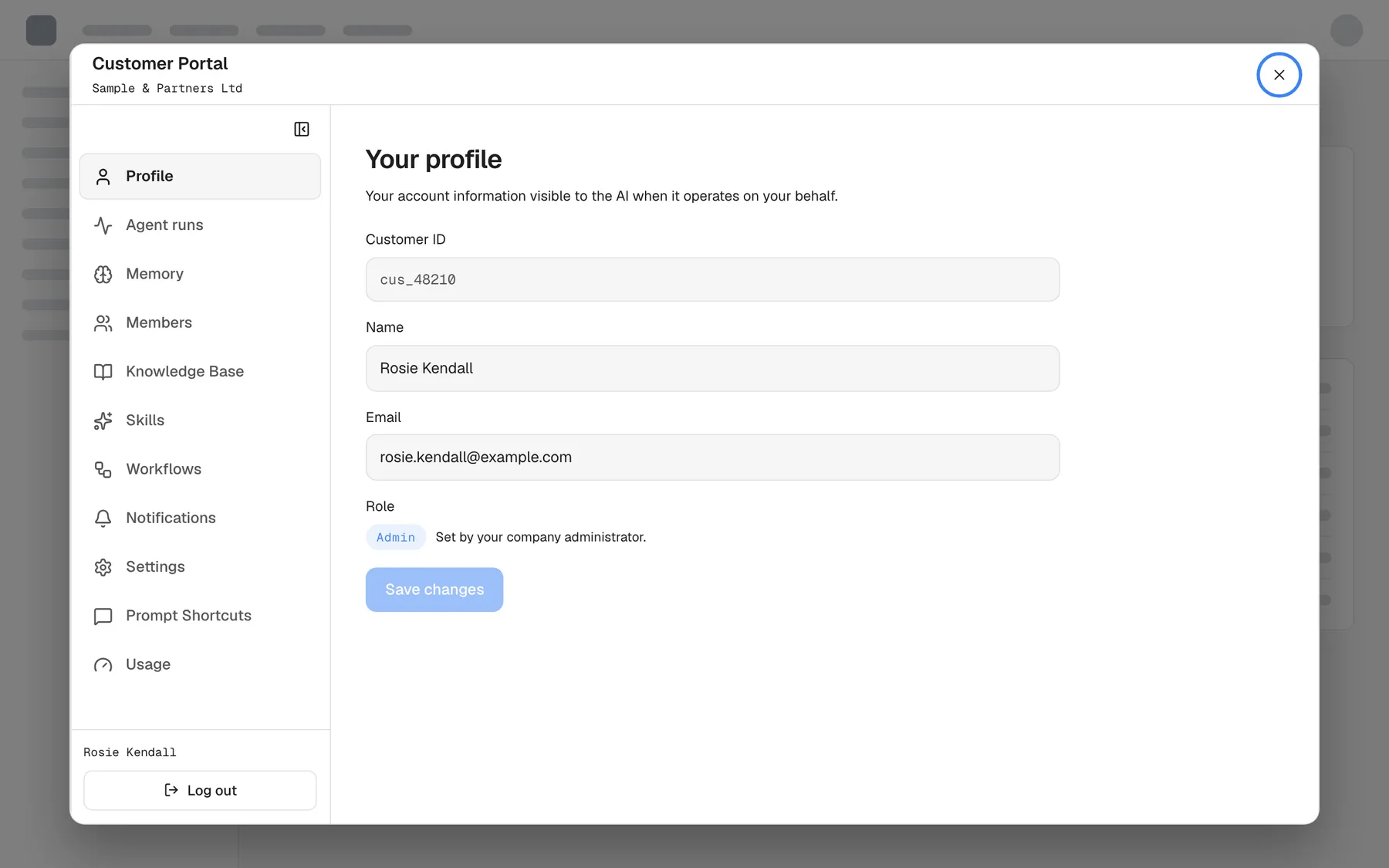
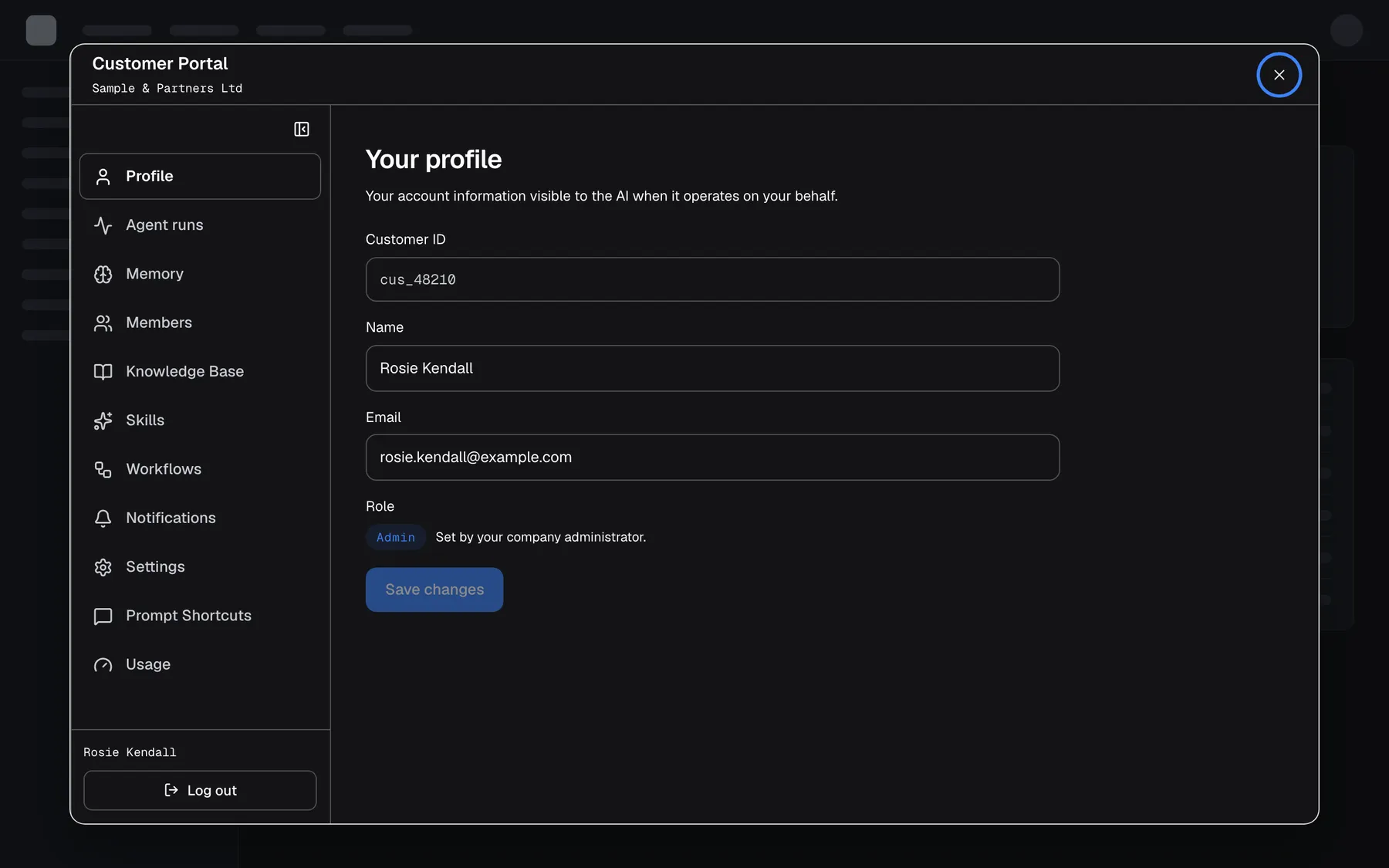
What this screenshot shows
- Screen
- Customer Portal (host page (provider product))
- Highlighted
- button “Close”, portal-top-right, enabled (opened from the chat). closes the portal and returns to the chat
- Also visible
- Admin menu: all eleven portal.tabs.*, portal.shell.logout
- Purpose
- the portal as an Admin
| Region | What it shows | What you do there |
|---|---|---|
| Top bar | Customer Portal, your company’s name, and Close when you came from the chat | Check which company you are working for; go back to the chat |
| Menu, left | The pages you can use | Switch pages; collapse the menu to icons with Collapse sidebar and widen it again with Expand sidebar |
| Menu footer | Your name (or your customer ID) and Log out | Sign out of the assistant |
| Page, right | The page you selected; the portal always opens on Profile | Do the work of that page |
The collapsed or expanded menu is remembered in this browser. Log out ends your session in this browser; the next time you open the assistant, it asks you to sign in again.
Admin and Member
Section titled “Admin and Member”Admin and Member are roles inside your own company, not at your provider.
| Admin | Member | |
|---|---|---|
| Own pages (Profile, Memory, Usage) | Yes | Yes |
| Agent runs | Every run of the company except another person’s personal workflows; can decide on a Member’s waiting step | Own runs and the company workflows’ runs |
| Workflows | Company and personal workflows; manage and run company ones | The company’s workflows read-only; own personal workflows |
| Prompt Shortcuts | Create, edit, switch off, delete | Read only |
| Company set-up pages | Yes | Not in the menu |
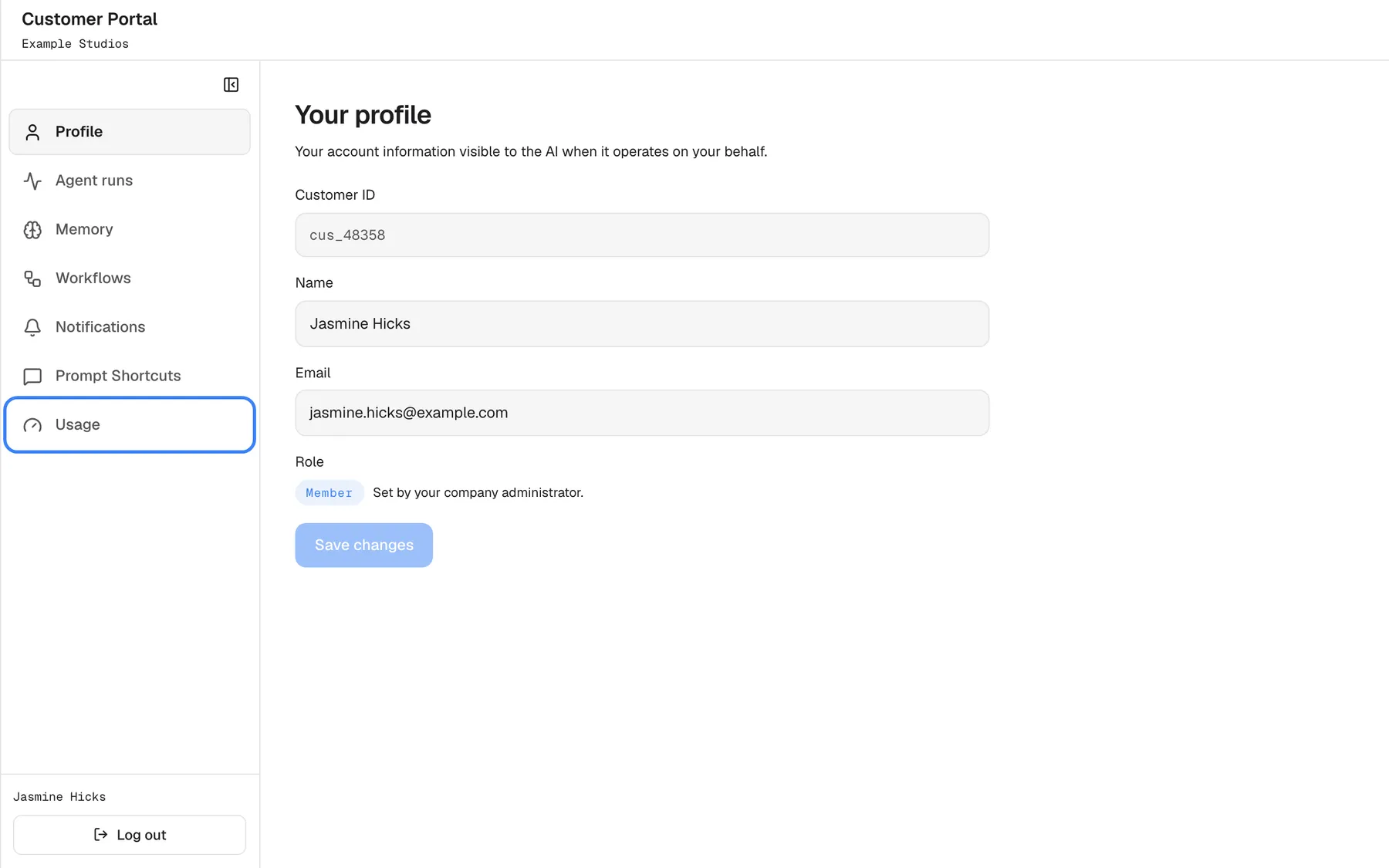
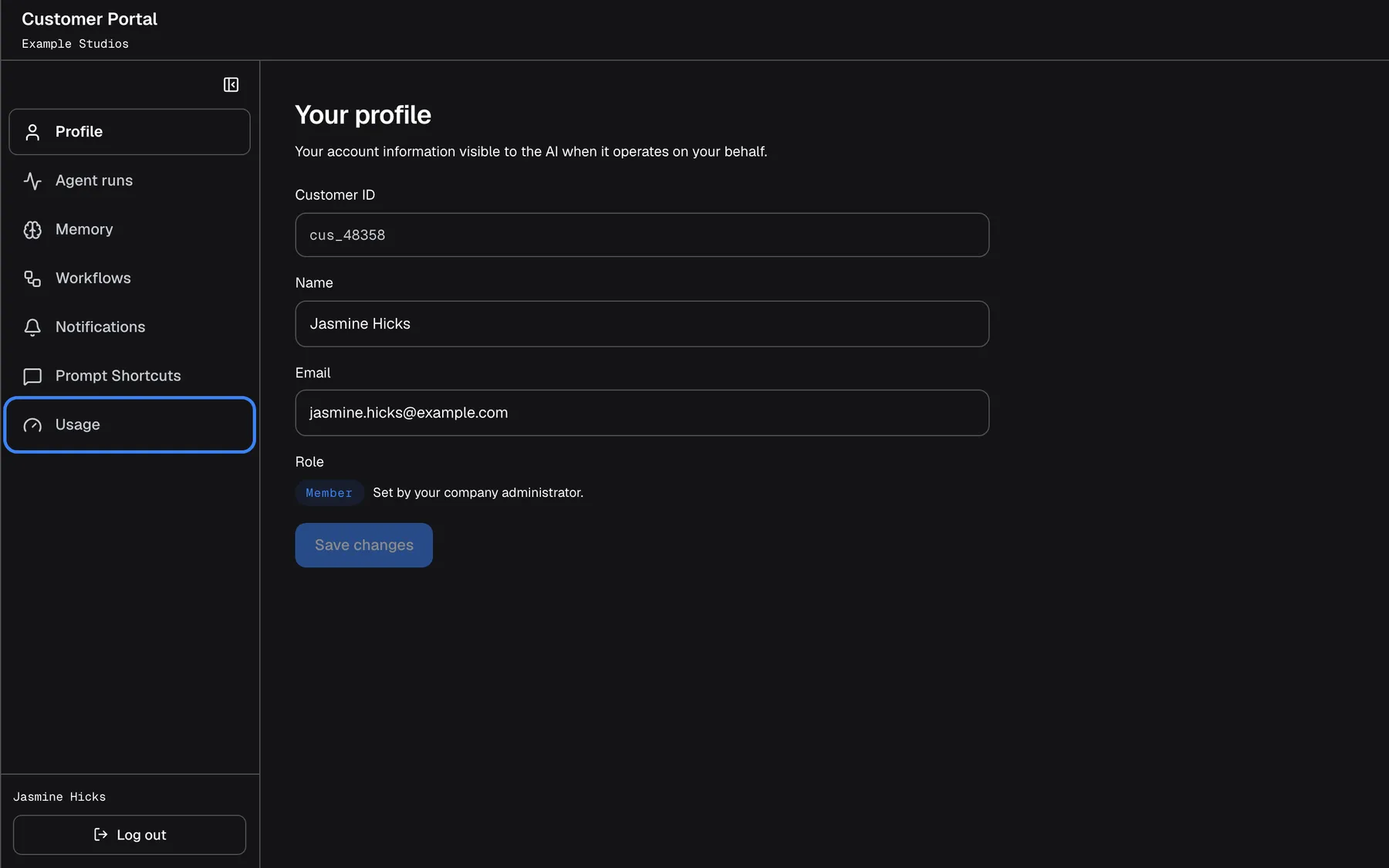
What this screenshot shows
- Screen
- Your profile (/?mode=portal)
- Highlighted
- button “Usage”, sidebar, listed (Member menu). opens the Usage page
- Also visible
- Member menu: profile, jobs, memory, workflows, notifications, prompts, usage
- Purpose
- Admin vs Member
- The first person is Admin. Someone whose account is created on first sign-in, or who is the first to register in your company’s account, starts as Admin; everyone who registers after them with your company’s registration link joins as Member. An Admin can change roles on Members.
- A role change applies at the person’s next sign-in. Until they sign out and in again, their menu and permissions stay as they were.
- You see your role on Profile. Only an Admin of your company, or your provider, can change it.
Availability
Section titled “Availability”The portal is available when your provider has switched it on for the assistant you use and you are signed in. Your provider also chooses which of the optional pages appear. Those choices are read when the assistant loads, so a change shows after you reload the page; if a page you have open is hidden meanwhile, the portal falls back to Profile. If your provider turns off a page while you are using it, your next action there shows “This page is turned off for this portal.” until you reload. Ask your provider if you expect a page that is not there.
You cannot change your PIN or password, invite people, rename your company or delete your account in the portal. Ask your provider for these.