

Sign in with a PIN or password
Some providers ask you to sign in before the assistant opens, so that your chats, your saved logins and your customer portal stay with you. The first time, the assistant asks you to choose a PIN of 4 to 8 digits or a password of at least 8 characters; after that, it asks only for that PIN or password. The sign-in screen appears inside the assistant’s window, wherever your provider shows the assistant, before the chat. If your provider does not ask for sign-in, or signs you in automatically through its own product, you never see this screen.
What you can do here
Section titled “What you can do here”- Set up a PIN or password the first time. Choose one, type it twice, and the chat opens. Set up your PIN or password.
- Sign in when you come back. The assistant asks only for your PIN or password, never for a user name. Sign in again.
- Stay signed in. Remember me on this browser keeps you signed in on this browser for 7 days instead of 12 hours. Stay signed in and sign out.
- Get past a wrong PIN or a locked account. Five wrong attempts in a row lock the account for a minute, and each further wrong attempt for longer. After a wrong PIN or password.
- Know what to do when access is switched off or you forgot your PIN. The assistant tells you when your access is unavailable, and your provider or your company’s administrator can help. When you cannot sign in.
The screen at a glance
Section titled “The screen at a glance”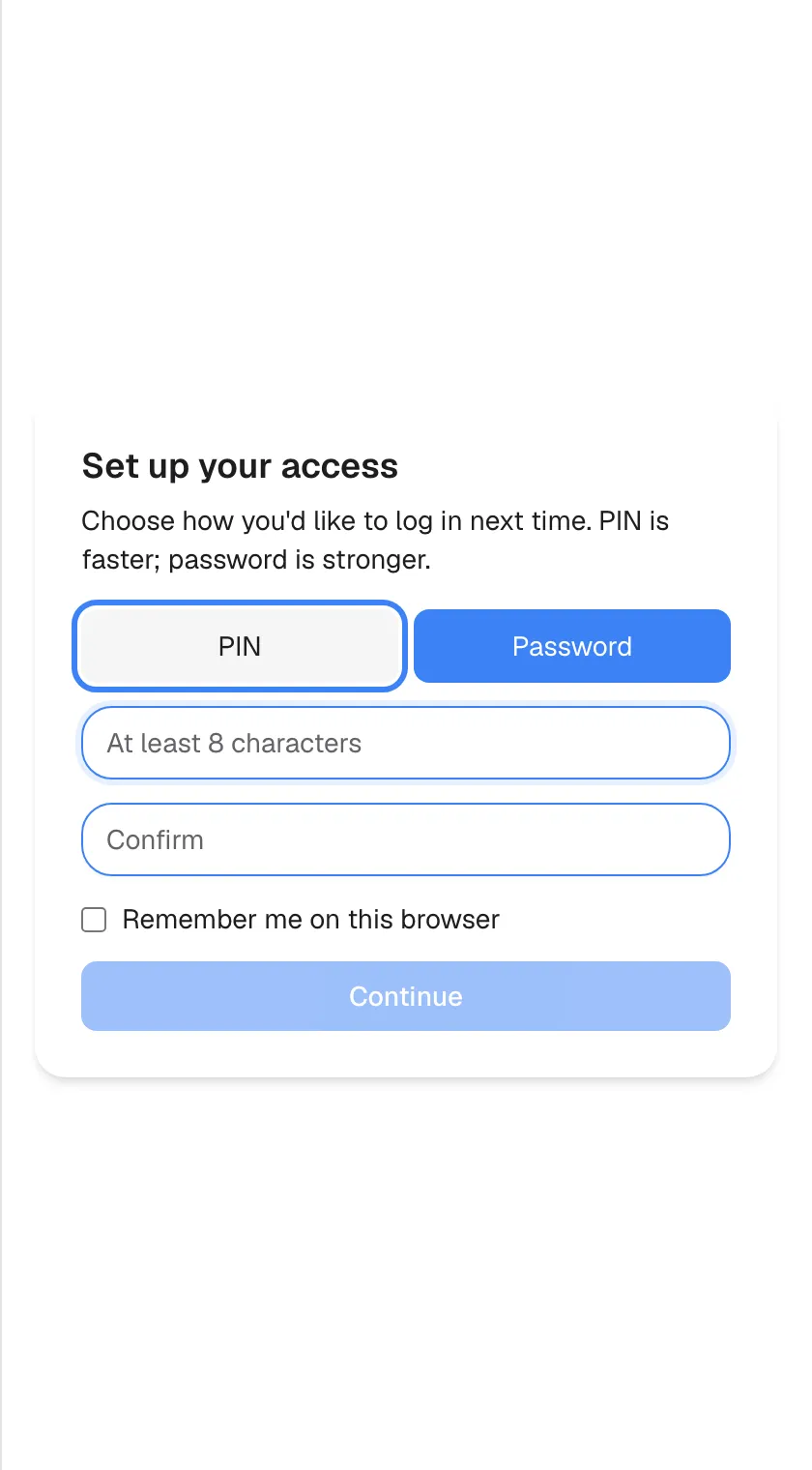
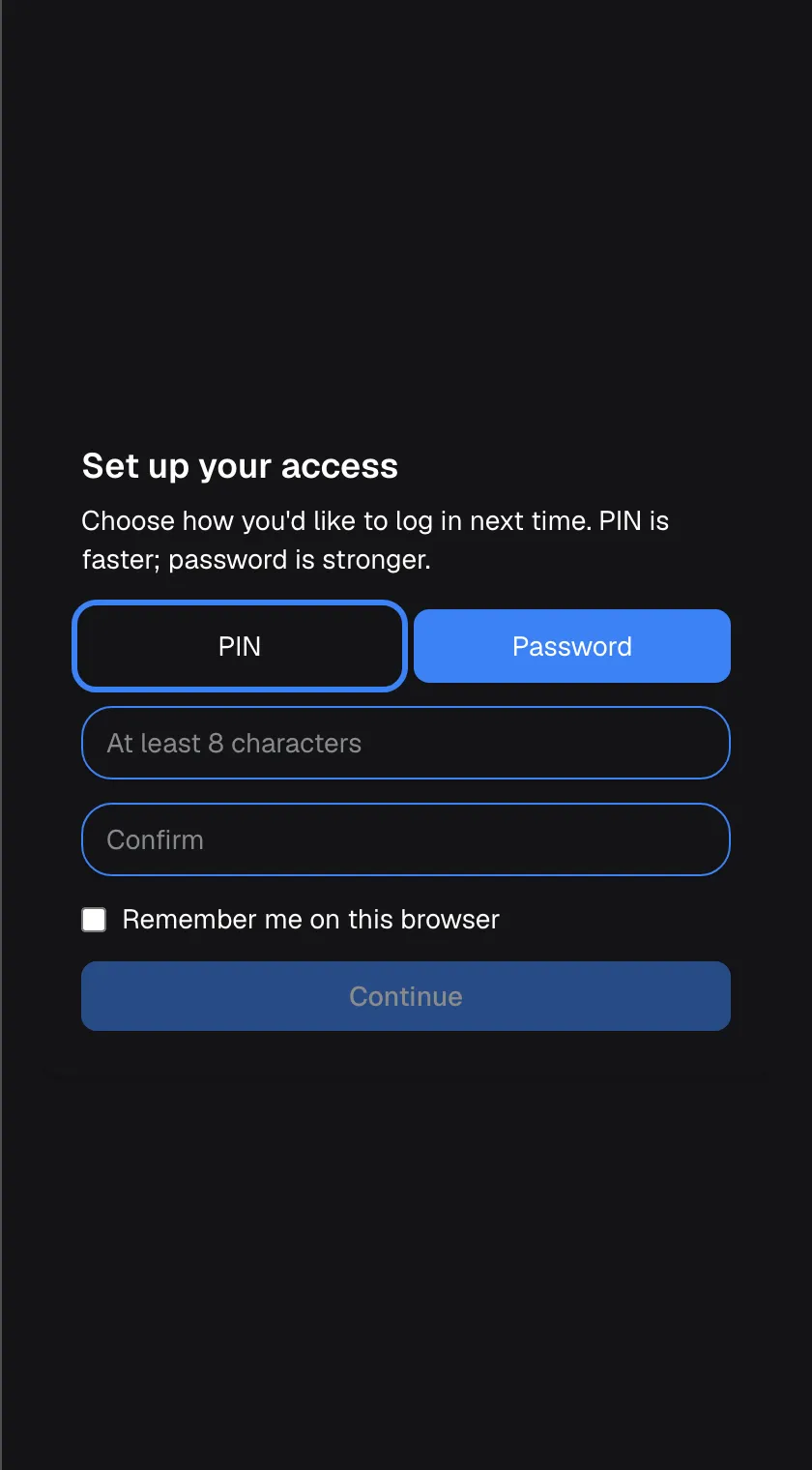
What this screenshot shows
- Screen
- Set up your access (/?applicationToken=…)
- Highlighted
- button “PIN”, card, not selected (Password preselected from the company's preference). switches the fields to PIN entry
- Also visible
- customerAuth.setup.intro; Fields At least 8 characters / Confirm, Remember me unticked, Continue disabled
- Purpose
- first-time setup (needs-setup)
| Region | What it shows | What you do there |
|---|---|---|
| Heading and intro | Set up your access the first time, Welcome back afterwards, with one line of explanation | Check which step you are on |
| PIN and Password buttons (first time only) | Two buttons, one of them selected | Choose how you will sign in from now on |
| Fields | One field for the PIN or password; the first time also a second field to confirm it | Type your PIN or password |
| Checkbox | Remember me on this browser, unticked | Tick it to stay signed in longer on this browser |
| Button | Continue, greyed out until the fields are complete | Sign in |
Set up your PIN or password
Section titled “Set up your PIN or password”The assistant shows Set up your access when it has no PIN or password for you yet.
-
Choose PIN or Password. One of them is already selected, usually Password; you can switch to the other. The intro reads Choose how you'd like to log in next time. PIN is faster; password is stronger..
-
Type your PIN or password in the first field. A PIN is 4 to 8 digits, and the field accepts only digits. A password is at least 8 characters of any kind.
-
Type it again in the field Confirm. If the two differ, Entries don't match. appears under the fields and the button stays greyed out.
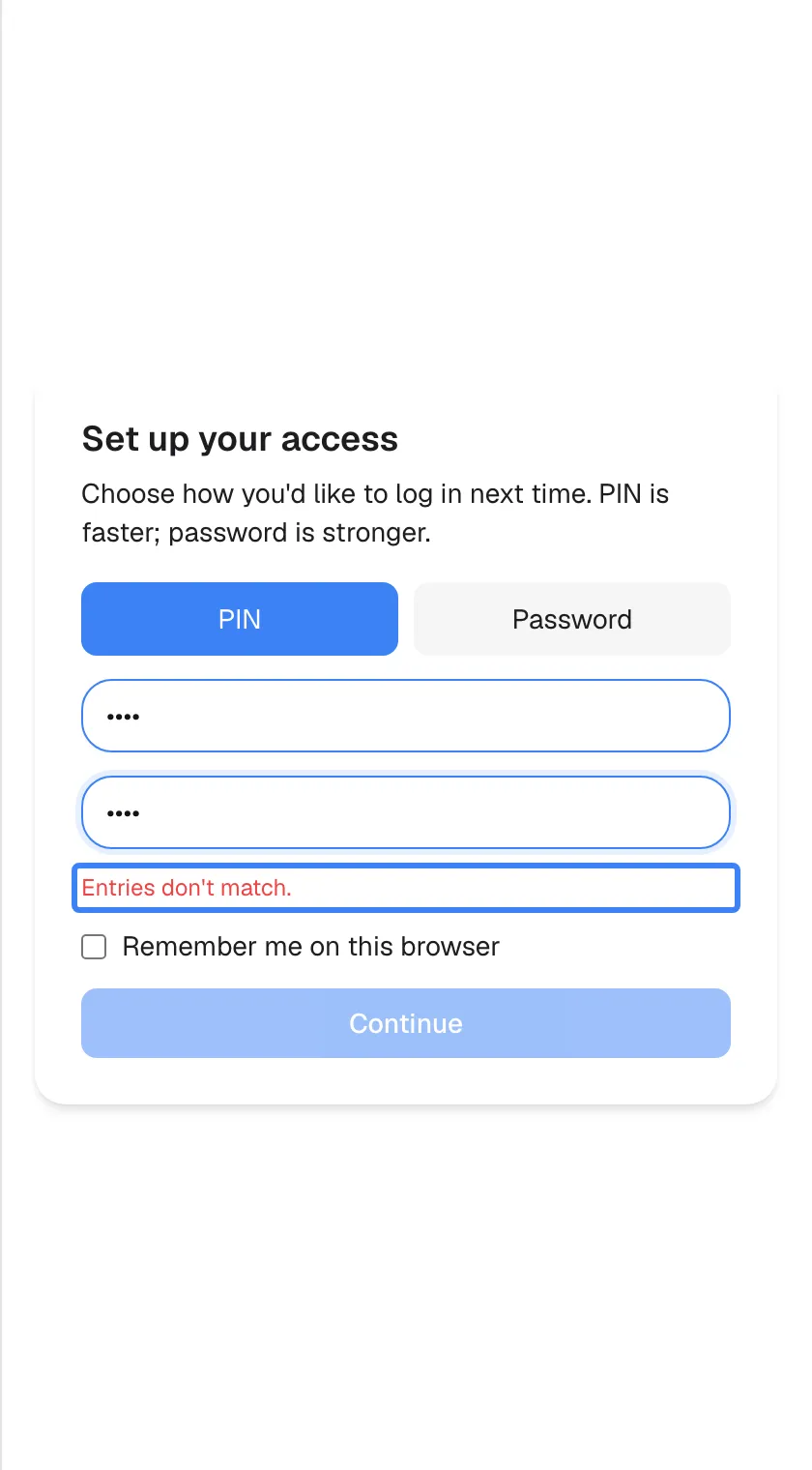
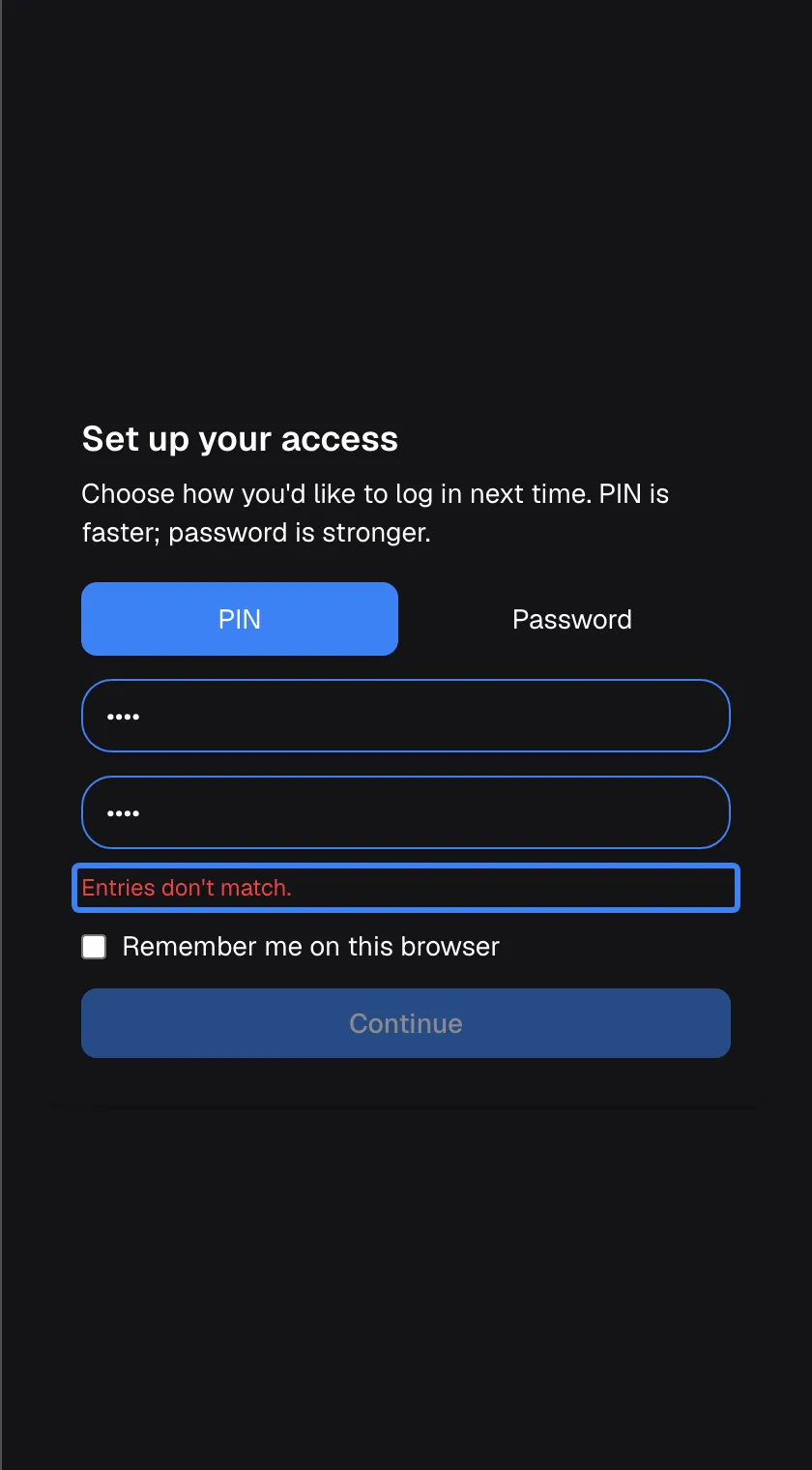
The two entries must match before you can continue. What this screenshot shows
- Screen
- Set up your access (/?applicationToken=…)
- Highlighted
- “Entries don't match.”, card, visible (confirm differs). none; Continue stays disabled
- Also visible
- PIN selected, two masked 4-digit entries
- Purpose
- setup validation
-
Tick Remember me on this browser if you want to stay signed in on this browser for 7 days (optional).
-
Select Continue. The button shows Setting up… for a moment, then the chat opens and you are signed in.
Your access belongs to the product you are signed into. On another device or another browser, or after you clear this browser’s site data, the assistant may show Set up your access again, and you set up your access there the same way.
Whether you see your earlier chats there depends on the product. When the product tells the assistant who you are, your access and your chats are the same on every device where you use it. When it does not, the assistant knows you only in this browser, so setting up your access elsewhere gives you a new, empty access without your earlier chats or the notes the assistant keeps about you.
If the PIN is shorter than 4 digits or the password shorter than 8 characters, the assistant refuses it with a message in English, such as “PIN must be 4-8 numeric digits. (Parameter ‘credential’)”. The part in brackets is technical; the rule is what matters.
Sign in again
Section titled “Sign in again”When you come back and your previous sign-in has ended, the assistant shows Welcome back.
-
Type your PIN or password. The screen asks for the kind you chose when you set up your access: Enter your PIN to continue. or Enter your password to continue.. There is no switch between the two here.
-
Tick Remember me on this browser if you want to stay signed in longer (optional).
-
Select Continue. The button shows Signing in…, then the chat opens.
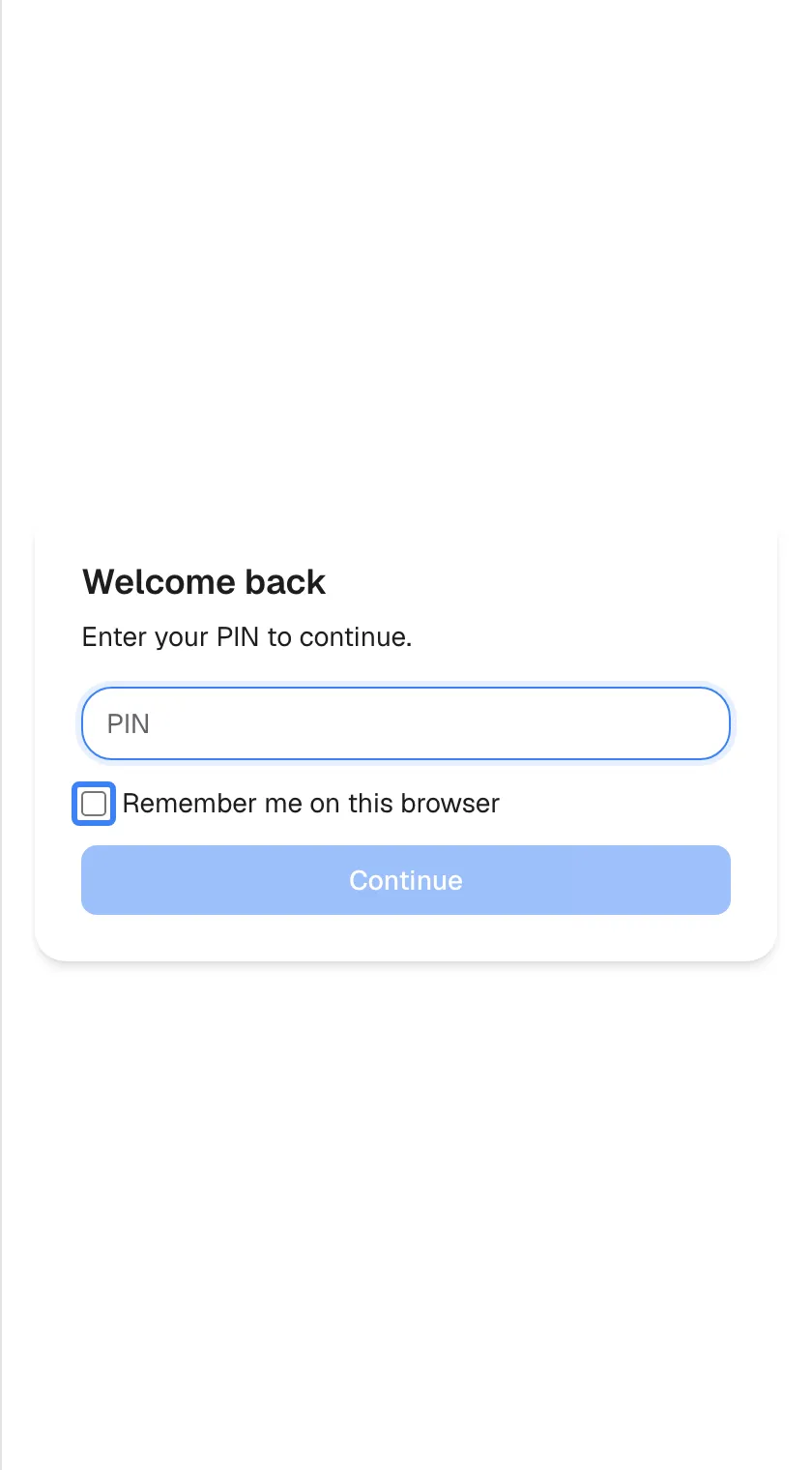
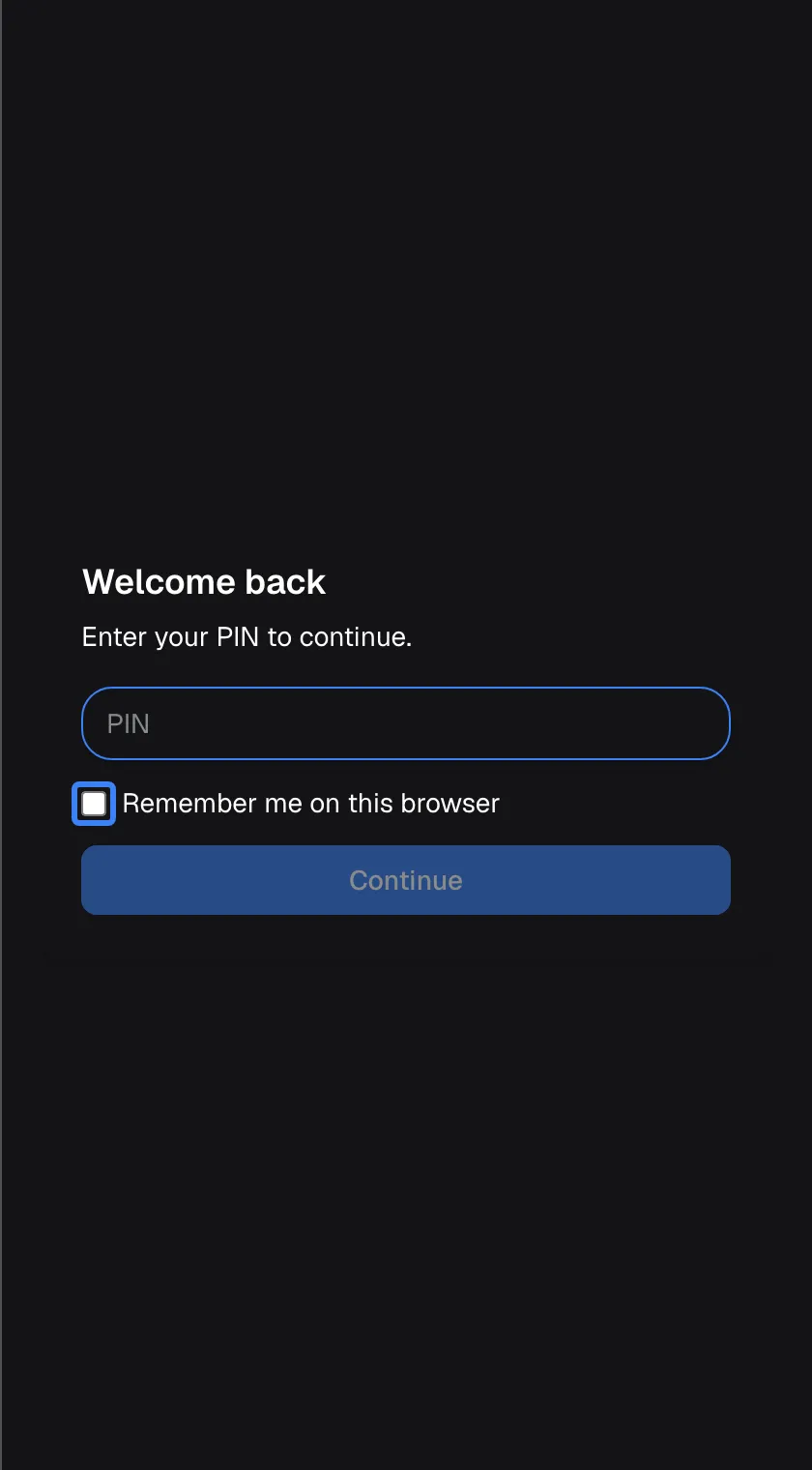
What this screenshot shows
- Screen
- Welcome back (/?applicationToken=…)
- Highlighted
- checkbox “Remember me on this browser”, card, unticked. extends the session from 12 hours to 7 days
- Also visible
- customerAuth.entry.promptPin, empty PIN field, Continue disabled
- Purpose
- returning sign-in with a PIN (needs-entry)
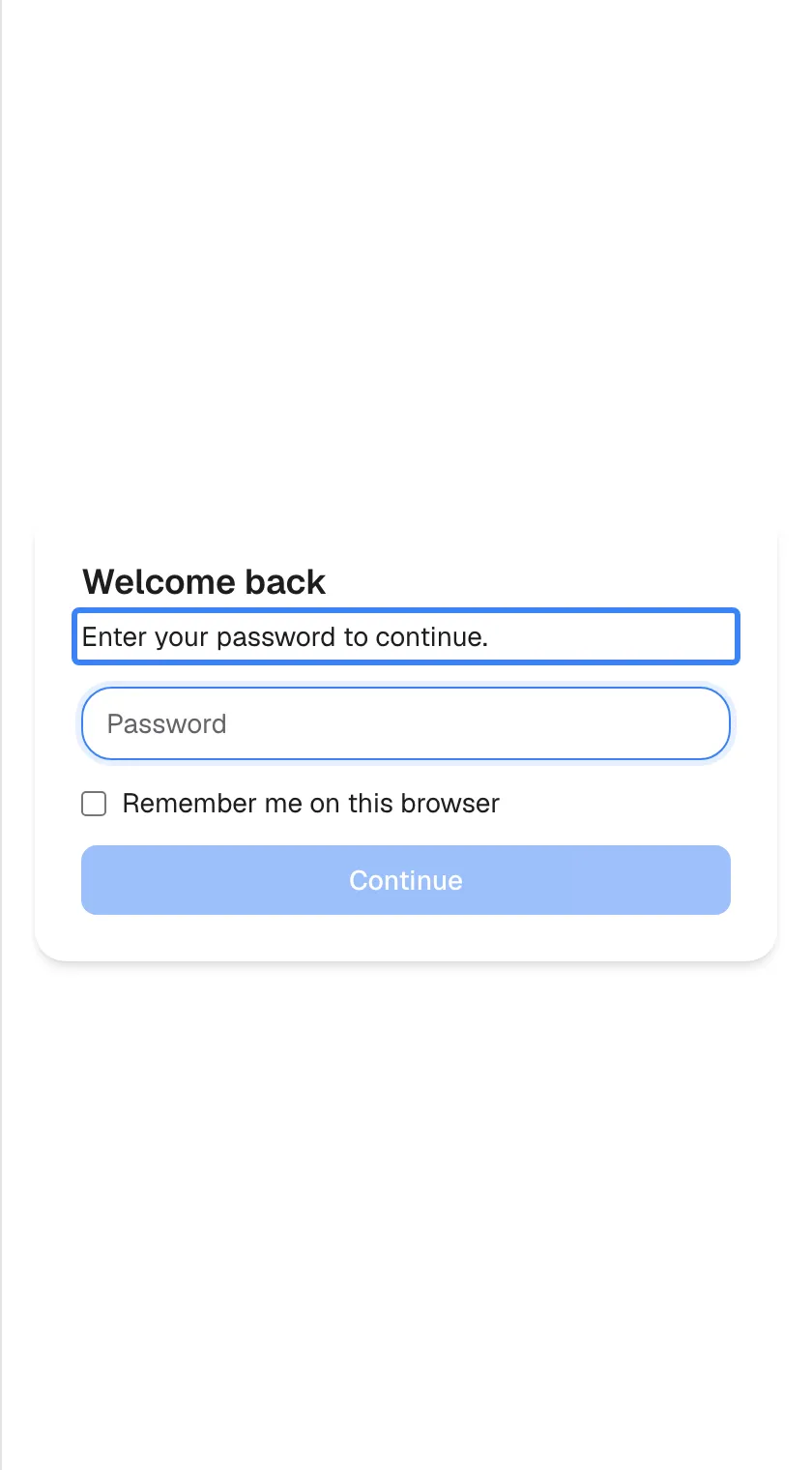
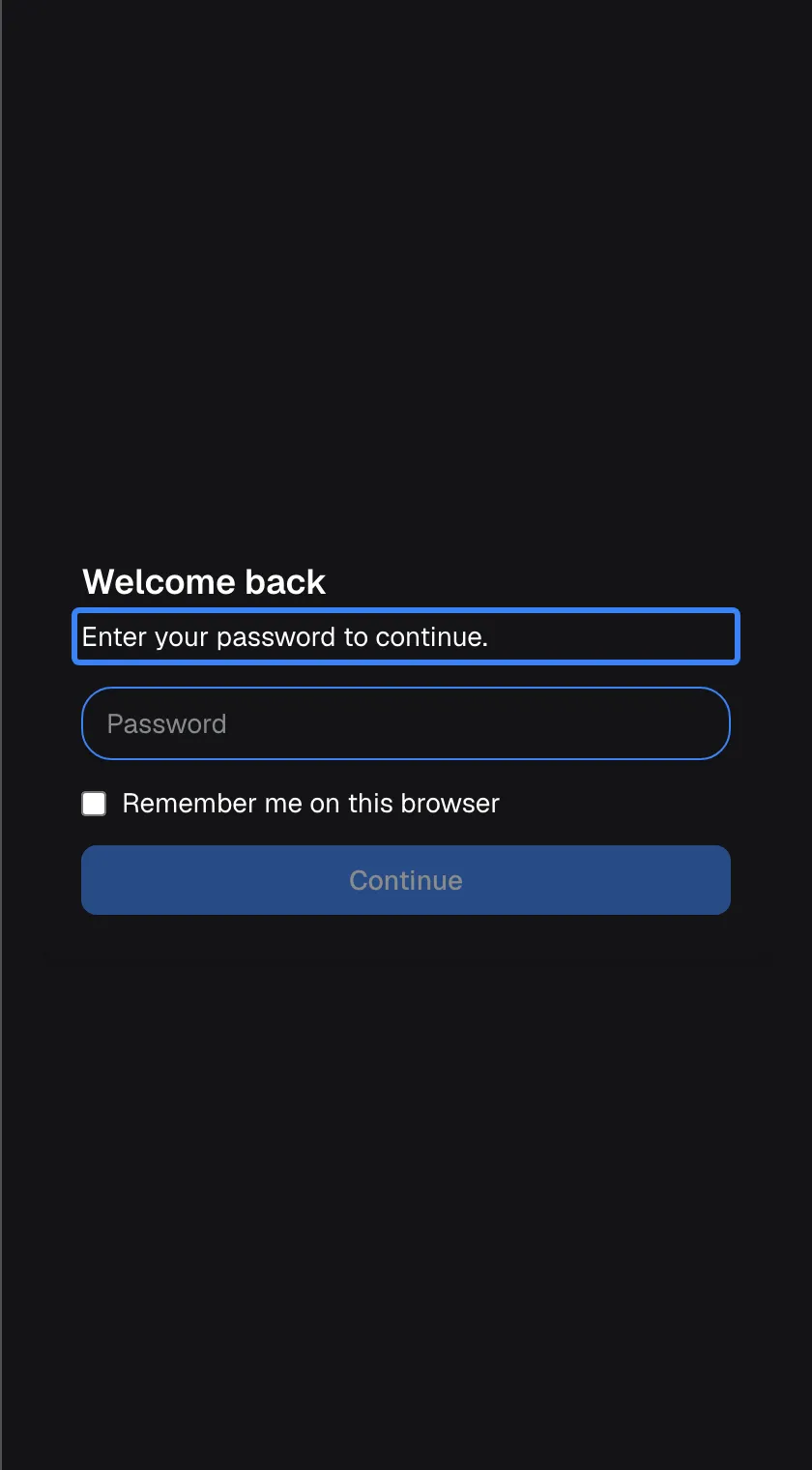
What this screenshot shows
- Screen
- Welcome back (/?applicationToken=…)
- Highlighted
- “Enter your password to continue.”, card, shown for password accounts. none
- Also visible
- Password field, Remember me, Continue disabled
- Purpose
- returning sign-in with a password
Stay signed in and sign out
Section titled “Stay signed in and sign out”Once you are signed in, the assistant keeps you signed in on this browser for a set time, even after you close the browser:
| Remember me on this browser | How long you stay signed in |
|---|---|
| Not ticked (the default) | 12 hours |
| Ticked | 7 days |
Both survive closing the browser. The checkbox changes only how long the sign-in lasts, not whether it is kept. While the assistant stays open, it renews your sign-in shortly before it ends, and each renewal starts the full period again. When the period runs out while the assistant is closed, you see Welcome back the next time you open it.
To sign out before then, open the customer portal with the gear icon in the assistant’s top bar and choose Log out in its menu. The assistant returns to Welcome back. The chat itself has no sign-out button, so if your provider has not switched the portal on, your sign-in simply ends after 12 hours or 7 days.
After a wrong PIN or password
Section titled “After a wrong PIN or password”A wrong PIN or password shows “Invalid credential.” above the button. Five wrong attempts in a row lock your account, and each wrong attempt after a lock locks it for longer:
| Wrong attempts in a row | What happens |
|---|---|
| 1 to 4 | “Invalid credential.”; you can try again straight away |
| 5th | Locked for 1 minute |
| 6th | Locked for 5 minutes |
| 7th | Locked for 15 minutes |
| 8th | Locked for 1 hour |
| 9th and every one after | Locked for 6 hours each time |
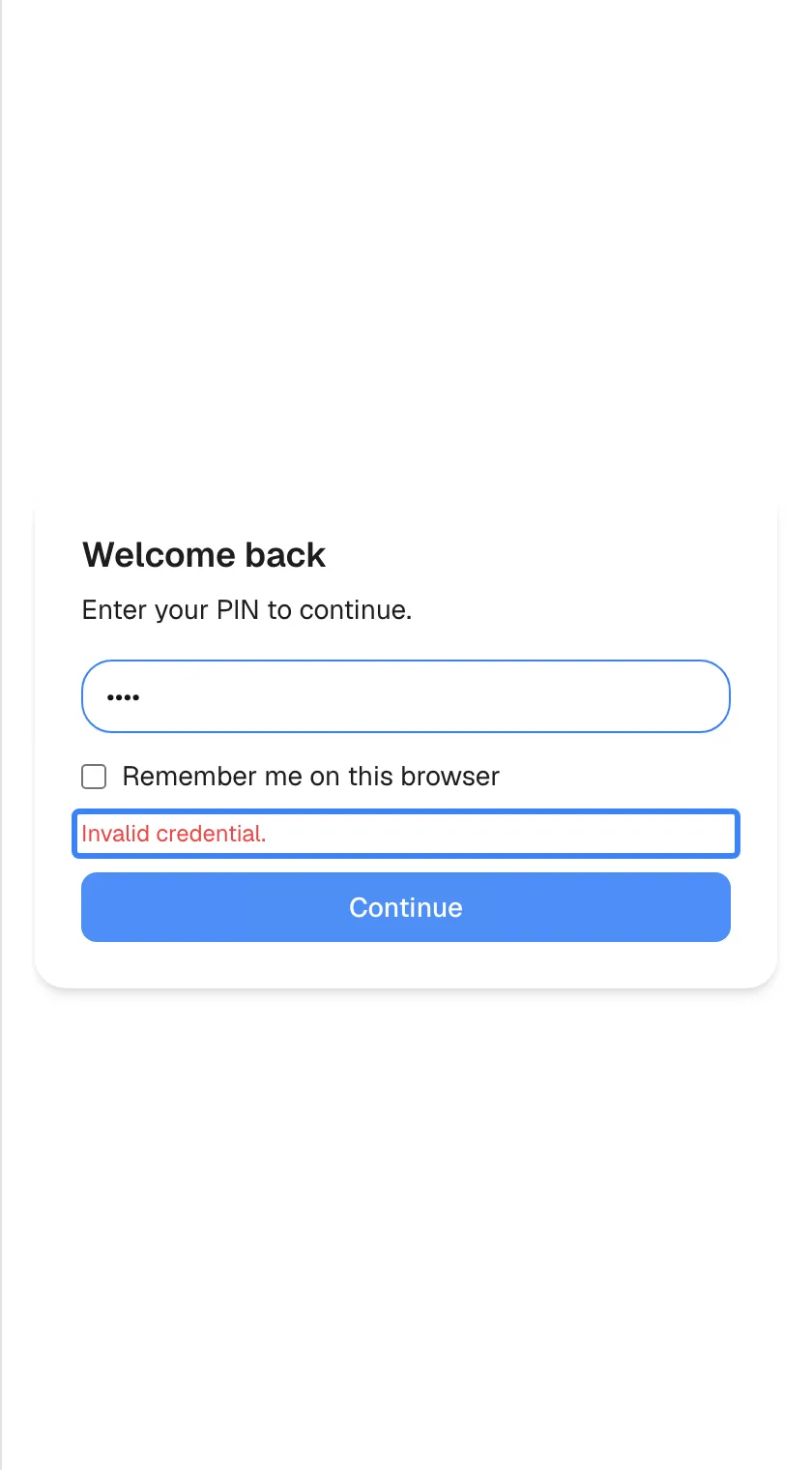
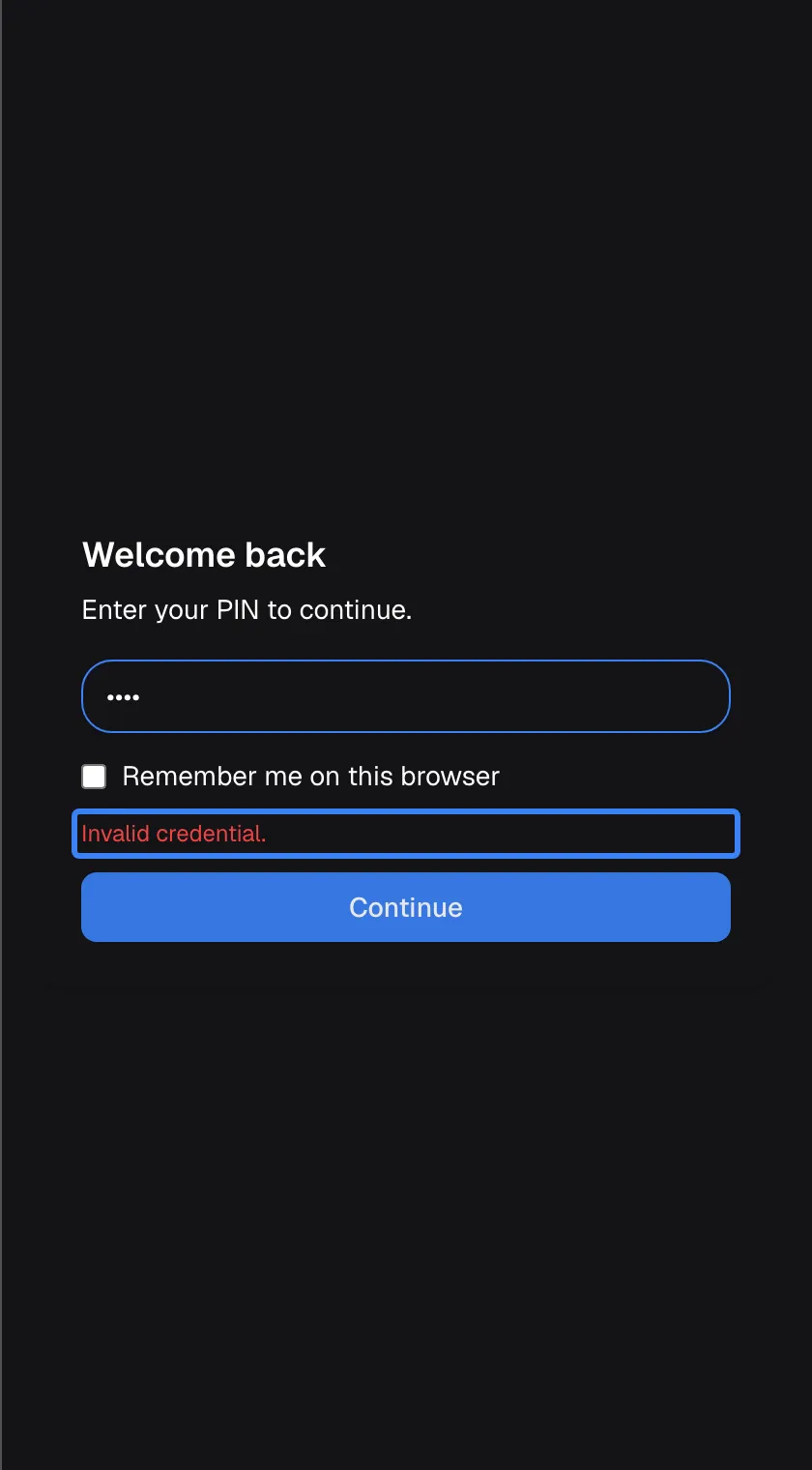
What this screenshot shows
- Screen
- Welcome back (/?applicationToken=…)
- Highlighted
- “”, card, error (server text, English only). none; try again
- Also visible
- Four masked digits in the PIN field
- Purpose
- wrong PIN
While the account is locked, the assistant shows Account locked with a countdown in minutes and seconds, for example “14m 29s”, or “359m 59s” at the start of a 6-hour lock. There is nothing to click. When the countdown reaches zero, the assistant checks again by itself and shows the sign-in screen.
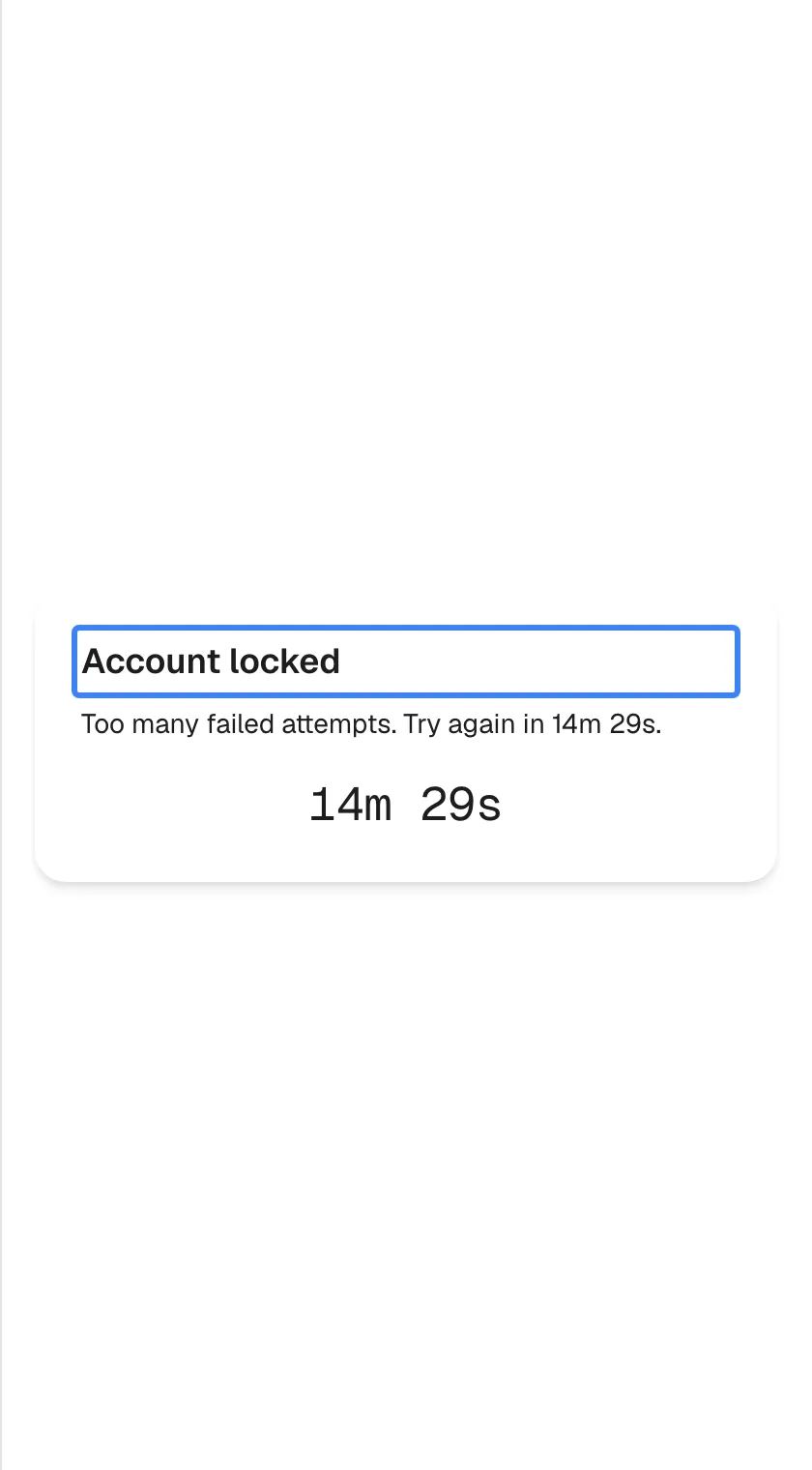
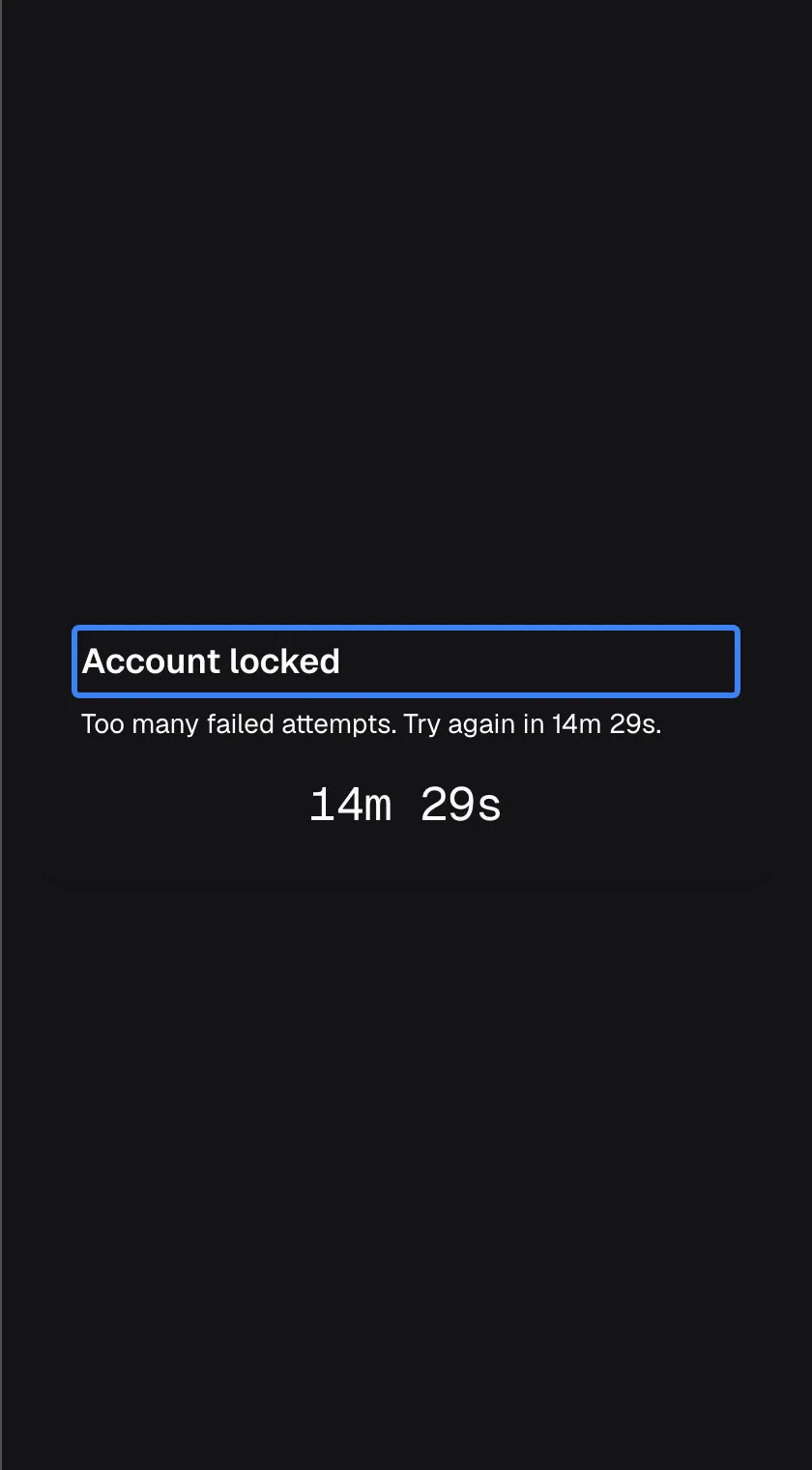
What this screenshot shows
- Screen
- Account locked (/?applicationToken=…)
- Highlighted
- “Account locked”, card, locked, about 14 minutes left. none; re-checks automatically at zero
- Also visible
- customerAuth.locked.message with countdown, large timer
- Purpose
- lockout
Waiting out a lock does not reset the count. Only a correct PIN or password does. If you are unsure of your PIN after a lock, ask for help instead of guessing, because the next wrong attempt locks the account for longer. The lock applies to your account, not to one device, so trying from another browser does not help.
When you cannot sign in
Section titled “When you cannot sign in”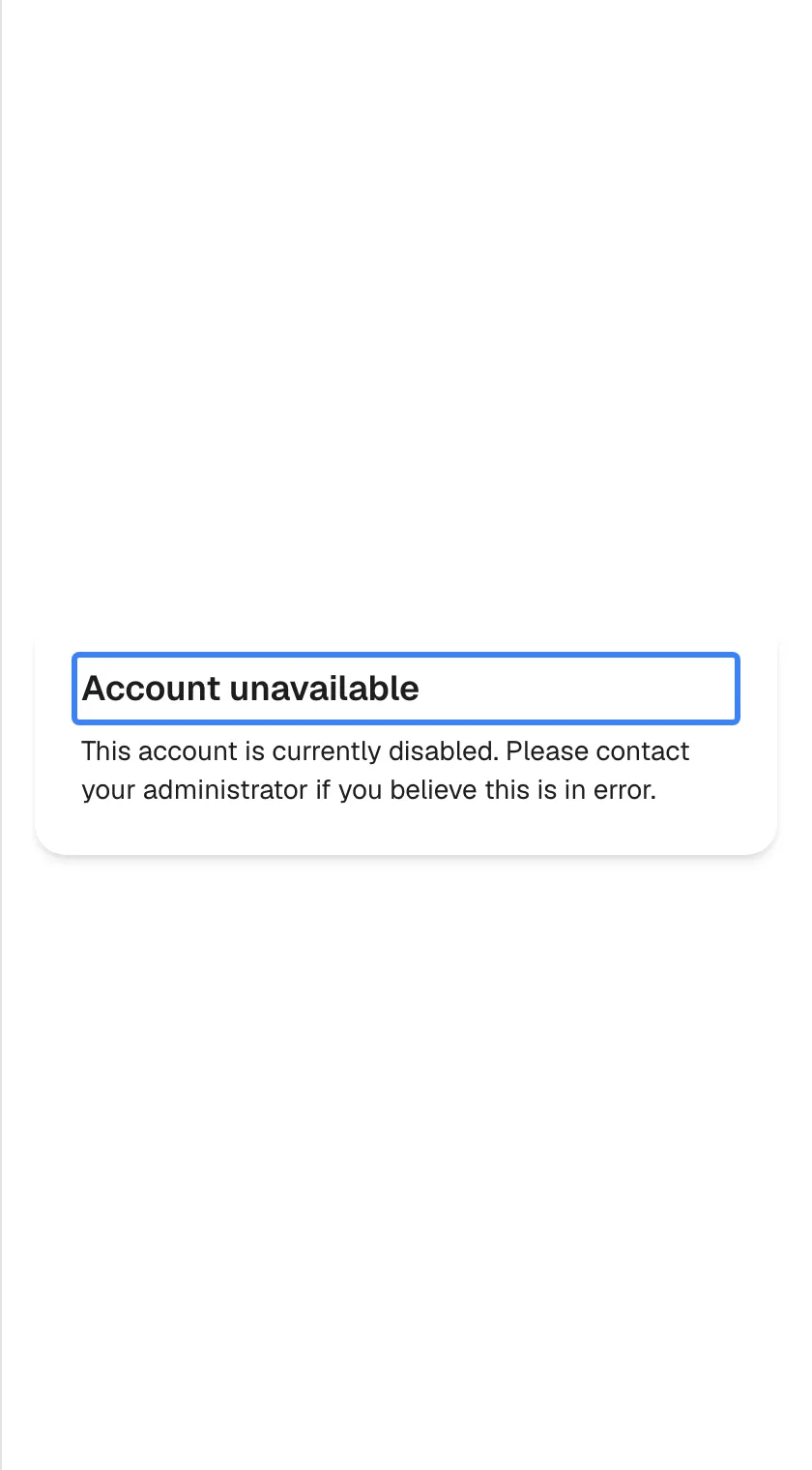
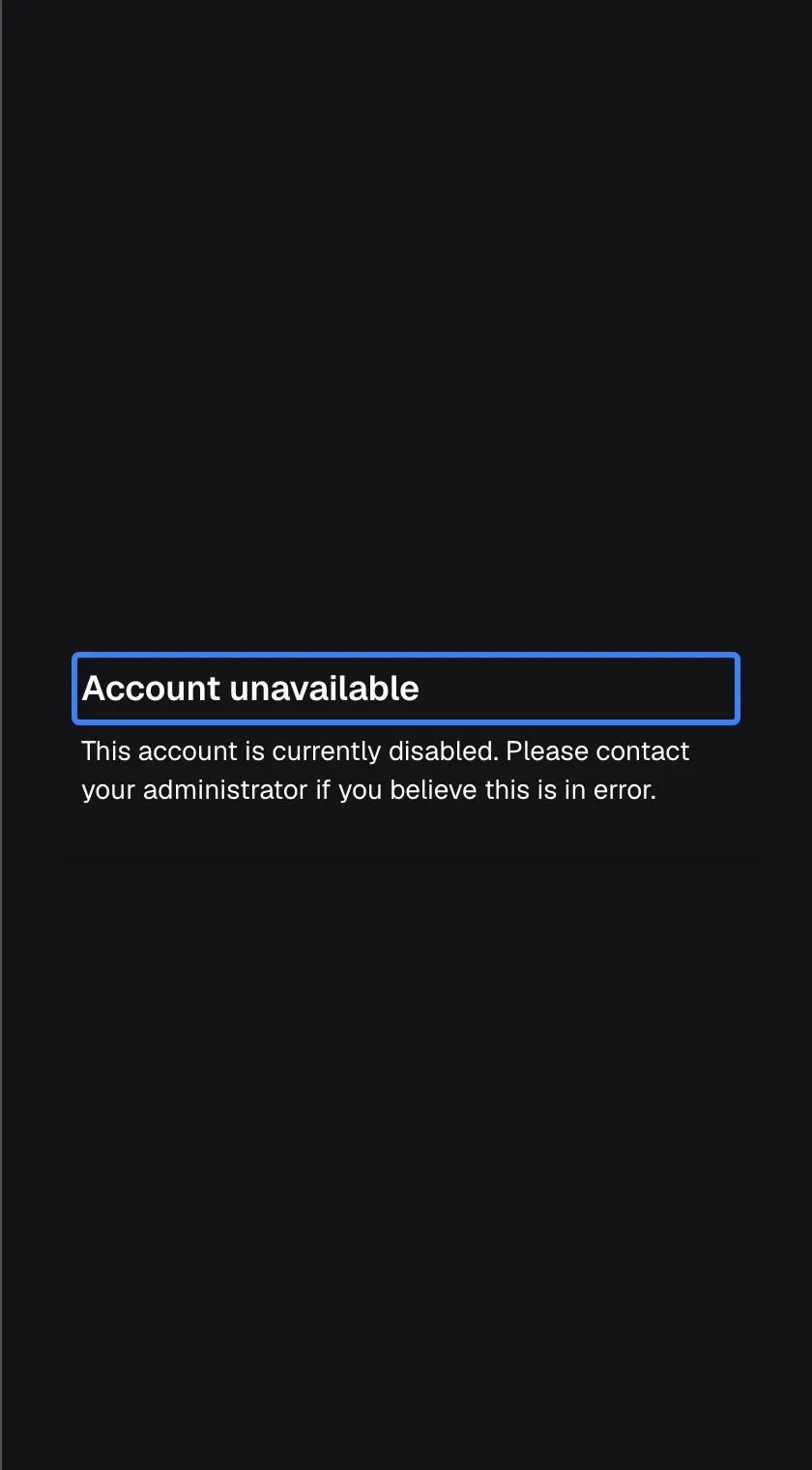
What this screenshot shows
- Screen
- Account unavailable (/?applicationToken=…)
- Highlighted
- “Account unavailable”, card, disabled. none
- Also visible
- customerAuth.disabled.message
- Purpose
- access switched off
| What you see | What it means | What to do |
|---|---|---|
| Account unavailable with This account is currently disabled. Please contact your administrator if you believe this is in error. | Your access has been switched off, or your whole company’s access has | Contact your company’s administrator or your provider |
| Something went wrong with a short message and Retry | The assistant could not reach its service, for example because your connection dropped | Check your connection and select Retry |
| “Request failed (429)” under the fields | Too many sign-in attempts came from your network within a minute | Wait one minute, then try once |
| You forgot your PIN or password | There is no way to reset it yourself in the assistant | Ask your provider or your company’s administrator |
There is no screen to change your PIN or password, and no “forgot PIN” link. If you want to switch from a PIN to a password, or you no longer know yours, contact your provider or your company’s administrator.
Every control, explained
Section titled “Every control, explained”The sign-in screens have few controls. Each one is described below in the order it appears.
PIN and Password buttons
Section titled “PIN and Password buttons”Under the intro on Set up your access, labelled PIN and Password. They appear only the first time.
Choose how you will sign in from now on. One is selected when the screen opens, usually Password, because some companies prefer one or the other; you can switch either way. Switching changes the field’s hint to 4-8 digit PIN or At least 8 characters.
A PIN is quicker to type on a phone; a password can be longer. The intro sums it up: Choose how you'd like to log in next time. PIN is faster; password is stronger..
PIN or password field
Section titled “PIN or password field”The first field under the buttons on Set up your access, or the only field on Welcome back (hint PIN or Password).
What you type is shown as dots. For a PIN, the field accepts only digits, up to 8; letters and spaces are ignored, including when you paste, and phones show a number keypad. The minimum of 4 digits is checked when you select the button. For a password, there is no maximum and no rule about letters or symbols; the minimum of 8 characters is checked when you select the button.
The same rules apply every time, so a PIN that worked once keeps working.
Confirm field
Section titled “Confirm field”The second field on Set up your access, with the hint Confirm.
Type the same PIN or password again. As soon as it differs from the first field, Entries don't match. appears and the button stays greyed out.
The dots hide typing mistakes; typing twice makes sure you set the PIN or password you meant.
Remember me on this browser
Section titled “Remember me on this browser”The checkbox Remember me on this browser above the button, on both screens. It is unticked each time the screen opens.
Unticked, your sign-in lasts 12 hours; ticked, 7 days. Either way it is kept in this browser after you close it, and renewed while the assistant stays open.
On your own device you can stay signed in for a week; on a device others use, a shorter sign-in ends sooner.
Continue
Section titled “Continue”The blue button at the bottom of both screens, labelled Continue.
Greyed out until the fields are complete and, the first time, match. Selecting it shows Setting up… or Signing in…, then opens the chat, or shows a message under the fields if something is wrong.
It sends your PIN or password once, when you are ready.
On the Something went wrong screen, labelled Retry.
Checks again whether you need to sign in. If the connection is back, the right sign-in screen or the chat follows.
A short network problem should not need a page reload.
Who sees what
Section titled “Who sees what”| What you see | When |
|---|---|
| No sign-in screen at all | Your provider does not require sign-in, or signs you in automatically through its own product |
| Set up your access | Sign-in is required and the assistant has no PIN or password for you yet |
| Welcome back | You have set up your access and your last sign-in has ended |
| Account locked | Five or more wrong attempts in a row |
| Account unavailable | Your access, or your company’s, has been switched off |
What you need to know
Section titled “What you need to know”| Topic | Fact |
|---|---|
| PIN | 4 to 8 digits, digits only |
| Password | 8 characters or more, no other rule |
| User name | Never asked; the sign-in screen asks only for your PIN or password |
| Sign-in length | 12 hours, or 7 days with Remember me on this browser; both kept after closing the browser |
| Lockout | From the 5th wrong attempt in a row: 1 minute, then 5 minutes, 15 minutes, 1 hour, then 6 hours each |
| Reset | No self-service reset or change; ask your provider or your company’s administrator |
| Sign out | Only through Log out in the customer portal |
| Network limit | About 20 sign-in attempts per minute from one network; more show “Request failed (429)” |
| Messages | Error messages under the fields come from the service and are in English |
Frequently asked questions
Section titled “Frequently asked questions”Setting up
Section titled “Setting up”Should I choose a PIN or a password?
Section titled “Should I choose a PIN or a password?”Either works the same way. A PIN is 4 to 8 digits and quick to type on a phone; a password is at least 8 characters of any kind. The same lockout rules apply to both: five wrong attempts in a row lock the account.
Can I switch from a PIN to a password later?
Section titled “Can I switch from a PIN to a password later?”Not yourself. The assistant has no screen for changing your PIN or password, and the sign-in screen always asks for the kind you chose first. Ask your provider or your company’s administrator if you need to change it.
Why does it say “PIN must be 4-8 numeric digits. (Parameter ‘credential’)”?
Section titled “Why does it say “PIN must be 4-8 numeric digits. (Parameter ‘credential’)”?”Your PIN is shorter than 4 digits. Choose a PIN of 4 to 8 digits and select Continue again. The bracketed part is a technical note from the service and can be ignored; a password that is too short gets a similar message.
Why does the assistant ask me to set up my access again?
Section titled “Why does the assistant ask me to set up my access again?”Your access belongs to the product you are signed into. On another device or browser, or after you clear this browser’s site data, the assistant may show Set up your access again. If you expected Welcome back instead, ask your provider before setting up a new PIN.
Staying signed in
Section titled “Staying signed in”How long do I stay signed in?
Section titled “How long do I stay signed in?”For 12 hours, or for 7 days if you ticked Remember me on this browser. While the assistant stays open it renews your sign-in shortly before it ends, so you are not signed out in the middle of a chat. Once the time runs out with the assistant closed, you enter your PIN or password again.
Am I signed out when I close the browser?
Section titled “Am I signed out when I close the browser?”No. Your sign-in is kept in this browser after you close it, whether or not you ticked Remember me on this browser. The checkbox only decides whether it lasts 12 hours or 7 days.
How do I sign out?
Section titled “How do I sign out?”Open the customer portal with the gear icon in the assistant’s top bar and choose Log out. The chat itself has no sign-out button. If your provider has not switched the portal on, your sign-in ends by itself after 12 hours, or 7 days with Remember me on this browser.
Do I sign in separately for the customer portal?
Section titled “Do I sign in separately for the customer portal?”No. The portal uses the same sign-in as the chat, so once you are signed in to the assistant, the gear icon opens the portal straight away.
Why was I never asked to sign in?
Section titled “Why was I never asked to sign in?”Either your provider does not require sign-in for its assistant, or it signs you in automatically because you are already signed in to its product. In both cases the chat opens directly.
Wrong attempts and locks
Section titled “Wrong attempts and locks”I see “Account locked”. What should I do?
Section titled “I see “Account locked”. What should I do?”Wait for the countdown on the screen to reach zero; the assistant then shows the sign-in screen by itself. Do not guess: after a lock, the next wrong attempt locks the account for longer, up to 6 hours. If you are not sure of your PIN, ask your provider or your company’s administrator.
Does waiting for the lock to end reset my wrong attempts?
Section titled “Does waiting for the lock to end reset my wrong attempts?”No. The count of wrong attempts is reset only when you sign in successfully. After a 1-minute lock, one more wrong attempt locks the account for 5 minutes, the next for 15 minutes, then 1 hour, then 6 hours each time.
I forgot my PIN. How do I reset it?
Section titled “I forgot my PIN. How do I reset it?”The assistant has no “forgot PIN” link and no way to reset a PIN or password yourself. Contact your provider or your company’s administrator and tell them you can no longer sign in to the assistant. Your provider can give you a new PIN or password, which also ends a lock.
What does “Request failed (429)” mean?
Section titled “What does “Request failed (429)” mean?”Too many sign-in attempts reached the service from your network within one minute, for example from several people in the same office. Wait a minute and try once more.
Access
Section titled “Access”What does “Account unavailable” mean?
Section titled “What does “Account unavailable” mean?”Your access to the assistant, or your whole company’s access, has been switched off. The screen has no button because there is nothing you can do there; contact your company’s administrator or your provider and ask them to switch it back on.
Troubleshooting
Section titled “Troubleshooting”| Symptom | What to check |
|---|---|
| “Invalid credential.” | In order: are you typing a PIN where you set a password, or the other way round? Is Caps Lock on? After four wrong attempts, the fifth locks the account, so stop and ask for help if unsure. |
| Account locked with a countdown | Wait until it reaches zero. Avoid further guesses; each one after a lock locks the account for longer. |
| Set up your access although you set up a PIN before | You may be on another device or browser, or this browser’s site data was cleared. Ask your provider before setting up a new PIN. |
| Continue stays greyed out | Fill in both fields and make sure they match; Entries don't match. shows when they differ. |
| “PIN must be 4-8 numeric digits…” or “Password must be at least 8 characters…” | Use a PIN of 4 to 8 digits or a password of at least 8 characters. |
| Account unavailable | Your access, or your company’s, is switched off. Contact your company’s administrator or your provider. |
| Welcome back reappears while you are chatting | Your sign-in ended or could not be renewed, which can happen when the browser blocks sign-in data inside embedded windows. Sign in again; tick Remember me on this browser to stay signed in longer. |
| “Request failed (429)” | Wait one minute, then try once. |
| Something went wrong | Check your connection and select Retry. |