

Create your account
If your provider or your company’s administrator sends you a sign-up link, you can create your own access to the assistant without waiting for anyone to set it up. The link opens a sign-up page of its own, separate from the product, where you enter a user name, your email address and a PIN or password. One click later you are signed in and the assistant opens. The link is specific to your company, and it only works while your company allows people to sign up this way.
What you can do here
Section titled “What you can do here”- Create your access in one step. Fill in four required fields, choose a PIN or password, and the assistant opens with you signed in. There is no confirmation email to wait for. Create your account.
- Choose how you sign in. Pick a PIN of 4 to 8 digits or a password of at least 8 characters, the same choice as on the sign-in screen. Every control, explained.
- Stay signed in on this browser. The remember-me checkbox keeps you signed in for 7 days instead of 12 hours. What happens next.
- Fix a refused sign-up. The page tells you when a user name is taken or the link no longer works. If the page refuses your sign-up.
The screen at a glance
Section titled “The screen at a glance”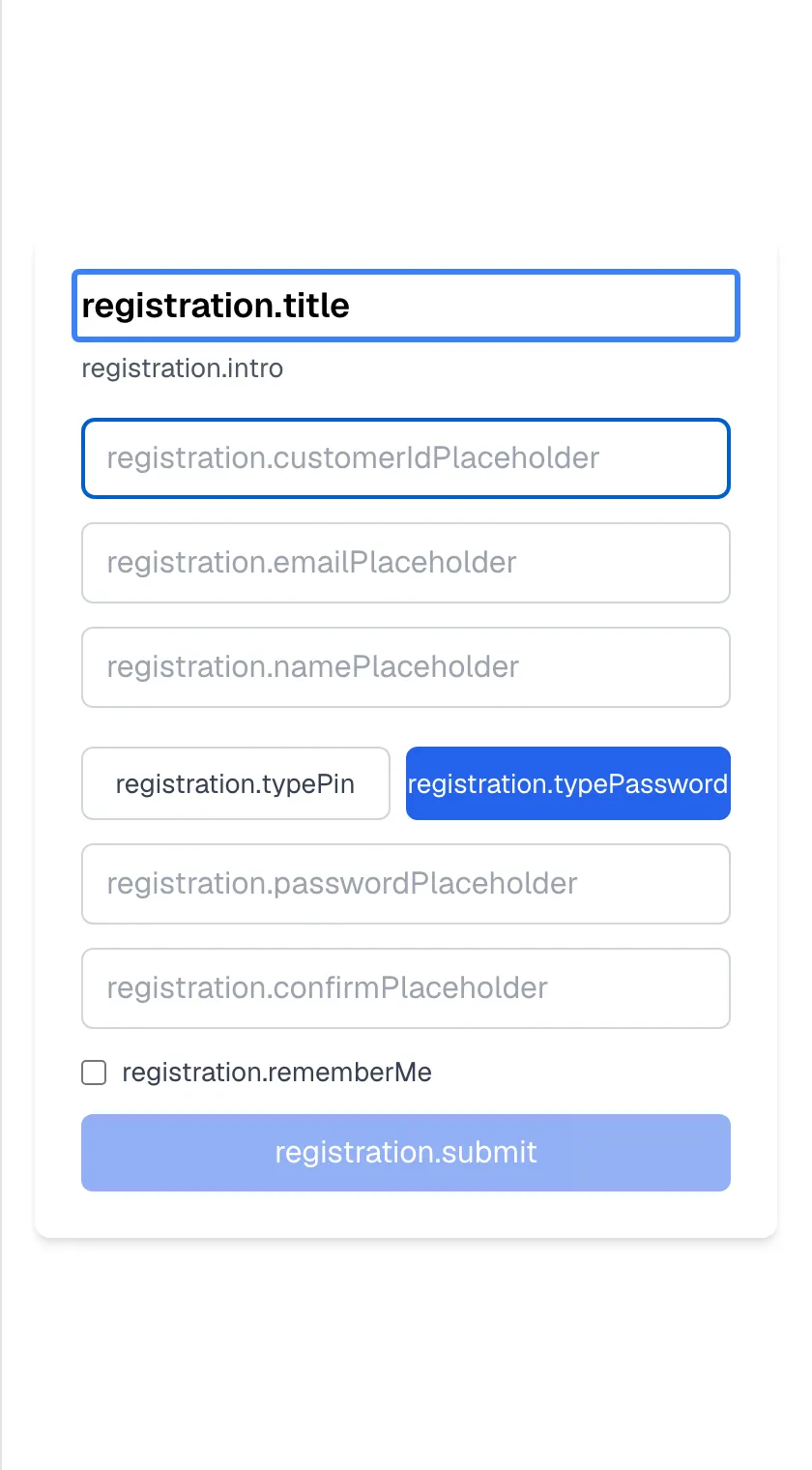
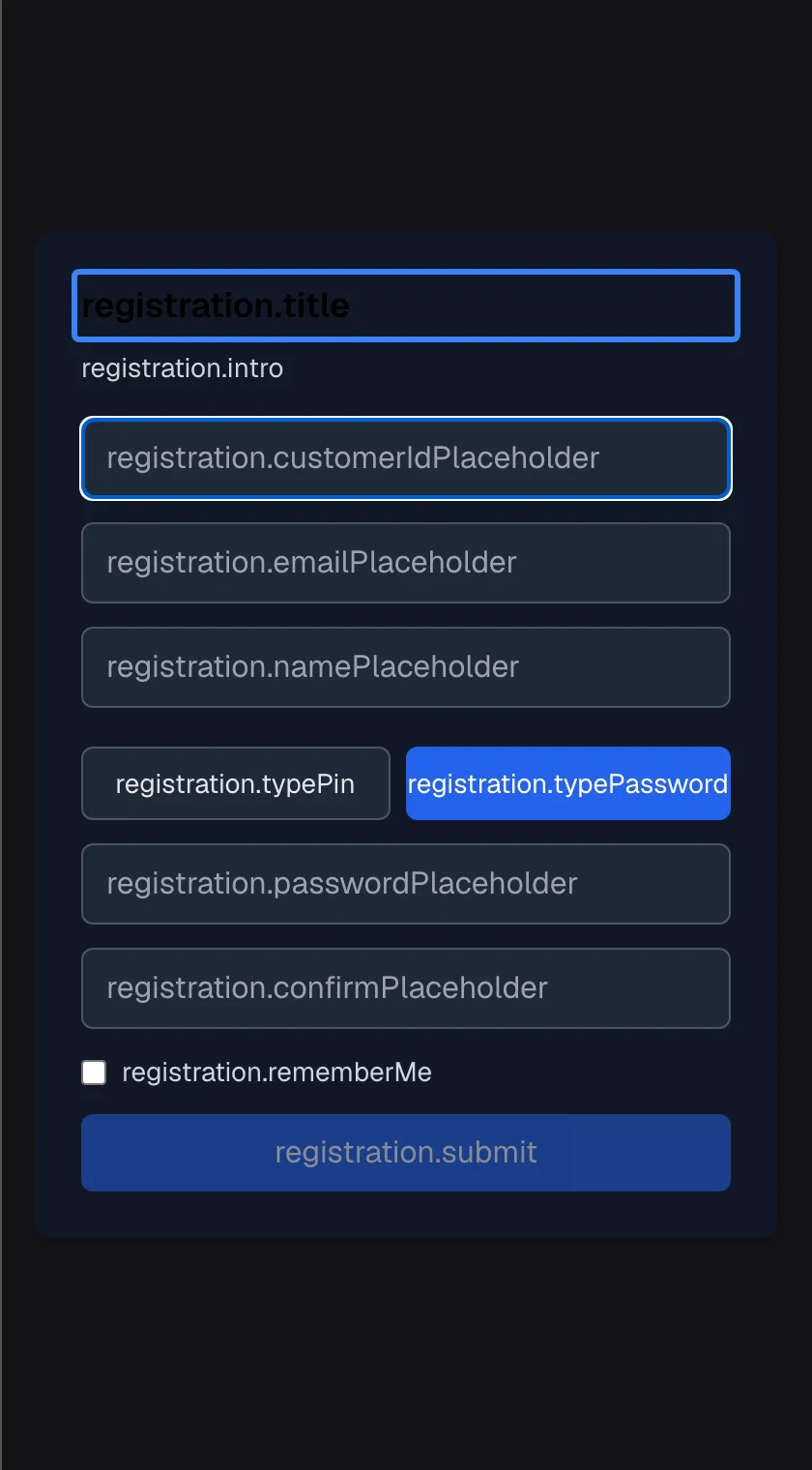
What this screenshot shows
- Screen
- (/?mode=register&customerCompanyId=…)
- Highlighted
- “”, card-heading, raw translation key (missing in every language). none
- Also visible
- Raw keys for user name, email, name, PIN/password toggle, credential, confirm, remember me, submit
- Purpose
- the registration form as it opens
The sign-up page is a plain white form; it does not use your provider’s colours or fonts. At the moment it may show technical labels instead of readable text, words joined by dots, in every language. The fields still work. The table describes them by their position, from top to bottom.
| Position | What it is | What you do there |
|---|---|---|
| Heading and one line of text at the top | The page title and a short invitation to sign up | Nothing |
| 1st field | Your user name | Type a name for your access (required) |
| 2nd field | Your email address | Type your email (required) |
| 3rd field | Your full name | Type your name (optional) |
| Two buttons side by side | PIN on the left, Password on the right (selected) | Choose how you will sign in |
| 4th field | Your PIN or password | Type it (required) |
| 5th field | The same PIN or password again | Type it again (required) |
| Checkbox | A remember-me option | Tick it to stay signed in for 7 days |
| Button at the bottom | Create the account, greyed out until the form is complete | Create your account |
Create your account
Section titled “Create your account”-
Open the sign-up link you received. The sign-up page opens in your browser.
-
In the first field, type a user name. It can be up to 255 characters and must not be in use by anyone else with your provider.
-
In the second field, type your email address. The browser checks that it looks like an email address.
-
In the third field, type your full name (optional).
-
Choose PIN (left button) or Password (right button). Password is selected at first.
-
Type your PIN or password in the fourth field and again in the fifth. A PIN is 4 to 8 digits; the field accepts only digits. A password is at least 8 characters. If the two entries differ, a short message appears under the fields and the button stays greyed out.
-
Tick the checkbox below the fields to stay signed in on this browser for 7 days (optional).
-
Select the button at the bottom. Once you have filled in steps 2, 3 and 6 and both entries match, it turns blue.
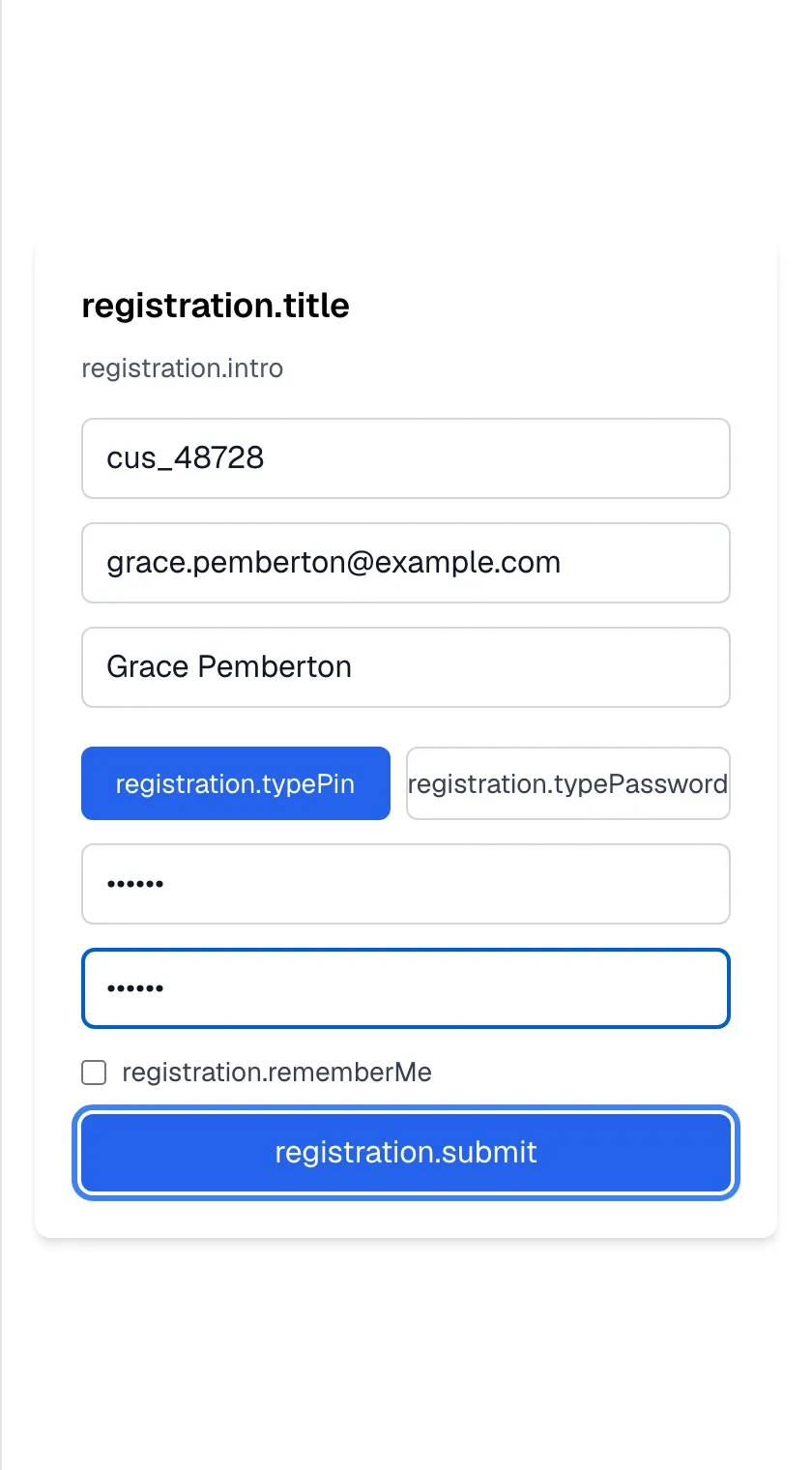
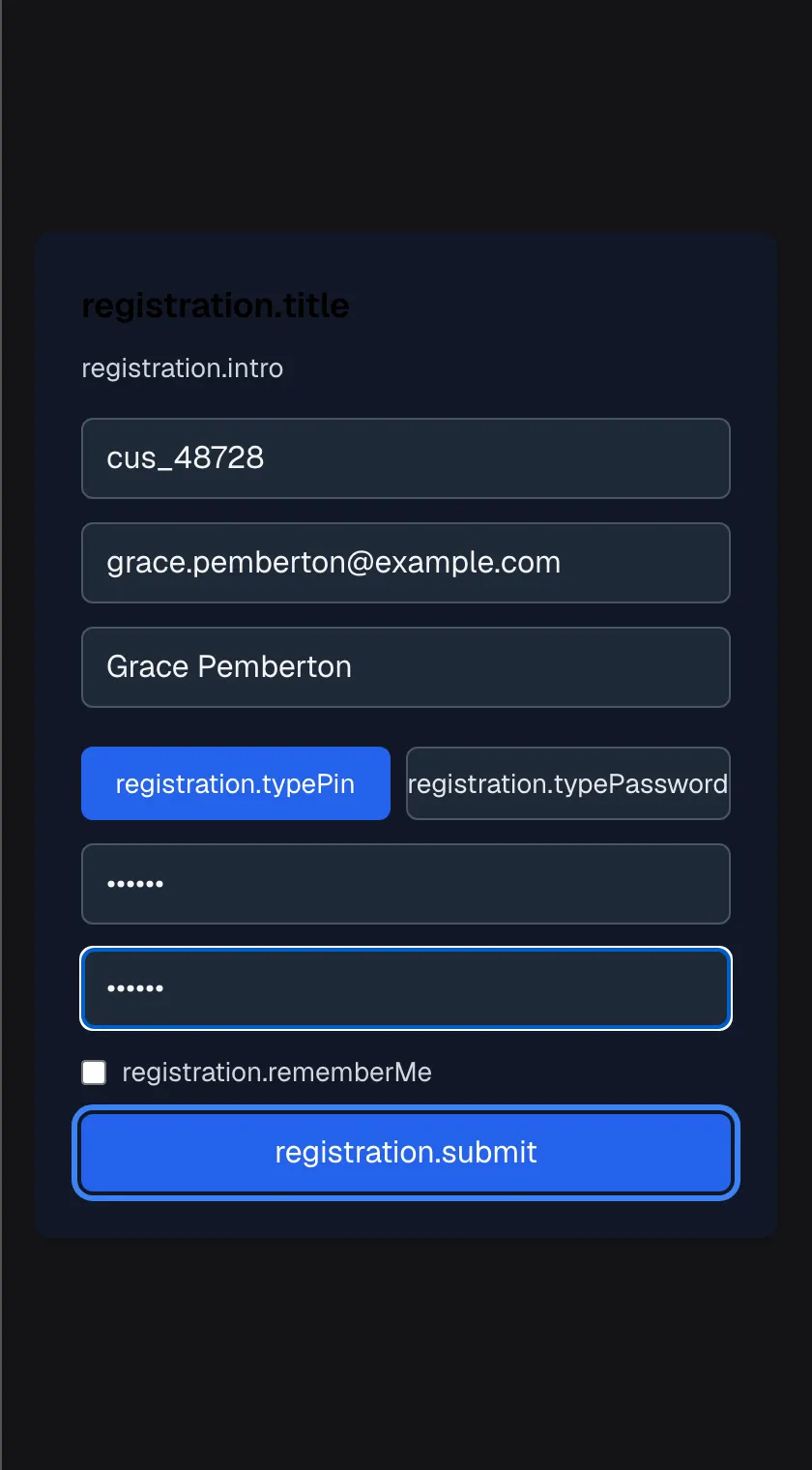
Fill in every field except the name, choose a PIN or password, and the create button becomes active. What this screenshot shows
- Screen
- (/?mode=register&customerCompanyId=…)
- Highlighted
- button “”, card-bottom, enabled (all required fields filled, entries match). creates the account and reloads into the chat
- Also visible
- User name cus_48728, email grace.pemberton@example.com, name Grace Pemberton, PIN chosen
- Purpose
- the form ready to submit
What happens next
Section titled “What happens next”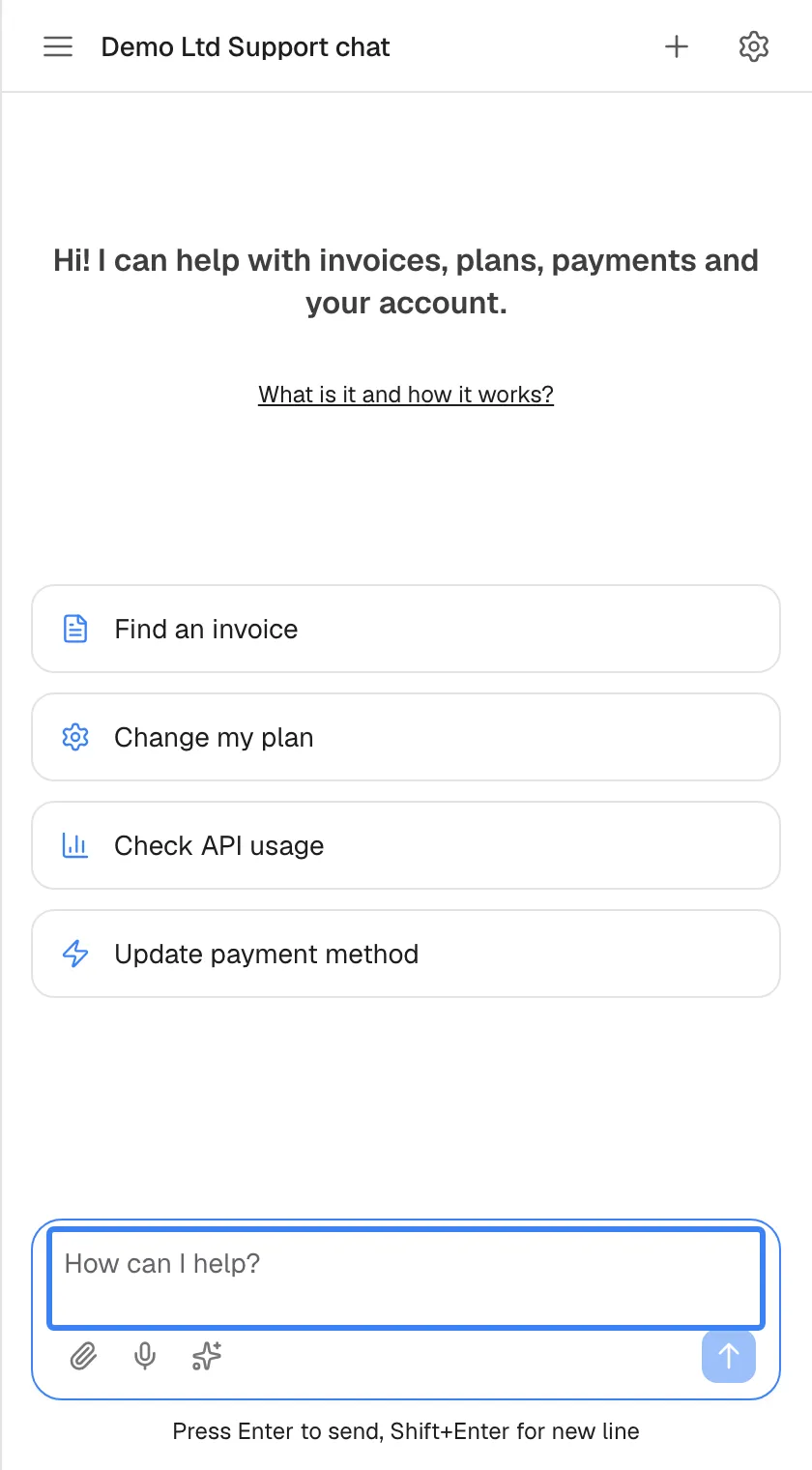
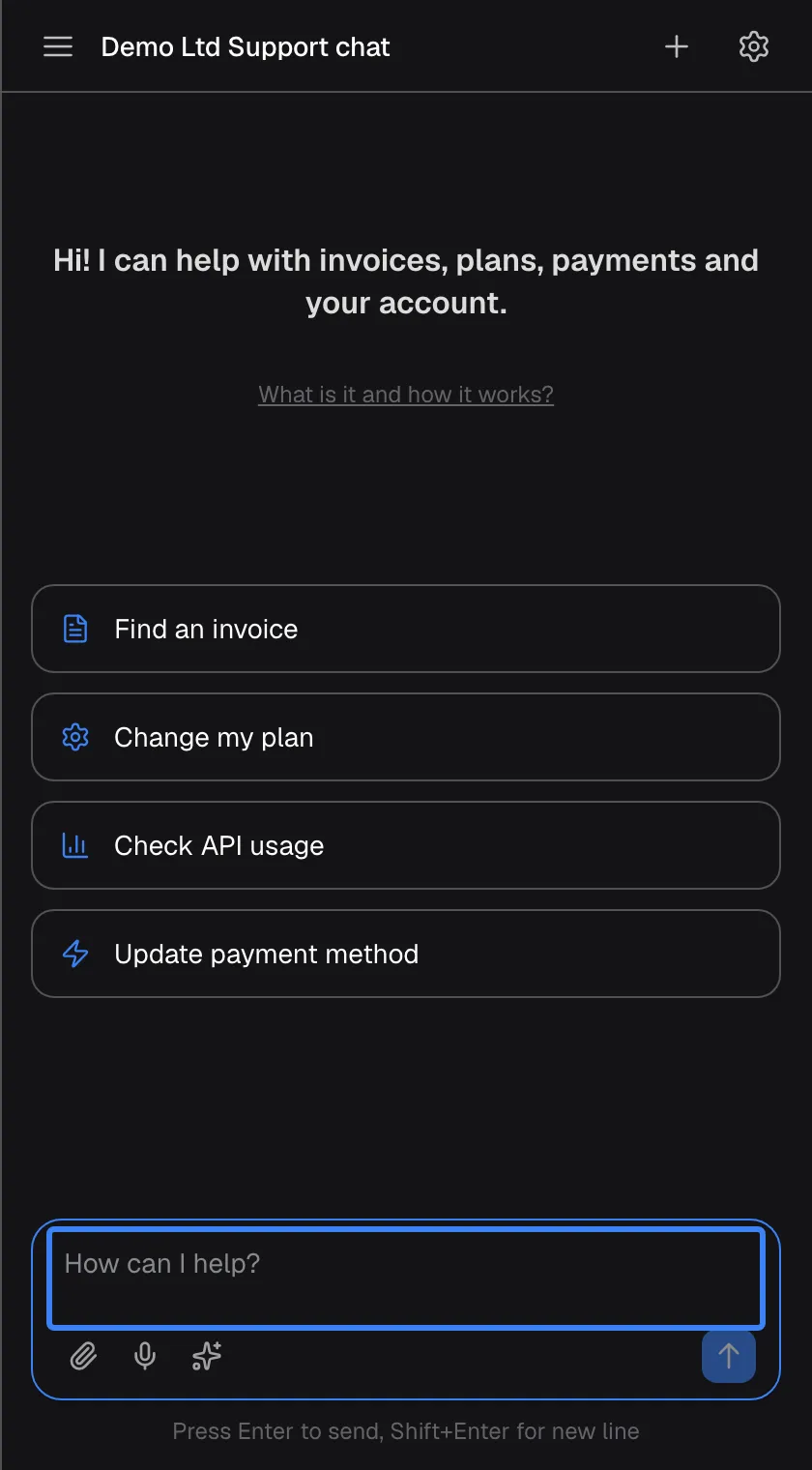
What this screenshot shows
- Screen
- How can I help? (/?applicationToken=…)
- Highlighted
- textbox “How can I help?”, bottom, empty, ready. ask the first question
- Also visible
- Welcome text, four shortcut cards, gear icon (signed in)
- Purpose
- what happens after registration
As soon as the page accepts your sign-up, it reloads as the assistant, and you are signed in. There is no confirmation email: your access works straight away. You join your company’s account in its customer portal as a Member, or as its Admin when you are the first person in that account. An Admin of your company can change your role later.
Your sign-in lasts 12 hours, or 7 days if you ticked the checkbox, and is kept in this browser after you close it, the same as on the sign-in screen. When it ends, the assistant asks for your PIN or password. Your access belongs to the product you are signed into: on another device or browser the assistant may ask you to set up your access again.
You never type the user name to sign in. Later the assistant asks only for your PIN or password, in the product where you use it. On another device or browser, whether it recognises you depends on how that product identifies you to the assistant; if it shows Set up your access, ask your company’s administrator or your provider before setting up a second access.
If the page refuses your sign-up
Section titled “If the page refuses your sign-up”The page shows the reason in red above the button, in English, and keeps what you typed so you can correct it.
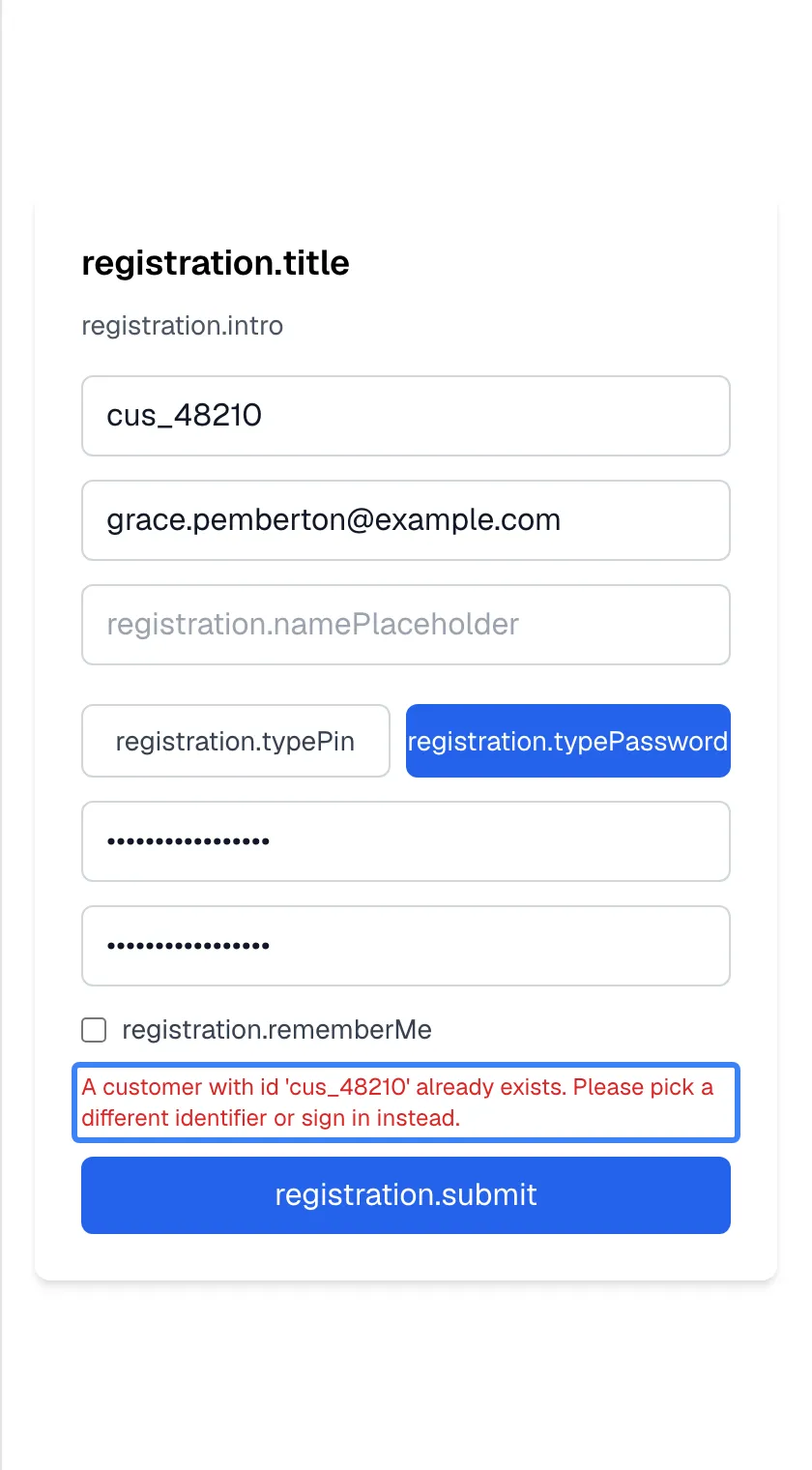
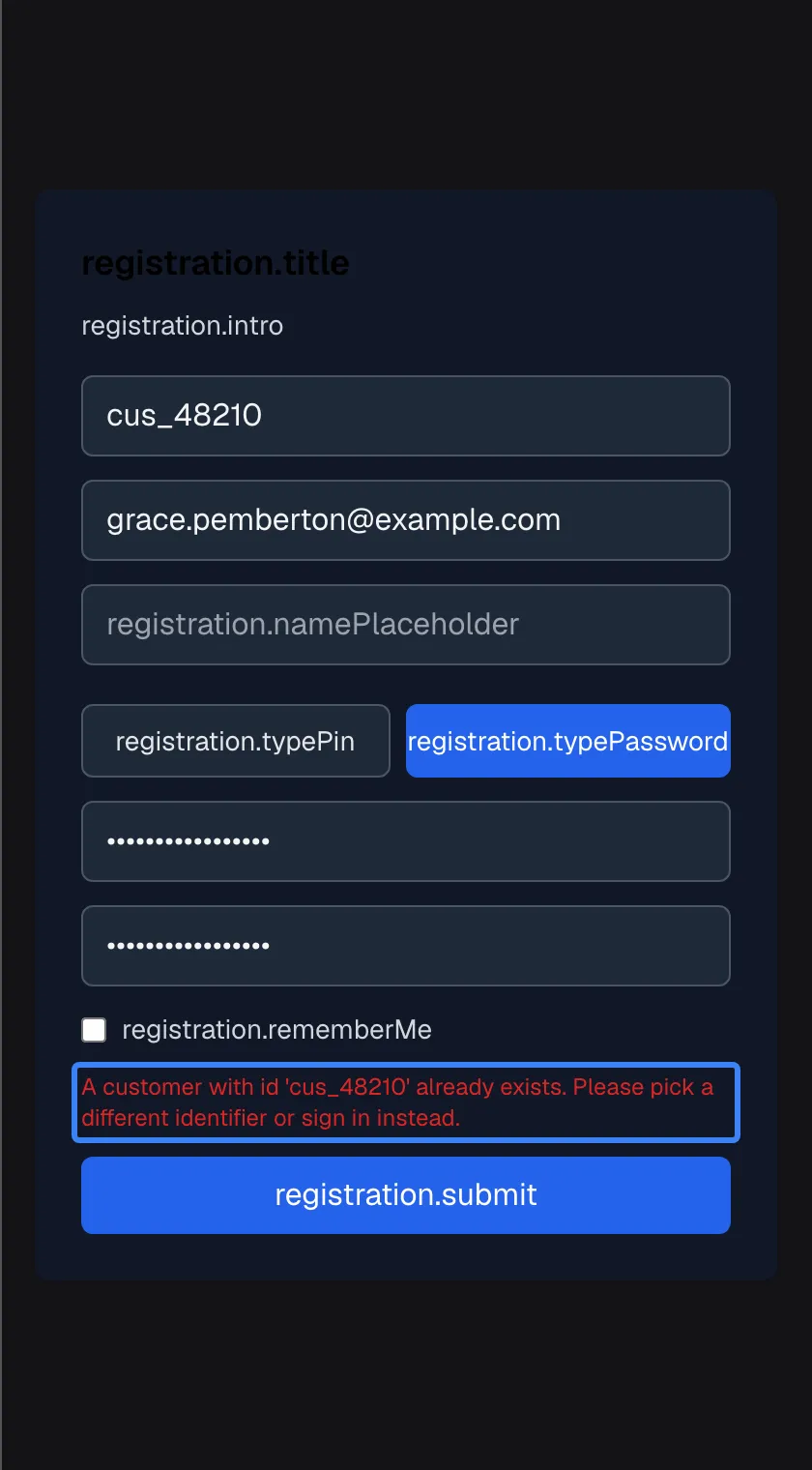
What this screenshot shows
- Screen
- (/?mode=register&customerCompanyId=…)
- Highlighted
- “”, card, error (server text, English only). none; change the user name and resubmit
- Also visible
- Fields keep their values
- Purpose
- registration error
| Message | What it means | What to do |
|---|---|---|
| “A customer with id ’…’ already exists. Please pick a different identifier or sign in instead.” | The user name is taken | Choose another user name. If it is yours, you already have access; open the assistant in the product instead |
| “Self-registration is not enabled for this customer company.” | Your company does not allow sign-up by link at the moment | Ask your company’s administrator or your provider to allow it, or to set up your access for you |
| “Customer company not found.” | The link is incomplete or no longer valid | Ask for a new link |
| “Customer company is deactivated.” | Your company’s access to the assistant has been switched off | Contact your provider |
| “PIN must be 4-8 numeric digits. (Parameter ‘credential’)” | The PIN is shorter than 4 digits | Use 4 to 8 digits |
| “Password must be at least 8 characters. (Parameter ‘credential’)” | The password is too short | Use at least 8 characters |
| “Request failed (429)” | Too many sign-up attempts from your network within a minute | Wait one minute, then try once |
| “Registration failed” | The service could not complete the sign-up | Retry in a few minutes; if it repeats, contact your provider |
Every control, explained
Section titled “Every control, explained”The sign-up page has one form. Its fields are described below from top to bottom; the page may show technical labels instead of their names.
User name (1st field)
Section titled “User name (1st field)”The first field under the heading. Required.
The name your access is registered under, up to 255 characters. Spaces at the start and end are removed. It must be unique with your provider; a name already in use is refused with “A customer with id ’…’ already exists.”.
It identifies your access to your provider and your company’s administrators.
Email (2nd field)
Section titled “Email (2nd field)”The second field. Required.
Your email address, up to 255 characters. The browser checks that it looks like an email address before the page sends it. No email is sent to it as part of signing up.
It tells your provider and your company’s administrators how to reach you.
Full name (3rd field)
Section titled “Full name (3rd field)”The third field. Optional.
Your name as you want it shown, up to 255 characters. You can leave it empty.
It lets people at your provider and in your company recognise you.
PIN and Password buttons
Section titled “PIN and Password buttons”The two buttons side by side under the third field: PIN on the left, Password on the right.
Choose how you will sign in from now on. Password is selected when the page opens. The choice changes the rules of the next two fields.
A PIN is quicker to type on a phone; a password can be longer. The sign-in screen later asks for the kind you choose here.
PIN or password, and confirmation (4th and 5th fields)
Section titled “PIN or password, and confirmation (4th and 5th fields)”The two fields under the buttons.
Both show dots as you type. For a PIN, only digits are accepted, up to 8; the minimum of 4 is checked when you submit. For a password, the minimum of 8 characters is checked when you submit; there is no other rule. The second field must match the first, or a short message appears under them.
Typing twice catches mistakes you cannot see behind the dots.
Remember me checkbox
Section titled “Remember me checkbox”Under the fifth field. Unticked when the page opens. It is the same option as Remember me on this browser on the sign-in screen.
Unticked, your first sign-in lasts 12 hours; ticked, 7 days. Either way it is kept in this browser after you close it.
On your own device you can stay signed in for a week; on a shared device a shorter sign-in ends sooner.
Create button
Section titled “Create button”The wide button at the bottom of the form.
Greyed out until the user name, email, PIN or password and its confirmation are filled in and match. Selecting it creates your access and reloads the page as the assistant, signed in. While it works, the button shows that the account is being created.
Everything happens in one step, so you can start using the assistant immediately.
Who sees what
Section titled “Who sees what”| What | When |
|---|---|
| The sign-up page | Only through a sign-up link from your provider or your company’s administrator; the assistant in the product has no sign-up button |
| A successful sign-up | Only while your company allows sign-up by link |
| The customer portal after sign-up | If your provider has switched the portal on; you start there as a Member, or as the Admin when you are the first person in your company’s account |
What you need to know
Section titled “What you need to know”| Topic | Fact |
|---|---|
| The link | Specific to your company; your provider or your company’s administrator gives it to you |
| Required fields | User name, email, and a PIN or password typed twice; full name is optional |
| User name | Up to 255 characters, unique with your provider |
| PIN or password | PIN 4 to 8 digits; password at least 8 characters |
| Confirmation email | None; your access works immediately |
| Your role | Member of your company’s account in the customer portal; Admin when you are its first person |
| Labels | The page may show technical labels instead of readable text, in every language |
| Look | Plain white form, without your provider’s colours or fonts |
Frequently asked questions
Section titled “Frequently asked questions”Before you start
Section titled “Before you start”Where do I get a sign-up link?
Section titled “Where do I get a sign-up link?”From your provider or from your company’s administrator. The assistant inside the product has no sign-up button, and the link is specific to your company, so ask them to send it to you if you do not have one.
Why does the page show strange words with dots instead of labels?
Section titled “Why does the page show strange words with dots instead of labels?”The sign-up page currently shows technical labels instead of readable text, in every language. The fields work normally: from the top, they are user name, email, full name (optional), PIN or password buttons, the PIN or password, its confirmation, a remember-me checkbox and the create button.
Do I need to confirm my email address?
Section titled “Do I need to confirm my email address?”No. The page does not send a confirmation email. Your access works as soon as you select the create button, and the assistant opens with you signed in.
Which fields are required?
Section titled “Which fields are required?”The user name, your email address, and a PIN or password typed twice. Your full name is optional. The create button stays greyed out until the required fields are filled in and both PIN or password entries match.
Signing up
Section titled “Signing up”It says the user name already exists. What now?
Section titled “It says the user name already exists. What now?”Each user name can be used only once with your provider, so choose another one and select the create button again; the page keeps your other entries. If the user name is yours, you already have access and can use the assistant in the product instead.
What does “Self-registration is not enabled for this customer company.” mean?
Section titled “What does “Self-registration is not enabled for this customer company.” mean?”Your company does not allow sign-up by link at the moment. Ask your company’s administrator or your provider either to allow it or to set up your access for you directly.
Can I sign up without a PIN or password?
Section titled “Can I sign up without a PIN or password?”No. Every account needs either a PIN of 4 to 8 digits or a password of at least 8 characters. You choose which with the two buttons in the middle of the form, and you type it twice.
After signing up
Section titled “After signing up”What happens after I create my account?
Section titled “What happens after I create my account?”The page reloads as the assistant, and you are already signed in. You can ask your first question straight away. Your sign-in lasts 12 hours, or 7 days if you ticked the remember-me checkbox, and is kept in this browser after you close it.
What can I do in the customer portal after signing up?
Section titled “What can I do in the customer portal after signing up?”New accounts start with the Member role in your company’s customer portal, if your provider has switched the portal on. Only the first person in a company’s account starts as its Admin, so someone can manage it. You open the portal with the gear icon in the assistant’s top bar. An Admin of your company can change your role later.
Will I need to set up my access again on another device?
Section titled “Will I need to set up my access again on another device?”Possibly. Your access belongs to the product you are signed into, and on another device or browser the assistant may ask you to set up your access again. Ask your provider how to use the assistant on more than one device.
Troubleshooting
Section titled “Troubleshooting”| Symptom | What to check |
|---|---|
| The create button stays greyed out | Fill in the user name, email and both PIN or password fields, and make sure the two entries match. Full name is optional. |
| “A customer with id ’…’ already exists.” | Choose another user name. |
| “Customer company not found.” | The link is incomplete or outdated. Ask for a new one. |
| “Self-registration is not enabled for this customer company.” | Your company does not allow sign-up by link. Ask your company’s administrator or your provider. |
| “Request failed (429)” | Too many attempts from your network. Wait one minute. |
| The page shows words with dots instead of labels | This is how the page currently looks. Use the field order in the table at the top of this page. |
| The page opened, but the assistant asks you to set up your access later | Your sign-in has ended or you are on another device or browser. Ask your provider before setting up a new PIN. |