

Tables, charts and sources
When an answer involves numbers, the assistant can show them as a table or a chart instead of a paragraph, and it can hand you a whole file, such as a CSV export of your invoices. Small badges in the text show where the information came from: one of your provider’s systems, your provider’s knowledge base, or a web page. This page explains how to read each of these, how to download tables, charts and files, and how to open a chart full size. You do not switch these on; the assistant chooses a table or chart when it suits the answer, and you can always ask for one (“show that as a chart”).
What you can do here
Section titled “What you can do here”- See where an answer comes from. Badges in the text name the service, document set or web page an answer used. See where an answer comes from.
- Read and download a table. Any table in an answer can be saved as a CSV file for a spreadsheet. Read and download a table.
- Read a chart. Line, bar and stacked bar charts appear right in the answer, with a legend you can show and a download as an image. Read a chart.
- Open a chart full size. The detailed view shows the chart over the whole page. Open a chart full size.
- Copy or download a file. Files in an answer, such as a CSV export, have their own Copy and Download buttons. Copy or download a file.
The screen at a glance
Section titled “The screen at a glance”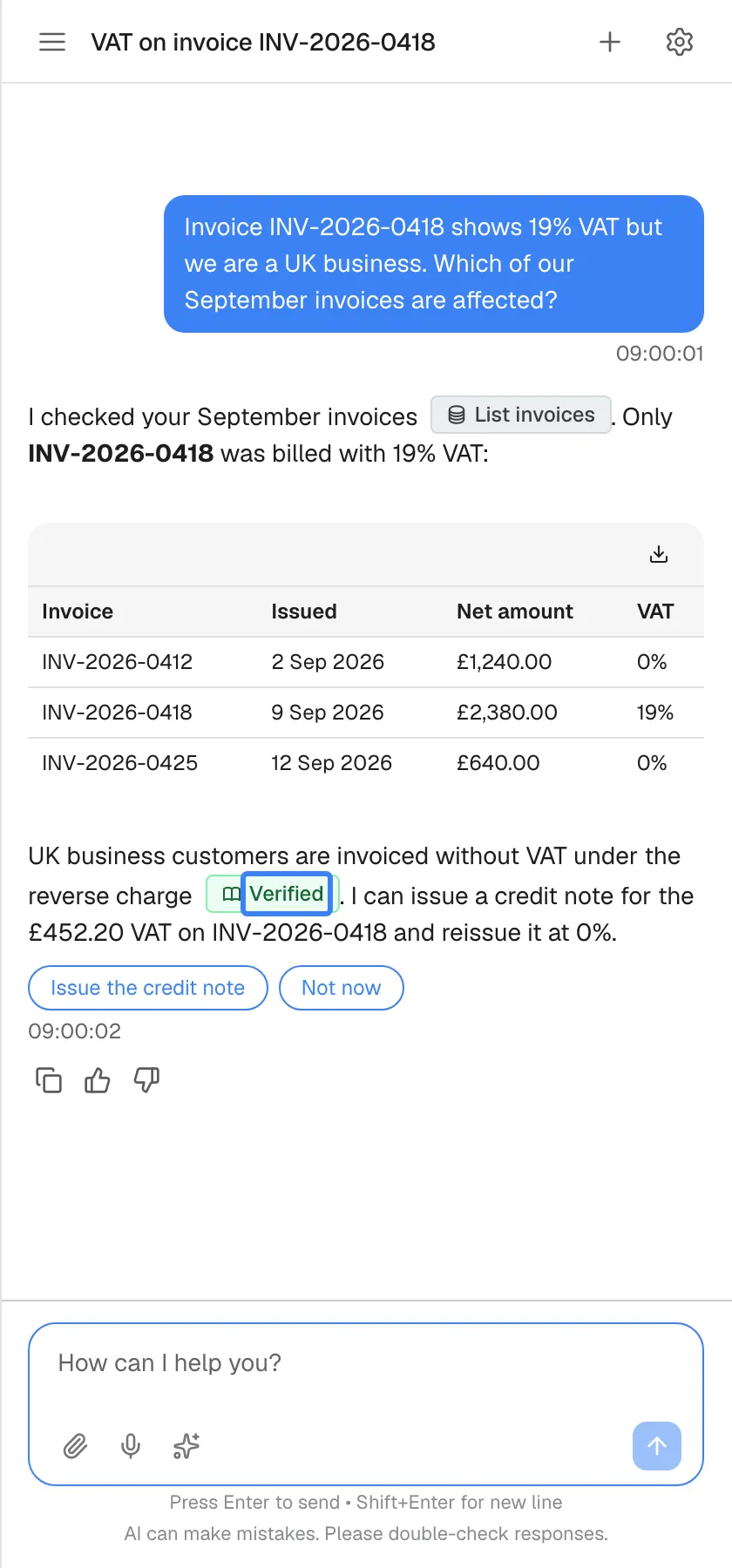
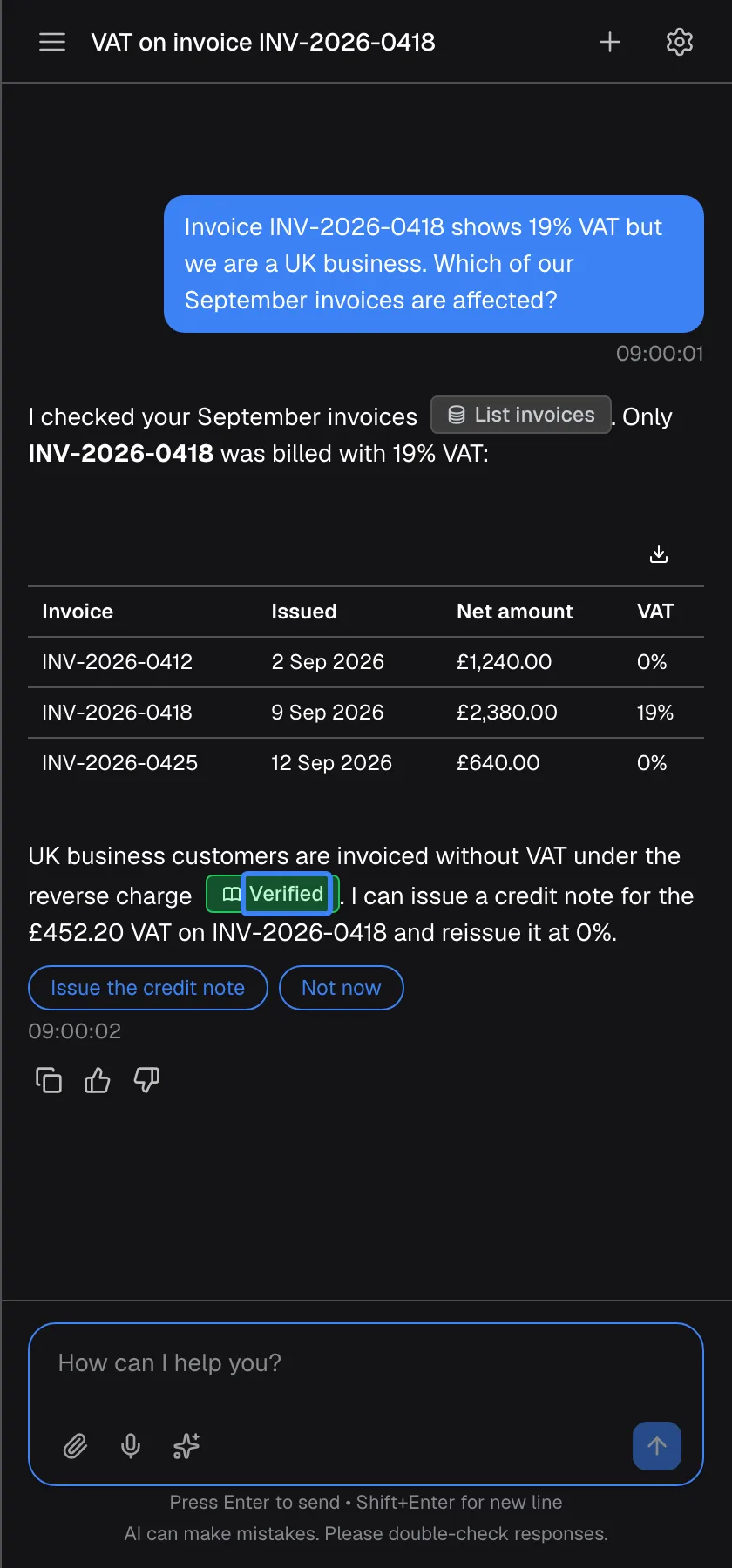
What this screenshot shows
- Screen
- How can I help you? (/?applicationToken=…)
- Highlighted
- “Verified”, answer, knowledge-base citation badge (built-in label, translated; the provider can rename it). hover shows the document names
- Also visible
- Grey data badge List invoices / Rechnungen auflisten; Table of three invoices
- Purpose
- sources and citation badges
| Region | What it shows | What you do there |
|---|---|---|
| Answer text | The assistant’s reply, with badges where it used a source | Read; hover over a badge to see more |
| Data badge (database icon) | The name of the service the assistant used, such as “List invoices” | Hover to see the source |
| Table | Rows and columns, with a download icon above at the right | Read, or download as CSV |
| Knowledge base badge (book icon) | The word Verified | Hover to see which documents were used |
| Under the answer | The time, and copy and rating icons if your provider has switched rating on | Copy or rate the answer |
See where an answer comes from
Section titled “See where an answer comes from”The assistant marks its sources with small badges inside the answer text. The badge texts are in English, whatever your language.
| Badge | Looks like | Means | Hover or click |
|---|---|---|---|
| Data from a service | A database icon and the service’s name, such as “List invoices” | The facts came from one of your provider’s systems, fetched for this answer | Hover: “Information from: …” with the service’s name |
| Verified | A green badge with a book icon and the word Verified | The answer used your provider’s knowledge base | Hover: the names of the documents used; one badge covers several documents |
| Web page | A green badge with a globe icon and the page’s title or address | The answer used that web page | Click: opens the page in a new tab |
The badge reads Verified in your language unless your provider chose its own wording, such as “From our help centre”. A source from a website shows the page title instead.
Document names show only on hover; there is no link to open a document. When you copy an answer with the copy icon, the badges become plain text.
Read and download a table
Section titled “Read and download a table”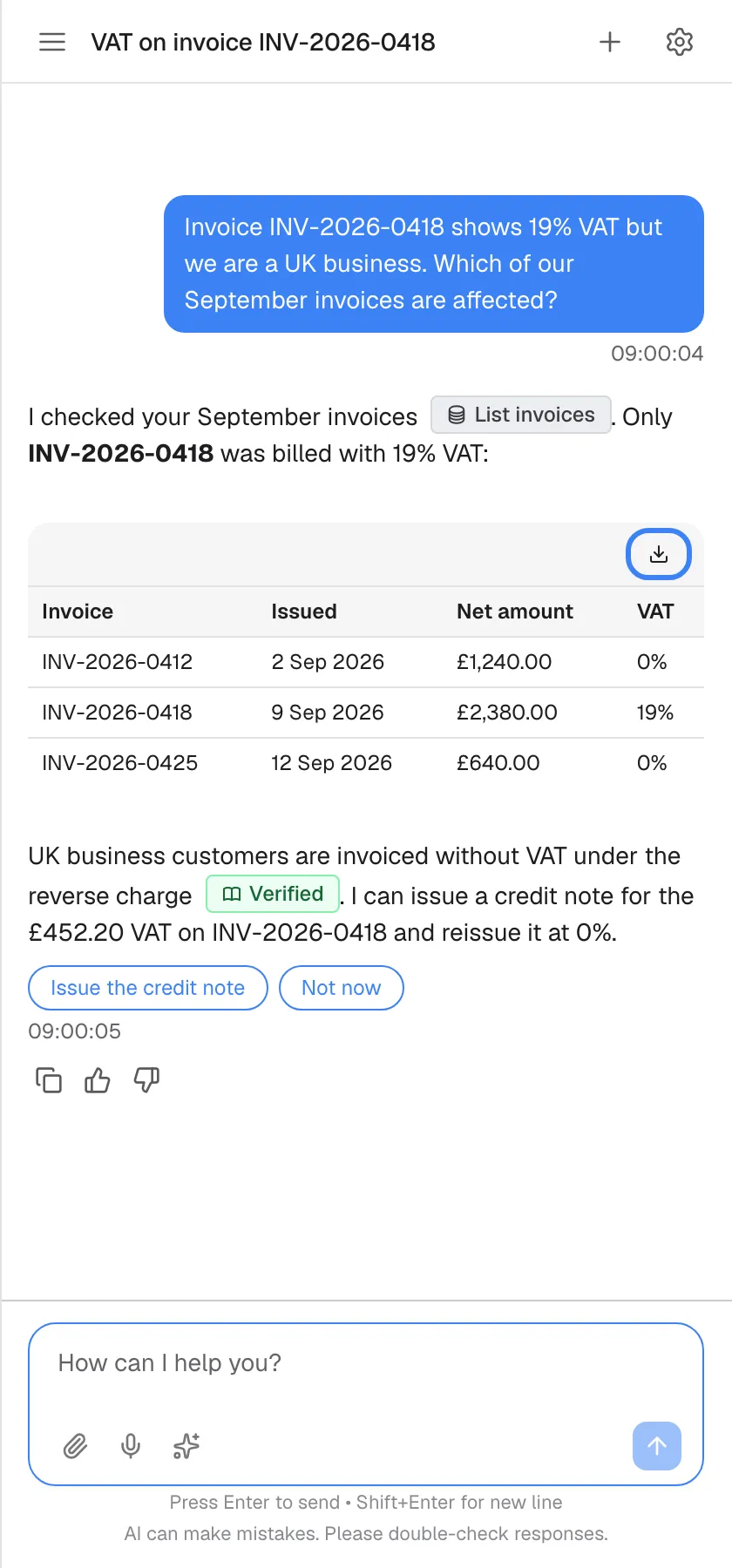
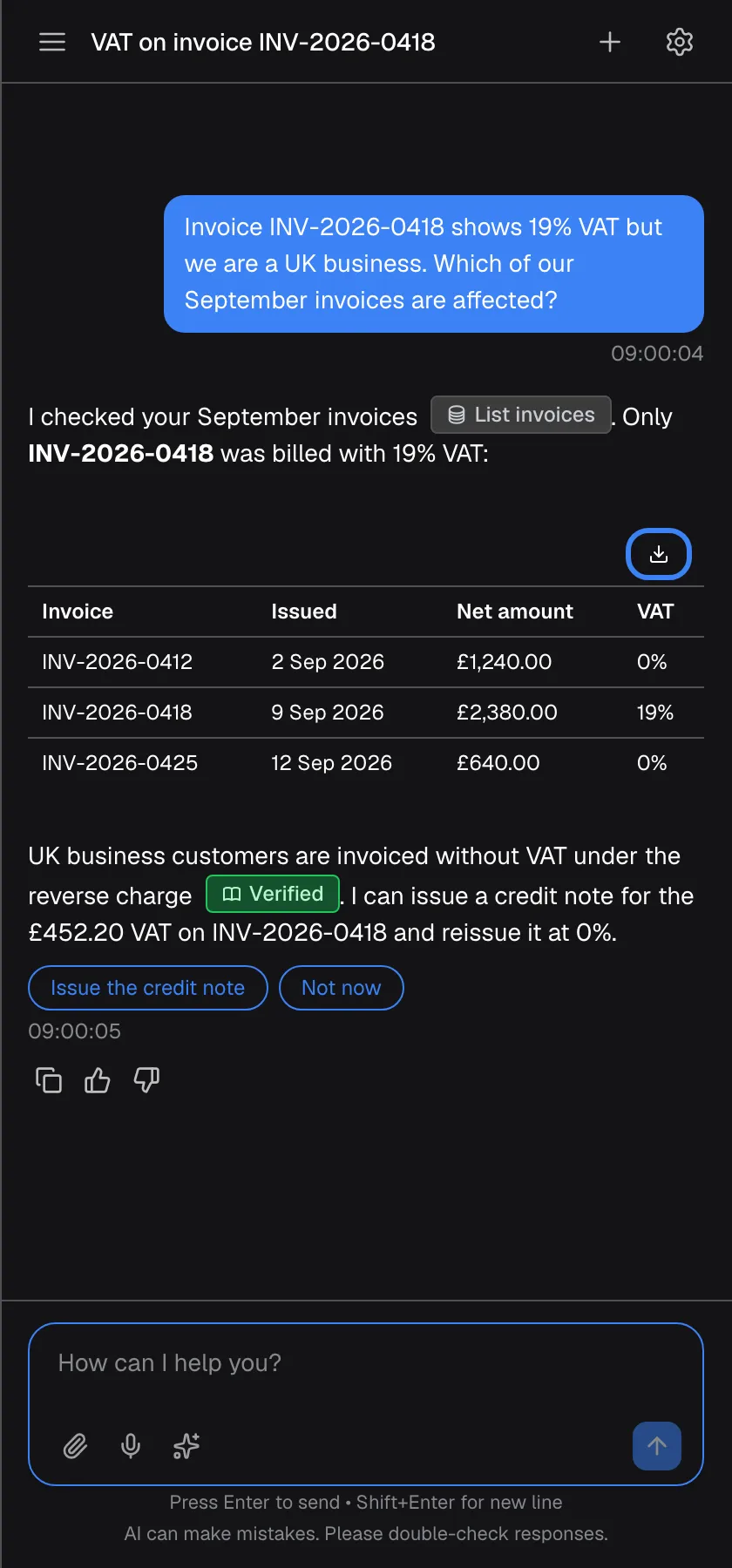
What this screenshot shows
- Screen
- How can I help you? (/?applicationToken=…)
- Highlighted
- button “Download table as CSV”, table-header-right, enabled. downloads the table as table.csv
- Also visible
- Columns Invoice / Issued / Net amount / VAT
- Purpose
- table download
Tables appear in two ways:
- A table inside the text, as in the screenshot, is always open. The download icon above it at the right, Download table as CSV, saves it as
table.csv. - A table card has a title bar and starts collapsed. Select the arrow (Expand table) to see the rows, and again (Collapse table) to fold it away. Its Download table as CSV button is always visible, and the file is named after the table’s title.
The CSV file opens in any spreadsheet. Every value is quoted, so commas and line breaks inside a cell are safe, and values are exported as they are shown in the table.
In table cards, empty cells show ”-”, numbers and dates follow your browser’s format, and long text is shortened with the full text on hover. Amount columns in table cards are always shown with a dollar sign ($) in US format, whatever the actual currency, and the CSV file carries the same. If the currency matters, ask the assistant which currency the amounts are in. An empty table is not shown at all.
Read a chart
Section titled “Read a chart”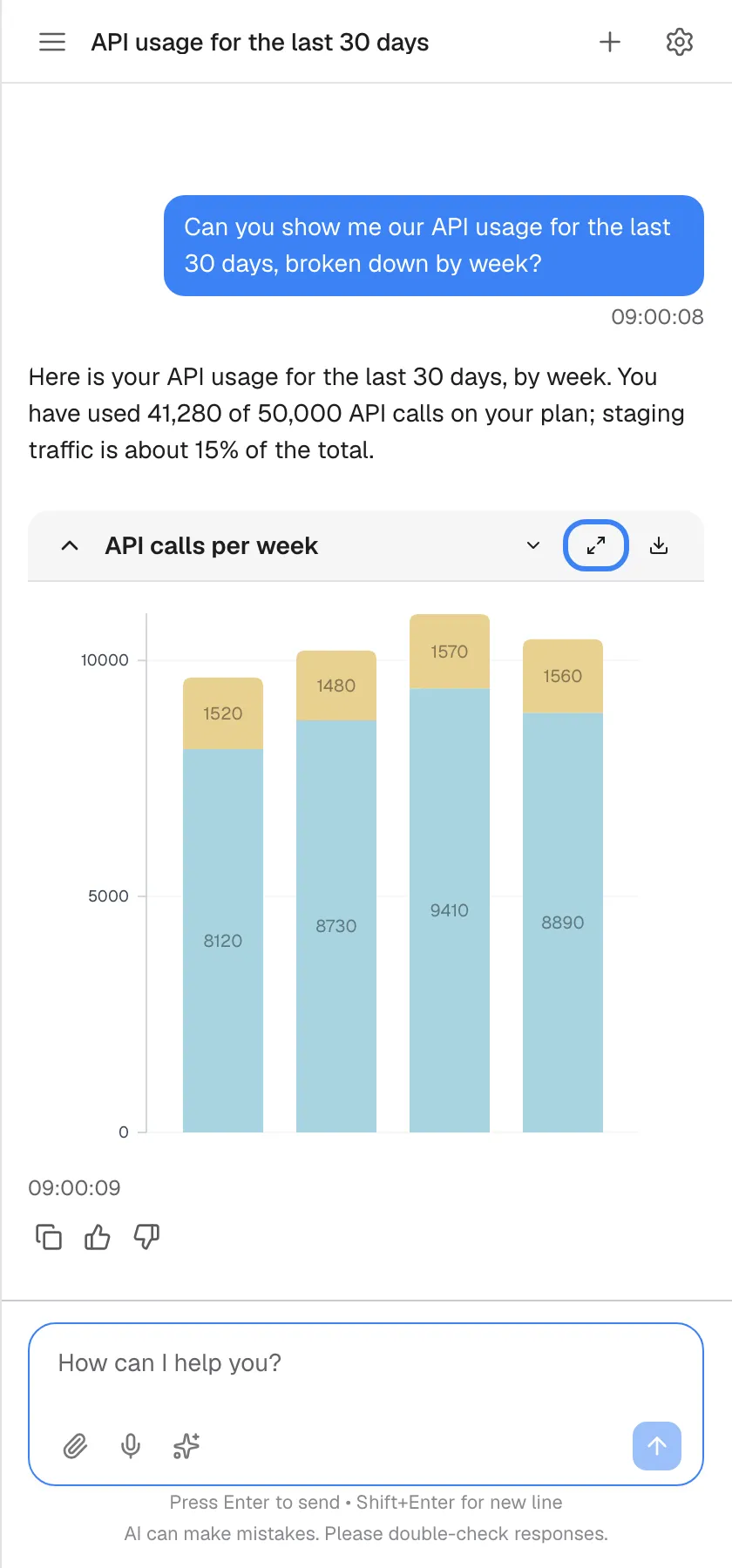
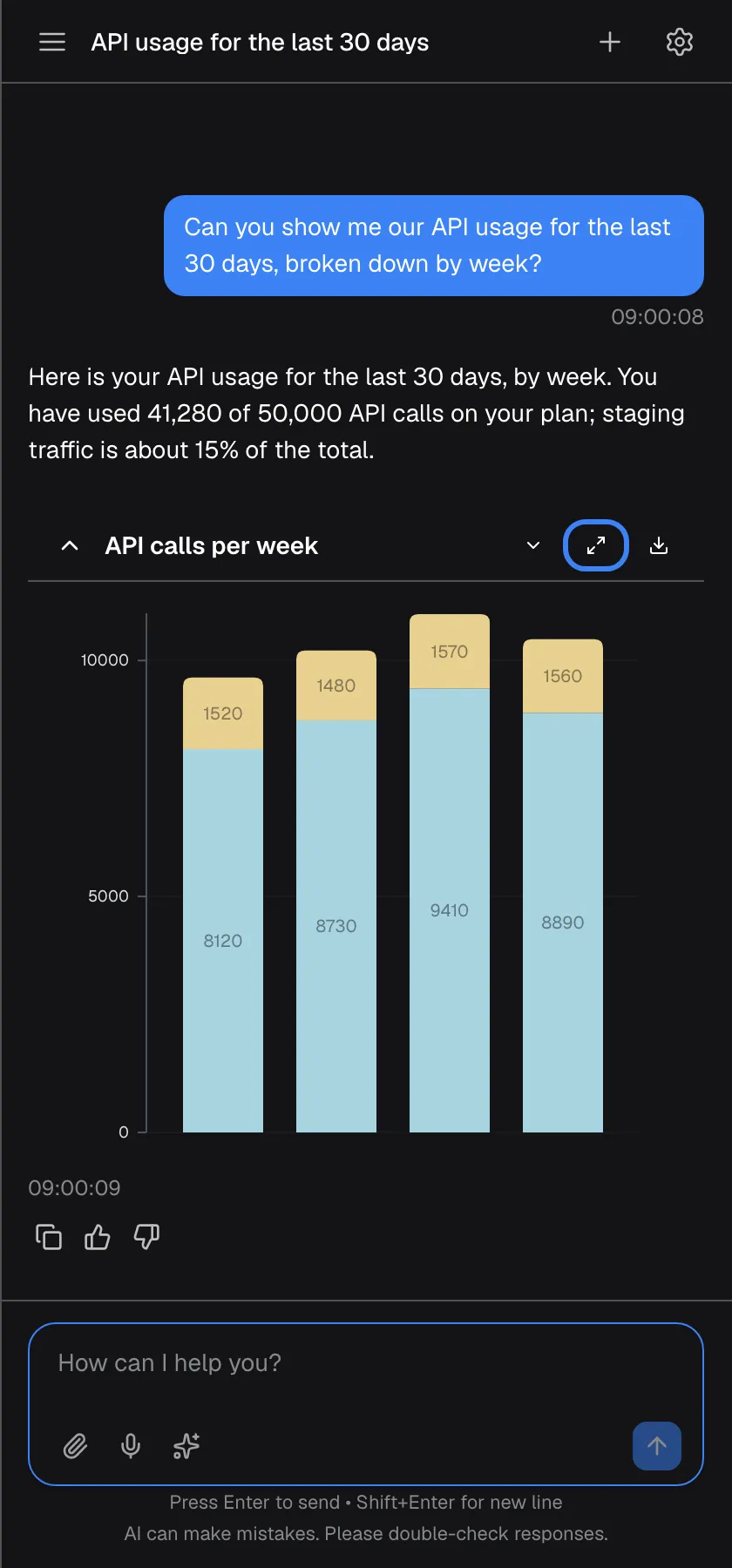
What this screenshot shows
- Screen
- How can I help you? (/?applicationToken=…)
- Highlighted
- button “View detailed chart”, chart-header, enabled (labels hidden at this width, icons only). opens the chart full screen over the page
- Also visible
- Stacked bar chart, header icons collapse / legend / detailed / download
- Purpose
- chart in an answer
Charts appear as a card under the answer text, already open. The assistant uses line charts, bar charts and stacked bar charts. A chart without a title is called Line Chart or Bar Chart.
The card’s header holds four controls, from left to right: the arrow that folds the chart away (Collapse chart), Show Legend (the legend is hidden at first), View detailed chart and Download chart. In a narrow window only their icons show.
Download saves the chart as a PNG image named after its title, on a white background and at three times screen resolution, so it stays sharp in a presentation. A bar chart without any values is not drawn; you then see only the answer text.
Open a chart full size
Section titled “Open a chart full size”-
Select View detailed chart in the chart’s header. The chart opens over the whole page, above the product and the assistant.
-
Read the values and the legend. Select Download at the top right to save the image from here too.
-
Close the view with the X (Close), by pressing Esc, or by clicking outside it.
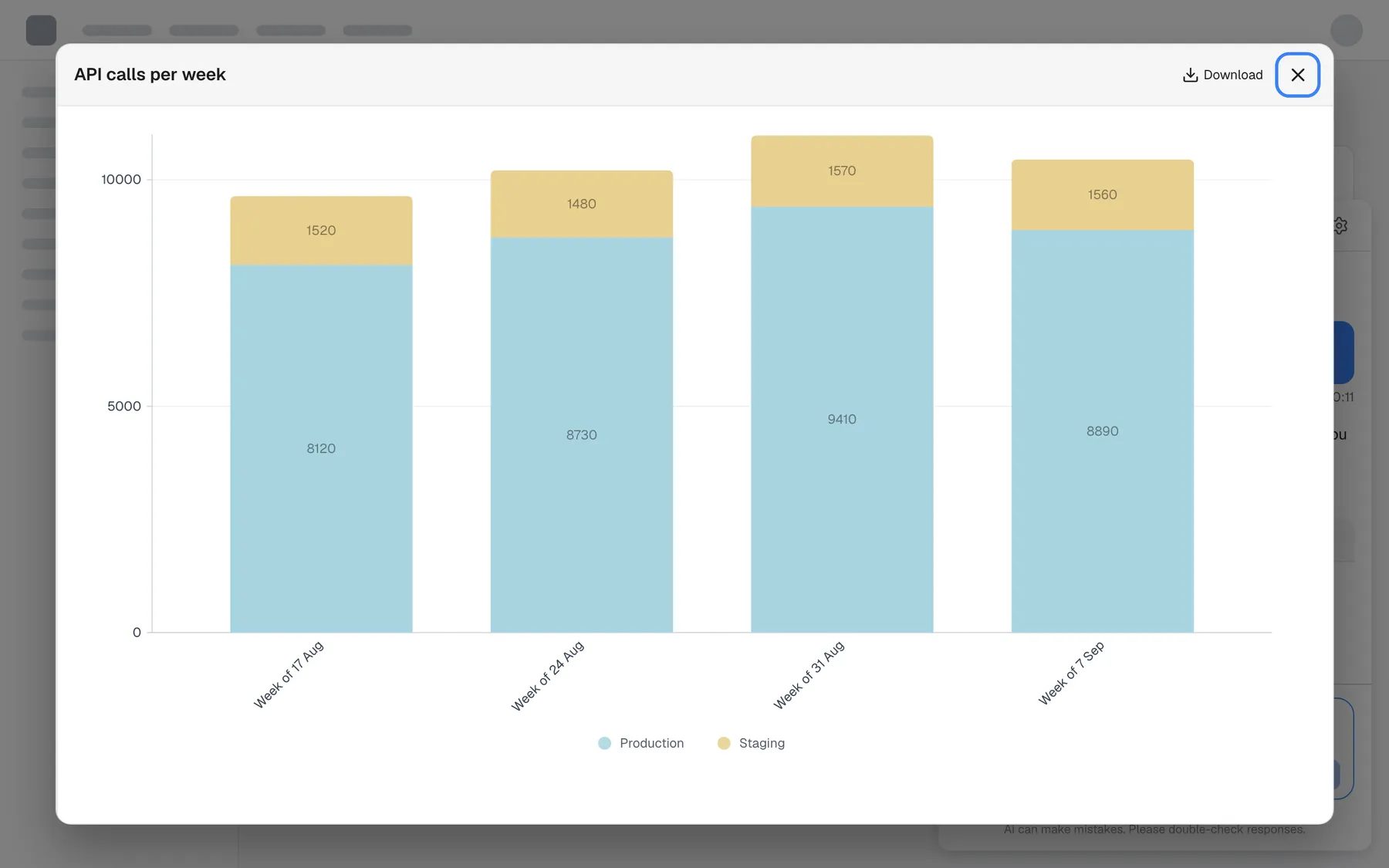
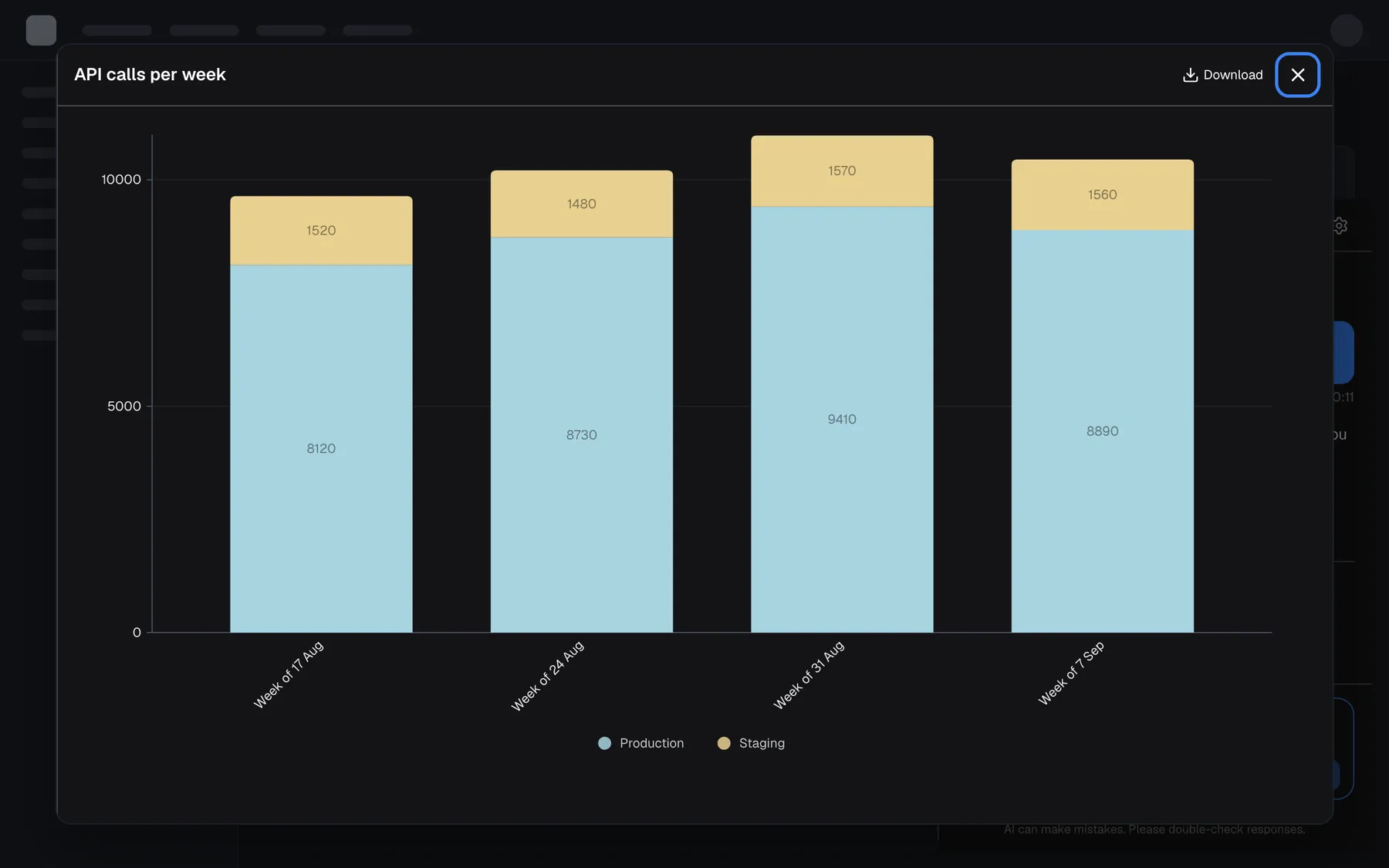
What this screenshot shows
- Screen
- Chart (host page (provider product))
- Highlighted
- button “Close”, overlay-top-right, enabled. closes the full-screen chart (also Esc or click outside)
- Also visible
- Four stacked weekly bars, production and staging, legend, Download
- Purpose
- full-screen chart (a different viewport because it covers the provider's page)
The detailed view needs the assistant to be open inside your provider’s product. If you use the assistant on a page of its own, for example after creating your account from a sign-up link, the button does nothing.
Copy or download a file
Section titled “Copy or download a file”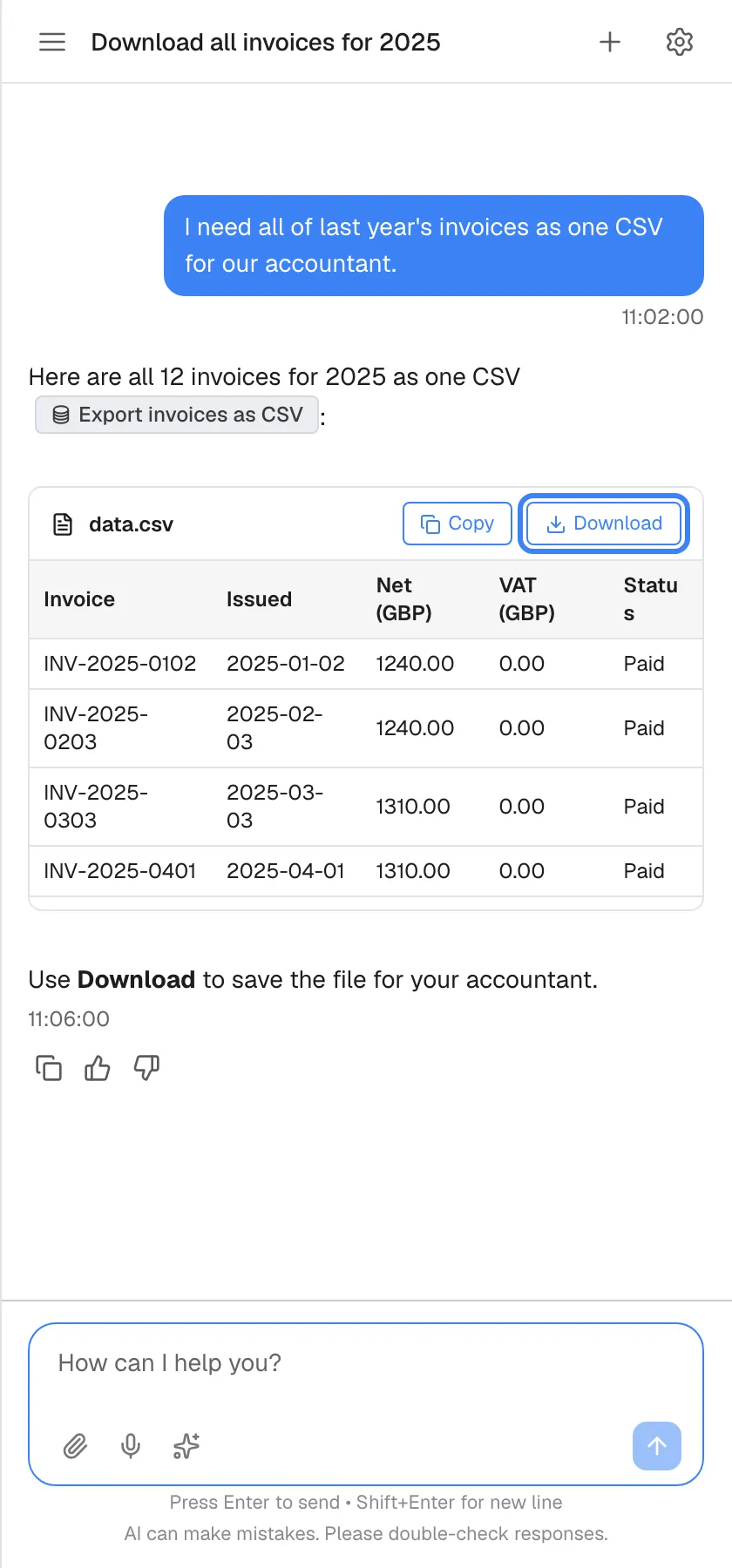
What this screenshot shows
- Screen
- How can I help you? (/?applicationToken=…)
- Highlighted
- button “”, file-card-header, enabled (English label in every language). downloads data.csv
- Also visible
- CSV preview table, Copy button
- Purpose
- CSV file block
When the assistant hands you a file, it appears as a card named data.csv or data.txt with a preview of its contents and two buttons:
| Button | What it does |
|---|---|
| “Copy” | Puts the whole text of the file on your clipboard; the button shows “Copied!” for a moment |
| “Download” | Saves the whole file to your device |
Both buttons are in English. The preview of a CSV file splits columns at every comma, so a value that contains a comma can look shifted in the preview. The downloaded file is correct; only the preview is affected.
Every control, explained
Section titled “Every control, explained”The controls on tables, charts and files are described below in the order they appear in an answer.
Source badges
Section titled “Source badges”Inside the answer text, after the sentence they support.
A database badge names the service the assistant used; hover to see “Information from: …”. The Verified badge marks use of your provider’s knowledge base; hover to see the document names. A globe badge names a web page; click to open it in a new tab.
You can judge an answer better when you know whether it came from your own data, your provider’s documents or the web.
Download table as CSV
Section titled “Download table as CSV”The download icon above a table inside the text, or the Download table as CSV button in a table card’s title bar.
Saves the table as a CSV file, with values as shown. The file is named table.csv, or after the table card’s title.
Spreadsheets are where you filter, total and share figures further.
Expand or collapse a table card
Section titled “Expand or collapse a table card”The arrow at the left of a table card’s title bar.
Shows or hides the table’s rows. Table cards start collapsed.
A long table would push the rest of the answer out of view; collapsed, you decide when to look.
Collapse or expand a chart
Section titled “Collapse or expand a chart”The arrow at the left of a chart card’s header.
Folds the chart away or opens it again. Charts start open.
Once you have read a chart, folding it keeps the conversation short.
Show or hide the legend
Section titled “Show or hide the legend”The second control in a chart card’s header, Show Legend or Hide Legend.
Shows or hides the list of series and their colours. The legend starts hidden.
With one series the legend adds nothing; with several, it tells you which colour is which.
View detailed chart
Section titled “View detailed chart”The third control in a chart card’s header, View detailed chart.
Opens the chart over the whole page, with its own download button and a close button. Esc and clicking outside also close it. It works only when the assistant is open inside your provider’s product.
A chart in a narrow chat window is small; the full view shows every value clearly.
Download chart
Section titled “Download chart”The fourth control in a chart card’s header, Download chart, and the Download button in the detailed view.
Saves the chart as a sharp PNG image on a white background, named after the chart’s title.
You can drop the image straight into a report or a presentation.
Copy and Download on a file
Section titled “Copy and Download on a file”At the top right of a file card, such as data.csv.
“Copy” puts the whole file’s text on your clipboard and briefly shows “Copied!”; “Download” saves the file.
Some files go straight into another tool; others need to be kept or sent on.
What you need to know
Section titled “What you need to know”| Topic | Fact |
|---|---|
| Chart types | Line, bar and stacked bar |
| Defaults | Charts start open with the legend hidden; table cards start collapsed |
| Chart download | PNG, white background, named after the chart’s title |
| Table download | CSV, every value quoted, values as shown |
| Currency in table cards | Always shown with $ in US format, whatever the actual currency |
| Full-size view | Only when the assistant is open inside your provider’s product |
| Source badges | In English; documents named on hover only; web pages open in a new tab |
| File preview | Splits CSV at every comma; the download is correct |
Frequently asked questions
Section titled “Frequently asked questions”Tables
Section titled “Tables”How do I get a table from an answer into Excel?
Section titled “How do I get a table from an answer into Excel?”Select the download icon above the table, or the Download table as CSV button on a table card. The assistant saves the table as a CSV file, which opens in Excel and any other spreadsheet. Values are exported as they are shown in the answer.
Why can’t I see the rows of a table?
Section titled “Why can’t I see the rows of a table?”Table cards start collapsed so they do not push the rest of the answer away. Select the arrow at the left of the table card’s title bar to show the rows, and select it again to hide them.
Why are amounts in a table shown in dollars?
Section titled “Why are amounts in a table shown in dollars?”Amount columns in table cards are always shown with a dollar sign ($) in US format, whatever the actual currency, and the CSV download carries the same. Ask the assistant which currency the amounts are in if it matters for you.
Can I ask for a table or a chart?
Section titled “Can I ask for a table or a chart?”Yes. Ask in your own words, for example “show that as a table” or “make a chart of the last four weeks”. The assistant decides the exact form, and uses line, bar or stacked bar charts.
Charts
Section titled “Charts”How do I download a chart?
Section titled “How do I download a chart?”Select Download chart in the chart’s header, or Download in the detailed view. The assistant saves a PNG image on a white background, named after the chart’s title, at a resolution that stays sharp in presentations.
Can I see a chart bigger?
Section titled “Can I see a chart bigger?”Yes. Select View detailed chart in the chart’s header, and the chart opens over the whole page. Close it with the X, by pressing Esc, or by clicking outside it.
The detailed chart button does nothing. Why?
Section titled “The detailed chart button does nothing. Why?”The detailed view opens over your provider’s page, so it only works when the assistant is open inside your provider’s product. On a page where the assistant runs on its own, such as straight after signing up from a link, the button has no effect.
Why don’t I see the chart’s legend?
Section titled “Why don’t I see the chart’s legend?”The legend starts hidden to keep the chart compact. Select Show Legend in the chart’s header; in a narrow window it is the small arrow icon next to the detailed-view icon.
Sources
Section titled “Sources”What does the Verified badge mean?
Section titled “What does the Verified badge mean?”It means the answer used your provider’s knowledge base. Hover over the badge to see the names of the documents the assistant used; one badge can cover several documents.
Can I open the document behind a Verified badge?
Section titled “Can I open the document behind a Verified badge?”No. The badge shows the document names when you hover over it, but it has no link to the documents. Web page badges with a globe icon are different: click them to open the page in a new tab.
What does the grey badge with a database icon mean?
Section titled “What does the grey badge with a database icon mean?”It names the service the assistant used to fetch the facts in that sentence from your provider’s systems, such as “List invoices”. Hover over it to see “Information from:” followed by the service’s name.
Why does the preview of a CSV file look misaligned?
Section titled “Why does the preview of a CSV file look misaligned?”The preview splits columns at every comma, so a value containing a comma, such as a company name, shifts the columns after it. The file you download with “Download” is correct; only the preview is affected.
Troubleshooting
Section titled “Troubleshooting”| Symptom | What to check |
|---|---|
| A download saves nothing | Your browser may block downloads from the product. Allow downloads for the site and try again. |
| View detailed chart has no effect | The assistant is not open inside your provider’s product. Open it from the product’s page. |
| A table card shows only a title | It is collapsed. Select the arrow at the left of the title bar. |
| Amounts show $ although you pay in another currency | Table cards always show amounts in US dollar format. Ask the assistant for the currency. |
| The CSV preview shows shifted columns | A value contains a comma. Download the file; the download is correct. |
| A source badge shows no document names | Hover over it rather than clicking; document names appear in a tooltip. |
| “Copy” does not copy | Your browser may block clipboard access for the product. Allow it in the site settings, or use “Download”. |