

Notifications
Some work the assistant does runs in the background: a scheduled workflow, or a chat you closed before the answer arrived. When such a job needs your approval or an answer, or fails, the Notifications page decides where you hear about it: by email, or in Telegram, Slack or Microsoft Teams. Everyone signed in to the portal sees My notifications. Admins of your company also see your company’s own channels and the limit for approvals from chat apps, when your provider shows them. Open the page from ConfigureNotifications.
What you can do here
Section titled “What you can do here”- Choose where you are told. Switch email, Telegram, Slack or Teams on or off, and send yourself a test. Choose your channels.
- Connect your Telegram, Slack or Teams account. Once connected, you can also approve requests and chat with the assistant there. Connect a chat app · Use the assistant in Slack, Telegram or Teams.
- Choose which outcomes reach you. Approvals and questions always do; starts, failures and finished jobs are up to you. Choose what you hear about.
- Set up your company’s own channels (Admins). Your company’s own mailbox, Telegram bot, Slack app or Teams bot instead of your provider’s. Set up company channels.
- Limit approvals from chat apps (Admins). Decide how risky a request may be to approve with a button. Limit approvals from chat apps.
The screen at a glance
Section titled “The screen at a glance”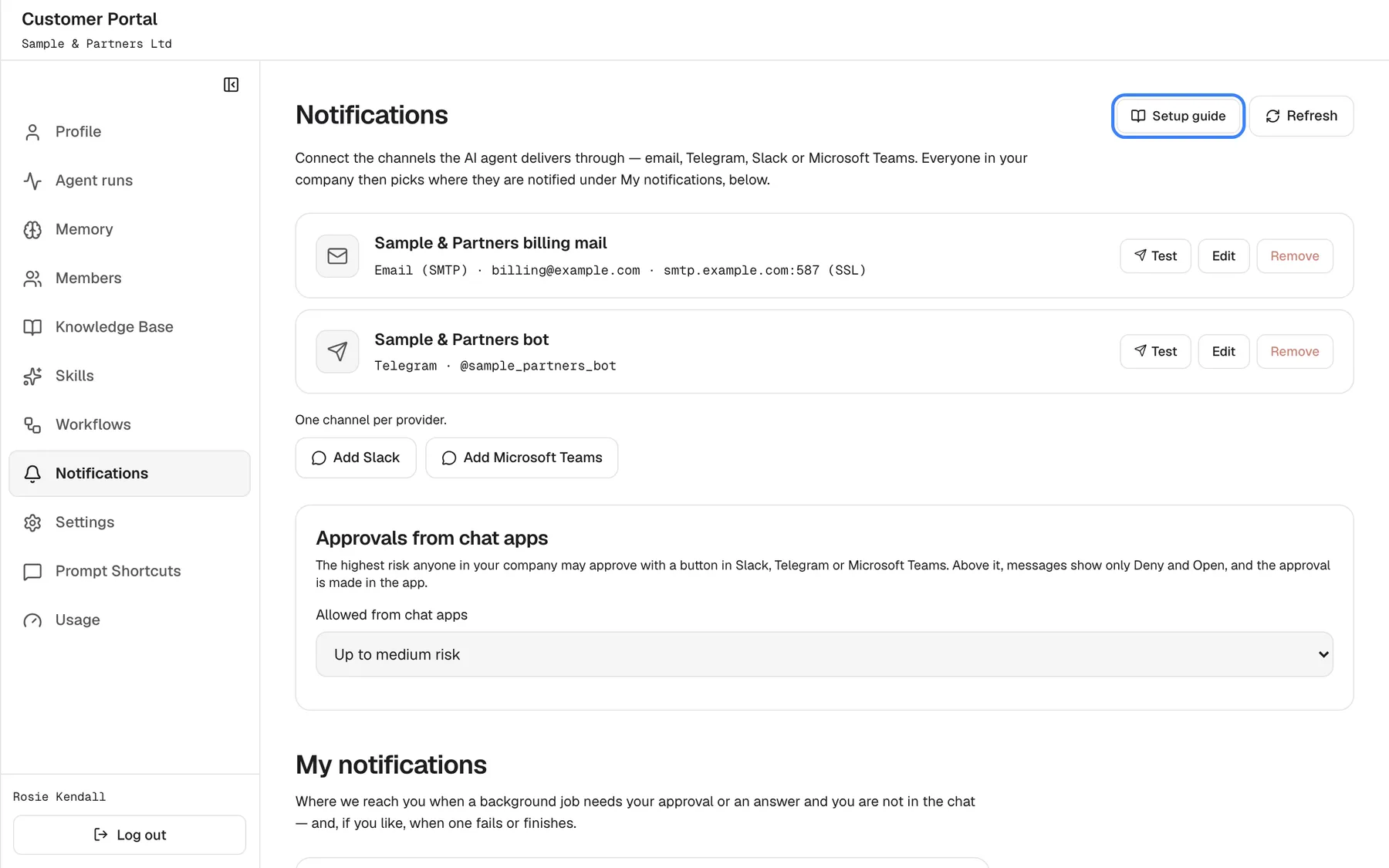
What this screenshot shows
- Screen
- Notifications (/?mode=portal)
- Highlighted
- button “Setup guide”, header-right, enabled. opens the Notification Channels setup guide in a side panel
- Also visible
- Channel cards: Sample & Partners billing mail (Email (SMTP)), Sample & Partners bot (Telegram); Per card: portal.notifications.test, portal.notifications.edit, portal.notifications.remove
- Purpose
- the company's channels
| Region | What it shows | What you do there |
|---|---|---|
| Company channels (Admins) | Connect the channels the AI agent delivers through — email, Telegram, Slack or Microsoft Teams. Everyone in your company then picks where they are notified under My notifications, below., one card per channel with Test, Edit and Remove, and Add buttons for the providers without a channel | Set up your company’s channels |
| Header buttons (Admins) | Setup guide and Refresh | Open the setup steps in a side panel, reload |
| Approvals from chat apps (Admins) | The approval limit, once your company has a chat-app channel | Change the limit |
| My notifications | One card per way you can be reached, the outcome switches and Save preferences | Choose your channels and outcomes |
Choose your channels
Section titled “Choose your channels”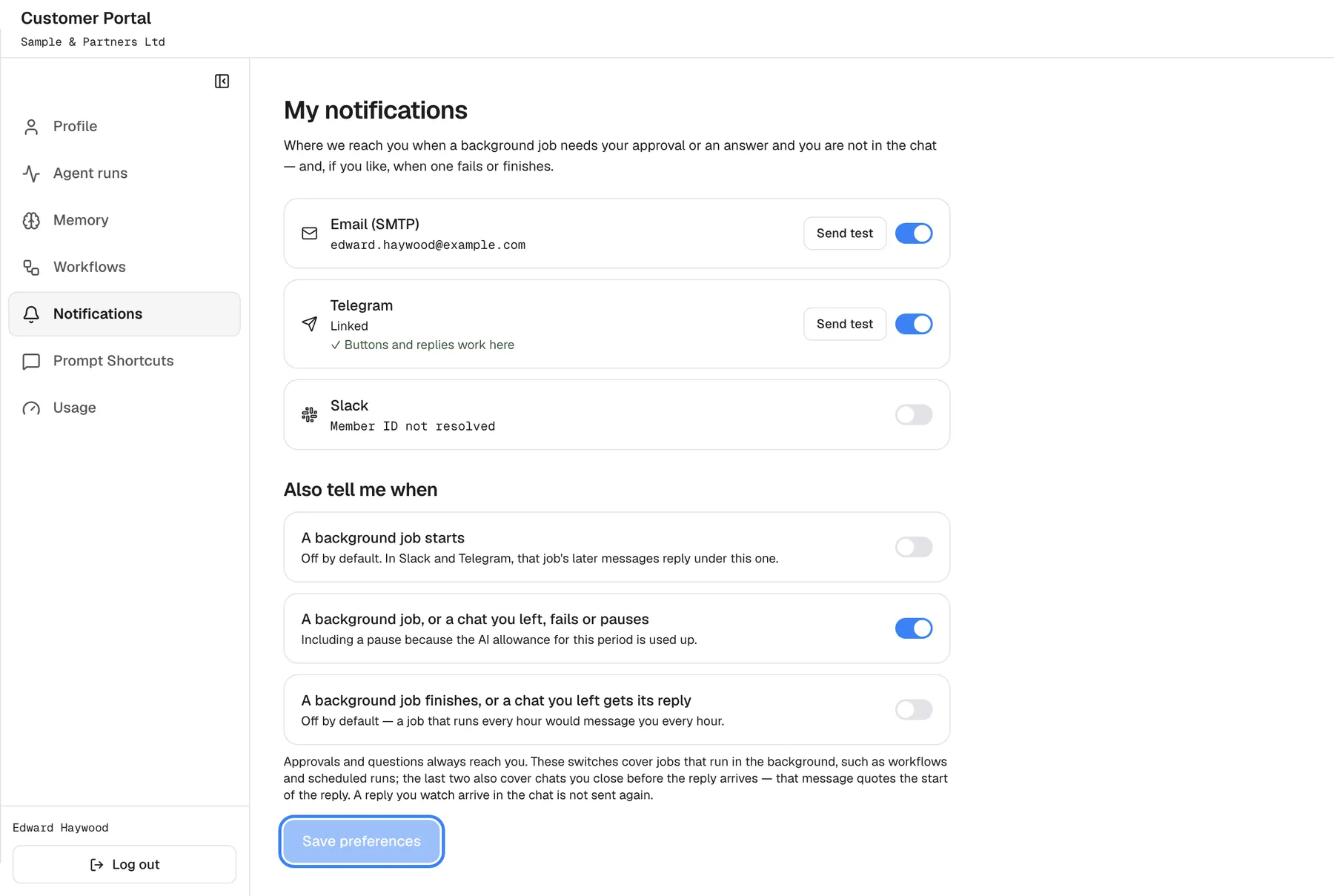
What this screenshot shows
- Screen
- My notifications (/?mode=portal)
- Highlighted
- button “Save preferences”, footer, enabled. saves the switches
- Also visible
- Email (SMTP) on; Telegram Linked and verified; Slack off; Also tell me when: starts off, fails or pauses on, finishes off
- Purpose
- a person's own notification settings
- Open ConfigureNotifications and scroll to My notifications.
- Switch on each card you want. You only see the ways your company can actually deliver.
- Select Save preferences. The message Preferences saved. appears.
- Optional: select Send test on a switched-on card. Test notification sent. confirms that the test went out.
Email goes to the address on your profile; without one, the card reads Add an email to your profile first.. If no channel is available at all, the section reads Your company administrator has not connected any notification channel yet..
Connect a chat app
Section titled “Connect a chat app”| App | How you connect |
|---|---|
| Telegram | Select Connect Telegram. Telegram opens on your company’s bot; press Start there. Back here, select I've pressed Start. The card changes from Not linked yet to Linked. If the link did not open, send the shown /start message to the bot yourself |
| Slack | Switch Slack on. You are found by your email; if not, paste your Slack member ID (it starts with U). For buttons and replies, select Send confirmation to Slack, press Confirm in the message you get in Slack, then select I've confirmed |
| Microsoft Teams | Select Connect Microsoft Teams. Send the shown message, such as link 3f9a1c07b2d4, to the bot in Teams, or use Open in Teams. The card turns to Linked on its own; I've sent it checks at once |
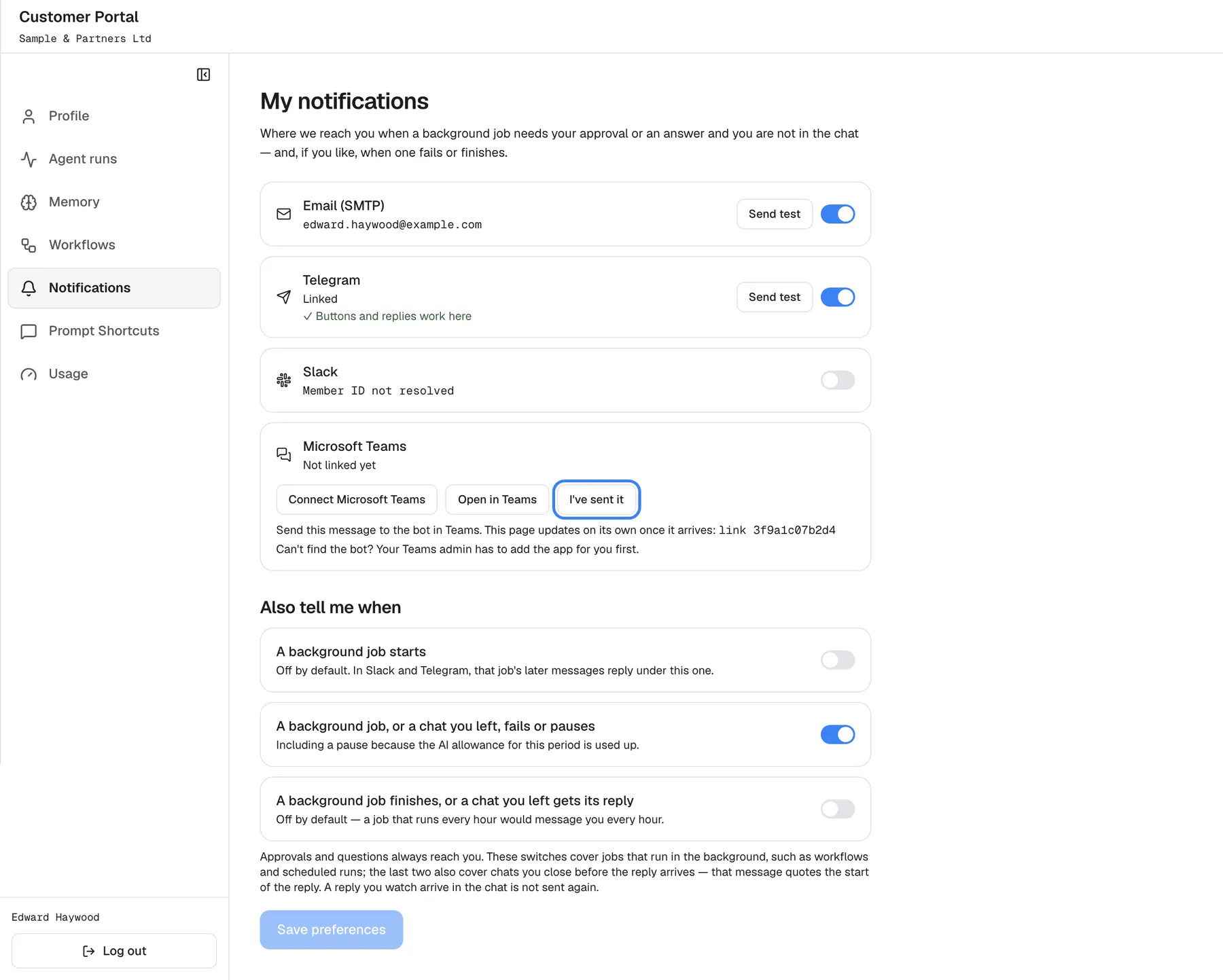
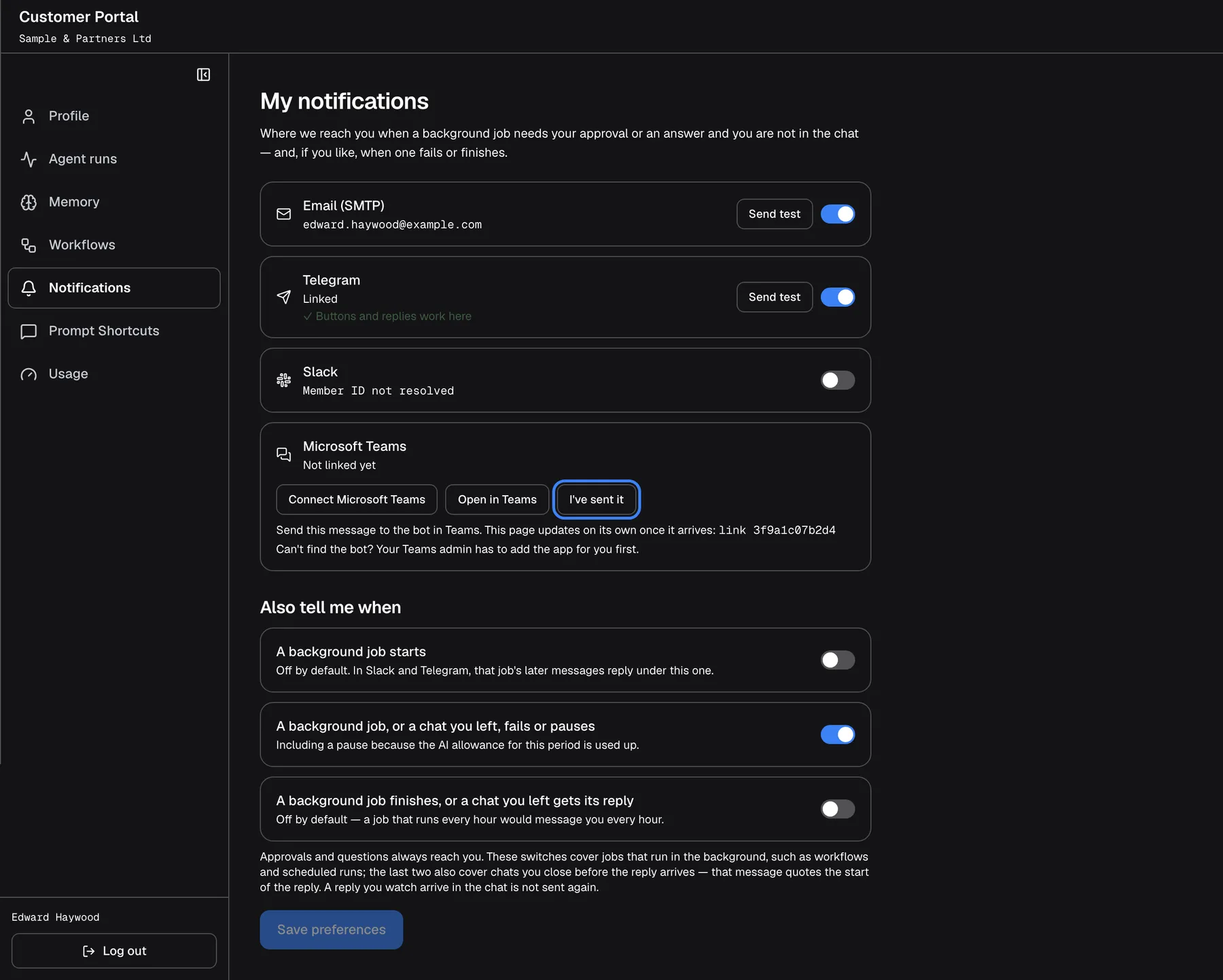
What this screenshot shows
- Screen
- My notifications (/?mode=portal)
- Highlighted
- button “I've sent it”, teams-card, enabled, code shown. checks at once whether the bot received the code
- Also visible
- Microsoft Teams: Not linked yet, message link 3f9a1c07b2d4, Open in Teams
- Purpose
- connecting Microsoft Teams
A connected Telegram, Slack or Teams card shows ✓ Buttons and replies work here when you can also approve and reply there. The codes for Telegram and Teams work for 10 minutes; when one expires, press Connect again. If you cannot find the Teams bot, Can't find the bot? Your Teams admin has to add the app for you first.
Choose what you hear about
Section titled “Choose what you hear about”Under Also tell me when:
| Switch | Default | What it adds |
|---|---|---|
| A background job starts | Off | A message when a background job begins; in Slack and Telegram the job’s later messages reply under it |
| A background job, or a chat you left, fails or pauses | On | A message when a job fails, or pauses because the AI allowance for the period is used up |
| A background job finishes, or a chat you left gets its reply | Off | A message when a job finishes, or when a chat you left gets its reply |
Approvals and questions always reach you, whatever these switches say. A reply you watch arrive in the chat is not sent again, and you get no message about a job while you are looking at it.
Set up company channels (Admins)
Section titled “Set up company channels (Admins)”- On the Notifications page, select the Add button of a provider, or one of the buttons in the empty state.
- Enter a Channel name and the provider’s details. Where do I find these? opens the matching steps in a side panel.
- Select Save.
- Select Test on the new card.
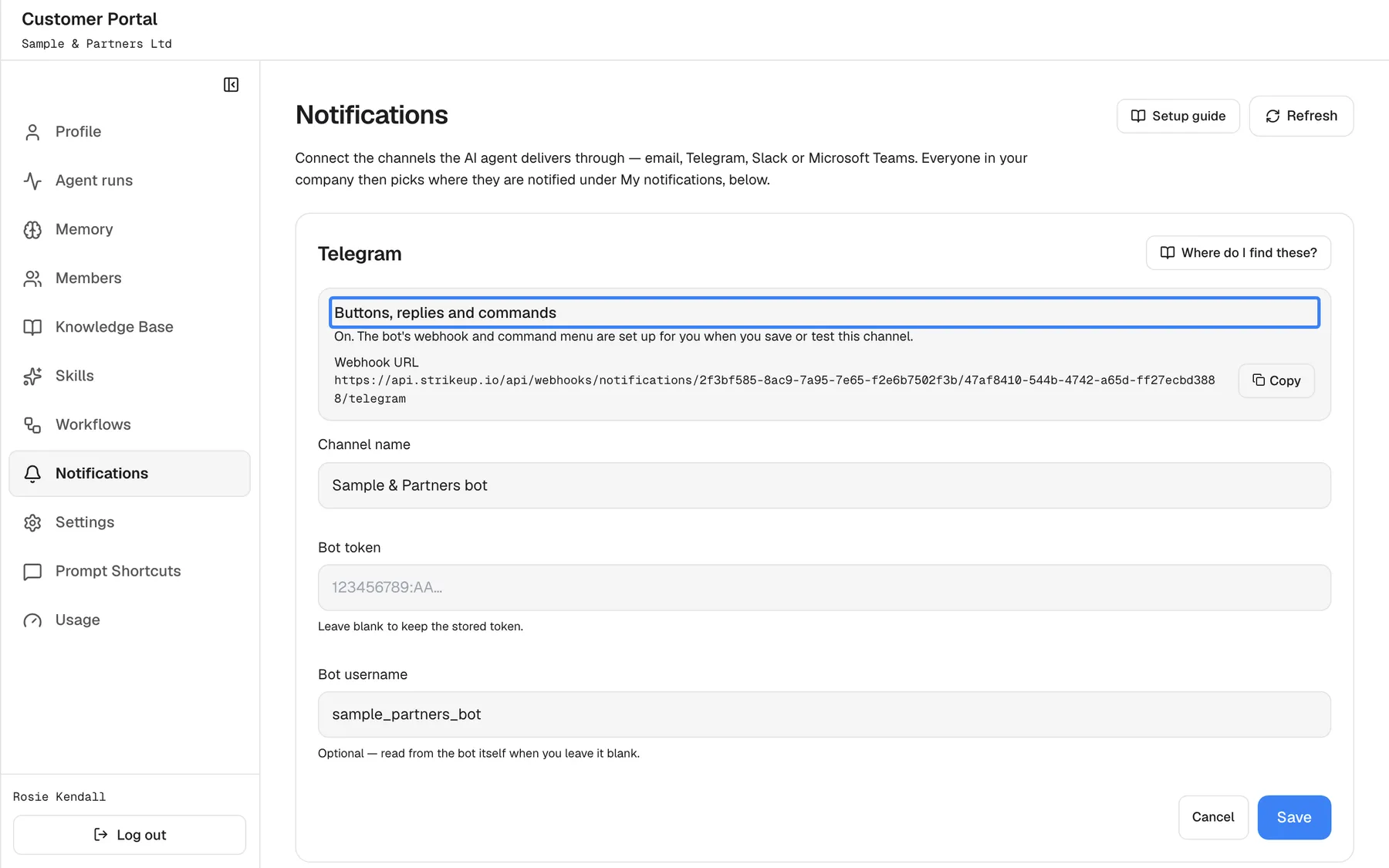
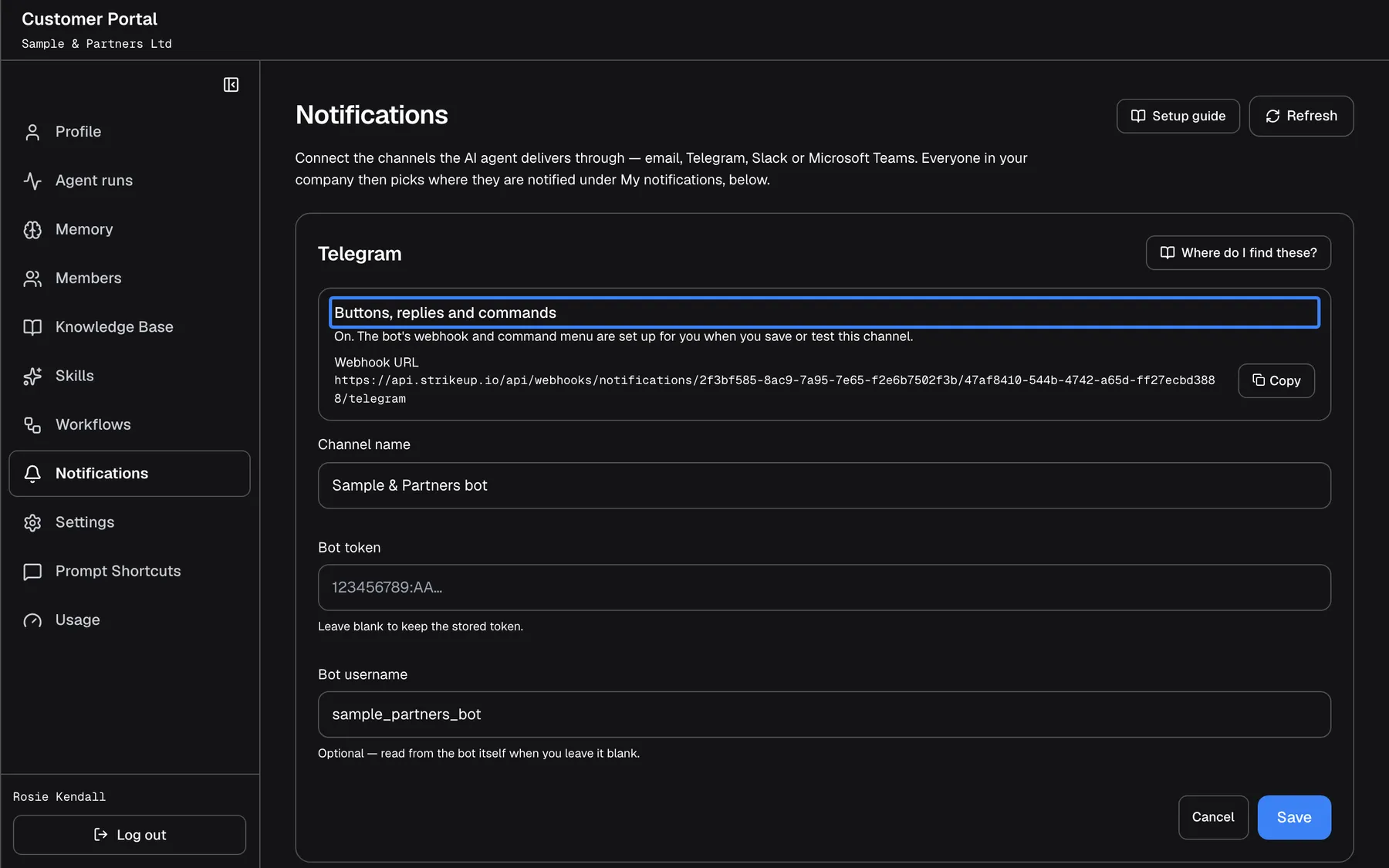
What this screenshot shows
- Screen
- Notifications (/?mode=portal)
- Highlighted
- “Buttons, replies and commands”, inbound-setup-panel, on. none (information)
- Also visible
- Webhook URL with Copy; Channel name, Bot token (blank keeps), Bot username
- Purpose
- a company Telegram bot
Your company can have one channel per provider. A company channel replaces your provider’s channel for everyone in your company. For Telegram the bot’s webhook and commands are set up for you; for Slack the editor shows a ready-made app manifest; for Teams it shows the steps, the messaging endpoint and an app package to download for your Teams admin. A bot test checks the credentials and sends no message; an email test sends a message to the channel’s sender address.
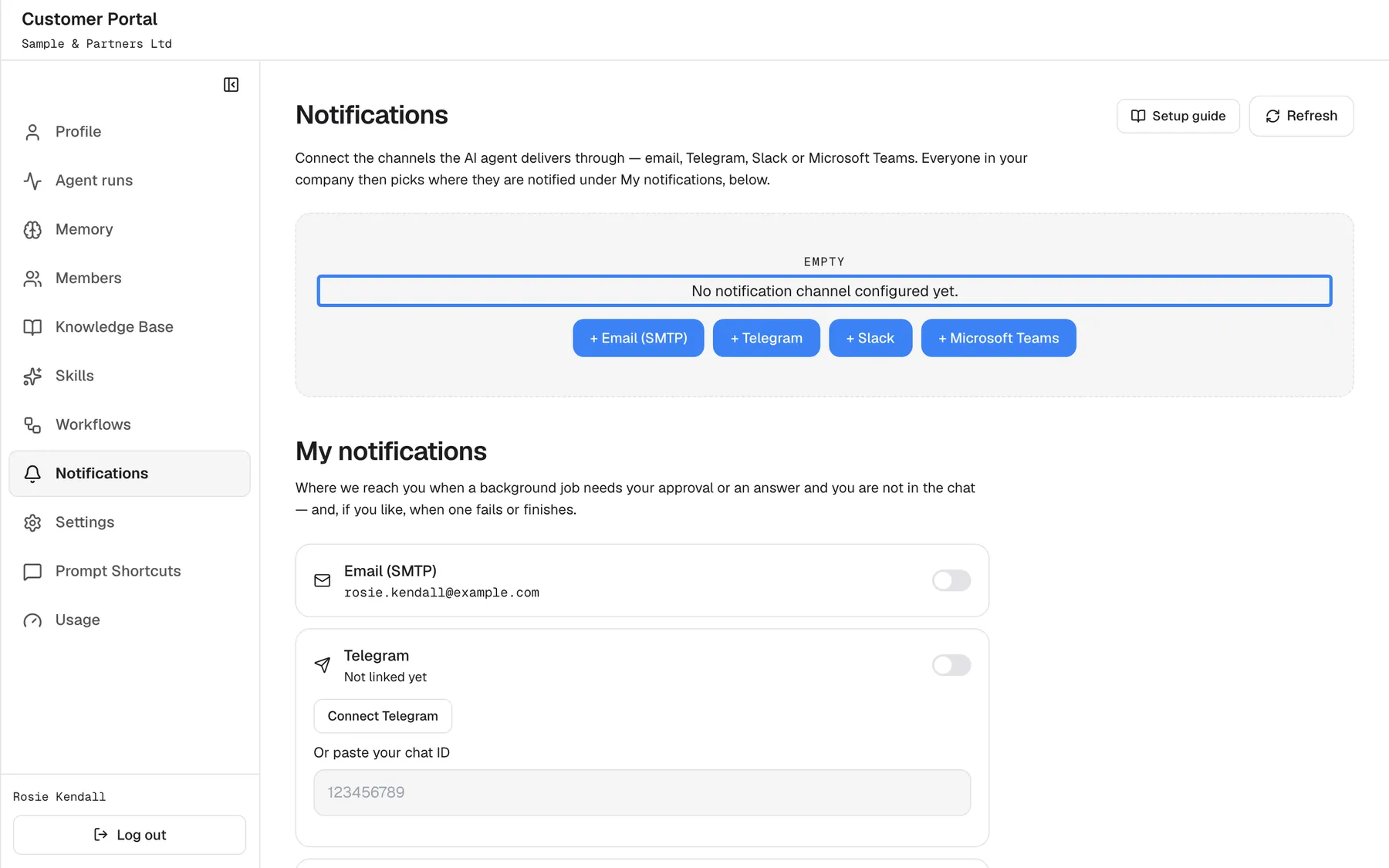
What this screenshot shows
- Screen
- Notifications (/?mode=portal)
- Highlighted
- “No notification channel configured yet.”, empty-state, shown. none
- Also visible
- + Email (SMTP), + Telegram, + Slack, + Microsoft Teams
- Purpose
- a company without channels of its own
Limit approvals from chat apps (Admins)
Section titled “Limit approvals from chat apps (Admins)”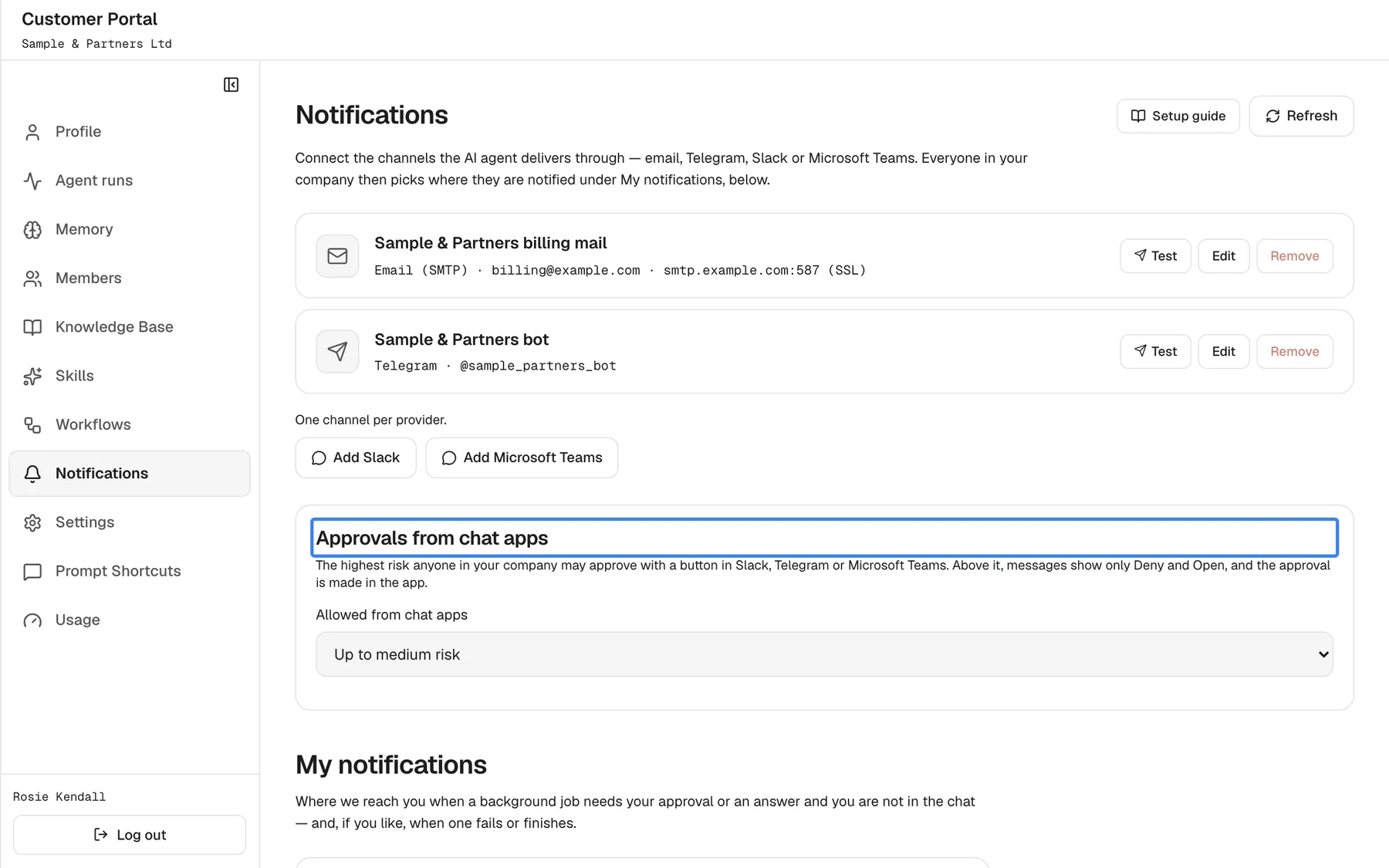
What this screenshot shows
- Screen
- Notifications (/?mode=portal)
- Highlighted
- “Approvals from chat apps”, approval-limit-card, Up to medium risk. choosing a value saves it at once
- Also visible
- Add Slack, Add Microsoft Teams; Allowed from chat apps: Up to medium risk
- Purpose
- limiting approvals from chat apps
Once your company has a Telegram, Slack or Teams channel, the card Approvals from chat apps appears. In Allowed from chat apps, choose Everything (default), Up to medium risk, Low risk only or Deny only. Above the limit, messages show only Deny and Open, and the approval is made in the app. The choice saves at once.
Every control, explained
Section titled “Every control, explained”My notifications cards
Section titled “My notifications cards”Under My notifications, one card per way you can be reached.
A switch and, when on and connected, Send test. Telegram and Teams show Linked or Not linked yet; Slack shows your member ID or Member ID not resolved.
You decide which interruptions are worth it, per channel.
Outcome switches
Section titled “Outcome switches”Under Also tell me when.
Three switches: starts (off), fails or pauses (on), finishes (off). Saved with Save preferences, which becomes active once something changes.
A job that runs every hour would otherwise message you every hour.
Setup guide
Section titled “Setup guide”Setup guide at the top right, and Where do I find these? in each channel form. Admins only.
Opens the setup steps in a side panel next to the form. From a form it shows only that provider’s steps, with Show full guide for the rest. If your provider has not published the guide, the panel says so.
You can follow the steps while you fill in the form.
Company channel cards
Section titled “Company channel cards”At the top of the page, for Admins.
One card per channel with the provider and details, Test, Edit and Remove. Add buttons appear for providers without a channel, under One channel per provider..
Messages to your company can come from your own address or your own bot.
Approvals from chat apps
Section titled “Approvals from chat apps”The card below the company channels, for Admins, once a chat-app channel exists.
The highest risk anyone in your company may approve with a button in a chat app. A change saves at once.
Destructive actions can require the full view in the app.
Who sees what
Section titled “Who sees what”| Part | Who |
|---|---|
| My notifications | Everyone signed in to the portal |
| Company channels, the setup guide and the approval limit | Admins of your company, when your provider shows the notification channels page |
What you need to know
Section titled “What you need to know”| Topic | Fact |
|---|---|
| Defaults | Every channel starts off; failures and pauses are on, starts and finishes are off. |
| Always sent | Approvals and questions from a background job always reach you on your switched-on channels. |
| Watching | You get no message about a job you are looking at. |
| One per provider | Your company can have one channel per provider. |
| Slack | Slack reaches you only in the Slack workspace your company’s app is installed in. |
| Teams | The Teams bot works in its 1:1 chat and only for its own organisation. |
Frequently asked questions
Section titled “Frequently asked questions”My notifications
Section titled “My notifications”Why don’t I get any notifications?
Section titled “Why don’t I get any notifications?”Every channel starts switched off. On ConfigureNotifications, switch on at least one card under My notifications and select Save preferences. Telegram, Slack and Teams also need your account connected.
Why don’t I see Slack or Teams?
Section titled “Why don’t I see Slack or Teams?”You only see the ways your company can deliver. If your company and your provider have no Slack or Teams channel, the card is not shown on ConfigureNotifications. Ask your company’s Admin.
Will I get a message for every scheduled run?
Section titled “Will I get a message for every scheduled run?”Only if you switch on A background job finishes, or a chat you left gets its reply under Also tell me when on ConfigureNotifications. It is off by default. Approvals and questions reach you regardless.
Do I get a message when I am in the chat?
Section titled “Do I get a message when I am in the chat?”No. You get no message about a job you are looking at, and a reply you watch arrive in the chat is not sent again. If you close the chat first, the reply reaches you on your channels when you switched on finishes.
Chat apps
Section titled “Chat apps”How do I connect Telegram?
Section titled “How do I connect Telegram?”On ConfigureNotifications, select Connect Telegram, press Start in Telegram, then select I've pressed Start. The code works for 10 minutes; press Connect again for a new one.
What is my Slack member ID?
Section titled “What is my Slack member ID?”The ID Slack gives your account, starting with U. In Slack, click your profile picture, choose Profile, click the ⋮ button and choose Copy member ID, then paste it into Slack member ID on ConfigureNotifications.
Why can’t I approve from Telegram although messages arrive?
Section titled “Why can’t I approve from Telegram although messages arrive?”The account was not connected through the bot, for example by pasting a chat ID. On ConfigureNotifications, select Connect Telegram and press Start in the bot; the card then shows ✓ Buttons and replies work here.
Company channels
Section titled “Company channels”Do we need our own channels?
Section titled “Do we need our own channels?”No. Without them your provider’s channels deliver for your company. Add a company channel on ConfigureNotifications when messages must come from your own address or bot, or when your people use their own Microsoft 365 organisation for Teams.
Why can’t we add a second email channel?
Section titled “Why can’t we add a second email channel?”Your company can have one channel per provider, and a second one is refused. On ConfigureNotifications, edit the existing channel instead of adding another.
Troubleshooting
Section titled “Troubleshooting”| Symptom | What to check |
|---|---|
| Saving your company’s email channel says “Enter the SMTP password again: the host, port or username changed, or SSL was turned off.” | Type the password again and save. The stored password is kept only for the server it was entered for. |
| The email channel test says the SMTP port is not allowed, or the host is not a public internet address | Use port 25, 465, 587, 2465, 2525 or 2587 and a mail server reachable from the internet. |
| Your company administrator has not connected any notification channel yet. | Neither your company nor your provider has a channel yet. Ask your company’s Admin. |
| No Start message found yet — press Start in the bot, then try again. | Press Start in the Telegram bot first, then select I've pressed Start again. |
| The code has expired. Press Connect again. | Select Connect Microsoft Teams again and send the new message. |
| Slack shows Member ID not resolved | Your Slack email differs from your profile email; paste your member ID. |
| A test fails | Read the message under the card; for a company channel, check its credentials with the setup guide. |