

Chat history and activity
Every conversation you have with the assistant is kept, so you can come back to it, carry on, or find what the assistant told you last week. Your chats live in the history sidebar, which you open with the menu icon at the top left of the assistant’s window. When the window is wide enough, the welcome screen also shows the activity of tasks the assistant runs for you in the background, starting with those that need you. This page explains both.
What you can do here
Section titled “What you can do here”- Reopen an earlier chat. Your chats are grouped by date, newest first; selecting one opens it and you can carry on. Reopen an earlier chat.
- Find a chat by its title. The search box filters your chats as you type. Find a chat.
- Rename or delete a chat. Give a chat a clearer name of up to 100 characters, or delete it for good. Rename or delete a chat.
- Switch between light and dark mode. The sun or moon icon in the history’s header switches the theme. Every control, explained.
- Follow background runs. On a wide window, the welcome screen lists runs that need you, are in progress or have finished. Background activity on the welcome screen.
The screen at a glance
Section titled “The screen at a glance”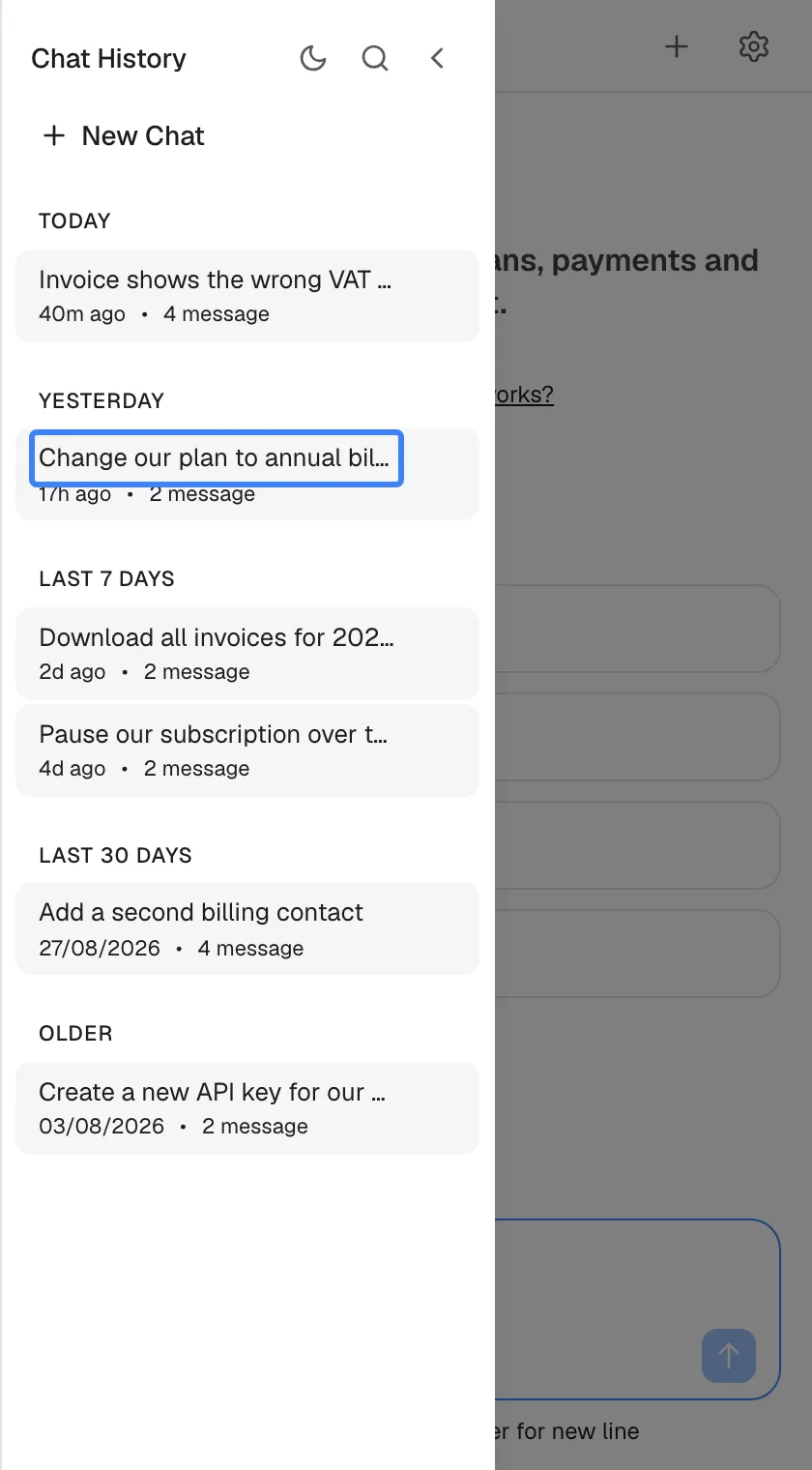
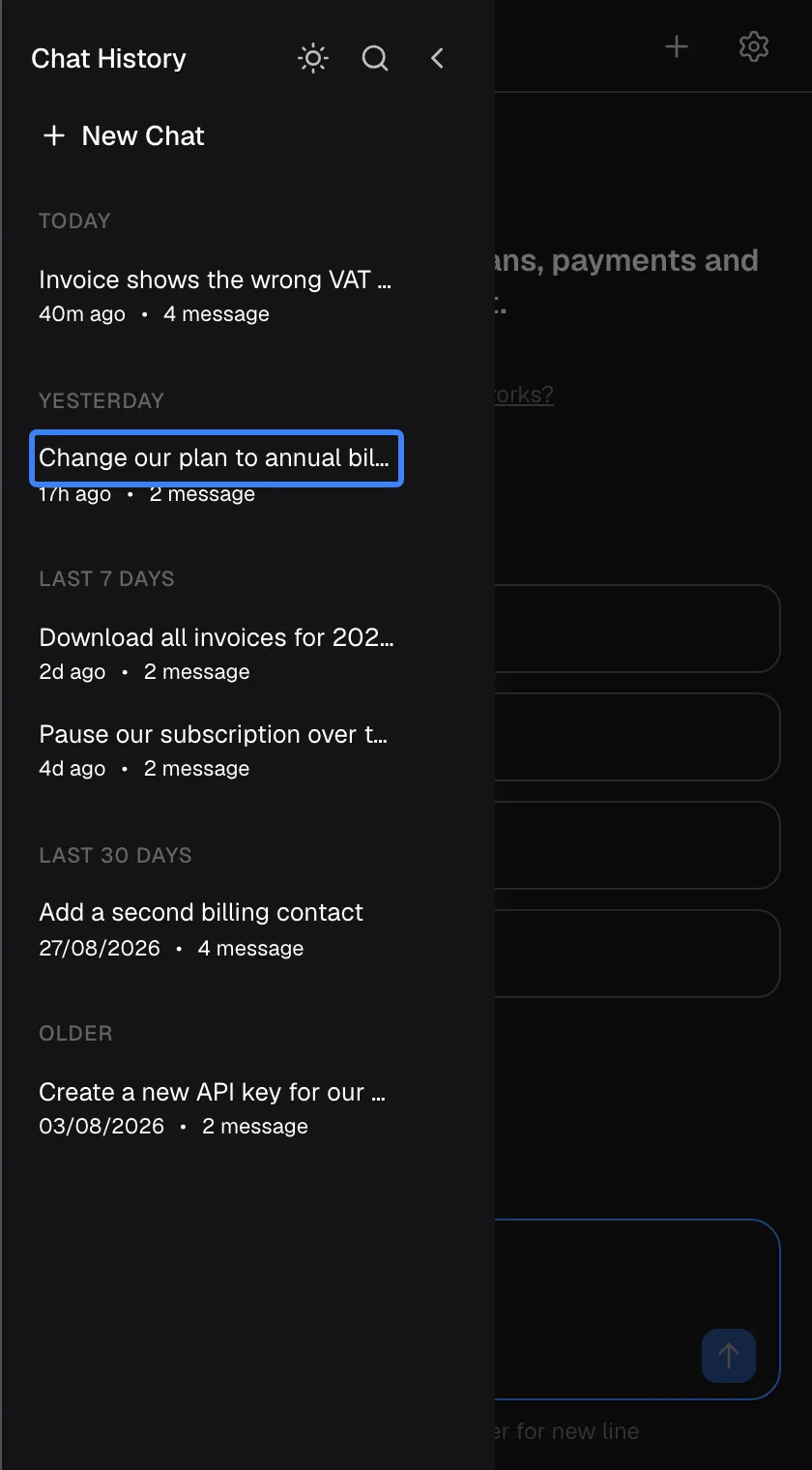
What this screenshot shows
- Screen
- Chat History (/?applicationToken=…)
- Highlighted
- “”, sidebar-list, listed under widget.chat.yesterday. reopens the chat
- Also visible
- Groups today / yesterday / last 7 days / last 30 days / older, relative times, message counts; widget.theme.switchToDark, widget.chat.searchChats, widget.chat.newChat
- Purpose
- the history sidebar
| Region | What it shows | What you do there |
|---|---|---|
| Header | Chat History, the sun or moon icon, the search icon and the arrow that closes the sidebar | Switch theme, search, close |
| New Chat | A button under the header | Start a new chat |
| Chat list | Your chats under Today, Yesterday, Last 7 days, Last 30 days and Older, each with its title, when it was last active and a message count | Open, rename or delete a chat |
| Bottom panel (only for some providers) | Toolkit Status, the services that use your own login | Manage your saved logins |
| The dimmed chat behind | The chat or welcome screen you came from | Click it to close the sidebar |
Reopen an earlier chat
Section titled “Reopen an earlier chat”-
Select the menu icon (Open chat history) at the top left of the assistant’s window. The history sidebar slides in from the left.
-
Find the chat in its date group, or search for it (Find a chat).
-
Select the chat. It opens with its messages, and the sidebar closes.
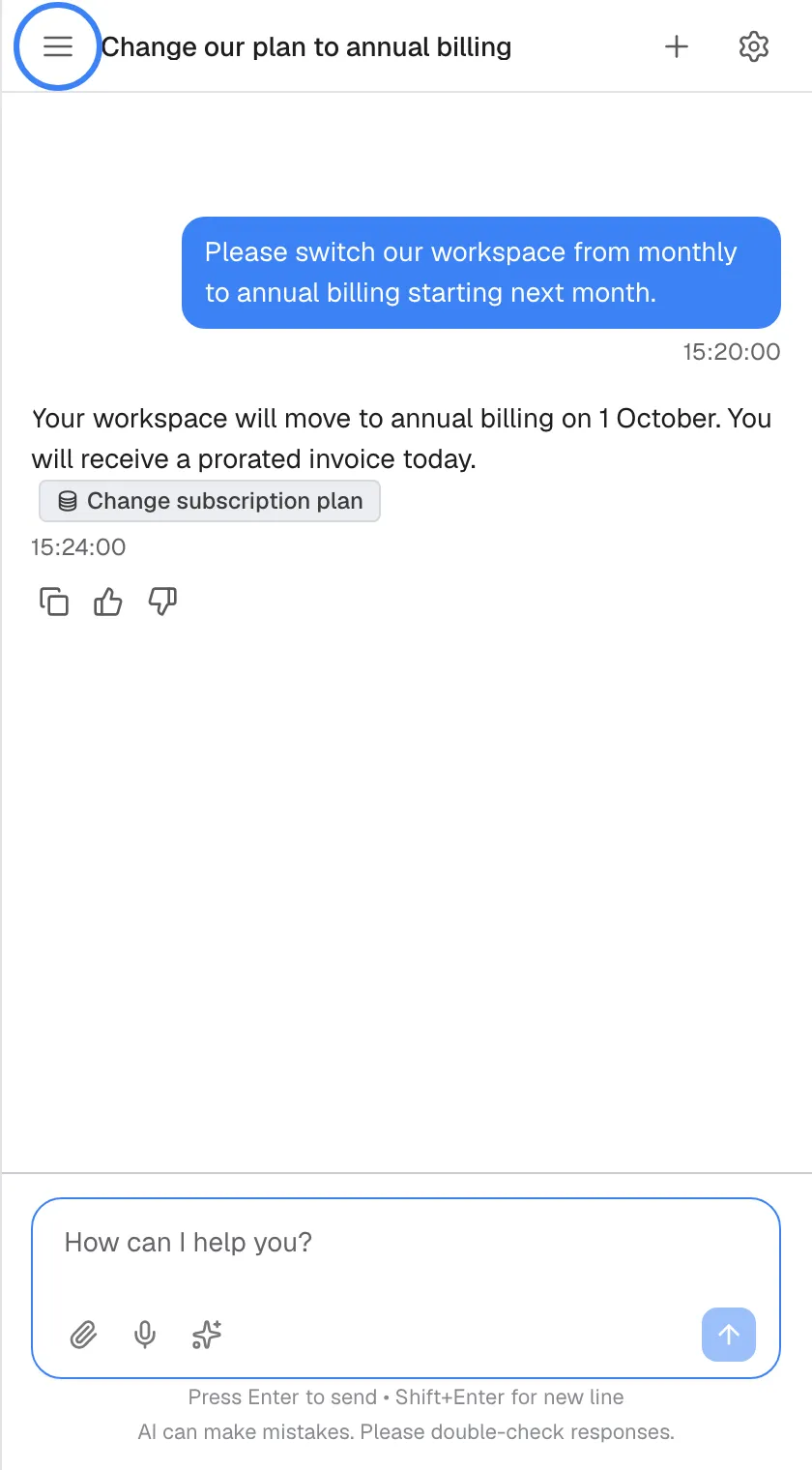
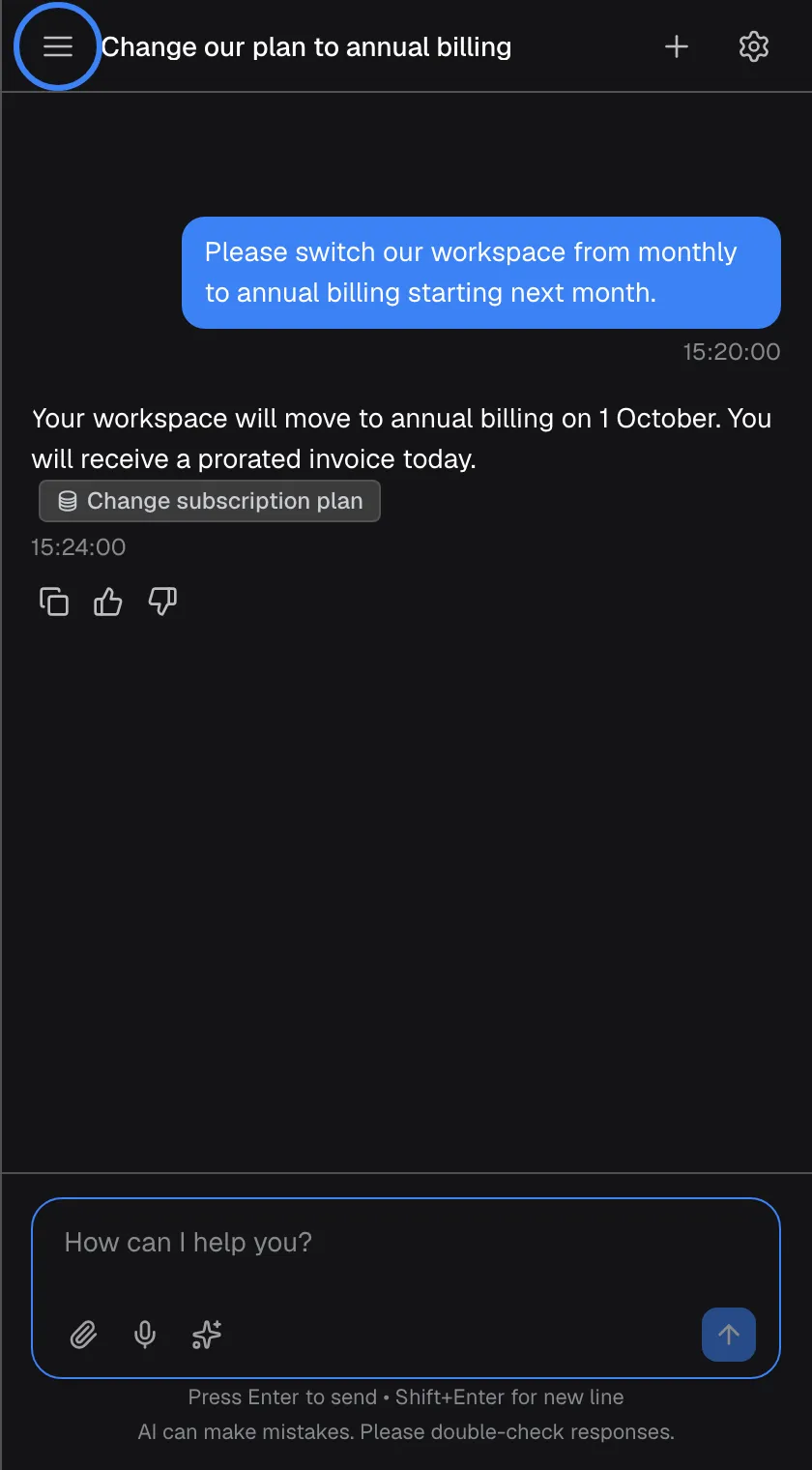
A reopened chat shows its messages and you can carry on where you left off. What this screenshot shows
- Screen
- How can I help you? (/?applicationToken=…)
- Highlighted
- button “Open chat history”, top-bar-left, enabled. opens the history sidebar
- Also visible
- Earlier question and answer
- Purpose
- reopening a chat
-
Type in the message box to carry on the conversation.
A reopened chat shows its latest 50 messages. To see earlier ones, scroll to the top and select Load older messages. Your messages, the assistant’s answers, approval decisions, and any conversation with a person from your provider’s team are all kept. Notices that were shown only in your window, such as The assistant is temporarily unavailable. Please try sending your message again., are not.
Each row shows when the chat was last active: Just now, minutes, hours or days ago for the last week, and a date after that. The message count includes your messages and the assistant’s answers.
Your history follows your access. When the product you use tells the assistant who you are, you see the same chats on every device where you use it. Otherwise the history belongs to this browser: on another browser or device, or after you clear this site’s data, the assistant asks you to set up your access again and the history starts empty.
Find a chat
Section titled “Find a chat”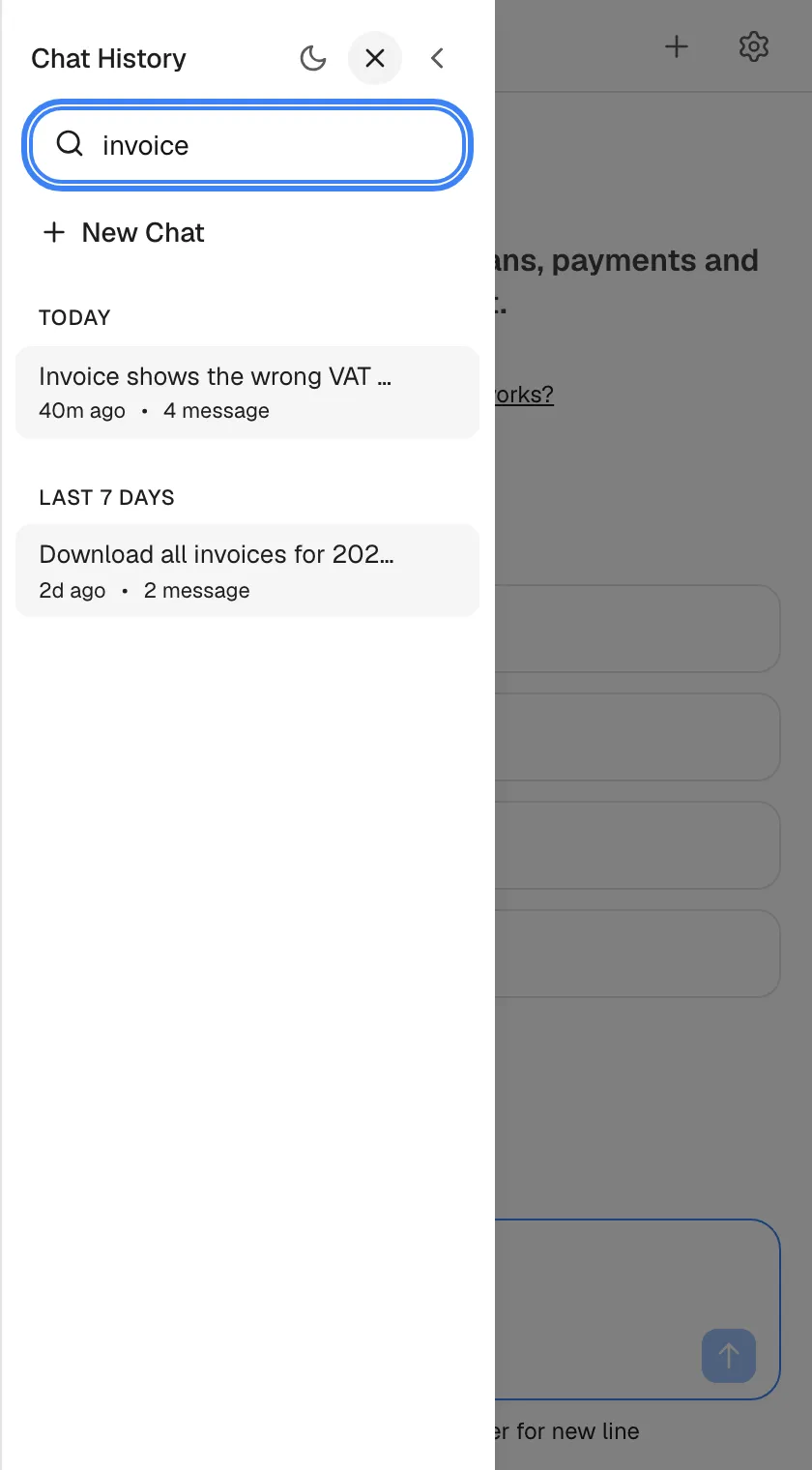
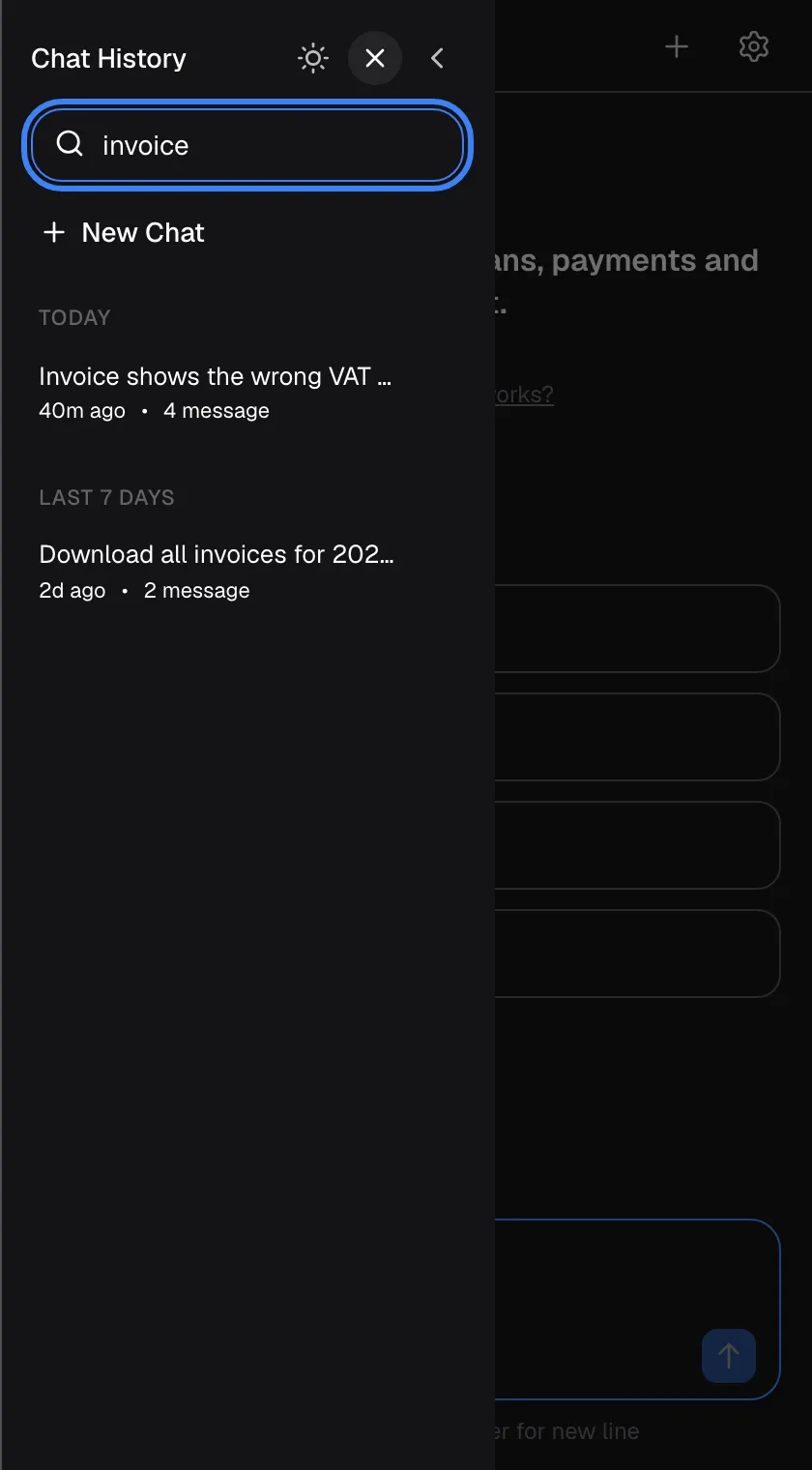
What this screenshot shows
- Screen
- Chat History (/?applicationToken=…)
- Highlighted
- textbox “Search chats...”, sidebar-top, filled. filters the list by title
- Also visible
- Filtered chat list
- Purpose
- search chats
Select the search icon (Search chats) in the header, and type in the box Search chats.... The list shows only chats whose title contains what you typed, ignoring upper and lower case. The search does not look inside messages. If nothing matches, you see No chats found and Try a different search term.
Chat titles are written by the assistant after its first answer, so a clear rename makes a chat easier to find later.
Rename or delete a chat
Section titled “Rename or delete a chat”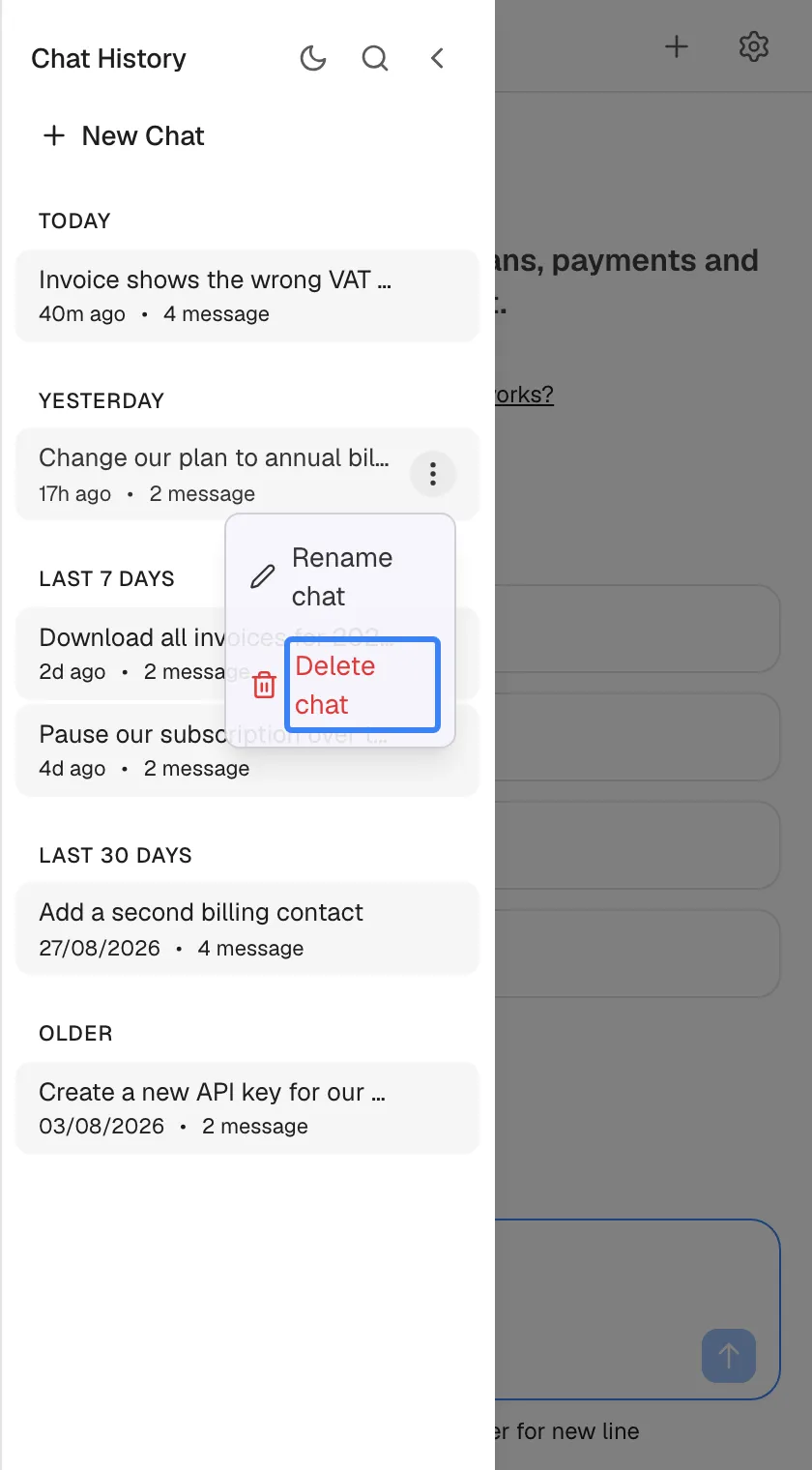
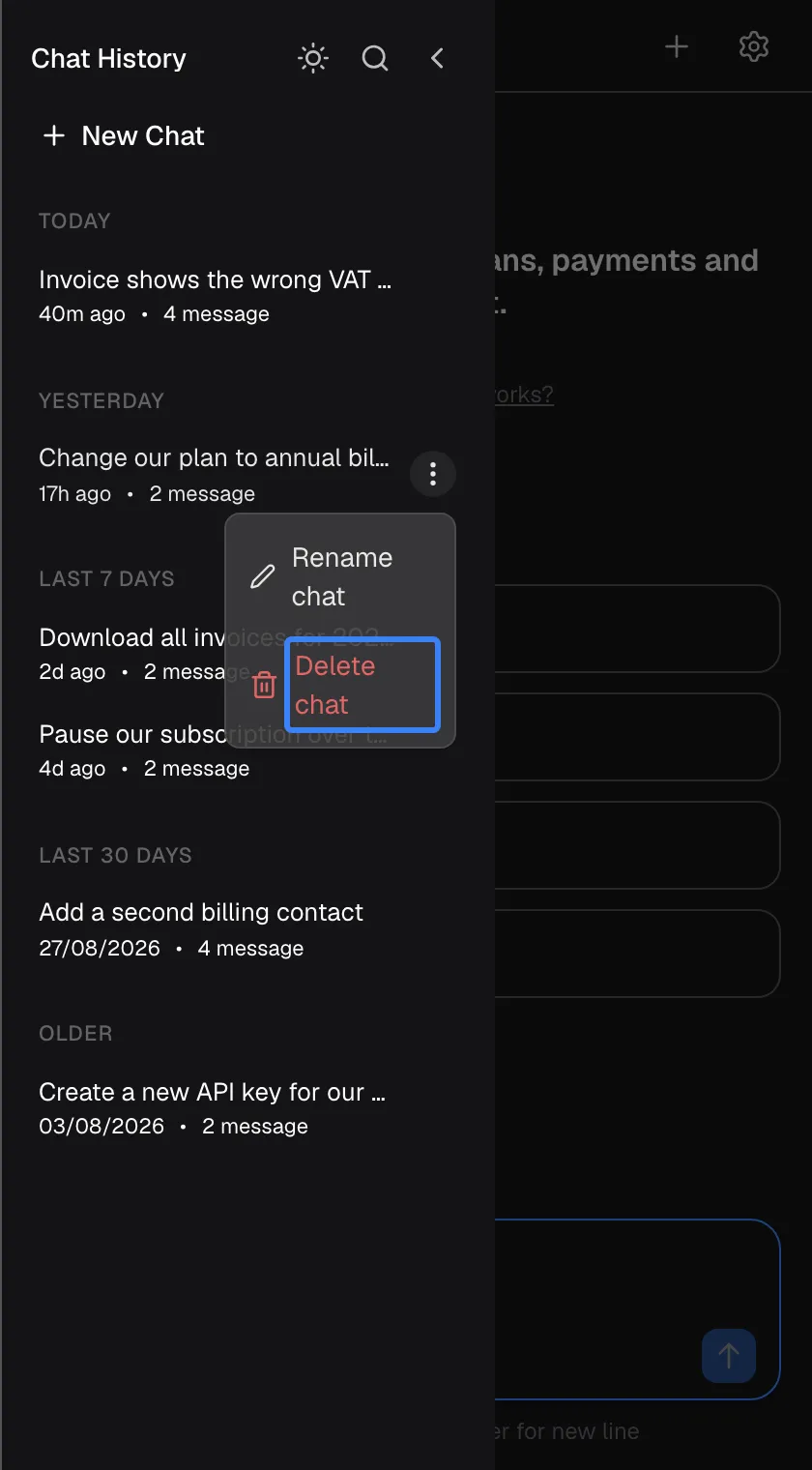
What this screenshot shows
- Screen
- Chat History (/?applicationToken=…)
- Highlighted
- “Delete chat”, row-menu, menu open. deletes the chat immediately (no confirmation)
- Also visible
- widget.chat.renameChat
- Purpose
- rename or delete a chat
Hover over a chat in the list and select its three-dot menu (More options):
- Rename chat opens a small dialog. Type a new name of up to 100 characters in Enter chat name and select Confirm, or Cancel to keep the old name.
- Delete chat removes the chat and its messages from your history immediately, without asking for confirmation. It cannot be restored.
Background activity on the welcome screen
Section titled “Background activity on the welcome screen”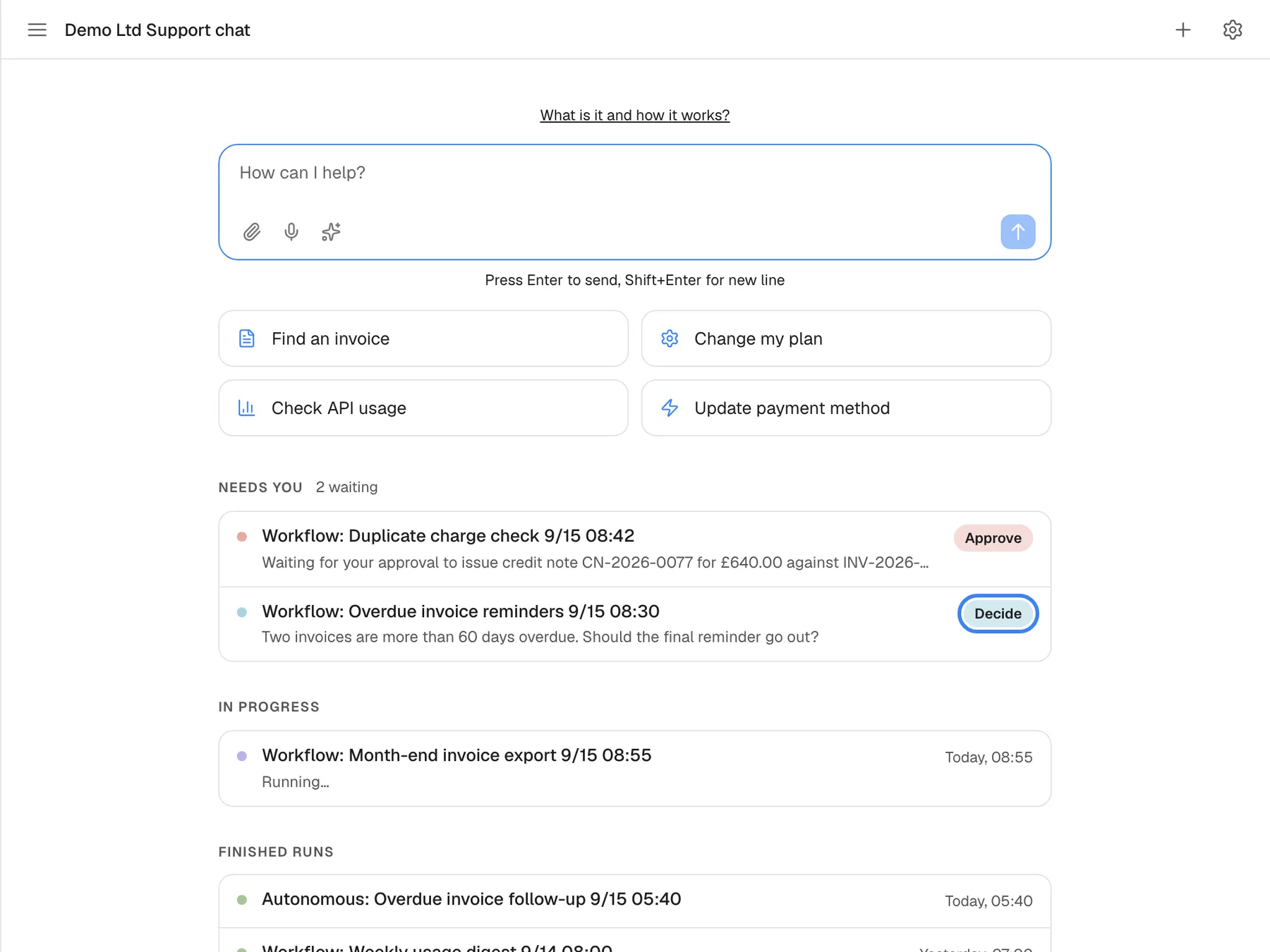
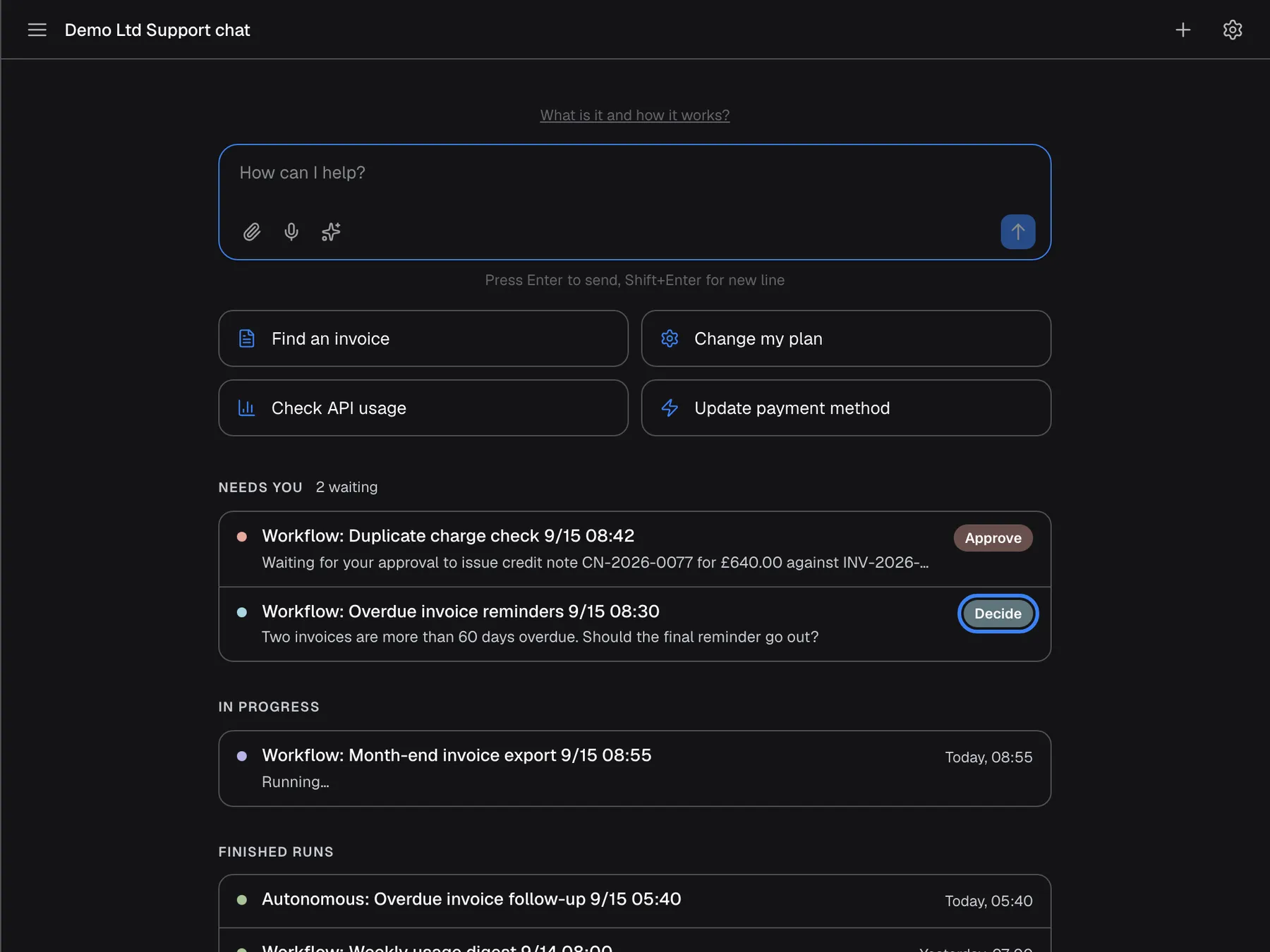
What this screenshot shows
- Screen
- Needs you (/?applicationToken=…)
- Highlighted
- button “Decide”, activity-panel, enabled. opens Customer Portal › Agent runs at this run
- Also visible
- widget.activity.needsYou / inProgress / finished sections
- Purpose
- agent activity panel (a different viewport because it shows only at 700 px and wider)
Some tasks run without a chat, for example a scheduled workflow or a run started from the customer portal. When you are signed in and the assistant’s window is at least 700 pixels wide, the welcome screen lists those runs under three headings:
| Heading | What it lists | What you can do |
|---|---|---|
| Needs you, with the number waiting | Runs waiting for your approval or your answer | Approve approves the waiting step on the spot; Decide opens the run in the customer portal |
| In progress | Runs still working, marked Running… | Wait; the list updates when the run changes |
| Finished runs | Completed runs, and runs marked Failed or Cancelled | Open them in the customer portal to read the result |
Each heading shows up to 6 runs, with the run’s title, a short summary and the time. The list shows your own runs; if you are an Admin of your company’s account, it shows all of your company’s runs. It refreshes when you come back to the window and when a run changes. The panel only appears when there is at least one run to show, and never in the narrow corner window. Your normal chats do not appear here; they are in the history.
Every control, explained
Section titled “Every control, explained”The controls of the history sidebar and the activity list are described below in screen order.
Menu icon
Section titled “Menu icon”At the top left of the assistant’s window, labelled Open chat history.
Opens the history sidebar from the left over a dimmed chat.
Your earlier chats are one click away without leaving the chat you are in.
Light and dark mode
Section titled “Light and dark mode”The sun or moon icon in the sidebar’s header, labelled Switch to Light Mode or Switch to Dark Mode.
Switches the whole assistant between light and dark. Your choice is remembered in this browser, unless your provider has set a fixed theme, which applies again each time the assistant opens.
It is the only theme switch in the assistant, so it lives where you can always reach it.
Search
Section titled “Search”The magnifier icon in the sidebar’s header, labelled Search chats.
Opens a search box that filters the list by chat title as you type, ignoring case. Messages are not searched.
With many chats, the title is the quickest way back to the one you need.
Close the sidebar
Section titled “Close the sidebar”The arrow at the right of the sidebar’s header, labelled Collapse sidebar, or the dimmed area beside the sidebar.
Closes the sidebar and returns you to the chat or welcome screen you came from.
The sidebar covers the chat, so it closes as soon as you are done.
New Chat
Section titled “New Chat”The button under the sidebar’s header, labelled New Chat.
Closes the sidebar and opens the welcome screen, so your next message starts a new chat.
It does the same as the plus icon in the top bar, from where you already are.
Chat row and its menu
Section titled “Chat row and its menu”Each chat in the list. The three-dot menu (More options) appears at the right of the row when you hover over it.
Selecting the row opens the chat. The menu offers Rename chat (up to 100 characters) and Delete chat (immediate, no confirmation, no undo).
Renaming makes chats easy to find; deleting removes those you no longer want.
Load older messages
Section titled “Load older messages”At the top of a reopened chat with more than 50 messages, labelled Load older messages.
Loads the next earlier messages; it shows Loading... while working.
Long chats open quickly with their latest messages, and you load the rest only if you need it.
Saved logins panel
Section titled “Saved logins panel”At the bottom of the sidebar, titled Toolkit Status, only when one of your provider’s services uses your own login.
Lists those services, with a way to remove your saved login or enter one. See Connect your account to the assistant.
You can manage which services the assistant uses as you, from the same place as your chats.
Approve and Decide in the activity list
Section titled “Approve and Decide in the activity list”At the right of each run under Needs you on the welcome screen.
Approve approves the run’s waiting step directly; if that fails, Couldn't approve that run. appears. Decide opens the run in the customer portal, where you can read and answer its question.
A background task that needs you can carry on without a detour through the portal.
Who sees what
Section titled “Who sees what”| Part | When it appears |
|---|---|
| History sidebar | Always, from the menu icon |
| Toolkit Status panel | When one of your provider’s services uses your own login |
| Activity on the welcome screen | When you are signed in, the window is at least 700 pixels wide, and there is at least one background run |
| All of your company’s runs in the activity list | When you are an Admin of your company’s account; otherwise only your own runs |
What you need to know
Section titled “What you need to know”| Topic | Fact |
|---|---|
| Order | Newest activity first, grouped by date |
| Search | Titles only, ignoring case |
| Rename | Up to 100 characters |
| Delete | Immediate, no confirmation, no undo |
| Reopening | Shows the latest 50 messages; older ones on request |
| What is kept | Your messages, answers, approval decisions and conversations with a person; not error notices |
| Automatic deletion | The assistant does not delete chats from your history by itself |
| Activity | Background runs only, up to 6 per heading, on windows at least 700 pixels wide |
Frequently asked questions
Section titled “Frequently asked questions”History
Section titled “History”Where are my old chats?
Section titled “Where are my old chats?”Select the menu icon at the top left of the assistant’s window. The history sidebar opens with your chats grouped under Today, Yesterday, Last 7 days, Last 30 days and Older. Select a chat to reopen it.
Can I search inside my messages?
Section titled “Can I search inside my messages?”No. The search box in the history sidebar filters chats by their title only, ignoring upper and lower case. To make a chat easier to find, rename it with a title that contains the words you will search for.
Why do I only see some messages when I reopen a chat?
Section titled “Why do I only see some messages when I reopen a chat?”A reopened chat loads its latest 50 messages so it opens quickly. Scroll to the top of the chat and select Load older messages to load earlier messages.
Are my chats deleted automatically?
Section titled “Are my chats deleted automatically?”The assistant does not delete chats from your history by itself. A chat stays in your history until you delete it with Delete chat in the chat’s three-dot menu.
Who can see my chats?
Section titled “Who can see my chats?”You, and your provider’s team, who can look at conversations with the assistant, for example when you contact them for help. Other people in your company do not see your chats in their history.
Renaming and deleting
Section titled “Renaming and deleting”How do I rename a chat?
Section titled “How do I rename a chat?”Open the history sidebar, select the three-dot menu next to the chat and choose Rename chat. Type a new name of up to 100 characters and select Confirm.
I deleted a chat by mistake. Can I get it back?
Section titled “I deleted a chat by mistake. Can I get it back?”No. Delete chat removes the chat and its messages from your history at once, without asking for confirmation, and the assistant has no undo. Before you delete a chat, note anything from it you may still need.
Why did my chat get a title I did not choose?
Section titled “Why did my chat get a title I did not choose?”The assistant writes a title after its first answer, based on the conversation. Until then the chat is called New Chat. You can rename it at any time from the chat’s three-dot menu.
Activity
Section titled “Activity”What is “Needs you” on the welcome screen?
Section titled “What is “Needs you” on the welcome screen?”Needs you lists background runs, such as scheduled workflows, that are waiting for your approval or your answer. Approve approves the waiting step directly; Decide opens the run in the customer portal.
Why don’t I see the activity list?
Section titled “Why don’t I see the activity list?”It appears only when you are signed in, the assistant’s window is at least 700 pixels wide, and there is at least one background run. In the usual corner window it never shows; open the customer portal with the gear icon to see your runs instead.
Does “Approve” in the activity list approve everything?
Section titled “Does “Approve” in the activity list approve everything?”It approves the waiting step of that one run. Other runs under Needs you keep waiting until you approve or decide on them separately.
Why do I see runs started by colleagues?
Section titled “Why do I see runs started by colleagues?”You are an Admin of your company’s account, so the activity list shows all of your company’s background runs, not only your own. Members see only their own runs.
Troubleshooting
Section titled “Troubleshooting”| Symptom | What to check |
|---|---|
| The history is empty (No chat history yet) | You have not chatted yet with this account in this product, or you are signed in with a different account. |
| A chat has disappeared | It may have been deleted; deleting happens without confirmation. |
| Search finds nothing | Search looks at titles only. Try a word from the title, or scroll the list. |
| Couldn't load recent activity. | The connection dropped or your sign-in ended. Close and reopen the assistant. |
| Couldn't approve that run. | The step may already be decided. Select Decide to open the run in the customer portal. |
| No activity list on the welcome screen | The window is narrower than 700 pixels, you are not signed in, or there are no background runs. |
| Older messages are missing in a reopened chat | Scroll to the top and select Load older messages. |