

Ask questions
Every conversation with the assistant starts here: on the welcome screen when you open it, or in the message box at the bottom of an open chat. You can pick one of your provider’s shortcut cards, type your own question, speak it, attach a file, or start from a ready-made prompt. While the assistant works you see what it is doing, and you can stop it at any time. This page explains each of these, plus quick options, the messages you get when the assistant cannot answer, and starting a new chat.
What you can do here
Section titled “What you can do here”- Start with a shortcut card. Your provider can put up to 8 cards on the welcome screen; selecting one sends its question straight away. Start with a shortcut card.
- Type a question. Enter sends, Shift+Enter starts a new line, and there is no length limit. Type and send a question.
- Attach files. Images, PDFs, CSV and XML files of up to 10 MB each, 5 per message. Attach files.
- Speak instead of typing. Record for up to 2 minutes; the text appears in the box for you to check before sending. Speak your question.
- Use prompt shortcuts. Type
/to pick a ready-made prompt from your provider or your company. Use prompt shortcuts. - Follow and stop an answer. Watch the steps while the assistant works, and stop it with the stop button or Esc. While the assistant works.
- Reply with a quick option. Select one of the buttons under an answer to send it as your reply. Reply with a quick option.
- Understand when there is no answer. A short message explains when your provider’s rules, a busy service or a slow connection got in the way. When the assistant does not answer.
- Start a new chat. The plus icon starts afresh; your earlier chat stays in your history. Start a new chat.
The screen at a glance
Section titled “The screen at a glance”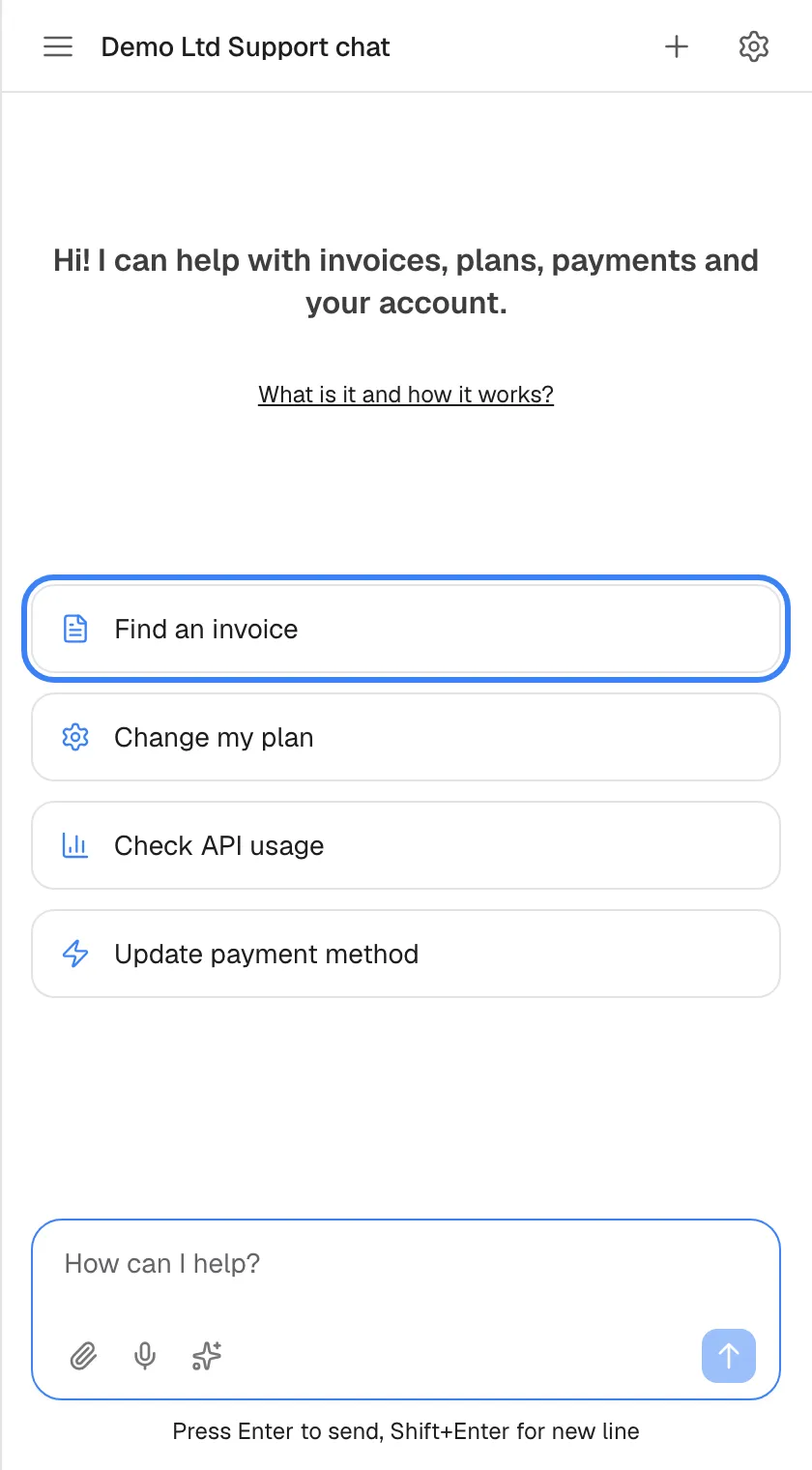
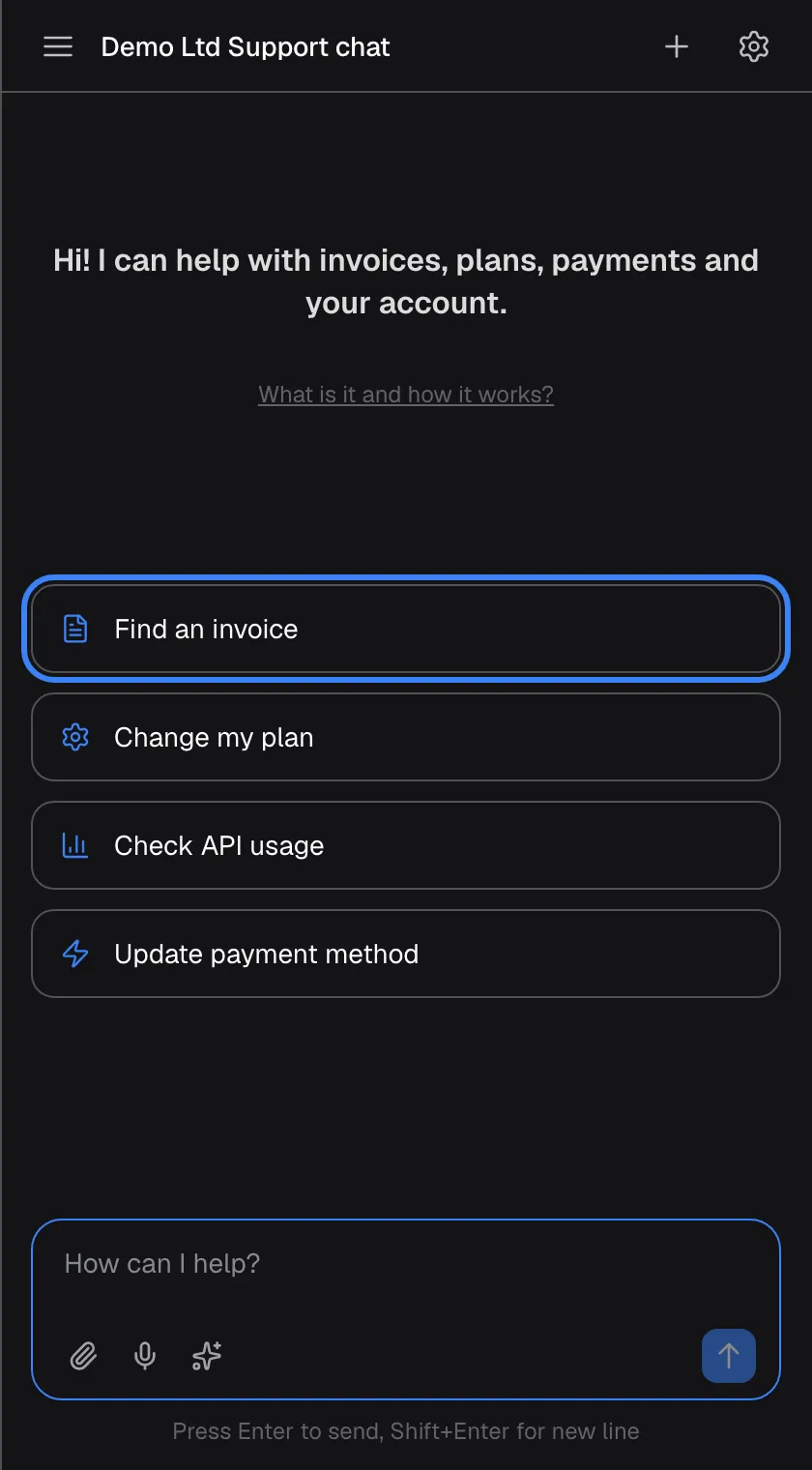
What this screenshot shows
- Screen
- How can I help? (/?applicationToken=…)
- Highlighted
- button “”, centre, enabled. sends the card's question immediately
- Also visible
- Welcome text, widget.welcome.whatIsItButton link, four cards, message box with attach/mic/shortcuts
- Purpose
- the welcome screen
| Region | What it shows | What you do there |
|---|---|---|
| Top bar | The menu icon, the assistant’s name (in a chat: the chat’s title), the plus icon and, for some customers, the gear icon | Open your history, start a new chat, open the customer portal |
| Welcome text | Your provider’s greeting, if it wrote one | Read what the assistant is for |
| What is it and how it works? | A link, if your provider wrote a description of the assistant | Open the description |
| Shortcut cards | Up to 8 ready-made questions, each with an icon | Select one to send it |
| Message box | How can I help? on the welcome screen, How can I help you? in a chat, with the paperclip, microphone and sparkle icons on the left and the send button on the right | Type, attach, speak, pick a shortcut, send |
| Hints under the box | Press Enter to send, Shift+Enter for new line; in a chat also AI can make mistakes. Please double-check responses. | Nothing |
Start with a shortcut card
Section titled “Start with a shortcut card”Shortcut cards are questions your provider prepared for common tasks, such as “Find an invoice” or “Change my plan” in the screenshots. Selecting a card sends its question immediately as your first message in a new chat; it does not put the text into the box for editing. While the assistant is still connecting, the cards are greyed out and Connecting... shows under the welcome text.
If your provider wrote a short description of the assistant, the link What is it and how it works? appears under the welcome text. It opens the description in a dialog, which you close with Close or the X.
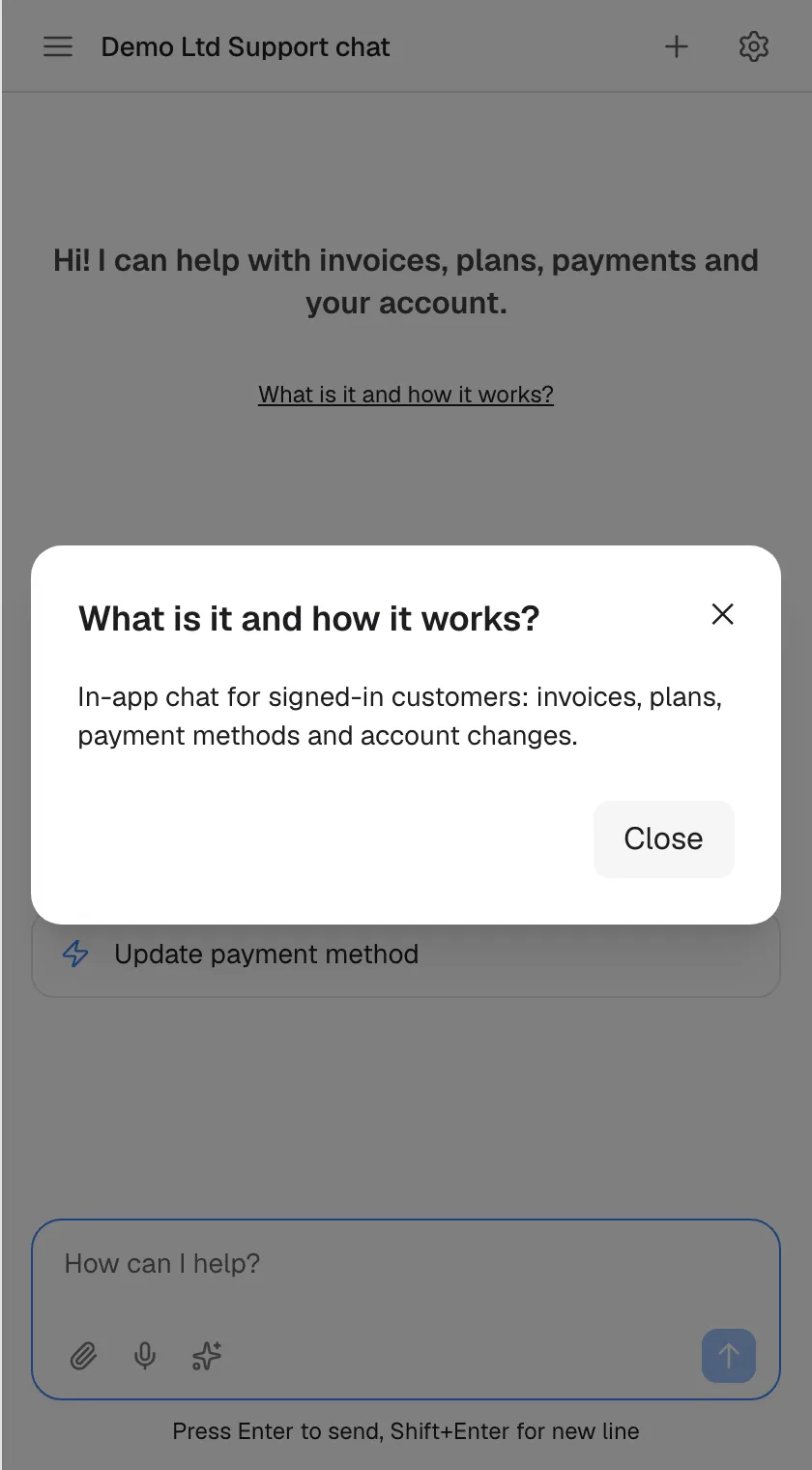
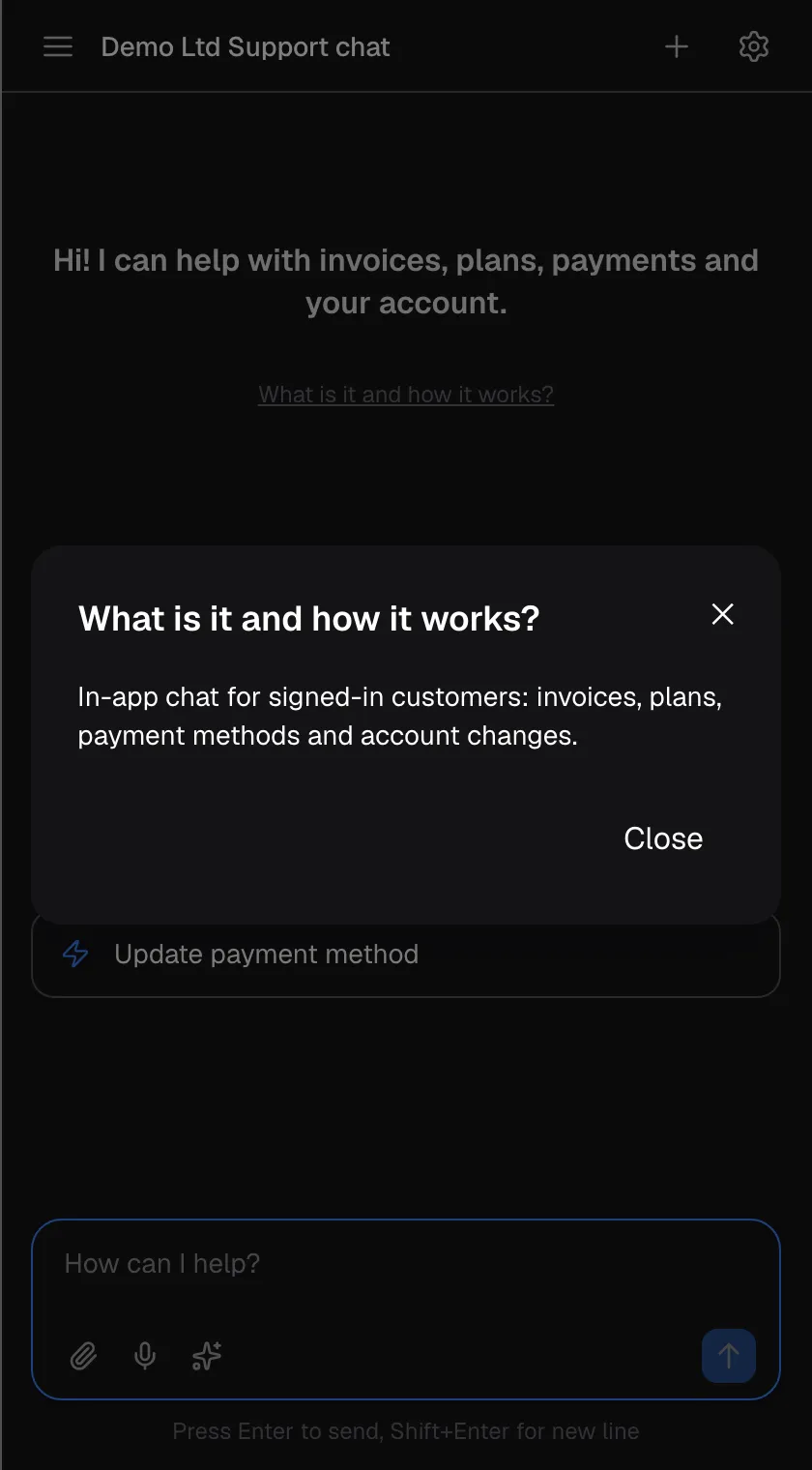
What this screenshot shows
- Screen
- What is it and how it works? (/?applicationToken=…)
- Highlighted
- dialog “”, centre, open. shows the provider's description; Close or X dismisses it
- Also visible
- Provider description text (not translated)
- Purpose
- what-is-it dialog
Type and send a question
Section titled “Type and send a question”-
Select the message box and type your question in your own words.
-
Press Enter, or select the send button (Send message) at the right of the box. Press Shift+Enter when you want a new line instead.
-
Your question appears in a blue bubble on the right, with Sending... under it for a moment, and the assistant starts working.
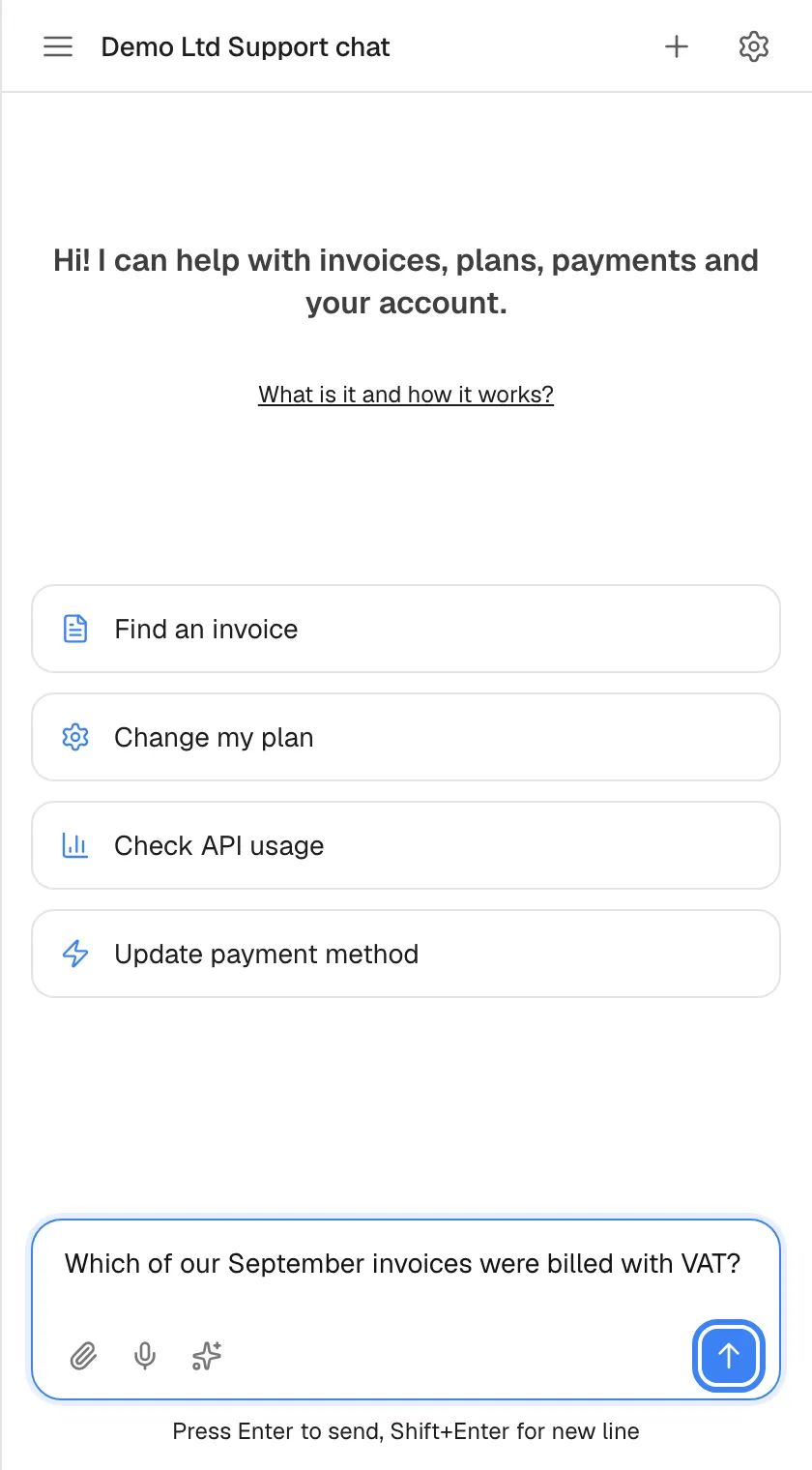
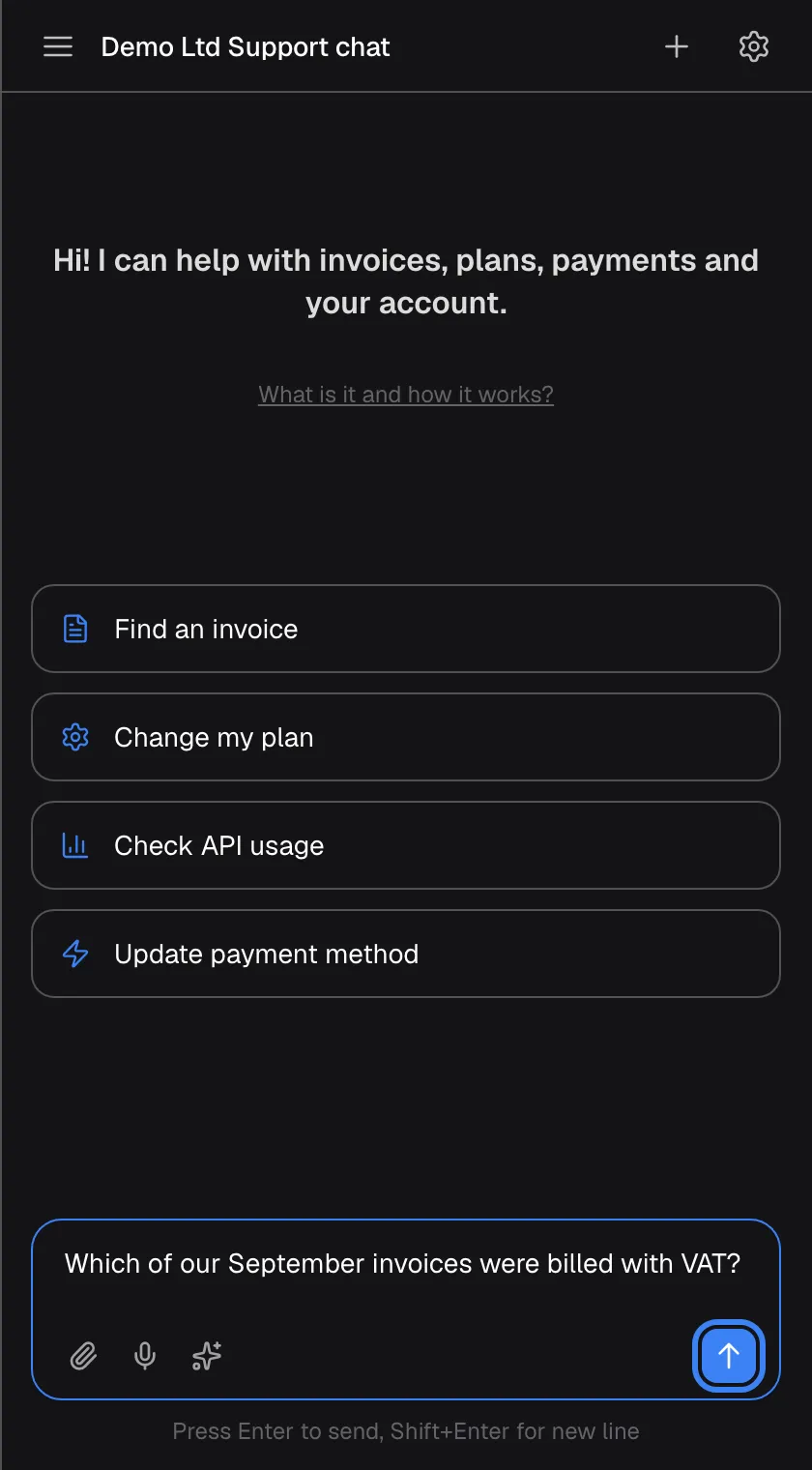
What this screenshot shows
- Screen
- How can I help? (/?applicationToken=…)
- Highlighted
- button “Send message”, message-box-right, enabled (text entered). sends the question and starts a new chat
- Also visible
- Attach, microphone and shortcuts icons in the message box
- Purpose
- typing a question
The box grows to about five lines as you type, then scrolls. There is no fixed length limit for a message. Your first message on the welcome screen creates the chat; the chat gets a title after the assistant’s first answer.
The message box is greyed out at times. You cannot send while the assistant is answering (stop it first), while an approval card is waiting for your decision, or while you are being connected to, or disconnected from, a person on your provider’s team.
Attach files
Section titled “Attach files”Select the paperclip icon to choose files, or, in an open chat, paste them or drag them onto the window. They appear as small previews above the box until you send the message.
| Rule | Detail |
|---|---|
| File types | Images (JPEG, PNG, GIF, WebP), PDF, CSV and XML |
| Size | Up to 10 MB per file; a file of exactly 10 MB is accepted |
| Number | Up to 5 files per message; the paperclip is greyed out at 5 |
| Where | Paperclip on the welcome screen and in a chat; paste and drag-and-drop only in an open chat |
A file that breaks these rules is left out without a message: a sixth file, a file over 10 MB, or another type such as a Word document simply does not appear in the previews. Check the previews before you send. The drag overlay mentions images and PDFs, but CSV and XML files are accepted too.
In the chat, images you sent show as thumbnails (select one to open it full size in a new tab), and other files as small chips you can download.
Speak your question
Section titled “Speak your question”The microphone icon appears when your browser supports recording. The first time, your browser asks for permission to use the microphone.
-
Select the microphone icon. Recording starts and a timer shows the minutes and seconds.
-
Speak your question. On the welcome screen you can pause and resume; in a chat you can cancel with the X.
-
Select the stop button, or wait: recording stops by itself after 2 minutes. The assistant shows “Transcribing…” for a moment.
-
Check the text that appears in the message box. It replaces anything you had typed there, and it is not sent until you send it.
Your recording is sent once to be turned into text and is not kept afterwards. The language you speak is detected automatically. If the microphone cannot be used, the reason appears for a few seconds as the microphone icon’s tooltip, for example “Microphone access was denied. Please allow microphone access in your browser settings.”.
Use prompt shortcuts
Section titled “Use prompt shortcuts”These shortcuts are ready-made prompts from your provider and, if your company has added any, from your company. The sparkle icon in the message box appears only when there are shortcuts for you.
-
Type
/in an empty message box, or select the sparkle icon (Browse prompt shortcuts (or type /)). A list of shortcuts opens above the box, each with a name and a short description. -
Keep typing after the
/to filter the list by name or description. Use the arrow keys and Enter, or click, to choose one. Esc clears the box. -
If the shortcut has blanks to fill in, a small panel Fill in shortcut values asks for each value. Fill them in and select Done.
-
The prompt is now in the box. Edit it if you like, then send it.
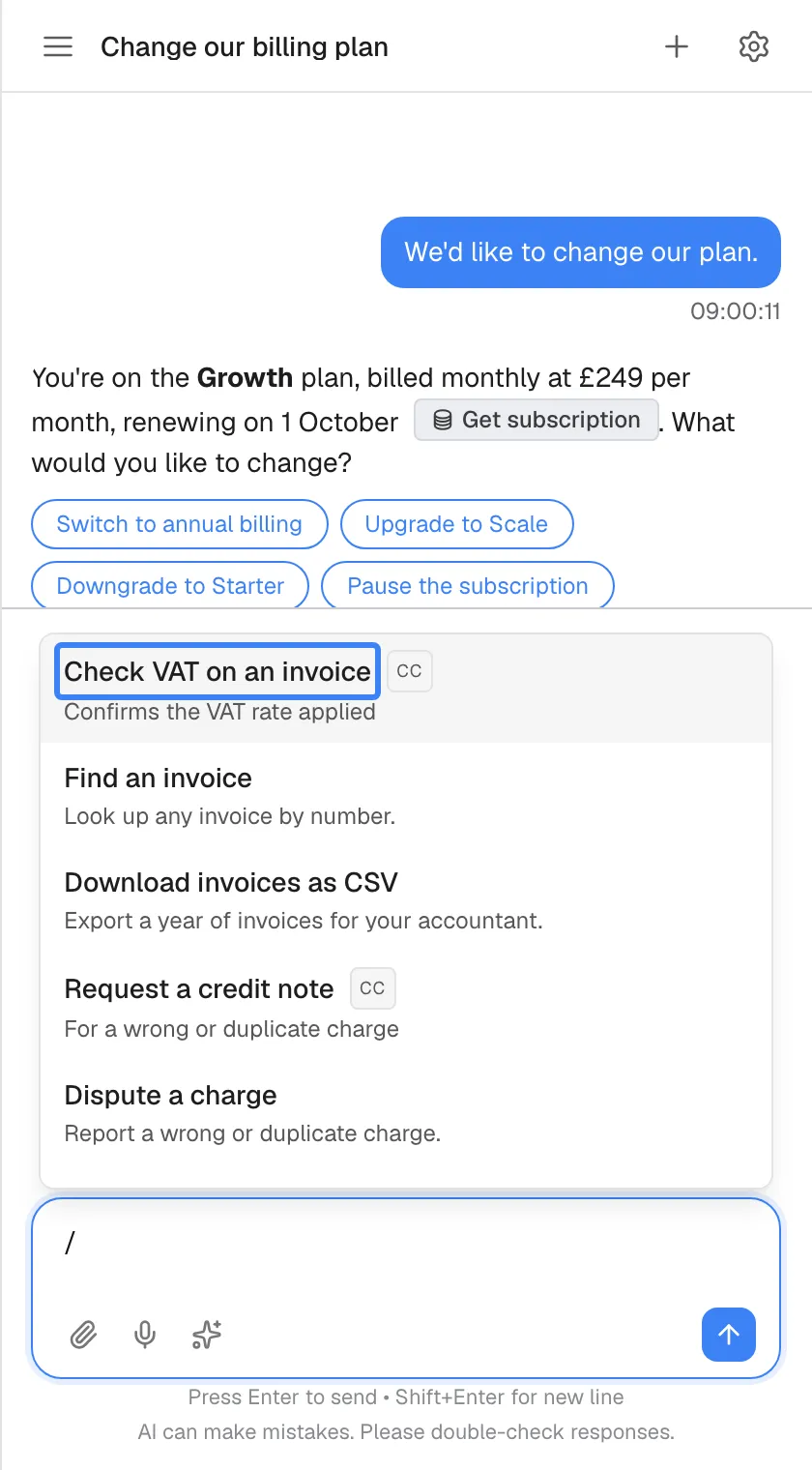
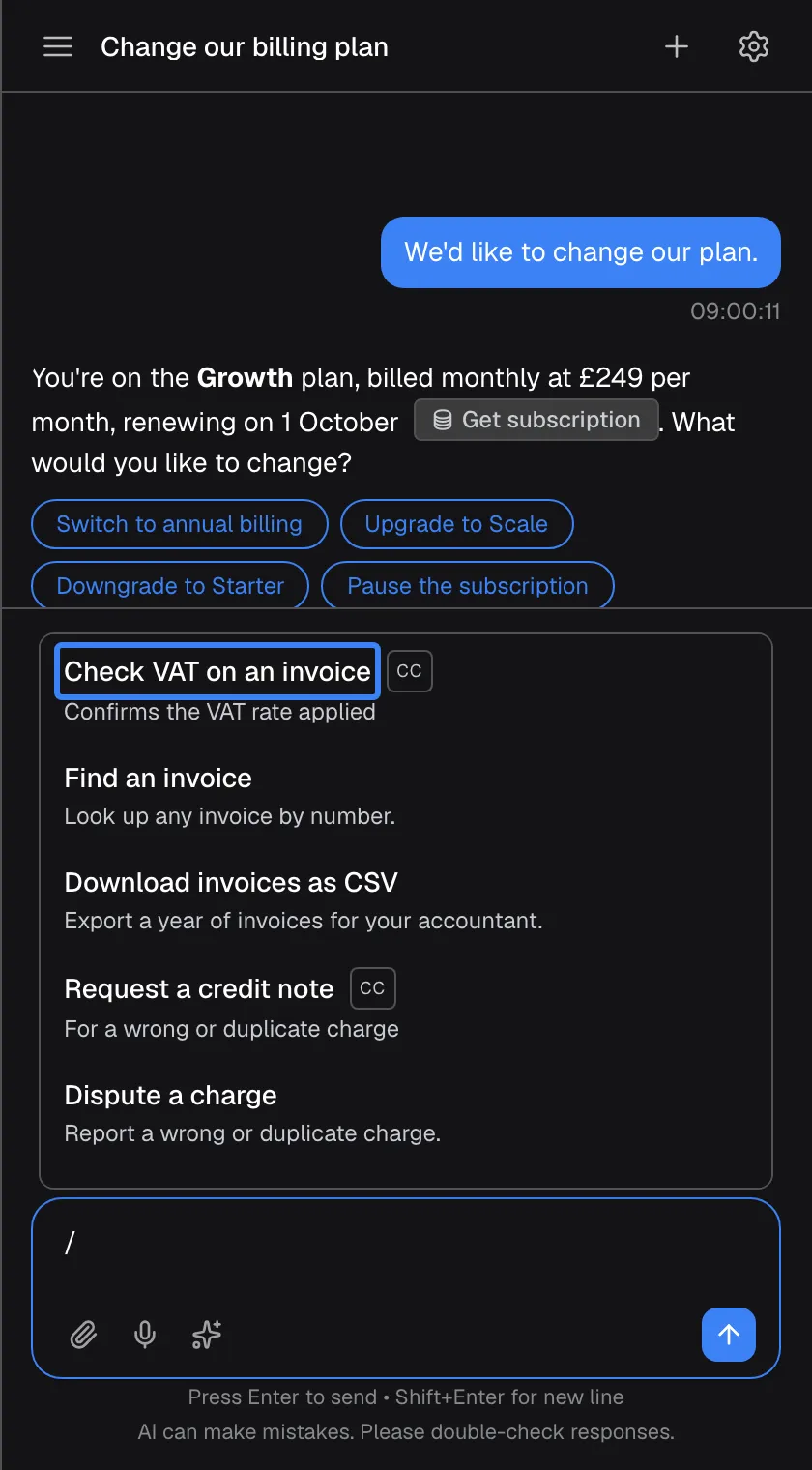
What this screenshot shows
- Screen
- Prompt shortcuts (/?applicationToken=…)
- Highlighted
- “”, shortcut-list, listed with widget.promptShortcuts.ccBadge. inserts the shortcut text into the message box
- Also visible
- Provider shortcuts and company (CC) shortcuts
- Purpose
- slash shortcuts
Shortcuts your company added carry the badge CC. If your company’s shortcut has the same name as one of your provider’s, your company’s wins. Unlike shortcut cards, a prompt shortcut is never sent by itself.
While the assistant works
Section titled “While the assistant works”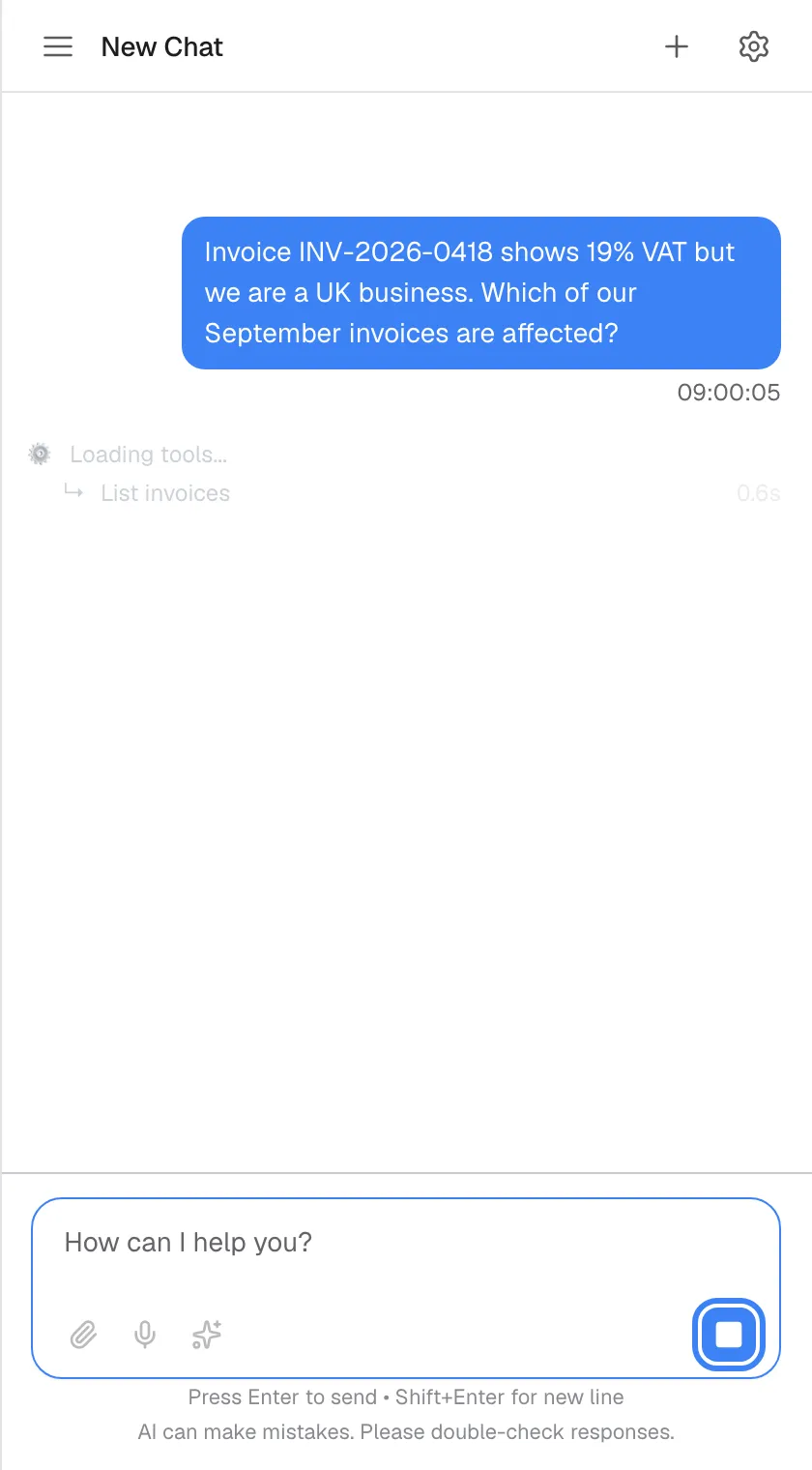
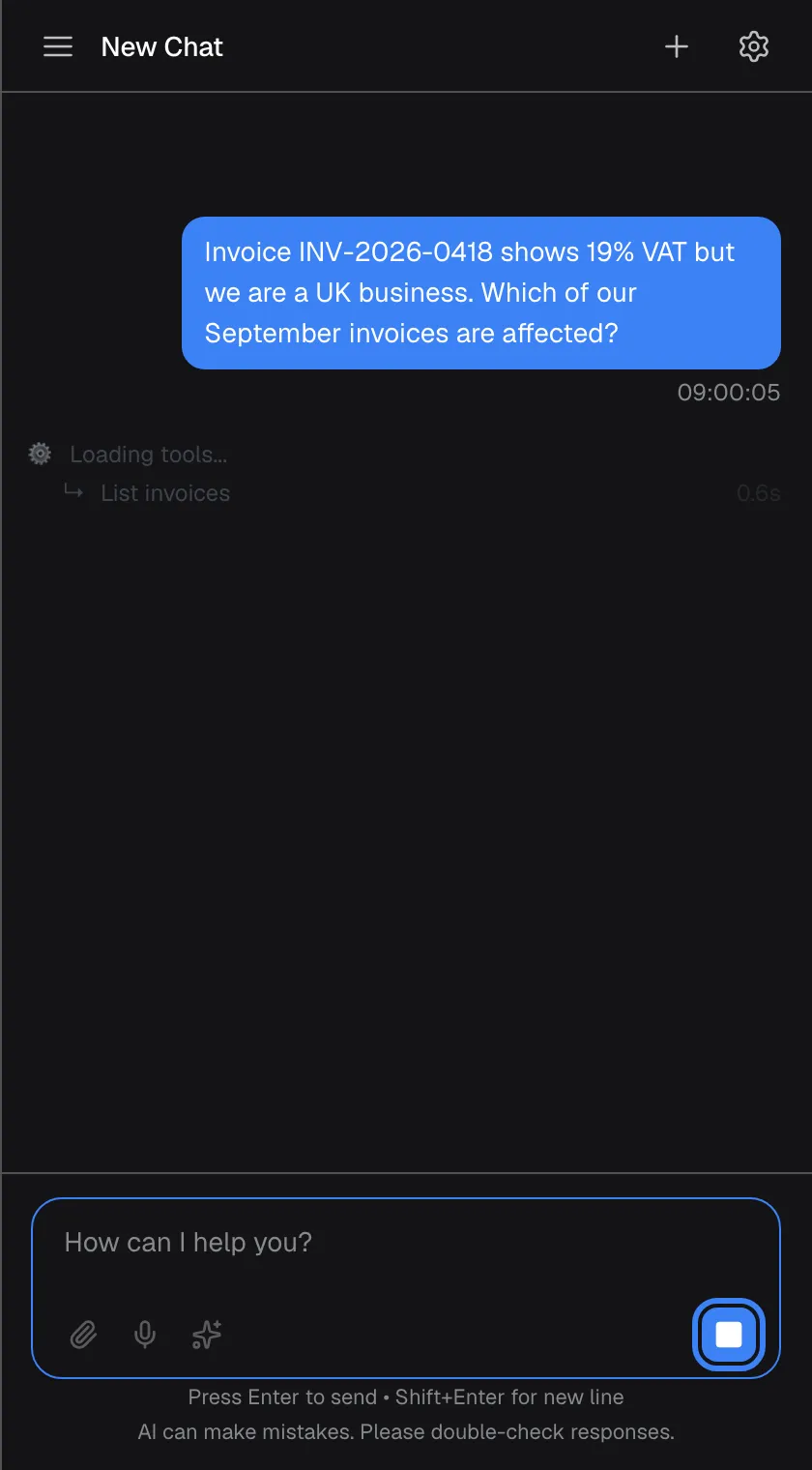
What this screenshot shows
- Screen
- New Chat (/?applicationToken=…)
- Highlighted
- button “Stop generating”, message-box-right, shown while answering. stops the answer (also Esc)
- Also visible
- Progress rows: Loading tools... (English), List invoices
- Purpose
- the working state
As soon as you send, the assistant shows that it is working. At first a status line changes every few seconds, from Looking at your request... through Drafting a reply... to Almost there.... These lines are general progress messages, not an exact report. As soon as the assistant starts using your provider’s services, faint step lines replace them, such as the name of each service it calls; some step lines come from the service in English.
The answer then appears word by word. Under a finished answer, a collapsed line shows how many steps it took and how long; select it to see the steps. Some answers also show a collapsible block with the assistant’s reasoning before the answer.
To stop an answer, select the square stop button (Stop generating) or press Esc. The assistant stops, and what it had written so far stays in the chat as a normal answer.
Reply with a quick option
Section titled “Reply with a quick option”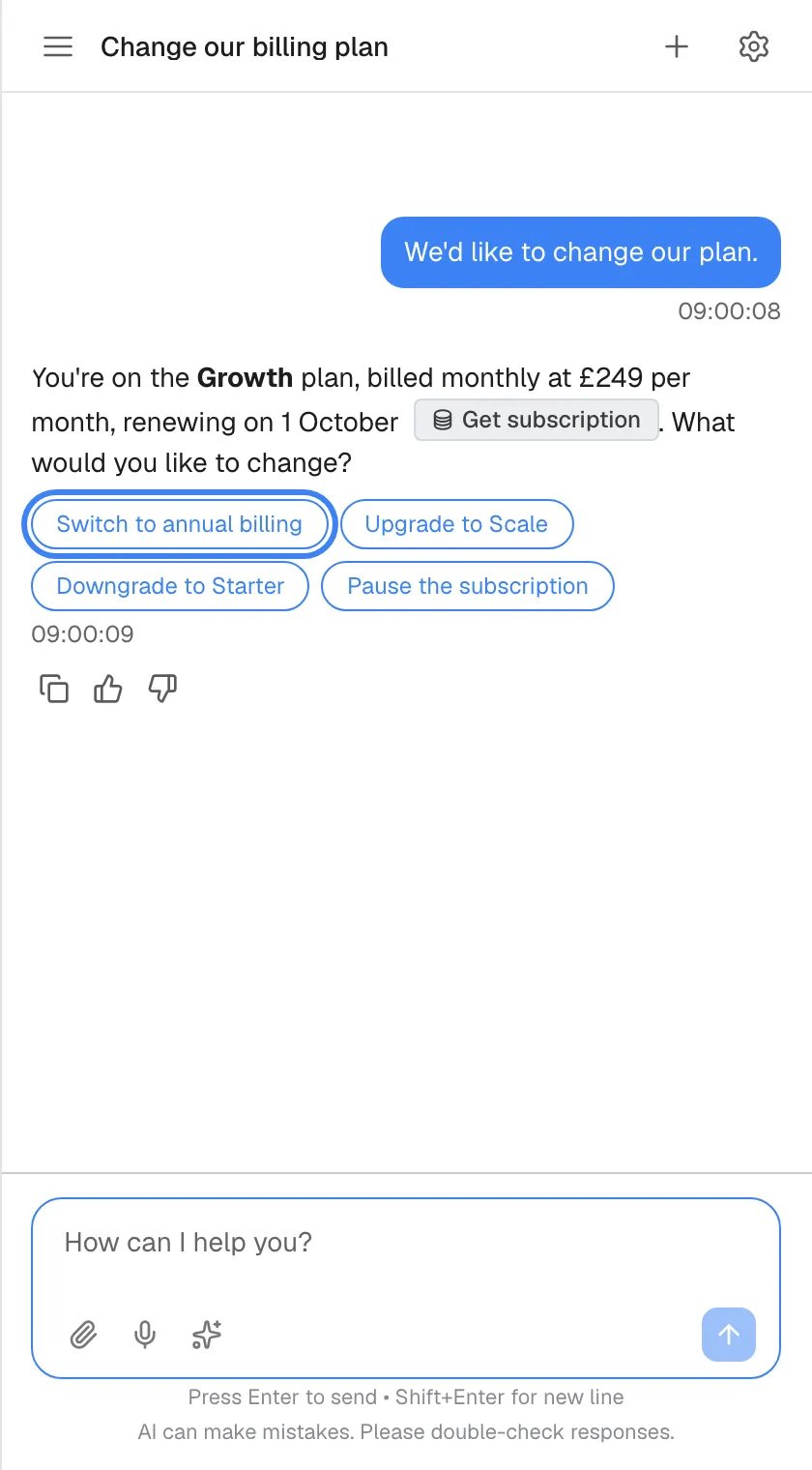
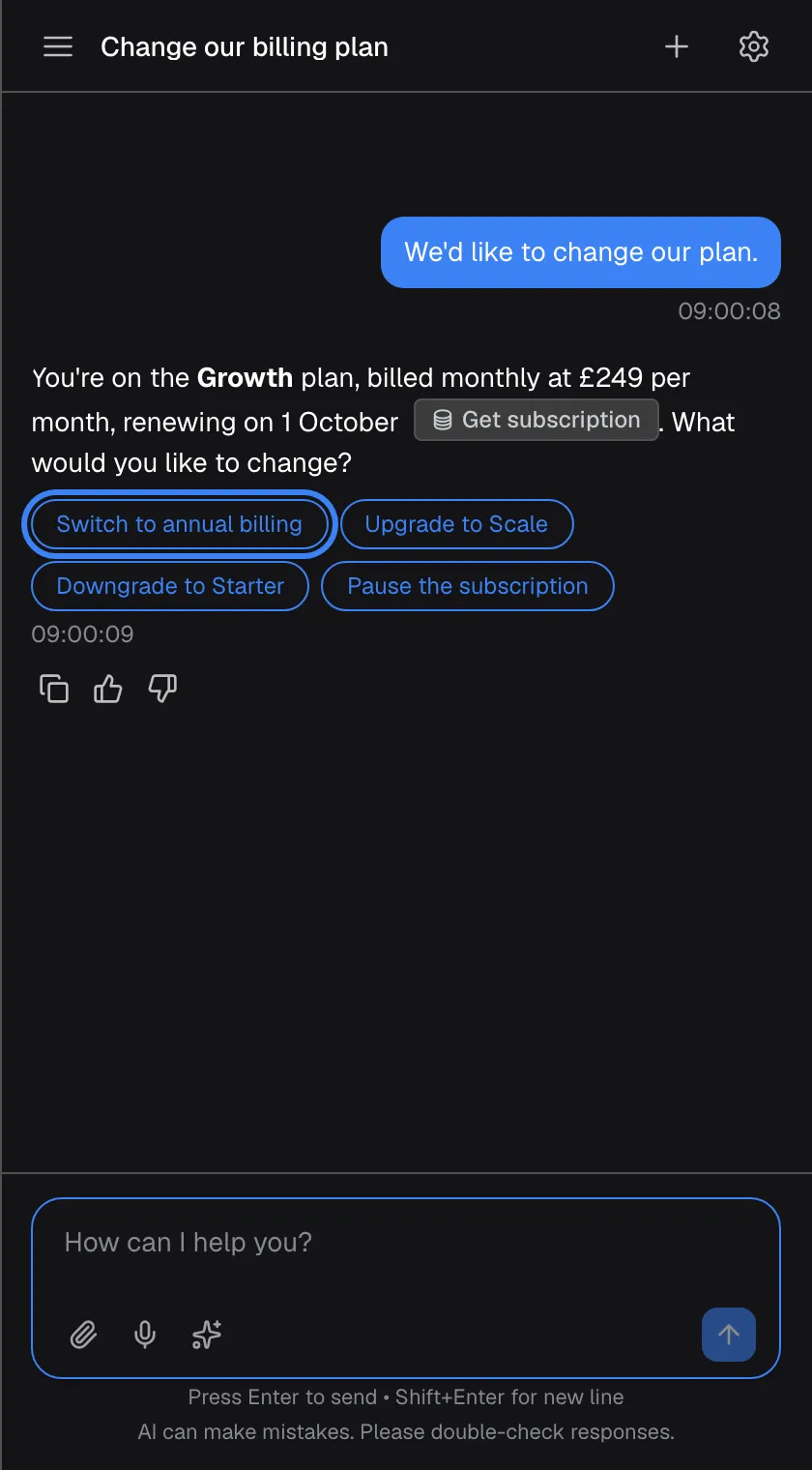
What this screenshot shows
- Screen
- How can I help you? (/?applicationToken=…)
- Highlighted
- button “”, under-latest-answer, enabled (latest answer only). sends that text as your message
- Also visible
- Get subscription badge, four option buttons, copy/thumbs icons
- Purpose
- quick options
Some answers end with up to 4 option buttons, such as “Switch to annual billing” or “Upgrade to Scale”. Selecting one sends its text as your reply, exactly as if you had typed it. Options appear only under the latest answer; once you reply, the earlier options disappear.
When the assistant does not answer
Section titled “When the assistant does not answer”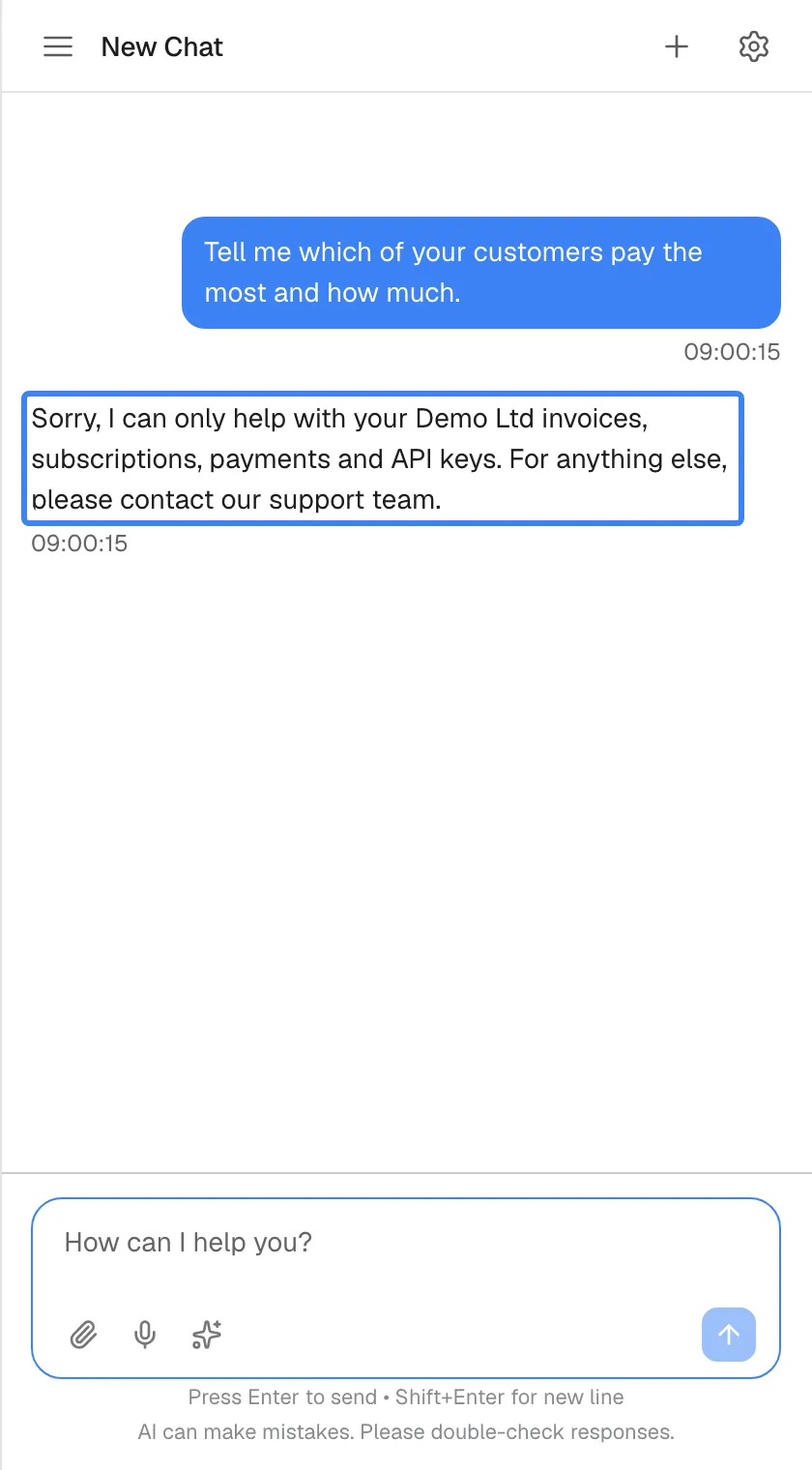
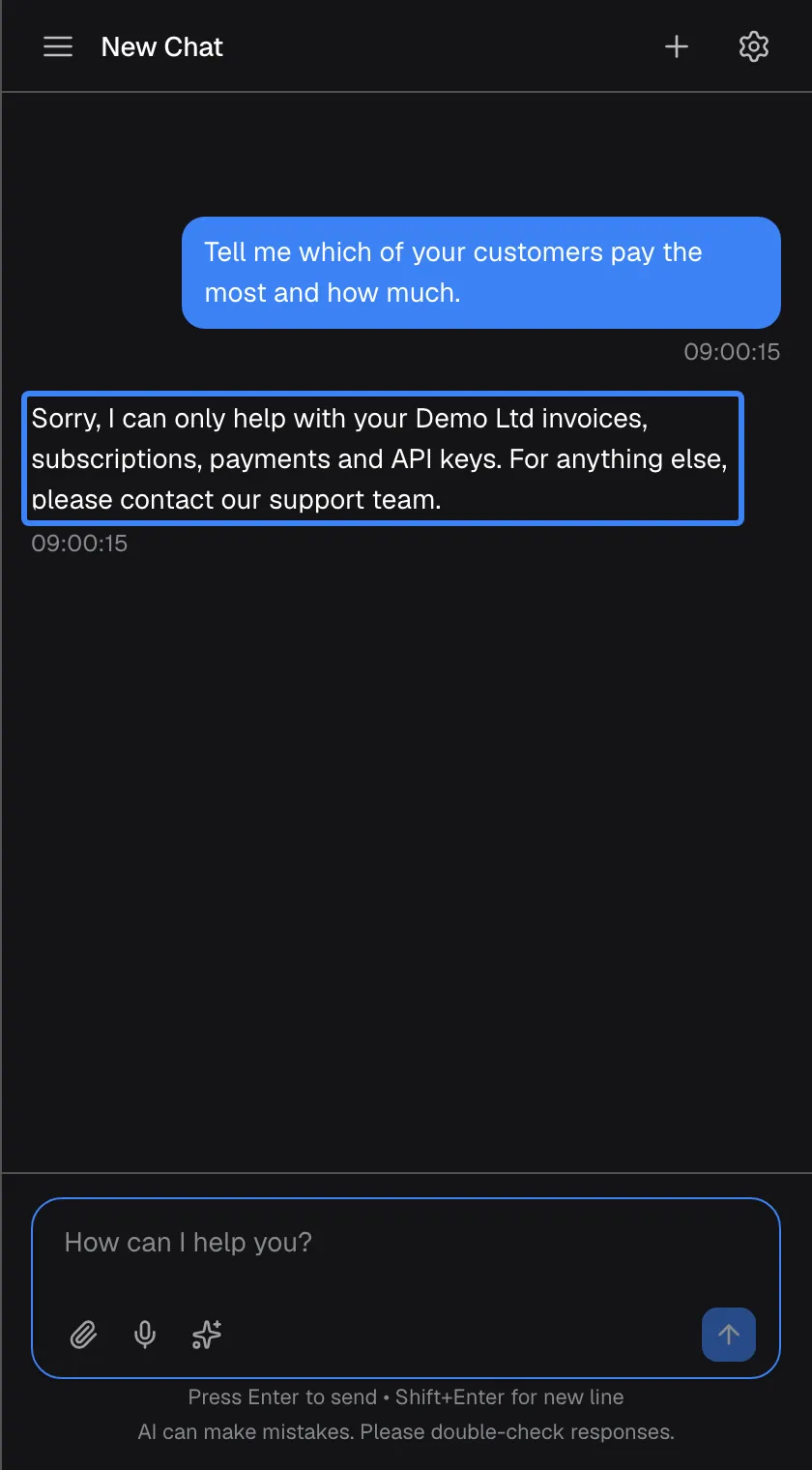
What this screenshot shows
- Screen
- How can I help you? (/?applicationToken=…)
- Highlighted
- “”, assistant-reply, message blocked by the provider's rules. none
- Also visible
- No feedback row under the reply
- Purpose
- blocked message
| What you see | What it means | What to do |
|---|---|---|
| A fixed reply instead of an answer, such as your provider’s “Sorry, I can only help with…” | Your message is outside what your provider allows the assistant to discuss | Ask about something the assistant is meant for, or contact your provider directly |
| The assistant is temporarily unavailable. Please try sending your message again. | The AI service is temporarily unavailable | Send your message again; sometimes You can try again in about {{seconds}} seconds. tells you how long to wait |
| The assistant is handling a lot of requests right now. Please try sending your message again. | The assistant is very busy | Send your message again after a short wait |
| The request is taking longer than expected. The system is still processing your request in the background. | The answer is taking long but is still being worked on | Wait; open the chat again from your history later |
| Error processing message. Please try again. | The message could not be sent, usually because the connection dropped | Wait a few seconds and send it again |
| This answer was cut short because it reached the model's length limit. Ask for the rest and it will continue. | The answer hit the length limit | Ask the assistant to continue |
| A message in English starting “This workspace’s AI allowance for the current period is used up” | Your provider’s allowance for the assistant is used up | Wait until the date in the message, or contact your provider |
Notices about an unavailable service, a timeout or a failed send are shown only in your window and are not kept in your chat history. A blocked message stays in the chat, but the assistant does not take it into account later in the conversation.
Start a new chat
Section titled “Start a new chat”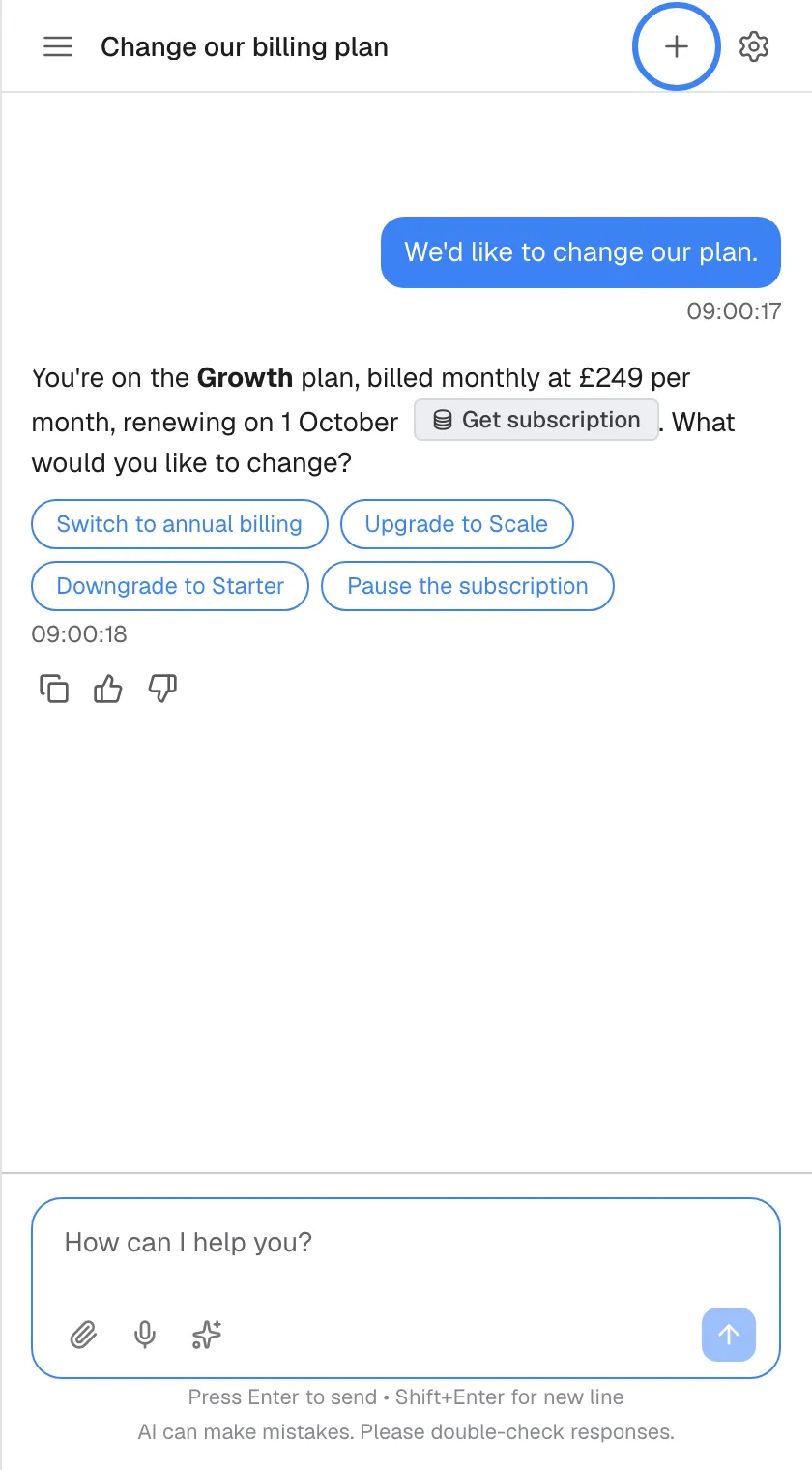
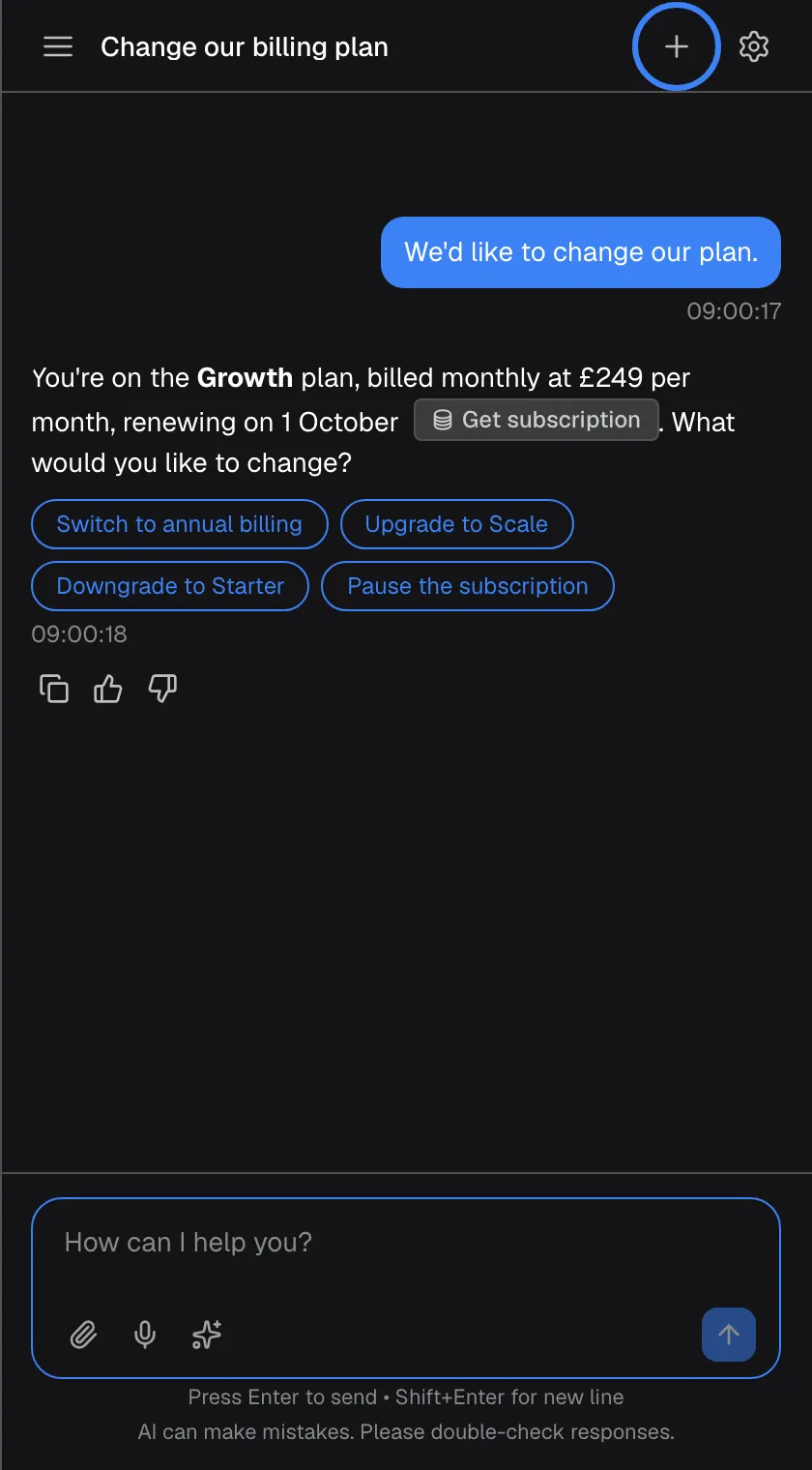
What this screenshot shows
- Screen
- How can I help you? (/?applicationToken=…)
- Highlighted
- button “New Chat”, top-bar-right, enabled. back to the welcome screen (new chat)
- Also visible
- Chat title, answer with options
- Purpose
- new chat
Select the plus icon (New Chat) in the top bar, or New Chat in your chat history. The welcome screen returns, and your next message starts a new conversation. The chat you left stays in your history. A new chat’s title is written by the assistant after its first answer; until then the top bar shows New Chat.
Every control, explained
Section titled “Every control, explained”The controls on the welcome screen and in the message box are described below in screen order.
Shortcut cards
Section titled “Shortcut cards”On the welcome screen, under the welcome text. Up to 8 cards, each with an icon and a title. In a wide layout they sit in two columns under the message box.
Selecting a card sends its question immediately as your first message in a new chat. The cards are greyed out until the assistant is connected. Your provider writes them, and they follow your browser’s language when your provider has translated them.
They are the quickest way into the tasks the assistant is best at in your product.
What is it and how it works?
Section titled “What is it and how it works?”The link What is it and how it works? under the welcome text, only when your provider wrote a description.
Opens a dialog titled What is it and how it works? with your provider’s description of the assistant. Close it with Close or the X.
It tells you what the assistant can and cannot help with before you ask.
Message box
Section titled “Message box”At the bottom of the window, with the hint How can I help? on the welcome screen and How can I help you? in a chat.
Enter sends; Shift+Enter starts a new line. The box grows to about five lines, then scrolls. There is no length limit. In an open chat you can paste images and files into it. It is greyed out while the assistant answers, while an approval card waits, and while a person is being connected or disconnected.
Your own words reach everything the assistant can do, not just the prepared cards.
Paperclip
Section titled “Paperclip”The first icon at the bottom left of the message box.
Opens your device’s file picker. Accepts images, PDF, CSV and XML, up to 10 MB each and 5 per message. Files outside these rules are left out without a message. Greyed out when 5 files are attached.
A screenshot of an error or an invoice PDF often explains more than a description.
Microphone
Section titled “Microphone”The second icon in the message box, only when your browser supports recording.
Records up to 2 minutes, then turns your speech into text in the box, replacing what was there. The text is not sent until you send it. While recording, the microphone gives way to a timer and buttons to pause and resume (welcome screen only), cancel, and stop.
Speaking is faster on a phone, and you still check the text before it goes.
Sparkle (prompt shortcuts)
Section titled “Sparkle (prompt shortcuts)”The third icon in the message box, labelled Shortcuts, only when shortcuts exist for you.
Puts / into the box and opens the shortcut list. Choosing a shortcut puts its prompt into the box for you to edit and send. Your company’s shortcuts carry CC.
Prompts you use often, or that need exact wording, are one pick away.
Send and stop
Section titled “Send and stop”The round button at the right of the message box: an arrow (Send message) when you can send, a square (Stop generating) while the assistant answers.
The arrow sends your message and attachments. The square stops the current answer and keeps what was written so far; Esc does the same from anywhere in the window.
You stay in control of long answers or a question you asked by mistake.
Quick options
Section titled “Quick options”Rounded buttons under the latest answer, up to 4.
Selecting one sends its text as your reply. They disappear once you reply.
The assistant suggests the likely next steps so you can continue with one click.
Who sees what
Section titled “Who sees what”| Part | When it appears |
|---|---|
| Welcome text, What is it and how it works? and shortcut cards | When your provider has written them |
Sparkle icon and the / list | When your provider or your company has added prompt shortcuts; your company’s appear after you sign in |
| Microphone | When your browser supports recording |
| Gear icon | When you are signed in and your provider has switched the customer portal on |
| Quick options | When the assistant suggests next steps in its latest answer |
What you need to know
Section titled “What you need to know”| Topic | Fact |
|---|---|
| Message length | No fixed limit |
| Attachments | Images, PDF, CSV, XML; 10 MB each; 5 per message; others left out silently |
| Voice | Up to 2 minutes; text replaces the box content and is not sent automatically; recordings are not kept |
| Cards versus shortcuts | Cards send immediately; prompt shortcuts only fill the box |
| Stopping | Stop button or Esc; the partial answer is kept |
| Quick options | Up to 4, under the latest answer only |
| Editing | Sent messages cannot be edited or deleted one by one; you can delete a whole chat from your history |
| Chat titles | Written by the assistant after its first answer |
| Error notices | Shown only in your window, not kept in your history |
Frequently asked questions
Section titled “Frequently asked questions”Asking
Section titled “Asking”How long can my message be?
Section titled “How long can my message be?”There is no fixed length limit for a message to the assistant. The message box grows to about five lines and then scrolls, so you can paste long text such as an error log. Press Shift+Enter for a new line and Enter to send.
Why did selecting a shortcut card send a message straight away?
Section titled “Why did selecting a shortcut card send a message straight away?”Shortcut cards on the welcome screen are complete questions your provider prepared, so selecting one sends it immediately as your first message. If you want to change the wording first, use a prompt shortcut from the / list instead, which only fills the message box.
Can I edit or delete a message I have sent?
Section titled “Can I edit or delete a message I have sent?”No. Sent messages cannot be edited or removed one by one. You can send a correction as a new message, or delete the whole chat from your chat history, which you open with the menu icon in the top bar.
Why can’t I type in the message box?
Section titled “Why can’t I type in the message box?”The message box is greyed out while the assistant is answering, while an approval card is waiting for your decision, and while a person from your provider’s team is being connected or disconnected. Stop the answer with the square button or Esc, or decide on the approval card, and the box works again.
Files and voice
Section titled “Files and voice”Which files can I attach?
Section titled “Which files can I attach?”Images in JPEG, PNG, GIF or WebP format, PDF files, and CSV and XML files. Each file can be up to 10 MB, and you can attach up to 5 files to one message with the paperclip icon, or by pasting or dragging them into an open chat.
My file did not attach. Why?
Section titled “My file did not attach. Why?”Files that break the rules are left out without a message: a type other than images, PDF, CSV or XML, a file larger than 10 MB, or a sixth file in the same message. Check the previews above the message box before you send.
Can I talk to the assistant instead of typing?
Section titled “Can I talk to the assistant instead of typing?”Yes, if your browser supports recording. Select the microphone icon in the message box, speak for up to 2 minutes, and stop. Your words appear as text in the box, replacing anything typed there, and you send them yourself after checking.
Is my voice recording stored?
Section titled “Is my voice recording stored?”No. The recording is sent once to be turned into text and is not kept afterwards. Only the text you then send becomes part of the chat.
The microphone does not work. What should I check?
Section titled “The microphone does not work. What should I check?”Hover over the microphone icon: the reason shows as its tooltip for a few seconds. Most often the browser has blocked microphone access for the product; allow it in your browser’s site settings and try again. Another app using the microphone can also block it.
Shortcuts
Section titled “Shortcuts”How do I use prompt shortcuts?
Section titled “How do I use prompt shortcuts?”Type / in an empty message box, or select the sparkle icon. Pick a shortcut from the list with the arrow keys and Enter, or by clicking. Its prompt is placed in the message box, where you can edit it before sending.
What does “CC” on a shortcut mean?
Section titled “What does “CC” on a shortcut mean?”The CC badge marks shortcuts your own company added, as opposed to those from your provider. If your company’s shortcut has the same name as one of your provider’s, the assistant shows your company’s.
Why is there no sparkle icon in my message box?
Section titled “Why is there no sparkle icon in my message box?”The sparkle icon only appears when there are prompt shortcuts for you. Your provider may not have added any, and your company’s own shortcuts appear only after you are signed in.
Answers
Section titled “Answers”What happens if I close the chat while the assistant is answering?
Section titled “What happens if I close the chat while the assistant is answering?”The assistant keeps working. The reply is saved and appears when you open the chat again; until it arrives, the reopened chat shows the assistant still working and you cannot send another message. If your provider offers notifications, the reply or a failure can also reach you by email, Slack, Telegram or Teams; see Notifications.
How do I stop a long answer?
Section titled “How do I stop a long answer?”Select the square stop button at the right of the message box, or press Esc anywhere in the assistant’s window. The assistant stops, and the part of the answer it had already written stays in the chat.
What do the moving status texts mean while I wait?
Section titled “What do the moving status texts mean while I wait?”They are general progress messages, such as Looking at your request..., that change every few seconds until the assistant’s real steps arrive. They do not describe exactly what the assistant is doing; the step lines that follow do.
What are the buttons under an answer?
Section titled “What are the buttons under an answer?”They are quick options, up to 4 suggested replies under the latest answer. Selecting one sends its text as your reply, exactly as if you had typed it. They disappear once you reply.
The assistant says it is temporarily unavailable. Did it save my message?
Section titled “The assistant says it is temporarily unavailable. Did it save my message?”No. The notice The assistant is temporarily unavailable. Please try sending your message again. appears only in your window and is not kept in your history. Send the message again; if a waiting time is shown, wait that long first.
Why did I get a fixed reply instead of an answer?
Section titled “Why did I get a fixed reply instead of an answer?”Your provider decides what the assistant may discuss, and every message is checked against those rules first. Messages outside them get a fixed reply. Ask about something the assistant is meant for in your product, or contact your provider directly about anything else.
Troubleshooting
Section titled “Troubleshooting”| Symptom | What to check |
|---|---|
| Still working on your previous message. Please wait for the reply before sending another. | The assistant is still answering your previous message, for example one you sent before closing the chat. Wait for the reply, then send again. |
| The send button is greyed out | In order: is the box empty? Is an answer still running (stop it)? Is an approval card waiting above the box? Is a person being connected? |
| Error processing message. Please try again. | The connection dropped. Wait a few seconds for it to come back, then send again. |
| The request is taking longer than expected. The system is still processing your request in the background. | The assistant is still working in the background. Wait, then reopen the chat from your history. |
| An attachment is missing after sending | Check the type (images, PDF, CSV, XML), the size (10 MB) and the count (5 per message). |
| The microphone tooltip shows an error | Allow microphone access for the product in your browser; close other apps using the microphone. |
| “Transcription failed” in the microphone tooltip | Retry with a shorter recording. |
| “Too many voice messages right now. Please try again later.” or “Transcription failed (429)” in the microphone tooltip | Your provider’s assistant limits how many recordings are turned into text per minute and per day. Wait a minute and try again, or type your message. |
| “Session does not belong to this widget” or “Transcription failed (401)” in the microphone tooltip | Your chat session has ended or belongs to another assistant. Reload the page, then record again. |
No sparkle icon, and / shows no list | There are no prompt shortcuts for you, or you are not signed in yet. |
| Shortcut cards do nothing | Connecting... shows under the welcome text; wait until the assistant is connected. |
| The first message disappeared without an answer | Starting the chat failed. Type the message again and send it; if it repeats, reload the page. |