

Chatting with the assistant
A conversation with the assistant starts with your question and can grow into much more than text: the assistant can look things up in your provider’s systems, show the results as a table or chart, name the sources it used, ask your permission before it changes something, and hand you over to a person. This section explains each of these parts, so you know what you are looking at and what you can do with it.
Every chat is kept, with its title, in your chat history, so you can come back to it later. What the assistant knows and may do is set by your provider, the company whose product you are using; in the screenshots, that provider is called Demo Ltd.
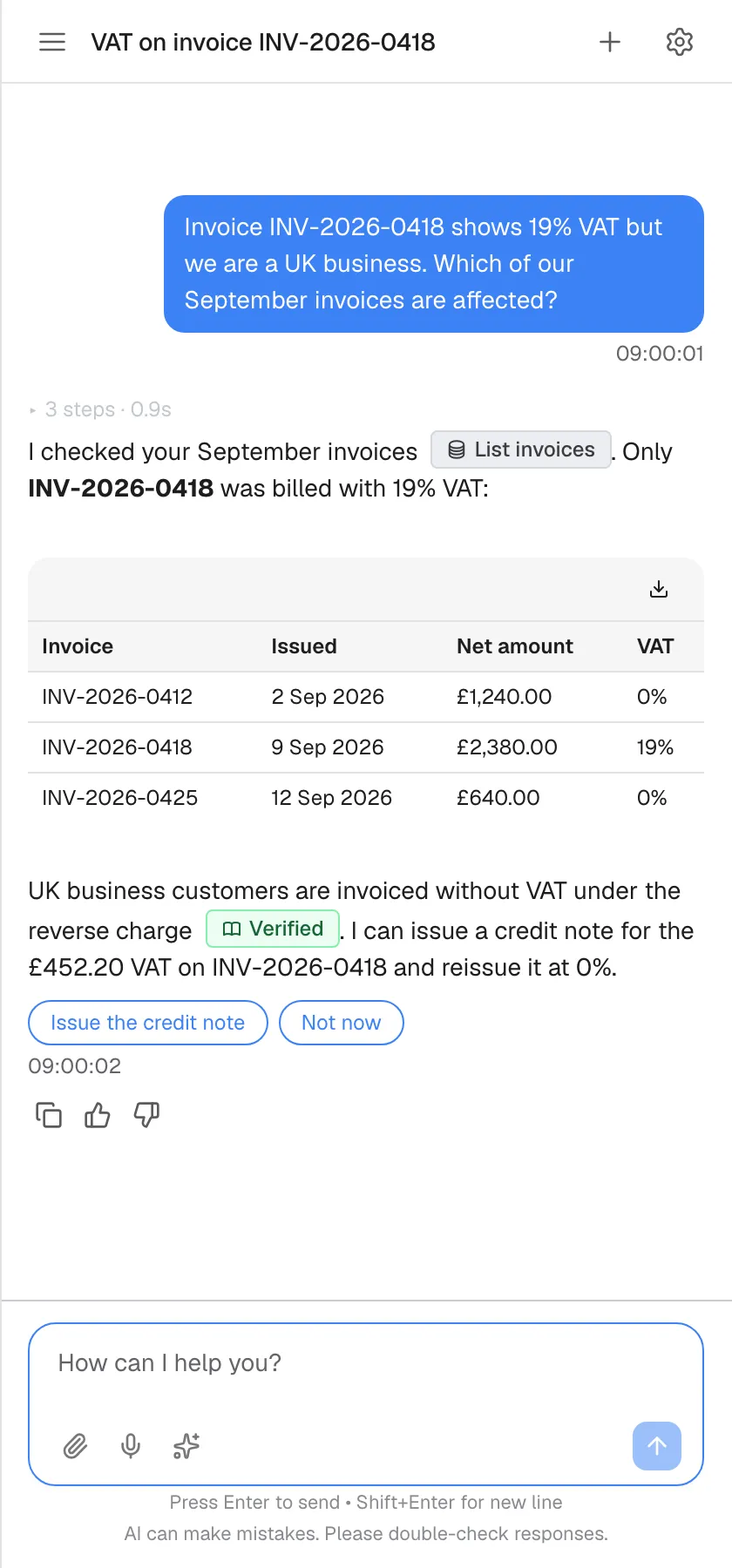
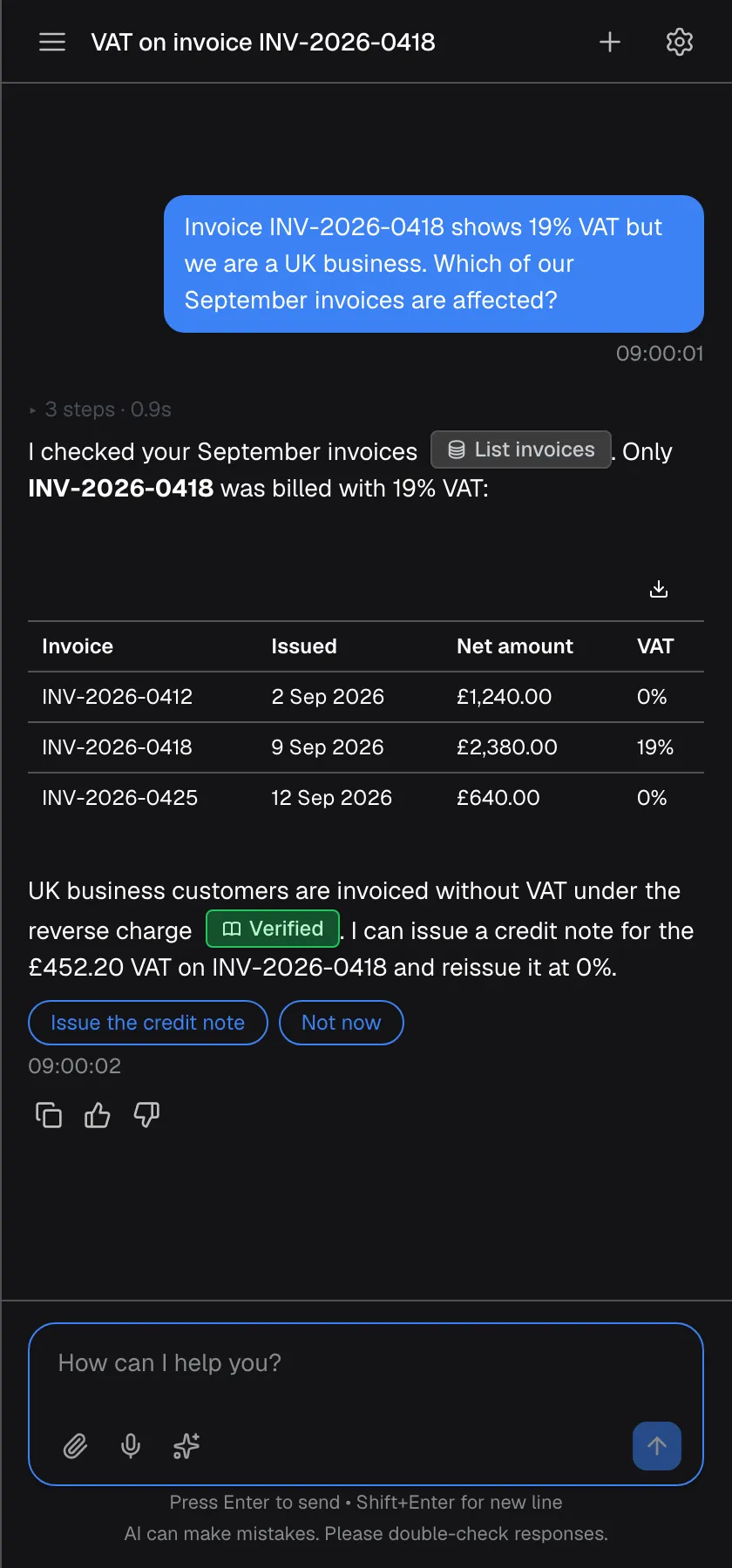
What this screenshot shows
- Screen
- How can I help you? (/?applicationToken=…)
- Highlighted
- “”, , .
- Also visible
- Question bubble, answer with List invoices badge, table, Verified badge, two option buttons; widget.chat.aiDisclaimer under the message box
- Purpose
- the parts of a conversation
Pages in this section
Section titled “Pages in this section”| Part of a conversation | Where you see it | Guide |
|---|---|---|
| Your question: typing, speaking, attaching files, shortcut cards and prompt shortcuts, quick options, stopping an answer, starting a new chat | The welcome screen and the message box | Ask questions |
| Tables, charts, downloads and source badges | Inside the assistant’s answers | Tables, charts and sources |
| Approval cards and what happens when the assistant acts for you | In the chat, and above the message box | Actions the assistant takes for you |
| Your own login for a service the assistant uses | A screen that replaces the chat, and the chat history | Connect your account to the assistant |
| Earlier chats and background activity | The menu icon in the top bar, and the welcome screen on wide layouts | Chat history and activity |
| Copying and rating an answer | Under each answer, if your provider has switched rating on | Rate an answer |
| Passing the chat to a person | Next to the message box, when the assistant offers it | Talk to a person |
| Chatting and approving from Slack, Telegram or Teams | In the chat app, after you connect it in the portal | Use the assistant in Slack, Telegram or Teams |
What you can do here
Section titled “What you can do here”- Ask in your own words, by voice or with a file. Type a question, speak it, or attach an image, PDF, CSV or XML file of up to 10 MB. Ask questions.
- Read and download data. Tables and charts in answers can be downloaded as CSV files and images. Tables, charts and sources.
- Decide before the assistant changes something. An approval card shows what the assistant wants to do, and nothing happens until you approve it. Actions the assistant takes for you.
- Pick up where you left off. Reopen, rename, search or delete earlier chats. Chat history and activity.
- Tell your provider how an answer was. Rate an answer with a thumb up or down, and say what was wrong. Rate an answer.
- Get a person. If your provider has connected its support team, the assistant can pass your conversation on. Talk to a person.
- Keep going away from the chat. Approve, answer and chat from Slack, Telegram or Teams. Use the assistant in Slack, Telegram or Teams.
Concepts to know
Section titled “Concepts to know”The assistant can be wrong
Section titled “The assistant can be wrong”Answers come from an AI. Under the message box of every chat you see AI can make mistakes. Please double-check responses.. Check figures and decisions that matter before you rely on them.
Your provider’s rules come first
Section titled “Your provider’s rules come first”Before the assistant answers, your message is checked against your provider’s rules for what the assistant may discuss. A message outside those rules gets a fixed reply instead of an answer, either a text your provider wrote or a general one that asks you to rephrase your message or contact support. Your message stays visible in the chat, but the assistant does not take it into account later in the conversation.
Answers can use your provider’s data
Section titled “Answers can use your provider’s data”The assistant can fetch information from your provider’s systems, such as your invoices or your plan, and say so with a small badge in the answer. Your provider can hide parts of sensitive values in that data, so you may see a value such as an email address partly replaced by stars.
The assistant knows your time
Section titled “The assistant knows your time”Each message carries your time zone, your browser’s language setting and your local time, so that questions about “today” or “last week” are answered for where you are.
When the assistant cannot answer
Section titled “When the assistant cannot answer”If your provider’s allowance for the assistant is used up for the current period, the assistant replies with a message in English that starts “This workspace’s AI allowance for the current period is used up” and, when known, says when it resets. Only your provider can change this.
Availability
Section titled “Availability”The chat itself is always available once the assistant is open and, where required, you are signed in. Shortcut cards, prompt shortcuts, approval cards, rating, source badges, connecting your own login and talking to a person each appear only when your provider has set them up. Each guide says when its part appears.