

Open the assistant
The assistant lives inside your provider’s product, but where exactly depends on how your provider set it up: behind a round button in a corner, behind a tab on the right edge, in a panel that is always open, or as a box built into a page. This page shows each of these layouts, how to open and close the assistant in each, how it behaves on a phone, and what the loading and error screens mean. In the screenshots, the provider is called Demo Ltd and its product is shown as grey placeholder content.
What you can do here
Section titled “What you can do here”- Find the assistant on the page. Your provider picks one layout for the assistant, so it may be a corner button, an edge tab, a side panel or part of the page. Find the assistant on the page.
- Open and close it. Each layout opens and closes in its own way, and the corner window has no close button of its own. Open and close the assistant.
- Open it from a button or link in the product. Some products have their own “ask the assistant” button that opens the chat, sometimes with a question already filled in. Open it from the product.
- Use it on a phone or tablet. The same window shrinks to fit a small screen; there is no separate app. Use it on a phone.
- Understand loading and error screens. Short messages tell you when the assistant is preparing, connecting or cannot start. When the assistant cannot start.
The screen at a glance
Section titled “The screen at a glance”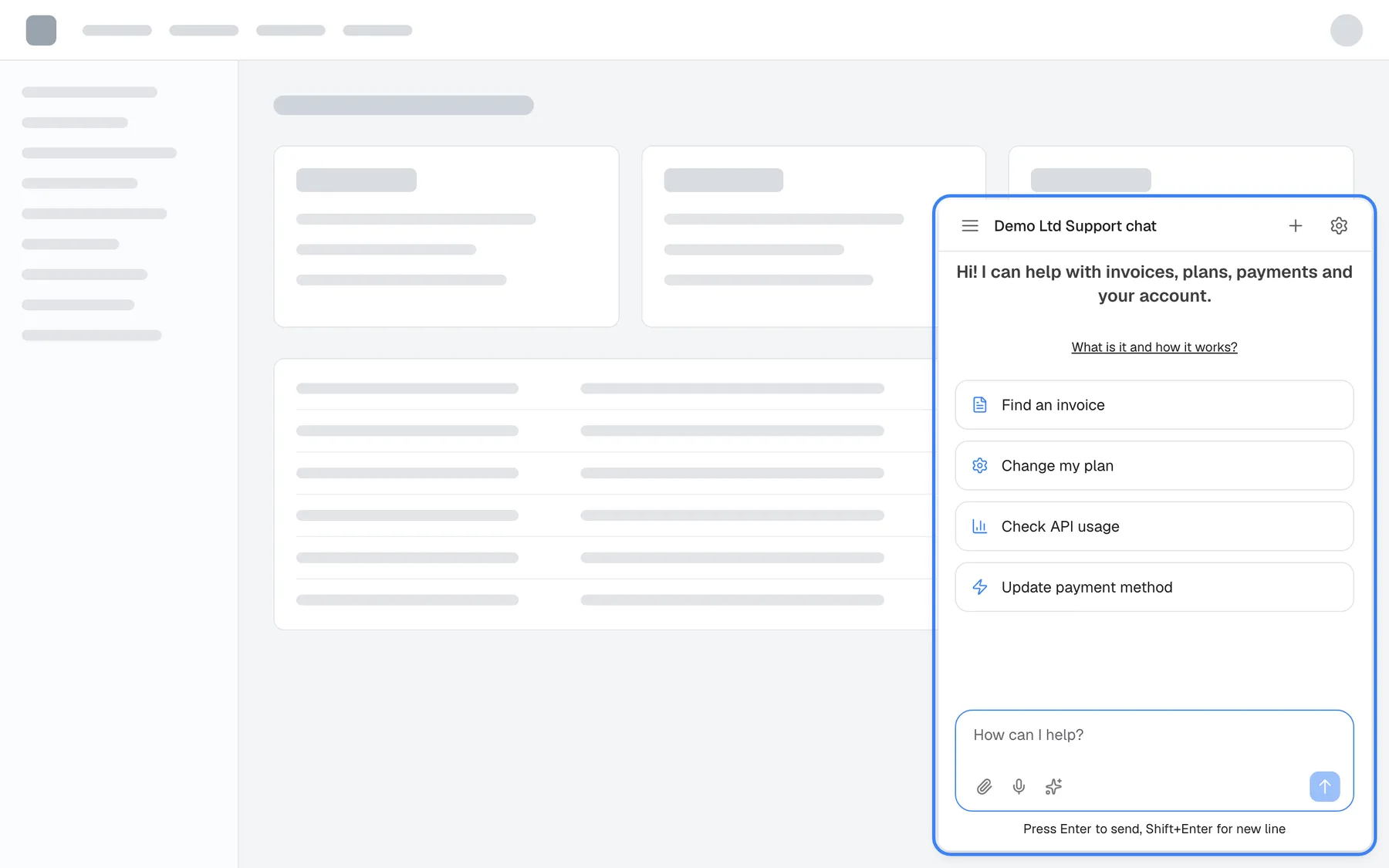
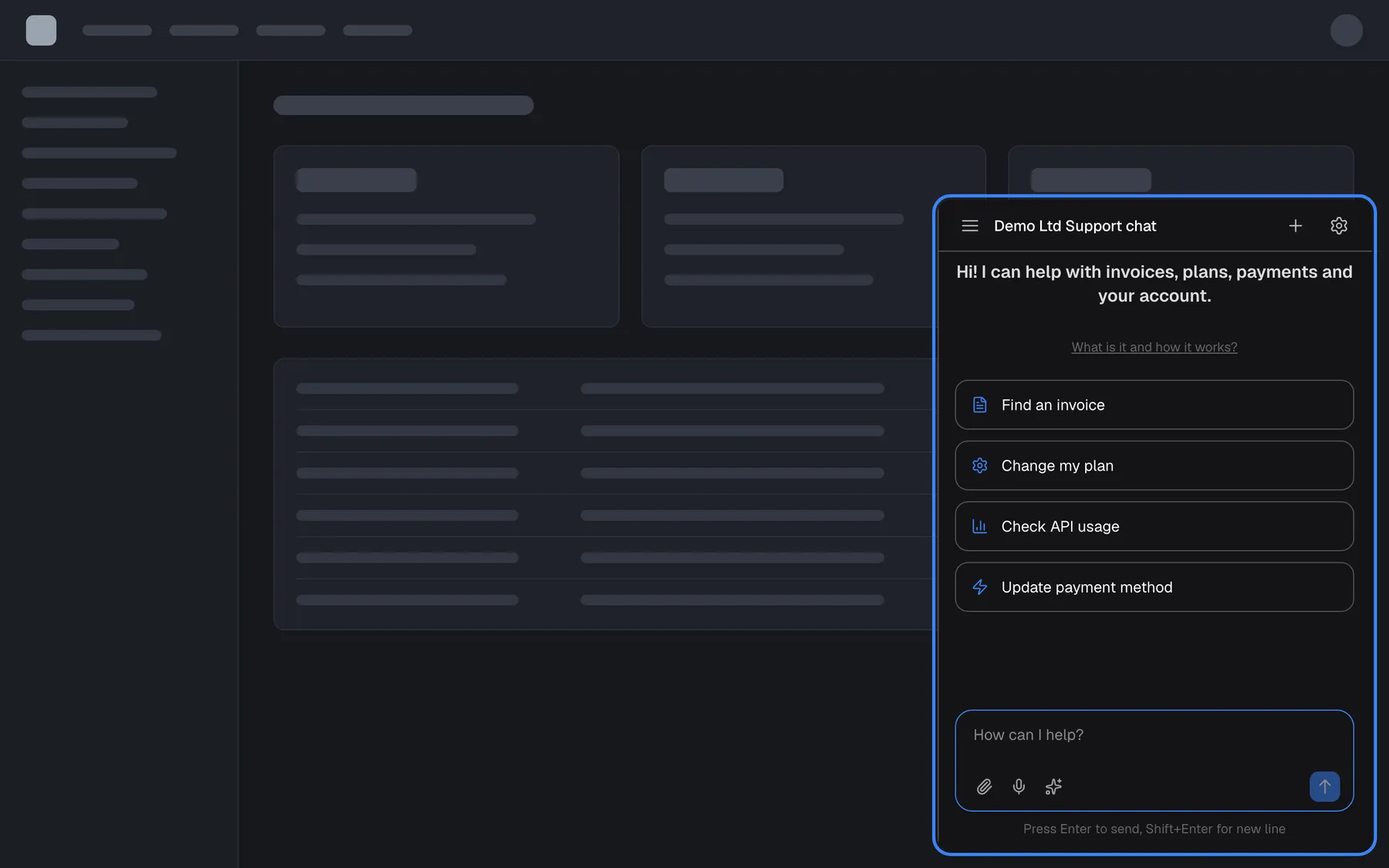
What this screenshot shows
- Screen
- (host page (provider product))
- Highlighted
- “”, bottom-right, open. the chat window
- Also visible
- Top bar: menu, title, new chat, gear; Welcome text, link, four shortcut cards, message box
- Purpose
- popup display type, open
| Region | What it shows | What you do there |
|---|---|---|
| The provider’s product | The page you were working on; it stays where it is | Keep working; the assistant opens over it or beside it |
| The assistant’s top bar | A menu icon, the assistant’s name (here “Demo Ltd Support chat”), a plus icon and, for some customers, a gear icon | Open your chat history, start a new chat, or open the customer portal |
| The welcome area | Your provider’s welcome text, the link What is it and how it works? and shortcut cards | Read what the assistant is for, or start with a card |
| The message box | The box How can I help? with attach, microphone and shortcut icons | Type or speak your question |
Find the assistant on the page
Section titled “Find the assistant on the page”Your provider chooses one of the layouts below. You do not choose it, and it can differ between two products that use the same kind of assistant. The colour, size, position and icon of the button are your provider’s choice too.
| Layout | What you see on the page | How it opens |
|---|---|---|
| Corner button (the most common) | A round button, usually in the bottom-right corner, with a speech-bubble icon or your provider’s own icon | Select the button; the window slides up in the same corner |
| Centred window | The same round button | Select it; the window opens in the middle of the screen, usually over a dimmed page |
| Sidebar | A narrow tab with an arrow on the right edge of the page, halfway down | Select the tab; a full-height pane slides in from the right |
| Panel | The assistant is always open in a pane along the right edge, and the page moves left to make room | Already open |
| Built into a page | The assistant fills a box inside one of the product’s pages | Already open |
| Opened by the product | Nothing until you use a button or link in the product that is meant for the assistant | Through that button or link |
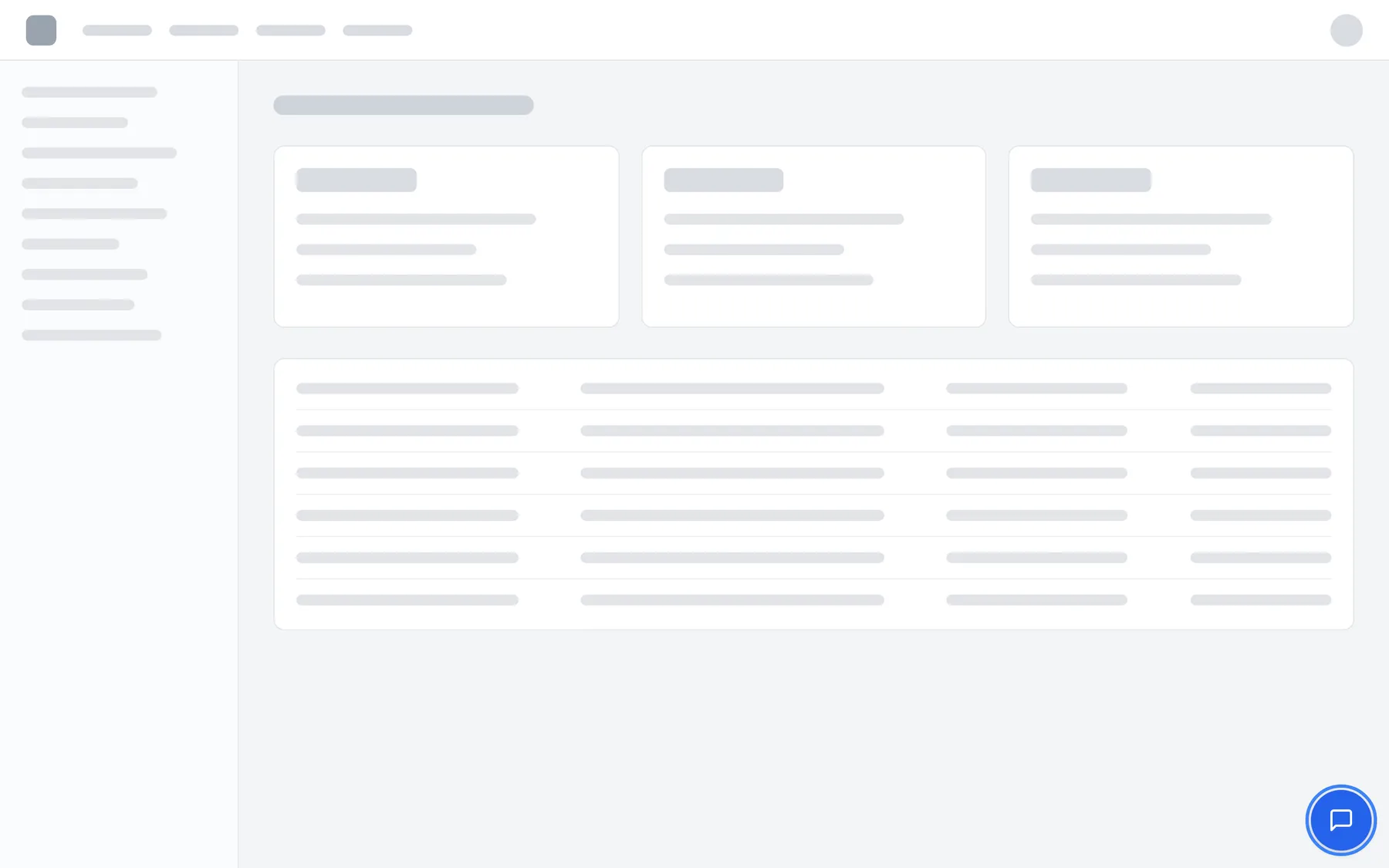
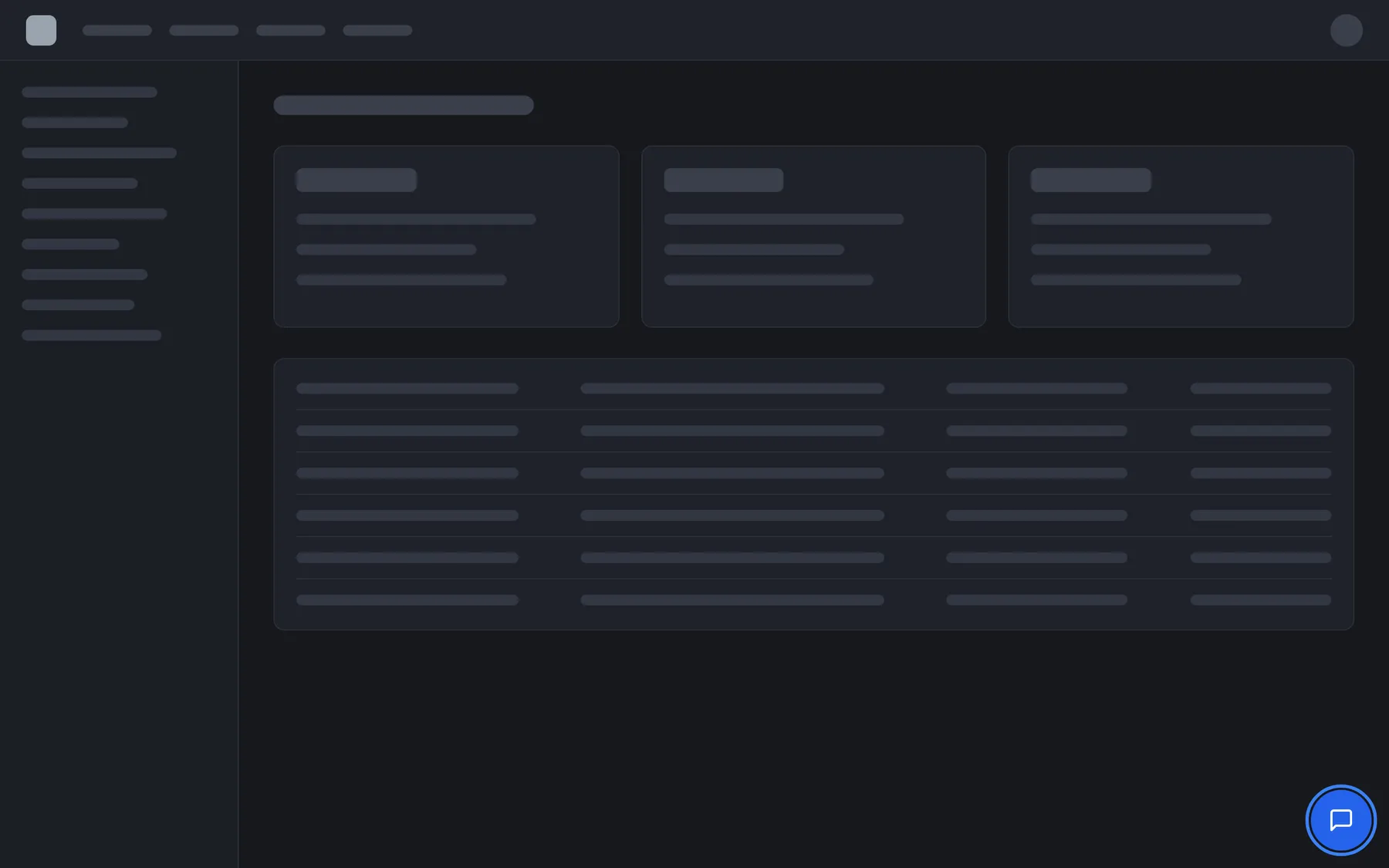
What this screenshot shows
- Screen
- (host page (provider product))
- Highlighted
- “”, bottom-right, closed (no label, icon only). opens the chat window
- Also visible
- Provider product with placeholder content
- Purpose
- entry point, popup display type
The round button carries no text, so a screen reader announces it only as a button. If you use a screen reader, look for an unlabelled button near the end of the page.
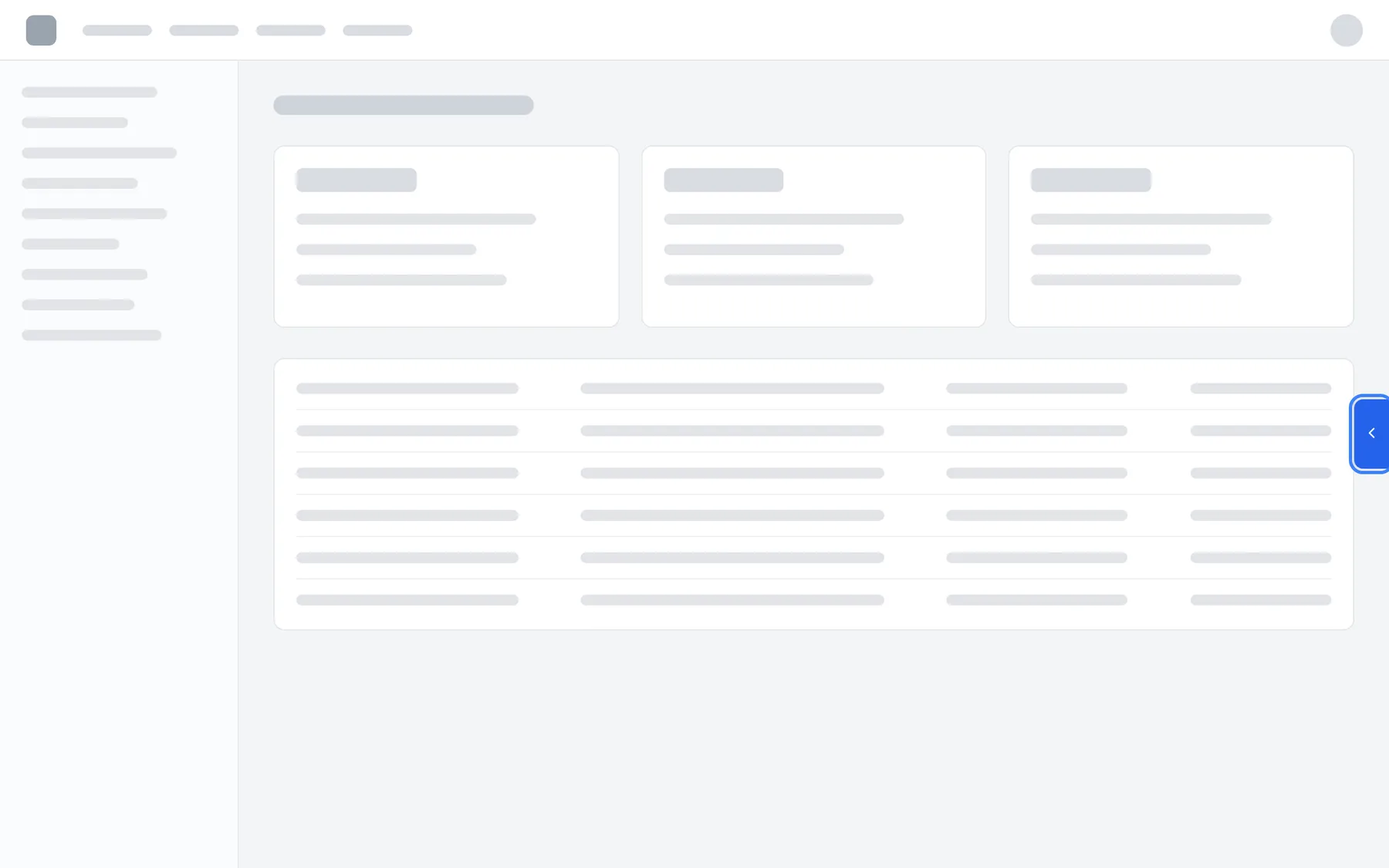
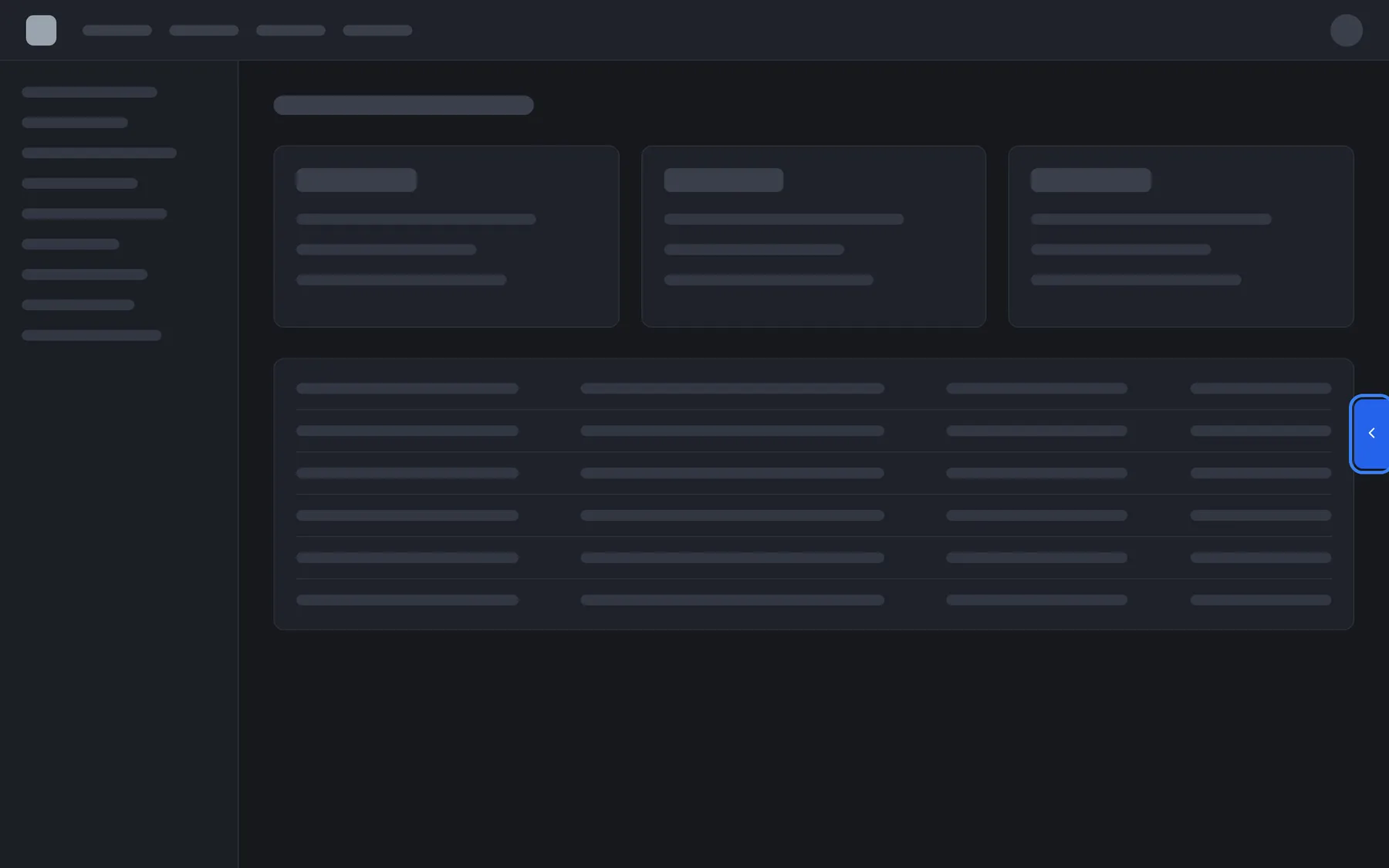
What this screenshot shows
- Screen
- (host page (provider product))
- Highlighted
- “”, right-edge, closed. slides the assistant in from the right
- Also visible
- Provider product, tab with arrow on the right edge
- Purpose
- sidebar display type, closed
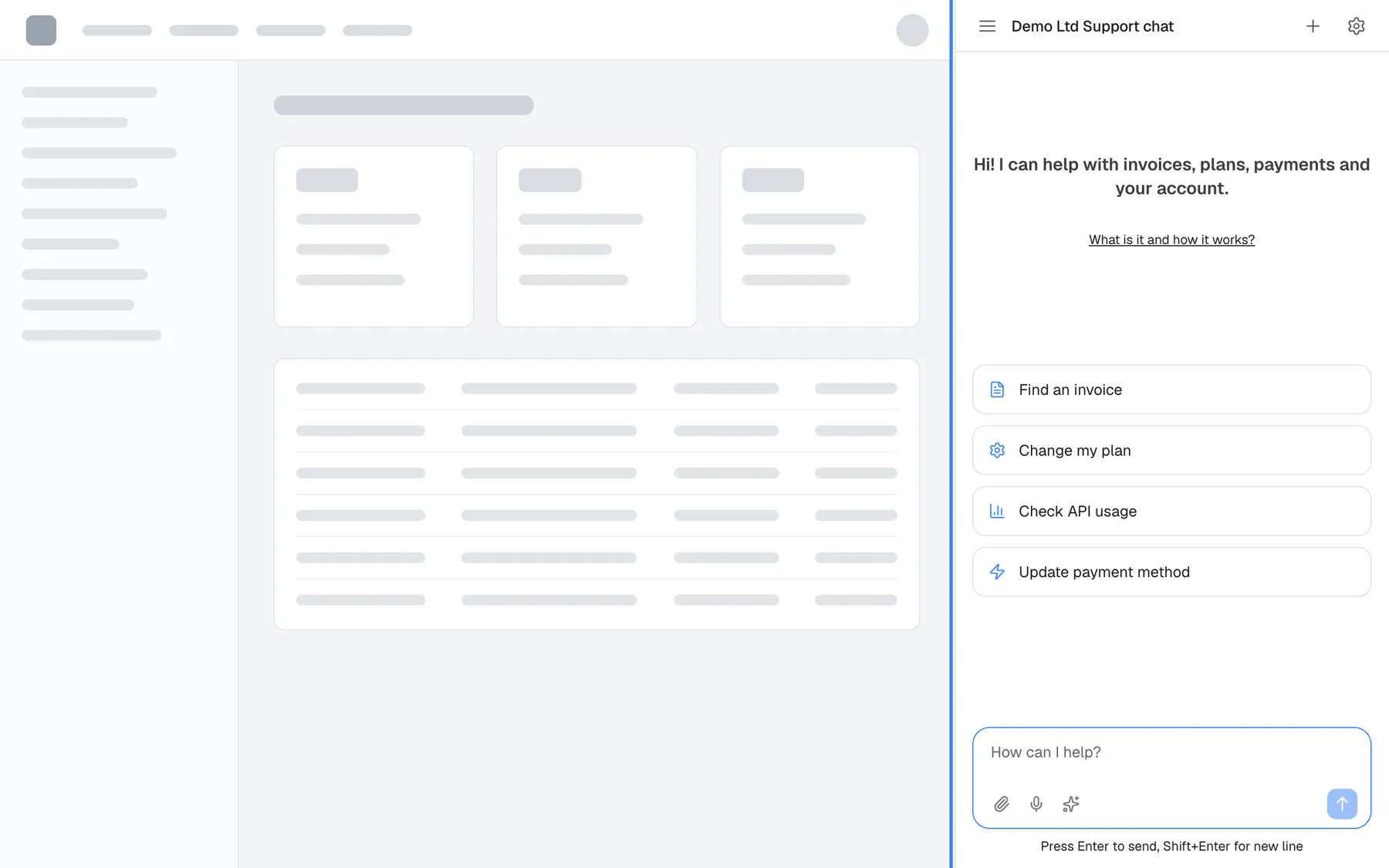
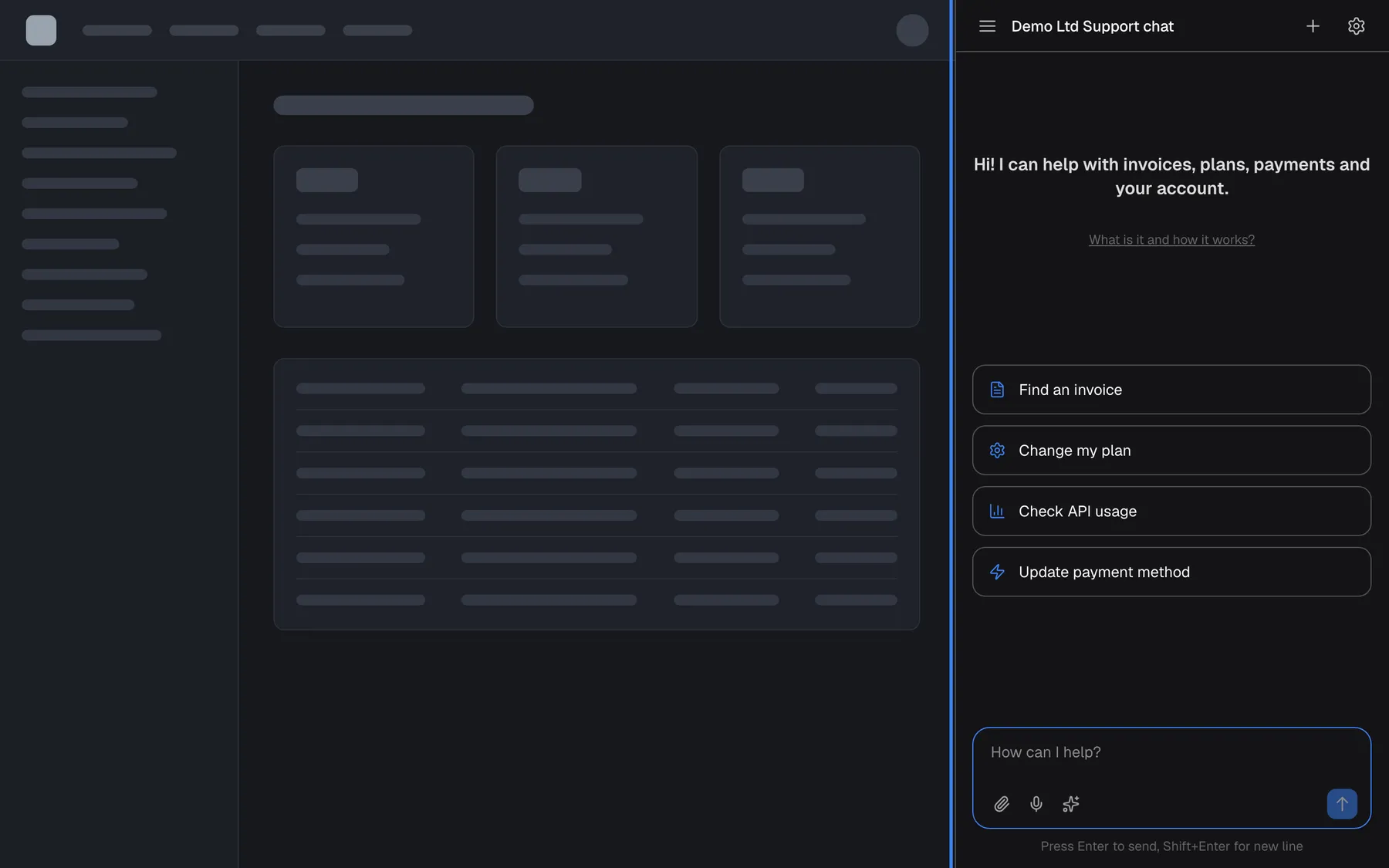
What this screenshot shows
- Screen
- (host page (provider product))
- Highlighted
- “”, right, always open. resizable by dragging its left edge
- Also visible
- Page content pushed left
- Purpose
- panel display type
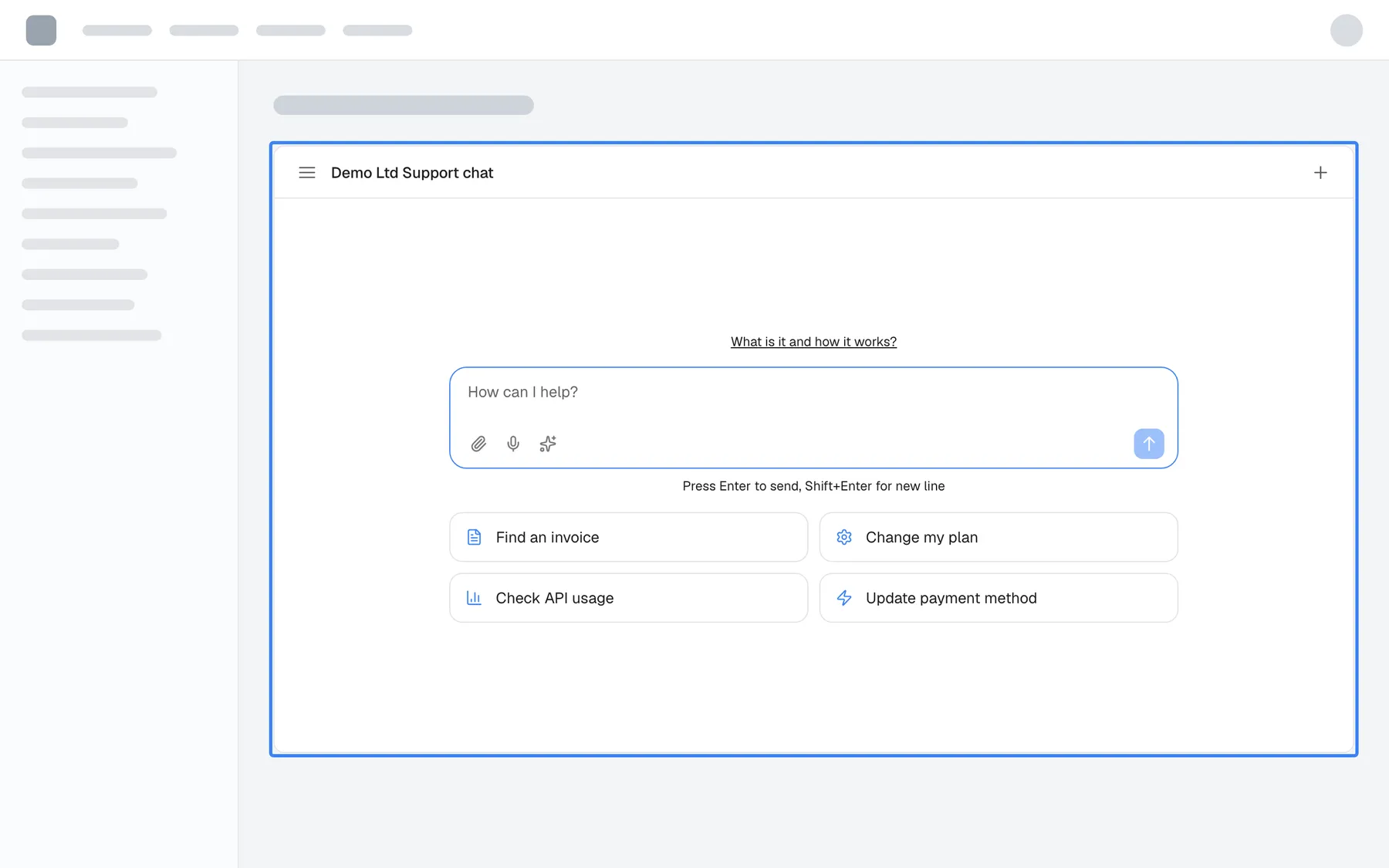
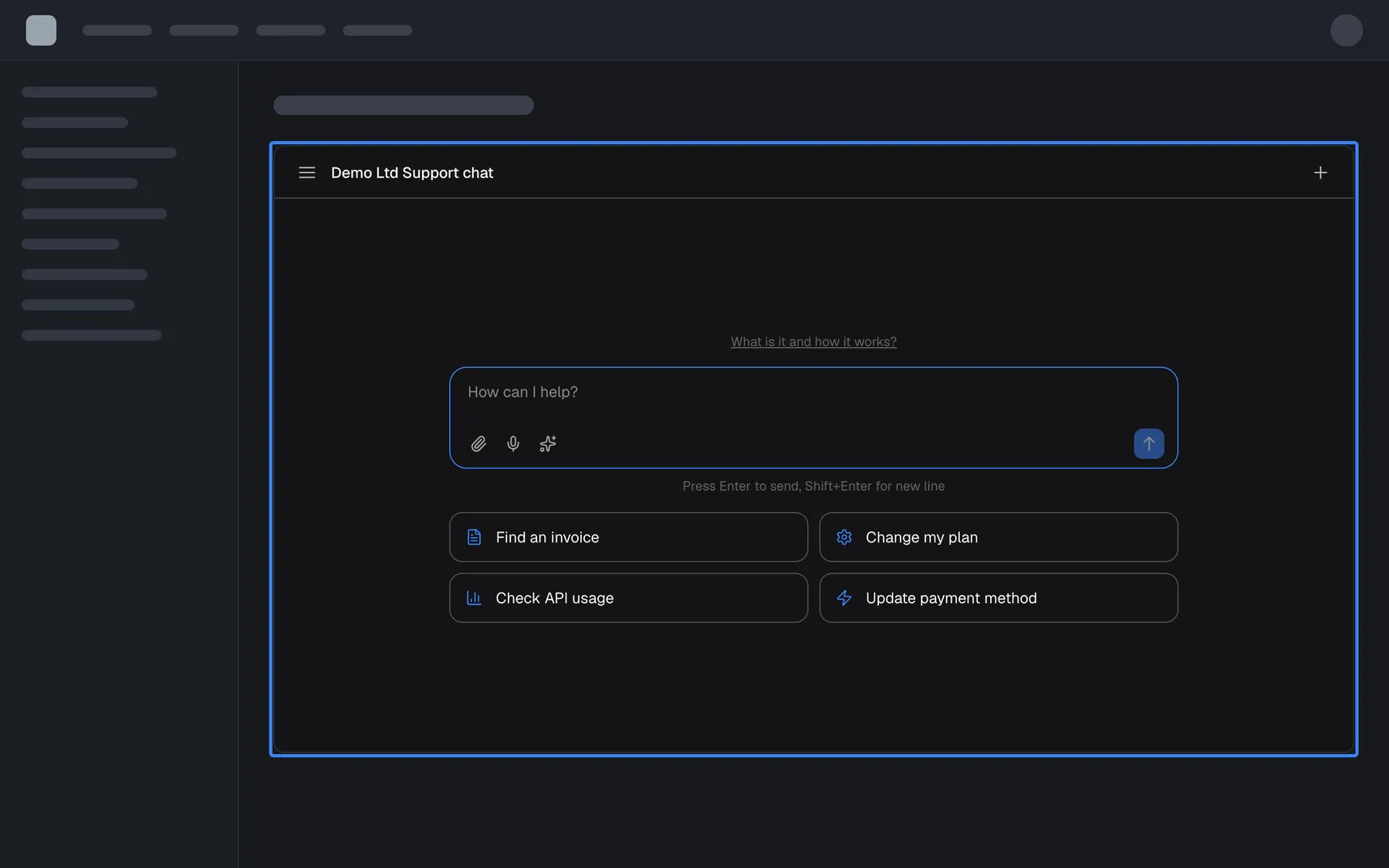
What this screenshot shows
- Screen
- (host page (provider product))
- Highlighted
- “”, page-content, always visible (inline). chat directly inside the page
- Also visible
- Wide layout: message box centred, shortcut cards in two columns
- Purpose
- inline display type
Your provider can limit the assistant to certain pages. On the other pages of the product the button or tab disappears, and an open window closes when you move to such a page. This is a setting, not a fault; go back to a page where the assistant appears.
Open and close the assistant
Section titled “Open and close the assistant”-
Find the button, tab or panel described in the layout table under Find the assistant on the page.
-
Select the round button or the edge tab. The assistant opens with its welcome screen, or with the sign-in screen first if your provider requires sign-in (Sign in with a PIN or password).
-
Close it the way your layout allows, as listed in the table below.
| Layout | How to close it |
|---|---|
| Corner button | The window has no close button, and the round button is hidden while the window is open. To close the window, reload the page. Your chats are kept and appear in your chat history. |
| Centred window | Select the dimmed area around the window. |
| Sidebar | Select the tab again. It now sits at the left edge of the open pane and its arrow points right. |
| Panel | It cannot be closed; it is part of the page. You can make it narrower by dragging its left edge. |
| Built into a page | It cannot be closed; it is part of the page. |
| Opened by the product | Use the tab on the edge of the pane, or the product’s own control. |
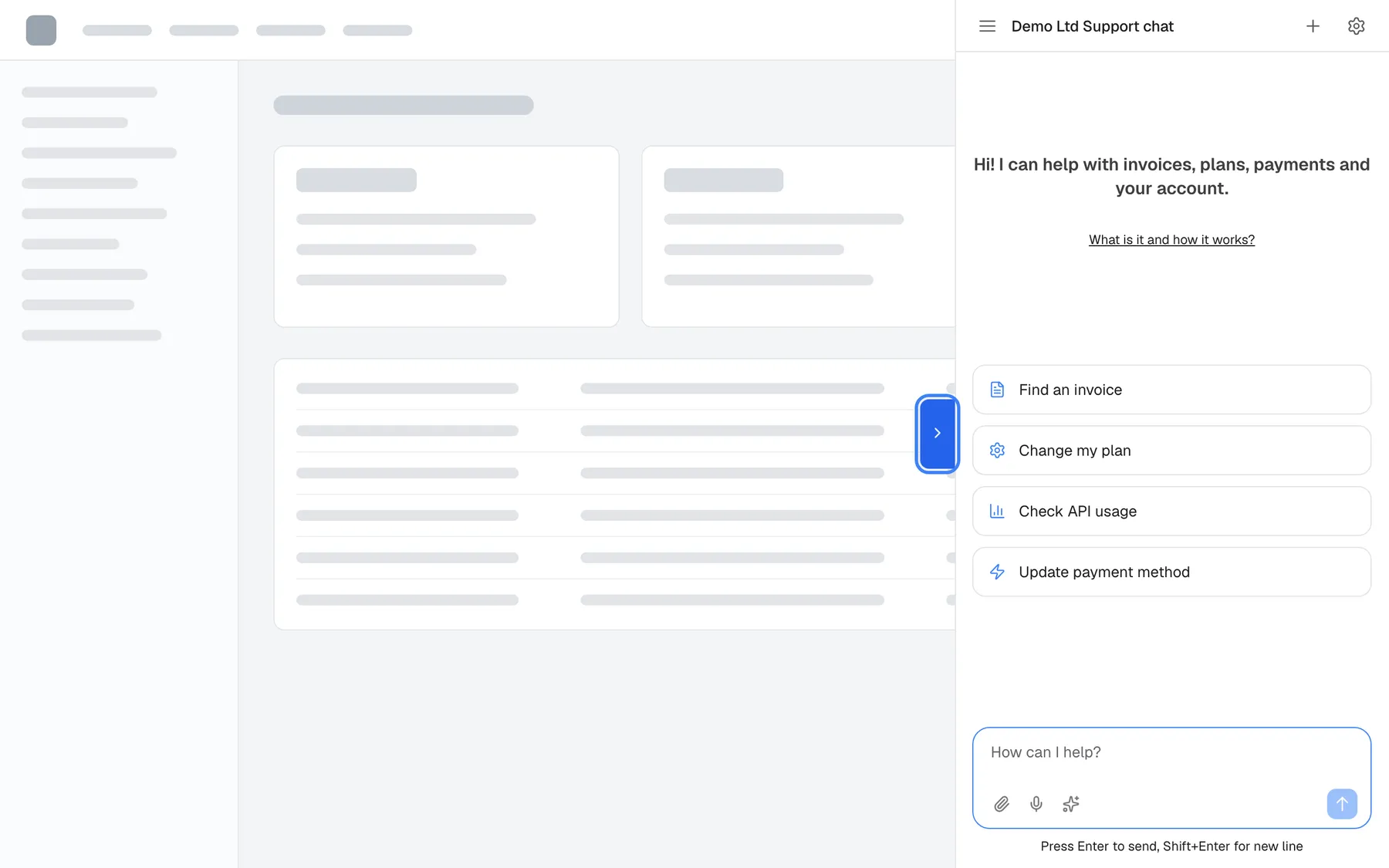
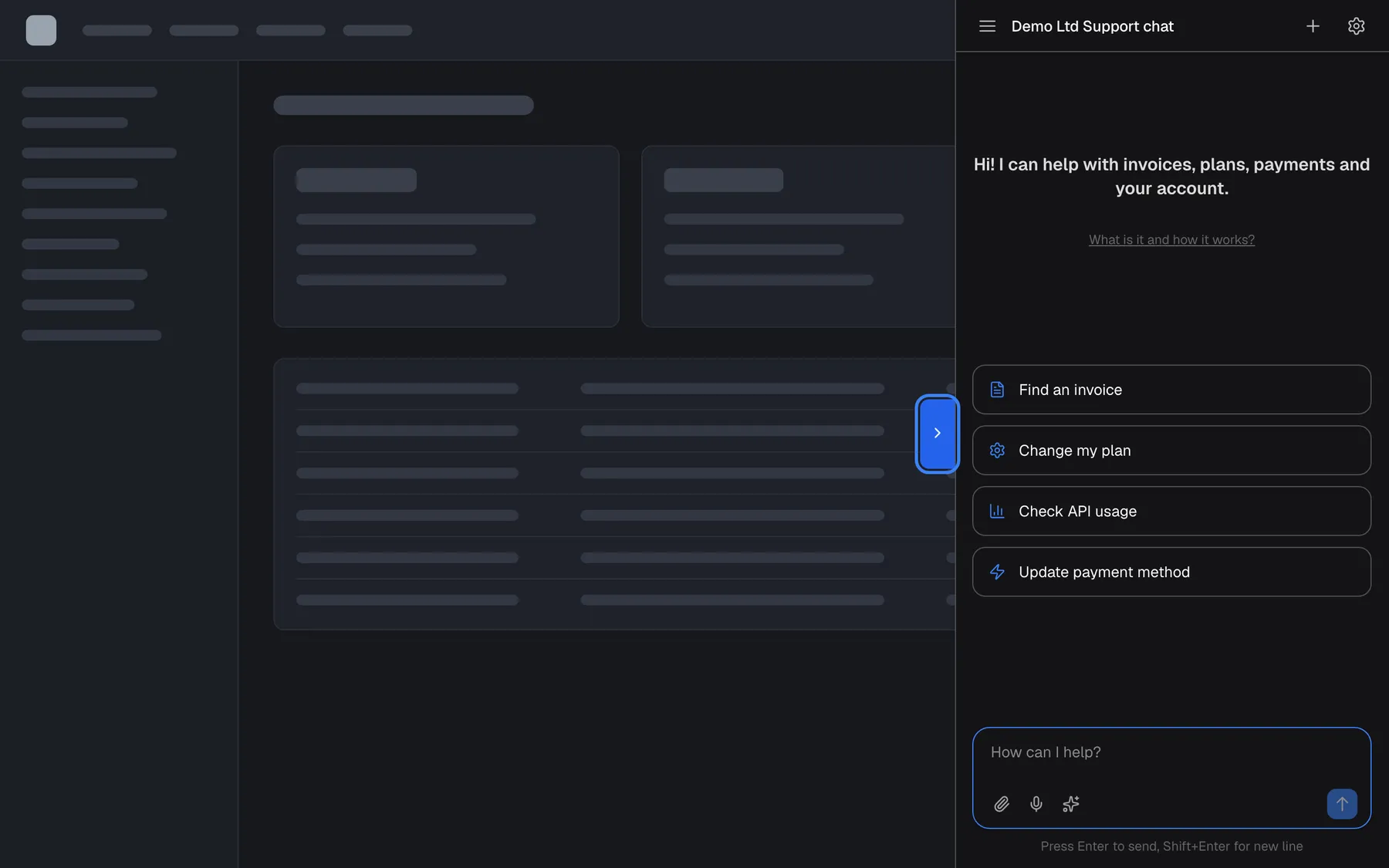
What this screenshot shows
- Screen
- (host page (provider product))
- Highlighted
- “”, pane-left-edge, open (arrow points right). closes the sidebar
- Also visible
- Full-height assistant pane on the right
- Purpose
- sidebar display type, open
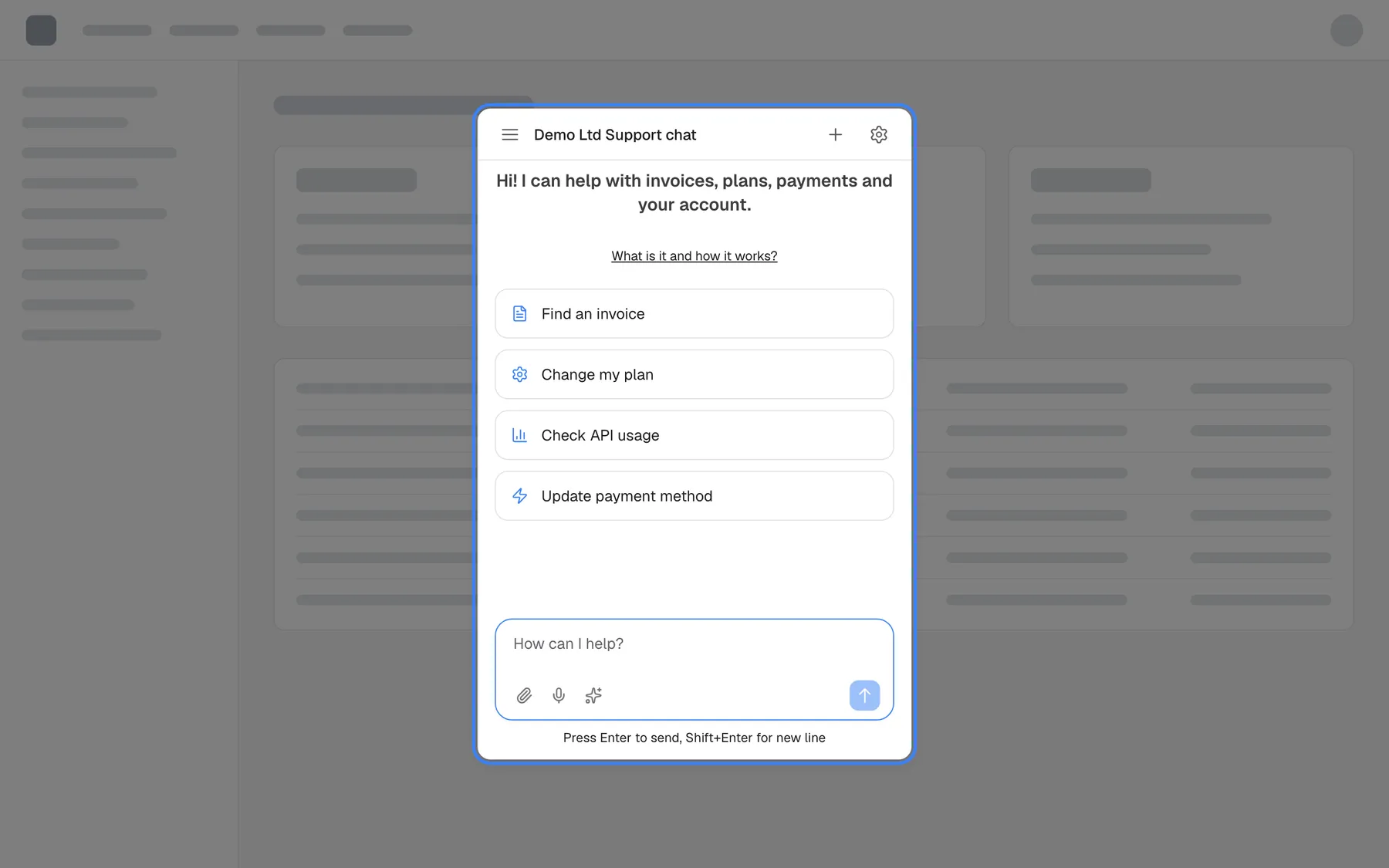
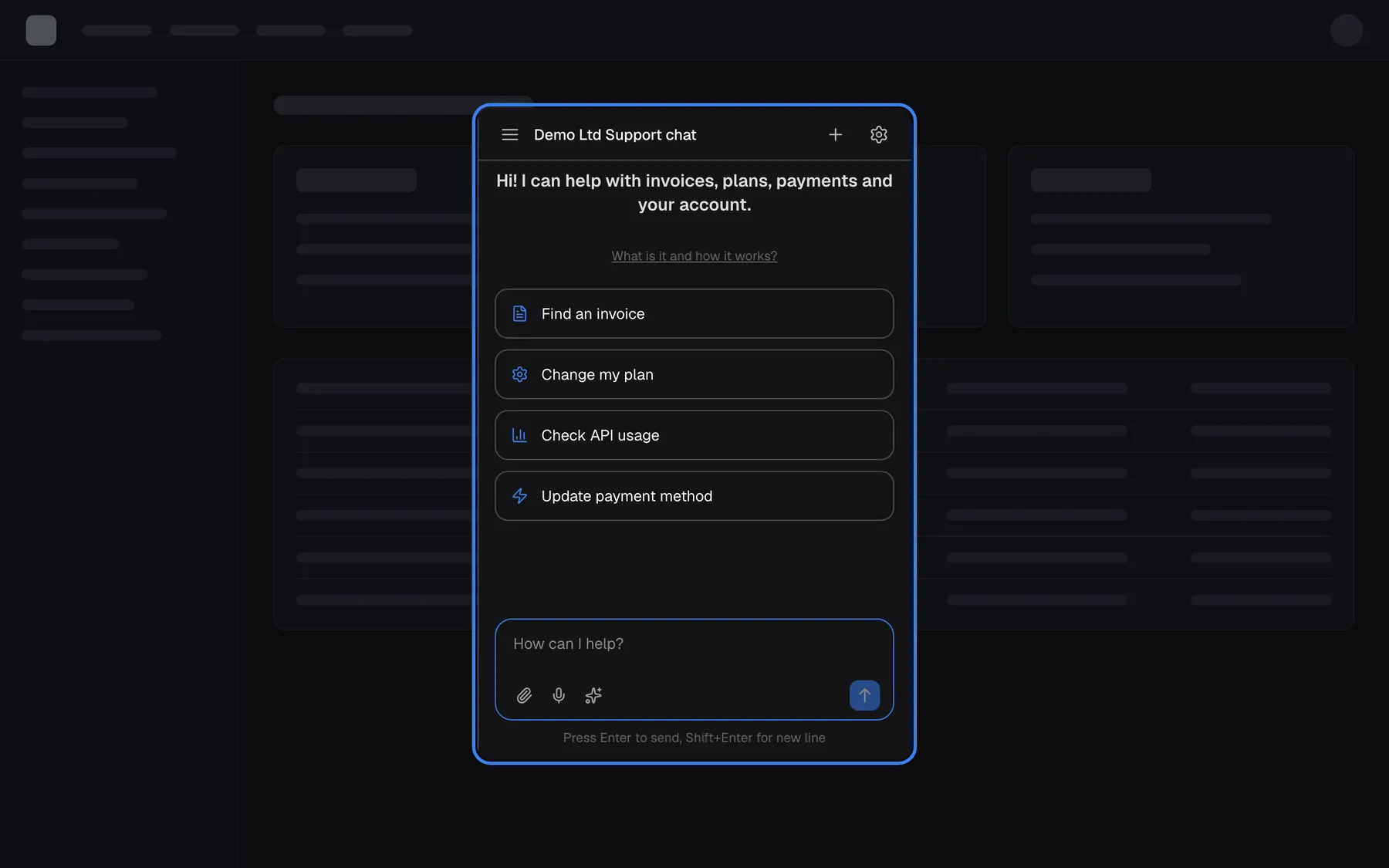
What this screenshot shows
- Screen
- (host page (provider product))
- Highlighted
- “”, centre, open over a dimmed backdrop. closes when the backdrop is clicked
- Also visible
- Dimmed page behind the window
- Purpose
- modal display type
What you have typed is not lost when the assistant closes. Every message you sent is kept in your chat history. Only a message you typed but did not send is gone after a reload.
Open it from the product
Section titled “Open it from the product”Some products have their own button or link for the assistant, for example an “Ask about this invoice” link next to an invoice. Your provider builds these; what they do depends on the product:
- Open the assistant. The pane slides in, the same as when you select the tab.
- Open it with a message. Instead of the usual welcome screen, the assistant shows a message written by the product, such as an offer to help with what you are looking at, with the message box below it and no shortcut cards. You reply when you are ready.
- Open it and ask straight away. The product’s question is sent as your first message in a new chat, and the assistant starts answering.
The product can also tell the assistant which page or record you are looking at, so that a question such as “What is wrong with this one?” makes sense. That information is never shown in the chat and is only what your provider chose to pass.
If a button in the product that should open the assistant does nothing, the problem is in the product’s set-up. Report it to your provider.
Use it on a phone
Section titled “Use it on a phone”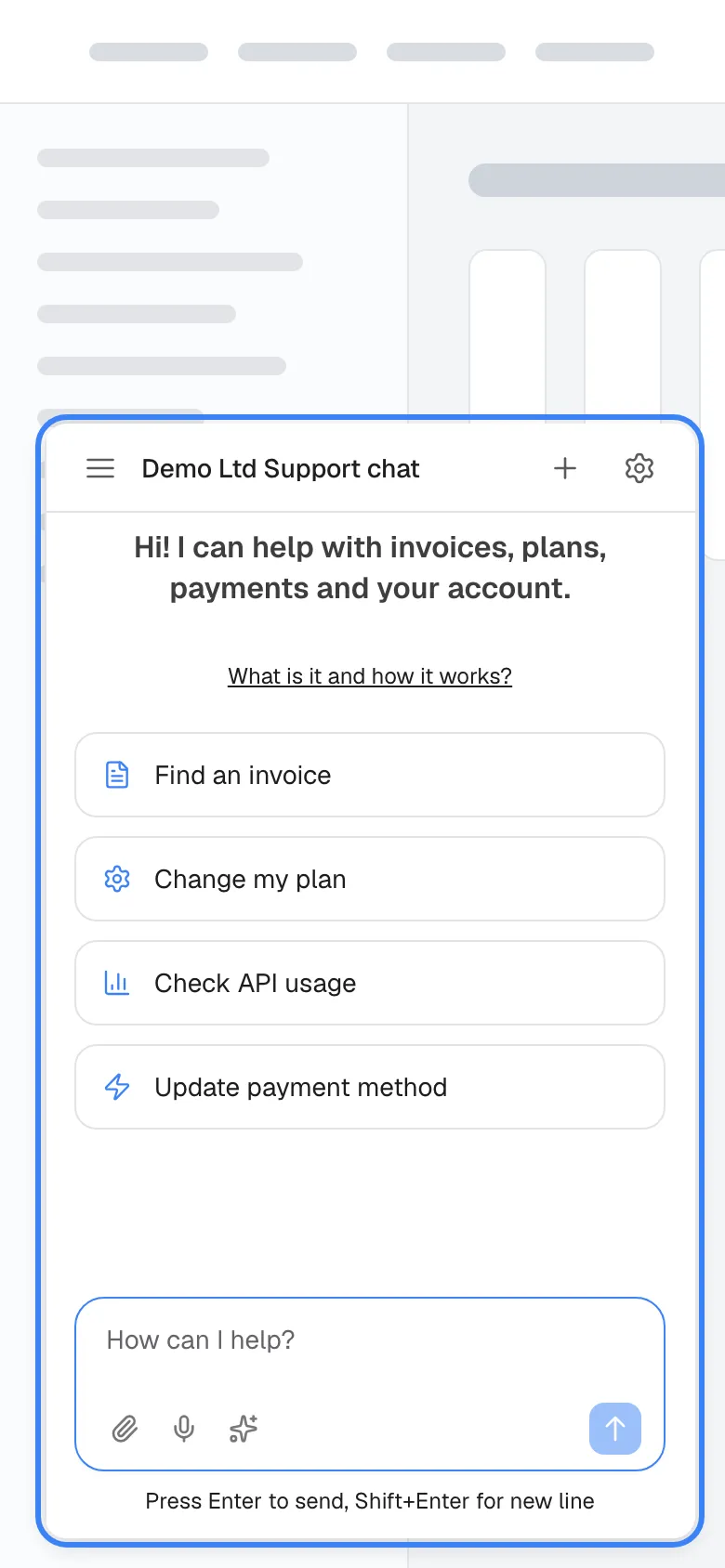
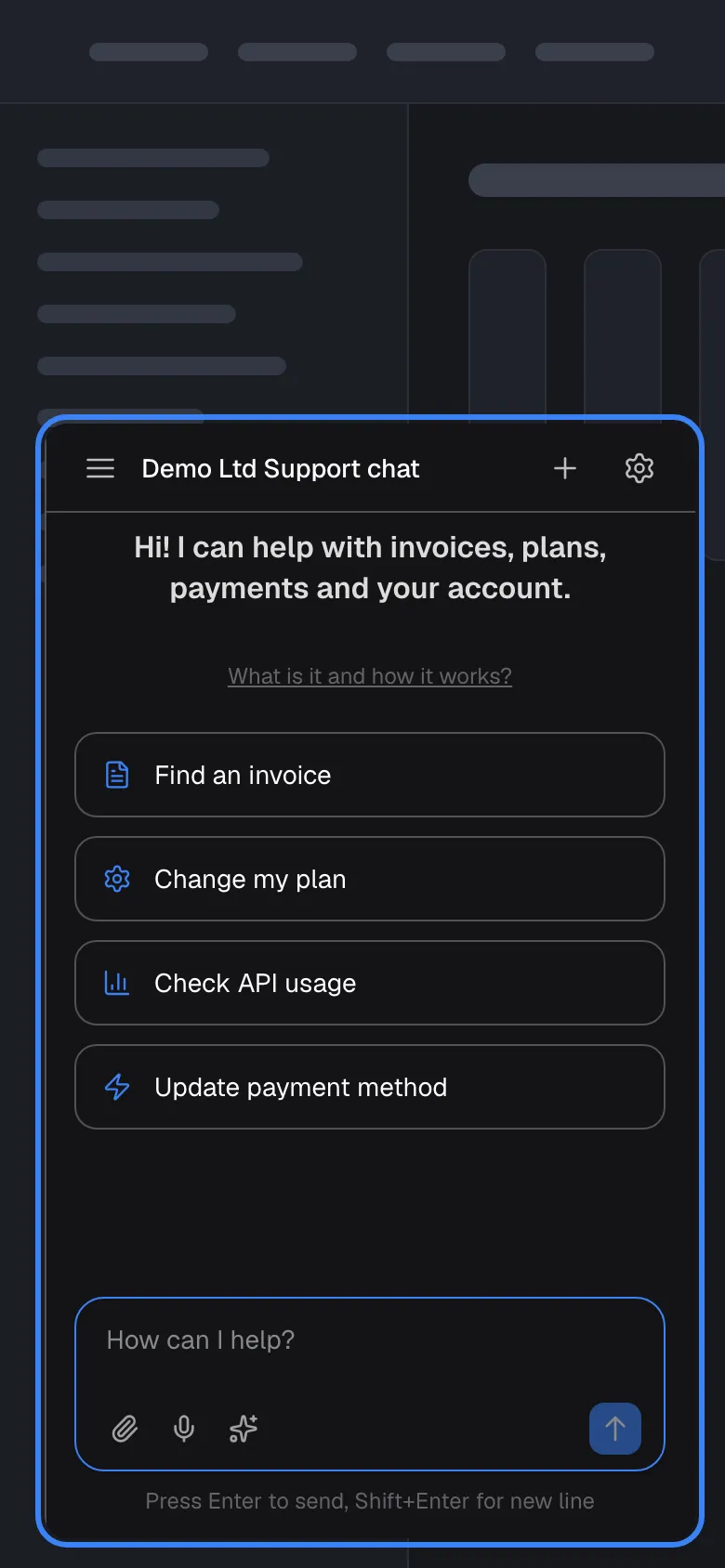
What this screenshot shows
- Screen
- (host page (provider product), 390 px wide)
- Highlighted
- “”, full-screen, open. the chat window at phone width
- Also visible
- Margins of the page visible around the window
- Purpose
- small screens (a different viewport because this shows phone width)
The assistant has no separate mobile app or layout. On a small screen the same window shrinks to fit, leaving a margin around its edges. A sidebar or panel takes up to 85% of the screen’s width. When the assistant has room (at least 700 pixels wide, for example a panel on a large monitor or a box built into a page), it switches to a wider layout with the message box in the middle and the shortcut cards in two columns.
When the assistant cannot start
Section titled “When the assistant cannot start”Before the chat appears, the assistant goes through a few short steps. Each has its own screen:
| What you see | What it means | What to do |
|---|---|---|
| An empty window for a moment | The assistant is loading | Wait a second or two |
| Preparing your session… | The assistant is checking whether you need to sign in | Wait; the sign-in screen or the chat follows |
| A spinner with Initialising... | The assistant is opening its connection | Wait. If it never finishes, your network may be blocking the connection; reload the page or try another network |
| Connecting... under the welcome text | The connection is not ready yet | Wait; the shortcut cards and the send button work once it is connected |
| Widget Configuration Error with a reason and Please contact the website administrator. | Your provider’s set-up of the assistant is not valid any more | Contact your provider; you cannot fix this yourself |
| Nothing appears on the page at all | The page is not one where your provider shows the assistant, or the assistant is unavailable | Try another page of the product; if it is missing everywhere, contact your provider |
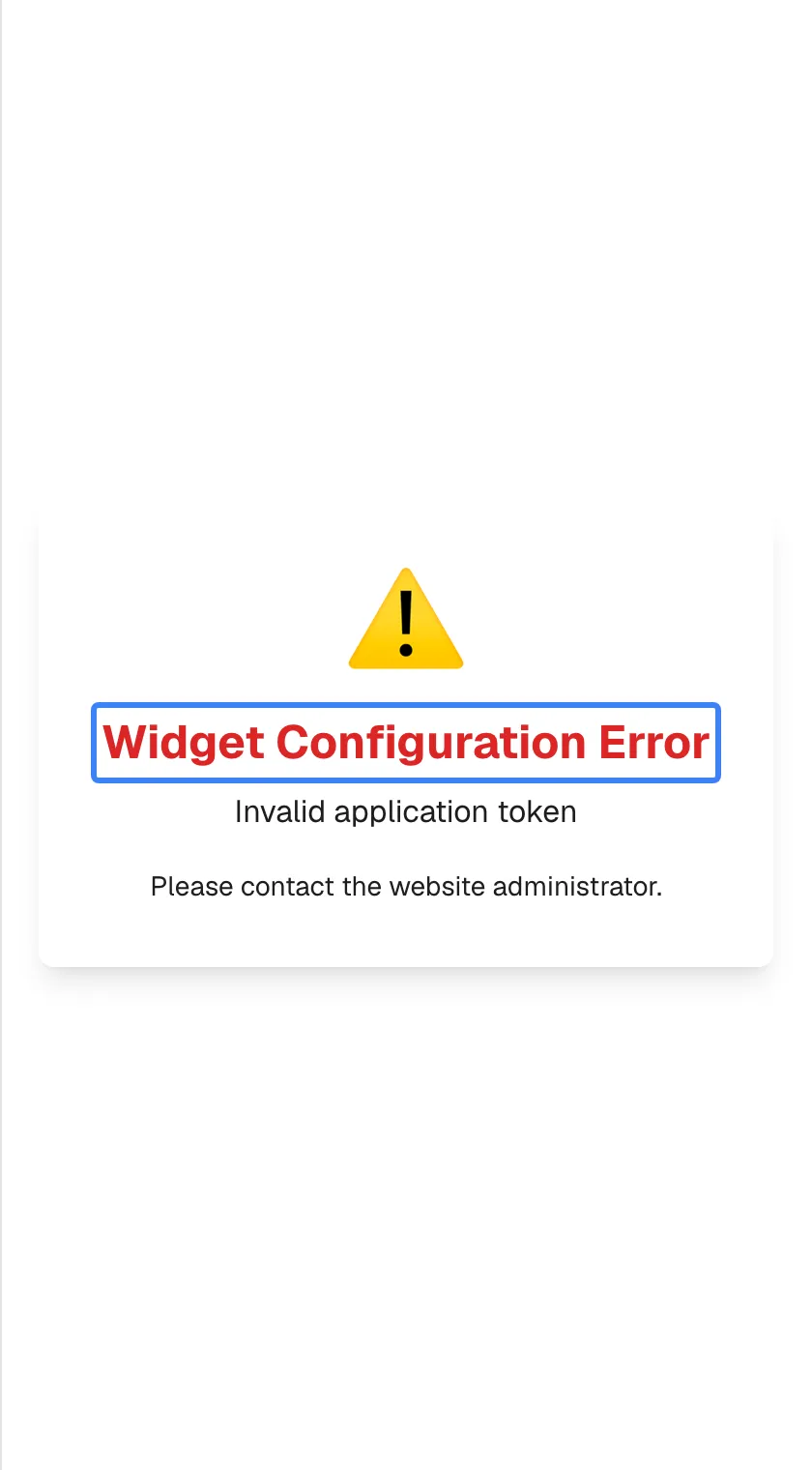
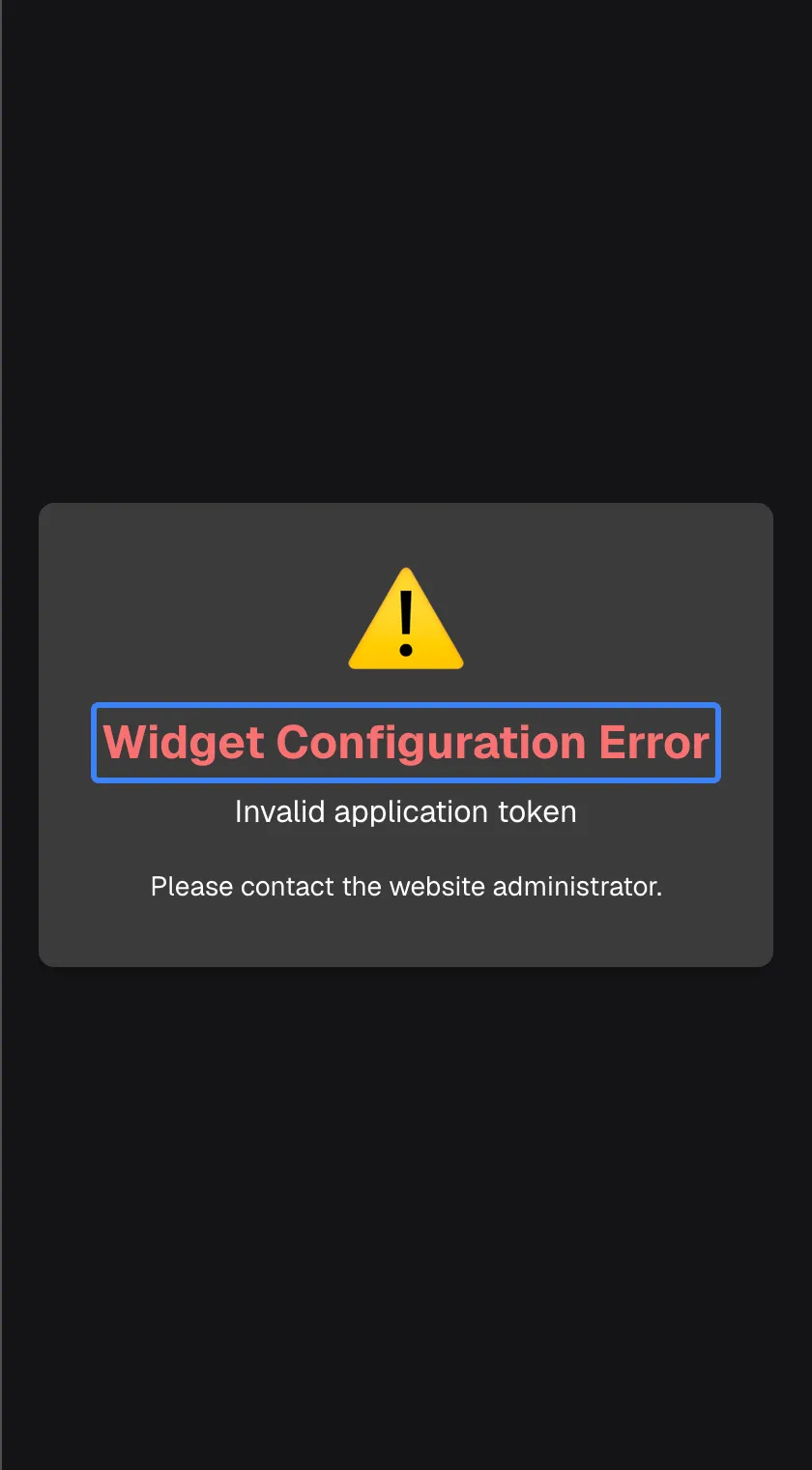
What this screenshot shows
- Screen
- Widget Configuration Error (/?applicationToken=…)
- Highlighted
- “Widget Configuration Error”, centre, error. none (no retry)
- Also visible
- Reason from the server in English: Invalid application token; widget.errors.contactAdmin line
- Purpose
- not-available state (a different viewport because it shows the window itself, not the host page)
A dropped connection is not announced. If your network drops while the assistant is open, it reconnects by itself in the background. Until it has, sending a message can fail with Error processing message. Please try again.. Wait a few seconds and send it again.
Every control, explained
Section titled “Every control, explained”The assistant’s controls around the chat are described below, in the order you meet them. The message box and everything inside a conversation are explained in Ask questions.
The round button
Section titled “The round button”On the product’s page, usually in the bottom-right corner. Your provider sets its position, colour, size and icon.
Opens the assistant’s window in the same corner, or in the middle of the screen if your provider chose a centred window. The button fades out while the window is open. It has no text and no label for screen readers.
It keeps the assistant out of your way until you need it, while staying one click away on every page where your provider shows it.
The edge tab
Section titled “The edge tab”A narrow tab with an arrow on the right edge of the page, halfway down. When the pane is open, the tab sits at the pane’s left edge.
Opens the full-height pane from the right, and closes it again. The arrow points left when the pane is closed and right when it is open. Depending on your provider’s choice, the pane either covers the right of the page or pushes the page content to the left.
A pane of full height has room for long answers and tables while the product stays visible beside it.
The panel’s left edge
Section titled “The panel’s left edge”The left border of an always-open panel.
Drag it to make the panel wider or narrower, between 240 and 900 pixels and never more than 85% of the screen. The browser remembers the width you chose for this product.
On a large screen you may want a wide panel for tables; on a laptop you may want more room for the product itself.
The dimmed page
Section titled “The dimmed page”Around a centred window, when your provider has chosen one.
Selecting the dimmed area closes the window. Your chat is kept.
It is the only way to close a centred window, which has no close button.
Chat history (menu icon)
Section titled “Chat history (menu icon)”The three-line icon at the left of the assistant’s top bar, labelled Open chat history for screen readers.
Opens the list of your earlier chats from the left, where you can reopen, rename, delete or search them, and switch between light and dark mode.
Your chats are kept, so you can pick up a conversation where you left it. See Chat history and activity.
The assistant’s name
Section titled “The assistant’s name”In the top bar, next to the menu icon.
On the welcome screen it shows the name your provider gave the assistant. Inside a chat it shows that chat’s title, which the assistant writes after its first answer.
It tells you whose assistant you are talking to and which conversation is open.
New chat (plus icon)
Section titled “New chat (plus icon)”The plus icon at the right of the top bar, labelled New Chat.
Returns to the welcome screen so your next message starts a new conversation. The current chat is kept in your history.
A new subject gets a clean start, and each chat keeps its own title in your history.
Customer portal (gear icon)
Section titled “Customer portal (gear icon)”The gear icon at the right end of the top bar, labelled Configure.
Opens your customer portal, where you manage your profile and, depending on your role and your provider’s choices, your company’s members, documents and tasks. It only appears when you are signed in and your provider has switched the portal on. In a box built into a page it may be missing.
The portal holds the settings that belong to you and your company rather than to one chat.
Light and dark mode
Section titled “Light and dark mode”In the chat history: open the menu icon, then use the sun or moon icon in its header, labelled Switch to Light Mode or Switch to Dark Mode.
Switches the assistant between light and dark. Your choice is remembered in this browser. If your provider has set a fixed theme for its product, the assistant starts in that theme each time it opens, and your switch lasts until the page is reloaded. If neither you nor your provider has chosen, the assistant follows your device’s setting.
Dark mode is easier on the eyes in the evening and matches products that use a dark theme.
Who sees what
Section titled “Who sees what”| Part | When it appears |
|---|---|
| The layout (button, tab, panel, box) | Chosen by your provider for its product |
| The assistant on a given page | On every page, unless your provider limited it to certain pages |
| The sign-in screen | Only when your provider requires sign-in and has not signed you in automatically |
| The gear icon | Only when you are signed in and your provider has switched the customer portal on |
What you need to know
Section titled “What you need to know”| Topic | Fact |
|---|---|
| One layout per product | Your provider chooses it; there is no setting for you to change it. |
| No close button in the corner window | Reload the page to close it. Other layouts close with the tab or the dimmed page. |
| Window size | The corner window is at most the screen’s width minus 40 pixels and its height minus 100 pixels. A sidebar or panel takes up to 85% of the width. |
| Wide layout | From 700 pixels wide the assistant centres the message box and shows shortcut cards in two columns. |
| Remembered in this browser | Your light or dark choice and the width of a panel. |
| Pages | Your provider can show the assistant only on some pages; it disappears on the others. |
| Connection | A dropped connection is retried automatically and silently. |
Frequently asked questions
Section titled “Frequently asked questions”General
Section titled “General”Where is the assistant in my product?
Section titled “Where is the assistant in my product?”It depends on your provider’s choice. Look for a round button in a corner of the page (usually bottom right), a narrow tab with an arrow on the right edge, a panel that is always open on the right, or a chat box inside one of the product’s pages. Some products only open it from their own button or link.
Why does the assistant look different from the one in another product?
Section titled “Why does the assistant look different from the one in another product?”Each provider sets the assistant’s name, colours, fonts, button icon and layout for its own product. Two products can therefore show assistants that look and behave differently, even when they work the same way underneath.
Do I need to install anything?
Section titled “Do I need to install anything?”No. The assistant runs in your web browser on a computer, tablet or phone. Your browser must allow site data for the product, because the assistant stores your sign-in and display choices there.
Opening and closing
Section titled “Opening and closing”How do I close the assistant?
Section titled “How do I close the assistant?”A centred window closes when you select the dimmed page around it, and a sidebar closes with the same tab that opened it. The corner window has no close button and its round button is hidden while it is open, so reload the page to close it. A panel or a box built into a page cannot be closed.
Will I lose my conversation if I reload the page?
Section titled “Will I lose my conversation if I reload the page?”No. Every message you sent and every answer is kept in your chat history, which you open with the menu icon in the assistant’s top bar. Only text you typed into the message box but did not send is lost when you reload.
Why did the assistant’s button disappear on some pages?
Section titled “Why did the assistant’s button disappear on some pages?”Your provider can show the assistant only on certain pages of its product. On the other pages the button or tab is hidden, and an open window closes when you move to one of them. Go back to a page where the assistant appears.
Can I make the side panel wider?
Section titled “Can I make the side panel wider?”Yes, if the assistant is shown as an always-open panel. Drag the panel’s left edge to any width between 240 and 900 pixels, up to 85% of your screen. Your browser remembers the width for this product.
A button in the product that should open the assistant does nothing. What now?
Section titled “A button in the product that should open the assistant does nothing. What now?”That button is part of your provider’s product, not of the assistant, and it only works when the product has set the assistant up for it. Tell your provider which button you used and on which page.
Phones and accessibility
Section titled “Phones and accessibility”Does the assistant work on my phone?
Section titled “Does the assistant work on my phone?”Yes. It opens in the same window, shrunk to fit your screen with a margin around it. There is no separate app and no separate mobile layout; tap the round button or the edge tab as you would click it on a computer.
Can I use the assistant with a screen reader?
Section titled “Can I use the assistant with a screen reader?”You can, with one gap: the round button that opens the assistant has no text or label, so a screen reader announces it only as a button. Inside the assistant, the icons in the top bar and the message box have labels such as Open chat history.
How do I switch to dark mode?
Section titled “How do I switch to dark mode?”Open the chat history with the menu icon in the assistant’s top bar, then select the sun or moon icon in its header. The assistant remembers your choice in this browser, unless your provider has set a fixed theme, which applies again each time the assistant opens.
Data and privacy
Section titled “Data and privacy”Does the assistant know which page I am on?
Section titled “Does the assistant know which page I am on?”Only if your provider’s product tells it. A product can pass a short description of the page or record you are looking at, so that the assistant understands questions about it. That information is not shown in the chat and is limited to what your provider chose to pass.
Troubleshooting
Section titled “Troubleshooting”| Symptom | What to check |
|---|---|
| There is no button or tab anywhere | Try another page of the product; your provider may show the assistant only on some pages. If it is missing on every page, contact your provider. |
| The window opens and stays blank | Your browser may block site data or third-party content for this product. Allow site data for the product and reload the page. |
| Widget Configuration Error with a short reason underneath, often in English | Your provider’s set-up of the assistant is no longer valid. Send your provider the page address and the exact message, reason included. |
| The spinner Initialising... never finishes | Your network, firewall or VPN may block the assistant’s live connection. Reload the page, or try another network. |
| Connecting... stays under the welcome text and the cards do nothing | The connection is not ready. Wait a few seconds; the cards and the send button work as soon as it is. |
| You cannot close the corner window | The corner window has no close button. Reload the page; your chats are kept. |
| Error processing message. Please try again. after a pause | The connection dropped and is reconnecting. Wait a few seconds and send the message again. |