

Use the assistant in Slack, Telegram or Teams
When the company that provides your assistant has connected Slack, Telegram or Microsoft Teams, you can do much of your work there: approve or deny what the assistant wants to do, answer its questions, and chat with it, without opening the app. You connect your account once from the Customer Portal; after that, messages about your background jobs arrive in the chat app with buttons.
Before you start
Section titled “Before you start”| You need | Where it lives |
|---|---|
| A Slack, Telegram or Teams account | Your own; for Slack, a member of the workspace your company uses, for Teams, an account in your company’s Microsoft 365 organisation |
| The Customer Portal | ConfigureNotifications, under My notifications |
| The app offered to you | You only see the chat apps your company can deliver through. If yours is missing, ask your company’s admin |
-
Open My notifications. Open the assistant, select Configure, then Notifications, and scroll to My notifications.
-
Connect the app. For Telegram, select Connect Telegram, press Start in Telegram, then I've pressed Start. For Slack, switch Slack on, select Send confirmation to Slack, press Confirm in Slack, then I've confirmed. For Teams, select Connect Microsoft Teams and send the shown
linkmessage to the bot. -
Check the card. It reads Linked and ✓ Buttons and replies work here.
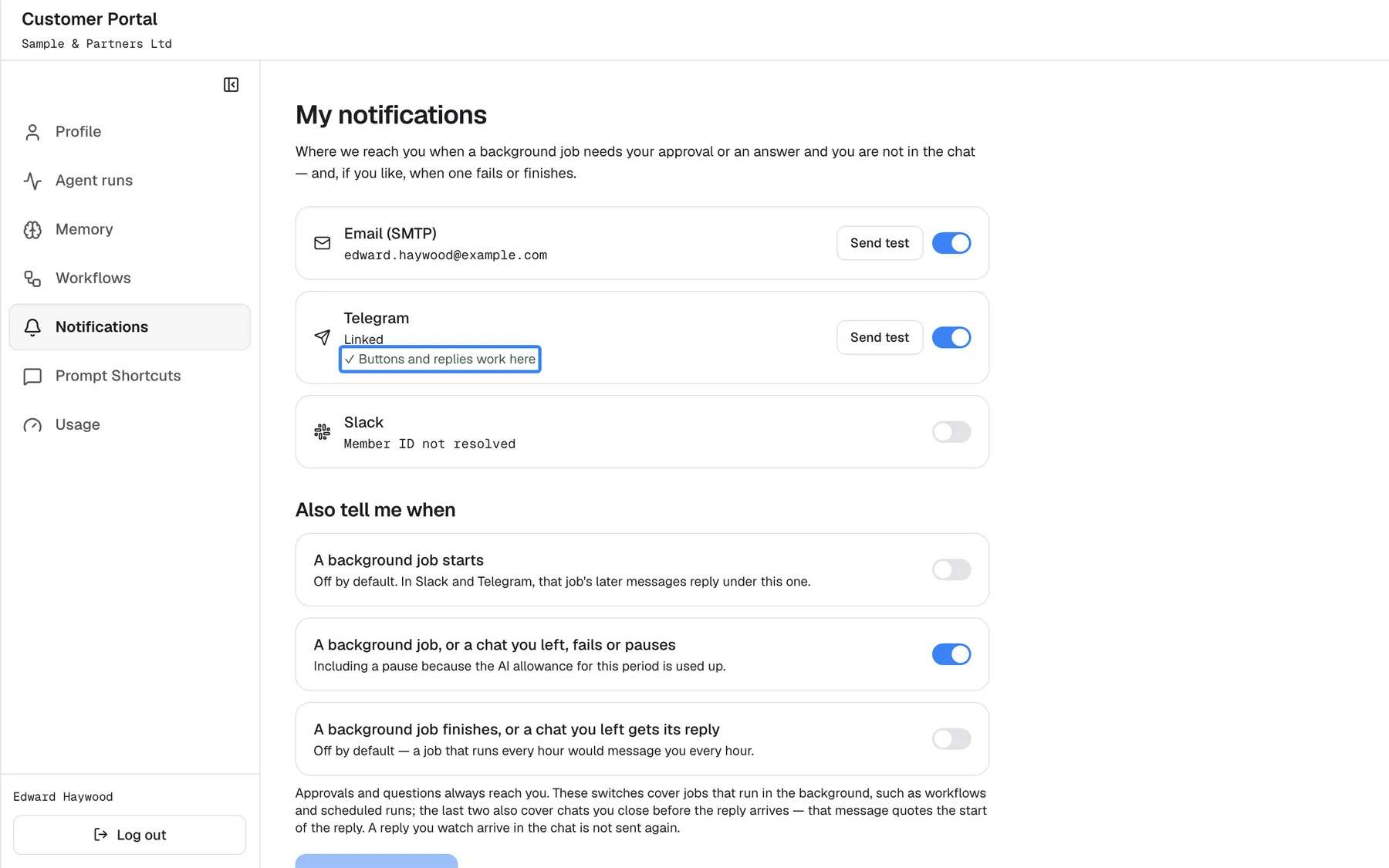
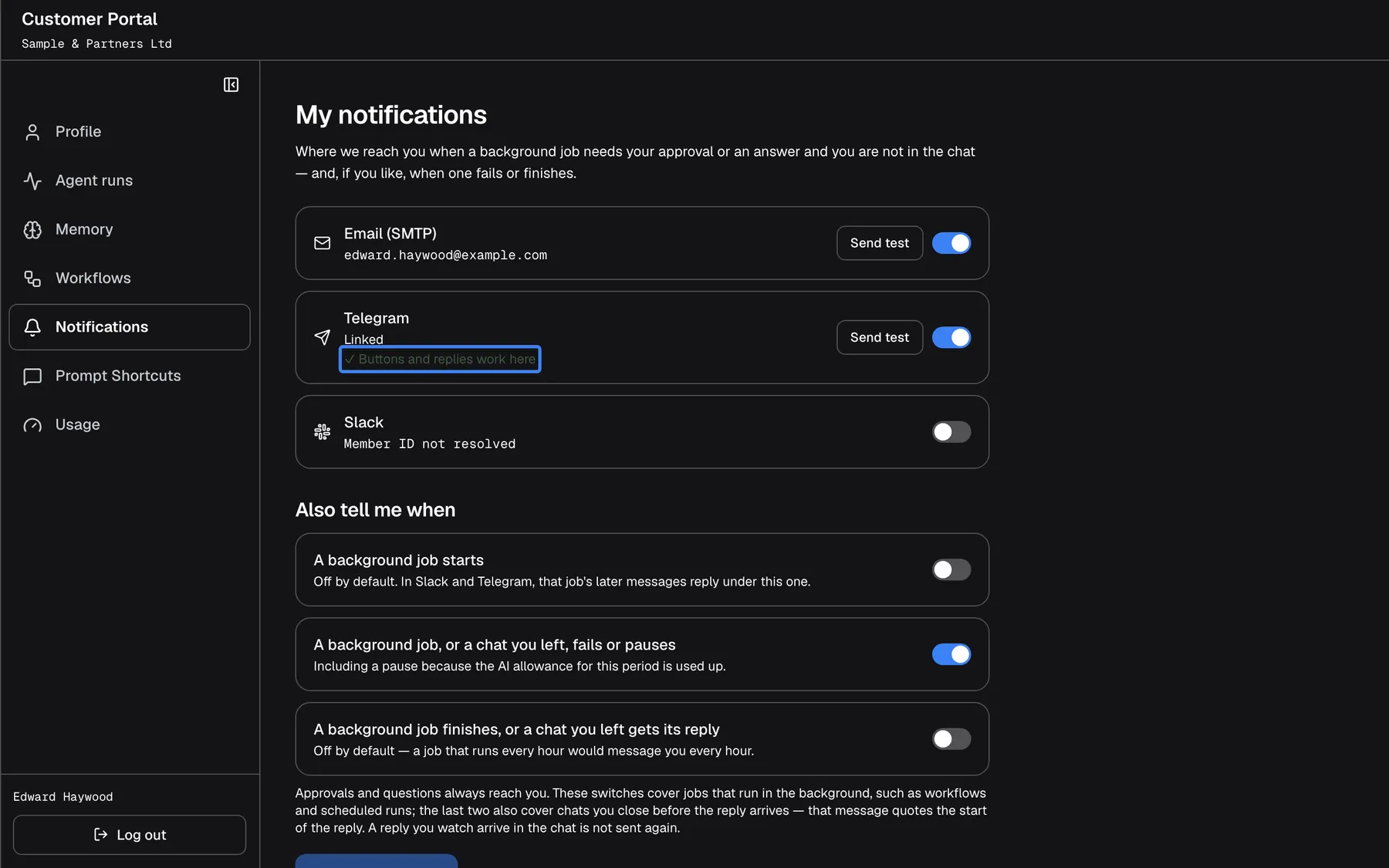
A connected chat app that shows Buttons and replies work here lets you approve and chat from it. What this screenshot shows
- Screen
- My notifications (/?mode=portal)
- Highlighted
- “✓ Buttons and replies work here”, telegram-card, linked and verified. none (status)
- Also visible
- Email (SMTP) on; Telegram Linked; Slack off
- Purpose
- a connected chat-app account
-
Switch it on and save. Make sure the card’s switch is on, then select Save preferences.
-
Try it. Send the bot a message, or use the command to start a chat:
/start-chatin Slack,/start_chator/newin Telegram,newin Teams.
What happens next
Section titled “What happens next”Messages about your background jobs now arrive in the chat app, and you can act on them there:
| What | How |
|---|---|
| Approve or deny | Press the buttons on the message. Every copy then shows who decided |
| Answer a question | Reply to the question; in Teams you can also type in the box on the question and send it. Offered choices appear as buttons |
| Chat | Write to the bot. A message continues the chat it follows for 24 hours; the chat also appears in the assistant’s history |
| See what is waiting | Send /pending (pending in Teams) |
| Continue an earlier chat | Send /chats (chats in Teams) and press the button next to the chat; the 10 most recent chats are listed |
| Slack | Telegram | Teams | What it does |
|---|---|---|---|
/start-chat [message] | /start_chat [message] or /new [message] | new [message] | Starts a new chat |
/chats | /chats | chats | Lists your 10 most recent chats |
/pending | /pending | pending | Lists the approvals and questions waiting for you |
/runs | /runs | runs | Lists your 10 most recent workflow runs |
/run-workflow <name> | /run <name> | run <name> | Starts a workflow you are allowed to run |
/stop | /stop | stop | Stops the answer being written |
/help | /help | help | Shows this list |
Each message also has an Open button that takes you to the chat or run in the app. While the assistant works you see a short status such as Working on it…, and a finished answer arrives as a new message, with charts and tables; a table also comes as a CSV file.
Options
Section titled “Options”| Choice | When to pick it | Effect |
|---|---|---|
| Telegram | You want messages on your phone outside work tools | Messages and buttons in your chat with the company’s bot |
| Slack | Your company works in Slack | Messages in a direct message from the company’s app, as threads |
| Teams | Your company works in Microsoft Teams | Messages in your 1:1 chat with the company’s bot |
| Email only | You prefer not to connect a chat app | Messages by email, without buttons; you approve in the app |
If something goes wrong
Section titled “If something goes wrong”| Symptom | What to check | Fix |
|---|---|---|
| The bot answers that your account isn’t linked | You connected Telegram by pasting a chat ID, or did not confirm in Slack | Connect again from My notifications |
| Approve is missing, only Deny and Open show | The request is above the limit your company set for chat apps | Open it and approve in the app |
| The bot asks you to sign in again | Your sign-in to the service behind a tool has expired | Open the app, sign in, and send your message once more |
| No buttons at all | Buttons are not available for your company’s connection | Use Open and decide in the app |
| The Teams bot cannot be found | The app was not installed for you | Can't find the bot? Your Teams admin has to add the app for you first. |