

Actions the assistant takes for you
The assistant does more than answer: it can look up your invoices, change your plan or issue a credit note in your provider’s systems, on your behalf. Looking things up happens straight away. For actions your provider considers risky, such as anything that changes or deletes data, the assistant stops and shows you an approval card first, and nothing happens until you decide. This guide explains what the assistant may do for you, how to read and answer an approval card, what happens after you approve or deny, and what you see when an action fails.
What it does
Section titled “What it does”Asking a person to correct an invoice, resend a document or change a setting usually means a ticket and a wait. The assistant can do many of these tasks itself, because your provider has connected it to the systems behind its product. That is convenient, but you should stay in control of anything that changes your data.
So the assistant splits its actions in two. Actions that only read information run immediately. Actions your provider has marked as needing approval wait behind a card that shows exactly what the assistant wants to do and with which values, and they run only when you select Approve. From there:
- You see each action’s purpose, its risk level and the values it would send before anything happens. Every setting, explained.
- You decide action by action, or approve several at once. Approve all actions.
- If you deny, nothing is changed, and the assistant still answers and tells you so. Understanding approvals.
- For a plan of several steps, you approve the risky steps up front or skip them. The multi-step approval card.
- Tasks that run in the background wait for you on the welcome screen and in the customer portal. Actions in your chat and portal.
Every decision stays in the chat as a short line, and the answer names the actions it used with a badge, so you can always see later what was done in your name.
Before you start
Section titled “Before you start”| Requirement | Details |
|---|---|
| Your provider’s set-up | Your provider decides which of its systems the assistant can use, and which actions need your approval. You cannot change either. |
| Your own login (sometimes) | Some systems act as you and need your own login or key for that system. The assistant asks for it once; see Connect your account to the assistant. |
| Sign-in (sometimes) | If your provider requires sign-in, the assistant acts for the account you signed in with. |
| Cost to you | None. Approving or denying an action costs nothing. |
Understanding approvals
Section titled “Understanding approvals”An action can be in one of these states. Each is shown in the chat:
| State | What you see | Example |
|---|---|---|
| Runs without asking | A badge in the answer naming the action, sometimes a collapsed line Auto-approved execution: {{toolName}} | “List invoices” to look up your September invoices |
| Waiting for you | An approval card with Deny and Approve; the message box is greyed out | “Credit note” for £452.20 against invoice INV-2026-0418 |
| Approved | A blue line Approved execution: '{{toolName}}', then the result in the answer | Credit note CN-2026-0077 issued |
| Denied | A red line Rejected execution: '{{toolName}}'; the assistant answers without the action | “I did not issue a credit note, and the invoice is unchanged.” |
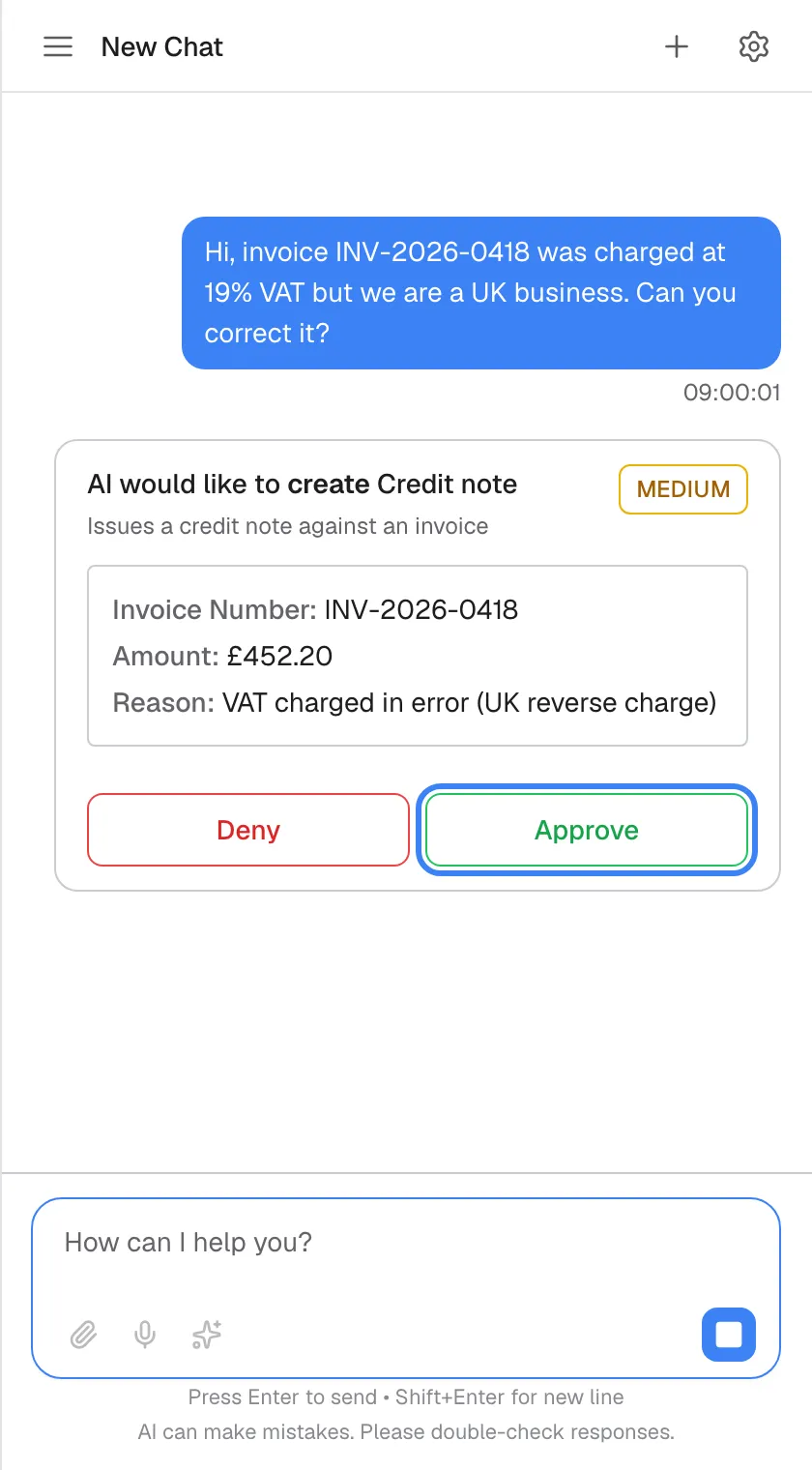
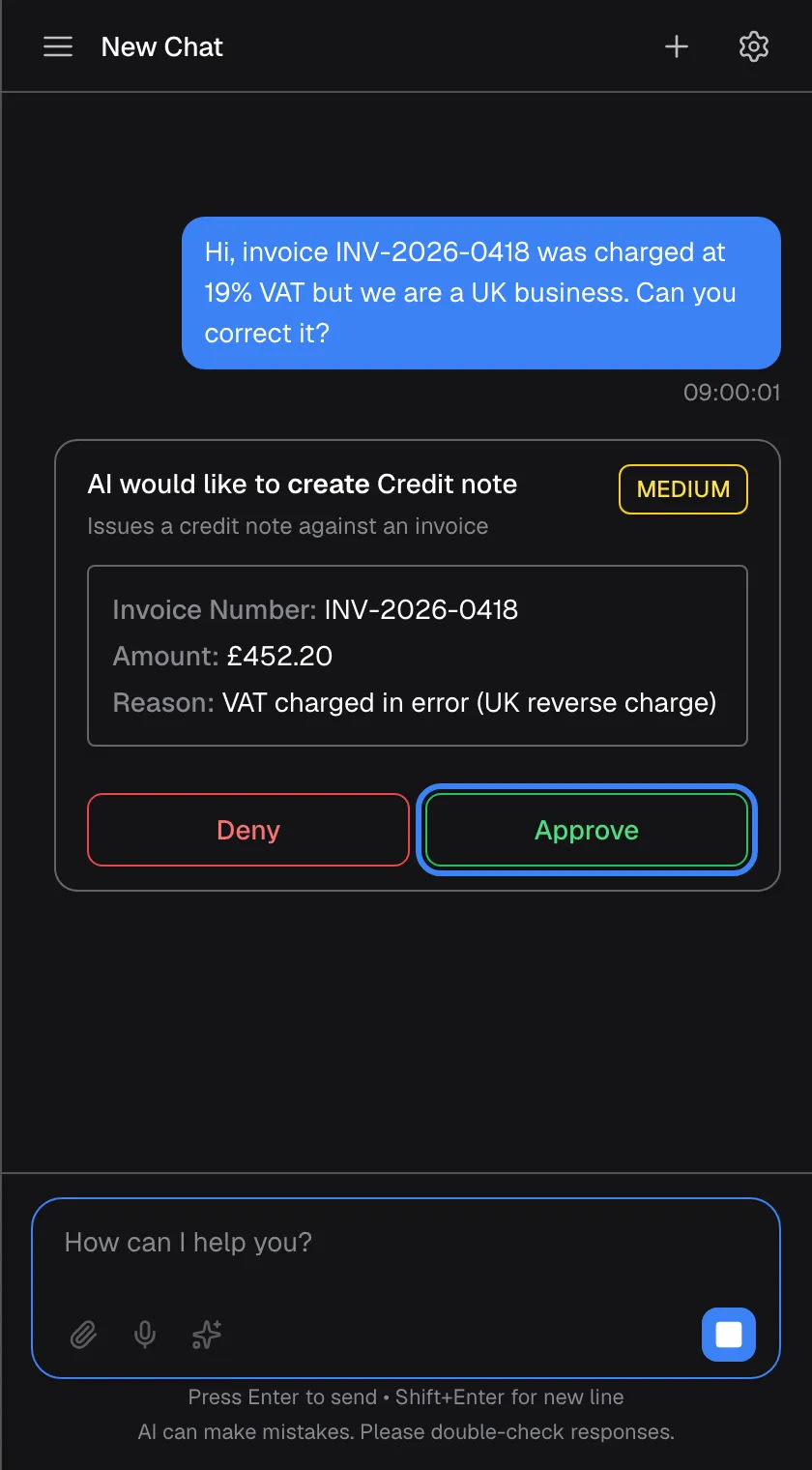
What this screenshot shows
- Screen
- AI would like to (/?applicationToken=…)
- Highlighted
- button “Approve”, approval-card, enabled (card pending). runs the action and lets the answer continue
- Also visible
- toolApproval.aiWantsTo + verb + tool name, risk badge MEDIUM (untranslated); Parameters with English field names; toolApproval.denyButton
- Purpose
- the approval card
How the assistant decides
Section titled “How the assistant decides”- Your provider marks each action. Typically, actions that only read run without asking, and actions that create, change or delete something need approval. The final say is your provider’s, per action.
- One approval needed means all wait. If the assistant wants to run several actions at once and any one of them needs approval, all of them wait behind cards, including ones that would otherwise run without asking.
- The assistant waits for every card. It continues only when you have decided on every card of that set. You can approve some and deny others.
- Denied actions are reported to the assistant. It learns that you declined, and still writes an answer, usually saying what it did not do.
- Only you decide. Approval cards in your chat can only be answered from your chat; no one else can approve them for you.
What does not ask you
Section titled “What does not ask you”- Actions your provider did not mark as needing approval, typically those that only look information up.
- In a plan of several steps, the steps that do not need approval: they keep running while the multi-step card waits for you.
Setting it up in 3 steps
Section titled “Setting it up in 3 steps”There is nothing to switch on: your provider decides which actions ask you. What you set up is how you handle your first approval card.
-
Read the card. The first line says what the assistant wants to do, for example AI would like to create “Credit note”. Under it are your provider’s description of the action and a risk badge (LOW, MEDIUM or HIGH). Hover over the badge for its meaning.
-
Check the values. The box lists what the assistant would send, such as “Invoice Number: INV-2026-0418” and “Amount: £452.20”. Internal codes are hidden to keep the card readable. If a value is wrong, select Deny and tell the assistant the right value.
-
Decide. Select Approve to run the action or Deny to refuse it. The button shows Processing... for a moment, the card shrinks to one line, and the assistant continues.
Every setting, explained
Section titled “Every setting, explained”The approval card and the cards around it have a few parts. Each is explained below, in the order you meet them.
The action line, what the assistant wants
Section titled “The action line, what the assistant wants”The first line of an approval card, in bold.
Reads AI would like to followed by a verb and the action’s name as your provider named it. The verb comes from the kind of action: create, update, delete, list, search, execute, retrieve, or perform when none fits. Under it is your provider’s description of the action, if it wrote one.
You should know in one glance whether the assistant wants to add, change or remove something.
The risk badge
Section titled “The risk badge”At the top right of the card. It reads LOW (grey), MEDIUM (yellow) or HIGH (red), in English in every language.
Your provider’s rating of the action. Hover for the explanation: Low risk - Safe operation with minimal impact, Medium risk - May modify data, review recommended or High risk - Critical operation, requires careful review.
It tells you how carefully to check the values before you approve.
The values
Section titled “The values”The box in the middle of the card.
One line per value the action would send, as “Name: value”, with technical names turned into words (“invoiceNumber” becomes “Invoice Number”). Dates show in your local format. Yes and no values show as “Yes” or “No”, and empty values as “Not specified”, in English. Internal codes are hidden: identifiers, values ending in “id”, and long codes without spaces do not appear.
The values are what will really be sent; the hidden codes would only make the card harder to read.
Destructive and bulk badges
Section titled “Destructive and bulk badges”Under the action line, when your provider has marked the action.
Destructive marks an action that may not be reversible, together with the warning This action may be irreversible. Please review carefully before approving.. Bulk Operation marks an action that affects many records at once.
These are the actions where a mistake costs the most, so they are flagged before you decide.
Approve and Deny
Section titled “Approve and Deny”The two buttons at the bottom of the card: Deny in red on the left, Approve in green on the right.
One decision per card. While a decision is being sent, the buttons are disabled and show Processing.... Afterwards the card collapses to a line: Approved execution: '{{toolName}}' or Rejected execution: '{{toolName}}'. Select the line to see the values again. There is no undo.
An explicit choice per action means nothing changes by accident.
Approve all actions
Section titled “Approve all actions”A wide green button above the message box, “Approve all … actions” with the number of waiting cards, in English. It appears only when two or more cards are waiting.
Approves every waiting card at once; it shows “Approving…” while it works. There is no matching button to deny all; deny cards one by one.
When you asked for several related changes, one click saves you from approving each in turn.
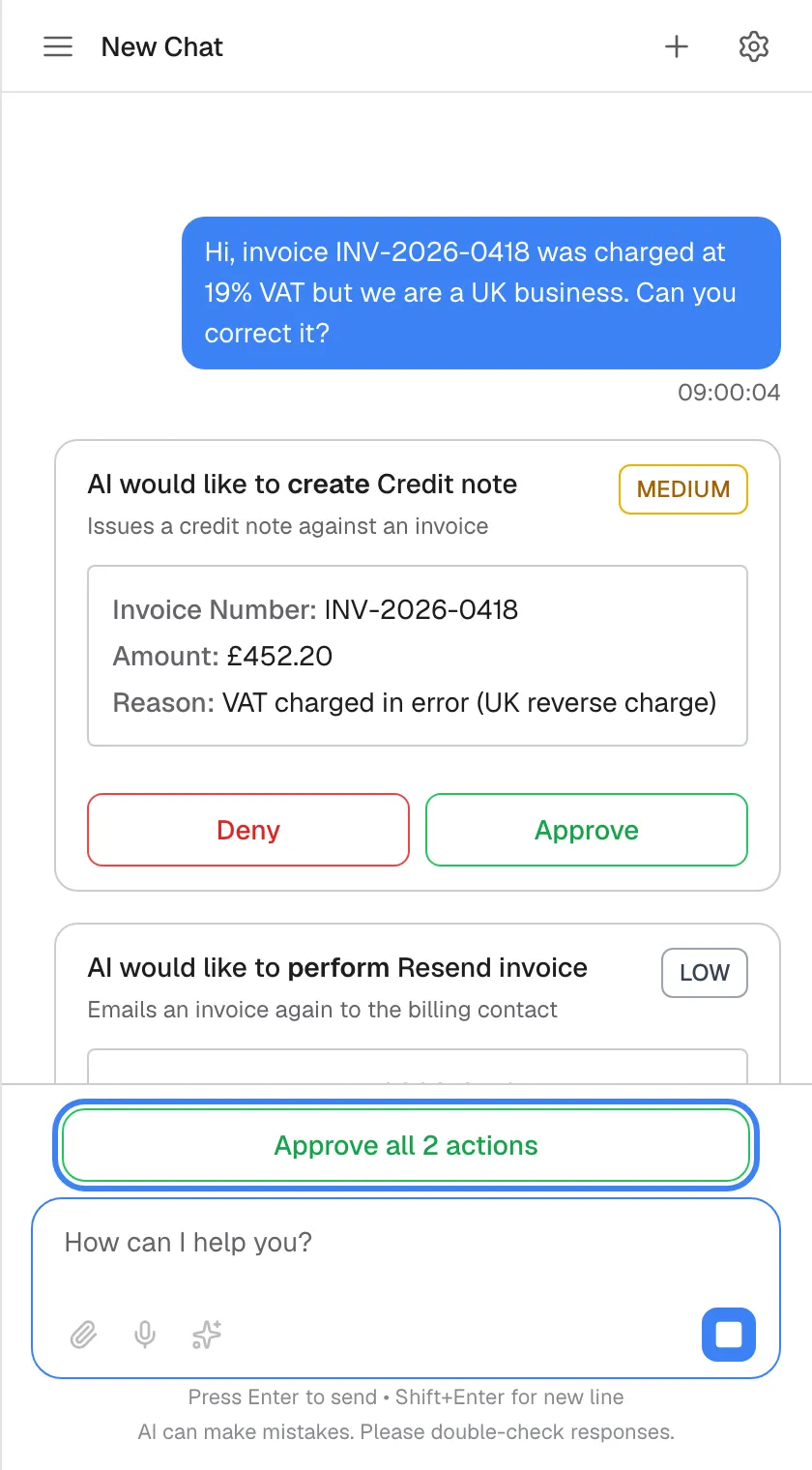
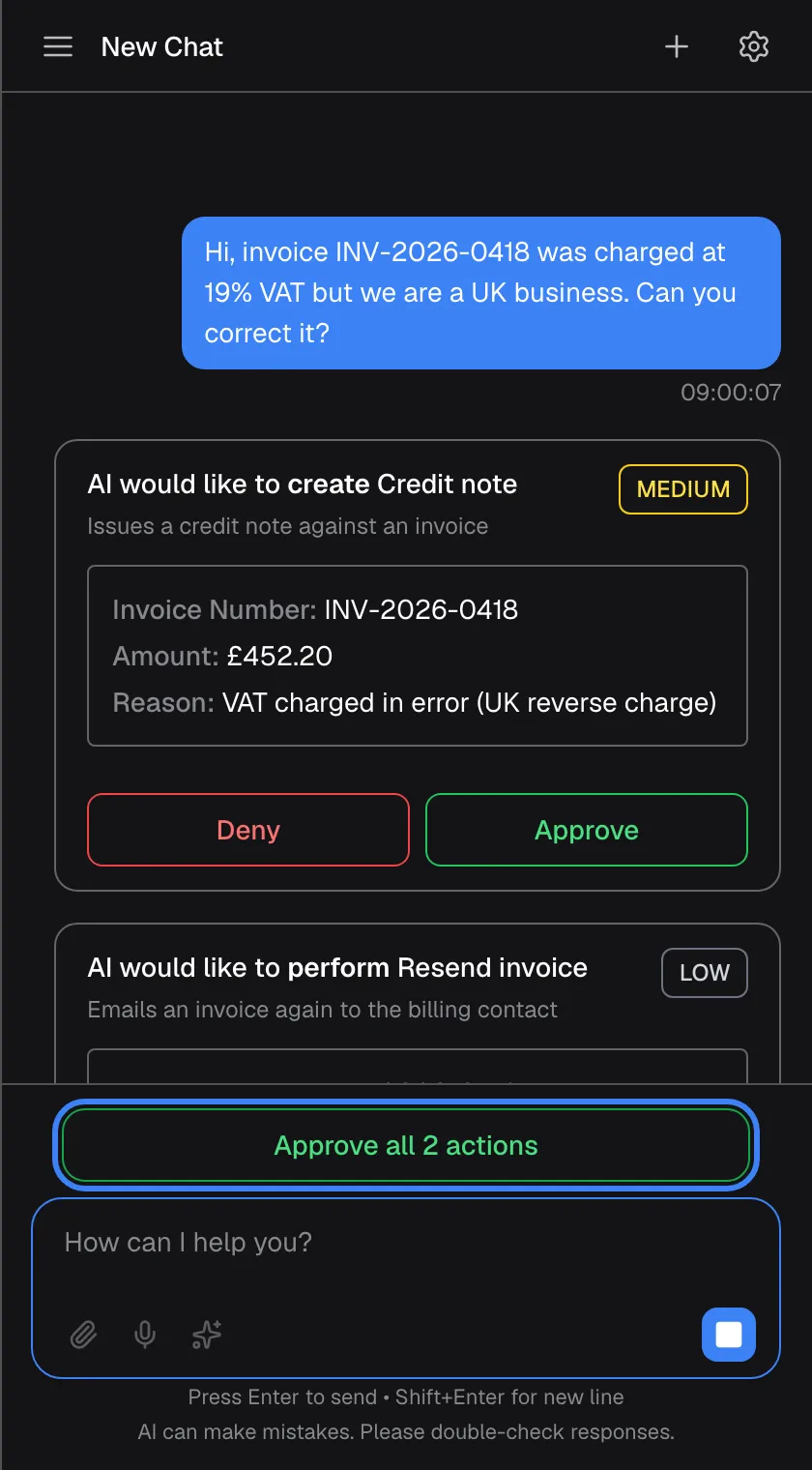
What this screenshot shows
- Screen
- AI would like to (/?applicationToken=…)
- Highlighted
- button “”, above-message-box, enabled (English only). approves every pending card
- Also visible
- Second card Resend invoice, risk LOW
- Purpose
- several pending approvals
The multi-step approval card
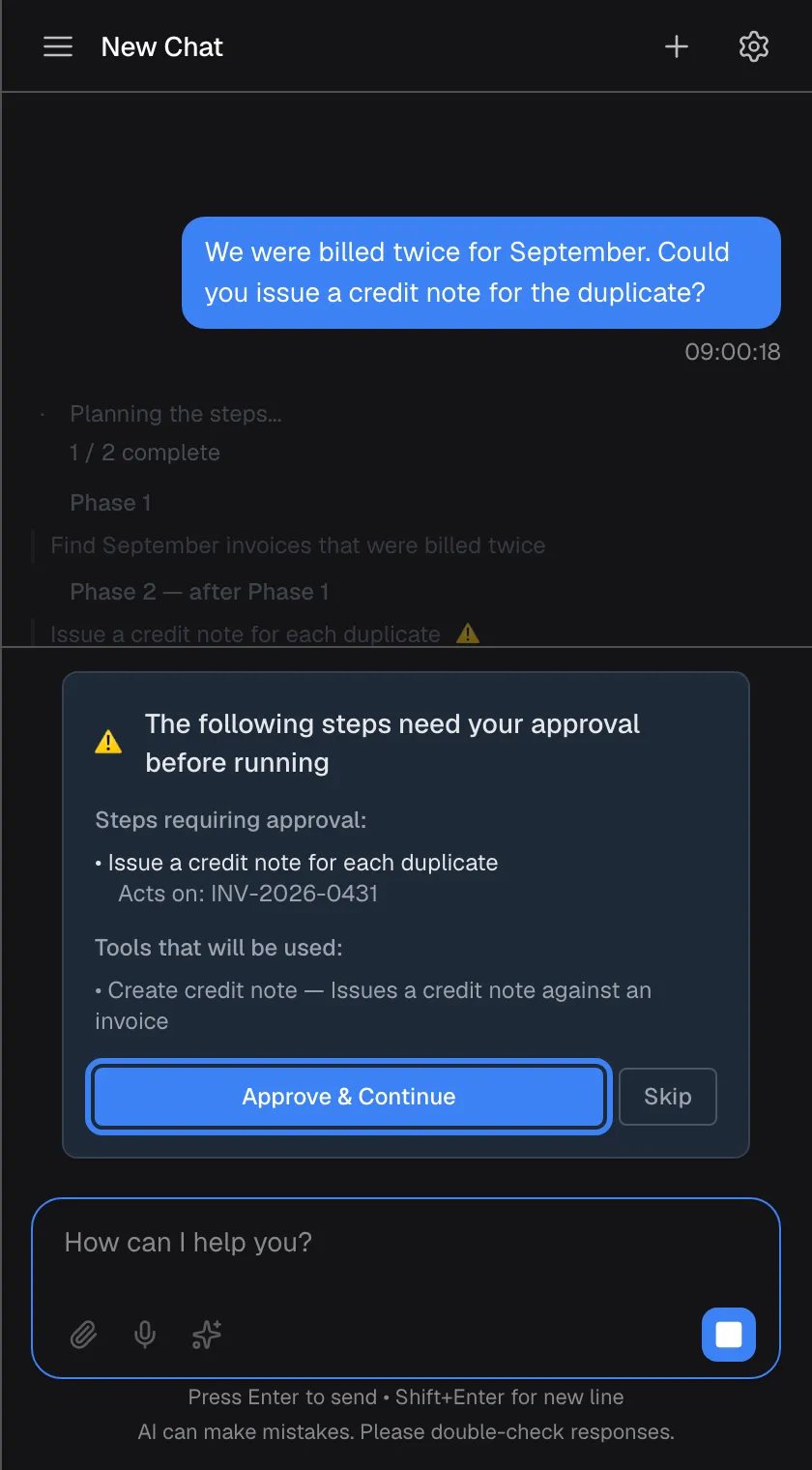
Section titled “The multi-step approval card”A yellow card above the message box, titled “The following steps need your approval before running” (in English). It appears when the assistant plans several steps and some need approval.
Lists the steps that need approval, the records each acts on (Acts on: {{ids}}), and the actions they will use. “Approve & Continue” lets those steps run. “Skip” leaves out only those steps; the rest of the plan still runs. Steps that do not need approval carry on while the card is shown.
For a longer task you decide on the risky parts once, up front, instead of waiting for each card.
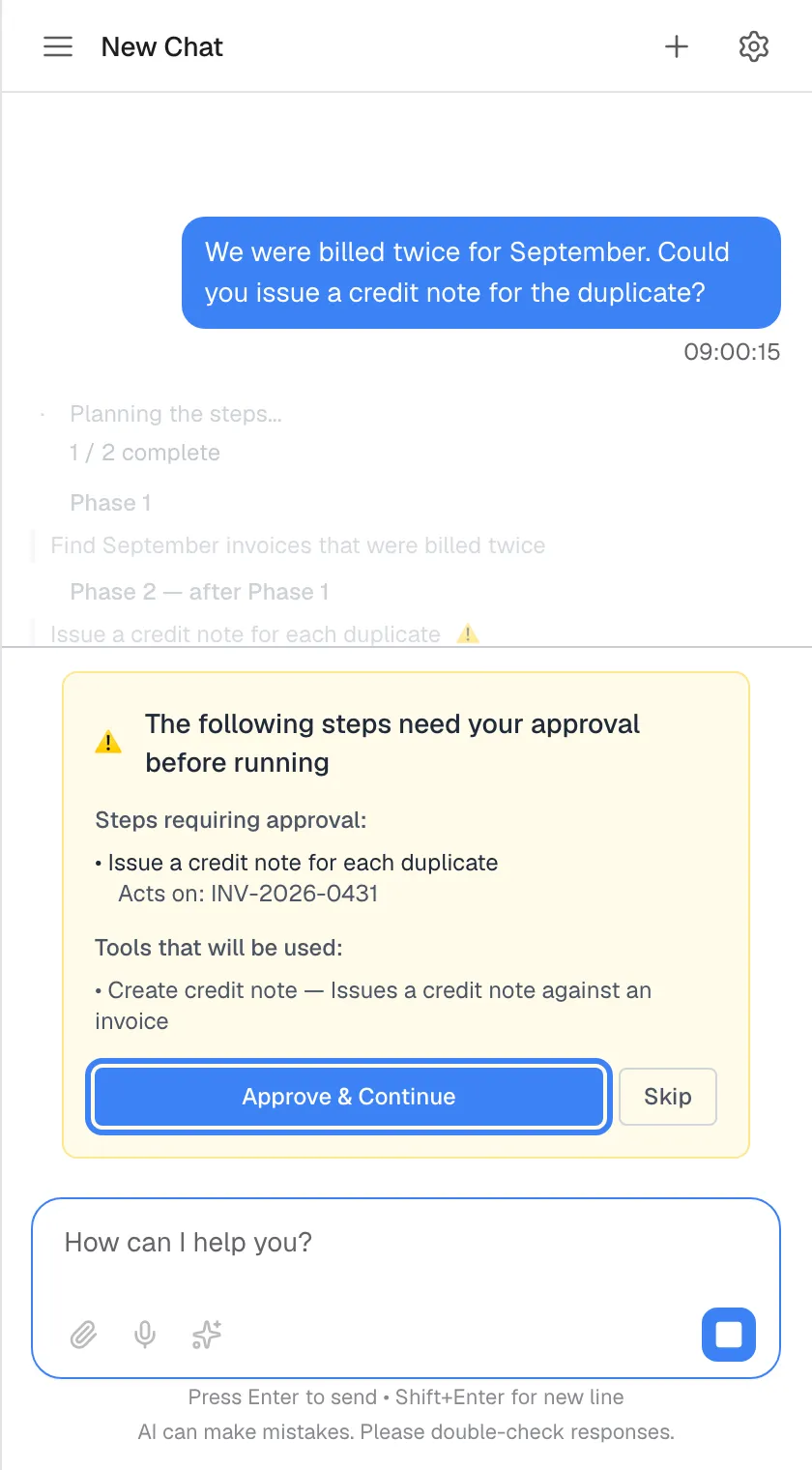
What this screenshot shows
- Screen
- (/?applicationToken=…)
- Highlighted
- button “”, above-message-box, enabled (English only). runs the approved steps
- Also visible
- Plan phases, widget.activity.actsOn INV-2026-0431, Skip
- Purpose
- multi-step approval
Actions in your chat and portal
Section titled “Actions in your chat and portal”| Indicator | Meaning |
|---|---|
| Badge with a database icon and an action’s name in the answer | The assistant used that action for this sentence |
| Approval card with Deny and Approve | An action is waiting for your decision |
| Blue line Approved execution: '{{toolName}}' | You approved this action |
| Red line Rejected execution: '{{toolName}}' | You denied this action |
| Line Auto-approved execution: {{toolName}} | This action ran without needing approval |
| approved by you next to a step | In the steps of an answer, this step ran after your approval |
After you approve
Section titled “After you approve”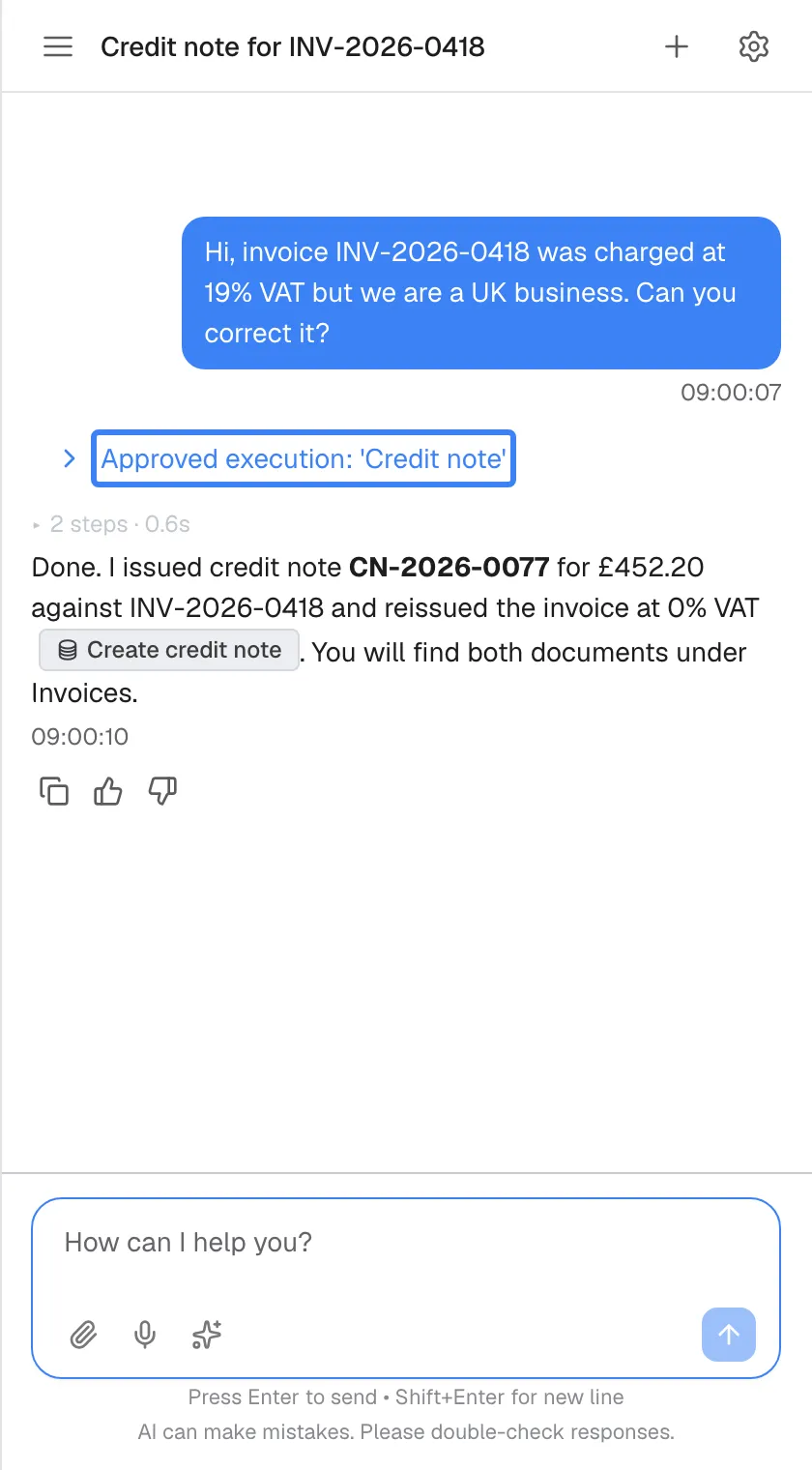
What this screenshot shows
- Screen
- Approved execution: '{{toolName}}' (/?applicationToken=…)
- Highlighted
- “”, chat, approved. expands the parameters
- Also visible
- Confirmation with CN-2026-0077 and Create credit note badge
- Purpose
- result of approving
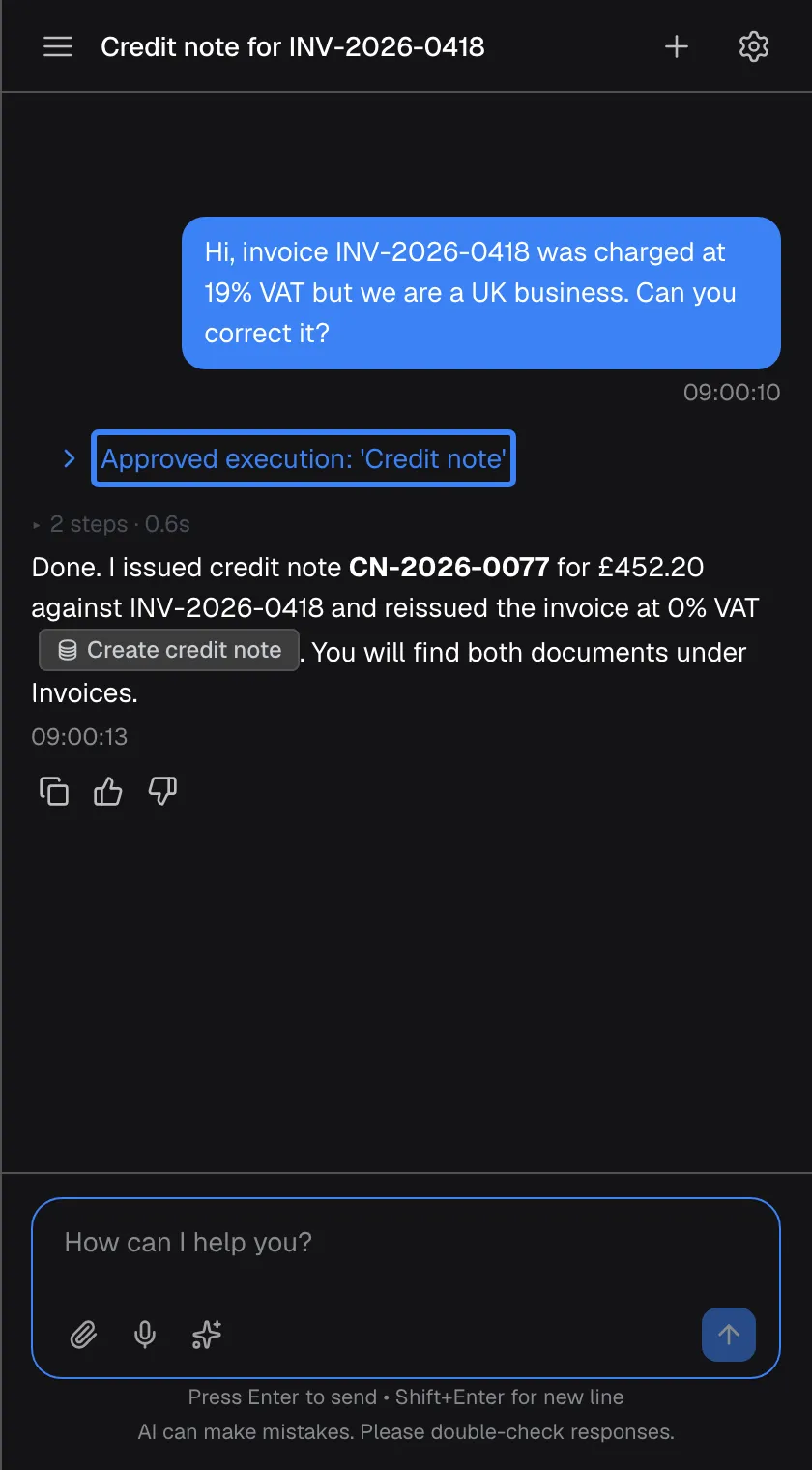
The card shrinks to Approved execution: '{{toolName}}', the assistant runs the action, and the answer reports the result, with a badge naming the action. A collapsed steps line under the answer shows what happened; approved steps are marked approved by you. You can stop the run with the stop button or Esc while it is still working.
Why: you see in the chat exactly what was done after your approval, and can find it again in your history.
After you deny
Section titled “After you deny”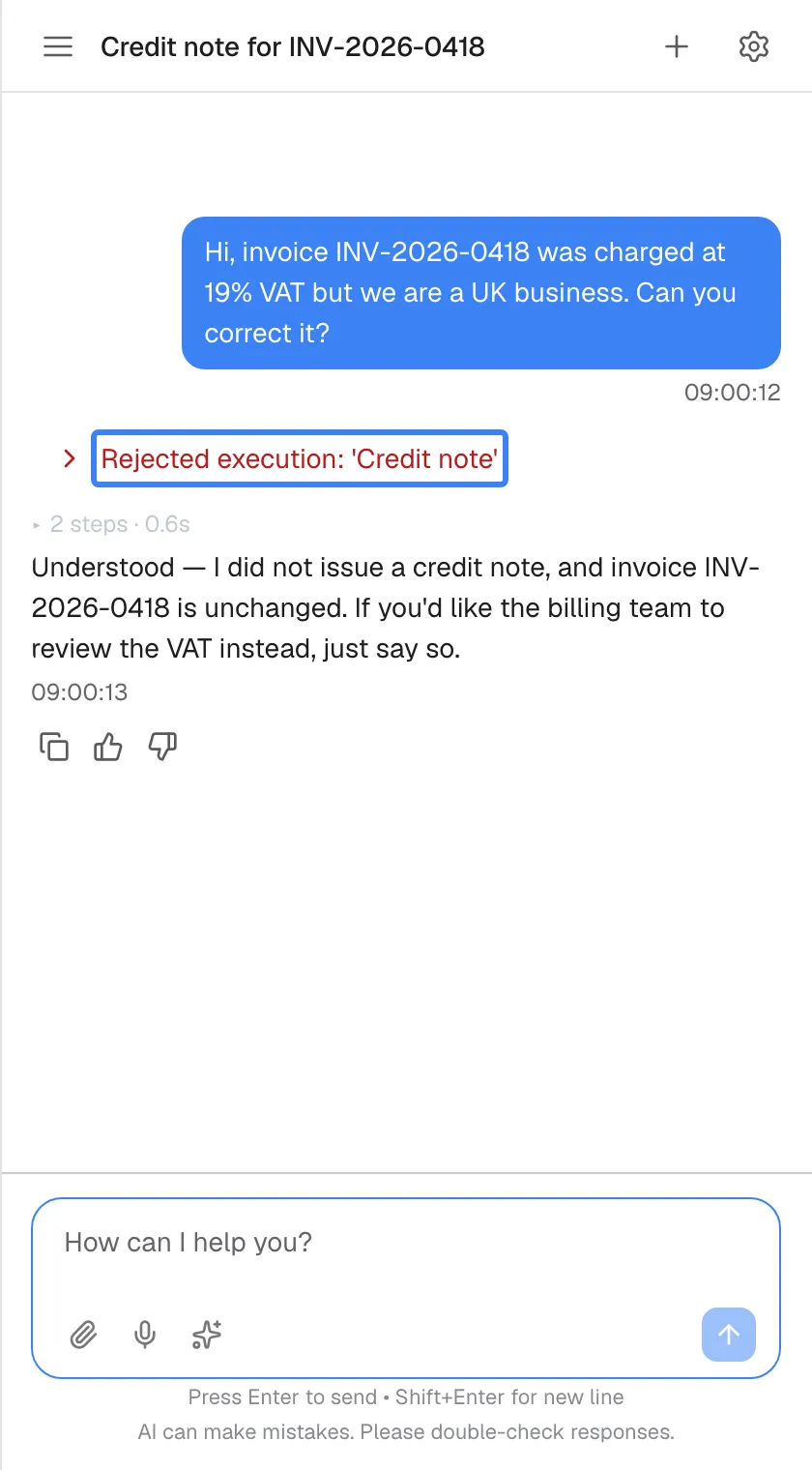
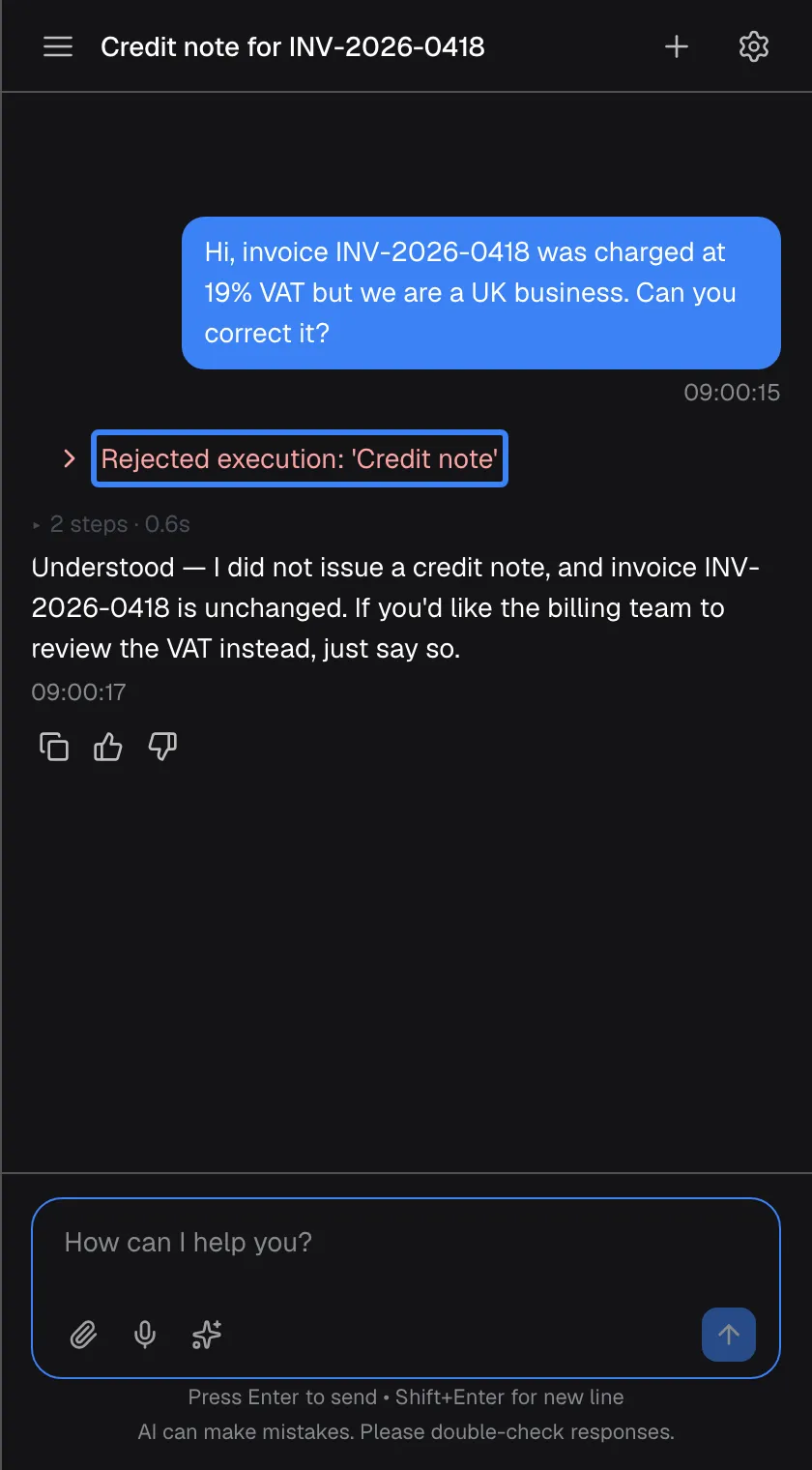
What this screenshot shows
- Screen
- Rejected execution: '{{toolName}}' (/?applicationToken=…)
- Highlighted
- “”, chat, denied. expands the parameters
- Also visible
- Answer confirming nothing changed
- Purpose
- result of denying
The card shrinks to Rejected execution: '{{toolName}}'. The action does not run, and the assistant answers without it, usually confirming that nothing was changed and offering another way.
Why: denying is safe; the conversation carries on and you can explain what you want instead.
Results of a multi-step plan
Section titled “Results of a multi-step plan”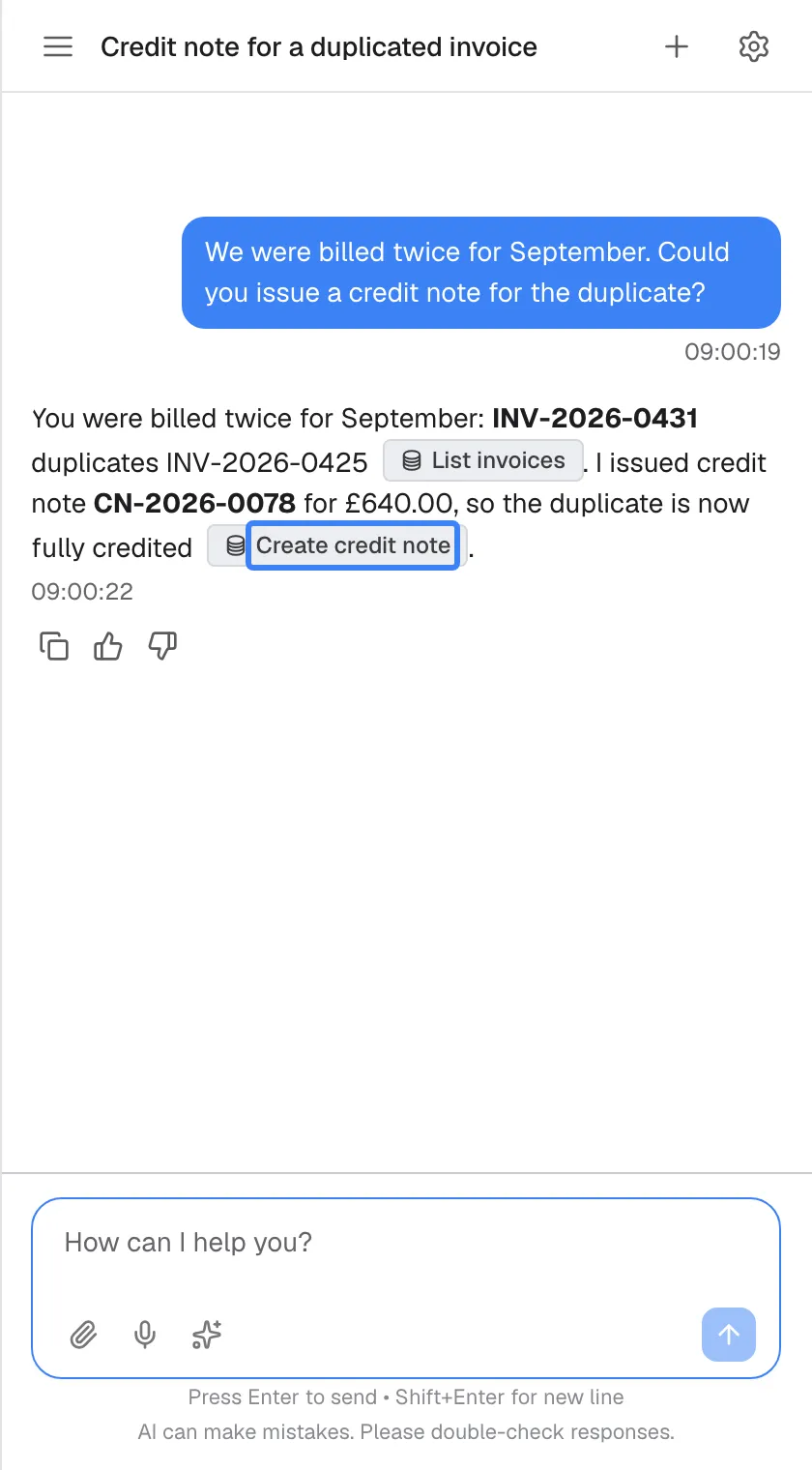
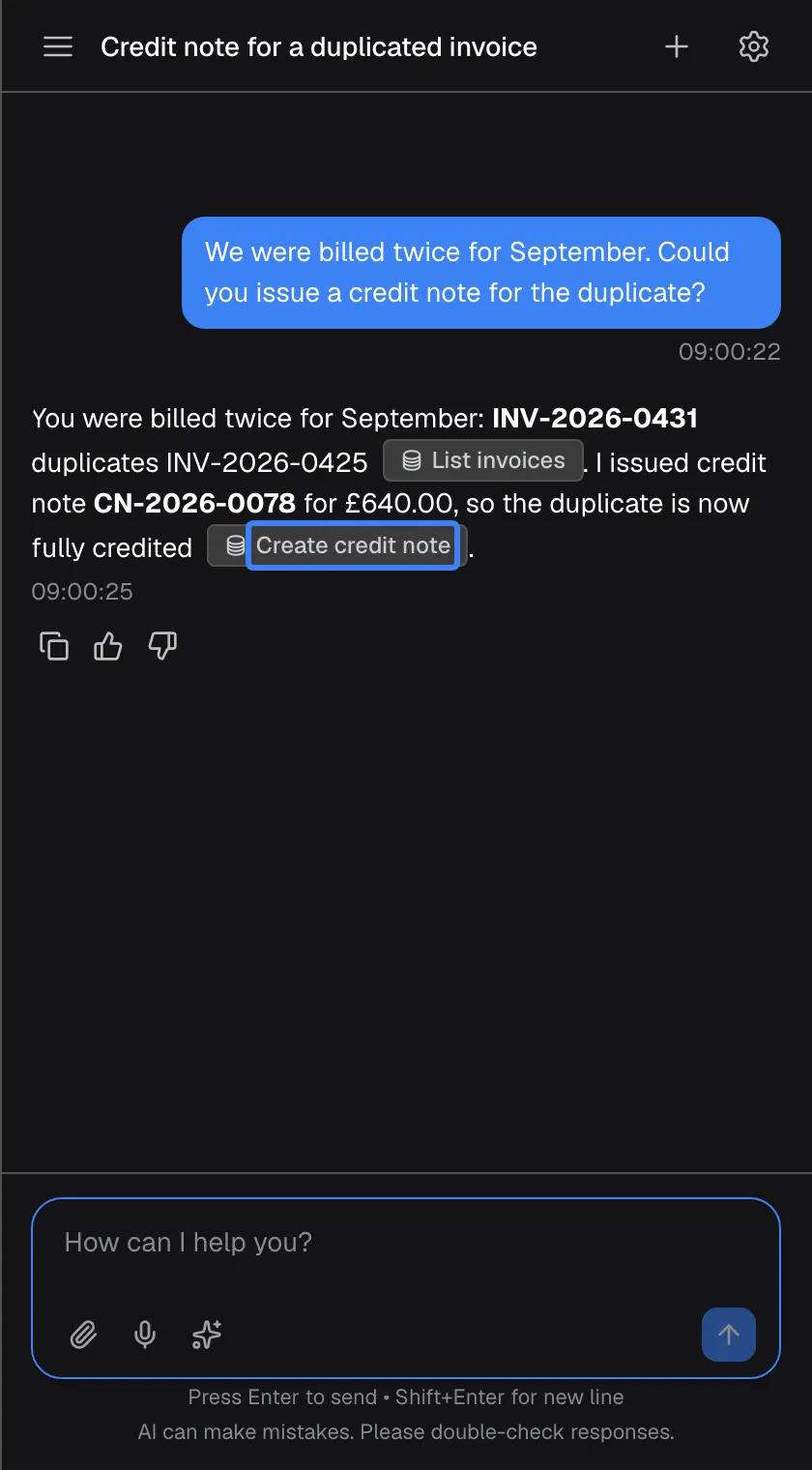
What this screenshot shows
- Screen
- How can I help you? (/?applicationToken=…)
- Highlighted
- “”, answer, tool badge. none (shows which action ran)
- Also visible
- List invoices badge, CN-2026-0078
- Purpose
- multi-step result
When a plan finishes, the answer sums up what was done. Each action used appears as a badge, such as “List invoices” and “Create credit note”, so you can see which steps changed something.
Why: a longer task should end with a clear record of every action taken.
Background runs on the welcome screen
Section titled “Background runs on the welcome screen”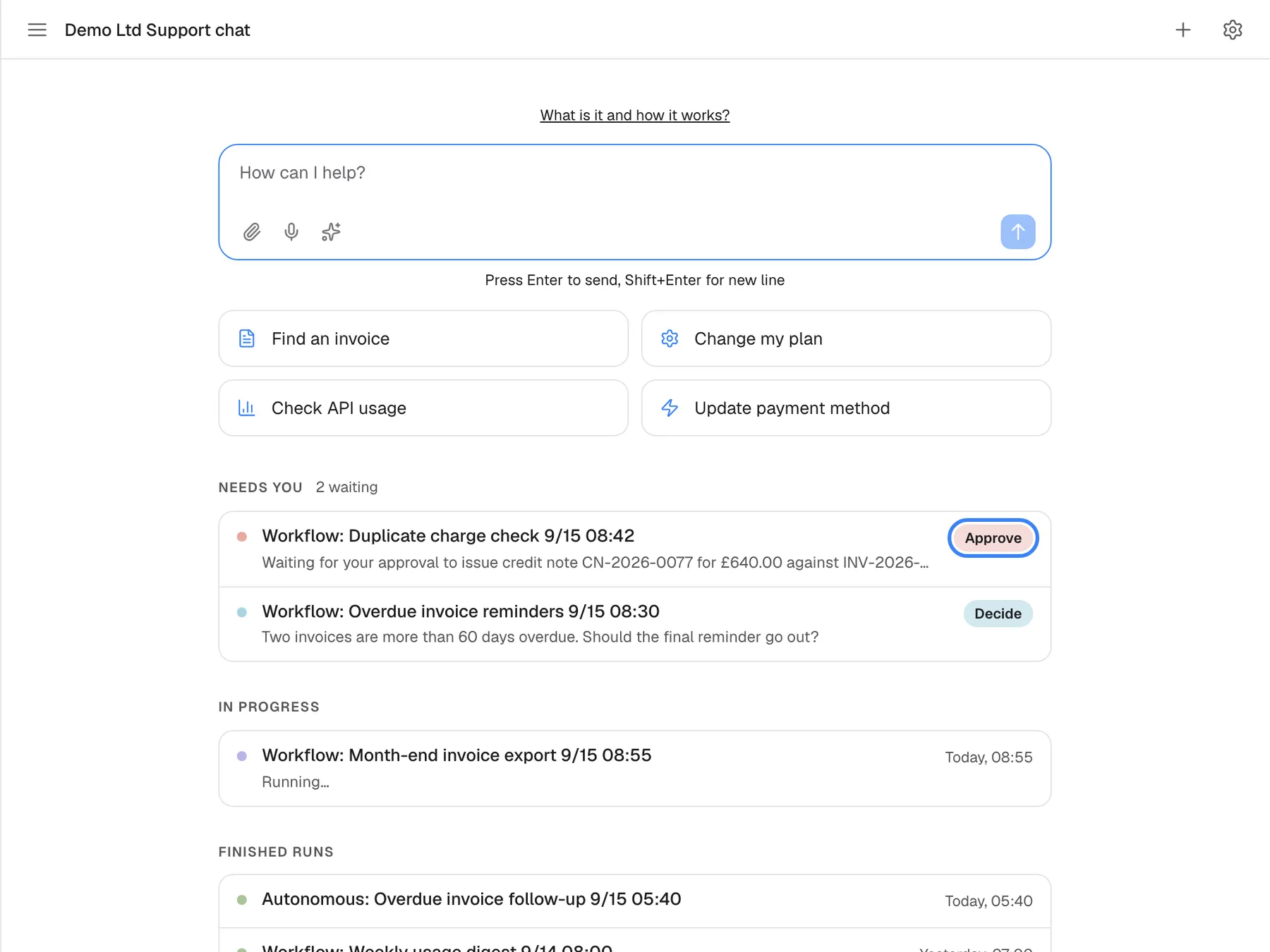
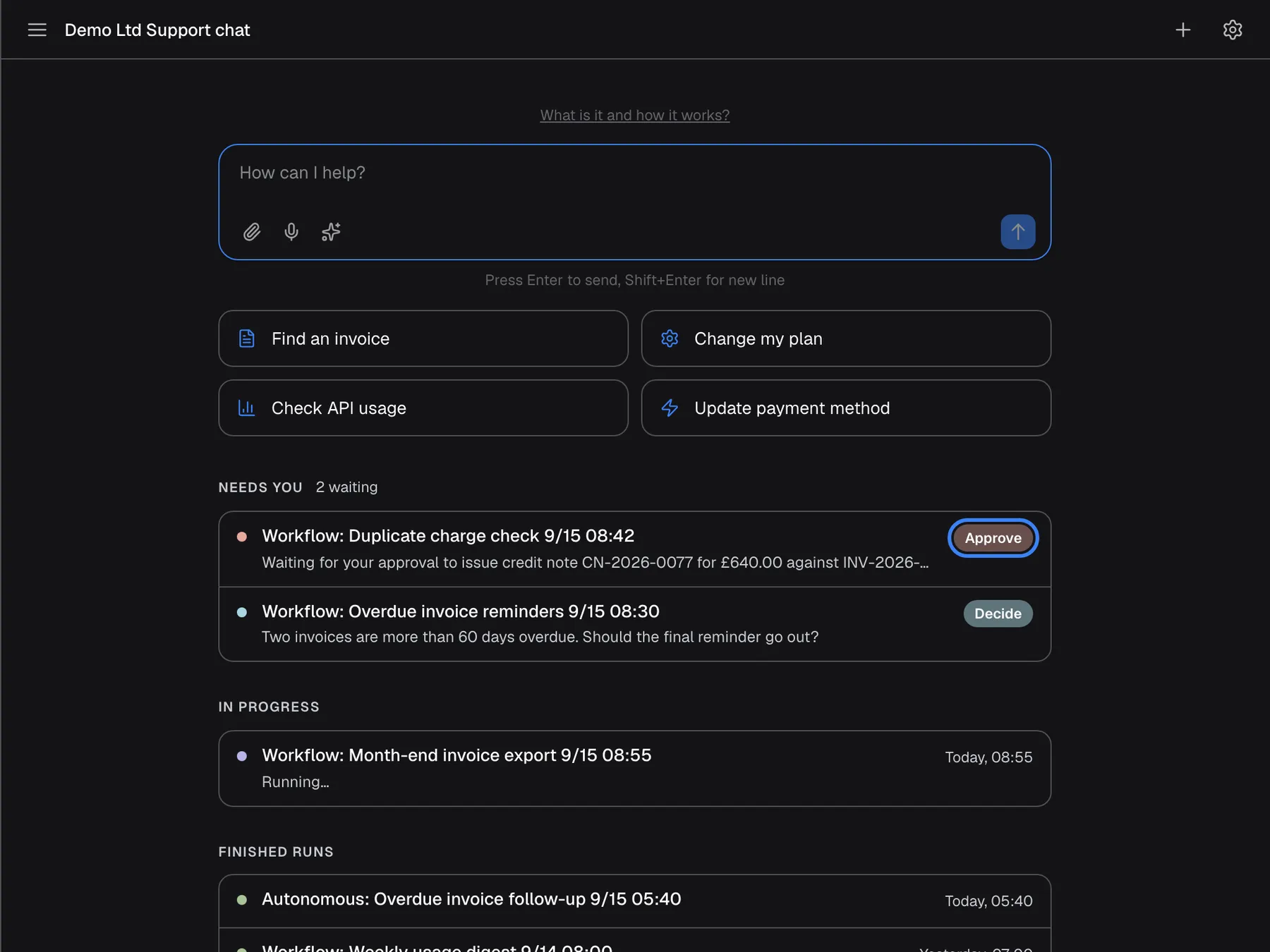
What this screenshot shows
- Screen
- Needs you (/?applicationToken=…)
- Highlighted
- button “Approve”, activity-panel, enabled. approves the run's pending step
- Also visible
- widget.activity.decide on the second run; In progress and Finished runs sections
- Purpose
- approvals outside the chat (a different viewport because the panel needs at least 700 px)
Some tasks run in the background, for example scheduled tasks or runs started from the customer portal. When the assistant’s window is wide (at least 700 pixels) and you are signed in, the welcome screen lists them under Needs you, In progress and Finished runs. A run waiting for an approval has Approve, which approves the waiting step on the spot; a run waiting for an answer has Decide, which opens it in the customer portal. If approving fails, the panel shows Couldn't approve that run..
Why: a background task that needs you should not wait unnoticed until you open the portal.
Background runs in the customer portal
Section titled “Background runs in the customer portal”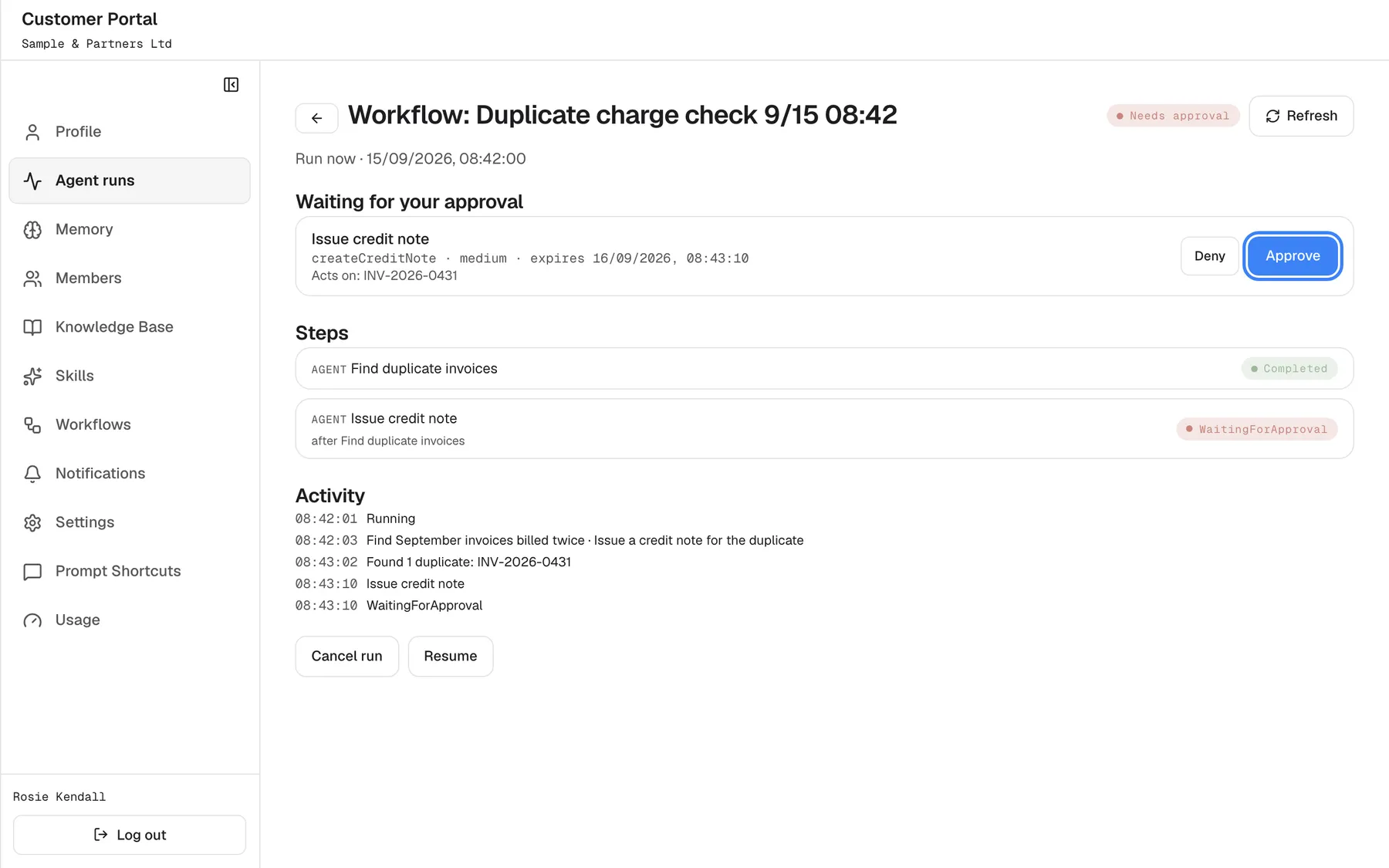
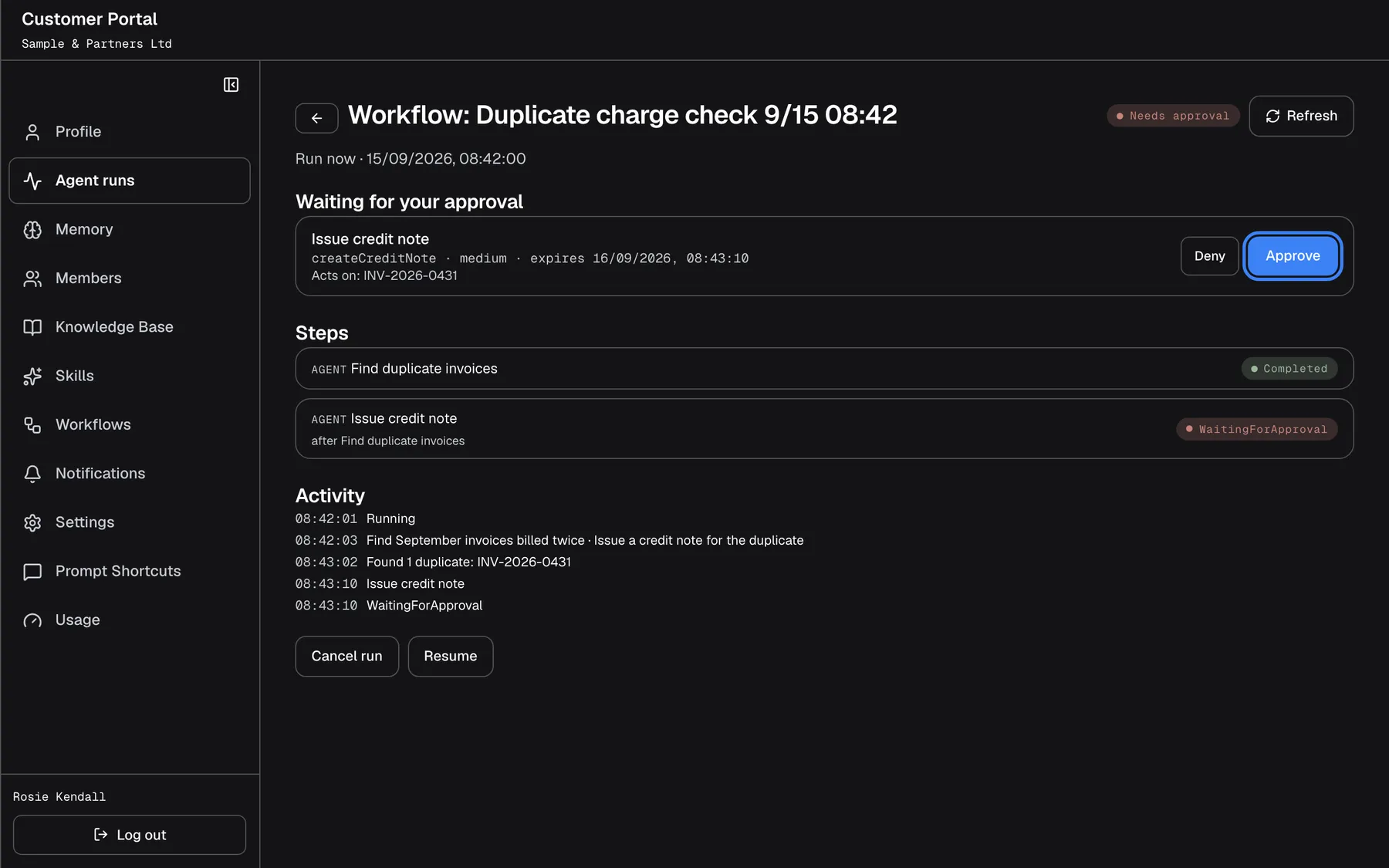
What this screenshot shows
- Screen
- Waiting for your approval (/?mode=portal)
- Highlighted
- button “Approve”, pending-approval, enabled. approves the step; the run continues
- Also visible
- portal.jobs.actsOn INV-2026-0431, expiry time, portal.jobs.deny
- Purpose
- approval in the portal (a different viewport because the portal is a full page)
In the customer portal, under Agent runs, a run with the status Needs approval lists its waiting steps under Waiting for your approval, each with Deny and Approve, the records it acts on and the time until which you can decide. See Agent runs for the full page.
Why: the portal keeps every background run and its decisions in one place.
Actions that use your own login
Section titled “Actions that use your own login”Some of your provider’s systems act as you, so the assistant needs your own login or key for them. It asks once, on a screen that replaces the chat, and then uses your login for every action in that system.
The screen appears before the chat when a system needs your login. Your saved logins are listed at the bottom of the chat history.
If you skip the screen, actions in that system cannot run for you, and the assistant may say it cannot access it. If an action fails because the system rejects your login three times in a row, your saved login for that system is removed and the screen returns with Authorization expired.
An action done with your own login is limited to what you are allowed to do in that system.
- You ask for your open support tickets → the assistant uses your own login for the ticket system and lists only your tickets.
- You skipped the login screen and ask the same → the assistant says it cannot reach the ticket system.
- Your password for that system changed → after three rejected attempts, Authorization expired asks you to enter it again.
What you need to know
Section titled “What you need to know”| Topic | Fact |
|---|---|
| Who decides what asks you | Your provider, action by action |
| Away from the chat | A request from a background run can reach you by email, Slack, Telegram or Teams, and in the chat apps you can approve or deny it with a button; see Use the assistant in Slack, Telegram or Teams |
| Batches | If one action in a set needs approval, every action in that set waits behind a card |
| Message box | Greyed out while any approval card is waiting |
| Approve all | Appears with two or more waiting cards; there is no deny-all |
| Undo | None in the assistant; once approved, the action runs |
| Denying | Nothing changes; the assistant still answers |
| Hidden values | Identifiers and long codes are not shown on the card |
| Language | Risk badges, “Approve all”, the multi-step card and some values are in English |
| Record | Each decision stays in the chat as a line; answers name the actions used |
| Masked data | Your provider can hide parts of sensitive values in what the systems return |
Frequently asked questions
Section titled “Frequently asked questions”General
Section titled “General”Why is the assistant asking me to approve something?
Section titled “Why is the assistant asking me to approve something?”Your provider has marked that action as needing your approval, usually because it creates, changes or deletes data in your account. The assistant shows you what it wants to do and with which values, and does nothing until you select Approve or Deny.
Can the assistant do things without asking me?
Section titled “Can the assistant do things without asking me?”Yes, for actions your provider has not marked as needing approval, which are typically actions that only look information up. Each of those appears as a badge in the answer, so you can see what the assistant used.
Has anything happened yet when I see an approval card?
Section titled “Has anything happened yet when I see an approval card?”No. An approval card shows what the assistant wants to do; nothing in it has been done. The action runs only after you select Approve, and the assistant then reports the result in its answer.
Whose account does the assistant use for an action?
Section titled “Whose account does the assistant use for an action?”Either your provider’s own connection to its systems, or your own login for that system if it acts as you. In the second case the assistant asks you for your login once; see the guide on connecting your account.
Approving and denying
Section titled “Approving and denying”What happens if I deny an action?
Section titled “What happens if I deny an action?”The action does not run and nothing is changed. The card shrinks to Rejected execution: '{{toolName}}', the assistant is told that you declined, and it still answers, usually saying what it did not do and offering another way.
Can I approve some actions and deny others?
Section titled “Can I approve some actions and deny others?”Yes. Each card has its own Approve and Deny. The assistant waits until you have decided on every waiting card, then continues with the ones you approved.
Is there an “approve all” button?
Section titled “Is there an “approve all” button?”Yes, when two or more cards are waiting: a wide green button above the message box approves them all at once. There is no button to deny all, so deny cards one by one.
Can I undo an action after approving it?
Section titled “Can I undo an action after approving it?”Not in the assistant. Once you approve, the action runs in your provider’s system. Ask the assistant whether a reverse action exists, for example cancelling what was created, or contact your provider.
Why can’t I type while a card is showing?
Section titled “Why can’t I type while a card is showing?”The message box is greyed out while any approval card is waiting, so the assistant does not start on something new with an open decision. Approve or deny the waiting cards, and the box works again.
The card says approved, but nothing happened. Why?
Section titled “The card says approved, but nothing happened. Why?”The decision may not have reached the service, for example because the card had already been answered in another window or the connection dropped. The card still shows your choice. Send a new message asking the assistant to check the result or try again.
Can someone else approve an action for me?
Section titled “Can someone else approve an action for me?”No. An approval card in your chat can only be answered by you, from your own chat. Nobody else, including other people from your company, can approve or deny it for you.
The card
Section titled “The card”What do LOW, MEDIUM and HIGH mean?
Section titled “What do LOW, MEDIUM and HIGH mean?”They are your provider’s risk rating for the action, shown in English. Hover over the badge for the meaning: low is a safe operation with minimal impact, medium may modify data, and high is a critical operation that needs careful review.
What does “Destructive” mean on a card?
Section titled “What does “Destructive” mean on a card?”It marks an action your provider considers possibly irreversible, such as deleting something. The card then also shows This action may be irreversible. Please review carefully before approving.. Check the values especially carefully before you approve.
What does “Bulk Operation” mean?
Section titled “What does “Bulk Operation” mean?”The Bulk Operation badge marks an action that affects many records at once, for example updating every open invoice. Check which records the values name before you approve.
Why are some details missing from the card?
Section titled “Why are some details missing from the card?”The card hides internal codes, such as identifiers and long codes without spaces, to stay readable. If you need to know exactly which record is meant, deny the action and ask the assistant, or ask before you decide.
Why are parts of the card in English?
Section titled “Why are parts of the card in English?”The risk badges, the “Approve all” button, the multi-step card and some value words such as “Yes”, “No” and “Not specified” are shown in English in every language. The other card texts follow your browser’s language.
Multi-step tasks
Section titled “Multi-step tasks”What does “Skip” do on the multi-step card?
Section titled “What does “Skip” do on the multi-step card?”It leaves out only the steps listed on the card. The other steps of the plan still run, and the assistant reports what was done and what was skipped in its answer.
Do the other steps wait while the multi-step card is showing?
Section titled “Do the other steps wait while the multi-step card is showing?”No. Steps that do not need your approval keep running while the card is shown. Only the listed steps wait for “Approve & Continue” or “Skip”.
Background runs
Section titled “Background runs”What is “Needs you” on the welcome screen?
Section titled “What is “Needs you” on the welcome screen?”Needs you lists background runs, such as scheduled tasks, that are waiting for your approval or your answer. It appears on the welcome screen when the assistant’s window is at least 700 pixels wide and you are signed in.
What do “Approve” and “Decide” do in the activity list?
Section titled “What do “Approve” and “Decide” do in the activity list?”Approve approves the waiting step of that run on the spot. Decide opens the run in the customer portal, where you can read the question and answer it.
Failures
Section titled “Failures”An action failed. What happens now?
Section titled “An action failed. What happens now?”The assistant receives the system’s error and explains in its answer what went wrong, for example that a record was not found. Nothing was changed by the failed action. Ask the assistant to try again or correct the values.
Why does the assistant suddenly ask for my login again?
Section titled “Why does the assistant suddenly ask for my login again?”The system rejected your saved login three times in a row, for example because your password changed, so the assistant removed it and shows Authorization expired. Enter your current login to continue.
Troubleshooting
Section titled “Troubleshooting”| Symptom | What to check |
|---|---|
| The message box is greyed out and no card is visible | Scroll up in the chat: a waiting card may be above. Also look above the message box for the yellow multi-step card or the “Approve all” button. |
| You approved, the card shows approved, but no answer arrives | The card may have been answered elsewhere, or the connection dropped. Send a new message asking for the result. |
| The card’s buttons do nothing | The connection to the service may have dropped. Wait a few seconds and try again; reload the page if it persists. |
| The assistant says it cannot access a system | You may have skipped the login screen for that system. Open the chat history and use Authenticate on that system. |
| Authorization expired appears after actions failed | The system rejected your saved login three times. Enter your current login. |
| The assistant is temporarily unavailable. Please try sending your message again. after approving | The AI service was briefly unavailable. Send a message asking for the result of the action. |
| Couldn't approve that run. on the welcome screen | The step may already be decided. Open the run with Decide or in the customer portal. |
| A value on the card is wrong | Deny the card, then tell the assistant the correct value; it shows a new card. |
| Parts of the card are in English | That is how the risk badges and some texts are shown in every language. |