

Rate an answer
Under each answer the assistant can show three small icons: one to copy the answer, and a thumb up and a thumb down to rate it. A rating goes to your provider’s team, who use it to see where the assistant helps and where it gets things wrong; a thumb down also asks you what was wrong. The icons appear only if your provider has switched rating on. This page explains how to rate an answer, how to say what was wrong, and how to copy an answer.
What you can do here
Section titled “What you can do here”- Say an answer was good. One click on the thumb up sends your rating straight away. Rate an answer as good.
- Say what was wrong. A thumb down asks you to pick one of five reasons and add a comment if you like. Tell your provider what was wrong.
- Copy an answer. Copy the answer’s text to paste it elsewhere. Copy an answer.
The screen at a glance
Section titled “The screen at a glance”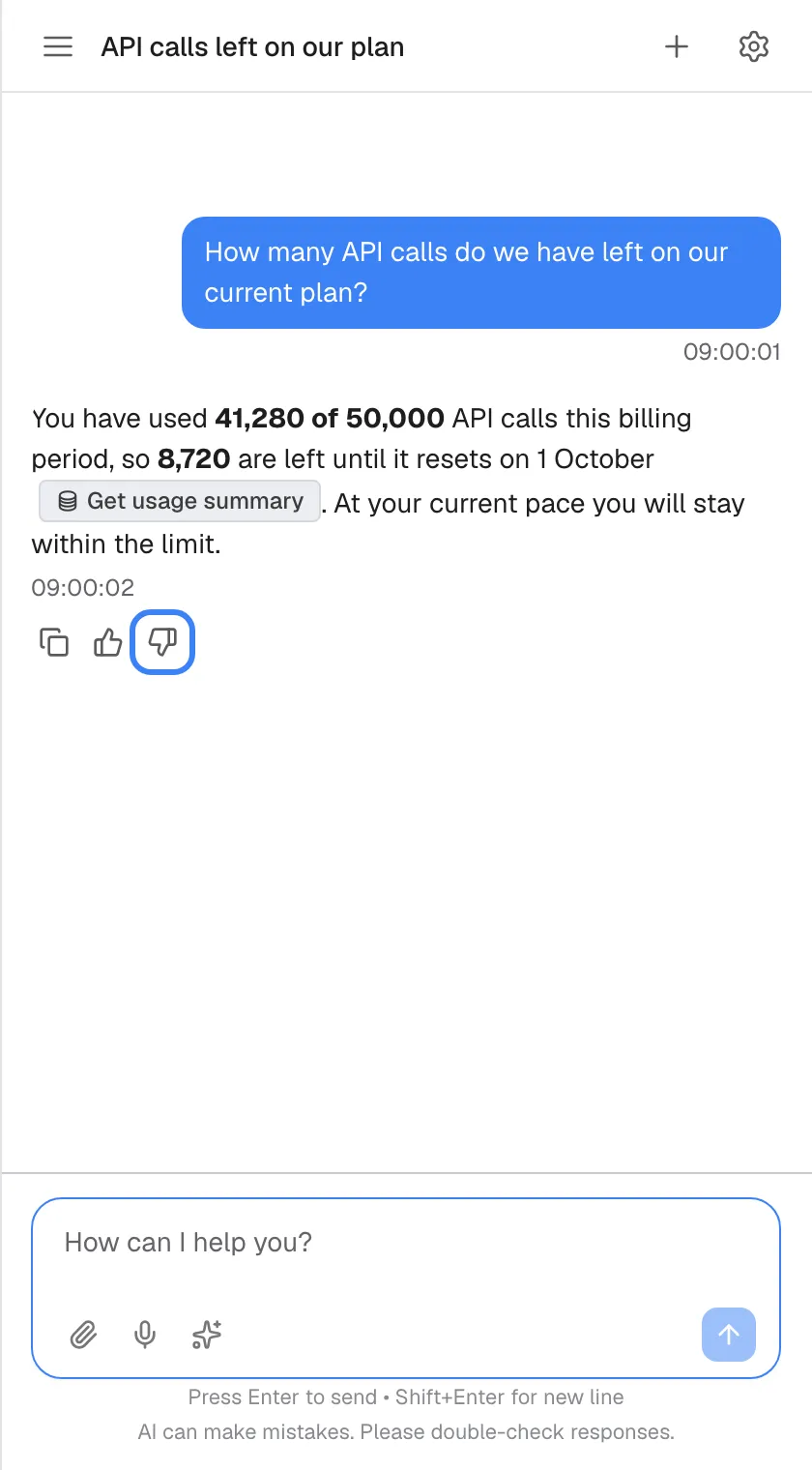
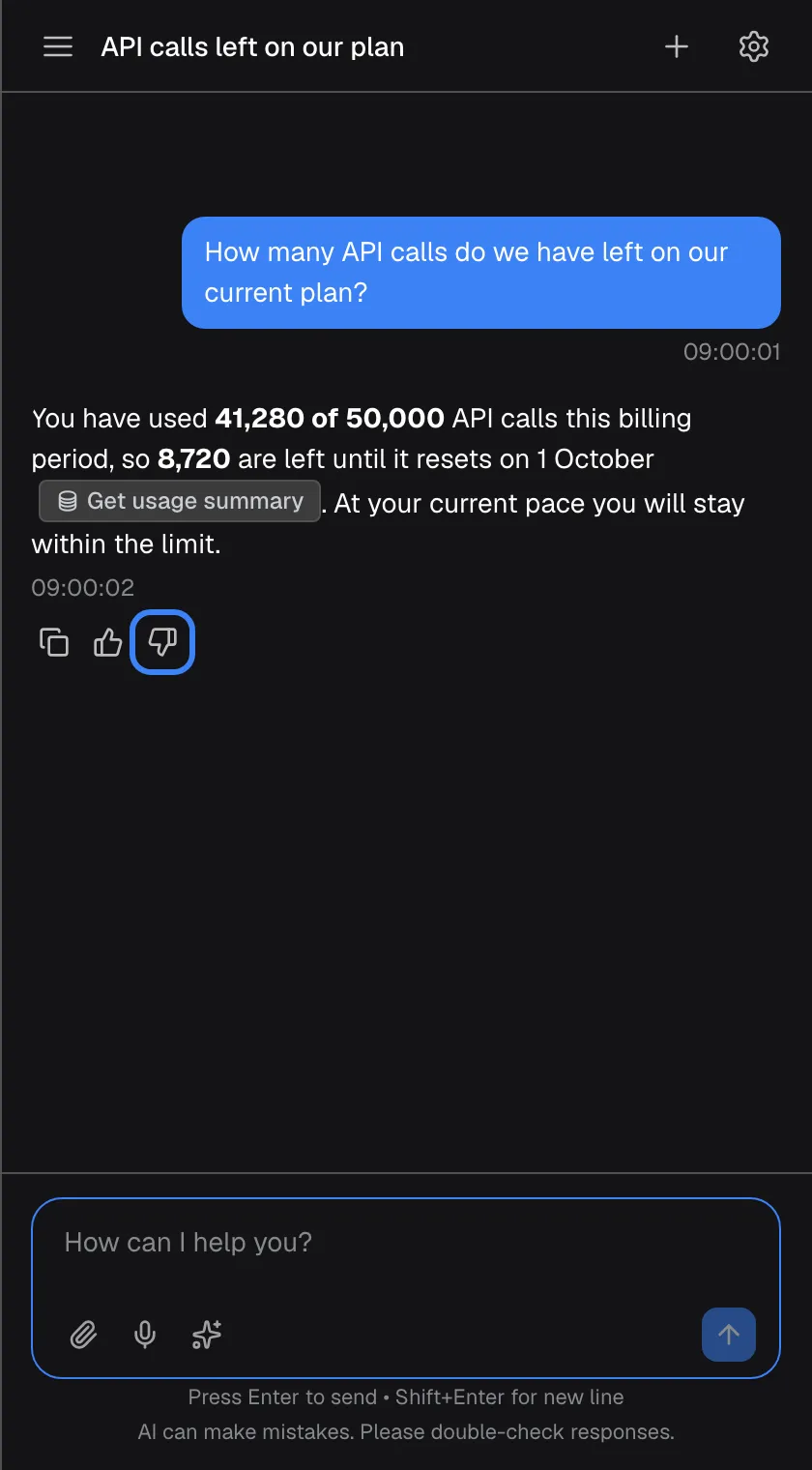
What this screenshot shows
- Screen
- How can I help you? (/?applicationToken=…)
- Highlighted
- button “Bad response”, under-answer, not voted. opens the reason panel
- Also visible
- widget.feedback.copy, widget.feedback.goodResponse
- Purpose
- the rating row
| Region | What it shows | What you do there |
|---|---|---|
| The answer | The assistant’s reply, with the time under it | Read it |
| Copy icon | Copy message | Copy the answer’s text |
| Thumb up | Good response | Rate the answer as good |
| Thumb down | Bad response | Rate it as bad and say why |
Rate an answer as good
Section titled “Rate an answer as good”Select the thumb up (Good response) under the answer. Your rating is sent at once; there is nothing more to fill in. The thumb up turns solid, and the thumb down disappears.
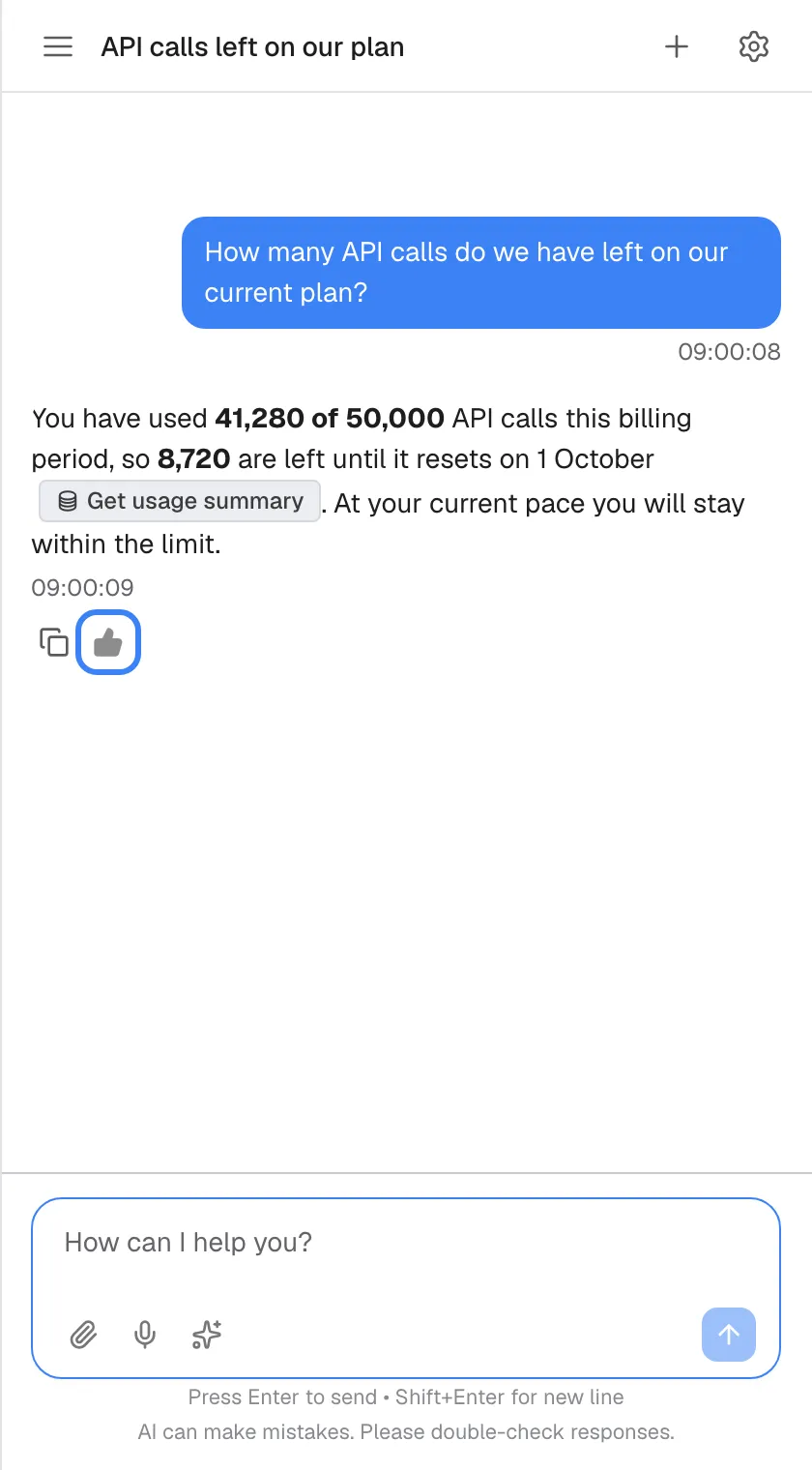
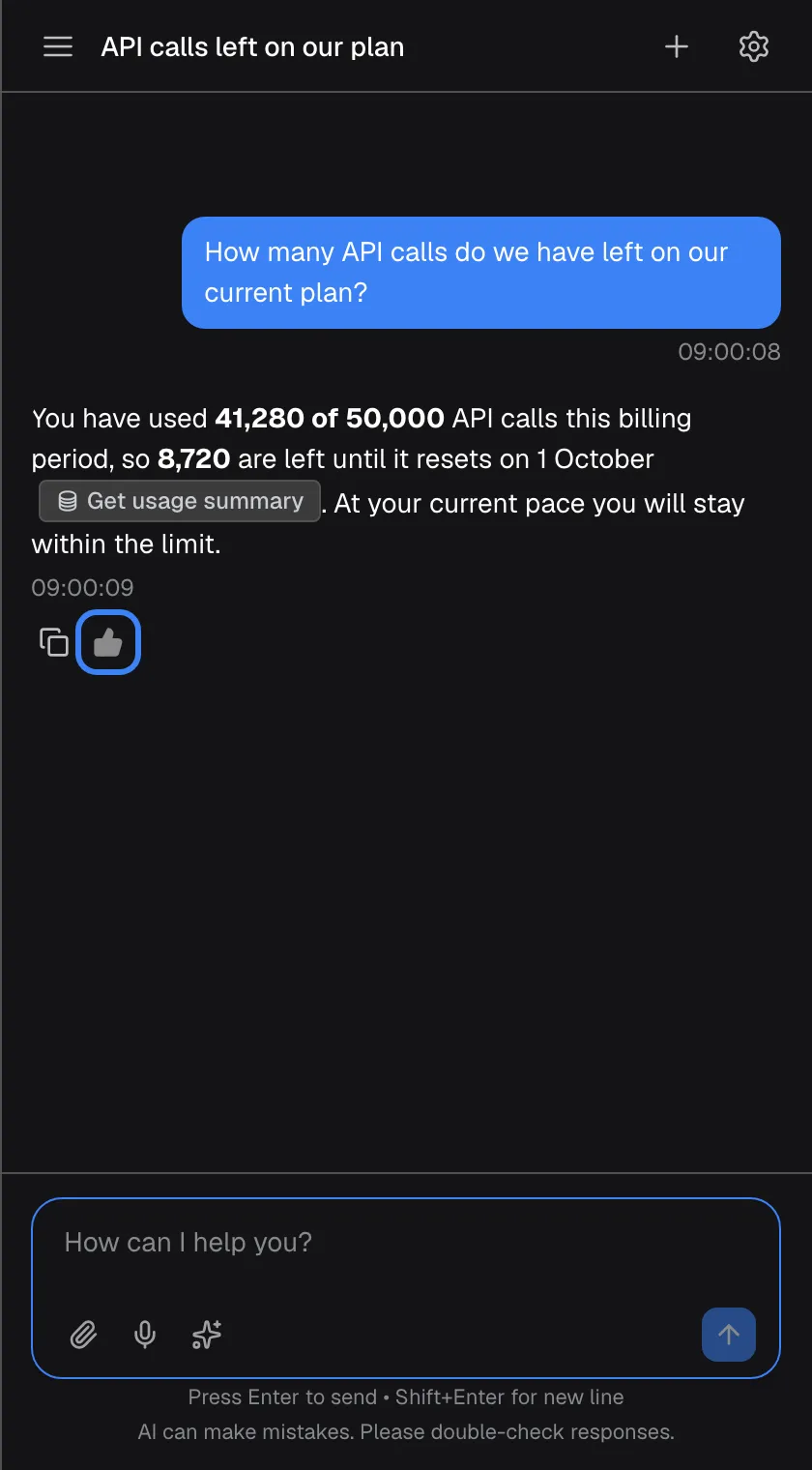
What this screenshot shows
- Screen
- How can I help you? (/?applicationToken=…)
- Highlighted
- button “Good response”, under-answer, voted (filled, disabled). none
- Also visible
- Copy icon remains
- Purpose
- after voting
Each answer can be rated once. After you vote, only your choice stays visible, and you cannot change or remove it. When you reopen the chat later, your rating is still shown.
Tell your provider what was wrong
Section titled “Tell your provider what was wrong”-
Select the thumb down (Bad response) under the answer. A panel opens below it with the question What was wrong?.
-
Pick one reason: Answer not accurate, Bad display, Too much text, Missing context or Other. The reason you pick turns bold.
-
Add a comment in the box Tell us what was wrong... (optional). Say what you expected, for example which figures were missing.
-
Select Submit feedback. The button shows Submitting..., then the panel closes and only the solid thumb down stays.
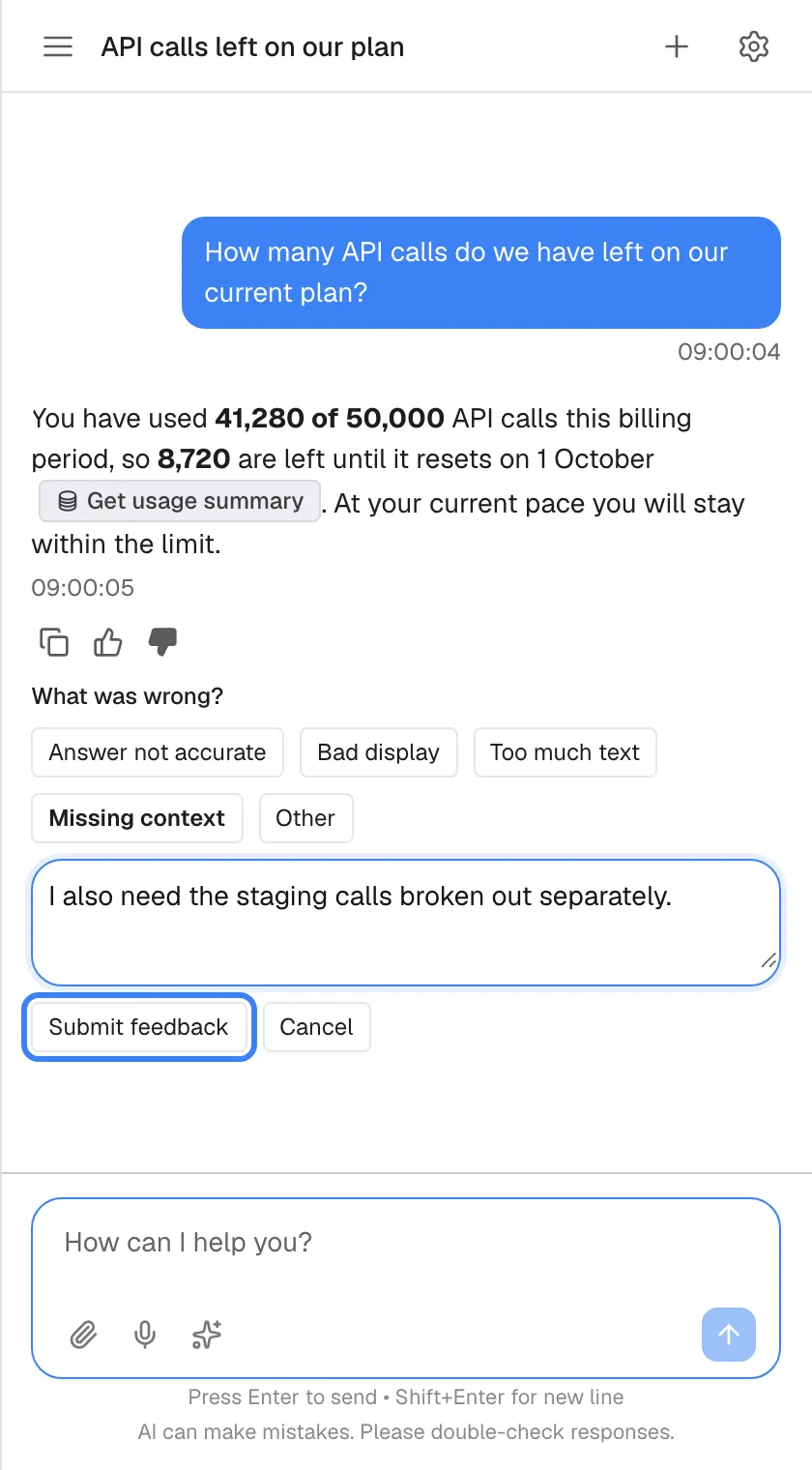
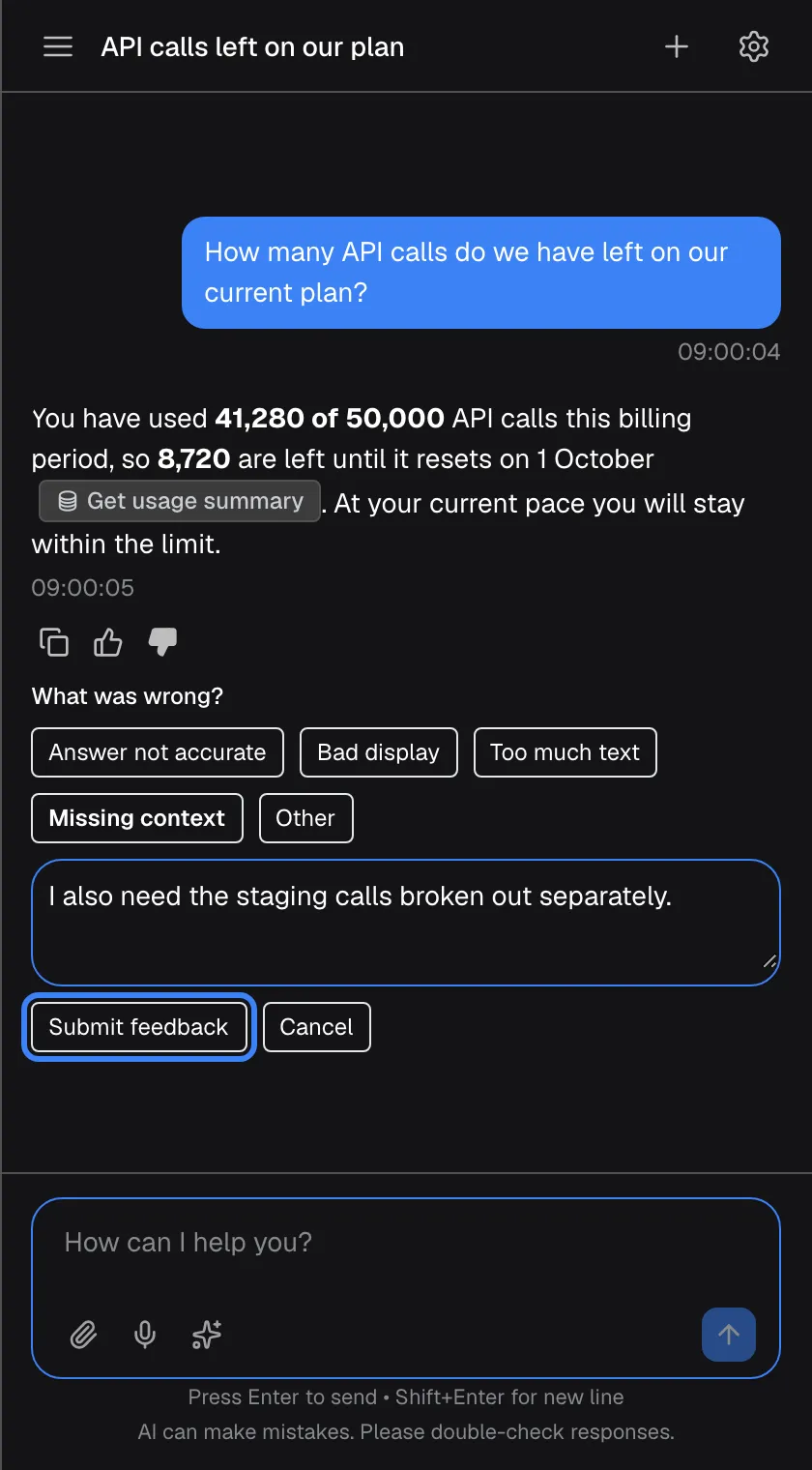
What this screenshot shows
- Screen
- What was wrong? (/?applicationToken=…)
- Highlighted
- button “Submit feedback”, reason-panel, enabled (reason chosen). sends the rating, reason and comment to your provider
- Also visible
- widget.feedback.tags.* chips, Missing context selected, comment filled, common.cancel
- Purpose
- negative feedback with a reason
Submit feedback stays greyed out until you have picked a reason. To leave without rating, select Cancel, or select the thumb down again. A comment longer than 2,000 characters cannot be saved and shows Could not submit feedback. Please try again..
Copy an answer
Section titled “Copy an answer”Select the copy icon (Copy message) under the answer. The answer’s text goes to your clipboard, ready to paste. Source badges in the answer, such as Verified, are turned into plain text. There is no “copied” confirmation; if copying fails, you see Could not copy message..
The copy icon sits in the same row as the thumbs. If your provider has not switched rating on, the copy icon is missing too. You can still select the answer’s text and copy it with your keyboard.
Every control, explained
Section titled “Every control, explained”The rating row and the reason panel are described below in screen order.
Copy message
Section titled “Copy message”The first icon under an answer, labelled Copy message.
Copies the answer as text, with source badges turned into plain text. If the browser blocks the clipboard, Could not copy message. appears.
You can paste an answer into an email, a ticket or your notes without retyping it.
Good response
Section titled “Good response”The thumb up, second icon under an answer, labelled Good response.
Sends a positive rating at once, with no reason or comment. The thumb down disappears and the thumb up stays solid. One rating per answer; it cannot be changed.
A quick signal tells your provider which answers worked.
Bad response
Section titled “Bad response”The thumb down, third icon under an answer, labelled Bad response.
Opens the reason panel. Selecting it again closes the panel without sending anything. The rating is sent only when you select Submit feedback.
A bad rating is only useful with a reason, so it asks for one first.
Reasons
Section titled “Reasons”In the panel under What was wrong?, five buttons.
| Reason | Use it when |
|---|---|
| Answer not accurate | The facts or figures were wrong |
| Bad display | A table, chart or layout was broken or hard to read |
| Too much text | The answer was longer than it needed to be |
| Missing context | Something you needed was missing from the answer |
| Other | None of the above; explain in the comment |
You pick exactly one; picking another replaces it.
Grouped reasons let your provider see what goes wrong most often.
Comment
Section titled “Comment”The text box under the reasons, with the hint Tell us what was wrong....
Optional. Spaces at the start and end are removed, and an empty comment is not sent. There is no character counter; comments are stored up to 2,000 characters.
A sentence in your own words often explains more than a reason alone.
Submit feedback and Cancel
Section titled “Submit feedback and Cancel”The two buttons at the bottom of the panel: Submit feedback and Cancel.
Submit feedback is greyed out until a reason is picked, then sends your rating, reason and comment. Cancel closes the panel without sending anything. If sending fails, Could not submit feedback. Please try again. appears.
You can change your mind about rating until the moment you submit.
Who sees what
Section titled “Who sees what”| Part | When it appears |
|---|---|
| The rating row (copy and both thumbs) | When your provider has switched rating on, under each saved answer from the assistant |
| No rating row | Under your own messages, messages from a person on your provider’s team, notices such as The assistant is temporarily unavailable. Please try sending your message again., and an answer still being written |
| The reason panel | After you select the thumb down |
What you need to know
Section titled “What you need to know”| Topic | Fact |
|---|---|
| One vote per answer | Cannot be changed or removed after sending |
| Thumb up | Sent at once, with no reason |
| Thumb down | Needs one of five reasons; comment optional |
| Comment length | Up to 2,000 characters |
| Who reads it | Your provider’s team, with the answer you rated |
| Effect on the assistant | Ratings do not change the assistant’s answers automatically; your provider’s team reviews them |
| Copy | In the same row as the thumbs; missing when rating is off |
| Reopened chats | Your earlier ratings are shown again |
Frequently asked questions
Section titled “Frequently asked questions”Rating
Section titled “Rating”Why don’t I see the thumbs under an answer?
Section titled “Why don’t I see the thumbs under an answer?”Your provider may not have switched rating on, in which case no answer shows the icons. They also never appear under an answer still being written, under your own messages, under messages from a person on your provider’s team, or under error notices.
Can I change my rating?
Section titled “Can I change my rating?”No. Each answer can be rated once, and after you send a rating, only your choice stays visible. It cannot be changed or removed, even when you reopen the chat later.
Do I have to give a reason for a thumbs down?
Section titled “Do I have to give a reason for a thumbs down?”Yes. Pick one of the five reasons, such as Missing context, before Submit feedback becomes active. The comment box underneath is optional, but a sentence about what you expected helps your provider most.
Can I add a comment to a thumbs up?
Section titled “Can I add a comment to a thumbs up?”No. A thumb up is sent at once, without a reason or a comment. If you want to tell your provider more about a good answer, use their usual contact channel.
Is there a limit on how long my comment can be?
Section titled “Is there a limit on how long my comment can be?”Yes. Comments are stored up to 2,000 characters, and the box has no counter. A longer comment cannot be saved, and the assistant shows Could not submit feedback. Please try again.; shorten it and submit again.
Can I rate a message from a support agent?
Section titled “Can I rate a message from a support agent?”No. The rating icons appear only under answers from the assistant. Messages from a person on your provider’s team have no rating row.
What happens next
Section titled “What happens next”Who reads my rating?
Section titled “Who reads my rating?”Your provider’s team. They see your rating, the reason and comment you gave, and the answer you rated, so they can find out where the assistant went wrong.
Does a thumbs down teach the assistant immediately?
Section titled “Does a thumbs down teach the assistant immediately?”No. A rating does not change the assistant’s answers automatically. Your provider’s team reviews the ratings and can then improve what the assistant knows or how it is set up.
Copying
Section titled “Copying”Why is there no copy button?
Section titled “Why is there no copy button?”The copy icon sits in the same row as the rating thumbs, so it disappears when your provider has not switched rating on. You can still select the answer’s text with your mouse or finger and copy it with your keyboard or device menu.
Copying fails with an error. What can I do?
Section titled “Copying fails with an error. What can I do?”Could not copy message. means your browser did not allow the assistant to use the clipboard. Allow clipboard access for the product in your browser’s site settings, or select the text and copy it yourself.
Troubleshooting
Section titled “Troubleshooting”| Symptom | What to check |
|---|---|
| Could not submit feedback. Please try again. | Your connection may have dropped, your sign-in may have ended, or the comment is over 2,000 characters. Shorten the comment and try again. |
| Submit feedback is greyed out | Pick one of the five reasons first. |
| No icons under any answer | Your provider has not switched rating on. |
| No copy icon | It is part of the rating row; copy the text by selecting it. |
| Could not copy message. | Allow clipboard access for the product in your browser. |
| The thumb you did not choose has gone | That is expected: after rating, only your choice stays. |