

Members
The Members page lists everyone in your company who uses the assistant, with their role and whether their access is on. Admins use it to decide who else is an Admin and to switch a person’s access off when they leave. Open it from ConfigureMembers. Only Admins see this page, and only when your provider shows it; Members do not have it in their menu.
What you can do here
Section titled “What you can do here”- See who uses the assistant for your company. Everyone linked to your company is listed, by name, including people whose access is off. The screen at a glance.
- Make someone an Admin or a Member. One click switches the role; it applies at that person’s next sign-in. Change a person’s role.
- Switch a person’s access off or on. Disabling signs the person out at once and stops them signing in; enabling lets them sign in again. Switch a person’s access off or on.
The screen at a glance
Section titled “The screen at a glance”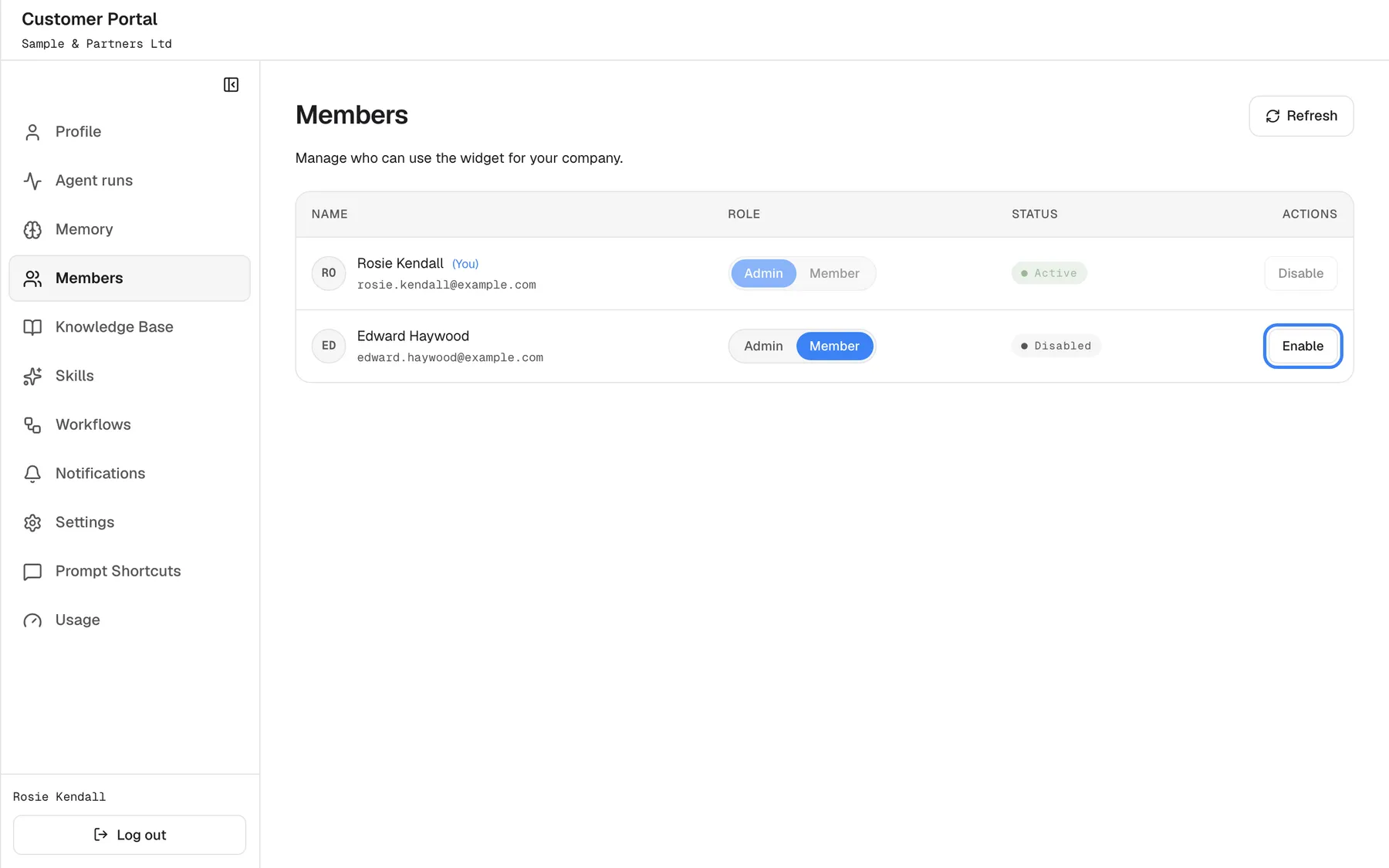
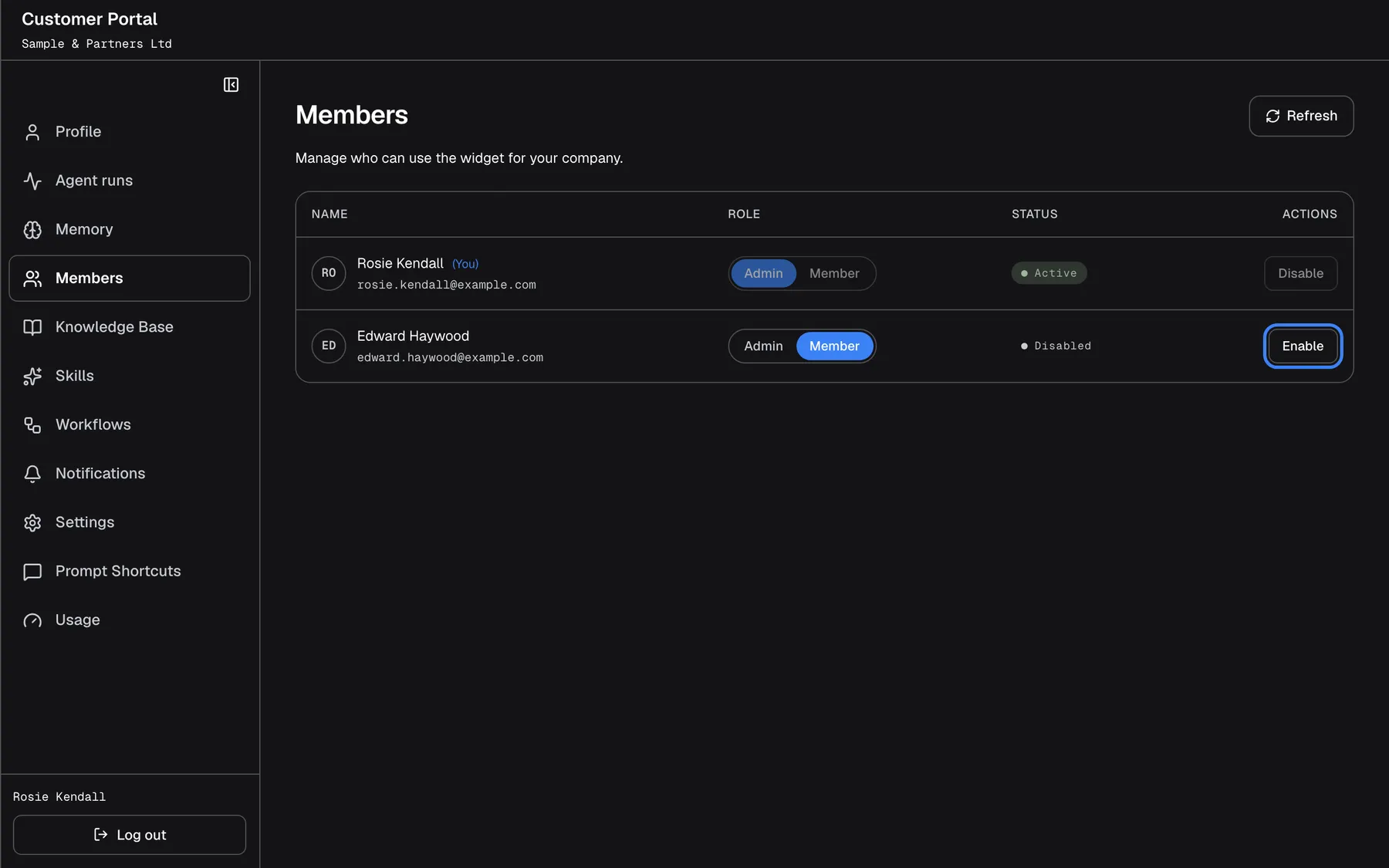
What this screenshot shows
- Screen
- Members (/?mode=portal)
- Highlighted
- button “Enable”, table-actions, enabled (member is disabled). restores access immediately
- Also visible
- Own row (portal.members.you) greyed out; roleAdmin / roleMember switch; active / disabled pills
- Purpose
- managing members
| Region | What it shows | What you do there |
|---|---|---|
| Heading | Members, Manage who can use the widget for your company. and Refresh | Reload the list |
| Name | Initials, the person’s name (or their customer ID when they have none), ”(You)” on your own row, and their email | Find the person |
| Role | Two buttons, Admin and Member; the current role is highlighted | Change the role |
| Status | Active or Disabled | Check whether the person can sign in |
| Actions | Disable or Enable | Switch access off or on |
The list is sorted by name and shows everyone at once; there is no search and no paging. On your own row, the role buttons and Disable are greyed out.
Change a person’s role
Section titled “Change a person’s role”-
Open ConfigureMembers and find the person.
-
In the Role column, select the role they should have: Admin or Member.
The change is saved at once, without a confirmation. The person keeps their old pages and permissions until they next sign in; after that, their portal menu matches the new role. If the change is urgent, ask them to sign out and in again.
| Role | What the person can do in the portal |
|---|---|
| Admin | Everything on this page, the company set-up pages your provider shows, editing prompt shortcuts, and every run of your company on Agent runs except other people’s personal workflows |
| Member | Their own Profile, Agent runs and Memory, plus Prompt Shortcuts (read only) and Usage when shown |
Your company always keeps at least one active Admin. Making the last active Admin a Member is refused with “Cannot demote the last Customer Admin in this customer company.” Make someone else an Admin first.
Example: Sample & Partners Ltd opened self-registration, and three colleagues joined as Members after Rosie, the finance lead, who was the first in the account and so its Admin. Rosie selects Admin for Edward, who runs the team’s workflows. From his next sign-in, he sees the pages for Admins.
Switch a person’s access off or on
Section titled “Switch a person’s access off or on”To switch access off, select Disable on the person’s row. There is no confirmation: the change happens with the click.
What disabling does:
- The person is signed out at once, on every device, and cannot sign in again. The assistant shows them Account unavailable.
- Their status changes to Disabled; they stay in the list.
- Their chats, notes and workflows are kept. Workflows they scheduled keep running. Only the person who created a workflow, or your provider, can see and stop it, so ask them to delete their schedules before you disable them, or ask your provider.
To switch access on again, select Enable. The status changes to Active and the person can sign in again; they are not signed back in automatically.
You cannot disable yourself (“You cannot disable your own account.”) or the last active Admin of your company (“Cannot disable the last active Customer Admin in this customer company.”).
Every control, explained
Section titled “Every control, explained”Each control below says where it is, what it does and why it is there, in screen order.
Refresh
Section titled “Refresh”The button Refresh at the top right.
Reloads the list. Use it after someone joins or after your provider changed a person.
The list is loaded when you open the page and does not update by itself.
Columns
Section titled “Columns”| Column | What it shows | Why |
|---|---|---|
| Name | Name or customer ID, ”(You)” on your own row, email underneath | Recognise each person |
| Role | The role switch, current role highlighted | Change roles in place |
| Status | Active or Disabled | See who can sign in |
| Actions | Disable or Enable | Switch access |
Role switch
Section titled “Role switch”In the Role column of each row: Admin and Member. Greyed out on your own row.
Saves the new role at once, without a confirmation. It applies at the person’s next sign-in. Refused for the last active Admin.
New people join as Members, except the first person in your company’s account, who starts as Admin; this is where you widen or narrow access to what each person needs.
Disable and Enable
Section titled “Disable and Enable”In the Actions column: Disable on an active person, Enable on a disabled one. Greyed out on your own row.
Disable signs the person out everywhere at once and blocks sign-in, without a confirmation; their data stays. Enable lets them sign in again. Refused for yourself and for the last active Admin.
When someone leaves your company, their access to your company’s assistant should end the same day.
What you need to know
Section titled “What you need to know”| Topic | Fact |
|---|---|
| No invitations | The portal cannot add people. They join when your provider’s product signs them in under your company, when your provider adds them, or through your company’s registration link when self-registration is on under Settings |
| New people are Members | Anyone who joins your company’s account through the registration link starts as Member; only the first person in the account starts as Admin |
| No deleting | People cannot be removed from the list; disable them instead |
| Role changes | Saved at once; applied at the person’s next sign-in |
| Disabling | Immediate sign-out on every device; chats, notes and workflows kept; scheduled workflows keep running |
| What you cannot see | Other members’ chats and notes |
Frequently asked questions
Section titled “Frequently asked questions”Adding and removing people
Section titled “Adding and removing people”How do I add a colleague?
Section titled “How do I add a colleague?”The portal has no invite button. A colleague joins when your provider’s product signs them in under your company, when your provider adds them, or when they register with your company’s registration link while self-registration is on under ConfigureSettings. Your provider gives you that link.
Which role does a new colleague get?
Section titled “Which role does a new colleague get?”Everyone who joins your company’s account through its registration link starts as a Member; only the first person in the account starts as an Admin. To let someone manage the company too, select Admin on their row under ConfigureMembers.
Can I delete a member?
Section titled “Can I delete a member?”No. People stay in the list under ConfigureMembers. Select Disable to end their access; they then show as Disabled. Disabling ends their access while keeping their history.
Why does the list show an ID instead of a name?
Section titled “Why does the list show an ID instead of a name?”The person has no name on their profile, so the list under ConfigureMembers shows their customer ID. They can add a name themselves under ConfigureProfile.
I made someone an Admin, but they still don’t see the admin pages. Why?
Section titled “I made someone an Admin, but they still don’t see the admin pages. Why?”A role change applies at the person’s next sign-in. Ask them to select Log out at the bottom of the portal menu and sign in again; their menu then shows the pages for Admins.
Why can’t I change my own role or disable myself?
Section titled “Why can’t I change my own role or disable myself?”Your own row on ConfigureMembers is greyed out, so nobody locks themselves out by accident. Another Admin of your company, or your provider, can change your role or access.
Why can’t I make the last Admin a Member?
Section titled “Why can’t I make the last Admin a Member?”Your company must always keep at least one active Admin, otherwise nobody could manage it. The change is refused with “Cannot demote the last Customer Admin in this customer company.” Make another person an Admin first, then change the role.
Is there a confirmation before a change?
Section titled “Is there a confirmation before a change?”No. Role changes, Disable and Enable on ConfigureMembers take effect with the click. If you clicked by mistake, select the previous role or the opposite action straight away.
Access
Section titled “Access”What happens when I disable someone?
Section titled “What happens when I disable someone?”They are signed out at once on every device and cannot sign in again; the assistant shows them Account unavailable. Their chats, notes and workflows are kept, and they stay in the list on ConfigureMembers as Disabled.
Does disabling someone stop their workflows?
Section titled “Does disabling someone stop their workflows?”No. Workflows the person scheduled keep running after you select Disable. Workflows are visible only to the Admin who created them, so ask the person to delete their schedules first, or ask your provider to stop the workflows.
Can I see a member’s chats or notes?
Section titled “Can I see a member’s chats or notes?”No. ConfigureMembers shows name, email, role and status only. As an Admin you see your company’s background runs on ConfigureAgent runs, but not other people’s chats or the notes the assistant keeps about them.
Why does the page say my account is not associated with a company?
Section titled “Why does the page say my account is not associated with a company?”Your account is not linked to a customer company, so there is nobody to manage. The page shows a message to that effect instead of the list. Contact your provider and ask them to assign your account to your company.
Troubleshooting
Section titled “Troubleshooting”| Symptom | What to check |
|---|---|
| “Cannot demote the last Customer Admin in this customer company.” | Make another person an Admin first. |
| “Cannot disable the last active Customer Admin in this customer company.” | Make another active person an Admin first. |
| “You cannot disable your own account.” | Ask another Admin of your company, or your provider. |
| “Request failed (403)” | You are no longer an Admin. Sign out and in again; the page then leaves your menu. |
| “Member not found in this customer company.” | The person was moved to another company. Select Refresh. |
| “Customer company is deactivated.” | Your provider has switched off your company’s access. Contact your provider. |
| The page says your account is not associated with a company | Your account has no company. Contact your provider. |
| Something went wrong. Please try again. | The connection dropped. Select Refresh and try again. |