

Connect your account to the assistant
Some of the services the assistant uses for you act as you: they show only your records and allow only what you are allowed to do. For those, the assistant needs your own login or key for that service. It asks once, on a screen that appears in place of the chat, saves what you enter for your account, and uses it whenever it calls that service for you. This page explains that screen, what happens if you skip it, what to do when your saved details stop working, and how to remove them. If your provider supplies the login itself, or its services need none, you never see this screen.
What you can do here
Section titled “What you can do here”- Give the assistant your login for a service. Fill in the fields the service asks for, once; the assistant then acts in that service as you. Enter your details.
- Find out why it is asked and where to get the details. A short explanation and, if your provider set one up, a link to instructions. Why and where to get the details.
- Skip a service. Chat without it; the assistant then cannot use that service for you. Skip a service.
- Update details that stopped working. After 3 rejected attempts in a row, the assistant asks again. When your saved details stop working.
- Remove or add details later. The chat history lists each service with a way to log out or authenticate. Manage your saved details.
The screen at a glance
Section titled “The screen at a glance”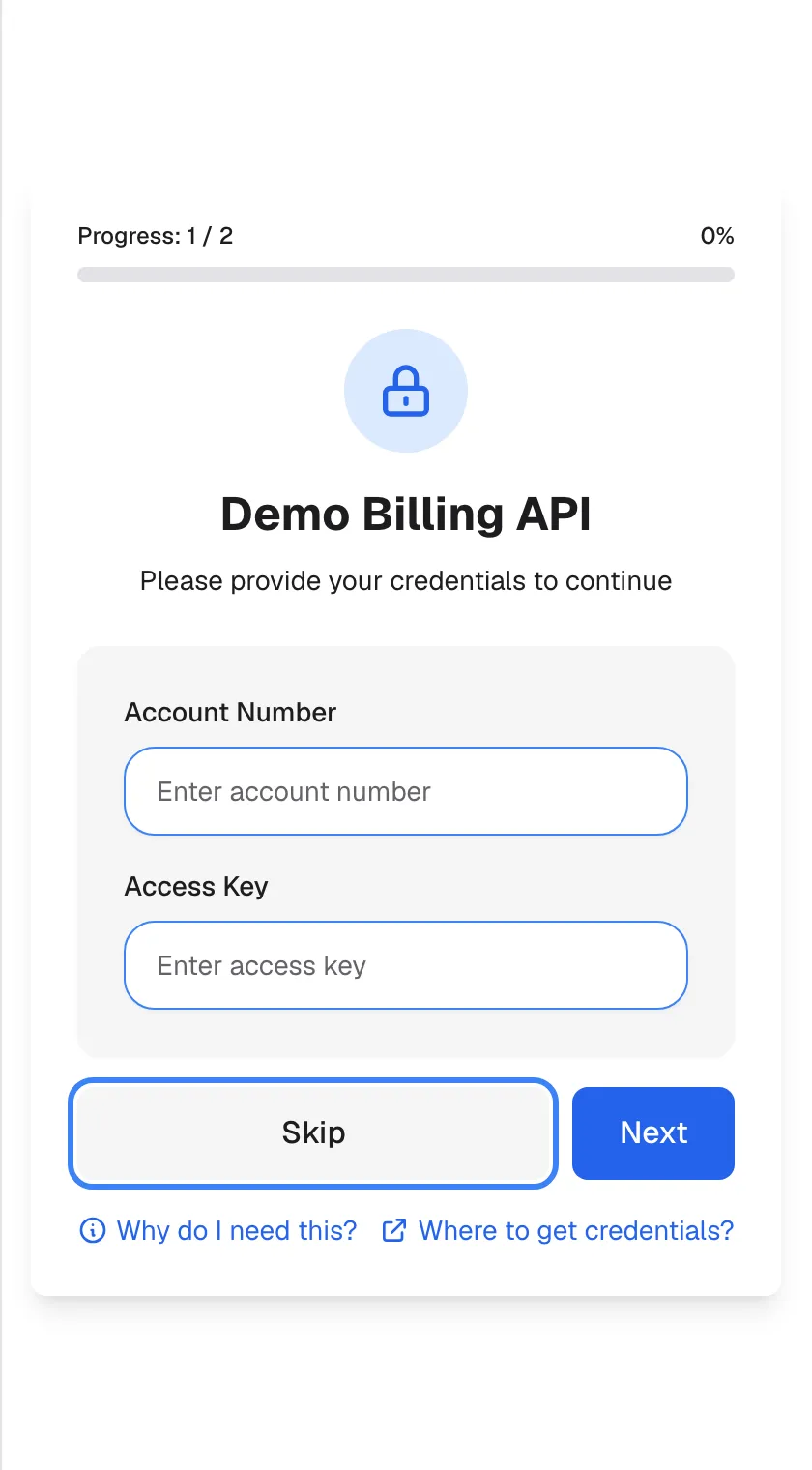
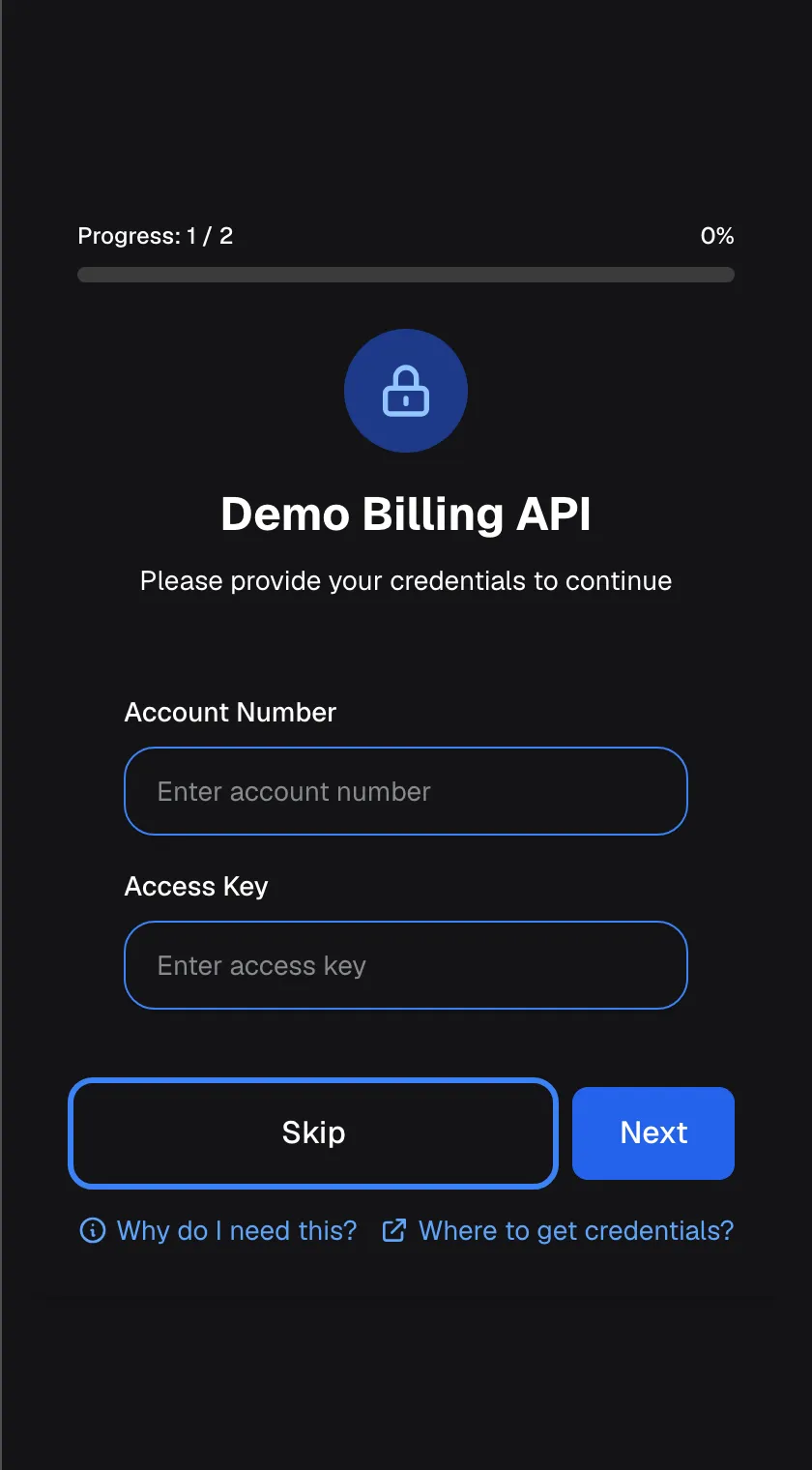
What this screenshot shows
- Screen
- Please provide your credentials to continue (/?applicationToken=…)
- Highlighted
- button “Skip”, wizard-buttons, enabled. skips this service in this browser
- Also visible
- widget.authorization.progress 1 / 2, service name, two provider-defined fields; widget.authorization.whyNeedThis, widget.authorization.howToGetCredentials
- Purpose
- the credentials wizard
| Region | What it shows | What you do there |
|---|---|---|
| Progress (only with 2 or more services) | Progress with the current number of services, and a bar | See how many services are left |
| Heading | The service’s name as your provider named it, and Please provide your credentials to continue | Check which service is asking |
| Fields | The details this service needs, such as an account number and an access key | Type your details |
| Buttons | Skip and Next (on the last service Complete) | Save or skip |
| Links | Why do I need this? and, if your provider set one up, Where to get credentials? | Read why, or open instructions |
Enter your details
Section titled “Enter your details”-
When the screen appears, check the service’s name in the heading. In the screenshots, it is “Demo Billing API”.
-
Fill in every field. The fields depend on the service: a user name and password, or fields your provider named, such as “Account Number” and “Access Key”. Every field is required. Fields whose name contains “password” show dots.
-
Select Next, or Complete on the last service. The button shows Saving... while the details are saved.
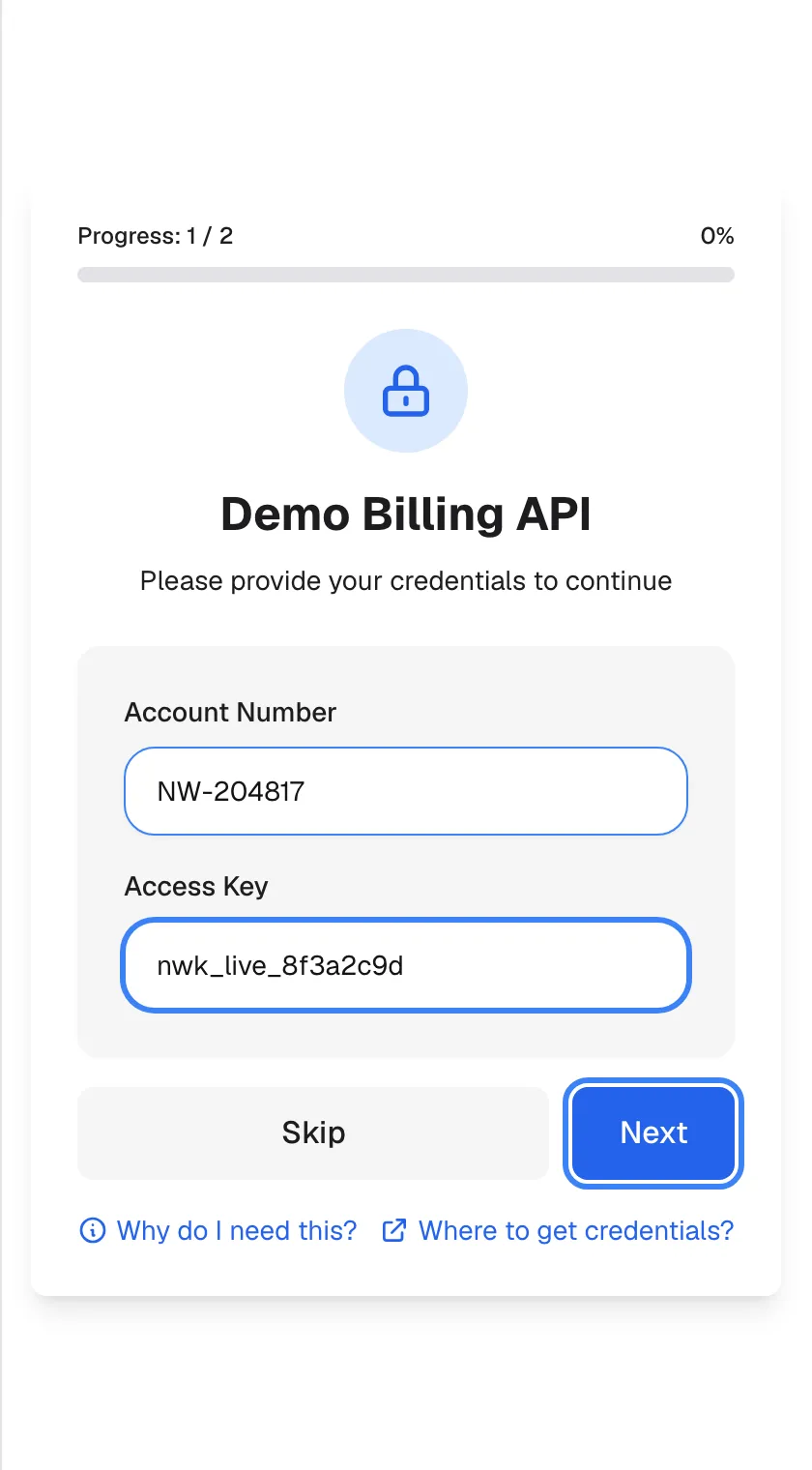
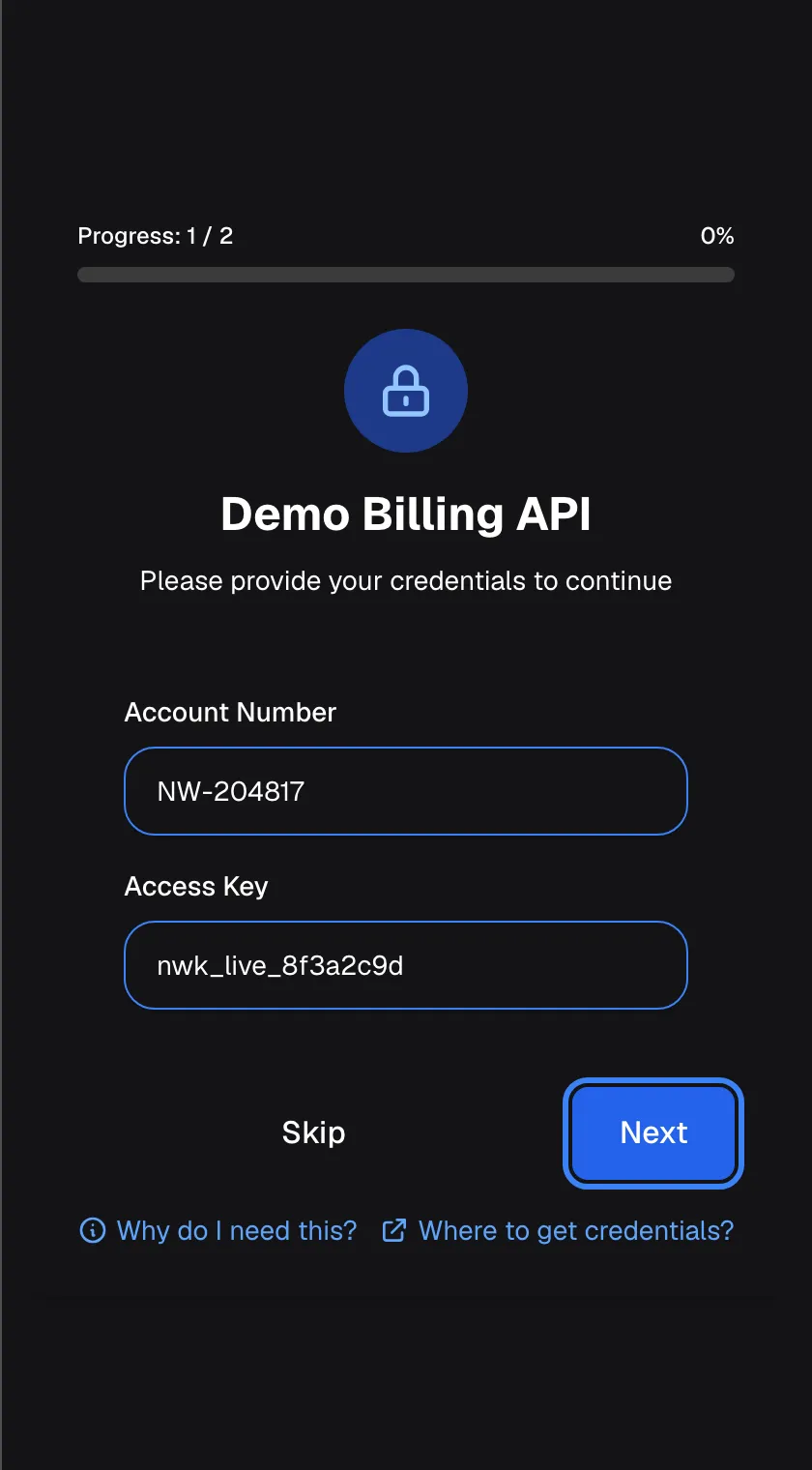
Enter the details the service asks for and continue; the last service ends with Complete. What this screenshot shows
- Screen
- Please provide your credentials to continue (/?applicationToken=…)
- Highlighted
- button “Next”, wizard-buttons, enabled (fields filled). saves the credentials and shows the next service
- Also visible
- Account Number NW-204817, Access Key nwk_live_8f3a2c9d
- Purpose
- filling in credentials
-
Repeat for each further service. After the last one, the chat opens.
Most services do not check your details when you save them. A typing mistake shows up later, when an action in that service fails. Some services do check straight away and refuse wrong details with “Failed to authorize. Please verify your input values are correct.”.
Why and where to get the details
Section titled “Why and where to get the details”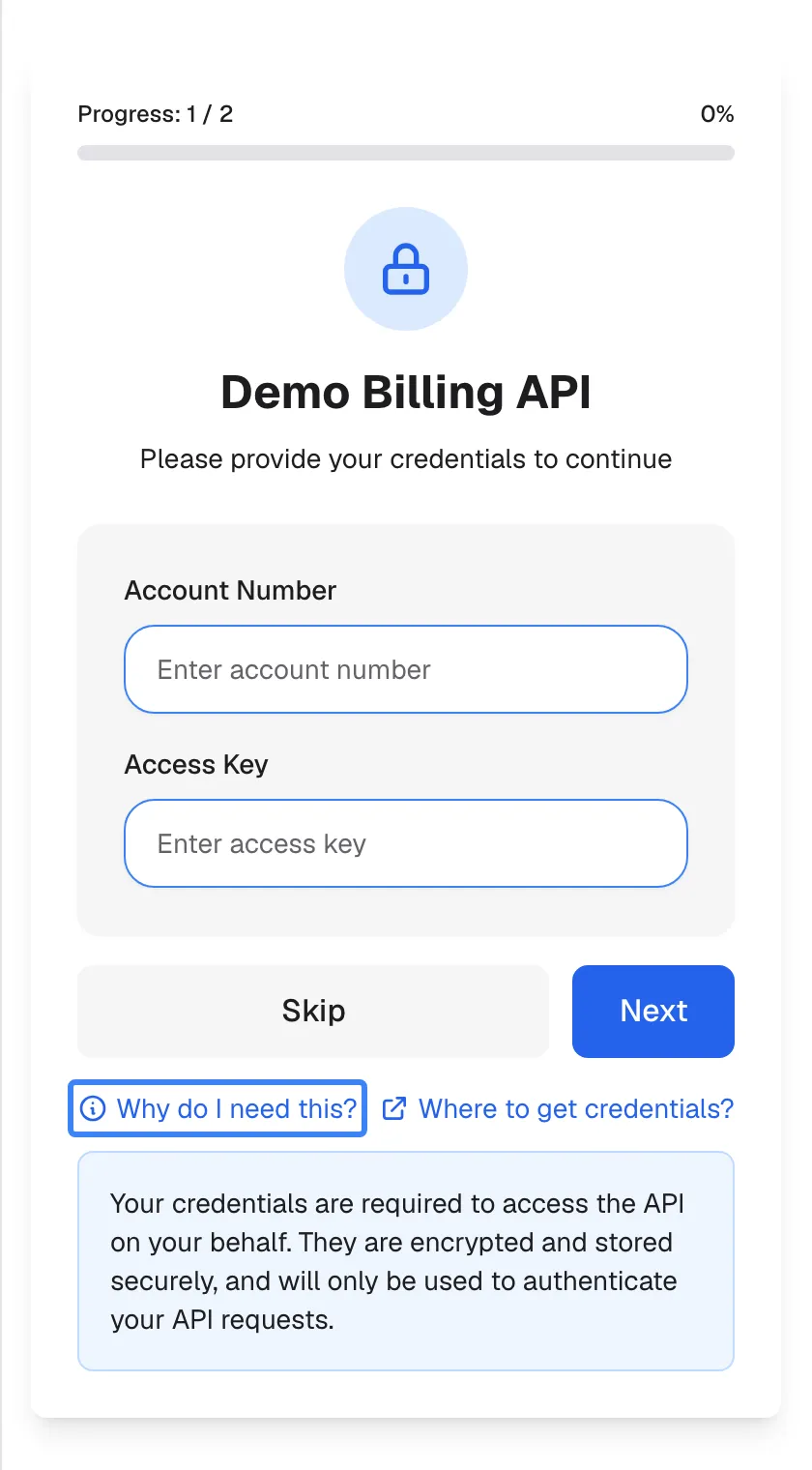
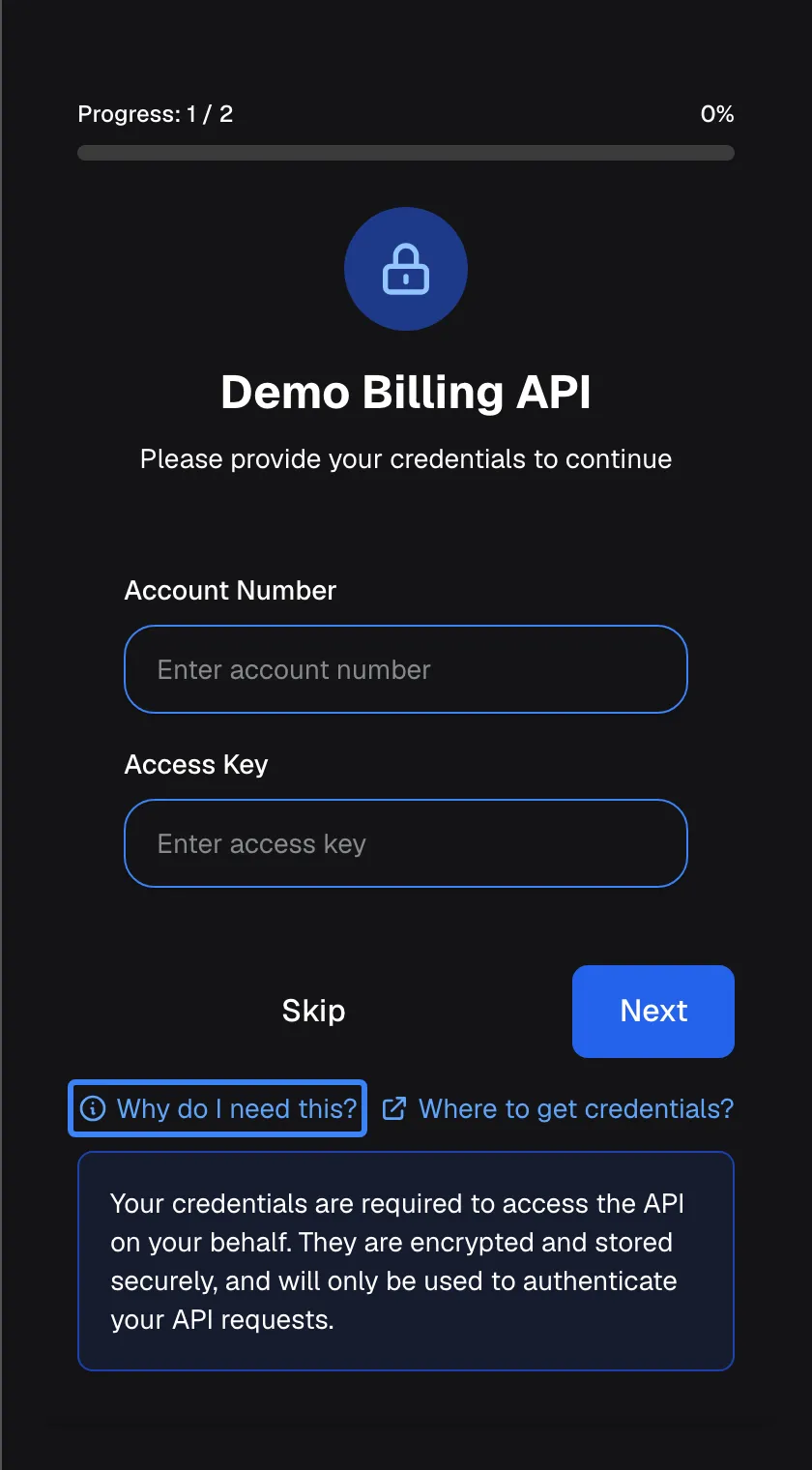
What this screenshot shows
- Screen
- Your credentials are required to access the API on your behalf. They are encrypted and stored securely, and will only be used to authenticate your API requests. (/?applicationToken=…)
- Highlighted
- “Why do I need this?”, wizard-links, expanded. toggles the explanation
- Also visible
- widget.authorization.infoNote
- Purpose
- why credentials are needed
Select Why do I need this? to open a short note under the links. It explains that the assistant needs these details to access the service on your behalf and uses them only for your requests to it. Select the link again to close the note.
Your details are saved encrypted for your account. They are decrypted only when the assistant uses that service for you, and they are never shown back to you in full.
If your provider has published instructions, the link Where to get credentials? opens them in a new tab. Without it, ask your provider, or look in the service’s own settings for an access key or API key.
Skip a service
Section titled “Skip a service”Select Skip to continue without entering details for that service. The assistant moves to the next service or opens the chat.
- The assistant cannot use that service for you. If you ask for something that needs it, the assistant may say it cannot access it.
- Your choice is remembered in this browser only. On another browser or device, the screen appears again.
- To connect the service later, open the chat history and use Authenticate on that service.
When your saved details stop working
Section titled “When your saved details stop working”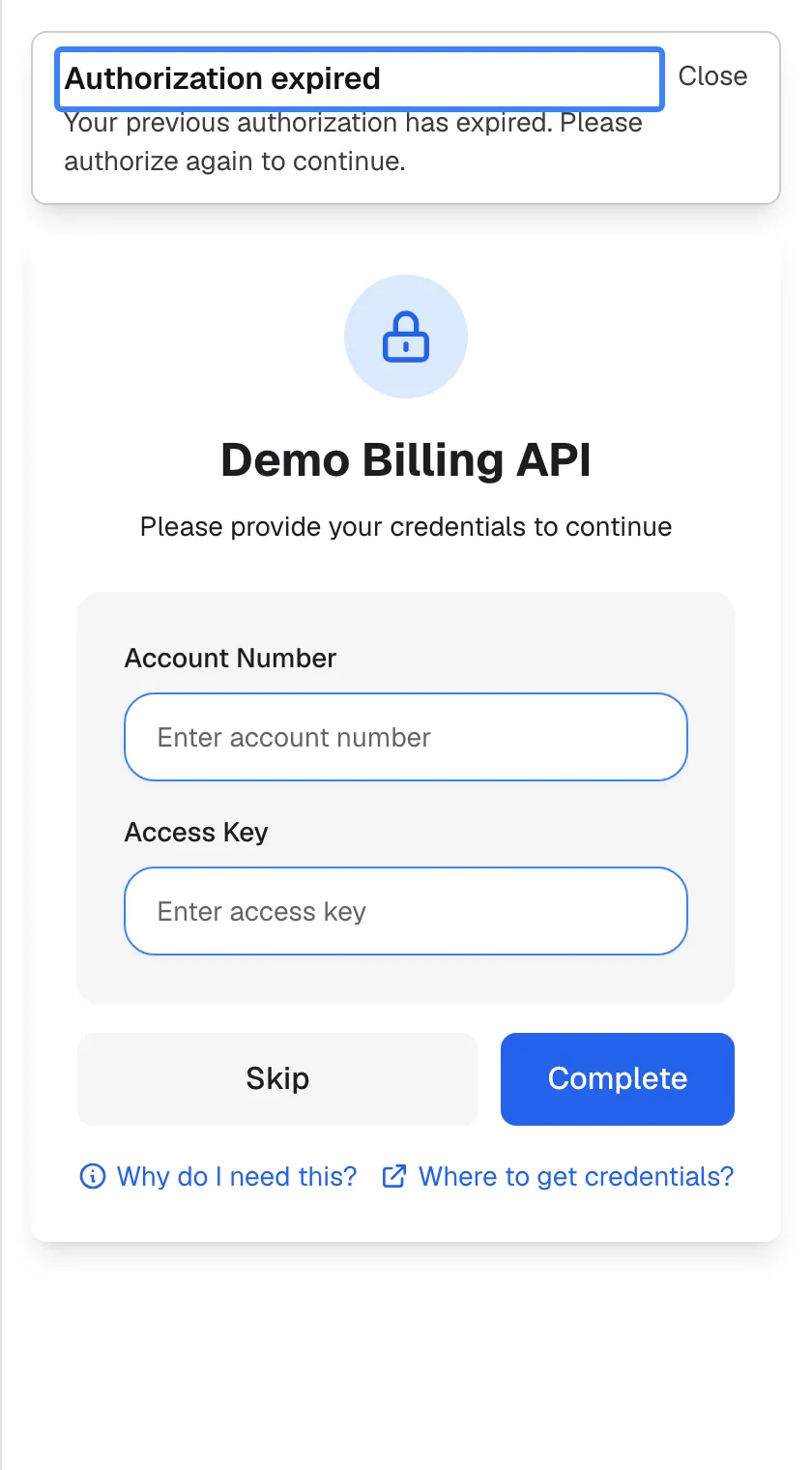
What this screenshot shows
- Screen
- Authorization expired (/?applicationToken=…)
- Highlighted
- “Authorization expired”, top-banner, shown after repeated authentication failures. none; re-enter the credentials or close the banner
- Also visible
- widget.authorization.expiredMessageGeneric (no service name); widget.authorization.complete
- Purpose
- authorization expired
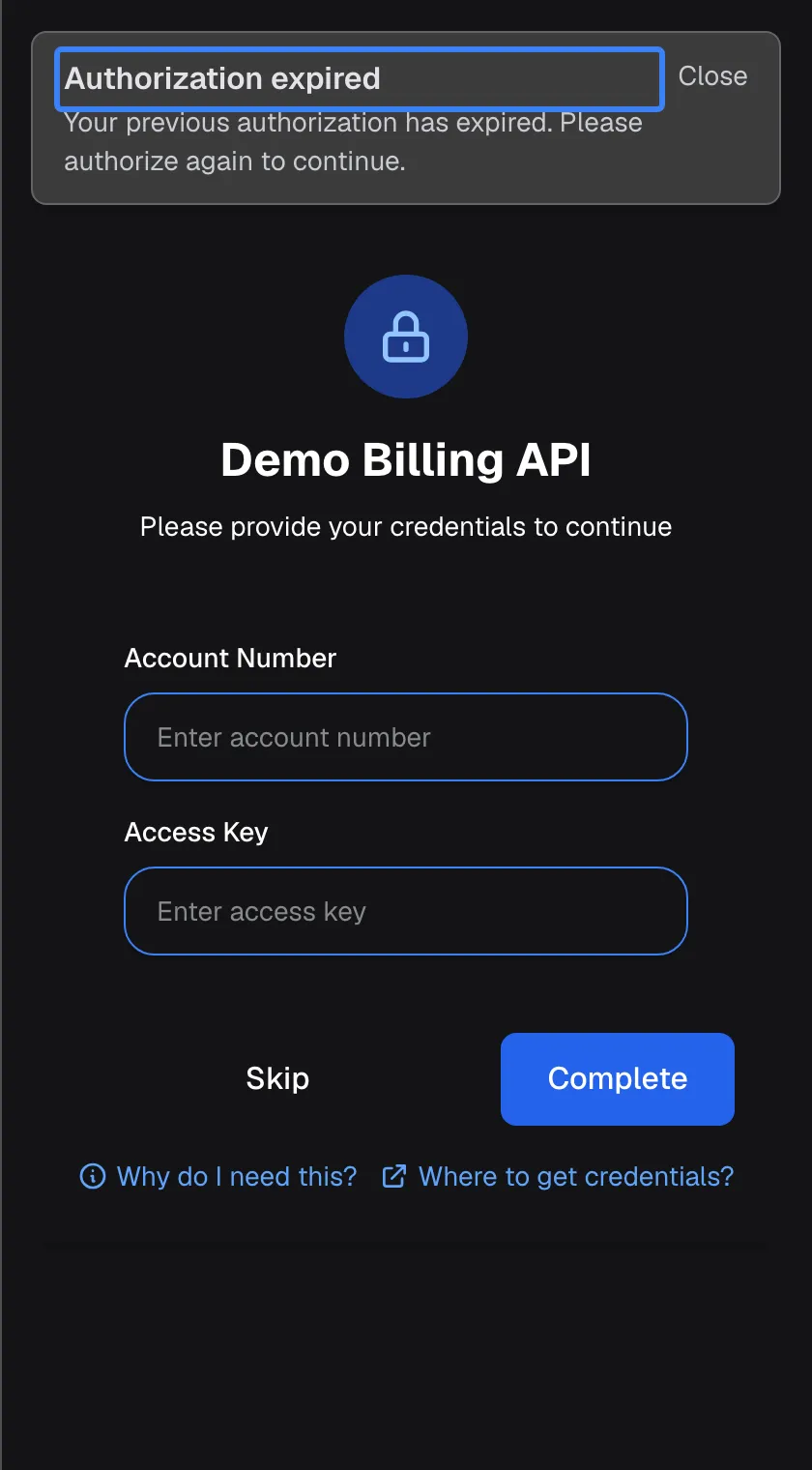
If the service rejects your saved details three times in a row, for example because you changed your password or revoked a key, the assistant removes them and shows the screen again, with a banner Authorization expired and the text Your previous authorization has expired. Please authorize again to continue.. The banner may not name the service; the form below it does.
Enter your current details and select Complete, or close the banner with Close and decide later. Actions that failed before do not run again by themselves; ask the assistant to try again.
Manage your saved details
Section titled “Manage your saved details”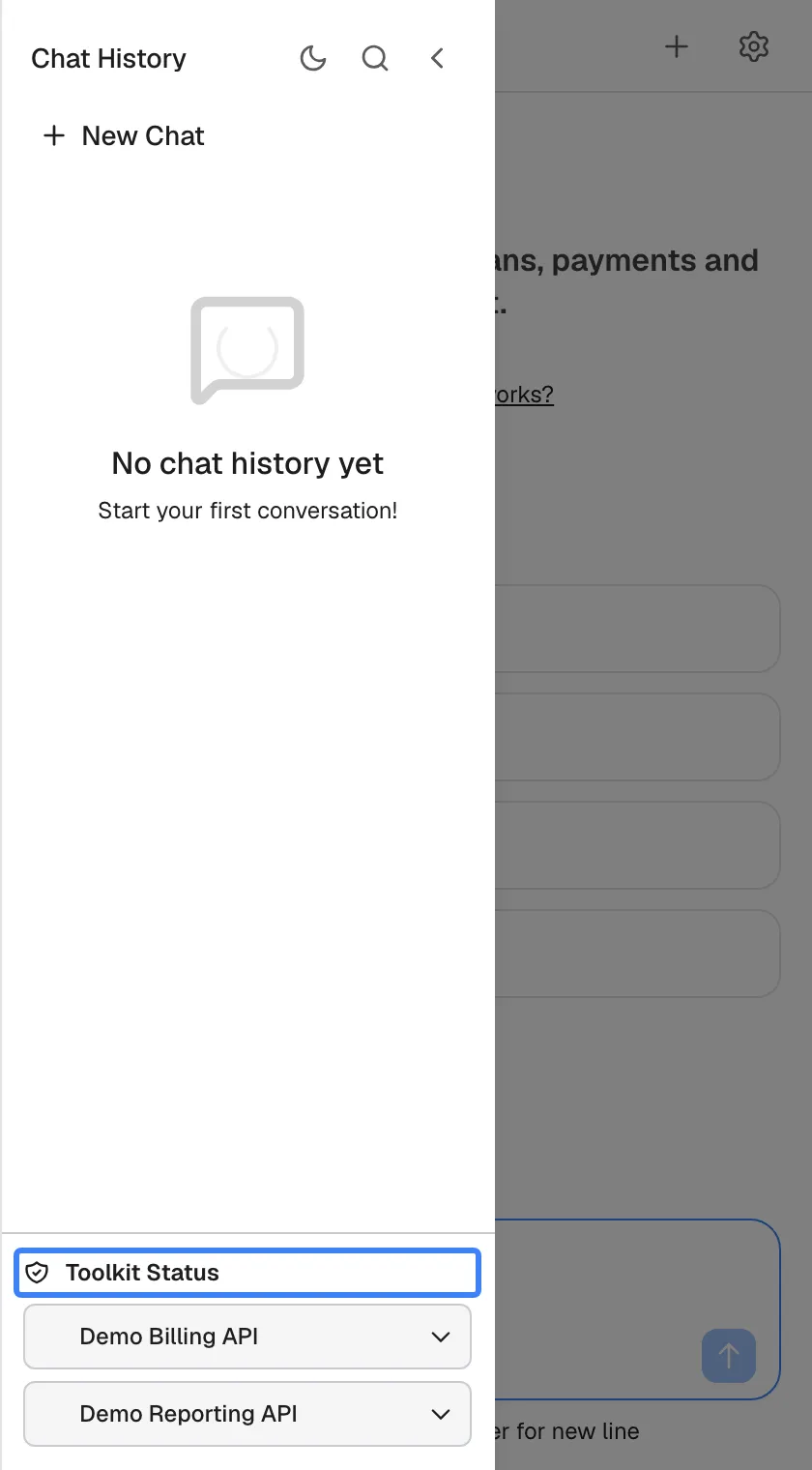
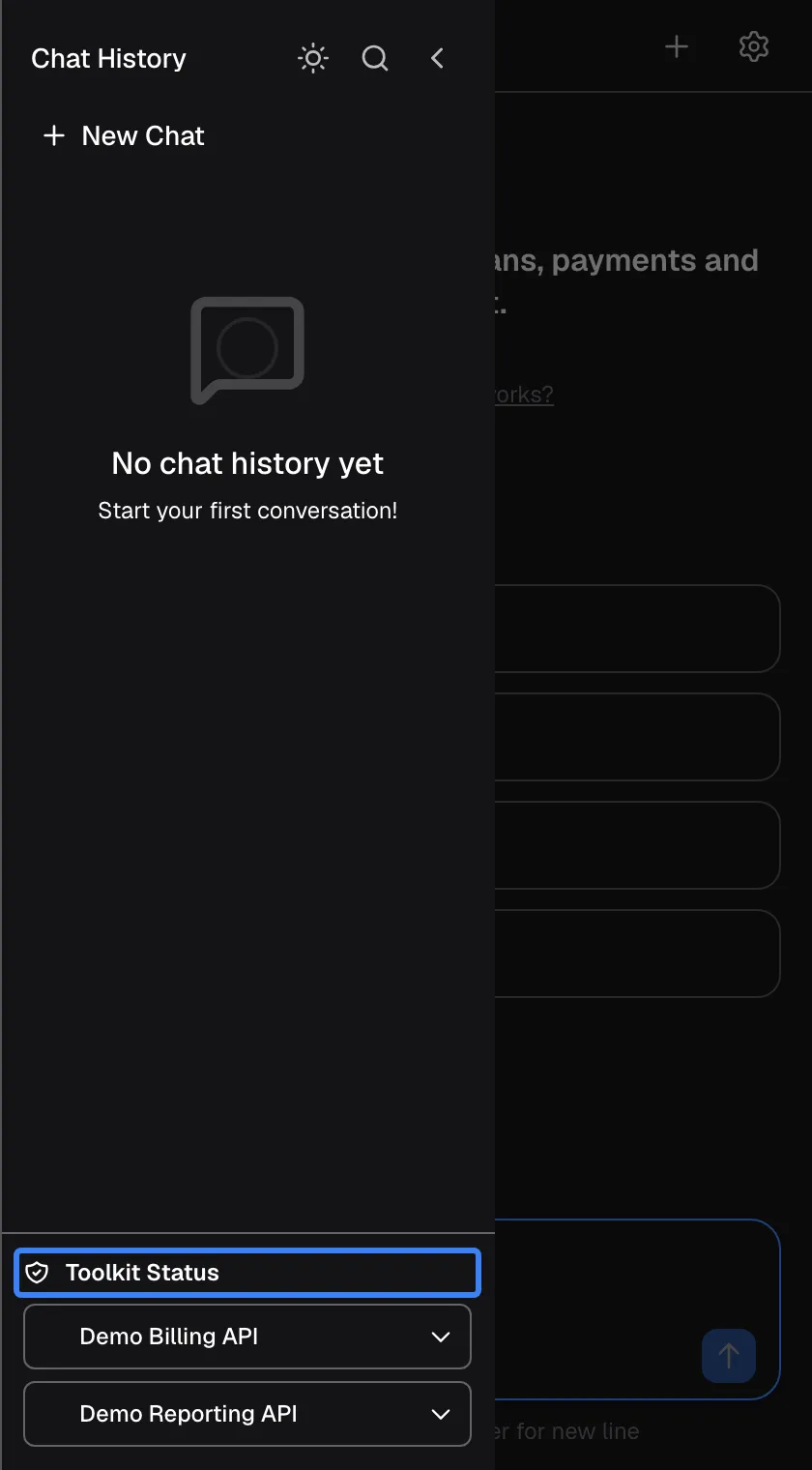
What this screenshot shows
- Screen
- Chat History (/?applicationToken=…)
- Highlighted
- “Toolkit Status”, sidebar-bottom, two services, not authorised. rows expand to widget.authorization.authenticate / widget.authorization.logout
- Also visible
- History sidebar with the services panel
- Purpose
- managing saved credentials
At the bottom of the chat history (open it with the menu icon in the top bar) is a panel titled Toolkit Status, with one row per service the assistant can use. A green check means your details are saved. Expand a row to:
| Button | When | What it does |
|---|---|---|
| Logout | Your details for that service are saved | Deletes your saved details; the assistant can no longer use the service for you until you enter them again |
| Authenticate | No details are saved, or you skipped the service | Opens the screen for that service again |
Services that need no details from you also appear in the panel, shown as connected.
Every control, explained
Section titled “Every control, explained”The credentials screen and the panel in the chat history have these controls, in screen order.
Progress
Section titled “Progress”At the top of the screen, only when two or more services need your details.
Progress shows which service you are on out of how many, with a bar that fills as you go.
You know how many services are left before the chat opens.
Detail fields
Section titled “Detail fields”Under the service’s name. Their labels come from the service: Username and Password, or names your provider chose, such as “Account Number”, with a hint such as “Enter account number” in English.
Every field is required. An empty field stops the save with Please fill in all fields, Please fill in all required fields or a message naming the field. Password fields show dots.
The service needs all of them to recognise you.
The left button under the fields, Skip.
Moves on without saving anything for this service. Remembered in this browser; the assistant cannot use the service for you.
You may not have the details at hand, or not need that service at all.
Next and Complete
Section titled “Next and Complete”The right button under the fields: Next while more services follow, Complete on the last.
Saves your details for this service and moves on; on the last service it opens the chat. If saving fails, the reason appears under the fields, for example Failed to save authorization.
Each service is saved as soon as you finish it, so nothing is lost if you stop halfway.
Why do I need this?
Section titled “Why do I need this?”The first link under the buttons, Why do I need this?.
Shows or hides a short note on why the assistant asks for these details and what it uses them for.
You should know why a login is needed before you give it.
Where to get credentials?
Section titled “Where to get credentials?”The second link under the buttons, Where to get credentials?, only when your provider has published instructions.
Opens your provider’s instructions in a new tab.
Access keys are often hidden deep in a service’s settings; the instructions take you there.
Authorization expired banner
Section titled “Authorization expired banner”At the top of the credentials screen, when it reopens because saved details stopped working.
Shows Authorization expired and Your previous authorization has expired. Please authorize again to continue.. Close hides the banner.
It tells you why the screen appeared again in the middle of a chat.
Logout and Authenticate
Section titled “Logout and Authenticate”In the chat history, in the Toolkit Status panel at the bottom, after expanding a service’s row.
Logout deletes your saved details for that service (it shows Logging out... while working). Authenticate opens the credentials screen for a service with no saved details.
You stay in control of which services the assistant can use as you.
Who sees what
Section titled “Who sees what”| What | When |
|---|---|
| The credentials screen | A service your provider connected acts as you, you have no saved details for it, and you have not skipped it in this browser |
| No screen for a service | The service needs no details from you, or your provider supplies them itself |
| Where to get credentials? | Your provider has published instructions for that service |
| The Toolkit Status panel | At least one service the assistant uses has a login |
What you need to know
Section titled “What you need to know”| Topic | Fact |
|---|---|
| When asked | Once per service, when you have no saved details and have not skipped it in this browser |
| Required fields | All of them |
| Checking | Most services do not check your details when saved; mistakes show when an action fails |
| Skipping | Remembered in this browser only; the assistant cannot use the service for you |
| Saved for | Your account, not one browser |
| Used for | Only the assistant’s requests to that service on your behalf |
| Expiry | After 3 rejected attempts in a row, the details are removed and you are asked again |
| Removing | Logout in the chat history panel |
Frequently asked questions
Section titled “Frequently asked questions”Giving your details
Section titled “Giving your details”Why does the assistant ask for my login to another service?
Section titled “Why does the assistant ask for my login to another service?”That service acts as you, so the assistant needs your own login or key to show your records and do what you are allowed to do there. The assistant asks once, saves your details for your account, and uses them only for its requests to that service on your behalf.
Where do I find my access key?
Section titled “Where do I find my access key?”If your provider has published instructions, select Where to get credentials? under the buttons to open them. Otherwise look in the service’s own settings for an access key or API key, or ask your provider which details the assistant needs.
What happens if I type a wrong password?
Section titled “What happens if I type a wrong password?”Most services do not check your details when you save them, so the mistake shows up later as failing actions. After three rejected attempts in a row, the assistant removes the saved details and asks you again with Authorization expired.
Why didn’t the assistant ask me for a login at all?
Section titled “Why didn’t the assistant ask me for a login at all?”Either the services your provider connected need no login from you, or your provider supplies the login itself, for example through its own product. In both cases the chat opens directly.
Skipping
Section titled “Skipping”Can I skip this screen?
Section titled “Can I skip this screen?”Yes. Select Skip and the assistant moves on. It then cannot use that service for you, so requests that need it will not work. To connect it later, open the chat history and use Authenticate on that service.
I skipped a service. Why am I asked again on another computer?
Section titled “I skipped a service. Why am I asked again on another computer?”Skipping is remembered only in the browser where you skipped. On another browser or device the assistant does not know you skipped, so it shows the screen again. Skip it there too, or enter your details.
Managing
Section titled “Managing”How do I remove my saved details?
Section titled “How do I remove my saved details?”Open the chat history with the menu icon, then expand the service in the Toolkit Status panel at the bottom and select Logout. Your saved details for that service are deleted, and the assistant cannot use it for you until you enter them again.
Do I have to enter my details again on another device?
Section titled “Do I have to enter my details again on another device?”Your saved details belong to your account rather than to one browser. Wherever the assistant has you signed in to the same account, it can use them without asking again. Only a skip is limited to the browser where you made it.
Why does it say “Authorization expired”?
Section titled “Why does it say “Authorization expired”?”The service rejected your saved details three times in a row, usually because a password changed or a key was revoked. The assistant removed them so it stops failing. Enter your current details on the screen to continue.
How can I see which services I have connected?
Section titled “How can I see which services I have connected?”Open the chat history with the menu icon and look at the Toolkit Status panel at the bottom. Each service the assistant can use has a row; a green check means your details for it are saved, or that the service needs none from you.
Troubleshooting
Section titled “Troubleshooting”| Symptom | What to check |
|---|---|
| Please fill in all fields or a message naming a field | Every field is required. Fill in the empty one. |
| “Failed to authorize. Please verify your input values are correct.” | The service rejected the details. Check them against the service, or use Where to get credentials?. |
| Failed to save authorization | The connection dropped while saving. Retry in a moment. |
| The assistant says it cannot access a service | You skipped it. Open the chat history and use Authenticate on that service. |
| Authorization expired in the middle of a chat | Your saved details stopped working. Enter your current ones. |
| The screen appears every time on a shared computer | Skipping is remembered per browser; if the browser clears site data, it is forgotten. Enter your details or skip again. |
| Actions in a service keep failing after you saved details | The details may be wrong; most services do not check them on save. Remove them with Logout in the chat history, then enter them again. |